Introduction :
PDF is widely used owing to its ability to maintain the fixed layout and original formatting. You need to use a delicate PDF editor to edit PDF files. Sometimes, you may need to add text to a PDF. Are you bothered by the problem of adding text to a PDF? This JOPDF can solve your problem. Read the following content to find out how to add text to a PDF on Windows, Mac, iPhone/Android, and online.
How to Add Text to a PDF on Windows
In the first section, I’d like to introduce you to JOPDF (a new star as a PDF editor) and Adobe Acrobat (a veteran as a PDF editor), and show you how to use them to add text to a PDF file on a Windows PC. Let’s have a look.
#JOPDF (Most Recommended)
Why I recommend JOPDF to insert text into PDFs? First, I have no budget to pay for any subscription. JOPDF is a 100% free PDF editor without a login or watermark. This is why I chose it from various PDF editors. I tried it out on a whim. To my surprise, JOPDF works exceptionally well in editing PDFs with limited but useful features.
JOPDF supports editing text, adding text boxes, editing images, inserting images, and adding hyperlinks in the PDF file. With its intuitive and user-friendly interface, I can easily master how to use it to edit and add text to PDFs.

Highlights of JOPDF:
- View PDF files in different modes for a better viewing experience.
- Provide various annotation tools for PDFs, such as a highlighter, drawing pencil, typewriter, and shapes.
- Add and edit images in PDF files.
- Add, edit, and remove hyperlinks in PDFs.
- Rearrange PDF pages.
- Insert and remove PDF pages.
- Encrypt and decrypt PDFs.
- Free trial is available!
Here, I’ll show you the exact steps to edit and add text to a PDF document with JOPDF.
Step 1. Hit the button below to download this lightweight PDF editor and install it on your Windows PC.
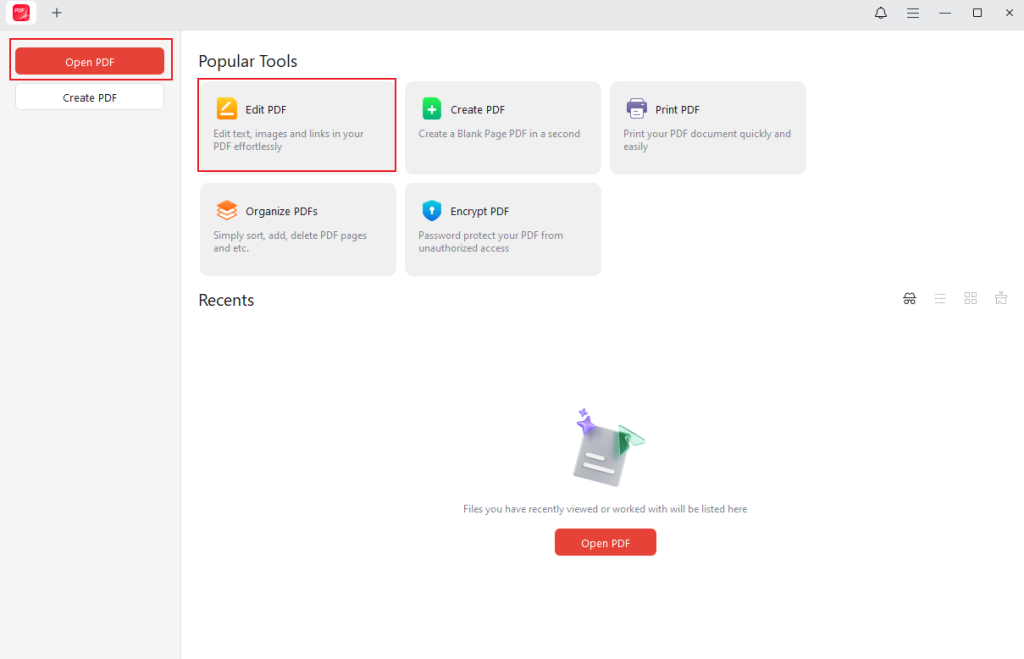
Step 2. Launch JOPDF. Click the Edit PDF option, locate the target PDF file, and click Open to import the PDF file into JOPDF for editing. Alternatively, you can click the Open PDF button to import the target PDF document and switch to the Edit tab.
Step 3. Then, this PDF file is editable in JOPDF. You can move the cursor with a T icon to any word or sentence where you want to edit the text. You can add or remove certain letters, words, or punctuation marks from the original word or sentence.
How to add text to the blank space in the PDF? Click the Add Text option to add a text box to the PDF. Then, you can type in content in this text box. Next, you can select all the typed text, and a menu for text settings will appear. You can change the text font, color, and size, bold/italicize/underline/strikethrough the text, adjust line spacing, paragraph spacing, character spacing, etc.
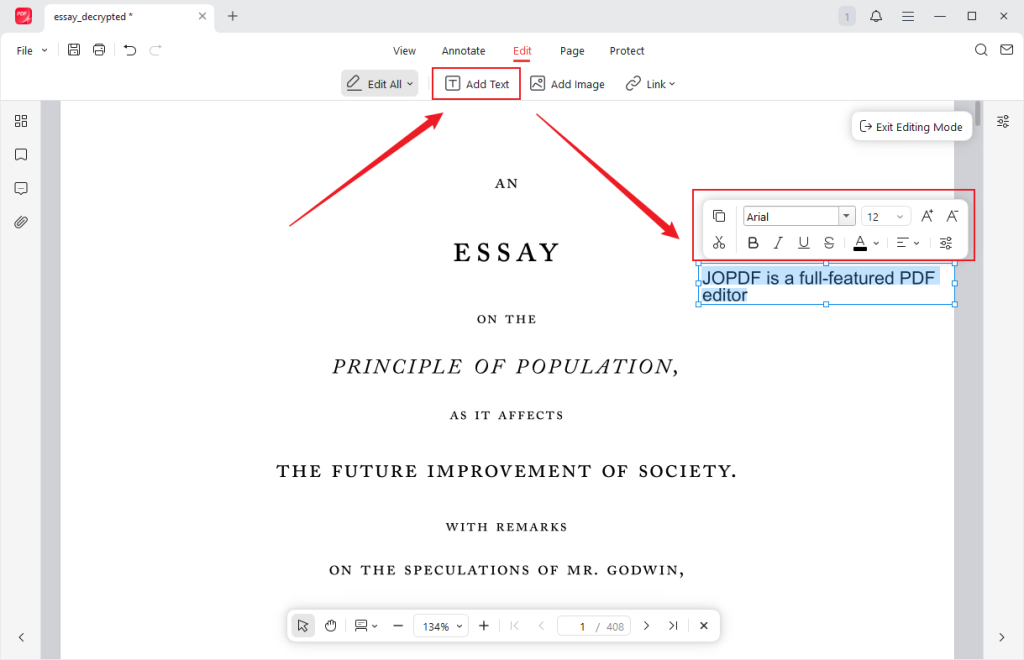
Step 4. Based on your needs, you can refine the PDF file with other features of JOPDF. Once done, click the File tab and select the Save option. Also, you can choose the Save As option from the File menu.
#Adobe Acrobat
Without a doubt, Adobe Acrobat is the leader among PDF editors. Once you have sufficient budget for the subscription and are willing to invest the time to learn how to use it, Adobe Acrobat will be your optimal choice. It is an all-in-one PDF program that comes with a wide range of features for PDFs, ranging from editing/adding text, creating PDFs, and combining PDFs to enhancing scans and applying PDF standards. Here, I only show you how to add text to PDF in Adobe Acrobat Pro.
Step 1. Download Adobe Acrobat from its official website, install it on your Windows computer, launch the program, and log in with your Pro account.
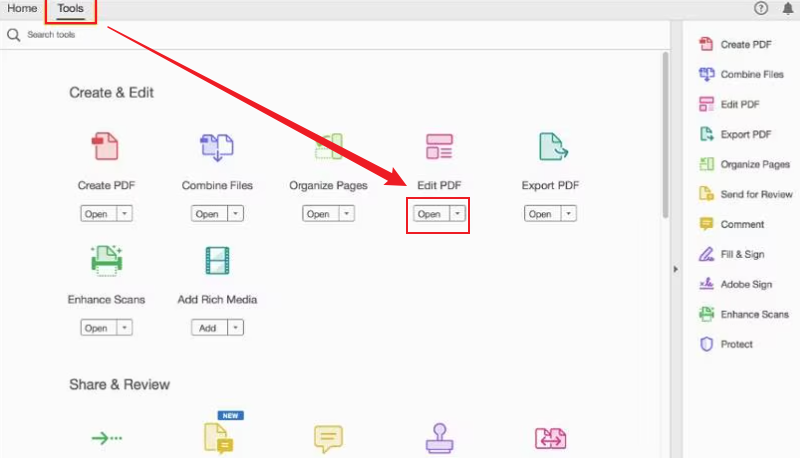
Step 2. Go to the Tools tab and click the Open button under the Edit PDF option to import the PDF you want to add text to. The imported PDF will be editable even if it is a scanned PDF, since Adobe Acrobat Pro will automatically OCR the PDF file.
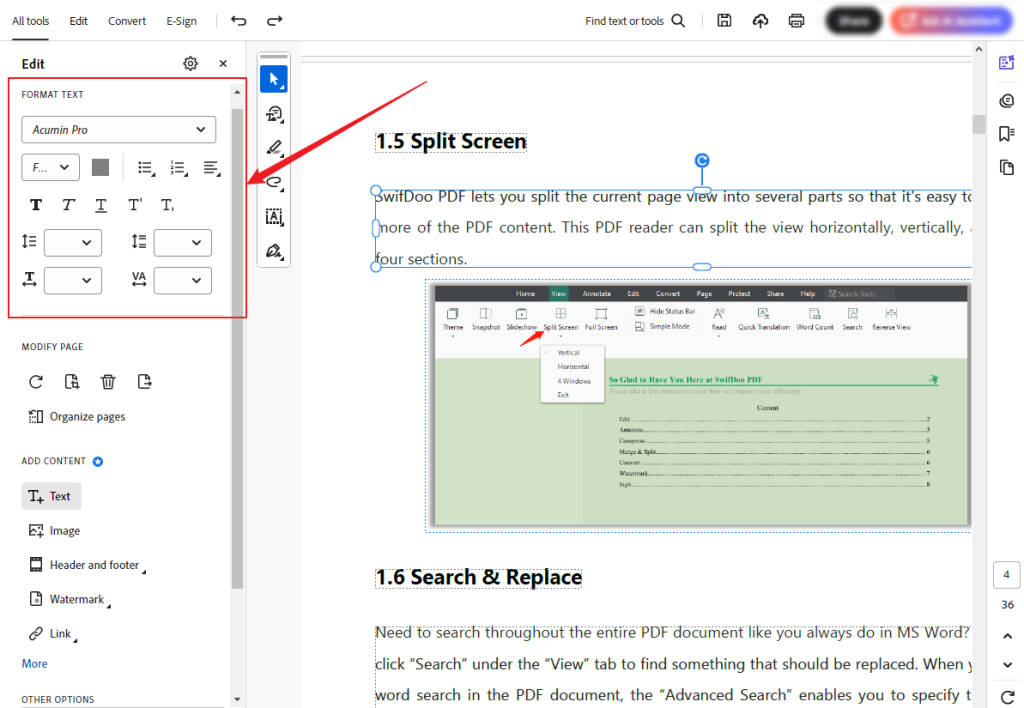
Step 3. Under the Edit tab, select the text you want to edit. Then, you can type new text, delete, or replace the selected text. Meanwhile, in the left FORMAT TEXT panel, you can change the font, size, and color of the text and adjust other formatting settings.
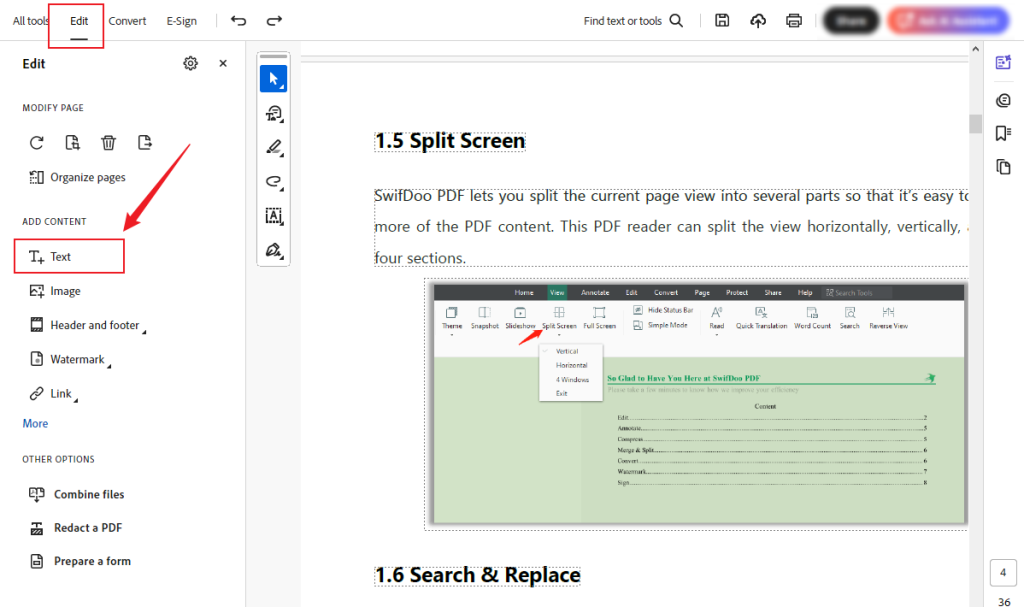
How to add a text box to PDF in Adobe Acrobat Pro? Similarly, click the Edit tab first and then select the Text option under the Add Content section. Click and drag the cursor to draw the text box area. Type in the text into the newly added text box. By default, the text formatting in a text box will automatically match the text formatting near the text box.
Step 4. Once you have added all the text you want to add, select the Save option from the File menu to save this edited PDF file.
How to Add Text to PDF on Mac
Both JOPDF and Adobe Acrobat can also work on Mac PCs. To provide you with more options, I’d like to introduce you to how to add text to a PDF on Mac in Preview. You may be familiar with Preview. It is a built-in program on your Mac. In addition to working as a viewer for images and PDFs, Preview also provides editing features. One of the editing features for PDF is adding text. Now, let’s learn how to do it.
Step 1. You can double-click the PDF file to open it in Preview once you have set Preview as the default PDF viewer for your Mac. If not, you can right-click on the PDF file, move to Open With, and choose Preview.
Step 2. Click the Markup Toolbar option (a pencil icon) in the upper right to enable the Markup Toolbar.
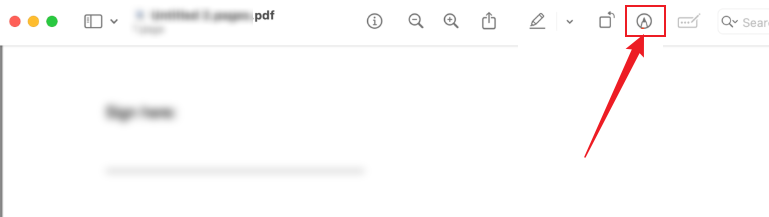
Step 3. Click the Text Tool option (a T icon) and click any position where you want to add a text box. Then, a text box will appear. You can type in what you want to convey in this text box. Next, choose the newly added text and click the Text Style option (an A icon) to adjust the properties of the text.
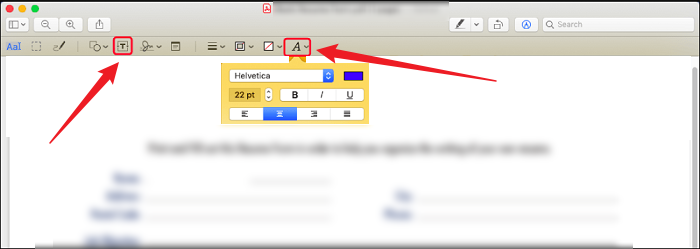
Step 4. Go to File and Save to save the edited PDF file to the original file.
How to Add Text to PDF on iPhone/Android
How can you add Text to a PDF on the go if your computer is not nearby? Use your Android or iPhone with a reliable PDF editing application. SwifDoo PDF is a cross-platform PDF editor that can be used on both Android and iOS devices. Additionally, it is compatible with Windows and Mac. It enables you to edit PDF content on Windows and Mac with its useful and rich editing features. Back to the main point, SwifDoo PDF supports adding text boxes to PDFs effectively. Let’s learn how to add text box to PDF with SwifDoo PDF on your phone.
Step 1. Download SwifDoo PDF from the App Store or Google Play Store and then install it on your phone.
Step 2. Run this SwifDoo PDF editor to get to its default Home page. Tap on the Plus icon and select to import the PDF file from the Files app.
Step 3. Once the PDF file is imported, hit Read and select the Annotate option. Next, tap the Add Text option (a T icon), tap anywhere on the PDF page where you want to add a text box, and type in the desired content. Next, you can adjust the text formatting.
Step 4. Finally, tap on the SwifDoo icon and choose the Save option.
How to Add Text to a PDF File Online
If you want to edit and add text to a PDF without downloading or installing any software, an online PDF editor is your choice. Smallpdf is a safe online PDF editor worth trying. You can access it through most web browsers on your computer and mobile device. It enables you to add a text box to a PDF for free. Additionally, it offers various features for editing PDFs, converting files, adding annotations, and more. How to add a text box to a PDF by Smallpdf online? Refer to the exact steps below.
Step 1. Access the Smallpdf website using any browser on your PC or mobile device.
Step 2. Select the Edit PDF option and click CHOOSE FILES to import the PDF file you want to insert a text box into.
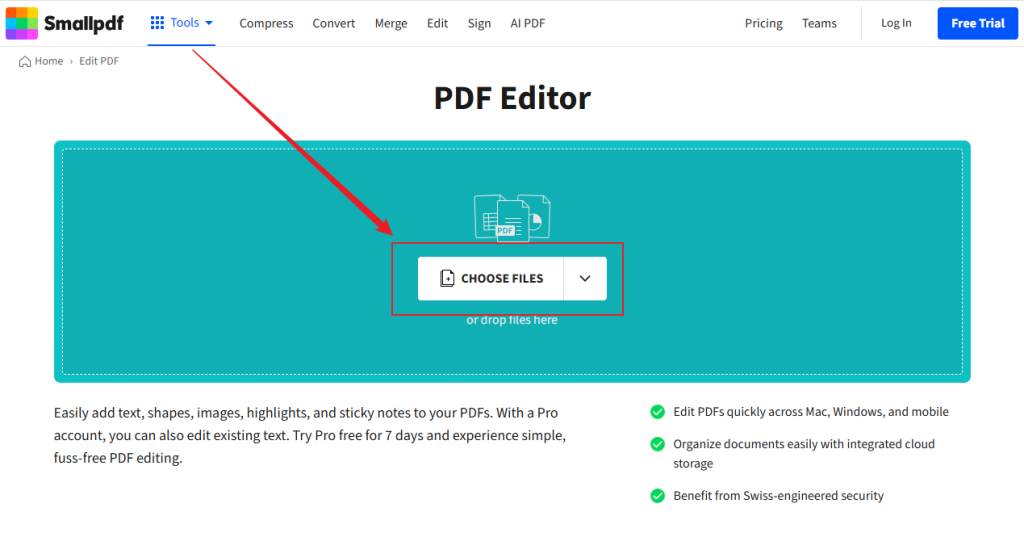
Step 3. Click the Add text option (a T icon) and drag the cursor to draw the text box region. You can adjust the text formatting and properties in advance. Then, type in the desired text. You can drag and place the text box in the desired position. If you want to edit text in the PDF, you need to pay for it.
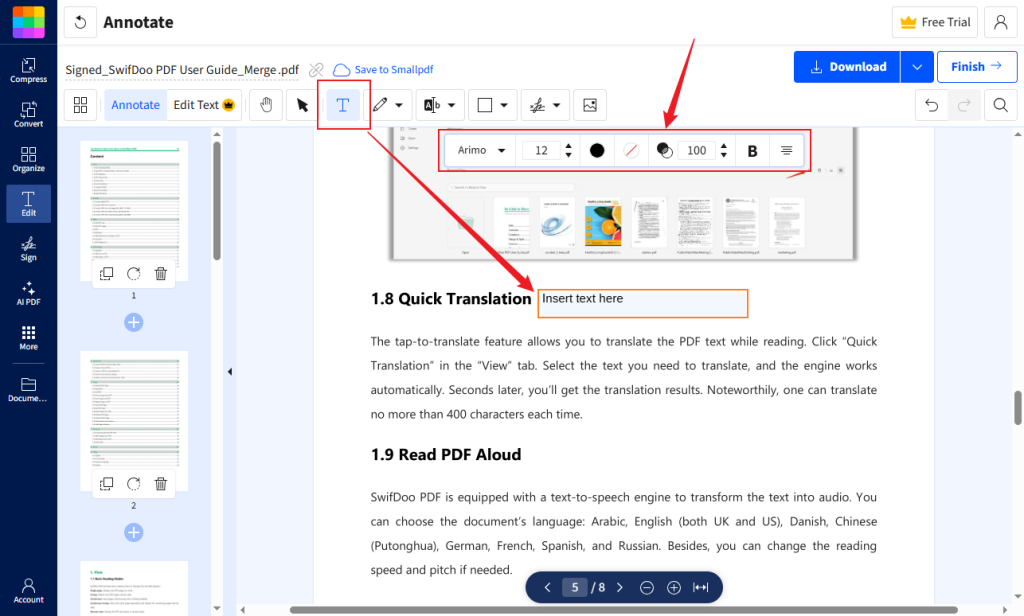
Step 4. Finally, click the Download button.
Wrapping Up
It is not difficult to add text to PDF as long as you use a reliable PDF editor. In this post, I present you with several great PDF editors for Windows, Mac, Android, iPhone, and online, including both free and paid options. More importantly, I show you a detailed tutorial on how to add text to a PDF with these PDF editors. You can select one of them and give it a try.
FAQs
Step 1. After opening the PDF file in the Files app, tap the Pen icon and hit the Plus icon.
Step 2. Select the Add Text option.
Step 3. Tap on where you want to add text, and then type in text.
Table of Contents

Your Best Free PDF Expert in PDF editing, compressing, converting, annotating, protect, organizing, and more.
Free DownloadWindows · macOS

Olivia
“Olivia is an editor at JOPDF, where she writes practical guides and insightful articles on managing PDFs—covering topics like editing, annotating, converting, and organizing files efficiently. Passionate about clear communication and digital productivity, Olivia enjoys spending her free time cooking, watching movies, and hiking to unwind and find inspiration for her writing.”