Introduction :
How can you highlight text in PDFs, add underlines or other annotations to PDFs? Bothered by that question? Don’t worry! In this comprehensive JOPDF article, I will show you how to annotate a PDF document effortlessly across different devices.
Best Way to Annotate a PDF for Free on Windows & Mac
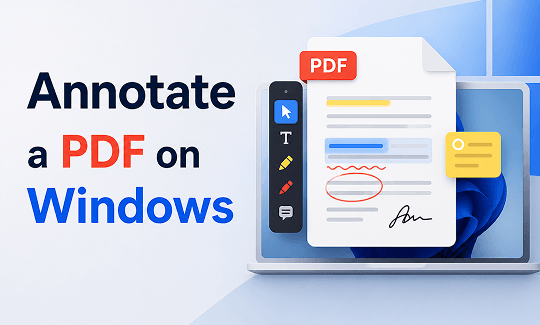
For most of us, the free and reliable PDF annotator is our first choice. Prioritizing free and practicality, JOPDF stands out from the crowd, which is available on both Windows and Mac. Working as a completely free PDF annotator, JOPDF provides you with a variety of annotating tools, just listed as follows.
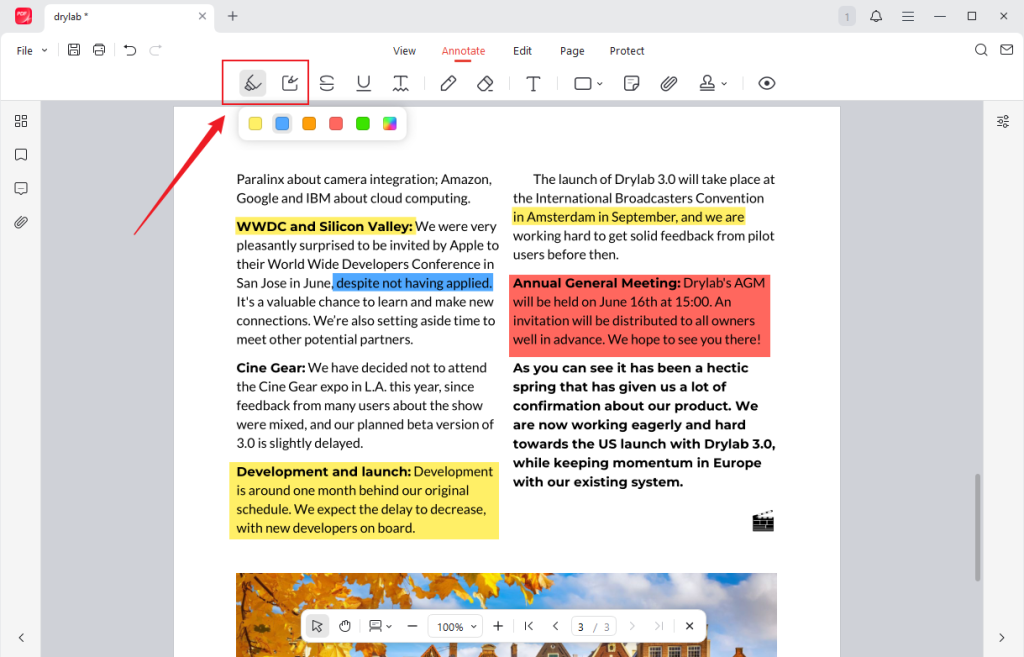
- Highlight;
- Area highlight;
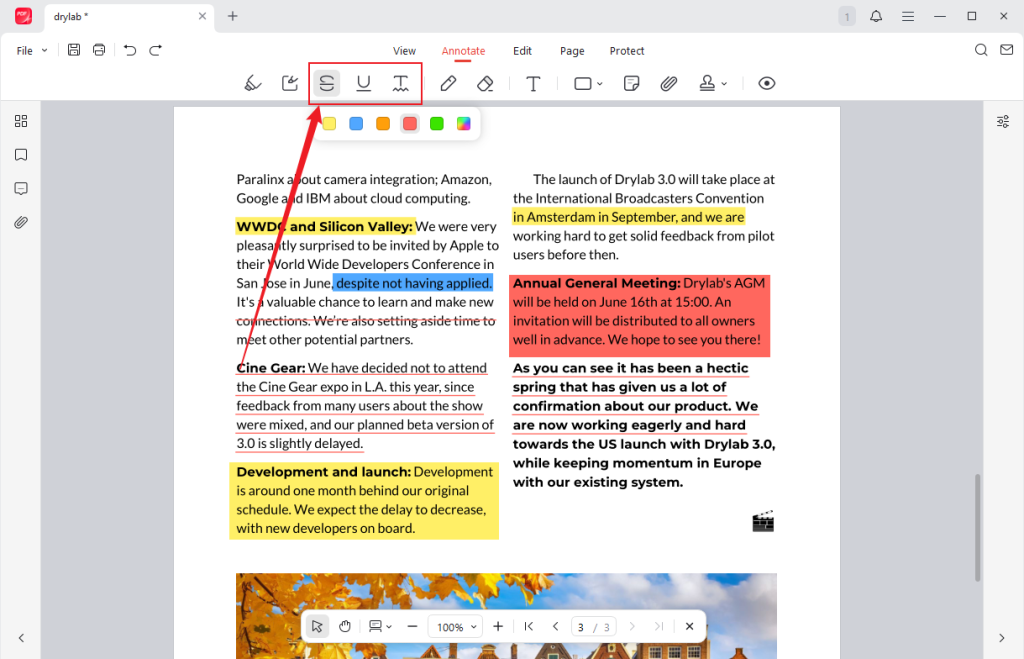
- Strikethrough/underline/squiggly;
- Pencil;
- Typewriter;
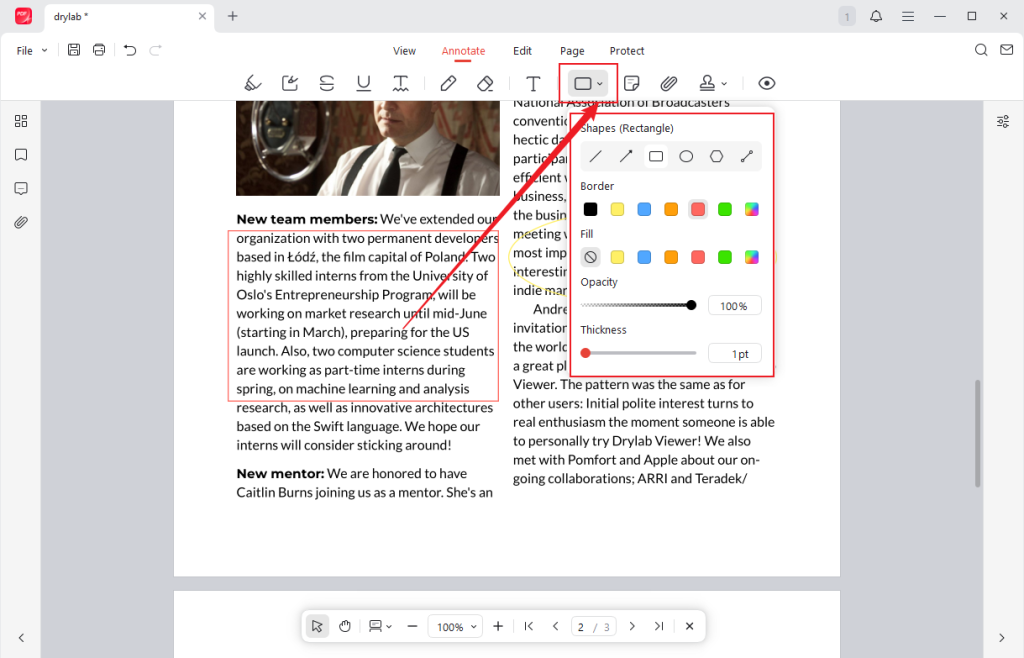
- Shapes;
- Sticky notes;
- Attachment;
- Stamps.
With the user-friendly and intuitive UI of JOPDF, you can master how to use it to add annotations to a PDF with no hassle. Now, follow me to learn how to complete the PDF annotation task with Free JOPDF.
Step 1. Get the installer of JOPDF by clicking the convenient download button below, and then follow the on-screen instructions to install it on your PC.
Step 2. Import the target PDF document by clicking the Open PDF button or directly dragging and dropping.
Step 3. Go to the Annotate tab and do the following annotations:
Highlight text or a specific area: Click the Highlight option, choose the target color, and select the text you want to highlight. Similarly, click the Highlight Area option to highlight a specific area in the PDF.
Add strikethrough/underline/squiggly: Click on the target line type you want to add, select the color you like, and choose the target sentence or words.
Draw on the PDF: Select the Pencil option, choose a proper color, set the pencil thickness and opacity, and take the cursor as the pencil to draw on the PDF.
Add shapes/stamps: Open the Shapes option, choose the preferred shape (like rectangle, arrow, or oval), select the color you like, customize the opacity and thickness, and drag the cursor to add the target shape. To add a stamp to the PDF, click the Stamp option, select the desired stamp, and position it as needed.
Add sticky notes: Hit the Sticky Note option, put the sticky note on the target place, and type in the content you want to note.
Add an attachment: Click the Attachment option, put the attachment in the desired position, choose the target file you want to attach, and click Open.
Step 4. Finally, you can click the Save icon in the top left or press Ctrl + S to save the annotated PDF file.
In addition to serving as a PDF annotator, JOPDF has the ability to protect a PDF from printing, viewing, or editing, rearrange PDF pages, edit PDFs, and more. To sum up, JOPDF is an all-in-one PDF tool that is worth trying.
How to Annotate a PDF on Mac
JOPDF can also assist you in annotating PDFs on a Mac for free. To provide you with comprehensive guidance so that you don’t need to continue searching on the Internet, I have also prepared a tutorial on how to annotate a PDF on Mac using Preview without downloading third-party tools.
Preview is pre-installed on your Mac PC, which can be used to view, edit, and annotate PDF documents. It enables you to add shapes and lines to a PDF, draw on a PDF, and highlight text or a section in a PDF. Below are the exact steps for your reference.
Step 1. Locate the PDF file you need to add annotations to, right-click it, and choose to open it with Preview.
Step 2. Hit the pencil icon in the upper right to open the Markup toolbar. Here, you can click the Text icon to add a text box, select a sentence, and choose to highlight it or add a line, or make other annotations, like adding a sticky note, drawing on the PDF, or adding a signature.
Step 3. Once finished, click the File tab and choose the Save option to save the annotated PDF file.
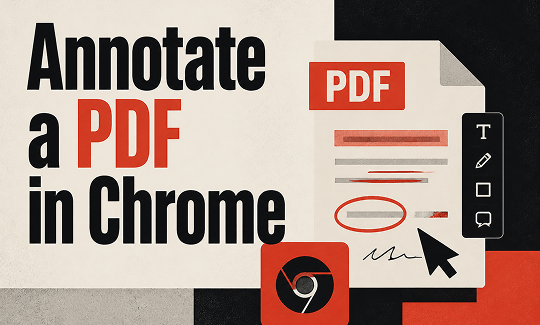
How to Annotate a PDF in Chrome
Google Chrome is one of the most popular web browsers. One of its useful features is opening and viewing PDFs. Does Google Chrome offer a built-in feature to annotate PDFs? Unfortunately, there is no built-in PDF annotator. How to annotate PDFs in Chrome? There is a workaround for you. That is using Google Drive. Here is the detailed guide.
Step 1. Go to Google Drive first, click on + New, and choose the File upload option to import the target PDF document for annotation.
Step 2. Expand the Open with list and select the Google Docs option. Then, the PDF file will be opened in Google Docs as an editable document.
Step 3. Next, you can add annotations. You can choose the words or sentences you want to highlight and open the Highlight color list to choose a preferred color. Also, you can select the target text and then choose to add an underline to it or bold/italicize the text. Meanwhile, you can select the sentence you want to comment on, click the Add comment option, type in your comment, and click the Comment button.
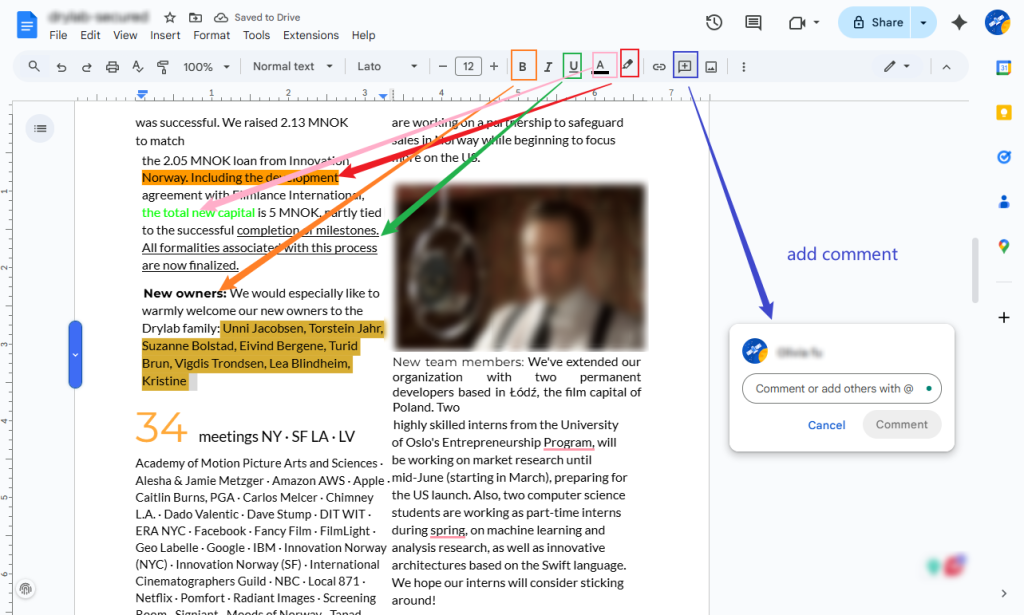
Step 4. When you finish annotating, click the File tab, move to Download, and choose the PDF Document (.pdf) option or other output formats.
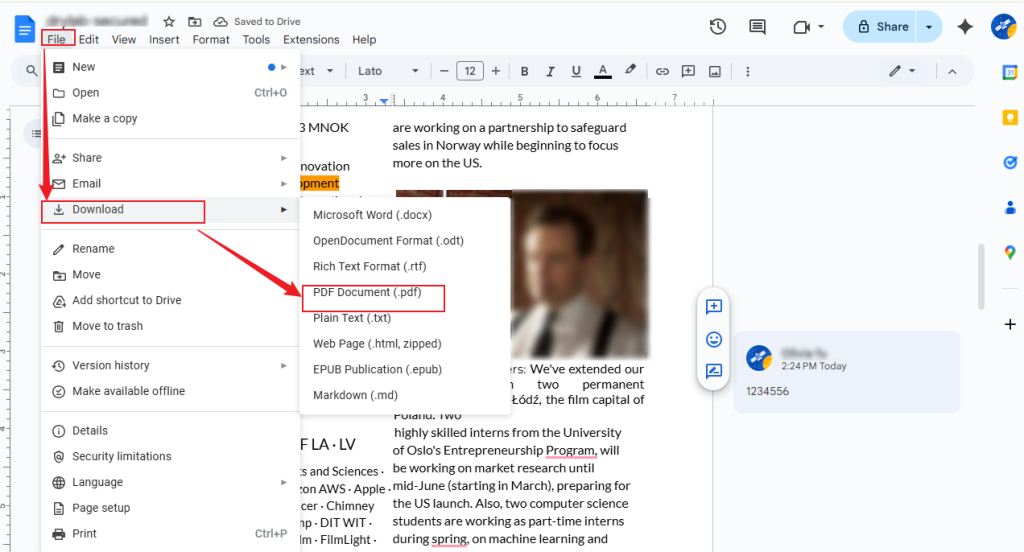
In addition to using Google Drive to annotate PDFs in Google Chrome, online tools and third-party extensions are also worth a try. The next part will recommend a safe and reliable online PDF annotator that is available on Chrome, Edge, Safari, and other browsers. Keep reading.
How to Annotate PDFs Online
Most of you think handling documents online is unsafe since there are possibilities for information leakage. In that case, choosing a safe and reliable online tool is crucial. Smallpdf is worth trying, which enables you to annotate PDFs by adding highlights, text, and drawing for free. What’s more, it supports converting PDFs, adding watermarks to PDFs, password-protecting PDFs, and more. Let’s read the proven steps below to learn how to add annotations to a PDF online using Smallpdf.
Step 1. Visit the PDF annotator website of Smallpdf.
Step 2. Click CHOOSE FILES to import a PDF document from your device.
Step 3. Here, you can annotate the PDF. Click the T icon to add text, expand the pencil icon to add highlights or draw on the PDF, and open the Shape list to add different shapes. Furthermore, you can also add underline/strikethrough/squiggle, apply signatures, and insert images.
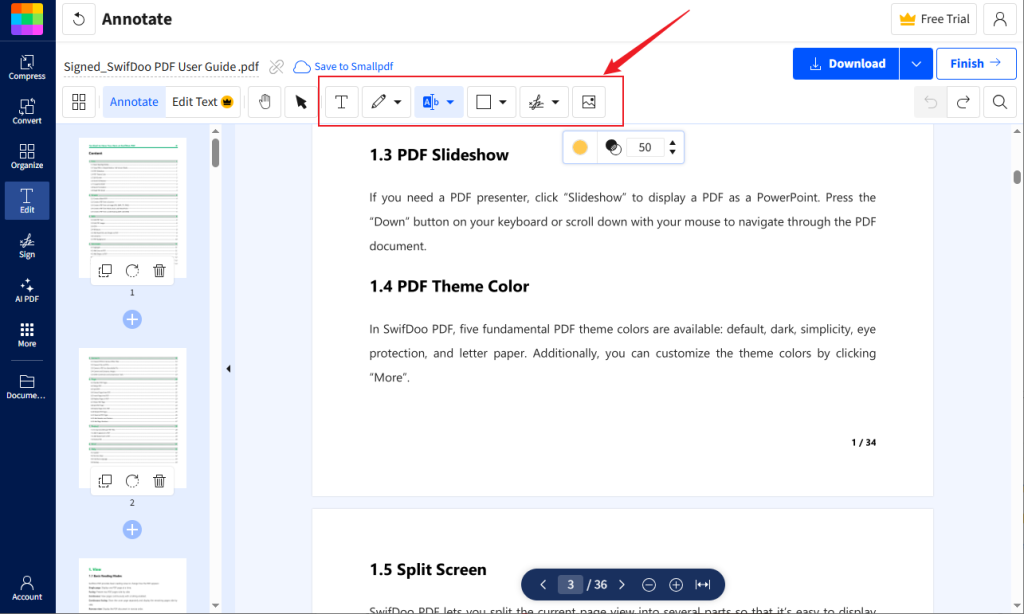
Step 4. When the annotating process is over, you can click the Download button.
To Sum Up
It is useful to master the skill to annotate PDF documents. In the above content, I recommend JOPDF to annotate a PDF for free on both Windows and Mac. Additionally, it offers other features to complete other PDF editing tasks. If you don’t want to download any software, you can use Preview to add annotations on Mac PCs. Furthermore, this post presents how to annotate a PDF in Chrome and online. Whether you want to add annotations to a PDF on which platforms, this post can solve your problem.
FAQs
Your PDF file is scanned or image-based, and your PDF annotator doesn’t have OCR technology.
The PDF file is password-protected.
Your PDF document is damaged or corrupted.
You haven’t turned on the markup toolbar of the PDF annotator.
In that case, SwifDoo PDF can help you solve the task. It enables you to OCR PDF and remove passwords from PDFs.
Table of Contents

Your Best Free PDF Expert in PDF editing, compressing, converting, annotating, protect, organizing, and more.
Free DownloadWindows · macOS · Linux

Olivia
“Olivia is an editor at JOPDF, where she writes practical guides and insightful articles on managing PDFs—covering topics like editing, annotating, converting, and organizing files efficiently. Passionate about clear communication and digital productivity, Olivia enjoys spending her free time cooking, watching movies, and hiking to unwind and find inspiration for her writing.”