![How to Draw on a PDF on Windows, Mac & Online [Free & Easy]](https://b.jopdf.com/wp-content/uploads/2025/10/how-to-draw-on-pdf.png)
Summary :
When lots of papers come to you in PDF, you may need to do a PDF drawing to provide visual feedback. However, many PDF editor software are expensive or not quick for a multi-page document. You’re really up a creek with the work and wish to find some recommendations. Look no further than this post to learn how to draw on a PDF on Windows, Mac, and online quickly and easily. You will like the free tools introduced.
How to Draw on a PDF on Windows and Mac
This part covers 4 free PDF drawing editors to guide you on how to draw in a PDF on Windows or Mac. You can choose a native application in your system, the known Acrobat, or the small but feature-packed JOPDF. Dive into the simple step-by-step tutorials and explore which fits you best.
JOPDF
You can draw on a PDF for free, smoothly, and effortlessly, with JOPDF. The desktop application offers an intuitive, graphical, and user-friendly user interface. It makes markup, annotation, editing, and page organization in PDFs straightforward. You can paint a line or shape, highlight, strike through, take notes, and more.
Step 1: Download and install JOPDF for Windows or Mac, a free PDF editor, and launch it.
Step 2: Click the Open PDF button to select and open the PDF you need to draw on.
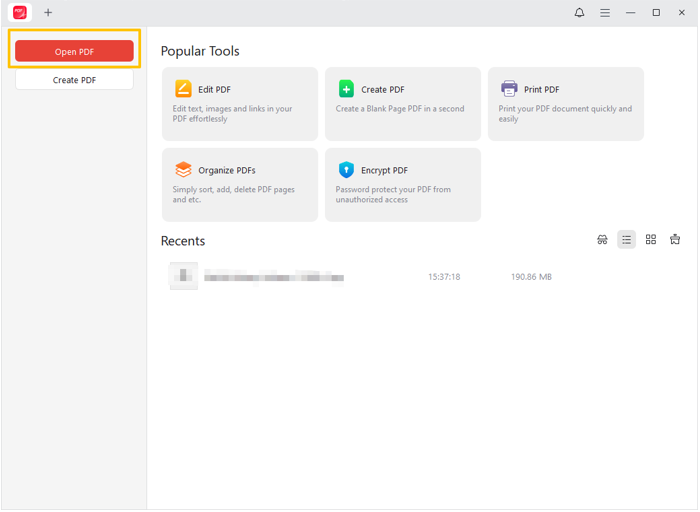
Step 3: Click the Annotate menu to access all the PDF drawing markup tools in the drop-down list.
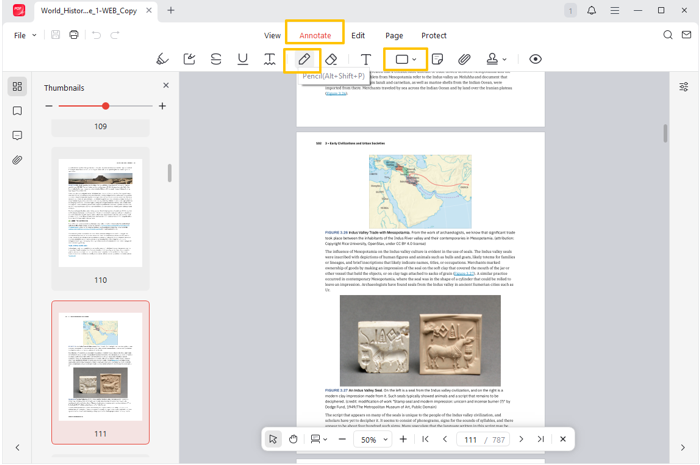
Step 4: Draw on a PDF now, the way you desire:
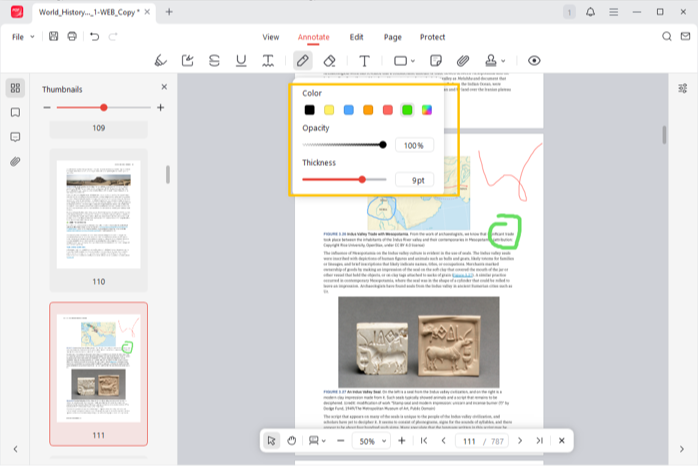
Draw lines on PDF: choose the Pencil tool, select the line color, thickness, and opacity, and then draw freehand on the PDF.
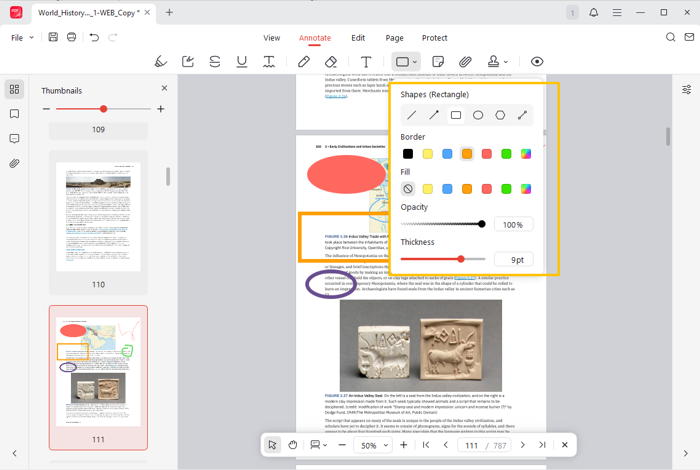
How to draw a circle, box, or other shapes on a PDF: click the rectangle drop-down button, select the oval, customize the border color, fill color, and other parameters, and click to draw a circle. You can also draw arrows, polygons, rectangular boxes, and other shapes.
Click the “Annotations” icon on the side to review all the PDF drawings and save the changes conveniently. You can exit the drawing mode, click on a drawing to copy, delete, or reset its properties, or click the eraser to erase it.
Adobe Acrobat
Adobe Acrobat is one of the best apps to draw on a PDF file on Windows or Mac. This software provides a variety of features, from basic PDF document annotation to advanced editing. Its free version allows you to add text comments and line or shape drawings without cost. The drawing function supports a stylus or touch. You can also print and fill out forms with Adobe.
Here is how to draw on your PDF file on a Windows or Mac using Adobe Acrobat.
Step 1: Open the targeted PDF file in Acrobat, and click the drawing option in the vertical toolbar.
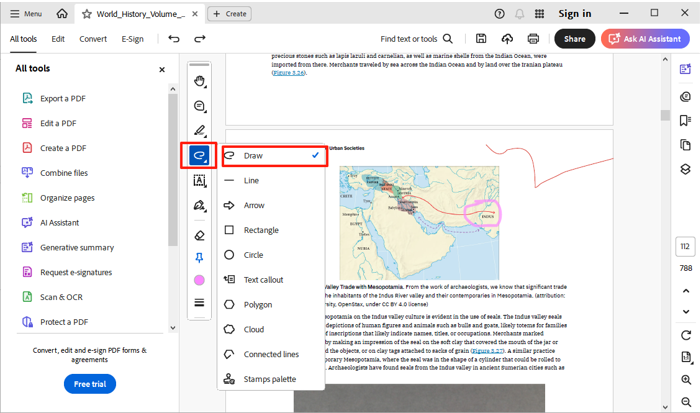
Step 2: Select Draw for freehand PDF drawing, or choose another tool.
Step 3: Click the color option and three horizontal lines at the bottom of the bar to adjust the line thickness and color.
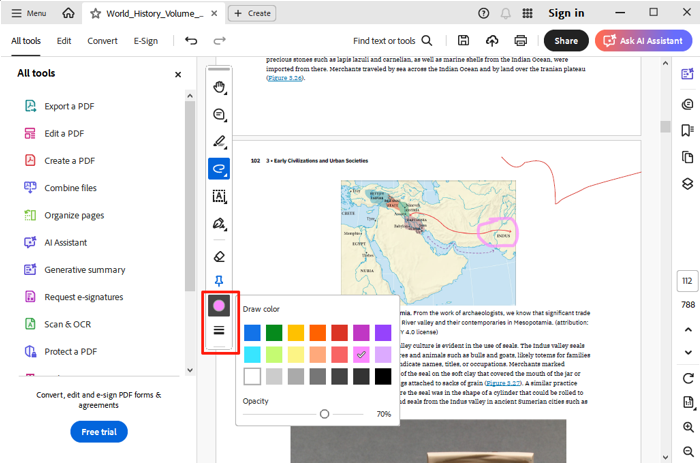
Step 4: Start your drawing, and when finished, save the modified PDF.
Microsoft Edge Browser
Speaking of how to draw on a PDF document on Windows, Microsoft Edge is a good trick. The new version of the browser includes daily used PDF editing and annotating options. It has a highlighter, text adding tool, and the ability to read PDFs aloud and ask Copilot AI. If all you need is to draw some lines, its inking feature is enough.
Follow the steps below to draw on PDF files in the MS Edge browser.
Step 1: Right-click your PDF file, choose Open with, and select Microsoft Edge to open it.
Step 2: Click the Draw option in the top toolbar, and select your preferred line color and thickness.
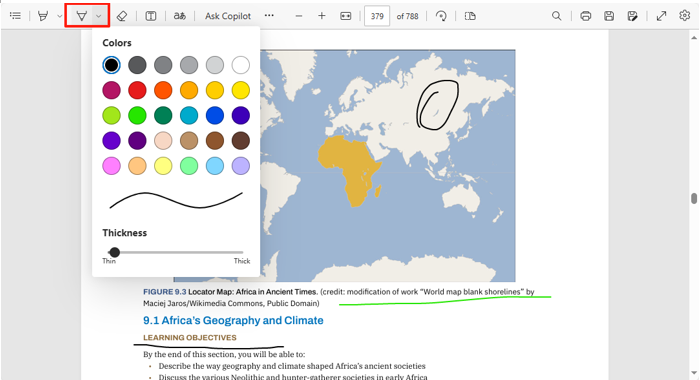
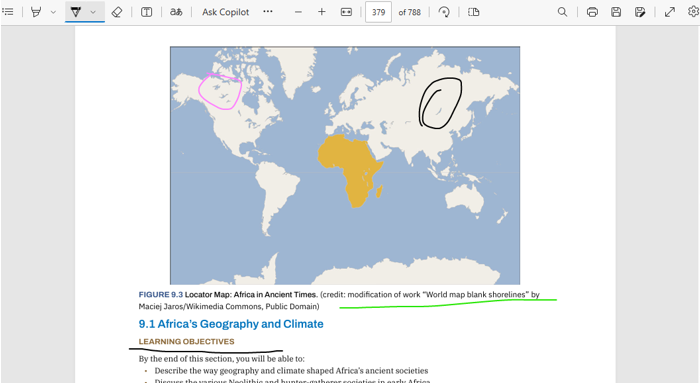
Step 3: Draw on the PDF where you intend to, and then click the Save as button to save it.
Preview
Another free tool to draw on a PDF on a Mac is the built-in Preview application. Marking on PDF files is a piece of cake thanks to the free PDF viewer equipped by Apple Inc. The app can also help open and convert images to PDF and merge PDF files together. Preview can handle text annotations, line and shape drawing, and highlighting.
Read how to draw on a downloaded or created PDF for free on a Mac with the Preview app.
Step 1: Right-click the specific PDF, select Open with, and open the PDF in Preview.
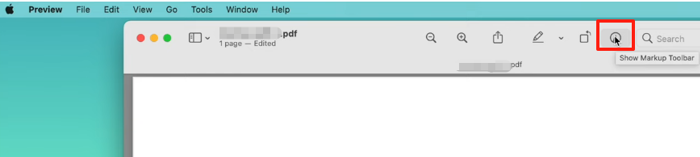
Step 2: Click Show Markup Toolbar (a pen surrounded by a circle) at the top of the window.
Step 3: In the drop-down menu bar, click the random line and select a line style to draw.
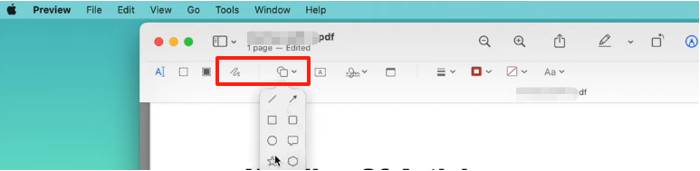
Step 4: Click the shape drop-down arrow, select a shape to draw on the PDF, and resize it.
Draw on PDFs Online
Whether you want to instantly add drawings, highlights, or images or type text on PDFs, Smallpdf offers options. The online platform is designed for processing PDF files for free. It allows you to download the edited PDF without a watermark. You can avoid downloading the software or logging in to an account.
To draw on a PDF online for free:
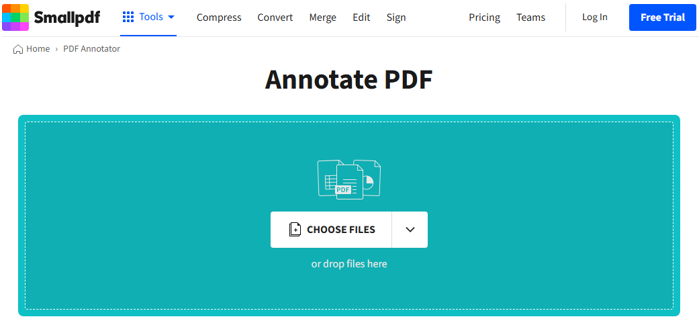
Step 1: Visit the https://smallpdf.com/ site, and choose the PDF Annotator tool.
Step 2: Click CHOOSE FILES to upload the PDF document.
Step 3: In the new page, click the Draw button (pencil icon) and select Pencil to draw lines.
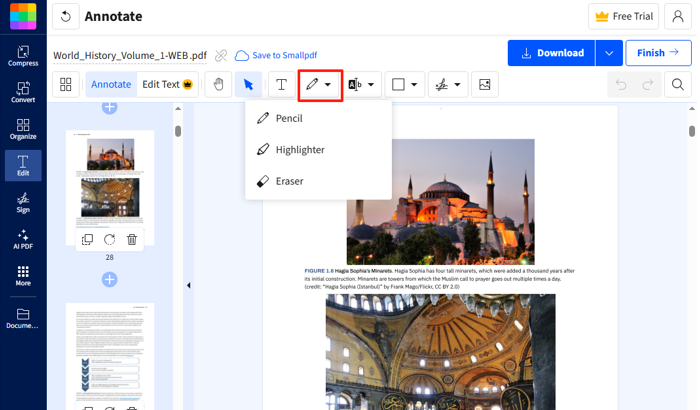
Step 4: Click the near Shape button to draw rectangles, circles, arrows, or other drawings.
Conclusion
Whenever you need to review document content on a Windows PC, Mac, or in a browser, you can draw on the Adobe PDF. Using the offline and online PDF program tools enables you to efficiently circle mistakes, draw markup lines, or create diagrams. Get your PDF work done, fun and hassle-free. Share your files with others to see your drawings. JOPDF for Mac and Windows is a free, powerful PDF reader and editor you can opt for.
FAQs
Adobe Acrobat allows you to draw with a stylus: choose the “Draw freehand” tool from the floating bar, use your touchscreen stylus to write with your hand, and you can delete the drawing using the eraser tool.
Table of Contents

Your Best Free PDF Expert in PDF editing, compressing, converting, annotating, protect, organizing, and more.
Free DownloadWindows · macOS · Linux

Selena
Staff Editor
“Selena is a staff editor working for JOPDF, passionate and committed to providing how-to and round-up articles. Over 8 years of specialized skills and experience in PDF solutions, hoping to help users ease their lives and solve whatever they encounter. "Work smarter, not just harder!"”