Summary :
Sometimes you download a PDF and want to type on it to write additional information. This can be the case where you need to fill out a form or add text notes. But is there a way to do that if you refuse to pay a cent or apply for a free trial? Of course, this post recommends six quick ways. Check out how to type on a PDF easily without fuss for free using a PDF editor.
Way 1: How to Type on a PDF with JOPDF
JOPDF is a lightweight, fast, free PDF editor for Windows and Mac that meets your needs. It makes editing text, modifying images, re-arranging pages, and marking up questions easier than ever. The completely free software never prompts you to upgrade or sign up. It can make all the elements into editable blocks. It also lets you copy and paste text across pages.
Here is how to type on a PDF and save it for free with JOPDF on a Windows or Mac.
Step 1: Download and install the free PDF typing editor and launch it.
Step 2: Click the Open PDF button to open your PDF, or drag the PDF into the program.
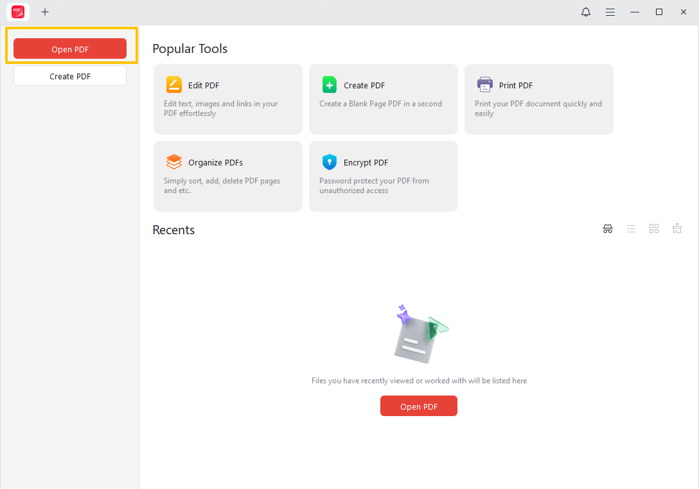
Step 3: Go to the Annotate menu > the Typewriter tool, or press the Ctrl + Alt + T shortcut.
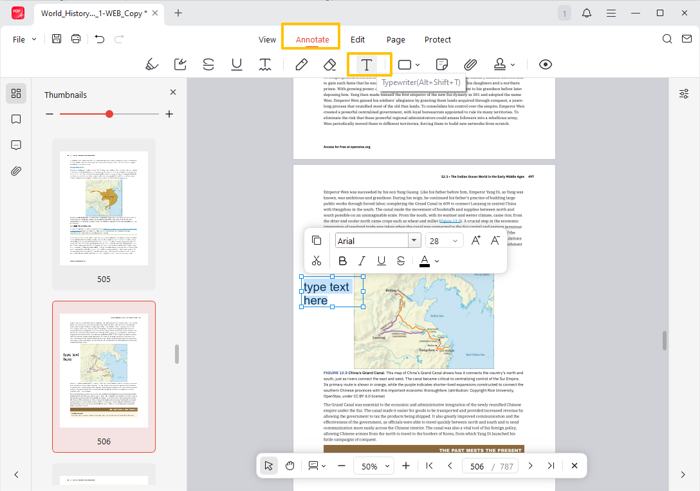
Step 4: Now you can immediately edit and type on the PDF.
Add text to the PDF: click where you need to write something, and enter the text using your keyboard. You can move the text location by dragging. Click out of the textbox and choose the typing tool to add more text.
Selecting the added text will bring out a mini toolbar. You can adjust the font, size, style, color, and more text properties.
Step 5: Save the file once you’re done with all edits. If needed, you can go to Page > Insert to add a blank page to type on and print the PDF.
Download the JOPDF for Mac or Windows.
Way 2: How to Type in a PDF Using Adobe Acrobat Reader
You can rely on Adobe Reader to type on a PDF on a Mac and Windows for free. The free Acrobat product supports basic PDF annotations, printing, form filling, and viewing. A bit heavy but useful if you need to add notes, comments, highlights, and drawings easily.
Step 1: Open the PDF you need to type on using Adobe Acrobat Reader.
Step 2: Click the Fill in form fields option (Letter A in a square) in the vertical bar and select Type Text.
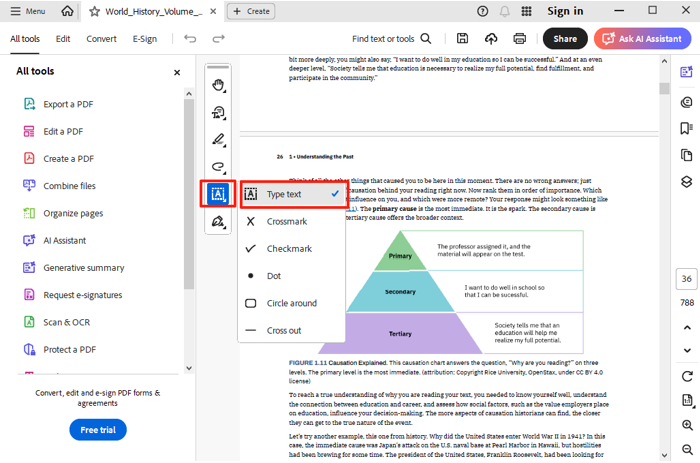
Step 3: Hit a position on the PDF and start typing text in the box that appears.
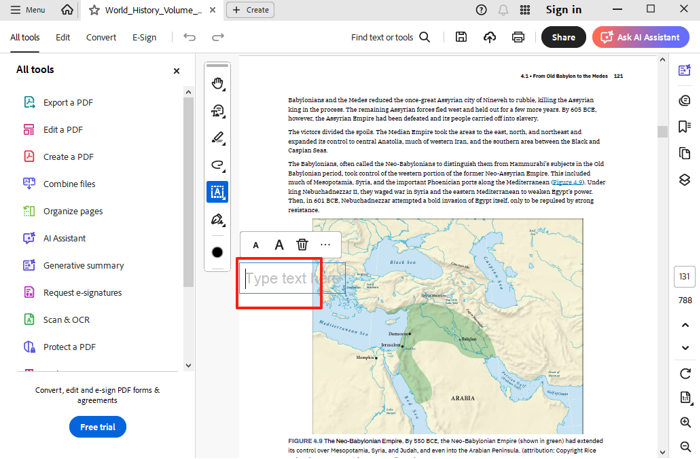
Step 4: You can increase or decrease the text size. There are no more customizable options.
Step 5: To type on a PDF form that is fillable, open the file in Adobe and directly click the blank text field to type text. Adobe Reader can recognize the fillable fields, and you don’t need to add a textbox.
Way 3: How to Type on a PDF Document for Free with Preview
The Preview application is entirely free for users to type on a downloaded PDF on a Mac. It comes included with the system for viewing common image files and PDF documents. It’s also praised for merging, printing, signing, and filling out PDFs. You can annotate a PDF file with various options.
Step 1: Right-click your PDF document, and click Open with > Preview.
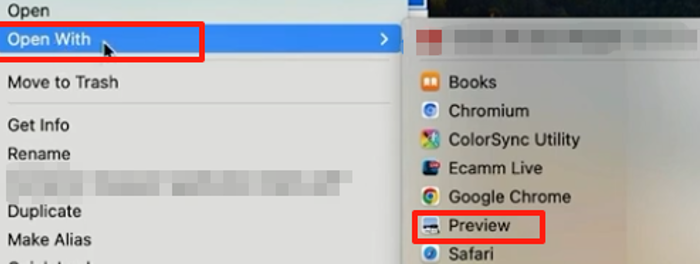
Step 2: Go to the top View tab, and select the Show Markup Toolbar option.
Step 3: Click the text adding tool (Letter A surrounded by a square) in the pop-up toolbar.

Step 4: A text box appears on your PDF. You can type in the PDF and drag the box to your desired location.
Step 5: Highlight the text and click Aa at the top bar to change the color or font. Then, save the edited PDF and close Preview.
Way 4: Type on PDF Using the Markup Feature
You might wonder how to type on a PDF on an iPhone and iPad if you like working on mobile. Thankfully, there is a native feature that gets the job done. The Markup tool allows you to add text, signatures, shapes, and freehand lines to a PDF.
Follow the curated steps below.
Step 1: When you download a PDF on your iPhone, save it to the Files app.
Step 2: Open the PDF file in Files, and tap the Markup tool at the bottom.
Step 3: Touch the + icon at the lower corner and choose Add Text.
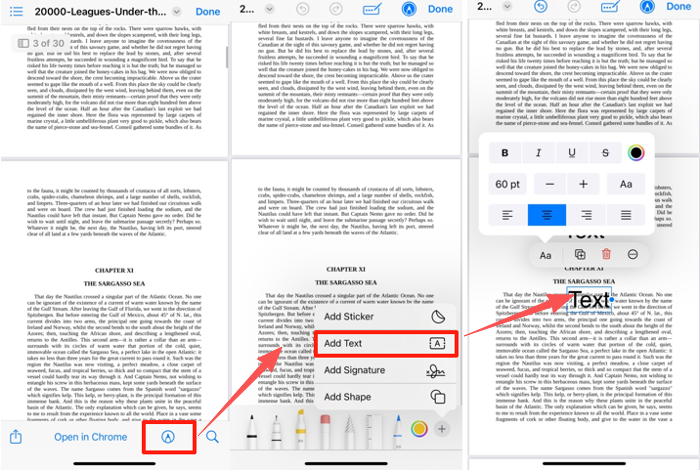
Step 4: Click into the box, and you’ll be able to type on the .pdf file. Hit the Aa button in the floating bar to alter the formatting.
Step 5: You can cut, copy, or paste the text. Tap Done at the top to save the file to your phone.
Way 5: How to Type on a PDF in Word
If you use an Office suite, typing on a PDF document is possible in MS Word. The Word program lets you open and convert a PDF document to a Word file for free. This way, the content may be reformatted and lose some quality, but it is effective most of the time. You can use the Word editing function to add text, images, or any objects.
Dive into how to type on a PDF file in Microsoft Word.
Step 1: Go to the Open option by clicking the File button on the top right corner in Word.
Step 2: Choose your computer and select the specific PDF to open.
Step 3: Click OK in the small window that asks if you’re sure to convert the PDF.
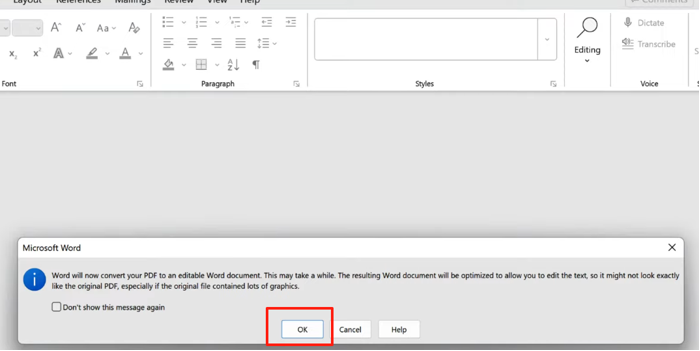
Step 4: Locate the area you want to edit, and begin typing text to the PDF right away.
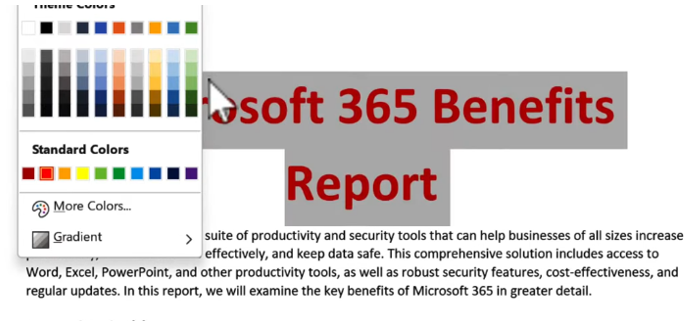
Step 5: Go to File > Save as, select PDF format, and save it back to PDF.
Way 6: Type Text to a PDF with iLovePDF Online Service
One website to type on a PDF online for free without Adobe is iLovePDF.com. iLovePDF is a comprehensive online platform that offers a range of PDF editing, compression, and conversion services. No login required, and all you need to do is upload your file to their servers. Too large files are not supported. The web app runs on any device, including Android.
Learn how to type in a PDF online using iLovePDF and download the changed PDF for free.
Step 1: Access the free online PDF editor by visiting ilovepdf.com and selecting Edit PDF.
Step 2: Click the Select PDF file button to upload your PDF document.
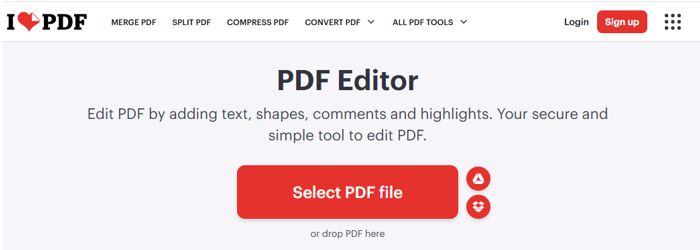
Step 3: Scroll to the page you want to write on, and click the Add text tool that displays as a letter A with a line.
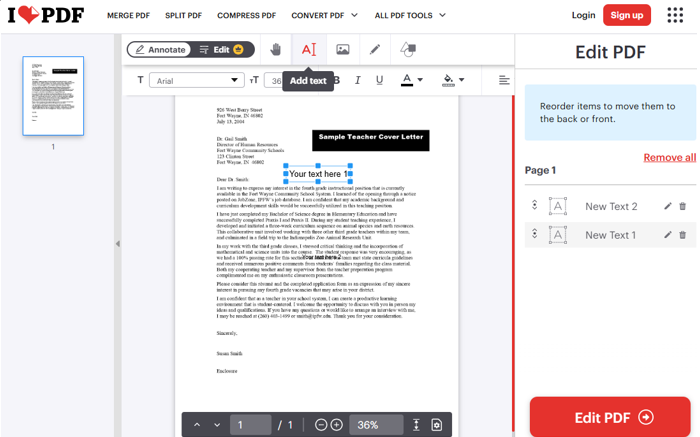
Step 4: Type your words and reformat them. Then, click the Edit PDF button and download the resulting PDF without trouble.
Conclusion
This post fully demonstrates how to type on a document in PDF format on Windows, Mac, laptops, and mobile phones. You can type directly on your file without curving and even edit the existing text in the PDF using editor software like JOPDF. If you want to fill out a form with fillable fields, here is a tip: you don’t need extra software. Open the PDF form in Chrome browser, click the text field, and type text to fill it out.
FAQs
Step 1: Upload your PDF to the Google Drive by dropping it online or clicking "New" > "File Upload".
Step 2: Open the PDF in Drive, click the “Open with” button > “Google Docs”.
Step 3: The online Docs app will convert the PDF to a Doc file, and you can type your way.
Table of Contents

Your Best Free PDF Expert in PDF editing, compressing, converting, annotating, protect, organizing, and more.
Free DownloadWindows · macOS · Linux

Selena
Staff Editor
“Selena is a staff editor working for JOPDF, passionate and committed to providing how-to and round-up articles. Over 8 years of specialized skills and experience in PDF solutions, hoping to help users ease their lives and solve whatever they encounter. "Work smarter, not just harder!"”