![How to Edit Text in PDF on Windows, Mac, Online [2025 Latest]](https://b.jopdf.com/wp-content/uploads/2025/10/how-to-edit-text-in-pdf.png)
Summary :
Fed up with going to great lengths to update info, or tweak a text piece in a file? If you’ve ever tried hard to edit PDF text, you must know how frustrating it can be. Regardless of individuals or businesses, the goal is to edit with the least effort. You may want to quickly modify or add text to a PDF without losing formatting or layout. This post introduces how to edit text in a PDF on Windows, Mac, and online without hassle. See which PDF editor meets your needs.
How to Edit Text in a PDF on Windows and Mac
Whether to fix a typo or alter entire content, this part walks you through 3 PDF text editors to get the job done. They allow you to edit the original PDF text or add additional text.
#1. How to Edit Text on a PDF File Using JOPDF
JOPDF is a handy, free PDF editor that lets you edit text in a PDF without friction. It has Windows and Mac versions for you to work across devices offline. Straightforward, and no need for conversion. It allows you to perform editing with the same font, formatting, and structure. Overview of key features:
- Edit existing text in a PDF to add, remove, copy, paste, cut, and format text and edit the text box.
- Customize text size, font, alignment, color, and line spacing.
- Also, add new text, images, drawings, shapes, and pages for free.
You can download and install the offline desktop application to get started without signing up.
Here is how to edit text in a PDF file for free on Windows or Mac using JOPDF.
Step 1: Launch the free JOPDF editor for Windows or Mac and open the PDF you want to edit text in.
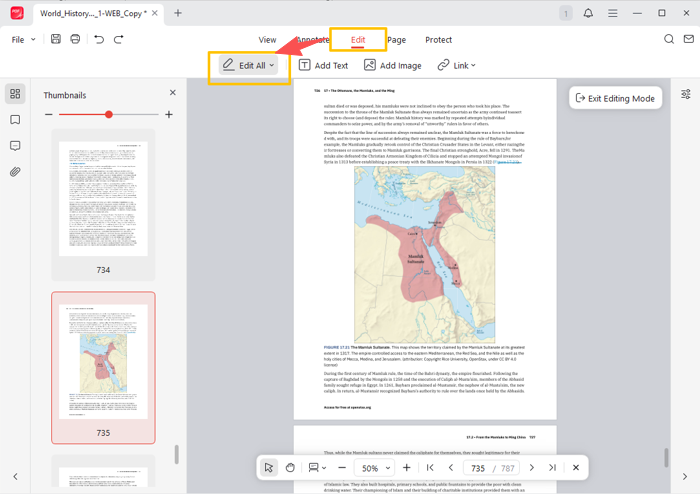
Step 2: Go to the top Edit tab, and click Edit All in the secondary menu bar.
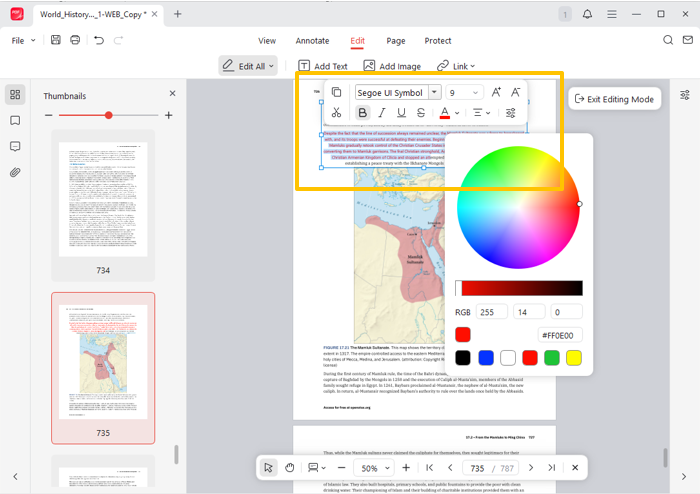
Step 3: Click where you want to edit, and select the text. The pop-up minibar lets you edit text color, text size, style, font, and more properties in the PDF.
Step 4: You can also edit the PDF text for free by deleting, copying, or moving it. JOPDF also lets you annotate, password-protect, unlock, and organize PDF documents for free. Download it to start editing without limitation!
#2. How to Edit PDF Text Using Adobe Acrobat
Adobe Acrobat is a powerful PDF editor created to edit text in a PDF document. Its pro version is available on Mac and Windows. The software can outline paragraphs with boxes for size, color, or other parameters. You can also use it to erase or replace text and annotate PDFs, such as highlighting and strikethrough. But Adobe is a pain in the subscription for new users.
Check out how to edit text on a PDF document on a PC or Mac in Adobe Acrobat Pro.
Step 1: Open the specific PDF file in the Pro version of Acrobat.
Step 2: Click the Edit PDF option in the side tools pane or from the Tools tab.
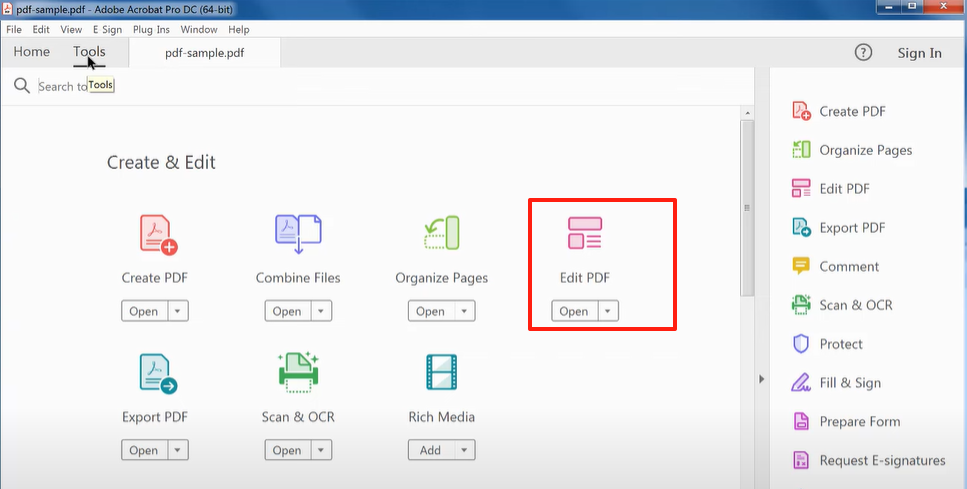
Step 3: Locate and select the PDF text you desire to edit, and you can delete, add, or reposition it.
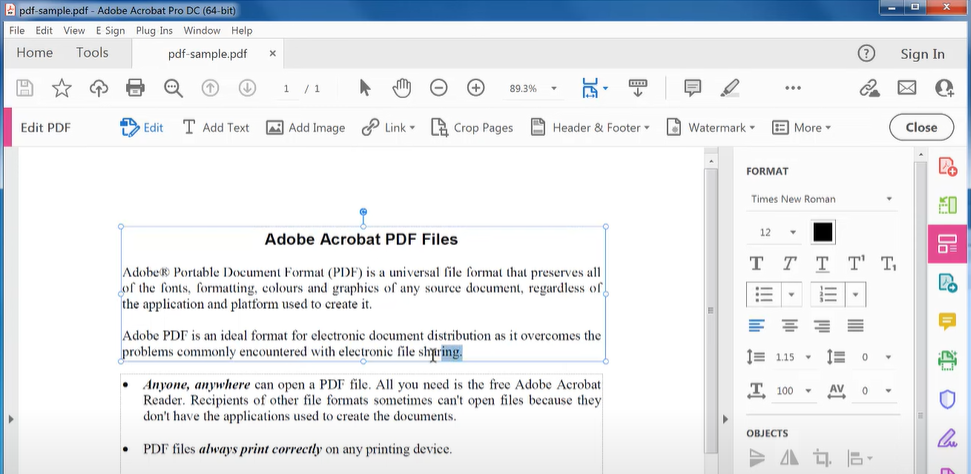
Step 4: You can also choose the options in the FORMAT panel to edit words in the PDF.
#3. PDF Text Editing with Foxit PDF Editor
Foxit is another best way to edit text in a PDF. It’s one of the document solutions tailored to the tour business. Like other competitors, the software can open, convert, form fill, and sign PDFs. It’s designed with a modern and clean layout. You can’t edit text in the free Foxit PDF reader; you can only do so in the premium version.
Step 1: Import your PDF into Foxit.
Step 2: Click Edit > Edit Text to make all the text editable.
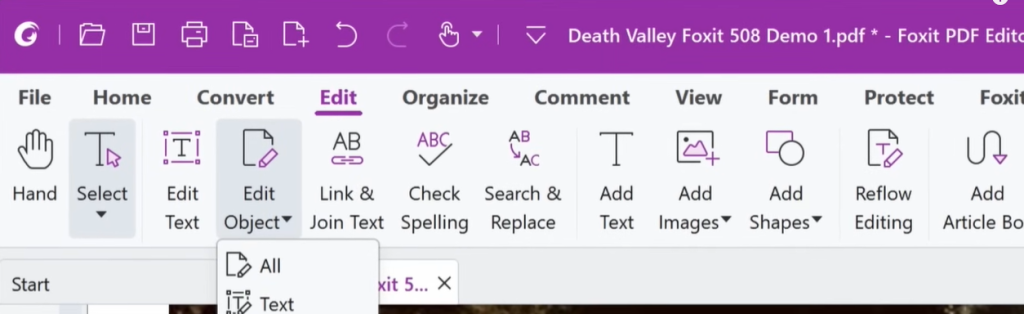
Step 3: You can now correct any misspellings or reformat the text using the format options.
Step 4: You can also edit the PDF document text using the right-click menu.
How to Edit PDF Text Online
Can you edit text in a PDF without Adobe or other software that needs to be downloaded? Fortunately, the 2 tools in this part have you covered. Dive into how to edit and add text to a PDF and save it for free with them.
#1. Edit Text in PDF Online with Sejda
Text editing in PDFs is often an advanced feature and is charged. Nevertheless, Sejda comes into play as a free method. This online platform provides many other tools, such as a PDF signer, annotator, form filler, and merger. It lets you edit PDF text online for free with no sign-up, without a watermark, but with the same font.
Step 1: Visit Sejda.com, and click Edit at the top to access the PDF text editor.
Step 2: Click the green button to upload the PDF you plan to edit text for free online.
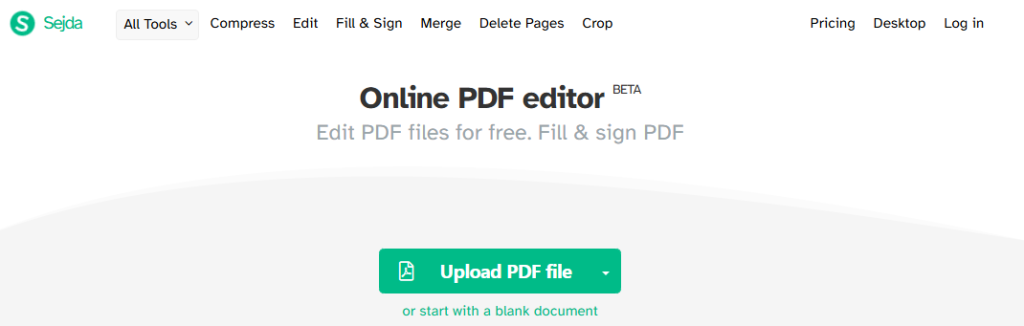
Step 3: The web app will detect text line by line, and you can click and select a line to change and edit the text in the PDF.
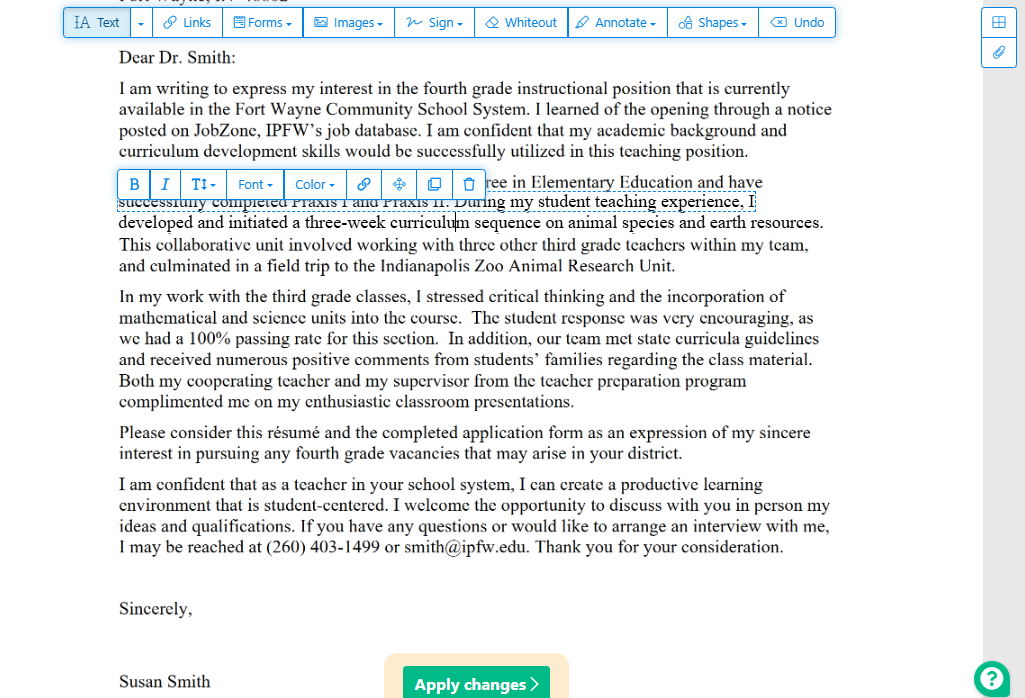
Step 4: When you’re done, scroll down to click the Apply changes button and download the edited PDF.
#2. Xodo Free Online PDF Editor to Edit Text
Xodo online editor is another free way to edit a PDF text block. Its UI is ad-free and intuitive, making navigation easy. It allows you to insert more text, add form symbols, add links, remove unnecessary elements, and further manipulate PDFs. You can process files with it from any device in your browser. However, free users can only edit once per day.
Learn how to edit previous text in a PDF online with Xodo.
Step 1: Open the online PDF editor from Xodo.com.
Step 2: Upload your PDF from your local device or the supported cloud platforms.
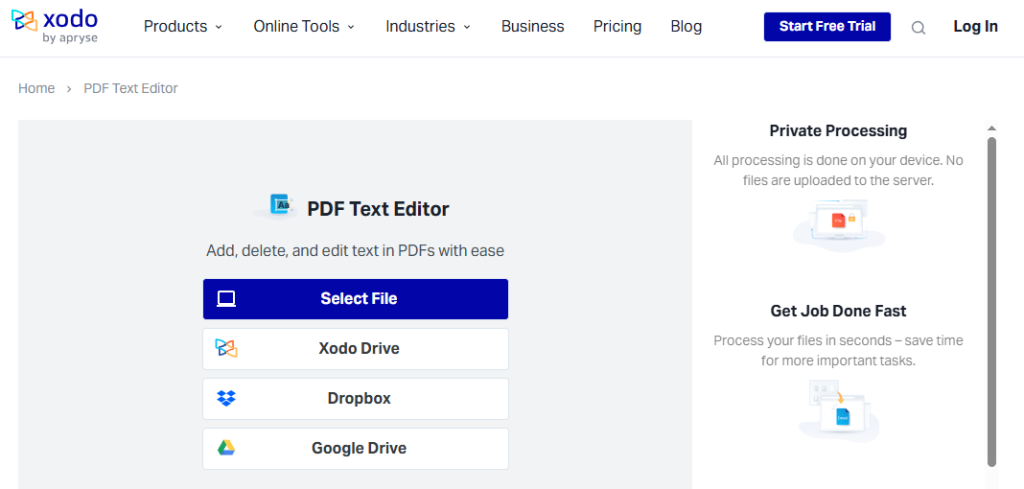
Step 3: When the text box appears, start PDF text editing online.
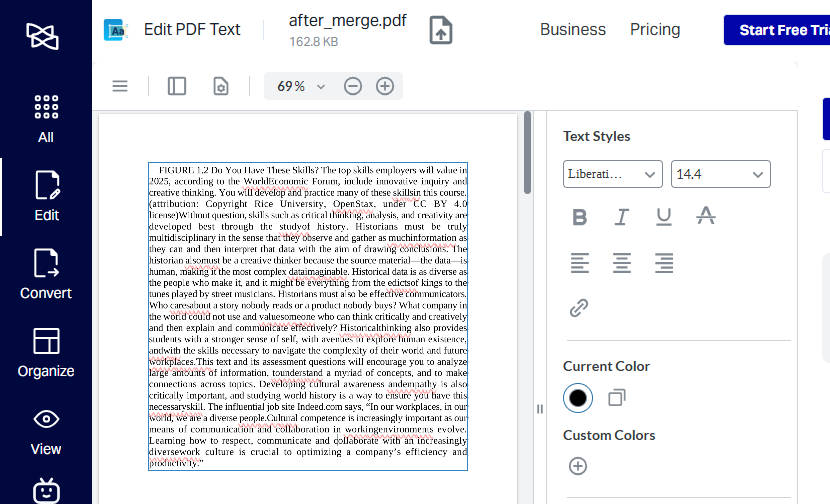
Step 4: Select the text, then choose the editing option on the right to adjust the appearance, or right-click to replace and highlight it.
Step 5: Download and save the edited PDF to the specified folder.
Conclusion
Whether you’re dealing with proposals, legal documents, or any materials, avoid jumping through hoops. This article is compiled with the hope of doing you a favor. You can now edit text in PDF files on Windows, Mac, or online without taking longer. Whether at the workplace, at home, or in the office, use JOPDF, a completely free software, to save your life. If you’re on the road without a computer, Sejda helps edit the PDF file text online.
FAQs
Open your PDF file in Acrobat, click “Edit”, and Acrobat automatically OCRs your document and converts it to an editable copy. Select and edit the text of the PDF as usual, and the text is written in the same font as the existing text.
If the best tools to edit text in PDF documents don't work, consider that the file is protected against editing. Open the PDF in JOPDF, choose "Protect" > "Decrypt", and follow the on-screen workflows to remove the restriction.
Table of Contents

Your Best Free PDF Expert in PDF editing, compressing, converting, annotating, protect, organizing, and more.
Free DownloadWindows · macOS

Selena
Staff Editor
“Selena is a staff editor working for JOPDF, passionate and committed to providing how-to and round-up articles. Over 8 years of specialized skills and experience in PDF solutions, hoping to help users ease their lives and solve whatever they encounter. "Work smarter, not just harder!"”