Introduction :
If you are seeking effective ways to rearrange PDF pages to the right order, congratulations! You are in the right place! In this comprehensive JOPDF guide post, I will introduce you to four easy and quick ways to reorder pages in PDFs, including both offline and online, as well as free and paid ways. I’ll provide a brief introduction to the four PDF organizers, along with their pros and cons, to help you make an informed decision. Now, let’s get started!
Top 2 Offline Ways to Rearrange PDF Pages
Considering the security of documents and personal information, some of you prefer offline programs to reorder pages in PDF. In this section, I picked up 2 reliable and easy PDF organizers to rearrange pages in a PDF. Below are brief introductions to them and guidance on how to rearrange pages in PDF. Now, let’s get started!
Way 1. JOPDF (Recommended Free Way)
At the beginning, I want to take JOPDF first to introduce. The primary reason is its free and easy-to-use nature. For most of us, it is unnecessary to spend money to rearrange pages in a PDF since it’s an easy task.
JOPDF is a completely free PDF page organizer for Windows and Mac that supports reordering PDF pages, inserting blank pages, removing PDF pages, and resizing PDF pages. With its intuitive and user-friendly interface, you can easily master how to use it to rearrange pages in a PDF. Here’s how:
Step 1. Get JOPDF by clicking the button below and install it on your PC according to its on-screen installation instructions.
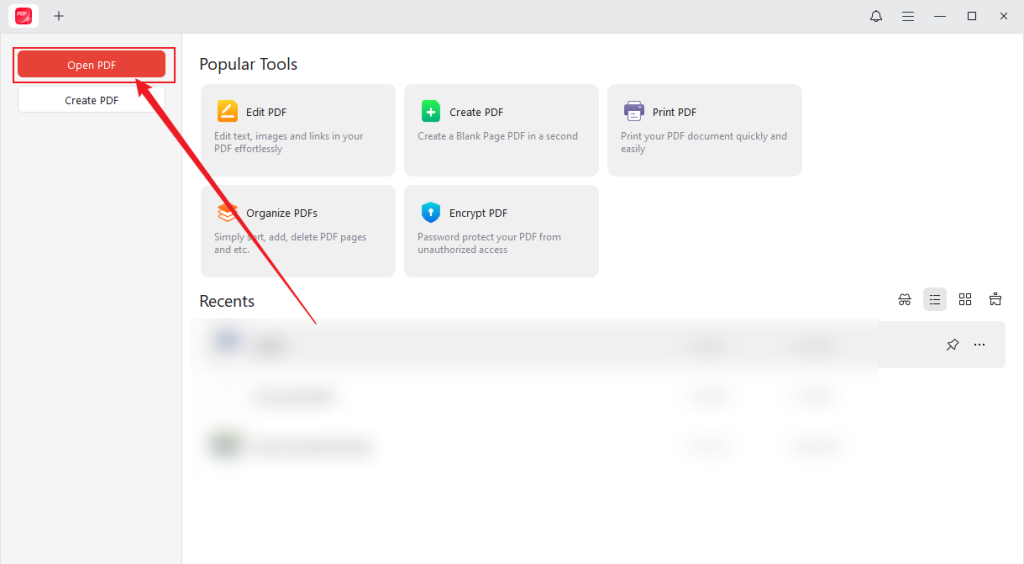
Step 2. Run this free PDF organizer and click the Open PDF button to import the PDF file with disordered pages.
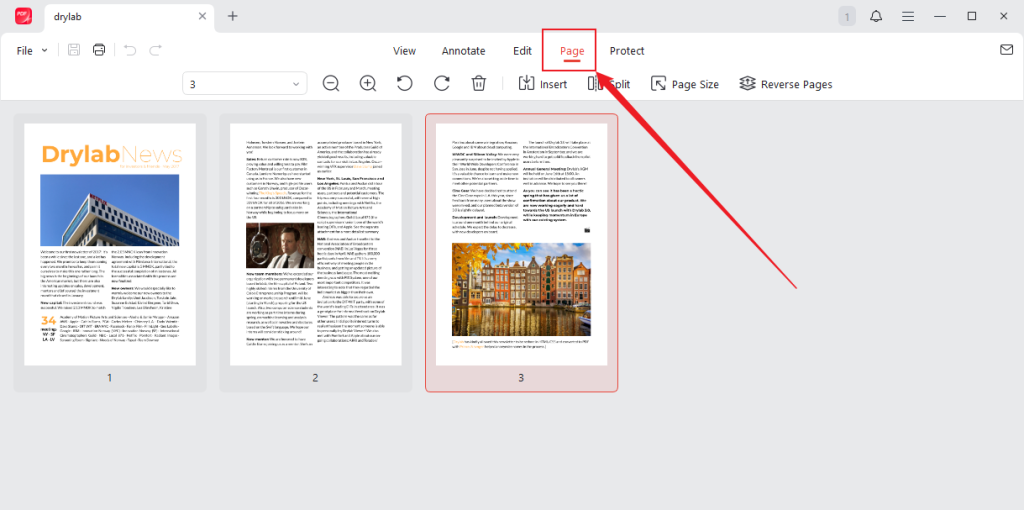
Step 3. Switch from the View tab to the Page tab. Locate the disordered PDF page, then directly drag and drop it into the correct position.
Tips
If the page order in the entire PDF is reversed, click the Reverse Pages option and then click Reverse to confirm the operation.
Other Useful Features of JOPDF:
- It can edit PDF documents with easy-to-use tools.
- It enables you to password-protect PDFs.
- It supports annotating PDFs with highlighters, lines, shapes, and more.
- It allows you to view PDF files in various modes.
- It supports copying text from a PDF.
Pros of JOPDF
- A completely FREE program for PDFs.
- Compatible with both Windows and Mac.
- Have an intuitive and user-friendly interface.
- Organize PDF pages effectively.
Cons of JOPDF
- Limited features for PDF editing.
- Doesn’t support PDF conversions.
Way 2. Adobe Acrobat Pro
If you have sufficient budget and enjoy more features in addition to rearranging PDF pages, Adobe Acrobat could be your choice. This feature-rich PDF editor is equipped with a variety of features, ranging from organizing PDF pages and editing PDF files to compressing and converting PDFs. Refer to the tutorial below to learn how to rearrange pages in a PDF using Adobe Acrobat Pro.
Tips
If you are using Adobe Acrobat’s online tools and the mobile app of Acrobat Reader, you can enjoy the feature to reorder PDF pages for free. On the contrary, you need to pay to access Adobe Acrobat Pro for the feature of rearranging pages in PDFs. Also, the free Adobe Reader doesn’t support PDF page rearrangement.
Step 1. Open your Adobe Acrobat Pro and open the target PDF file that needs to sort pages.
Step 2. Select the Tools option from the top menu bar and click the Organize Pages option.
Step 3. Click and drag the page thumbnail to the correct position.
Step 4. Finally, you can click the File tab and click the Save option to save the PDF file in the right page order.
Other Highlights of Adobe Acrobat Pro:
- It can extract pages from PDF files.
- It offers a set of PDF editing features.
- It supports comparing two PDF documents to highlight differences.
- It can convert scanned PDFs into searchable and editable PDFs.
Pros of Adobe Acrobat Pro
- Provide comprehensive features for PDF editing.
- Offer cloud storage for cross-device access.
- Protect PDFs via passwords, permissions, or encryption.
- Offer an AI assistant.
Cons of Adobe Acrobat Pro
- Requires a high subscription cost.
- Have a steep learning curve.
2 Quick Ways to Reorder PDF Pages Online
Some of you prioritize convenience at first. In that case, online tools are better than offline tools since they can be directly accessed via a browser without downloading or installing any software. Considering the safety and practicality, I picked Smallpdf and iLovePDF as examples to walk you through how to reorder pages in PDF.
Way 1. Smallpdf
Smallpdf is an online PDF editor that can be accessed via most common browsers on different devices, including PCs and mobile phones. Working as a PDF organizer, it enables you to reorder PDF pages with ease. Additionally, it supports deleting PDF pages, extracting pages from PDF, and more. You can follow the steps below to rearrange PDF pages online using Smallpdf.
Step 1. Open the Chrome browser or another web browser on your device and go to Smallpdf’s Organize PDF website.
Step 2. Click the CHOOSE FILES button to import the disordered PDF. In addition, you can click the inverted arrow next to this button to import files from Google Drive, OneDrive, or Dropbox.
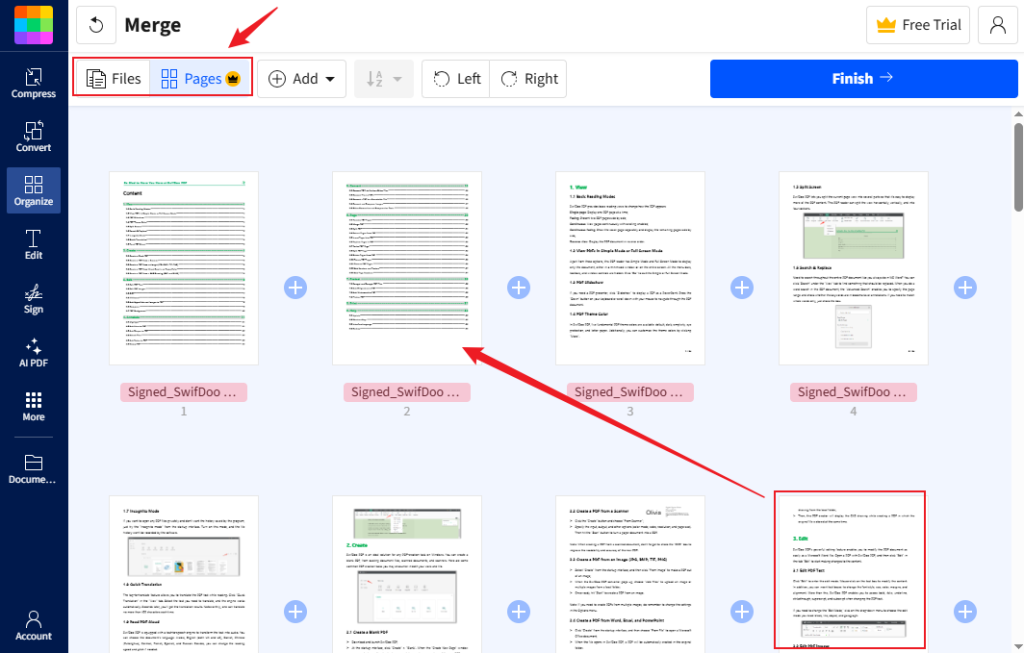
Step 3. Switch from the Files tab to the Pages tab. Next, you can change the order of PDF pages by directly dragging and dropping them to the right place. When you put all the PDF pages in the right place, click the Finish button.
Other Main Features of Smallpdf:
- It provides AI-powered features to chat with, summarize, or translate PDFs.
- It can function as a PDF converter to convert PDF to Word, Excel, PPT, or JPG format.
- It supports adding watermarks to PDFs.
- It can protect PDFs with passwords.
Pros of Smallpdf
- Offer comprehensive features to organize PDFs.
- Equipped with AI-powered features.
- Integrate with cloud services.
- Have cross-platform accessibility.
Cons of Smallpdf
- Need to pay for its Pro version to unlock the feature to reorder PDF pages.
- Only provide a 7-day free trial.
Way 2. iLovePDF
Another PDF pages organizer I want to introduce is iLovePDF. Its simple interface makes it easy to learn how to use it to sort PDF pages. Like the other three tools mentioned in this post, iLovePDF also supports deleting PDF pages or adding blank PDF pages to your PDF file. Here, let’s see how easy it is to sort PDF pages with iLovePDF.
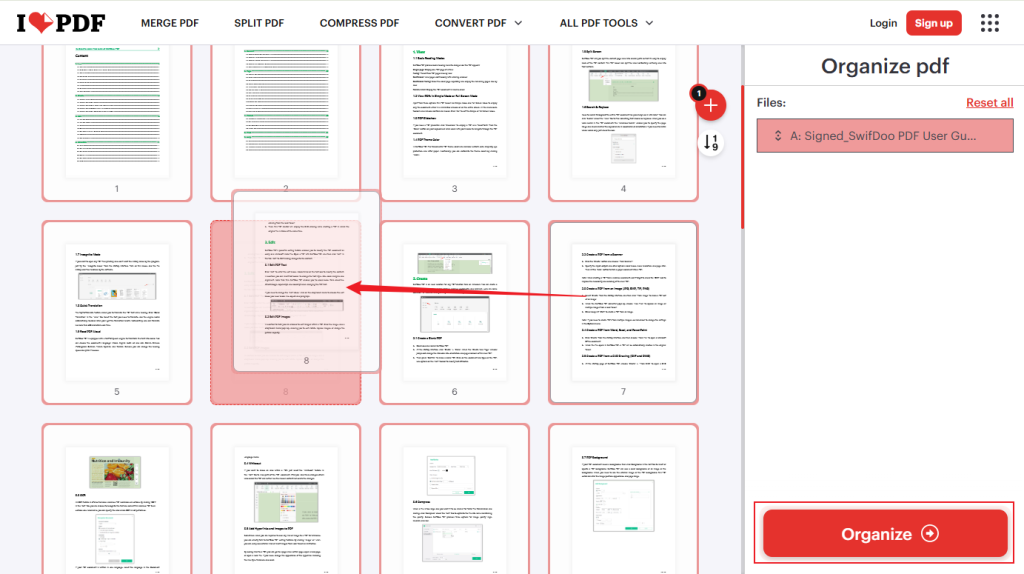
Step 1. Go to the iLovePDF official website via any of your browsers and scroll down to select the Organize PDF option.
Step 2. Click the Select PDF file button to import your PDF from your local storage space. Or, you can click the Google Drive or Dropbox icon to import the PDF file from the cloud storage space.
Step 3. Click the target page and drag and drop it to the right place. Repeat the operation. Once done, click the Organize button. Finally, click the Download file button to save the rearranged PDF file to your device. Meanwhile, you can also choose to save the file to Google Drive or Dropbox.
Other Useful Features of iLovePDF:
- It supports merging several PDF files into one for easy viewing.
- It can repair damaged PDF documents.
- It offers various editing features to refine PDF files.
Pros of iLovePDF
- A user-friendly interface.
- Have cross-platform accessibility.
- Free to rearrange pages in PDF files.
- Easy-to-use nature.
Cons of Smallpdf
- Not a completely free PDF tool.
Wrapping Up
All in all, it is not difficult to rearrange PDF pages once you get a reliable PDF organizer. In this post, I have recommended four excellent tools to reorder PDF pages offline or online. Each of them has pros and cons. You can choose one based on your practical needs.
FAQs
Table of Contents

Your Best Free PDF Expert in PDF editing, compressing, converting, annotating, protect, organizing, and more.
Free DownloadWindows · macOS

Olivia
“Olivia is an editor at JOPDF, where she writes practical guides and insightful articles on managing PDFs—covering topics like editing, annotating, converting, and organizing files efficiently. Passionate about clear communication and digital productivity, Olivia enjoys spending her free time cooking, watching movies, and hiking to unwind and find inspiration for her writing.”
![[2026 Newest] Expert Guide on How to Rotate a PDF in Google Drive](https://b.jopdf.com/wp-content/uploads/2026/01/how-to-rotate-a-pdf-in-google-drive-thumbnail.png)
