Introduction :
Sometimes, you need to resize a PDF file to fit the printer paper size or the screen of the PDF viewer. When the PDF file size is too large to upload or send, you intend to resize it to reduce the file size. What exactly does “resize a PDF” mean? Let’s have a discussion in this JOPDF post. More importantly, let’s find out how to resize a PDF effortlessly.
What’s the Meaning of “Resize PDF”?
Before delving into how to resize a PDF, it is necessary to understand the meaning of “resize a PDF”. Generally, it has two meanings, depending on the specific context.
- Meaning 1. Change the PDF Page Dimensions: This refers to adjusting the height and width of the PDF pages to ensure they fit a specific page size. For instance, you can resize the PDF to A4, A5, or letter size.
- Meaning 2. Reduce the PDF File Size: Resizing a PDF can also mean reducing its file size, such as from 12 MB to 5 MB.
How to Resize a PDF to Change Page Dimensions
How to resize a PDF page to A4 or other page dimensions? JOPDF is strongly recommended. It is a free PDF editor for Windows and Mac. With its page organizing features, you can easily change the PDF page sizes, rearrange PDF pages, insert PDF pages, and remove PDF pages effectively. Here’s how:
Step 1. Get the installer of JOPDF by clicking the button below and install it on your Windows or Mac PC based on the on-screen instructions.
Step 2. Click the Open PDF button to import your PDF file. alternatively, you can upload the PDF file by directly dragging and dropping.
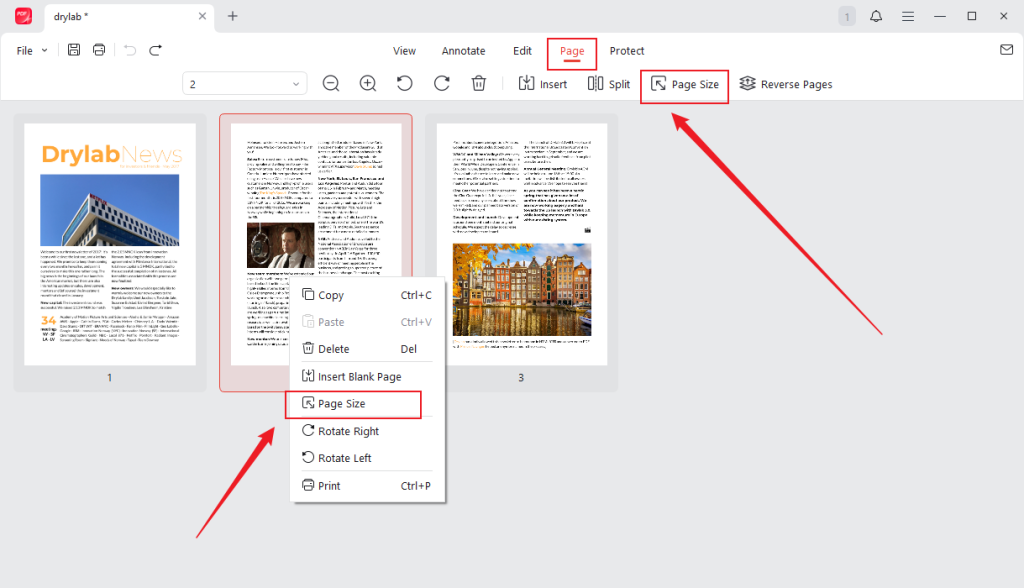
Step 3. Hit the Page tab, and you can see all the page thumbnails listed here. Select one page and click the Page Size option. Or right-click on the PDF page and select the Page Size option.
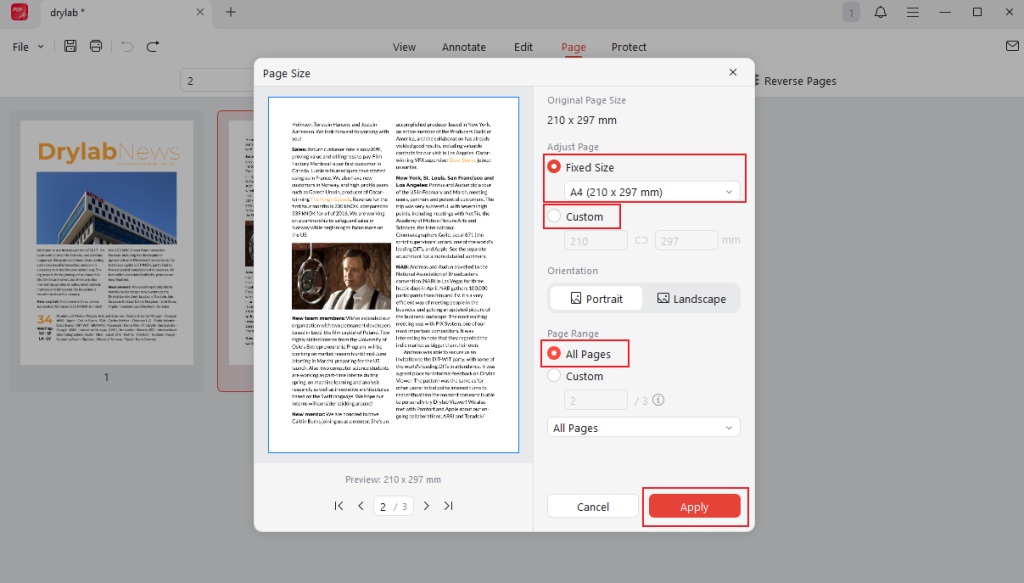
Step 4. Select the Fixed Size option, open this list, and choose A4 (210 x 297 mm) or other preferred size options. Or, you can tick the Custom option to set a customized page dimension. Meanwhile, you can convert the portrait page to a landscape page. If you want to change all the pages in this PDF file, you need to check the All Pages option. Then, click Apply.
Step 5. At last, press Ctrl + S (or Command + S for Mac) to save the resized PDF file.
Additionally, JOPDF allows you to adjust the page dimensions for printing. How to resize a PDF for printing? After finishing editing the PDF file in JOPDF, you can click the Print icon or press Ctrl + P (or Command + P for Mac) to open the Print window. Expand the Page Size list to choose the desired page size for printing. Next, make other printing settings, such as the orientation, printed page range, and others. Finally, click the Print button.

How to Resize a PDF to Reduce File Size
How can you resize a PDF file to reduce its size with no hassle? A reliable PDF compressor is essential. In this section, I will show you both online and offline PDF compressors. Let’s check them one by one.
Option 1. Use SwifDoo PDF
SwifDoo PDF is an excellent PDF compressor that can shrink PDF file size without losing quality. In addition, it supports compressing several PDF documents at once. Before compressing a PDF, you can use its a wide range of editing, annotation, viewing, protection, and page organizing features to refine the PDF document. Additionally, it supports compressing Word, Excel, PPT, and images. How to resize PDF files with SwifDoo PDF? Below are detailed steps:
Step 1. Download and install this excellent PDF compressor.
Step 2. Launch SwifDoo PDF to get to its main user interface and click the Compress PDF option under the Popular Tools section.

Step 3. Click + Add Files to import the PDF files you want to resize. You can set the Compression Level separately. Or, go to the Batch Compress section to set the compression level for all the uploaded PDF files. You can select from the Low, Medium, or High option. Also, you can select the Custom option to customize the quality and resolution by yourself.
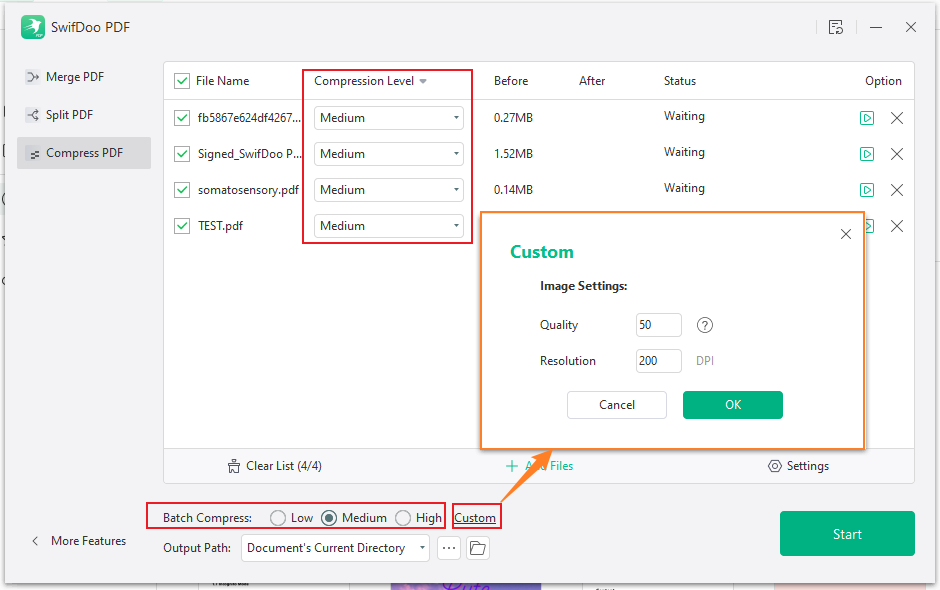
Step 4. Next, you can open the Output Path to select a folder where you want to save all the resized PDF files. Finally, click the Start button.
Option 2. iLovePDF
If your device has a limited storage space, an online PDF compressor is your first choice. Taking the security and price into consideration, I picked iLovePDF from thousands of online PDF compressors. It is an easy-to-use PDF compressor; you can quickly master how to use it, even if you are using it for the first time.
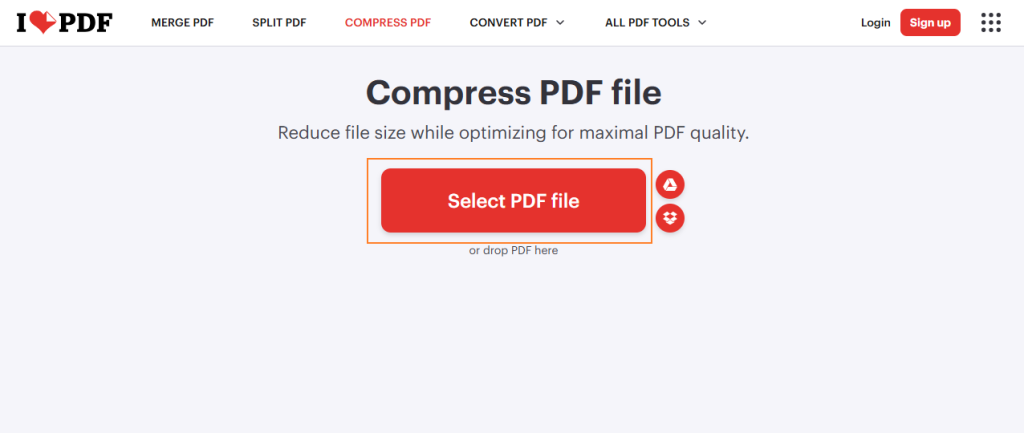
Step 1. Open the Chrome browser or any web browser on your device, go to the official website of iLovePDF, and select the Compress PDF option.
Step 2. Hit on Select PDF file, locate the PDF file you want to resize, and click Open to import it.
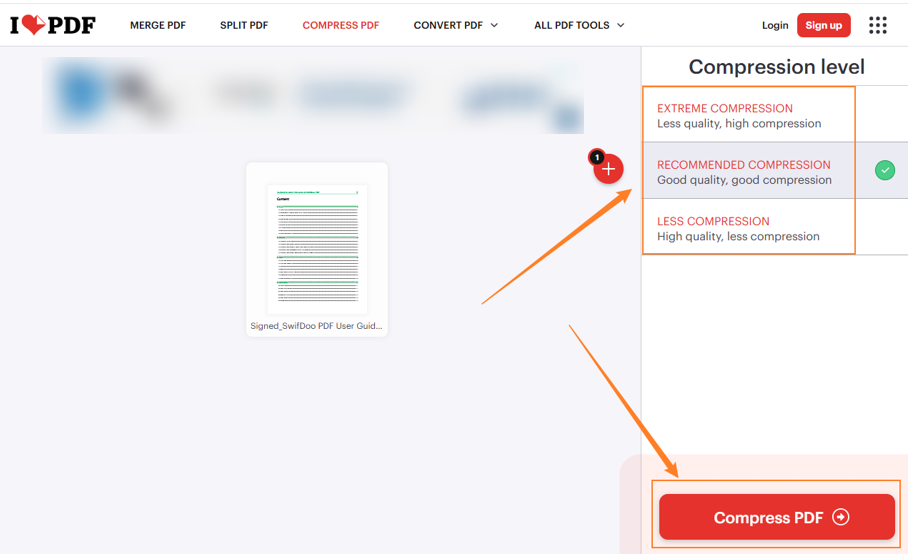
Step 3. iLovePDF offers 3 compression levels for you to choose from. Choose a proper one and click the Compress PDF button.
Step 4. Once the PDF compression process is complete, click Download PDF file to save it locally.
To Wrap Things Up
How to resize a PDF to change the page dimensions or reduce the file size? In the content above, I offer three useful PDF programs and show you how to use them for PDF resizing. When you encounter situations that require adjusting the height and width of a PDF page, consider using JOPDF. You may be surprised by its awesome features. If you want to reduce the PDF file size, try SwifDoo PDF and iLovePDF. All of them can help you solve certain PDF programs effectively.
FAQs
Step 1. Open the large PDF in Preview.
Step 2. Go to File > Export to choose PDF as the output format.
Step 3. Expand the Quartz Filter dropdown and select the Reduce File Size option.
Step 4. Name the compressed PDF, choose its saving path, and click Save.
Step 1. Go to the PDF2Go Resize PDF website and click Choose File to import the target PDF.
Step 2. Select a page dimension preset or customize the page dimension yourself.
Step 3. Click START.
Table of Contents

Your Best Free PDF Expert in PDF editing, compressing, converting, annotating, protect, organizing, and more.
Free DownloadWindows · macOS · Linux

Olivia
“Olivia is an editor at JOPDF, where she writes practical guides and insightful articles on managing PDFs—covering topics like editing, annotating, converting, and organizing files efficiently. Passionate about clear communication and digital productivity, Olivia enjoys spending her free time cooking, watching movies, and hiking to unwind and find inspiration for her writing.”
![[Top 4 Ways] How to Compress a PDF Without Adobe in 2026](https://b.jopdf.com/wp-content/uploads/2026/04/how-to-compress-a-pdf-without-adobe.png)
