Introduction
There are many reasons for deleting PDF pages, such as removing blank or duplicate pages, correcting errors, optimizing document workflows, or reducing file size. If you are unsure how to proceed, don’t miss this article. We will show you how to delete pages from PDF on Windows and Mac computers.
1. Free & Quick Way to Delete Pages from PDF
Best for: Users who want a free and lightweight tool to handle daily document tasks.
A professional, simple, and free PDF tool is the first choice for many people. If you are one of them, then JOPDF is the answer. JOPDF is a comprehensive PDF management tool available on Windows, macOS, iOS and Android. It streamlines document workflows by integrating editing, annotation, and protection into one tool.
With JOPDF’s Page Management feature, you can easily delete any pages in the PDF document. It will show you all the pages so you can select the ones you want to delete. After that, click the trash can icon to delete them all at once.
Here is how to delete pages from PDF for free with JOPDF:
1. Download JOPDF. Install and open the software.
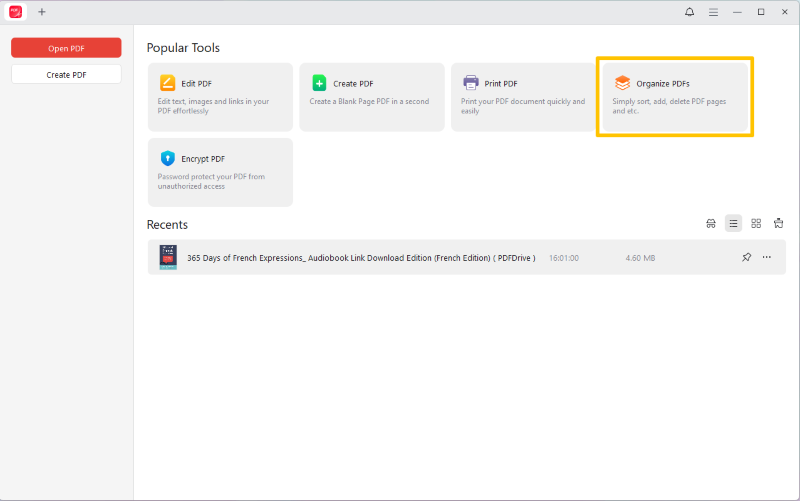
2. On the home interface, click Organize PDFs and select the document.
3. Select the pages you want to delete.
4. Right-click any page and select the Delete button.
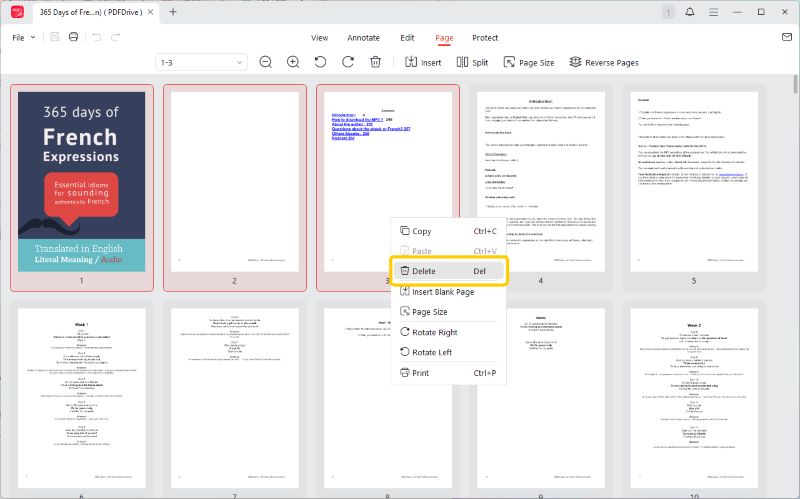
5. Click Delete again to confirm.
As you can see, deleting pages from PDF documents with JOPDF is a breeze. Of course, it can also help you quickly complete other tasks. Get JOPDF now and become a PDF editing expert!
Pros
- 100% Free
- Easy-to-use
- Multiple selection for efficient deletion
Cons
- Requires installation
- Lacks advanced features
2. Delete PDF Pages in Mac Preview
Best for: Mac users who need basic PDF management without installing third-party software.
Preview is Apple’s built-in image and PDF viewer and editor. It offers a wide range of features, including viewing, annotating, printing, signing, and reorganizing pages.
Check to learn how to remove pages from a PDF on Mac using Preview:
1. Double-click the PDF document in Preview.
2. Click View and select Thumbnails.
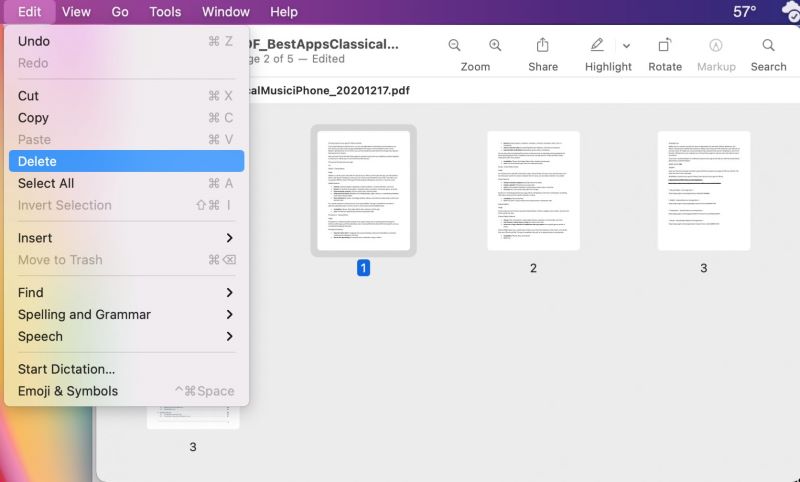
3. Choose the pages you want to delete.
4. Press the Delete key or choose Edit > Delete to make it.
Pros
- Free
- Native and lightweight
- Various basic editing features
Cons
- Only available on Mac
3. Delete Pages in PDF via Adobe Acrobat
Best for: Professionals who need comprehensive PDF editing and organization features.
Adobe Acrobat is the industry-standard software that works on desktop and web. The free Adobe Reader supports viewing, printing, annotating, and basic sharing functions.
However, if you need to access other functions, such as deleting pages, editing, or converting, you need to upgrade to the Pro version.
Read on to learn how to remove PDF pages in Adobe:
1. Open the document in Adobe Acrobat.
2. Go to Tools and choose Organize Pages.
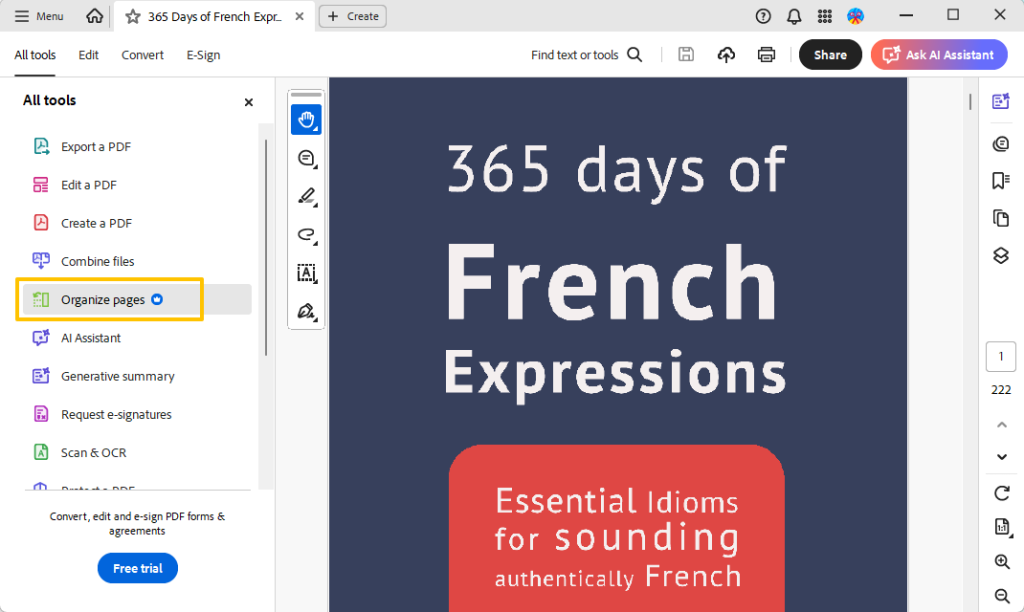
3. Select the pages and click the Delete button.
4. You can also enter the page number to remove all unwanted pages.
Pros
- The leading PDF tool
- Various advanced features
- It is compatible with both iOS and Android devices.It is compatible with both iOS and Android devices.
Cons
- Not free
- Requires a learning curve
4. Remove Pages from PDF in A Browser
Best for: Used for quick, one-time deletion of pages when know exactly which pages to keep.
Many web browsers, such as Chrome, Firefox, Edge, Opera, and Safari, have a built-in “Print” function that lets you save any web page or open document as a PDF.
It lets you select the pages you want to save, so you can use this feature to choose the ones you need and discard the ones you don’t. However, you should note that PDFs saved using this method will become unsearchable and uneditable.
Steps to delete PDF pages in a browser:
1. In your browser, open a new tab and drag the document into it,
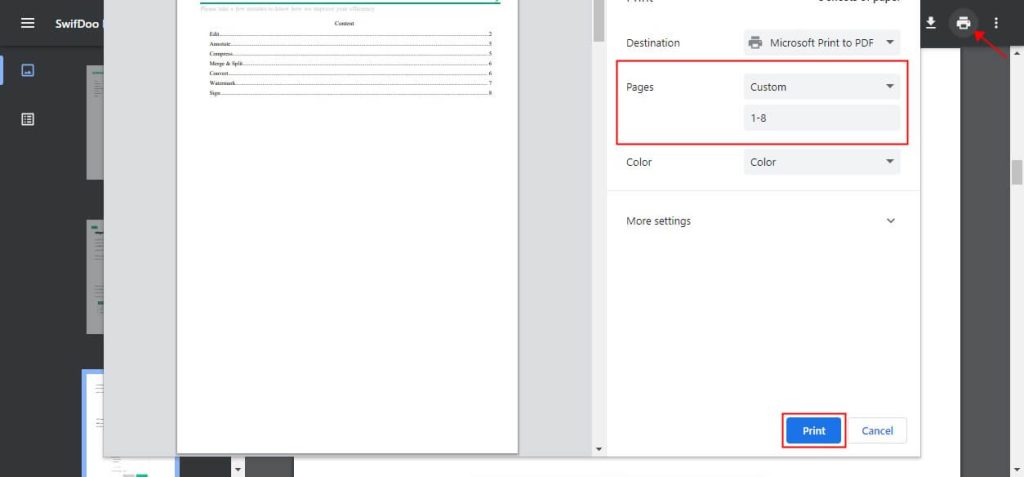
2. Press Ctrl+P on Windows or Cmd+P on Mac.
3. Click the Print button.
4. Then select Microsoft Print to PDF or Save as PDF next to Destination.
5. Select Custom next to Page and adjust the pages you want to keep.
6. When OK, click Print or Save. Select a location to save the new document.
Pros
- Free
- No installation
- Quick method for occasional use
Cons
- The document will become unsearchable
- Risk of entering incorrect page numbers
5. Use An Online Tool to Remove Pages
Best for: Casual users who want to delete pages from PDF files without involving sensitive information.
Another way to delete PDF pages is to use an online PDF editor, such as iLovePDF, Smallpdf, Sejda, and Canva. When you need to use professional PDF tools but don’t want to download software, online tools are a good choice.
As long as you have an internet connection, you can delete pages in your browser. These online tools usually offer a free trial. However, they usually have restrictions on file size. In addition, it is not recommended to upload sensitive files, as there are always many risks associated with the Internet.
Steps to delete PDF pages using an online tool:
1. Open a browser and visit an online tool, such as iLovePDF.
2. Click Select PDF file to upload the document.
3. Find and click the pages you want to delete.
4. Click Remove pages to continue.
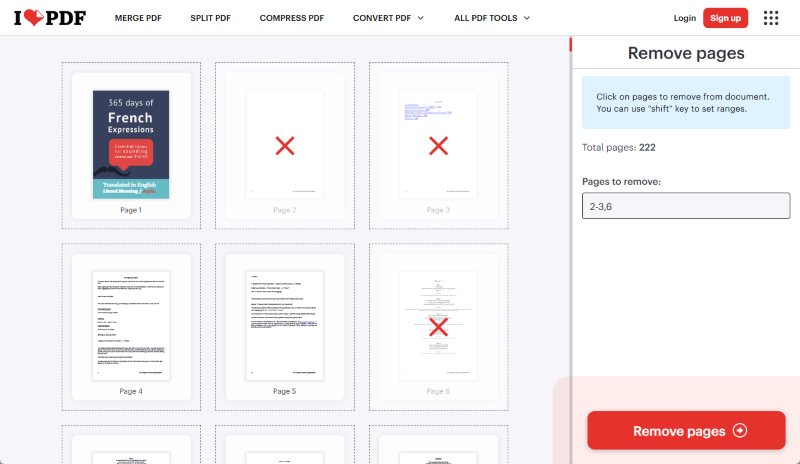
5. Finally, download the document to your computer.
Pros
- No installation required
- Good for simple tasks
Cons
- Have usage restrictions
- Uploading sensitive files may pose privacy risks
Conclusion
That’s all about how to delete pages from PDF. Removing pages from PDF files helps maintain accuracy, protect sensitive data, and improve readability. This ensures that the final document is concise, relevant, and easier to share or store.
All of the tools mentioned in this article support page deletion. You can choose the tool that best suits your needs based on your specific circumstances, and after trying them out. Of course, if you prefer professional PDF software, JOPDF is the best choice. It can quickly delete pages and is free to use.
FAQs
Table of Contents

Your Best Free PDF Expert in PDF editing, compressing, converting, annotating, protect, organizing, and more.
Free DownloadWindows · macOS

Queena
Editor
“As a staff editor for JOPDF, Queena excels at guiding users to the optimal tools and solutions. When she's not analyzing the latest PDF solutions, she enjoys spending her free time playing with her four cats.”
![[2026 Newest] Expert Guide on How to Rotate a PDF in Google Drive](https://b.jopdf.com/wp-content/uploads/2026/01/how-to-rotate-a-pdf-in-google-drive-thumbnail.png)
