
Summary :
You may need to add beginning chapters, cover pages, or additional notes to a ready PDF. To do that, you wish to add a blank page to an existing PDF. Of course, it is possible, but it would be a pain if you don’t know the easier methods. Furthermore, files with too many pages require an efficient and accurate PDF editor. Read this post to learn how to add a blank page to a PDF in the 4 best life-saving ways.
Way 1: Add Blank Page to PDF for Free with JOPDF
JOPDF is a wrapper of PDF editing tools that enables you to insert a blank page in a PDF at any position. It is a completely free application for Windows and Mac. The built-in PDF page-organizing feature also lets you cut pages into parts, rotate, delete, and reverse pages. You can reorder or duplicate the PDF pages if needed.
Tutorial to add a blank page to a PDF with JOPDF on Windows or Mac:
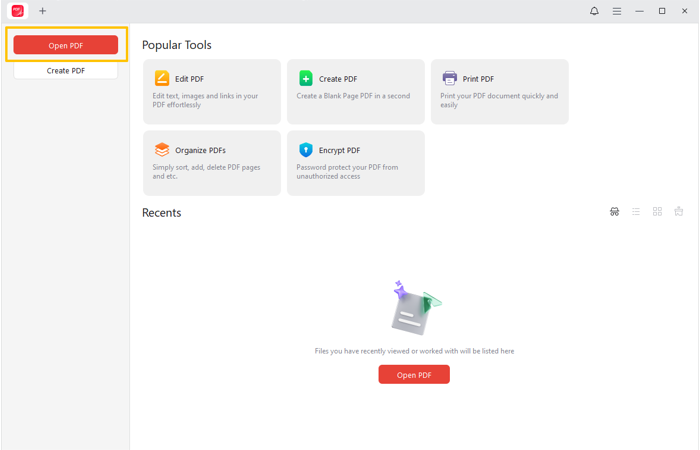
Step 1: Launch the installed JOPDF, and click Open PDF to open the PDF you need to add a blank page to.
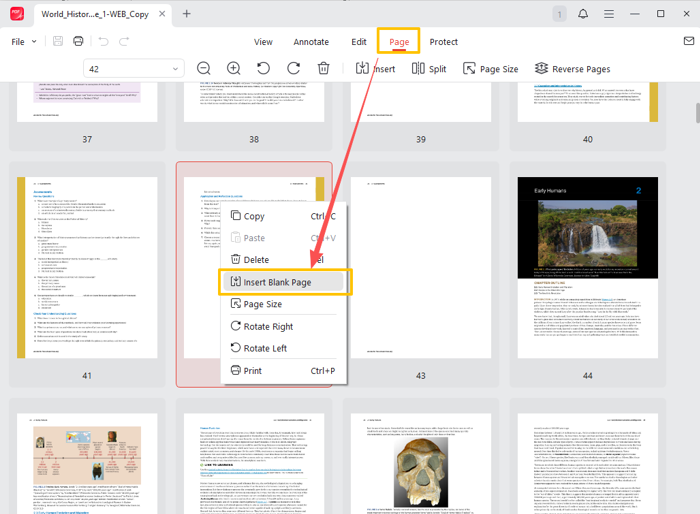
Step 2: Go to the Page tab, scroll through the page thumbnails, and stop where you need to add a page.
Step 3: Right-click on the specific page and choose Insert Blank Page to add a blank page after it.
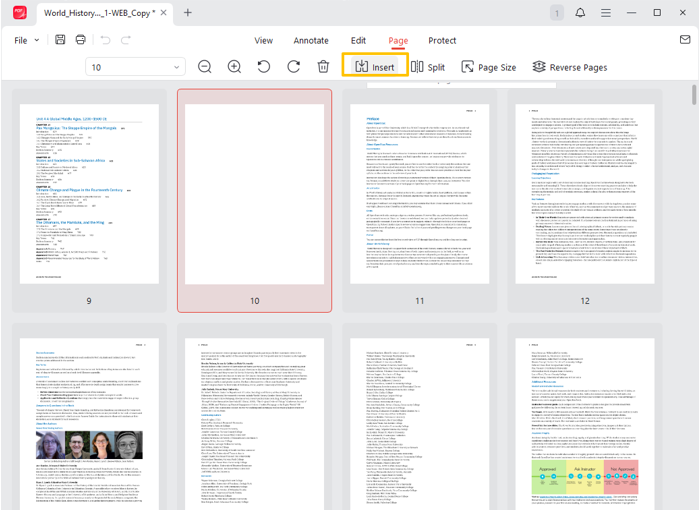
Step 4: Select another page, then click Insert in the top secondary bar to add a second blank page.
Step 5: Save the edited PDF by clicking the Save button in the top left corner.
JOPDF is more than a PDF blank page adder and also lets you further write on the PDF. After you add a blank page to a PDF,
- You can choose “Edit” > “Add Text” to type or copy and paste the additional content you need to complement.
- Click “Add Image” in the editing toolbar to add an image to the blank page as a background.
- Choose “Annotate” and use the “Sticky Note”, “Typewriter”, or other tools to add your notes, comments, or review.
Way 2: How to Add a Blank Page to a PDF in Adobe Acrobat
Adobe Acrobat, as the most well-known and powerful PDF software, is definitely a blank-page PDF creator. It can add a blank page to a PDF before or after the first, last, or a selected page. After that, you can utilize the editing features to insert images, text, notes, or other elements. The software also lets you add page numbers to all PDF pages.
Here is how to insert a blank page in a PDF in Adobe Acrobat Pro.
Step 1: Click File > Open in Acrobat to select a PDF.
Step 2: Open your PDF that you want to insert a blank page into.
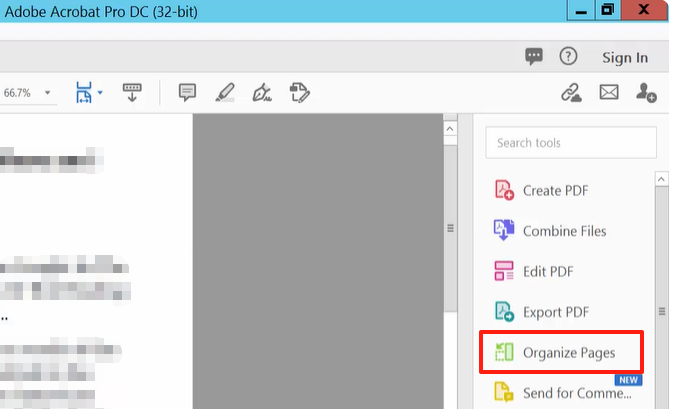
Step 3: Click the Organize Pages tool in the side pane.
Step 4: Click the Insert drop-down button and select Blank Page.

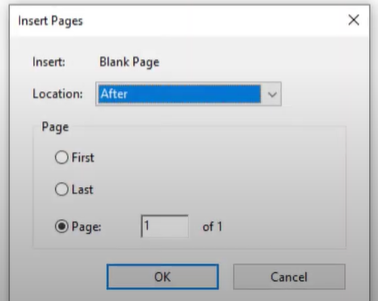
Step 5: Set where to insert the blank page in the Adobe PDF, and click OK.
Step 6: Rearrange the pages if necessary, and then save the changes.
Way 3: Insert a Blank Page in a PDF Using Xodo Online Editor
Adding a blank page to a PDF can be done with the online Xodo PDF solution. The web-based application provides a set of daily tools for free. It allows you to simply annotate, edit, and convert PDFs. Best of all, it can add a blank page after every page by automated settings without manually adding.
Follow the several steps to add a blank page to a PDF document online for free with Xodo.
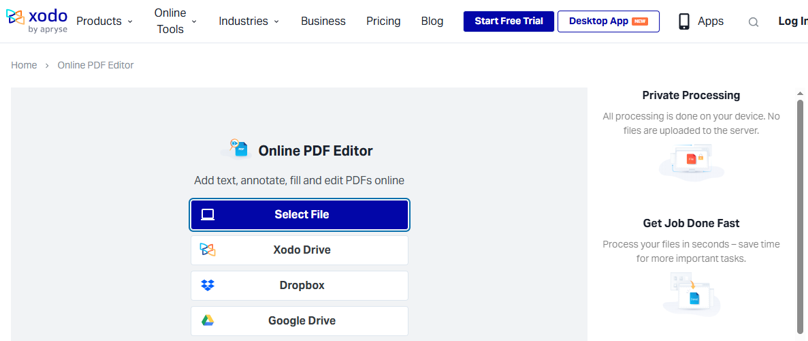
Step 1: Visit the blank page adder for PDF documents in the online Xodo PDF editor.
Step 2: Upload your PDF file through the Select File button or upload it from a cloud platform.
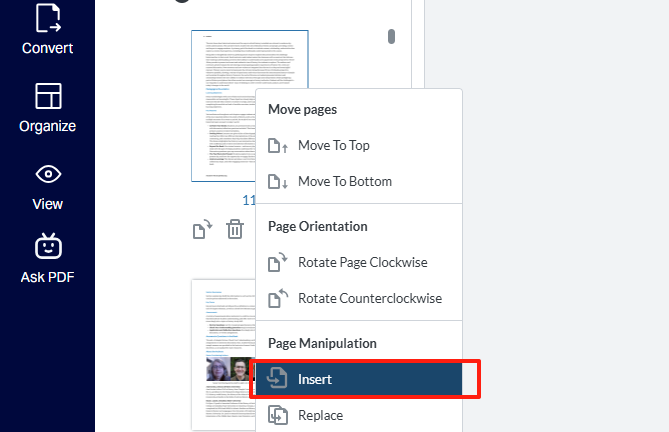
Step 3: Scroll the thumbnails pane, right-click on a page, and choose Insert.
Step 4: Customize the added page dimension and whether to insert the new page before or after the selected one.
Step 5: Click the Add Page(s) button to add a blank page in the PDF.
Step 6: Alternatively, enter the page numbers in the Specify Page field, and type how many blank pages to add in the Number Of Pages field.
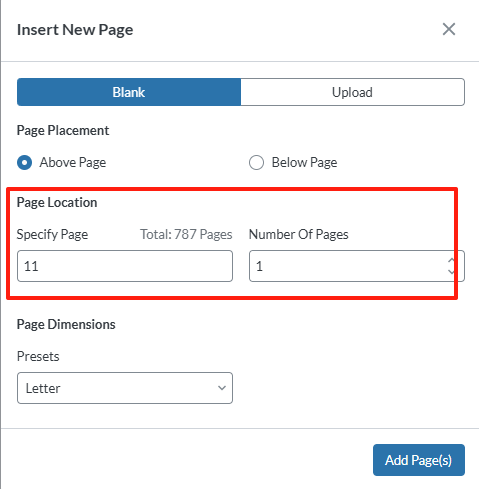
Step 6: Click Add Page(s) to add blank pages at the end of each page specified by the page number.
Way 4: Add Blank Pages to PDF with iLovePDF
iLovePDF is a cool web utility you can use to insert a blank page in a PDF online for free. You can enjoy its tools to merge, compress, split, and make basic edits to PDFs. The website is free to use, with no signup or login, and allows you to rotate, remove, and reorganize the pages. The free plan has limitations on file size or the number of tasks.
Check out how to create and add a PDF blank page with iLovePDF.
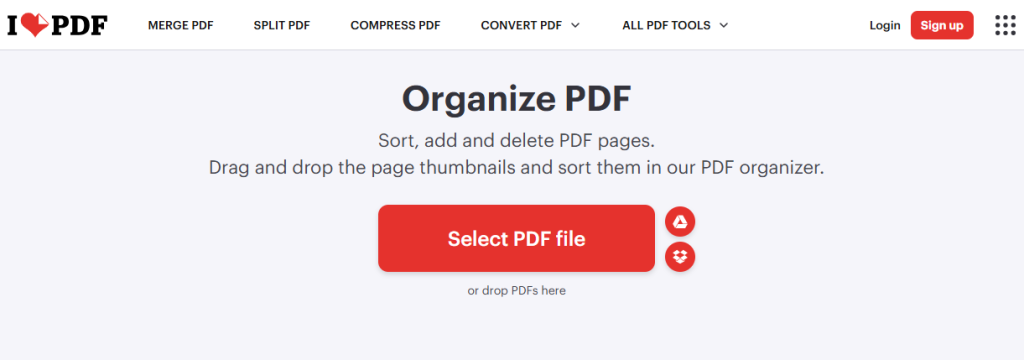
Step 1: Choose the Organize PDF option from iLovePDF.com.
Step 2: Upload the specific PDF file you need to add a blank page to.
Step 3: Hover over some page and click the left or right plus icon to add a blank page before or after the current page.
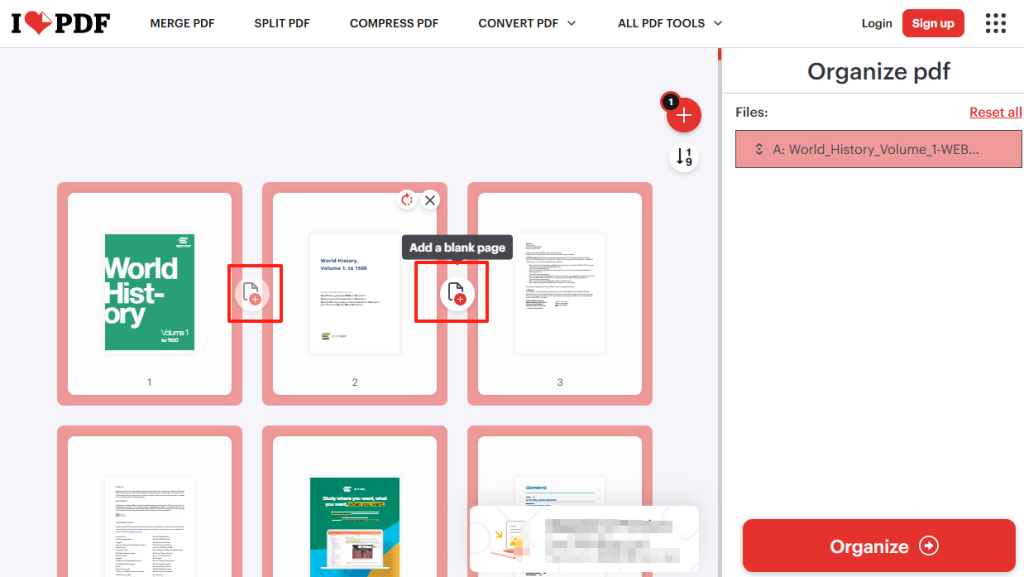
Step 4: Click the Organize button and then download and save the file.
Conclusion
This article compiled a complete guide on how to add a page to an Adobe PDF. You can turn to offline software programs or online services. Whether your purpose is to add separation for printing or add placeholders for extra information, get the most out of the four practical ways.
FAQs
Table of Contents

Your Best Free PDF Expert in PDF editing, compressing, converting, annotating, protect, organizing, and more.
Free DownloadWindows · macOS · Linux

Selena
Staff Editor
“Selena is a staff editor working for JOPDF, passionate and committed to providing how-to and round-up articles. Over 8 years of specialized skills and experience in PDF solutions, hoping to help users ease their lives and solve whatever they encounter. "Work smarter, not just harder!"”



