Introduction :
In the digital work and study area, most of us prefer to add links to a PDF to make the PDF have improved navigation, increased accessibility, and a better user experience. How to add hyperlink to PDF for free? JOPDF can give you a hand. Additionally, you can try Microsoft Word, Adobe Acrobat Pro, and Preview. In this comprehensive post, I will show you a detailed tutorial with the exact steps. Now, let’s get started!
Add Hyperlink to PDF Free via JOPDF
Supported OS: Windows and Mac
If you are seeking a free way to edit and add hyperlinks to a PDF, congratulations! JOPDF can satisfy your needs. It is a completely free PDF editor that enables you to add hyperlinks, allowing you to go to a file, a web page, or a specific page in the PDF conveniently. With this reliable PDF editor, you can do the following tasks:
- Edit the text and images in the PDF
- Insert an image into the PDF
- Rearrange PDF pages
- Insert or delete PDF pages
- Add annotations to PDF
- Password-protect PDFs
As you can see, the user interface of JOPDF is quite intuitive and user-friendly. You can follow the steps below to add link to PDF using JOPDF.
Step 1. Hit the button below to get the free PDF editor and install it on your PC.
Step 2. Enable JOPDF. Click the Open PDF option to import the PDF file you intend to add hyperlinks to. Or you can click the Edit PDF option to import the target PDF for editing.
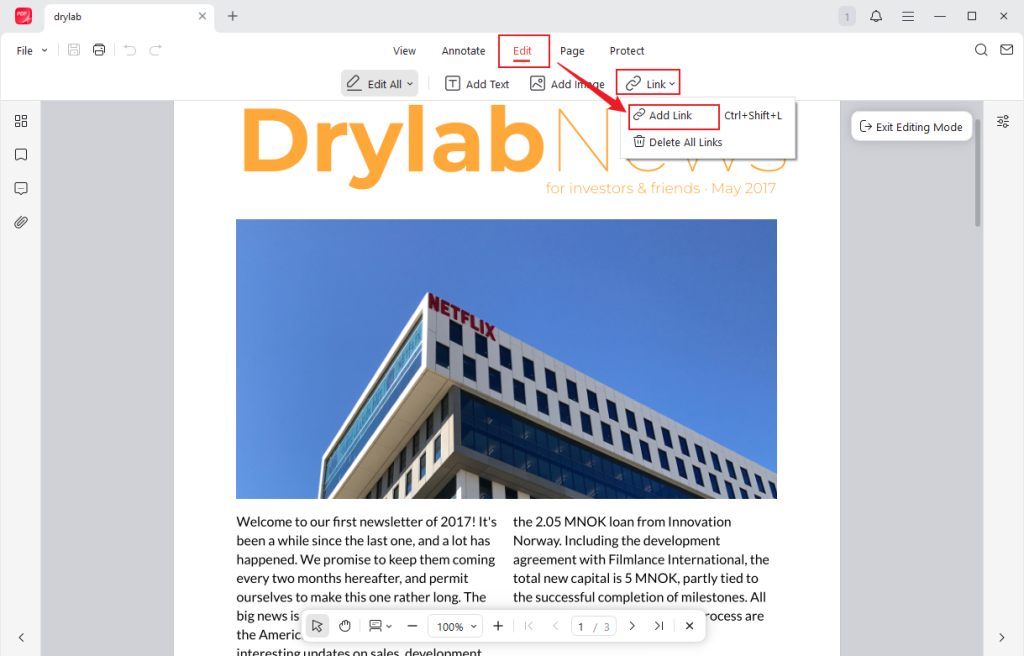
Step 3. Go to the Edit tab, open the Link list, and click on the Add Link option. Frame a word or area you need to add the link, and then the Link window will pop up.
Step 4. In this Link window, you can set the link appearance, including the border, line style/thickness, and color. Here are three options for the link.
Option 1. Go to a page view. Tick this Go to a page view option and set the page where you want to go.
Option 2. Go to a web page. Check the Go to a web page option, copy and paste the target web page link.
Option 3. Go to a file. Select the Go to a file option, click the Folder icon to locate the target file, and click Open.
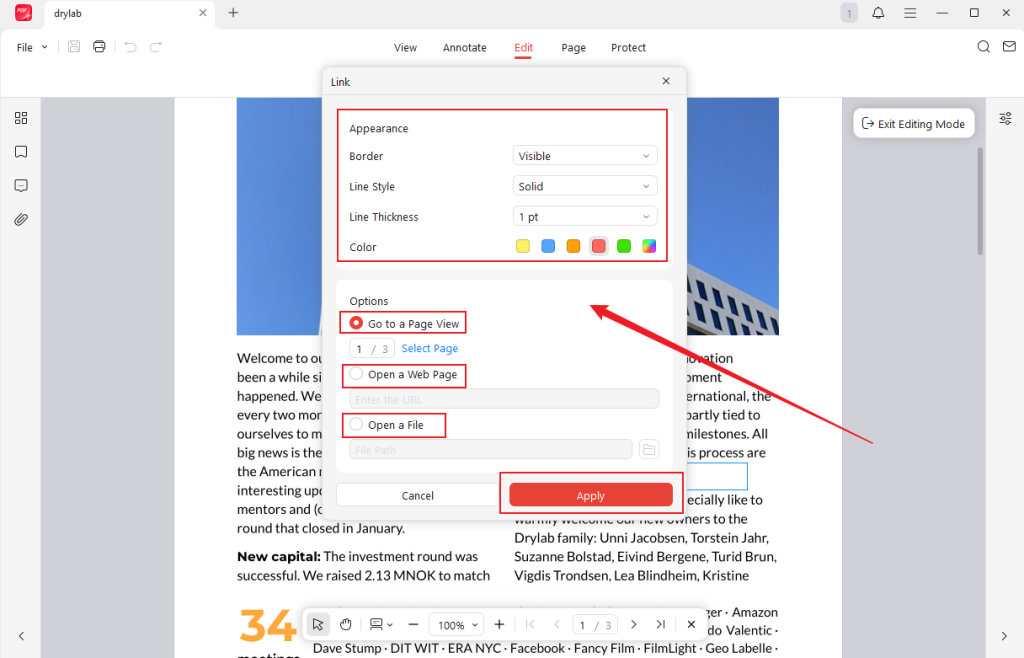
Step 5. Click the Apply button to finish the process of adding a link to a PDF.
In addition, JOPDF supports deleting hyperlinks from PDF. Go to Edit > Link > Delete All Links to remove all hyperlinks from the PDF.
How to Add a Link to a PDF in Microsoft Word
Supported OS: Windows, Mac, iOS, Android
Microsoft Word is a professional program for word processing. Surprisingly, Microsoft Word is equipped with features to create, convert, and edit PDF files. It enables you to save a Word document as a PDF file and edit the text, images, and formatting of a PDF file effectively. Furthermore, it supports adding hyperlinks to PDFs with ease. Here are the exact steps to add a link to a PDF in Microsoft Word.
Step 1. Run Microsoft Word, click the Open option, select the target PDF file, and click Open to import it.
Step 2. After the PDF file is opened in Microsoft Word, it turns into an editable file. You can select the words or sentence you need to add a link, right-click it, and choose the Link option.
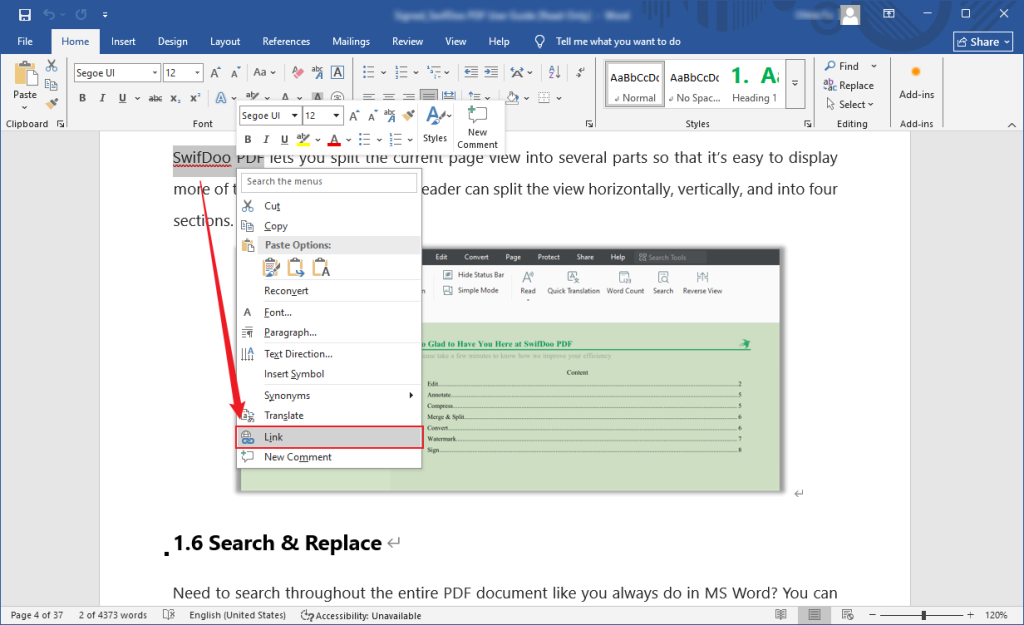
Step 3. Here are 4 options for you to add a link in Microsoft Word.
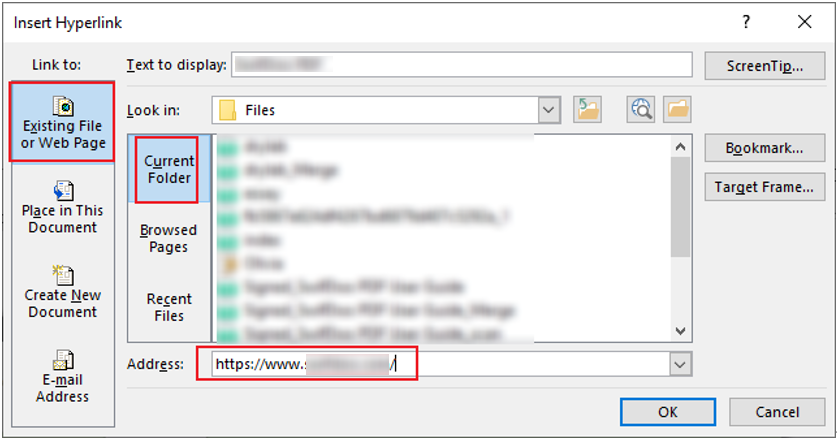
Option 1. Existing File or Web Page. You can select the Current Folder option to link to a file, or directly paste the copied web page link into the Address box to link to a web page.
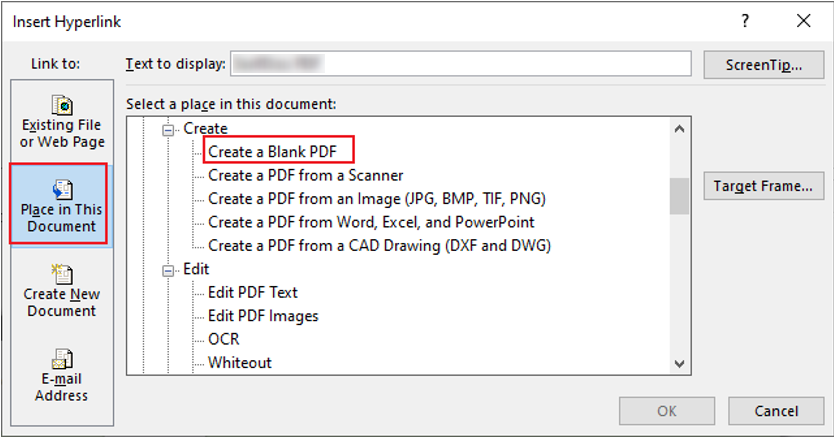
Option 2. Place in This Document. This option enables you to link to a specific place in this current document.
Option 3. Create New Document. This option directly links to a new document. You can give a name to the new document and change its save path. Meanwhile, you can choose to edit the new document now or later.

Option 4. E-mail Address. Select this option to link to an Email address.
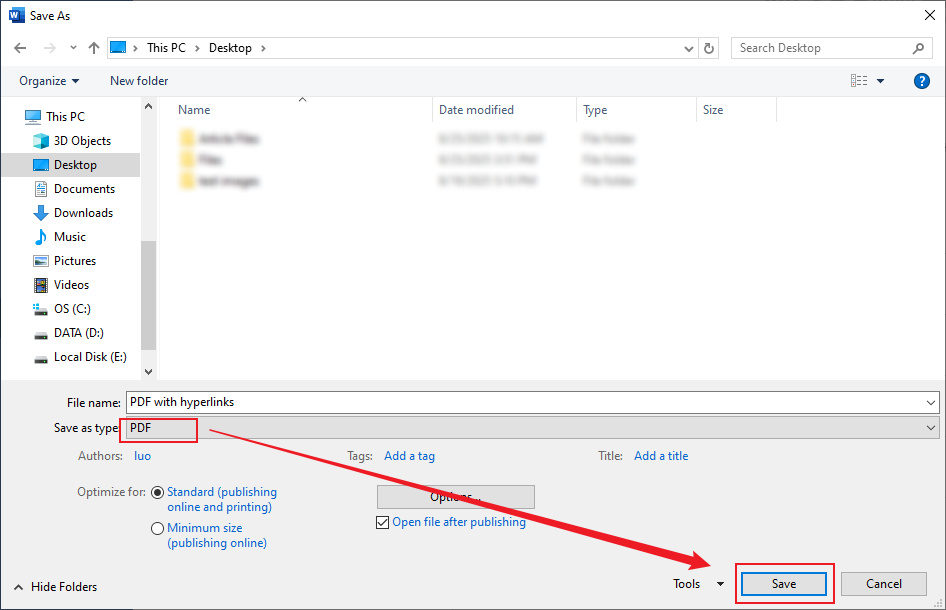
Later, click the OK button. Finally, click File, select the Save As option, choose a folder to save it, set PDF as the target output format, and click the Save button.
How to Add Hyperlinks to a PDF in Adobe Acrobat
Supported OS: Windows, Mac, iOS, Android
Adobe Acrobat is a professional way to add hyperlinks to a PDF to links to web pages, external files, or specific pages within this PDF. What’s more, it supports editing and managing links in a PDF file. However, please note that this feature is not available in Adobe Acrobat Reader. You can only enjoy this feature in the paid versions, Adobe Acrobat Standard and Adobe Acrobat Pro. Here, let’s learn how to add a link to a PDF in Adobe Acrobat.
Step 1. Launch your Adobe Acrobat Standard or Pro and open the target PDF file.
Step 2. Click the Tools tab and choose the Edit PDF option.

Step 3. Open the Link list, click the Add/Edit Web or Document Link option, and drag the cursor to draw the link area. Alternatively, you can select the text you want to add a link to first, right-click it, and choose the Create Link option.
Step 4. Customize the link’s appearance. Then, you can select from the Go to a page view, Open a web page, Open a file, or Custom link option. Next, click OK to confirm the operation.
Step 5. Finally, click File and choose the Save option to save the PDF file with hyperlinks.
Add Links to PDF Using Preview
Supported OS: Mac
How to add a link to a PDF on Mac for free? Preview could be a good choice, which is pre-installed on the Mac PC without further downloading and installation.
Step 1. Go to Finder and launch the Preview app. Then open the PDF document you want to add links to in Preview.
Step 2. Click the Tools option from the top bar, move to Annotate, and select the Text option to add a text box.

Step 3. Copy and paste the link you want to link to. Optionally, you can adjust the font, color, and size of the link text
Step 4. Repeat the above operations to add more links. Once done, go to File and click Save to save this PDF document.
Here’s one thing to note: the added links in the Preview program are not automatically clickable. How can you access the link in Preview? Right-click on the link text and select the Open Link option to open it with the default browser. Alternatively, you can select the Open With option and choose your preferred browser.
Bottom Line
It is a wonderful way to make your PDF file informative by adding hyperlinks. In the content above, I have introduced four methods to add hyperlink to PDF. Both JOPDF and Preview are good choices for adding a link to a PDF for free. Furthermore, you can try Adobe Acrobat and Microsoft Word.
FAQs
Table of Contents

Your Best Free PDF Expert in PDF editing, compressing, converting, annotating, protect, organizing, and more.
Free DownloadWindows · macOS · Linux

Olivia
“Olivia is an editor at JOPDF, where she writes practical guides and insightful articles on managing PDFs—covering topics like editing, annotating, converting, and organizing files efficiently. Passionate about clear communication and digital productivity, Olivia enjoys spending her free time cooking, watching movies, and hiking to unwind and find inspiration for her writing.”
![Discover How to Make a Fillable PDF in Word [Detailed Guide]](https://b.jopdf.com/wp-content/uploads/2026/10/how-to-make-a-fillable-pdf-in-word.png)