Introduction :
Are you still looking for ways to make PDF documents? If so, you’re coming to the right place! In this expert guide post, I’ll introduce you to a proven guide on how to create a PDF from a blank page, file, scanner, or other input sources. Here are six reliable and useful PDF makers, including JOPDF , SwifDoo PDF, Preview, Adobe Acrobat Pro, Notes, and Google Drive. Now, let’s get started!
How to Create a PDF on Windows
Here are two wonderful Windows PDF creators chosen for you to make PDF files. Let’s have a look.
PDF Maker 1. JOPDF
The first recommended PDF creator is JOPDF, a new but useful one. Why Recommend JOPDF? It is a completely free PDF maker that can work on both Windows and Mac. When I first used it for PDF creation, I was astonished by its various features and extremely user-friendly UI.
It is quite easy to create a new PDF using JOPDF. With its easy-to-access PDF editing tools, you can type in text, add images, and other useful annotations to the newly created PDF with ease. What’s more, JOPDF enables you to encrypt your PDF file with passwords. In one word, JOPDF should be your first choice! If you are fond of JOPDF, follow the tutorial below on how to make a PDF with JOPDF.
With just a few clicks, you can create and edit a PDF in JOPDF. Below are the exact steps.
Step 1. Download, install, and launch this free PDF creator.
Step 2. Click the Create PDF button to make a PDF file from scratch.
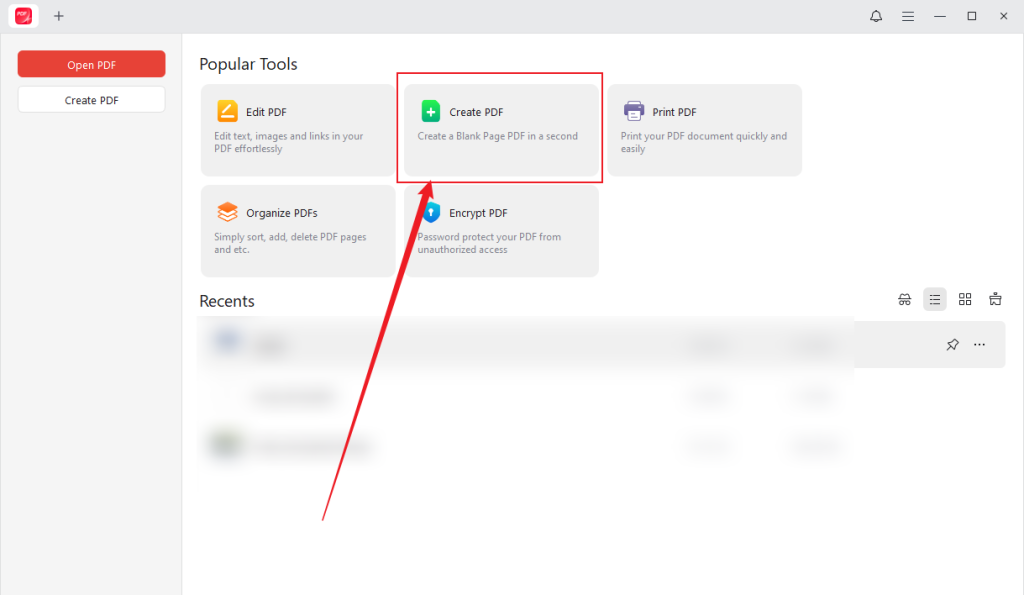
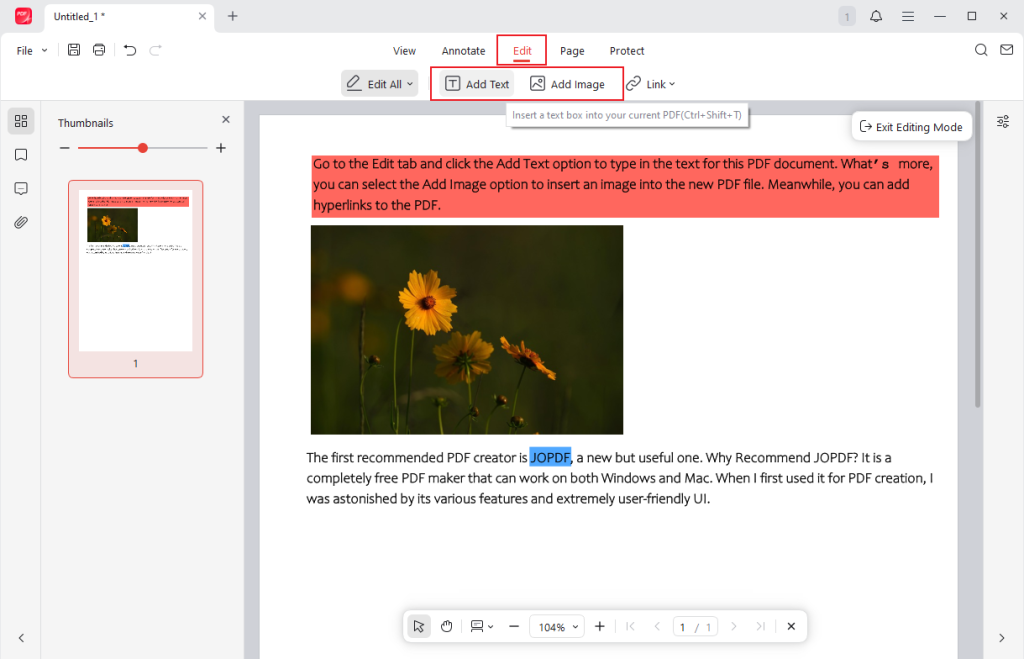
Step 3. Go to the Edit tab and click the Add Text option to type in the text for this PDF document. What’s more, you can select the Add Image option to insert an image into the new PDF file. Meanwhile, you can add hyperlinks to the PDF.
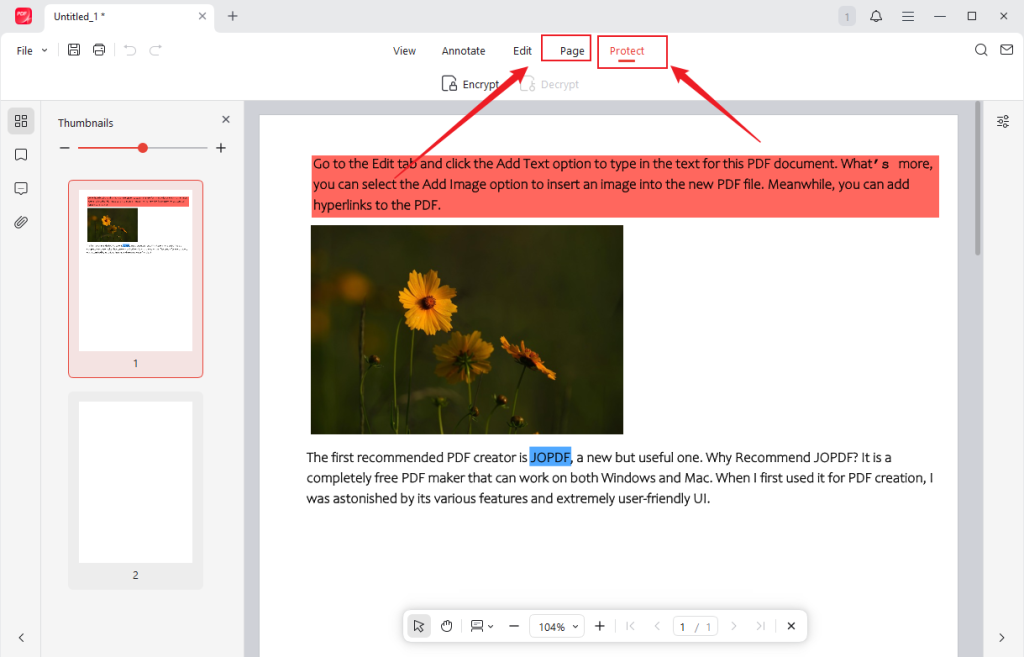
Step 4. If you need to create multiple pages, switch to the Pages tab and click the Insert option to add new PDF pages. You can also go to the Protect tab, click the Encrypt option, and follow the on-screen instructions to password-protect your PDF file.
Step 5. Finally, click the Save icon in the upper left, give a name to the newly created PDF file, select a folder to save it, and click the Save button.
PDF Maker 2. SwifDoo PDF
SwifDoo PDF is a cross-platform PDF editor and creator that is available on Windows, Mac, Android, and iOS. Why Choose SwifDoo PDF? Serving as a PDF maker, it enables you to create a PDF from multiple sources, such as files, images, CADs, and scanners. Additionally, it provides a variety of editing, annotating, organizing, and protecting tools for PDF documents. Though it is a paid program, it is quite cost-effective. Follow the exact steps to create a PDF using SwifDoo PDF.
Step 1. Download SwifDoo PDF from its official website and then install it on your PC. Once installed, launch this excellent PDF maker.
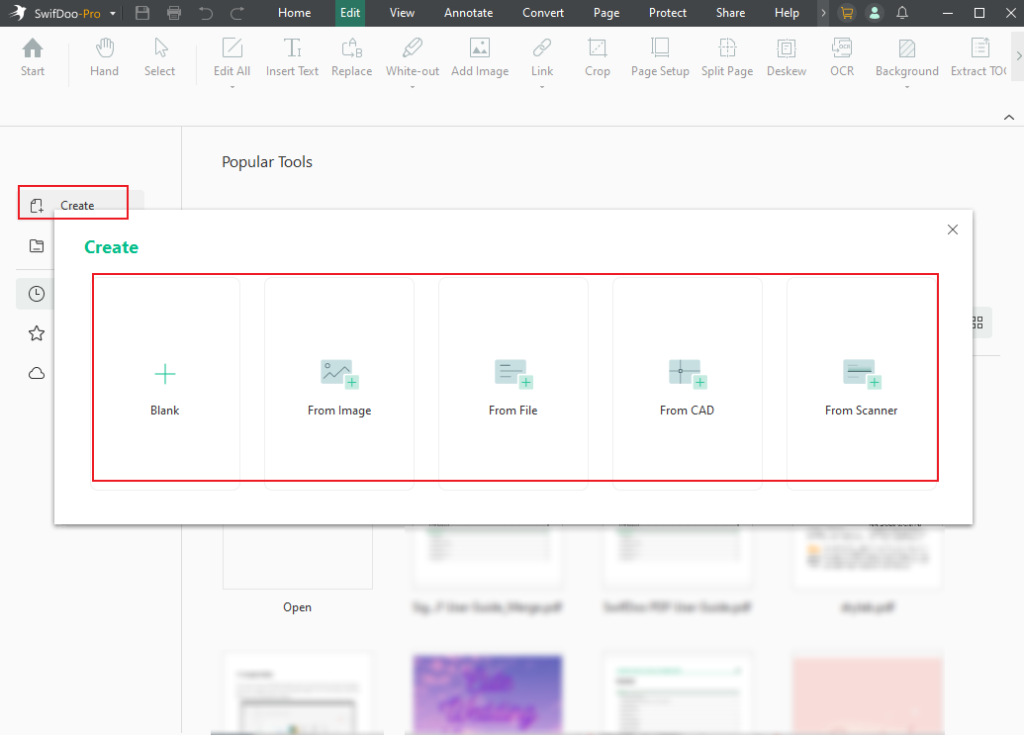
Step 2. Hit the Create option in the left sidebar. The Create pop-up will appear. You can choose to create a PDF from a blank, image, file, CAD, or scanner.
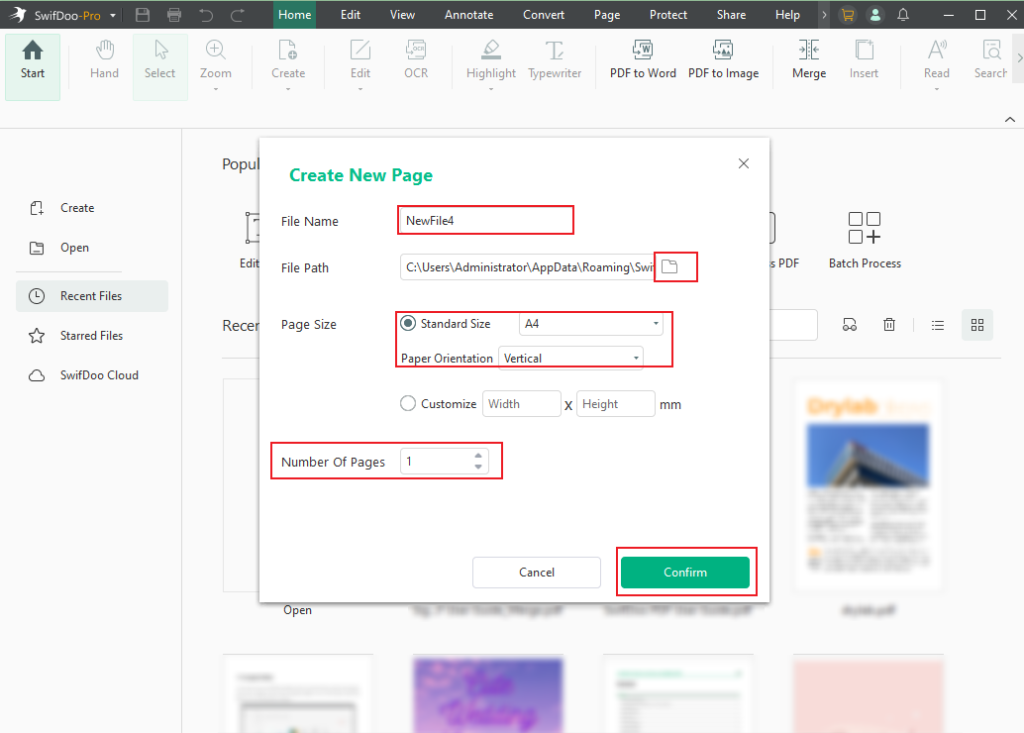
#Create a PDF from a blank: Click on the Blank option, give a name to the PDF file, select its saving path, set its page size and orientation, and customize the PDF pages. Then, click the Confirm button. You can use its edit features to create your PDF content.
#Create a PDF from a/an image/file/CAD: Select the From Image, From File, or From CAD option. Then, choose the target image, file, or CAD to create the PDF file.
#Create a PDF from a scanner: Click the From Scanner option, choose your scanner, set the PDF sides/color mode/resolution/page size, and select to save this PDF file as a new file or an append. Also, you can apply OCR to make the scanned PDF searchable and editable. Next, click the Scan button.
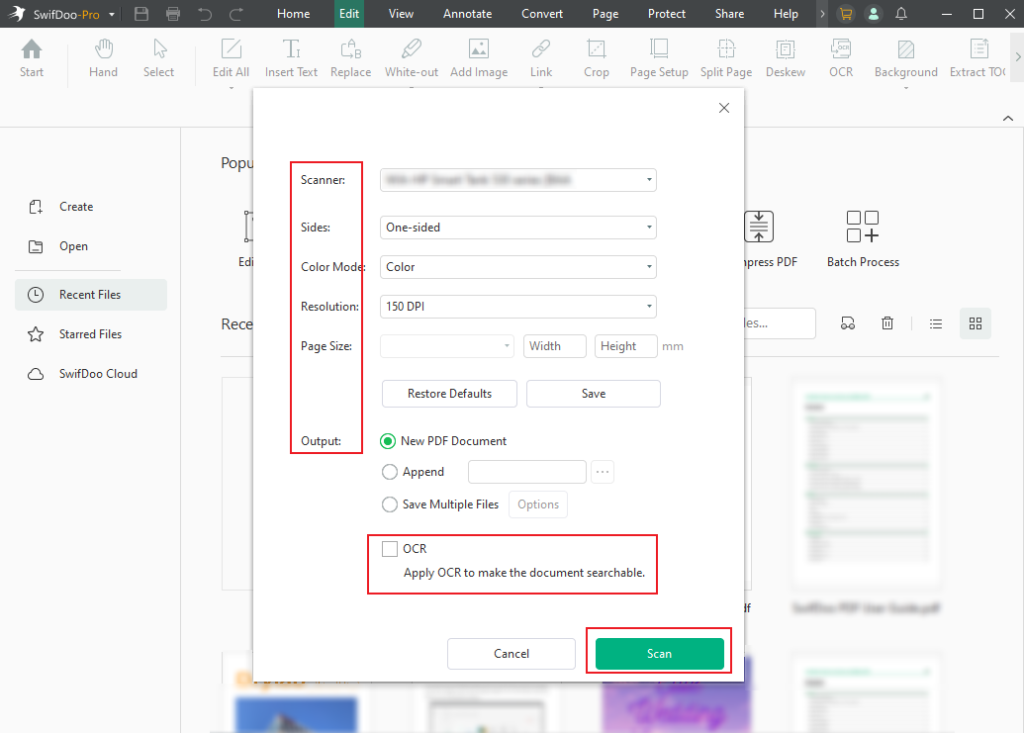
Step 3. When you have finished completing the content of the new PDF, you can press Ctrl + S or click the Save icon in the top left to save the newly created PDF document.
How to Create PDFs on Mac
Check this part to learn 2 effective ways to make a PDF file on Mac.
PDF Maker 1. Preview
Preview, one of the built-in programs on Mac, is designed to view and edit images and PDF documents. Why do I recommend Preview to make PDFs? Free and built-in natures are the primary reasons. Meanwhile, its easy-to-use nature makes it easy for everyone, even newcomers, to use. More importantly, it allows you to create PDFs from blank pages, single or multiple files, a scanner, or others. Here’s how to create a PDF on Mac with Preview.
Step 1. If you have set Preview as the default PDF viewer for your Mac, you can double-click the target file to open it in Preview. If you haven’t, locate the target file, right-click on it, and select the Preview option under Open With.
Step 2. Optionally, you can use its editing and markup tools to refine the PDF file.
Step 3. Here are two options for you to save the newly created PDF in Preview.
Option 1. Click the File tab from the top menu bar to select the Export as PDF option. Then, you can set its name and save path. Finally, click the Save button.
Option 2. Similarly, open the File list. Select the Print option, expand the PDF dropdown, and select the Save as PDF option. Then, name it, choose a folder to save it, and click Save.
PDF Maker 2. Adobe Acrobat Pro
Adobe Acrobat, the leader in PDF tools, can create PDF files from sources such as documents, screenshots, web pages, and the clipboard. However, its free version, Adobe Acrobat Reader, doesn’t offer the feature to create PDFs. You need to pay for its Pro version.
Why is Adobe Acrobat Pro still worth a try? It supports creating PDFs from files in various formats or from other sources. With its comprehensive features for PDF, you can create professional and safe PDF files. Let’s learn how to make a PDF in Adobe Acrobat Pro.
Step 1. Run your Adobe Acrobat Pro first and click the + Create button from the top bar.
Step 2. By default, the Single file option is selected. Then, you can click the Select a file button to choose a file in DOCX, XLSX, TXT, or other formats. Additionally, you can change the default Single file option into Multiple files, Screenshot, Scanner, Web page, Clipboard, or Blank page. Later, follow the on-screen prompts.
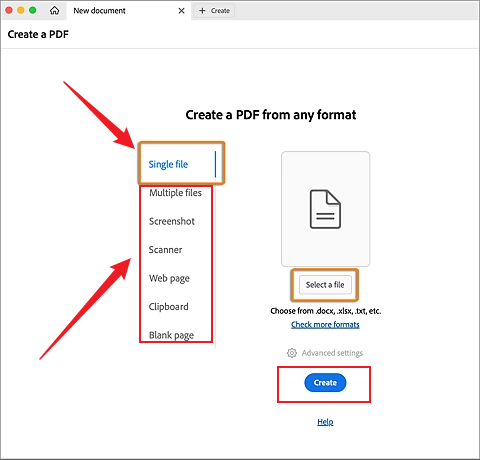
Step 3. Then, you can click the Create button to start making the new PDF. Once finished, save the new PDF file.
How to Make a PDF on iPhone & Android
Want to create a PDF on the go? It is a good choice to complete that task on phones. How can you create a PDF on iPhone an Android? Here we go!
Create PDFs on iPhone Using the Notes App
Why is the Notes App suggested? The Notes app is pre-installed on your iPhone and is 100% free to use. It enables you to create a PDF from text, photos, or drawings. More importantly, the Notes app supports creating a PDF from scanning. You can refer to the guide on how to make a PDF on iPhone with the Notes App.
Step 1. Open the Notes app on your iPhone.
Step 2. Here, you can choose to start a new note or open a note that you want to turn into a PDF.
If you prefer to turn a note into a PDF, tap on it to open it.
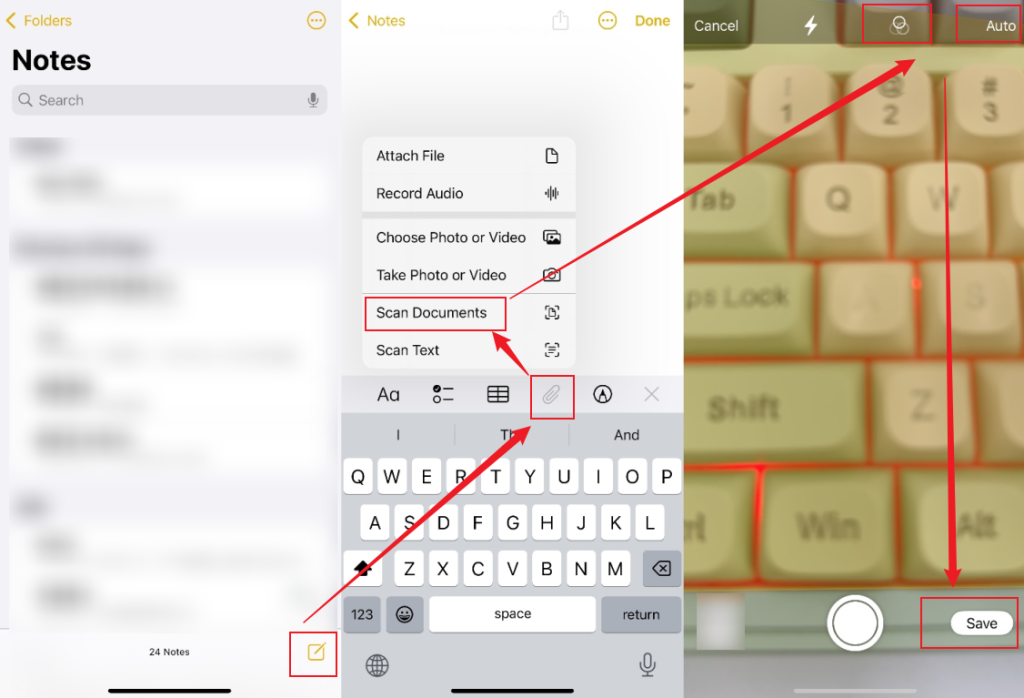
If you are ready to start a new note, click the Pencil icon in the lower right to create a new note, tap the paperclip icon, and choose the Scan Document option. Then, point the iPhone camera at your paper document, and the Notes app will scan and take the photo automatically if you open the Auto option. You can continue to scan the following pages. Once finished, tap Save. (Alternatively, you can switch the Auto option to the Manual option.) In addition, you can select to scan in Color, Grayscale, or Black & White.
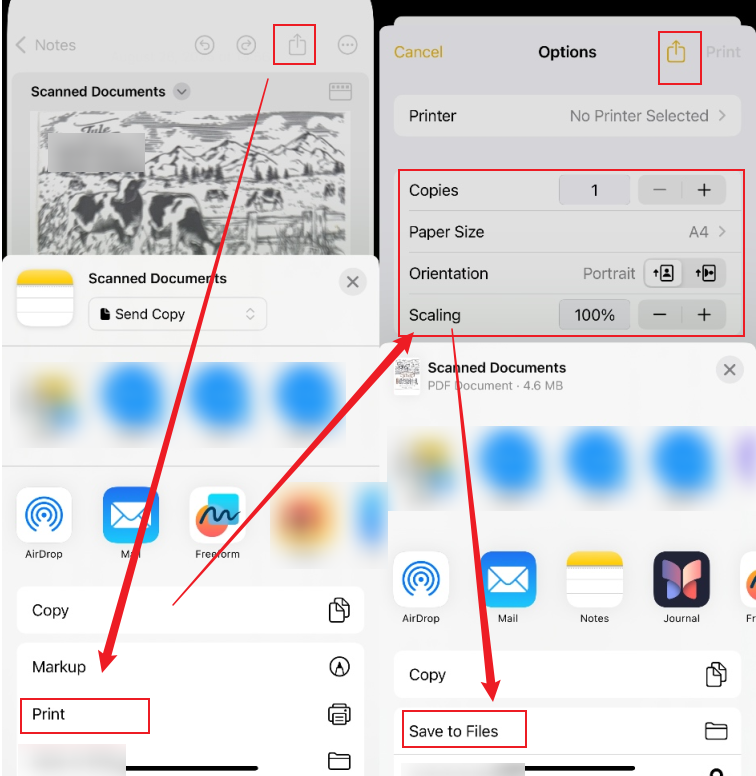
Step 3. Tap the Share icon and choose the Print option. Next, tap the Share icon again, select the Save to Files option to save the scanned PDF in the Files app, and tap on Save.
Create a PDF on Android via Google Drive
Google Drive is known as a file-hosting service. Why is Google Drive recommended to make PDFs? Google Drive offers a built-in scanner to create PDFs from scans. In addition, it enables you to create PDFs via conversion. Google Drive supports converting Google Docs, images, and other files into PDFs. One key feature to note is that PDF files created in Google Drive can be accessed on PC and other devices via the cloud.
Here are the exact steps to create a PDF with Google Drive on Android
Step 1. Download the Google Drive app from the Google Play Store and install it on your Android phone.
Step 2. Run the Google Drive app, tap the Plus icon in the bottom right, and select the Scan option.
Step 3. Use the phone camera to point at the target document that you want to scan as a PDF file. Then, take a photo. You can use the built-in editing feature of the Google Drive app to edit the scanned image. For instance, you can crop and rotate the scanned image or add filters. Next, hit the Add option to scan additional pages.
Step 4. When you have scanned all the document pages, tap Done. Select PDF as the output format and tap the Save button.
What’s more, you can also tap the Plus icon to choose the Upload option to import an existing file, hit the three-dot icon in the upper right, select the Share & export option, tap on Save as, set PDF Document (.pdf) as the output format, and click OK to make a PDF from an existing file in the Google Drive app.
Conclusion
That’s all about how to create a PDF on Windows, Mac, iPhone, and Android devices. For Windows users, JOPDF and SwifDoo PDF are good choices. For Mac users, use Preview if you only have a limited budget. If you prefer creating professional PDFs, Adobe Acrobat Pro is worth a try. For iPhone and Android users, try the Notes app and Google Drive, respectively.
FAQs
Table of Contents

Your Best Free PDF Expert in PDF editing, compressing, converting, annotating, protect, organizing, and more.
Free DownloadWindows · macOS · Linux

Olivia
“Olivia is an editor at JOPDF, where she writes practical guides and insightful articles on managing PDFs—covering topics like editing, annotating, converting, and organizing files efficiently. Passionate about clear communication and digital productivity, Olivia enjoys spending her free time cooking, watching movies, and hiking to unwind and find inspiration for her writing.”
![Discover How to Make a Fillable PDF in Word [Detailed Guide]](https://b.jopdf.com/wp-content/uploads/2026/10/how-to-make-a-fillable-pdf-in-word.png)