Summary :
Want to add image to PDF but don’t know how? Then don’t miss this article! You’ll learn how to use free PDF editing tools and online tools to insert images into PDFs. Whether you’re using a Windows or a Mac computer, you’ll find step-by-step guides here.
Quick Start
When you need to insert an image into a PDF, you can use a professional PDF editor or an online tool. However, please note that professional PDF editors offer more features and guarantee quality.
Click the button below to download JOPDF, a professional, free tool. Simply click the “Add Image” button to immediately add the image to the correct position.
1. Free Way to Add Image to PDF
If you want to add an image to a PDF for free, JOPDF is a good choice. It is an all-in-one and lightweight PDF editor for Windows and macOS. Its intuitive interface simplifies the PDF editing process. Whether you want to insert images, text, links, pages, or other content, it only takes a few clicks.
To add pictures, click the “Add Image” button. Then, you can select and place the image in the right position. After that, you can crop, rotate, flip, resize, or adjust the opacity to meet your specific needs. Sounds great, right? Click the button below to download JOPDF and give it a try!
Here is how to insert image into PDF with JOPDF:
1. Launch JOPDF. Click Edit PDF and select the document.
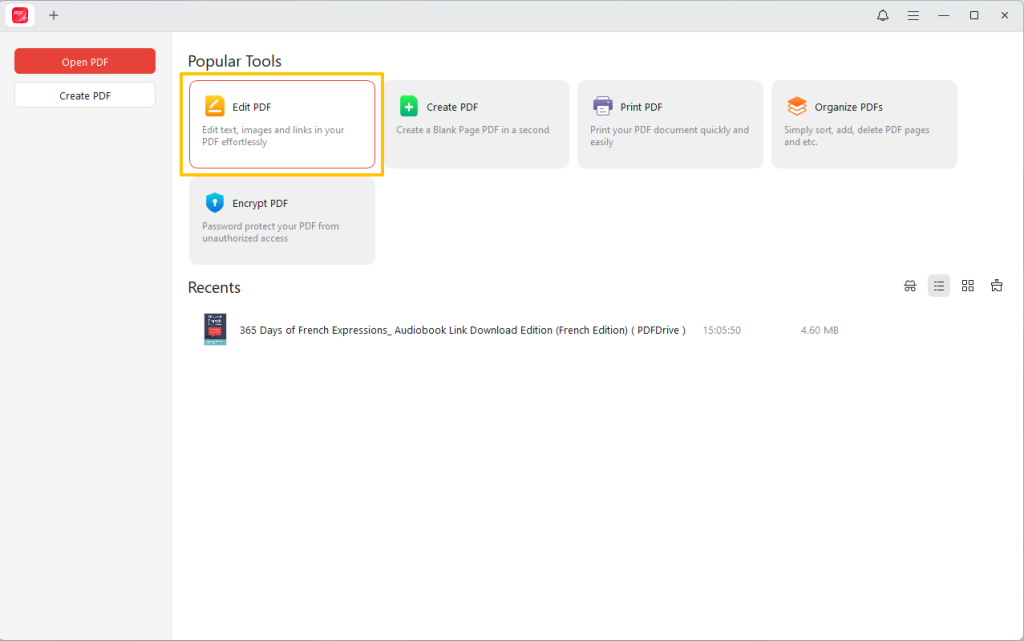
2. Click the Add Image button, then select the area where you want to place the image. You can choose any position you like, as it can be adjusted later.
3. Browse your computer and select the image you want to insert.
4. Now, you can edit, rotate, flip, or resize the image as needed.
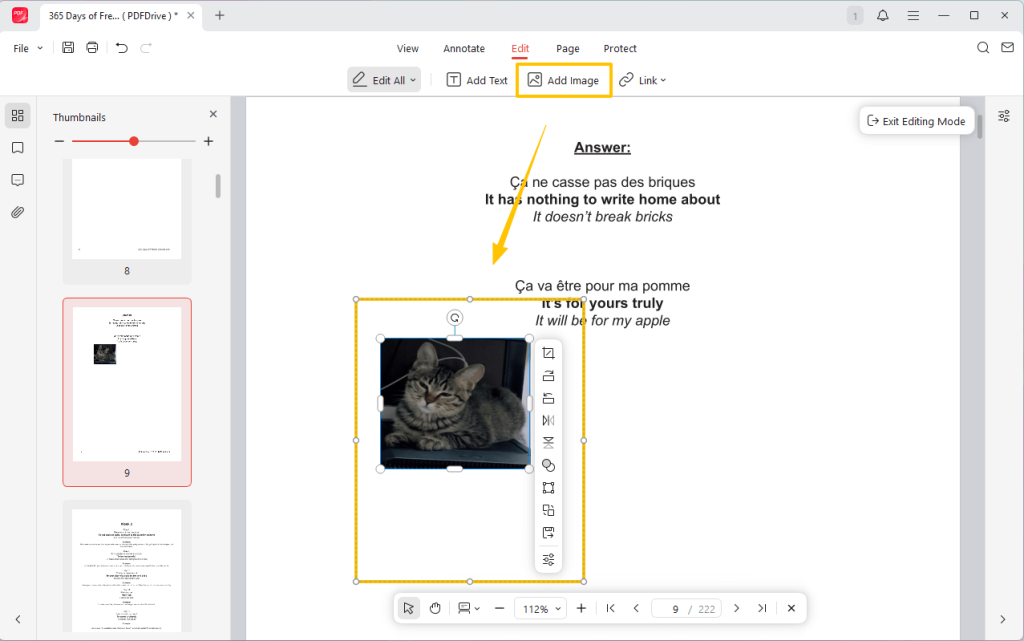
5. When OK, click the Save button to confirm.
2. Add Images to PDF in Preview
Preview is a free, built-in PDF and image viewer and manager in macOS that lets users easily annotate, rotate, and insert pages and images. It provided two options to help you add photos to a PDF.
Read on to learn how to add image to PDF in Preview.
Option 1. Copy and Paste Image
1. Double-click to open both the PDF and the image in Preview. You can put them side by side.
2. Click the image. Press Command+A to select it.
3. Now, you can drag the image to the PDF and resize the image.

4. Go to File and click Save.
Option 2. Use the Insert Feature
1. In Preview, open the PDF documnet.
2. Go to Edit → Insert → Page from File to select the image.
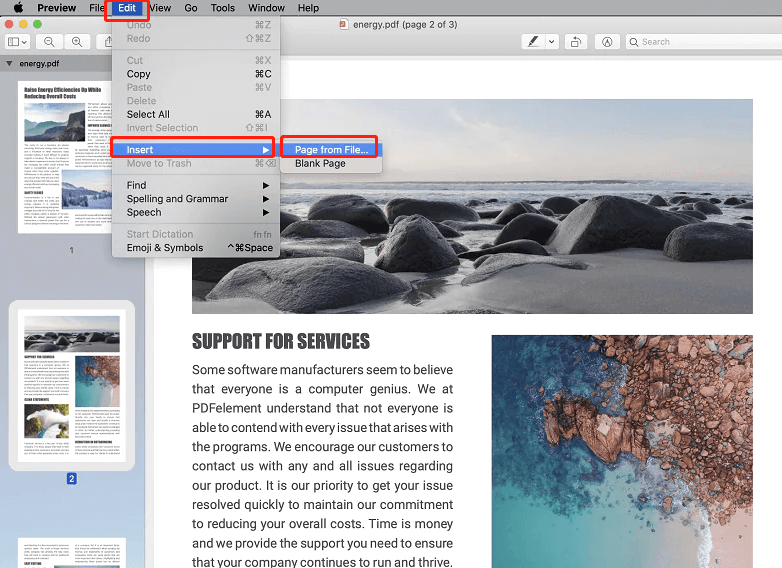
3. Select the right image and add it to the PDF.
4. Finally, save the changes.
3. Add Images to PDF in Adobe
Adobe Acrobat is a full-featured editor for creating, annotating, editing, signing, and managing PDFs. It requires a subscription to access full editing features. The good news is that it offers a 7-day free trial. After your 7-day trial period ends, the system will automatically begin billing. If you don’t mind the trouble, then give it a try.
How to add a picture to a PDF in Adobe Acrobat:
1. Open PDF in Adobe Acrobat.
2. Click Tools, then select Edit PDF → Add Image.
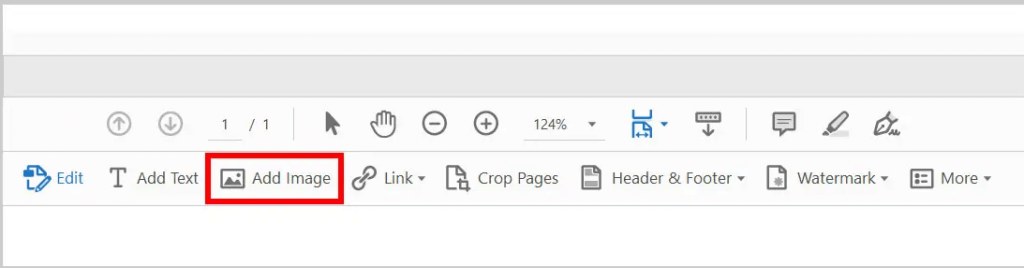
3. Then, please select the image and place it in the right position.
4. Now, you can adjust the size and edit the image.
5. Finally, click the Save button.
4. Add Image to PDF Online for Free
Don’t want to download a program? Then, you can use a browser-based PDF editor to help you add a picture to a PDF. Most online tools offer a limited number of free operations. They are good choices for one-time tasks.
Here, let’s take iLovePDF as an example to show you how to add images to a PDF online.
1. Open a browser and go to iLovePDF online editor (https://www.ilovepdf.com/edit-pdf).
2. Upload the PDF document.
3. Click the Add image button to select the picture.
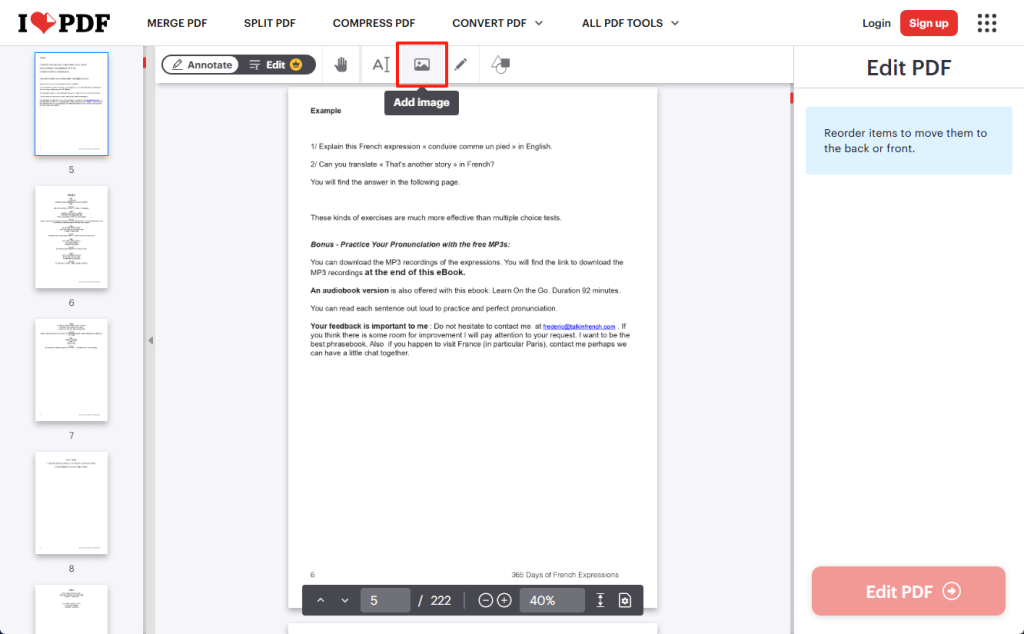
4. If necessary, adjust the opacity and rotate the image.
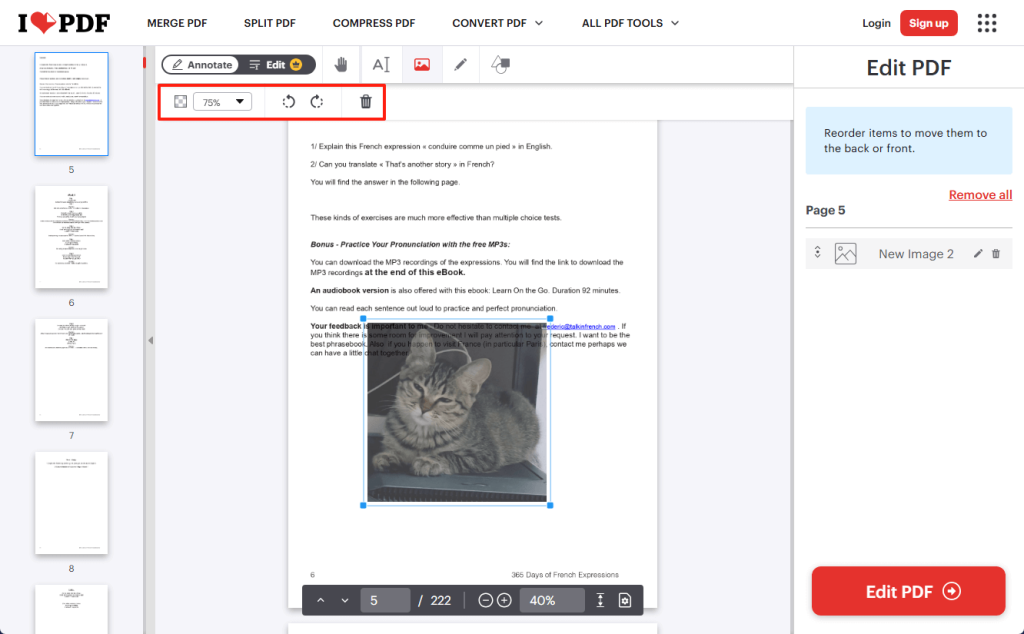
5. Click Edit PDF and Download PDF to save the document.
5. Use Google Docs to Add Images
Another way to insert images into a PDF online is to use Google Docs. With this cloud-based word processor, you can upload a PDF document, add images, and then export it as PDF, Word, or other formats.
However, since Google Docs is not a professional PDF reader, uploaded PDF files may contain formatting errors. Therefore, this method is better suited to text-based PDFs.
How to insert pictures in a PDF using Google Docs.
1. In your browser, go to Google Drive (https://drive.google.com/drive/quota) and sign in.
2. Click the +New button to upload the document. After that, open the PDF in Google Docs.
3. Click the Insert icon and choose Image > Upload from computer.

4. Adjust the image from Image options.

5. To download the PDF, go to File > Download and choose PDF as the format.
What’s The Best Way to Add Images to PDF?
Understanding the advantages and disadvantages of each tool will help you make a more informed choice. Check this table for details.
| Tool | Advantages | Disadvantages |
| JOPDF | Fast, full editing features, including image adjustments | Requires installation |
| Mac Preview | Pre-installed, simple for Mac users | Limited control over placement |
| Adobe Acrobat | Highly refined, professional editing skills | Paid license needed; Free reader can’t add images |
| iLovePDF | Easy to use, no install, cloud integrated | Requires internet, limited free usage |
| Google Docs | Collaborative, easy to use, free | Not a native PDF editor; The format may change. |
So, which one should you choose? You can choose the one that best suits your specific circumstances and needs!
- JOPDF is the best choice if you need a powerful desktop editor with advanced image editing.
- Preview is great for Mac users who need to quickly and easily insert images without additional software.
- Adobe Acrobat suits professionals who need advanced and professional control.
- Online tool, such as iLove PDF can help you quickly edit PDFs online across different devices.
- Google Docs is a good way to handle plain-text documents and to share them.
Conclusion
That’s all about how to add image to PDF for free. Adding images to PDF can make the document more appealing, improve readability, comprehension, and presentation quality. It is benefits both creators and readers.
After reading this article, you should now understand how to insert images. You can use different tools depending on the situation to improve efficiency. Of course, if you prioritize quality, we recommend using professional PDF editors such as JOPDF or Adobe.
FAQs
Table of Contents

Your Best Free PDF Expert in PDF editing, compressing, converting, annotating, protect, organizing, and more.
Free DownloadWindows · macOS · Linux

Queena
Editor
“As a staff editor for JOPDF, Queena excels at guiding users to the optimal tools and solutions. When she's not analyzing the latest PDF solutions, she enjoys spending her free time playing with her four cats.”
![Full Guide on How to OCR a PDF in Adobe Acrobat [Newest]](https://b.jopdf.com/wp-content/uploads/2026/10/how-to-ocr-a-pdf-in-adobe.png)