
Introduction :
PDF files are commonly used because they are secure, professional, and can keep formatting intact no matter what device or operating system you’re using. Locked PDFs are protected by passwords from making changes. How can you edit a secured PDF document if you need to make legitimate changes? Is it possible to edit locked PDFs? In this JOPDF post, let’s explore how to edit a locked PDF document with ease.
In general, open password and permission password are two primary methods to password-protect PDFs from viewing, editing, copying, or printing. If the PDF file is protected by open passwords, you will be unable to open the file without knowing the password. If the PDF file is locked by permission passwords, there are some tricks that can help you edit it. Now, follow me to explore effective ways to edit secured PDFs.
Best Free Way to Edit a Locked PDF with JOPDF
Supported OS: Windows, Mac
You may not have heard of JOPDF, but it’s truly a PDF editor worth trying. It is a 100% free PDF editor that enables you to edit locked PDFs with or without passwords. Working as an excellent and easy-to-use PDF editor, JOPDF comes with a wide range of editing features and a user-friendly interface. For instance, it supports editing text in PDFs, adding text boxes to PDFs, and adding or removing hyperlinks from PDFs, among other features.
If you don’t know the permission passwords, JOPDF enables you to remove them efficiently. Here, you can refer to the steps below to edit a password-protected PDF with JOPDF.
Step 1. Download JOPDF by clicking the button below and then follow the on-screen instructions to install it on your PC.
Step 2. Launch this free PDF editor and click the Open PDF button on its main interface to import the locked PDF.
Step 3. If you know the permission password, click Enable Editing at the top of the banner and enter the password to make the PDF editable.
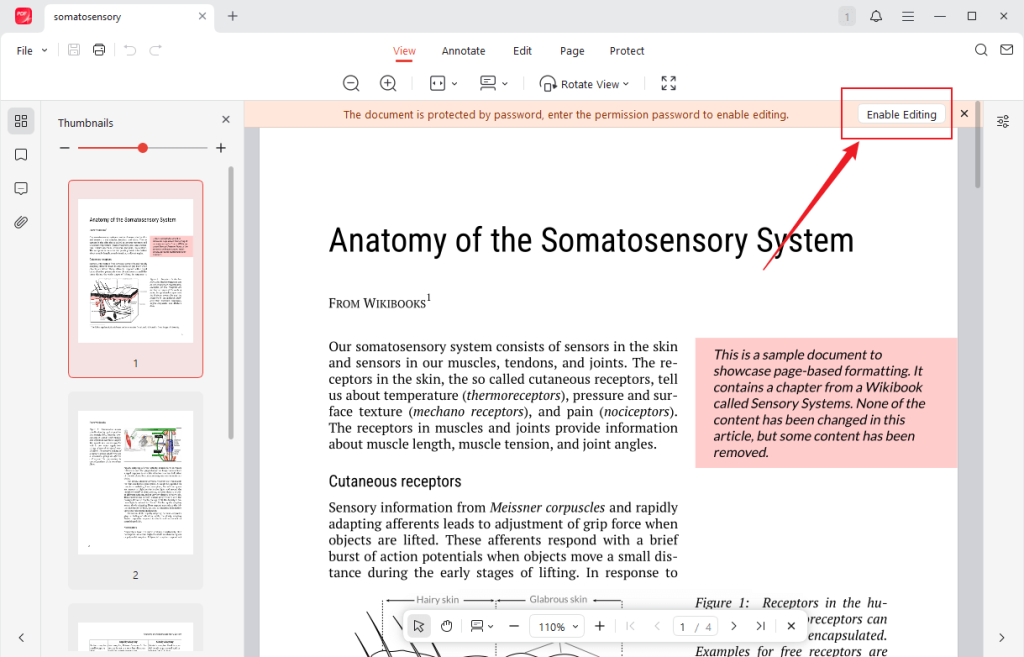
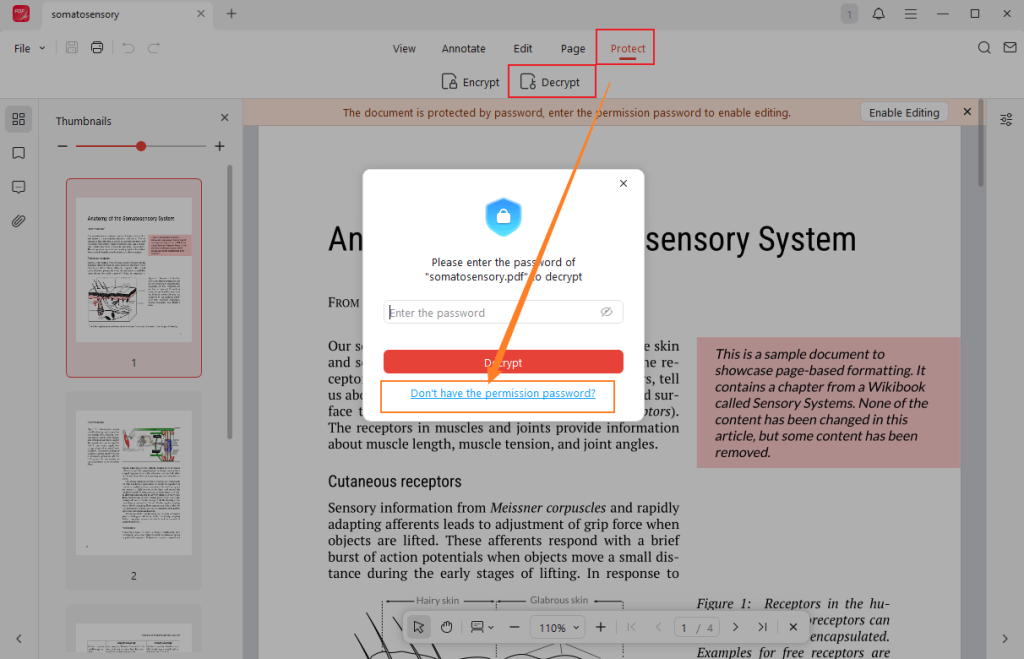
If you don’t know, switch to the Protect tab and click the Decrypt option. Hit on “Don’t have the permission password?”, click the Remove button, choose a folder to save the unlocked PDF, and click Save. Later, the unlocked PDF file will open in JOPDF automatically.
Step 4. Now, you can edit the PDF. Here, you can go to the Annotate or Edit tab for editing.
- Go to Edit: Edit the text, add text boxes, insert/edit images, add/edit/remove hyperlinks, etc.
- Go to Annotate: highlight text or area, add underline/strikethrough/squiggly lines, draw on the PDF, add sticky notes/stamps/attachment, etc.
Step 5. Once finished, don’t forget to click the Save icon or press Ctrl + S (or Command + S for Mac) to save the edited PDF file.
How to Edit a Locked PDF with Adobe Acrobat Pro
Supported OS: Windows, Mac, Android, iOS
Adobe Acrobat is the industry leader in PDF creation and editing. As a professional paid software, it offers a wide range of useful basic and advanced features. You can use it to edit a password-protected PDF. However, the free Adobe Acrobat Reader doesn’t support editing locked PDFs. If you don’t mind the price, you can follow the steps below to edit a locked PDF in Adobe Acrobat Pro.
Check the steps below to learn how to edit a locked PDF document in Adobe Acrobat Pro.
Step 1. Ensure that you are using Adobe Acrobat Pro, not the free Reader version. Then, click File and Open to import your locked PDF document.
Step 2. If you know the permission password, go to File > Properties > Security and set the Security Method to No Security (or go to Tools > Protect > More Protection > Remove Security) and then enter the permission password.
If you don’t know or forget the permission password, you can try to print the locked PDF to a new file. Click File, select the Print option, and choose Adobe PDF as the printer. Then click Print to save the PDF file as a new file. In that way, the file will be editable without restrictions.
Step 3. Next, open the Tools list and select the Edit PDF option. Here, you can select text, add annotations, reorganize PDF pages, insert images, and make other edits based on your needs. Finally, save the edited PDF file.
Effective Way to Edit a Secured PDF Using SwifDoo PDF
Supported OS: Windows, Mac, Android, iOS
SwifDoo PDF is a feature-rich and robust PDF editor compatible with different operating systems. It can make this locked PDF editable by removing the password or converting the PDF to a Word document. What’s more, it provides you with various editing features to edit and polish your PDFs. Compared to Adobe Acrobat, SwifDoo PDF offers a cost-effective alternative.
Even though the PDF is scanned or image-based, SwifDoo PDF can also make the PDF editable by applying OCR. Meanwhile, it supports converting scanned PDFs to Word or other formats. You can refer to the guidance below to learn how to edit a secured PDF using SwifDoo PDF.
Step 1. Go to SwifDoo PDF’s official download website to download and install it on your device.
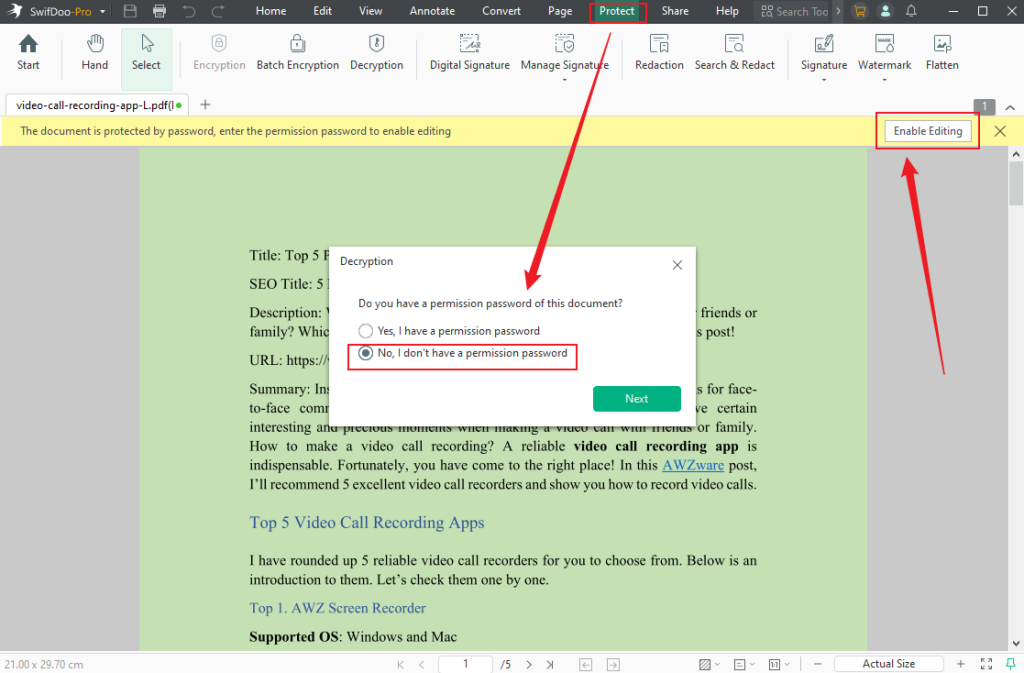
Step 2. Run it and click Open to upload the target secured PDF file. Click the Enable Editing button to enter the permission password if you know it. If not, go to Protect > Decryption to select the “No, I don’t have a permission password” option and then click Next and Remove to remove the permission password.
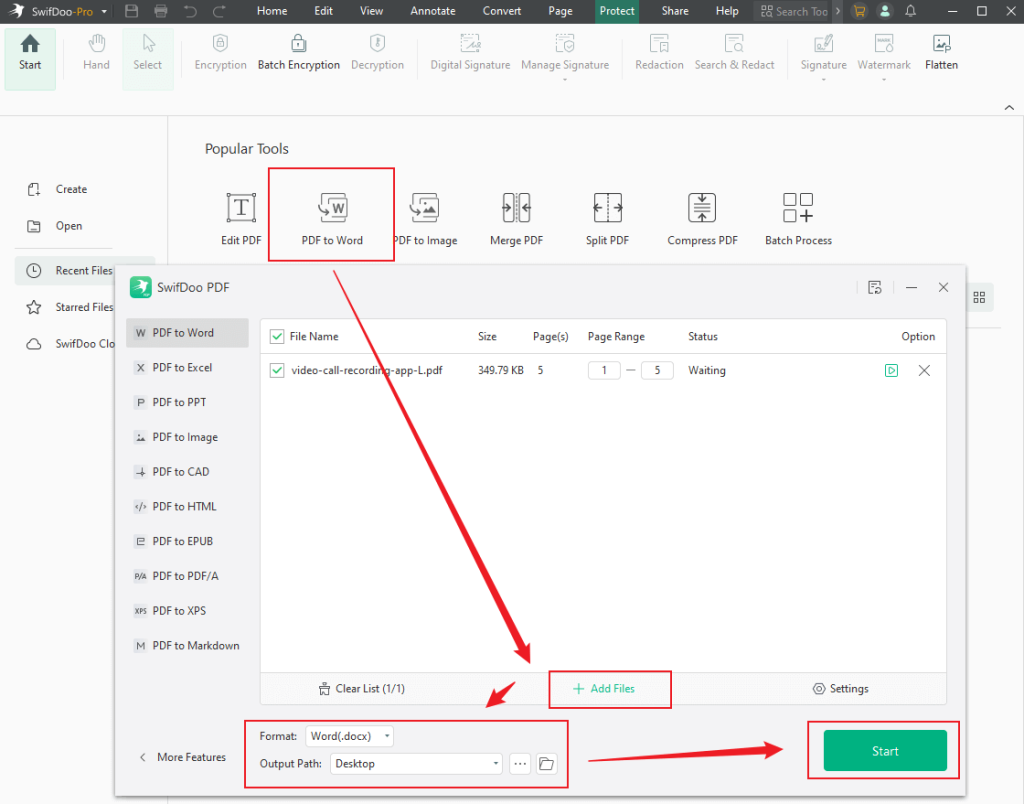
Alternatively, click the PDF to Word option after accessing its main interface. Click Add Files to upload the locked PDF, select the format, set the save path, and click the Start button. Then, you can directly edit the file in Word. If you want to resave the file in PDF format, open the Format list and choose PDF.
Step 3. After removing the password in SwifDoo PDF, the PDF file without a permission password will open in SwifDoo PDF automatically. You can switch to the Annotate, Edit, Page, or Protect tab to edit the PDF file as you need.
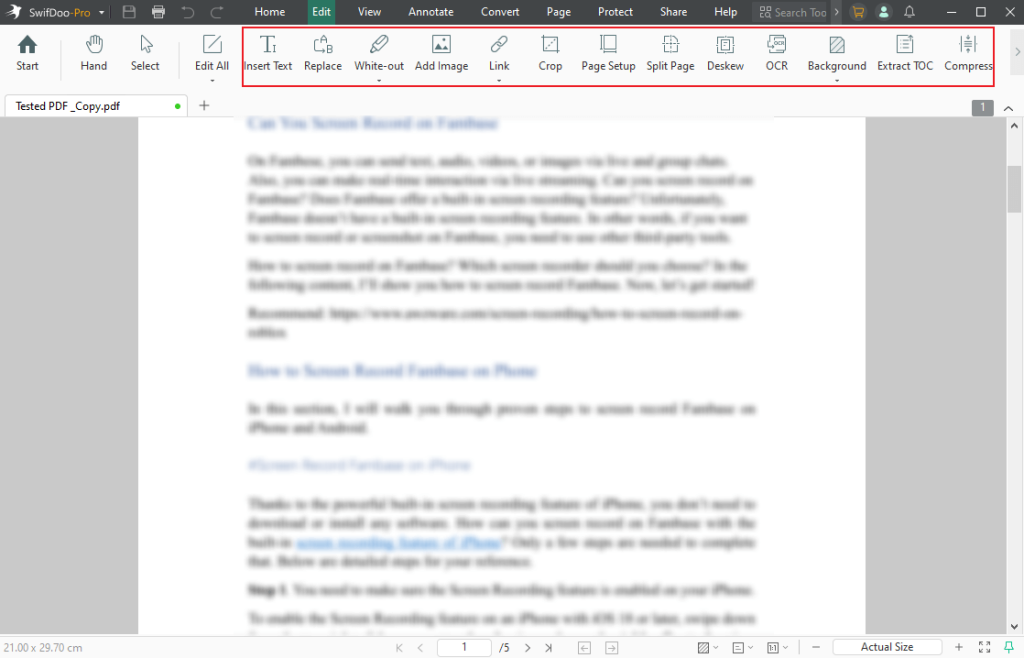
Step 4. Finally, click the Save icon to save the PDF file. Or, you can choose Save As to save the edited PDF file as a new PDF file.
How to Edit a Locked PDF with iLovePDF Online
Supported OS: Windows, Mac, Linux, Android, iOS
In addition to using the above three methods, you can also use an online tool to remove passwords from PDFs and then edit the unlocked PDF in any of your PDF editors. iLovePDF is a safe and reliable online PDF tool that can help you unlock and edit PDFs without downloading or installing any software. In addition to uploading PDFs from local storage space, it enables you to import files from cloud services, including Google Drive and Dropbox. Below is how to edit a secured PDF file with iLovePDF.
Step 1. Go to the iLovePDF Unlock PDF tool website through any browser on your device.
Step 2. Hit the Select PDF files button to import your locked PDF file.
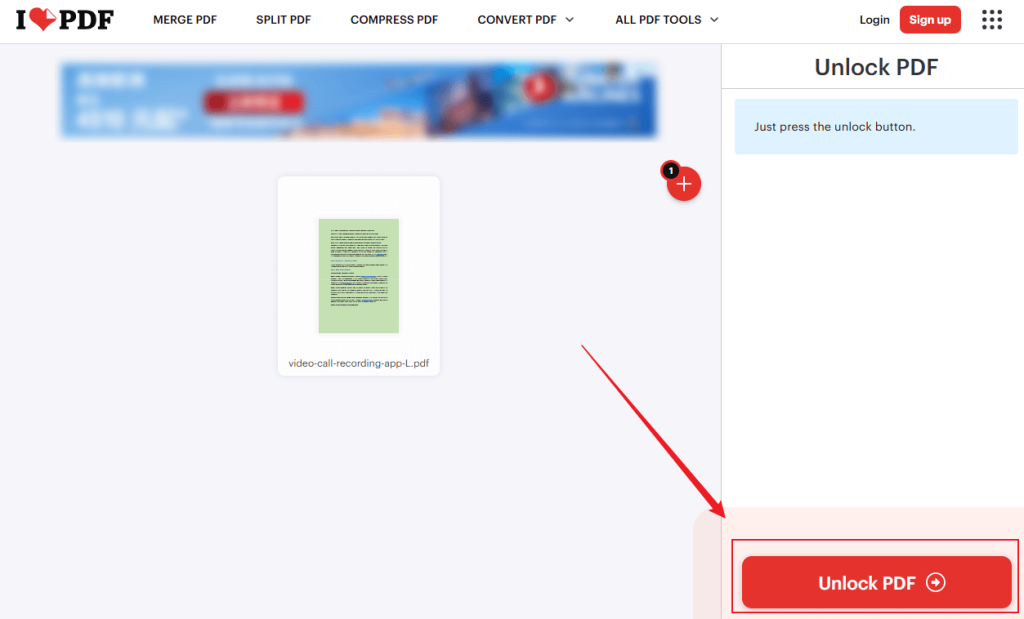
Step 3. Then, click the Unlock PDF button to remove the password from the PDF file.
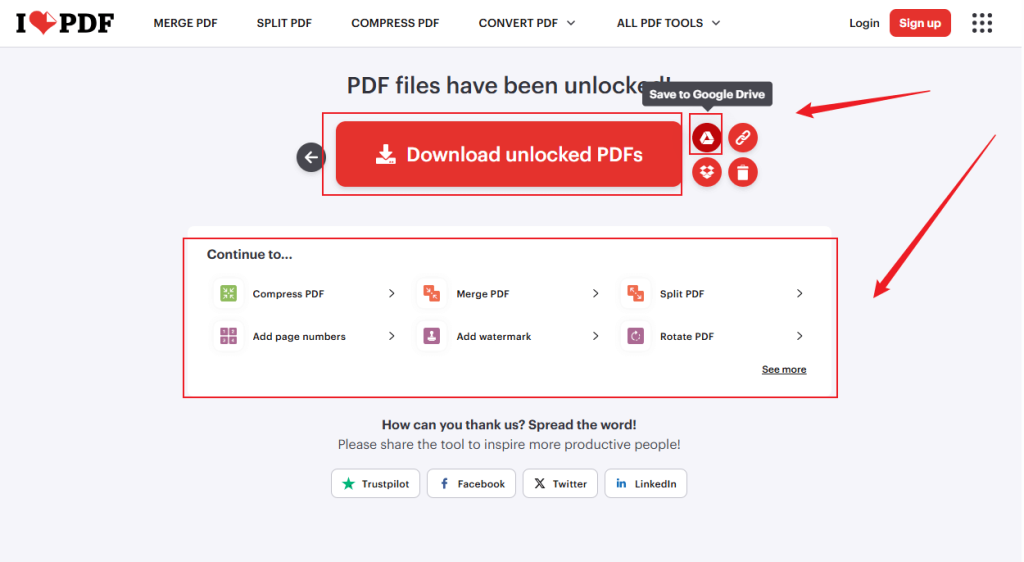
Step 4. Next, click the Download unlock PDFs to save it locally. Then, use your PDF editor to edit the PDF file. Or, you can select the Save to Google Drive option and use its basic editing feature to edit the PDF in Google Drive. Alternatively, you can choose to edit the PDF using iLovePDF.
Final Words
Editing a locked PDF can seem like a daunting task, but with the right tools, it becomes very manageable. You can use JOPDF to edit secured PDFs completely free of charge. SwifDoo PDF is also a good tool that enables you to edit locked PDFs by removing the password or converting them to Word. Also, you can try Adobe Acrobat Pro and iLovePDF. In this post, I have shown detailed steps. Hopefully, this post can be helpful to you.
FAQs
Table of Contents

Your Best Free PDF Expert in PDF editing, compressing, converting, annotating, protect, organizing, and more.
Free DownloadWindows · macOS · Linux

Olivia
“Olivia is an editor at JOPDF, where she writes practical guides and insightful articles on managing PDFs—covering topics like editing, annotating, converting, and organizing files efficiently. Passionate about clear communication and digital productivity, Olivia enjoys spending her free time cooking, watching movies, and hiking to unwind and find inspiration for her writing.”
![3 Proven Ways to Remove Page Numbers from PDF [Free & Paid]](https://b.jopdf.com/wp-content/uploads/2026/09/remove-page-numbers-from-pdf.png)
