Introduction :
XML files are commonly used to store structured data, including product information, invoices, financial records, configuration settings, and website data. However, their tag-based structure makes them difficult to read, share, and print. In that case, converting XML files to PDFs is necessary. In this JOPDF article, you’ll learn 4 practical methods to convert XML to PDF with step-by-step guidance.
XML, which stands for Extensible Markup Language, is a markup language designed to store, structure, and transport data in a format that both humans and computers can understand. Although XML is useful for storing structured information, it is not always the most convenient format for everyday document sharing. Compared to XML, PDF is the better choice since it is easier for document reading, printing, sharing, and archiving.
There are several ways to convert XML to PDF, depending on the type of XML file you have. Online converters such as FreeConvert and PDF Candy are convenient for quick conversions. Microsoft Excel can import certain XML data files into worksheets, while Microsoft Word and LibreOffice can export compatible XML-based documents as PDFs. Now, let’s dive in!
Quick Comparison: 4 Ways to Convert XML to PDF
Here’s a quick comparison table for the 4 practical XML to PDF converters. You can refer to the table and have a basic understanding of them.
| Method | Best For | Software Installation | Main Advantage | Main Limitation |
| FreeConvert | Quick online XML-to-PDF conversion | No | Simple conversion process and batch upload support | Requires uploading files online; output layout should be checked |
| PDF Candy | Online conversion and cloud-based file handling | No | Supports XML-to-PDF conversion and cloud integration | Requires an internet connection |
| Microsoft Excel | Structured XML data that can be arranged in rows and columns | Yes | Allows you to review and organize data before exporting | Complex or deeply nested XML may not import as expected |
| LibreOffice Writer | Compatible XML document formats | Yes | Free desktop alternative for supported document formats | Not a general-purpose converter for arbitrary XML |
Method 1: Convert XML to PDF Online with FreeConvert
FreeConvert is an online file conversion service that supports conversion of video and audio, images, GIFs, PDFs, and other documents. In addition to a dedicated XML to PDF converter, FreeConvert allows you to convert PDF to EPUB, JPG to PDF, and other PDF conversions.
You can upload an XML file from your computer or select one from supported cloud storage services, start the conversion, and download the resulting PDF. If you want a straightforward conversion process without installing a desktop application, FreeConvert is quite suitable. What’s more, FreeConvert also supports batch conversion, which can be useful when you need to process multiple XML files.
Steps to Convert XML to PDF with FreeConvert
Step 1. Open your browser and visit the FreeConvert XML to PDF Converter.
Step 2. Click Choose Files and select the XML file you want to convert from your local PC. You can also import a file from a cloud storage service, such as Dropbox, Google Drive, or OneDrive.
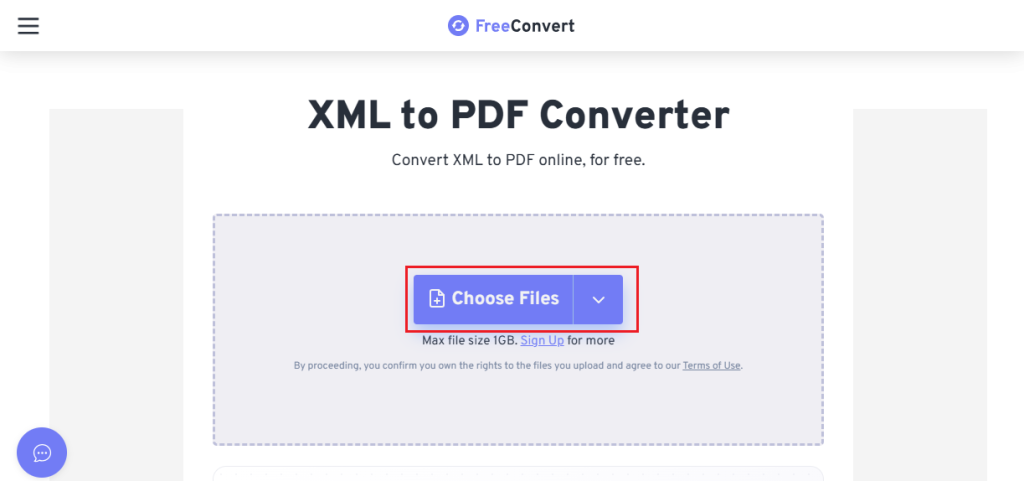
Step 3. Make sure that PDF is the output format. Then click Convert to start the free XML to PDF conversion.
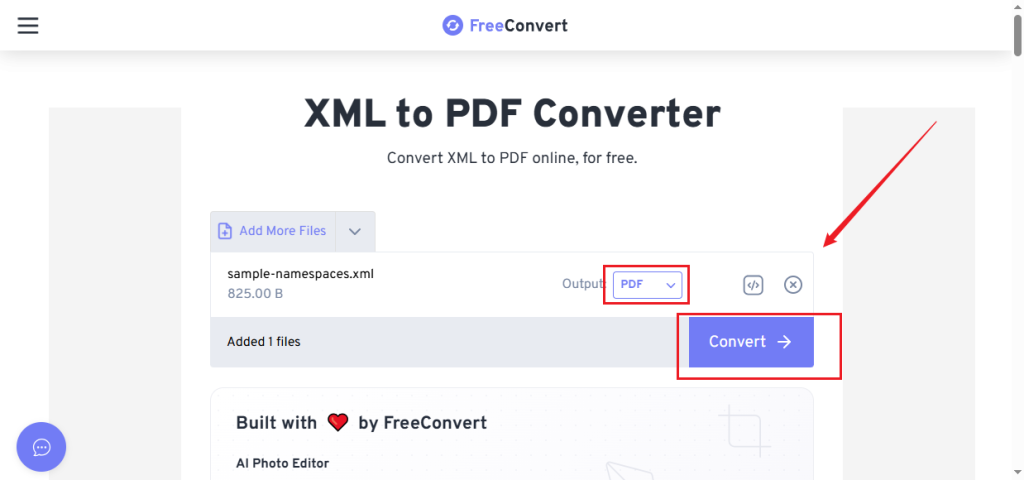
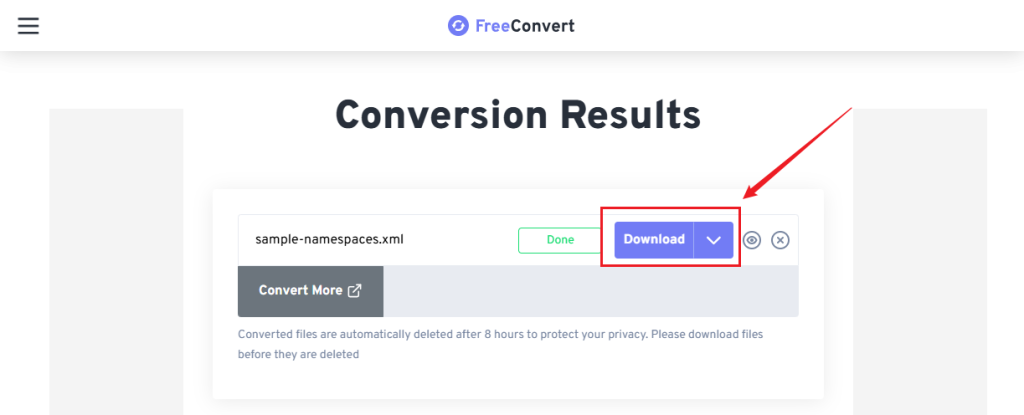
Step 4. Wait until the conversion status changes to Done. Finally, click Download to save the converted PDF to your device.
Pros and Cons
Pros
- No software installation is required.
- Supports file uploads from a computer and selected cloud services.
- Allows multiple XML files to be converted in batches.
- Offers a simple conversion workflow.
Cons
- Requires an internet connection and uploading your XML file.
- Free usage and file-size limits apply.
🥇Best for: Users who want to convert XML files to PDF quickly without dealing with spreadsheet or document formatting.
Tips
XML is a data format, not a fixed document layout. Before using the resulting PDF, check whether the converter has presented the XML content in a readable way.
Method 2: Convert XML File to PDF Online Using PDF Candy
PDF Candy is a free online PDF toolkit, including tools to edit and convert PDFs. Its dedicated XML to PDF converter allows you to upload an XML file and process it through a browser without installing a separate application. More importantly, it advertises that it can automatically handle even large or nested XML files with precise layout. Like FreeConvert, PDF Candy lets you batch convert multiple XML files to PDFs at once.
Steps to convert an XML file to PDF online with PDF Candy
Step 1. Visit the PDF Candy XML to PDF Converter via your browser.
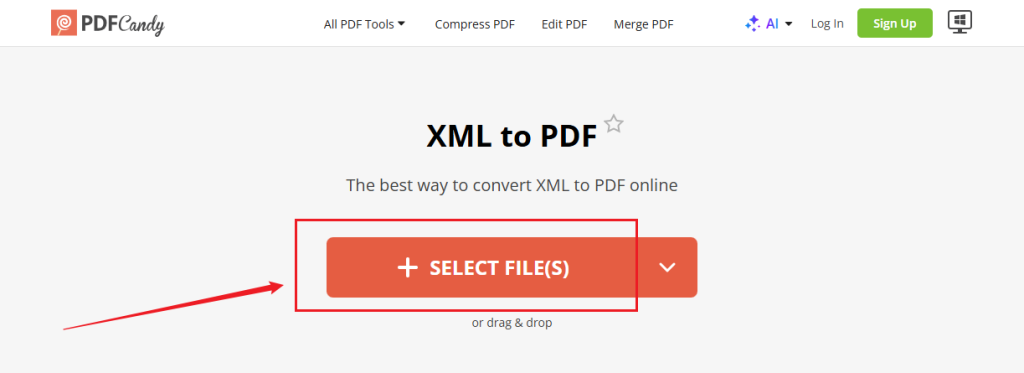
Step 2. Click SELECT FILE(S) to open your target XML file. Alternatively, drag and drop your XML file into the upload area.
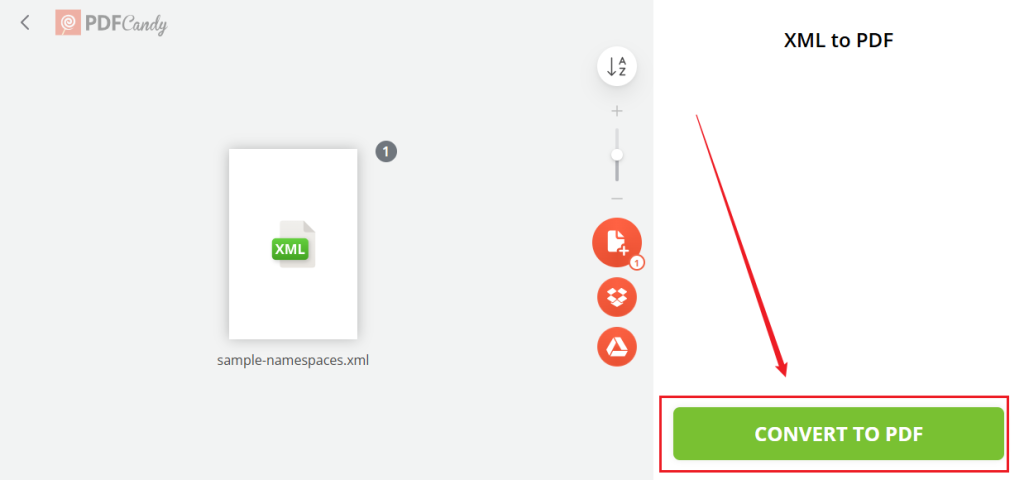
Step 3. When the file is uploaded, click CONVERT TO PDF to complete the conversion. When the conversion process is over, click Download file to save the resulting PDF file.
Pros and Cons
Pros
- Works online without requiring desktop software.
- Provides a dedicated XML-to-PDF conversion tool.
- Advertises support for nested XML files and batch processing.
- Offers cloud integration for supported storage services.
- States that processed files are deleted after a limited retention period.
Cons
- Requires an internet connection.
- Uploading sensitive business or personal data may not be appropriate for every user.
🥇Best for: Users who prefer an online XML-to-PDF converter with cloud integration and want to process files through a browser.
Method 3: How to Convert XML to PDF with Microsoft Excel
Microsoft Excel is useful when your XML file contains structured data that can be organized into rows and columns, such as customer records, inventory information, or transaction details. Unlike a simple file converter, Excel lets you inspect the imported data, adjust column widths, format values, and prepare the worksheet for printing. You can then export the worksheet as a PDF.
Note
Microsoft Excel is not suitable for every XML file. Its XML import features are designed for structured data that can be mapped to worksheet cells. Complex hierarchies may require additional adjustments or a suitable XML schema.
Steps to Turn an XML File into a PDF in Microsoft Excel
Here are two options to convert an XML file to PDF in Microsoft Excel.
Option 1. Open the XML file directly (simplest for most tabular XML files)
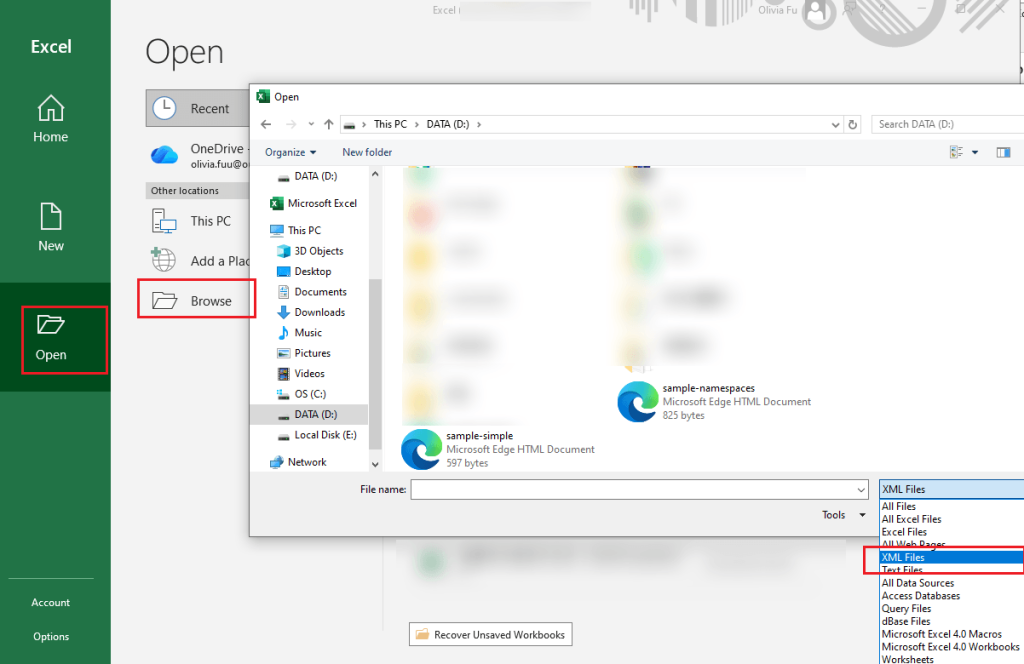
Step 1. Launch Microsoft Excel, select Open, and click Browse. In the file type dropdown, change from “All Excel Files” to “XML Files”. Then select your target XML file and click Open.
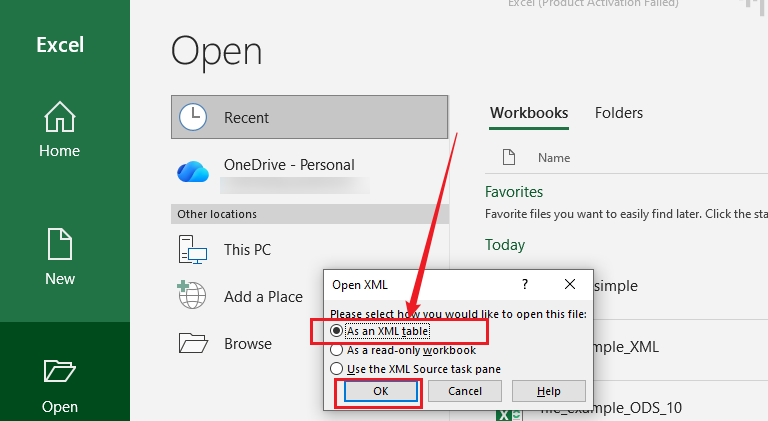
Step 2. In the Open XML dialog box that appears, select As an XML table and click OK.
Step 3. If Excel shows a message that the XML source does not refer to a schema, click OK. Then Excel will create one automatically.
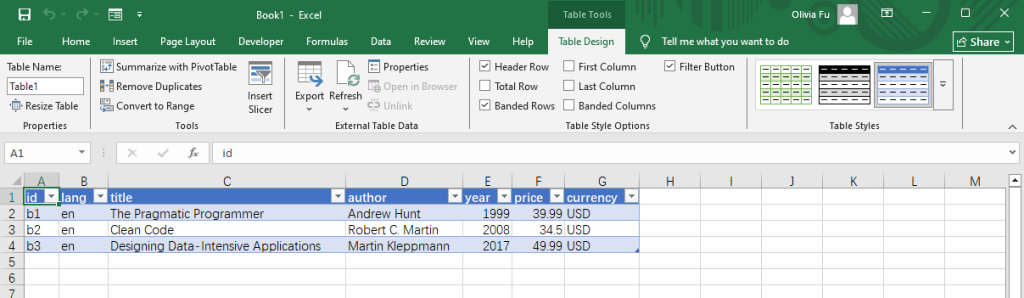
Step 4. Next, the XML data loads into an Excel table. You can review the table and adjust its columns and other formatting as needed.
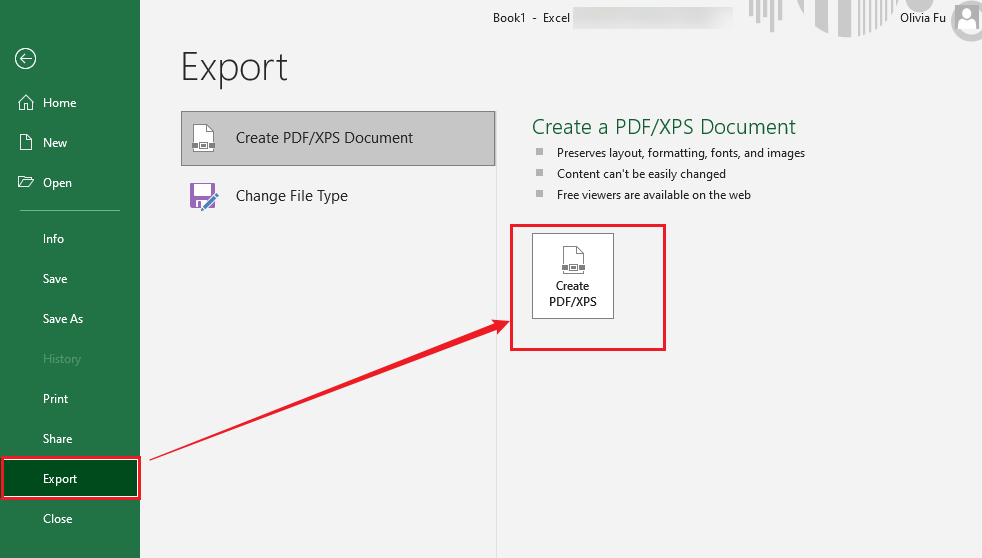
Step 5. Click File, select Export, and choose Create PDF/XPS Document. Select the save location and enter a file name. Optionally, click Options to choose Active sheet(s), Entire workbook, or others. Finally, click Publish.
Option 2. Via Power Query (good for more complex or nested XML)
Step 1. Launch Microsoft Excel, click New, and select Blank workbook to create a new workbook.
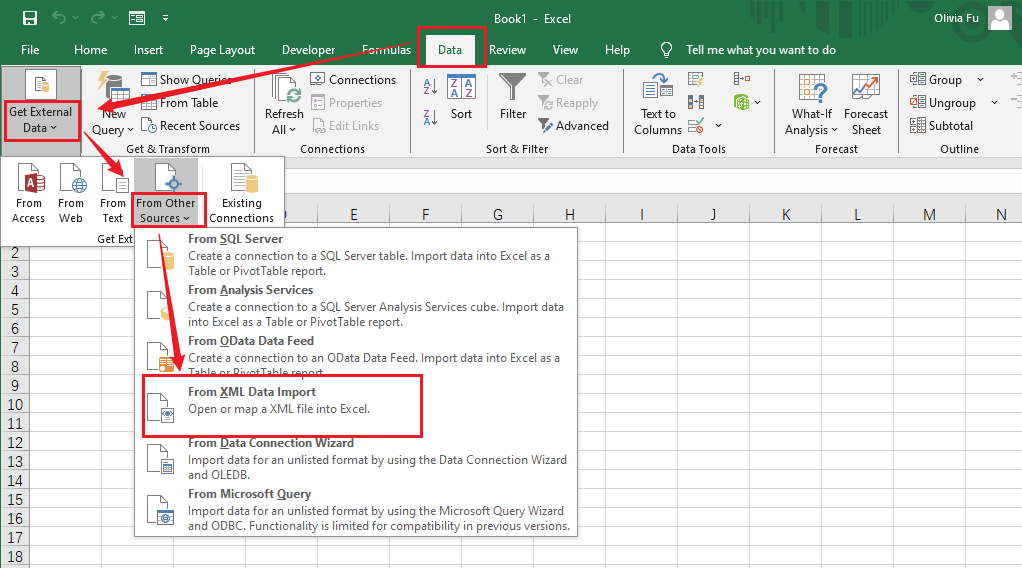
Step 2. Click Data from the top ribbon, select Get External Data, and go to From Other Sources > From XML Data Import. Then select the target XML file and click Open.
Note
The exact menu varies depending on your Excel version. For instance, in some versions, you need to go to Data > Get Data > From File > From XML.
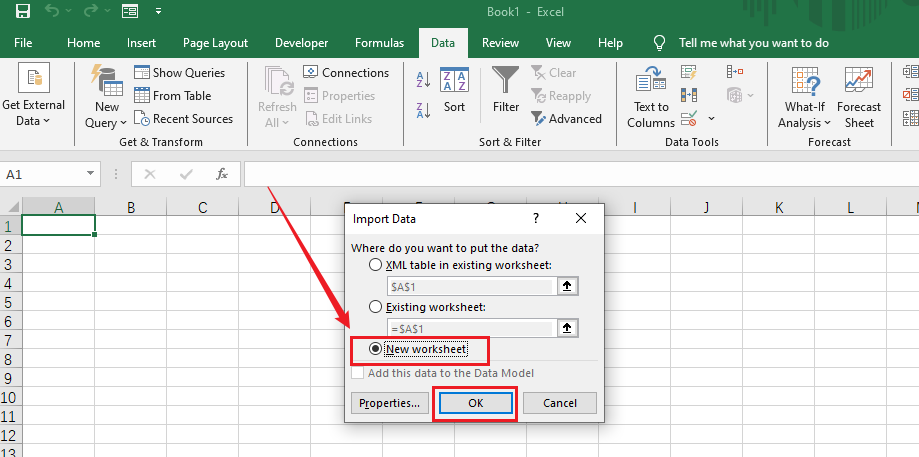
Step 3. When Excel shows a message that the XML source does not refer to a schema, click OK. In the Import Data dialog, choose New worksheet and click OK.
Step 4. Next, review the imported information. Adjust column widths, row heights, number formats, and others as needed.
Step 5. Finally, go to File > Export, choose Create PDF/XPS Document, select the saving path and filename, and click Publish to save the PDF file.
Pro and Cons
Pros
- Lets you organize structured XML data into a spreadsheet.
- Provides tools for sorting, filtering, and formatting imported records.
- Allows you to adjust page layout before exporting.
- Useful for XML files containing repeated records and tabular information.
Cons
- Not all XML structures can be imported into a useful worksheet automatically.
- Deeply nested elements may require additional mapping or restructuring.
🥇Best for: Users who need to turn structured XML records into a readable table or report before saving them as PDFs.
Method 4. How to Save XML as PDF with LibreOffice
You can also use LibreOffice Calc or LibreOffice Writer to save XML data as a PDF. For XML files containing tabular data, LibreOffice Calc should be your choice. On the other hand, LibreOffice Writer is better suited to XML files containing structured text. In this article, I mainly introduce how to save XML data as a PDF in LibreOffice Calc. It can open and export several spreadsheet formats, including Microsoft Excel 2003 XML spreadsheet files.
Steps to Save XML Data as a PDF with LibreOffice Calc
Step 1. Open LibreOffice Calc and create a blank spreadsheet. Then click Data > XML Source in the menu bar.
Step 2. In the XML Source dialog, click the file-selection icon under Source File to select your target XML file and click Open. Then Calc will read the XML structure and display its elements in the Map to Document area.
Step 3. Next, expand the XML structure and select the repeating element containing the records you want to import. For instance, if your XML file includes multiple “<sale>” elements, select “sale” to import the sales records.
Step 4. Then map the XML elements to spreadsheet columns. Select an element in the XML structure and click the corresponding destination cell. Next, just repeat this for the fields you want to import. Then click Import and Calc will populate the spreadsheet with the mapped XML data.
Step 5. After formatting the imported data as needed, go to File > Export As > Export as PDF, configure the needed export settings, and click Export. Finally, select the destination folder and click Save.
Pros and Cons
Pros
- Free to use and available for multiple desktop operating systems.
- Supports Microsoft Excel 2003 XML spreadsheet files.
- Provides spreadsheet tools for organizing and formatting data.
- Allows you to export compatible worksheets directly to PDF.
Cons
- Does not directly support arbitrary XML data files as spreadsheets.
- Only suitable for XML files that use a supported spreadsheet structure.
- Does not automatically interpret every XML file as a spreadsheet.
🥇Best for: Users who have a Microsoft Excel 2003 XML spreadsheet file and want to convert it to PDF using free desktop software.
How to Choose the Best XML to PDF Converter
A suitable XML to PDF converter can help you convert an XML file to a PDF efficiently. You can refer to the tips below to choose the best converter for yourself.
Identify the Type of XML File
First, you need to determine what your XML file contains. Here are 3 types:
- Structured records: If the file contains repeated records, fields, and values, Excel may help you organize the data into a table.
- Excel-compatible spreadsheet XML: If the file uses the Microsoft Excel 2003 XML spreadsheet format, you can open it in LibreOffice Calc.
- General XML files: Try a dedicated converter such as FreeConvert or PDF Candy, then inspect the output.
Check Whether the PDF Needs a Specific Layout
If you only need a PDF copy of the XML content, an online converter may be sufficient. However, if you need a polished report with clear headings, tables, page numbers, and consistent spacing, Microsoft Excel and LibreOffice Calc should be your choices.
Consider File Privacy and Security
Online converters require you to upload your XML file to a third-party service. This may be acceptable for non-sensitive files. For sensitive information, use an appropriate offline workflow where possible. Also, you need to review the service’s privacy policy and file-retention terms before uploading documents.
Check the Final PDF
Regardless of which method you use, open the exported PDF and verify that:
- All important XML values are present.
- Repeated records have not been omitted.
- Nested elements are displayed in a sensible order.
- Tables and text are not cut off.
- Special characters and symbols appear correctly.
- Page breaks and margins are appropriate.
Best Free Way to Edit and Convert PDFs with JOPDF
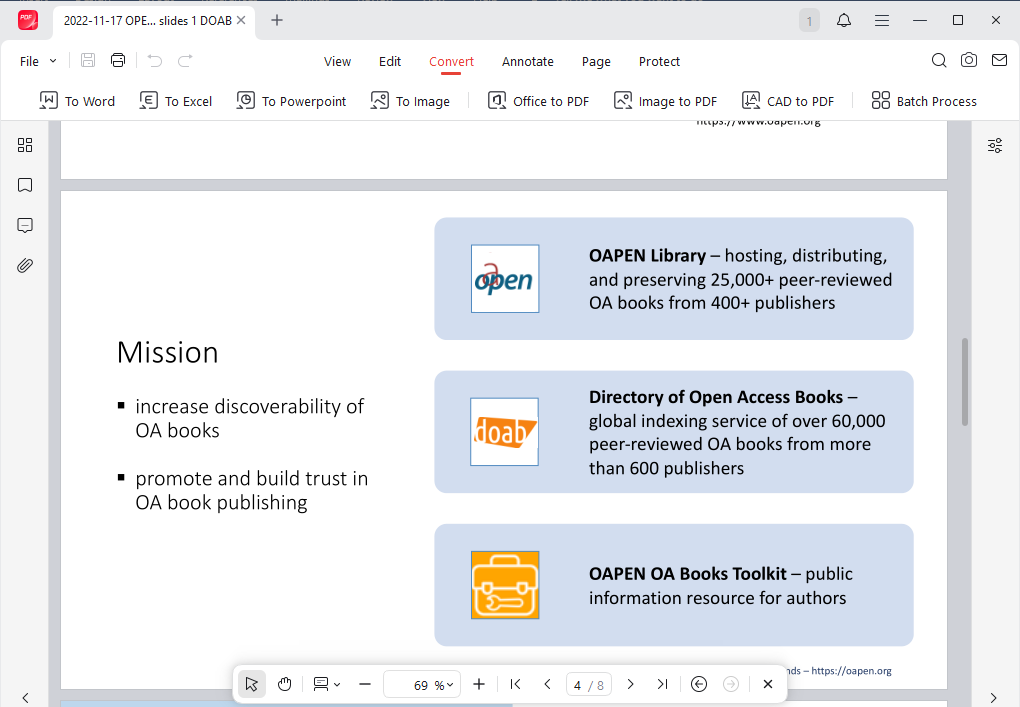
After converting XML to PDF, you may want to make further changes, such as adding annotations, numbering PDF pages, rearranging PDF pages, or other changes before sharing it. In that case, JOPDF is worth a try.
JOPDF is a free offline PDF editor that can work on Windows, Mac, and Linux. It provides you with a range of PDF editing features to edit text and images in a PDF, insert page numbers, watermark PDFs, and more. Furthermore, it offers OCR to recognize text in scanned PDFs, making them editable or searchable. In addition, it offers features for annotating, organizing, protecting, and printing PDFs.
What’s more, JOPDF is one of the best free PDF converters that can convert PDF to XML, XLSX, DOCX, JPG, and other more formats. If you need a free desktop tool to handle the PDF after conversion, download JOPDF and use its PDF editing and management features.
Conclusion
There are several ways to convert XML to PDF, but the right method depends on the type of XML file you have. For a quick online conversion, FreeConvert and PDF Candy are convenient options. If your XML contains structured records that need to be arranged into tables, Microsoft Excel offers more control over the data and page layout. LibreOffice Calc is another option for Microsoft Excel 2003 XML spreadsheet files. Now, it’s your time to select a converter and use it to convert an XML file to PDF.
FAQs
Table of Contents

Your Best Free PDF Expert in PDF editing, compressing, converting, annotating, protect, organizing, and more.
Free DownloadWindows · macOS · Linux

Olivia
“Olivia is an editor at JOPDF, where she writes practical guides and insightful articles on managing PDFs—covering topics like editing, annotating, converting, and organizing files efficiently. Passionate about clear communication and digital productivity, Olivia enjoys spending her free time cooking, watching movies, and hiking to unwind and find inspiration for her writing.”