Introduction:
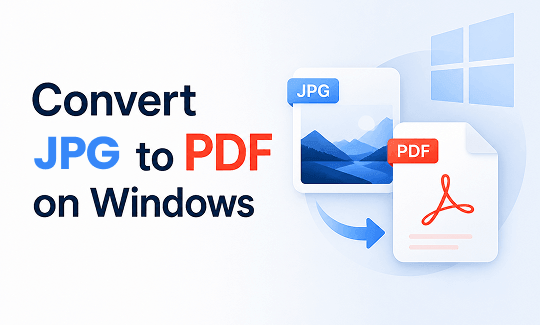
Compared with images, PDF documents are better suited for sharing and archiving. In this guide, let’s learn how to convert JPG to PDF on Windows 11/10. We will show you three simple, free ways to complete this task quickly.
Way 1. Convert JPG to PDF on Windows with JOPDF
If you prefer a professional tool and care about the quality, JOPDF is the top recommendation. This program is a powerful PDF converter designed for everyone. You do not need to be good at computers. Best of all, it is completely free to use.
Here are some JOPDF’s outstanding features that can make your work simple.
✅ First, JOPDF lets you convert multiple JPG files to PDF on Windows with a single click. You can select ten, twenty, or even fifty photos, and the program will process them all in a few seconds. This saves you a massive amount of time.
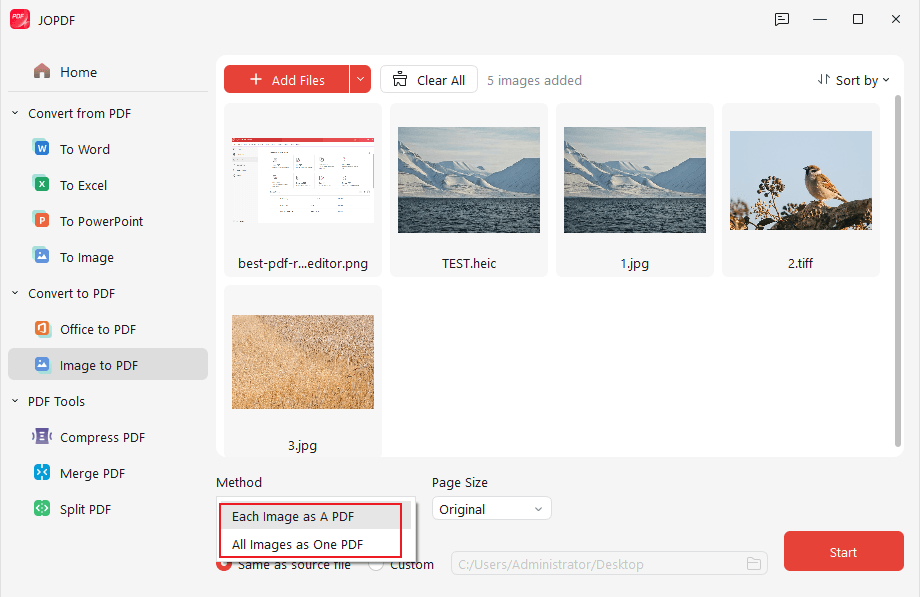
✅ Second, it offers very flexible savings options. You can tell JOPDF to save each picture as its own separate PDF file. Or, if you prefer to keep things organized, you can save all the images as one big PDF.
✅ Third, JOPDF lets you adjust the page size before you make your new file. For example, you can make the page look just like a standard piece of printer paper, such as A4 size.
Let’s see how to convert JPG to PDF on Windows 10/11 with JOPDF:
- First, download JOPDF and install it on your computer.
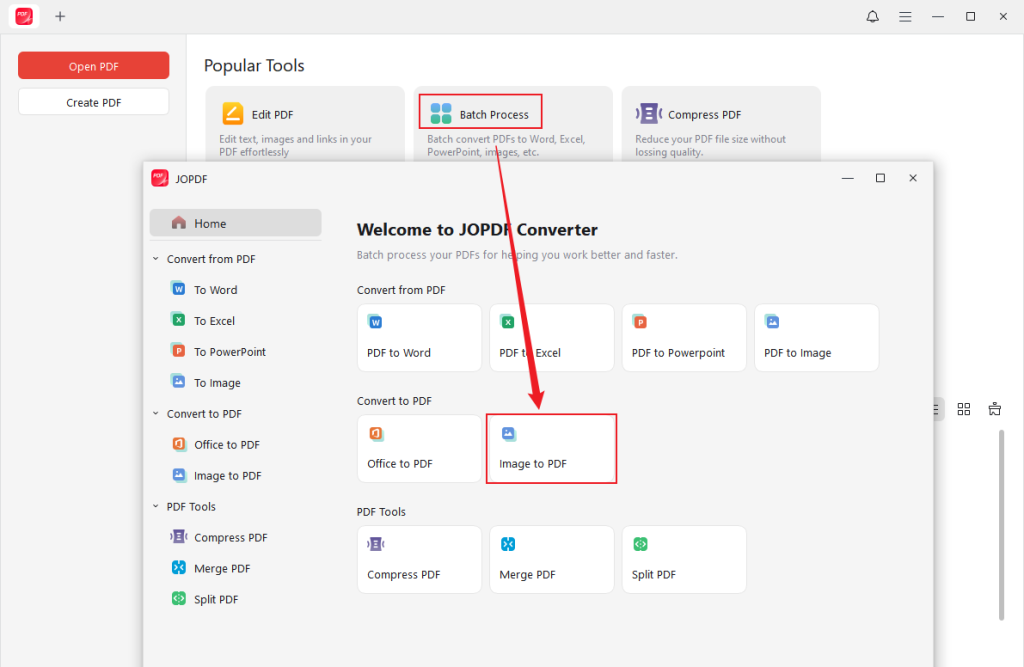
- On the main screen, go to Batch Process and choose Image to PDF.
- A new window will open up. You can drag your JPG pictures right into this window. You can also click the Add Files button to search for the photos saved in your computer folders.
- Next, decide whether you want to save each photo separately or put them all into a single document. Then, choose your paper size.
- Choose the folder on your computer where you want to keep the brand-new file.
- Finally, select an output path and click the Start button. In just a short moment, your new document will be ready to open.
JOPDF is not just a simple tool for changing pictures. It is a comprehensive PDF editor. This means it can help you handle the PDF after the conversion is finished.
For example, if you realize you need to add a note to a page, JOPDF makes it very easy to edit text in PDF files. You can also add secret passwords to keep your files safe from strangers. Just try JOPDF today to make your work much easier!
Way 2. Use the Built-in Print Feature
Did you know your computer already has a hidden tool inside of it? You can actually use the built-in “Print” feature to save a JPG as a PDF on Windows 10 and 11. You do not need to download any new software to use this method.
However, we must note the significant disadvantages of this built-in method:
❗ Sometimes, the computer gets the paper size completely wrong and cuts off the borders of your beautiful photos.
❗ It can also make the computer file size way too large, which makes it very hard to send the file in an email.
❗ If you select multiple images, they will be combined into a single PDF file.
❗ Worst of all, it can ruin your picture quality, making the colors look dull or blurry.
If you want to avoid these frustrating problems, you can try JOPDF instead for a much better, stress-free solution.
If you still want to try the built-in Print method, please follow the steps below:
- Go to the JPG picture saved on your computer. If you want to convert multiple JPGs, please select them all.
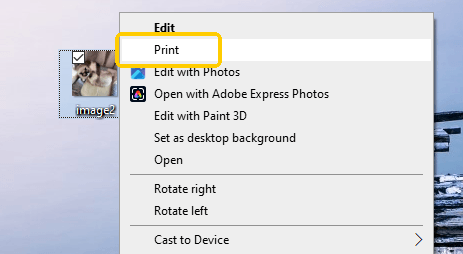
- Right-click the picture, open the menu that pops up, and click the Print option.
- A new “Print Pictures” window will appear. Look at the top left corner where it says “Printer”. Make sure you have selected Microsoft Print to PDF.
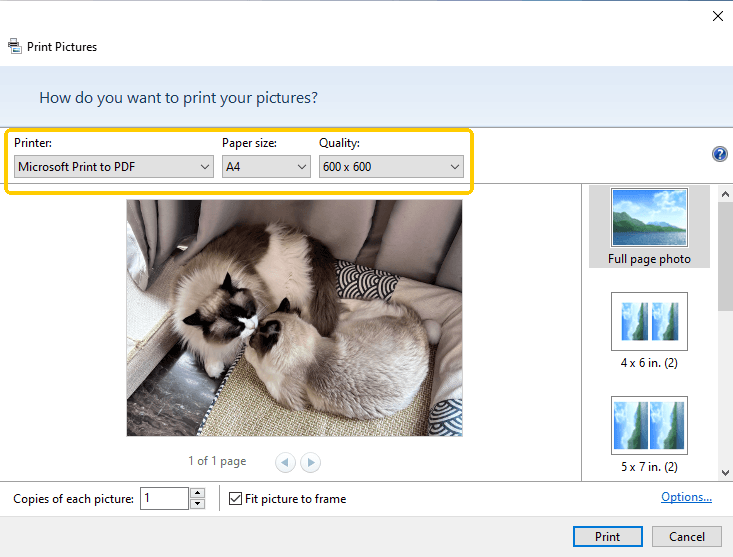
- If needed, you can change the paper size and other settings.
- When OK, click the Print button. Name the file and select a location to save it.
Way 3. Use an Online Converter
You can also use an online tool to help you convert image to PDF. A very popular one for this task is Smallpdf.
This online tool can help you finish your work quickly, right in your web browser, such as Google Chrome or Microsoft Edge. Here are the easy steps to use Smallpdf to convert JPG to PDF on Windows:
- Open your web browser and go to the Smallpdf: https://smallpdf.com/jpg-to-pdf.
- Drag your JPG picture from your computer folder and drop it right into that yellow box.
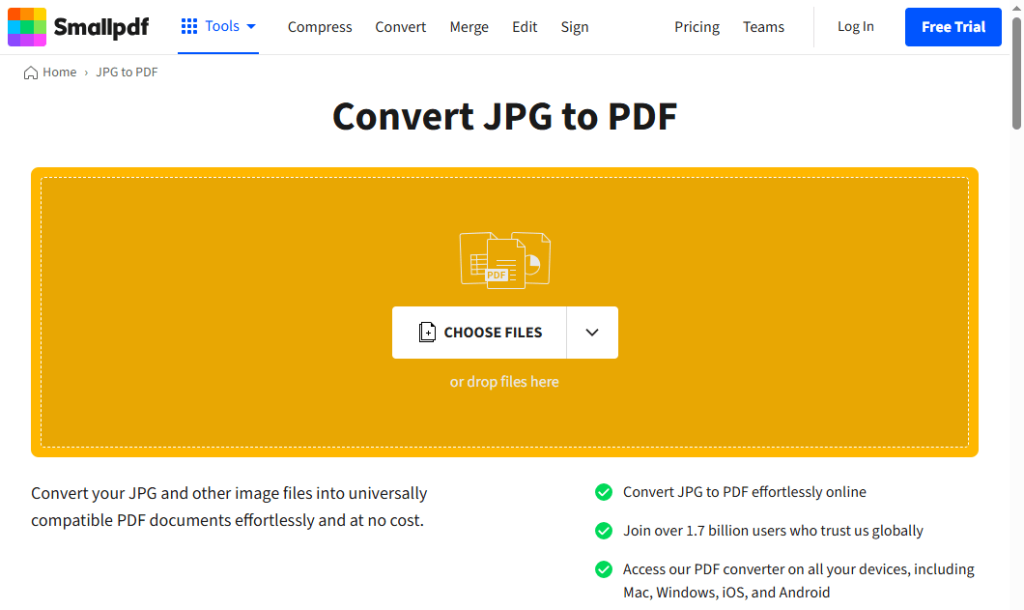
- Then, look at the top of the screen. If you need to save each image as a separate file, please enable the Separate PDFs option.
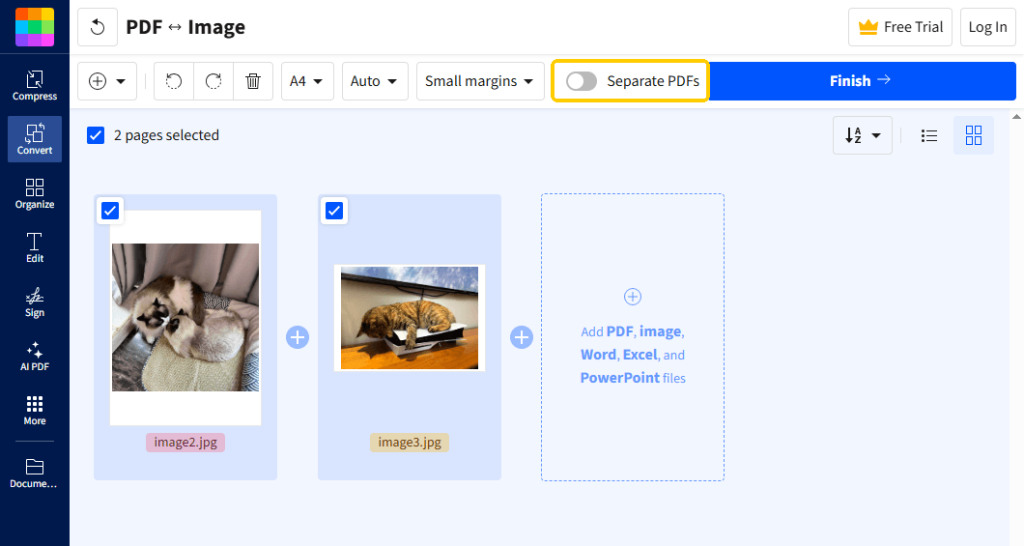
- When everything looks good to you, click the blue Finish button in the top right corner.
- Wait a brief moment for the website to process your picture. Finally, click the Download button to save the finished PDF to your computer.
Please remember that free online tools have strict limits. Websites usually let you convert only one or two files for free each day before asking you to pay.
Also, you must upload your personal pictures to the public internet. If you want to keep your pictures totally private and secure, using a desktop program like JOPDF is always the safer choice.
Conclusion
That’s all about how to convert JPG to PDF on Windows 10/11. You can easily use the built-in Print feature or a website like Smallpdf if you just need a fast, one-time fix.
However, for the best quality, JOPDF is clearly the top winner. It can handle many files at once with zero effort, keep your PDF clear, and even lets you edit the final document. Download JOPDF today to make your computer work faster!
FAQs
Table of Contents

Your Best Free PDF Expert in PDF editing, compressing, converting, annotating, protect, organizing, and more.
Free DownloadWindows · macOS · Linux

Queena
Editor
“As a staff editor for JOPDF, Queena excels at guiding users to the optimal tools and solutions. When she's not analyzing the latest PDF solutions, she enjoys spending her free time playing with her four cats.”