Introduction :
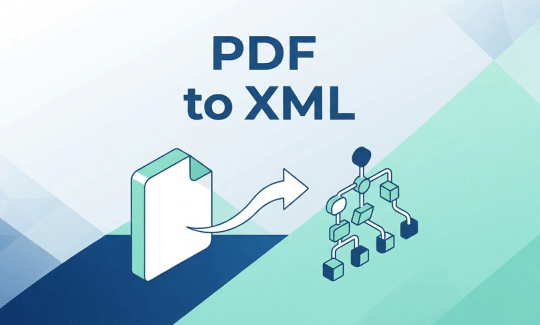
Converting PDF to XML can turn presentation-focused documents into structured, machine-readable data. Compared to PDF, XML adds hierarchy, tags, and explicit meaning, making content far more usable by software, databases, and automated systems. How do you convert a PDF file to XML? In this article from JOPDF, you’ll learn 4 practical and trusted methods to turn a PDF into XML.
PDFs excel at preserving fixed layouts for viewing and printing across devices, but they are not designed for easy data extraction or processing. If you want to extract text, organize information, or transform document content to ERP, CRM, accounting, or another business system, converting PDF to XML can be a practical solution.
XML (Extensible Markup Language) stores information in a structured, tag-based format. Unlike a PDF, which mainly focuses on how a document looks, XML can describe content through elements and attributes. This makes XML useful for data exchange, document processing, and automated workflows. In the following content, we’ll introduce you to 4 reliable PDF to XML converters and show you the exact steps to save a PDF file as XML. Now, let’s get started!
Quick Comparison of the 4 Practical PDF to XML Converters
In this article, we’ll introduce you to how to convert PDF to XML using JOPDF, CoolUtils, Adobe Acrobat, and PDFTables. Before learning each method, you can refer to the table below to gain a basic understanding and make a quick choice.
| Method | Platform | Cost | Best For |
| JOPDF | Windows, Mac, Linux | Free | Direct PDF-to-XML conversion and scanned-document workflows |
| CoolUtils PDF to XML Converter | Web browser | Free online use with limitations | Quick PDF-to-XML conversion without installing software |
| Adobe Acrobat | Windows, Mac | Paid | Exporting PDF content to XML with configurable settings |
| PDFTables | Web browser / API | Page-credit based | Extracting PDF tables and exporting them as structured XML |
Now, let’s check the 4 methods one by one, along with the detailed guidance and pros and cons.
Method 1. Convert PDF to XML for Free with JOPDF
JOPDF is known as a free offline PDF editor. Surprisingly, it is an excellent PDF converter that supports PDF to Excel conversion, including PDF to XML, XLSX, CSV, ODS, and XLSM. In addition, JOPDF can work on Windows, Mac, and Linux, making it suitable for cross-platform PDF conversion.
With JOPDF, you don’t need to write code or use a separate XML-generation tool to create an XML file from your PDF. What’s more, JOPDF provides OCR functionality, which can help recognize text in scanned PDFs before you work with their content.
Steps to Convert PDF to XML with JOPDF
Step 1. Click the button below to download and install JOPDF on your Windows or Mac PC. Or visit the Official JOPDF website and download and install its Linux version.
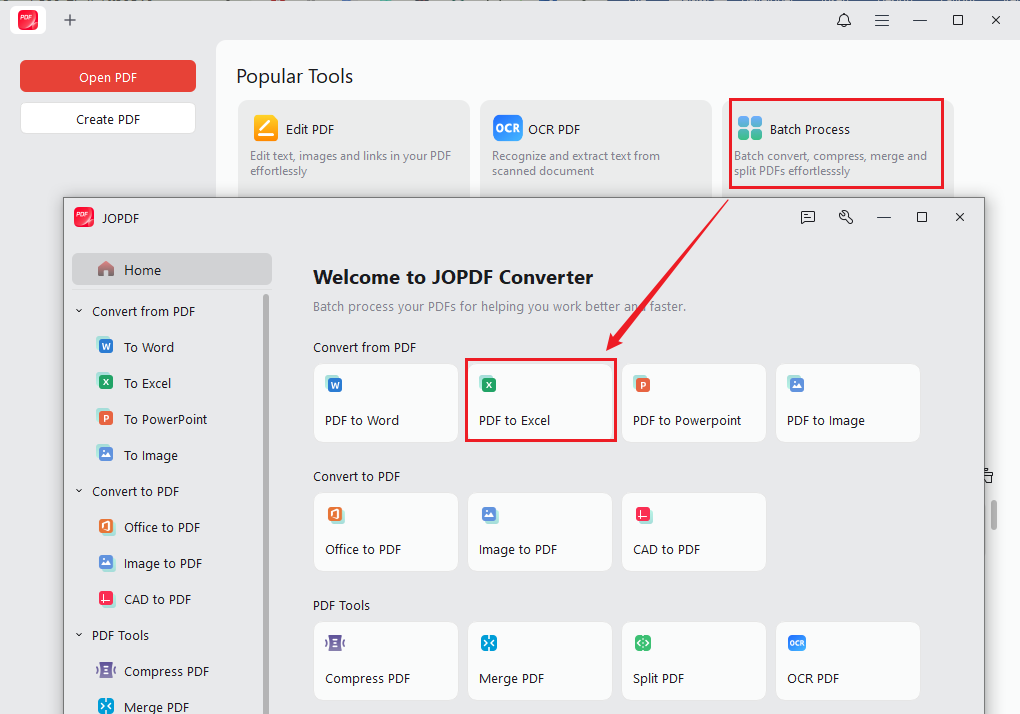
Step 2. Launch this free PDF to XML converter, go to Batch Process, and select PDF to Excel.
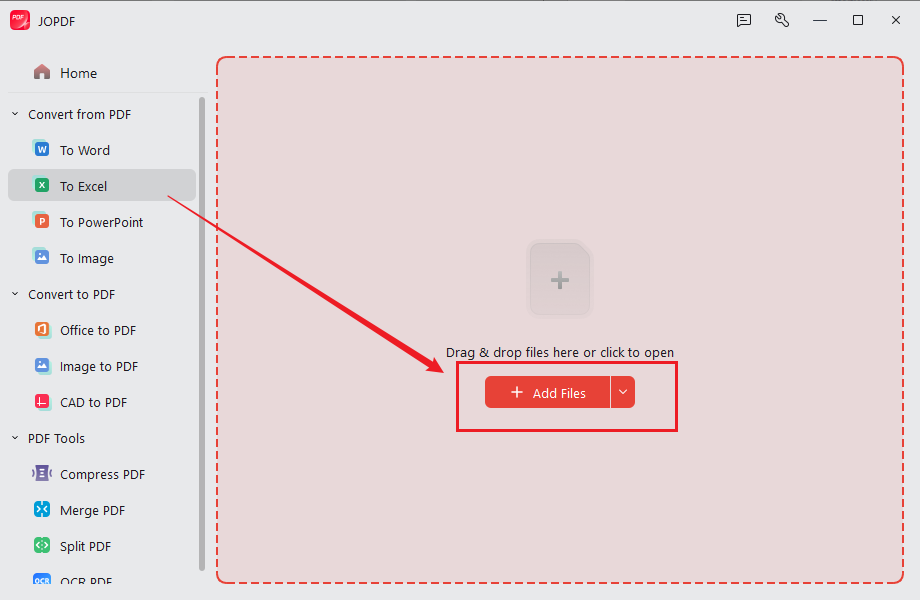
Click + Add Files to select and open the target PDF file. Here, you can choose to import multiple PDF files for batch PDF to XML conversion.
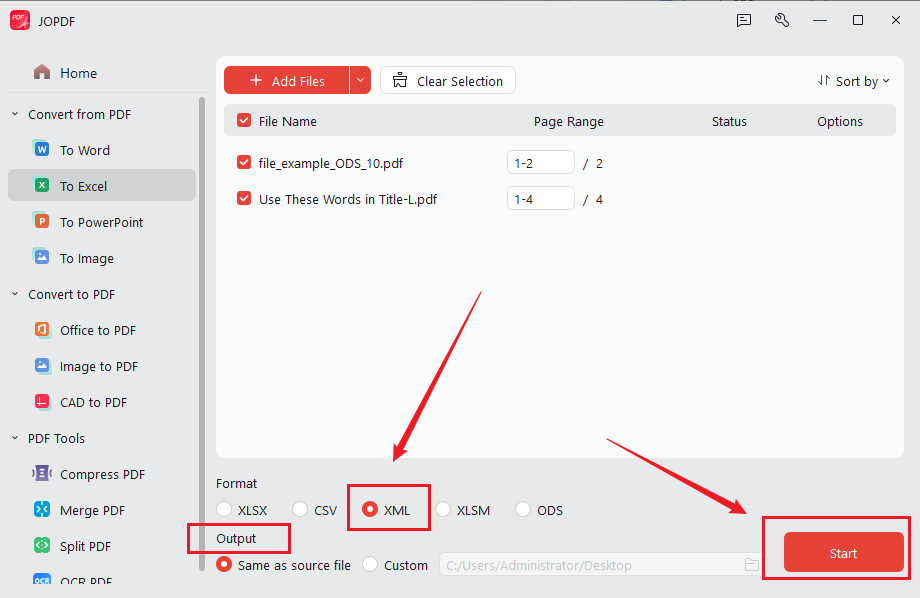
Step 3. In the Format section, tick the XML option. Meanwhile, select a destination folder. Finally, click the Start button.
How to Convert a Scanned PDF to XML with JOPDF
If your PDF file is scanned or image-based, it contains page images rather than selectable text. In that case, a regular text extraction process may return little or no useful content. You need OCR to recognize the words and characters in the scanned pages. JOPDF offers OCR functionality as well as PDF-to-XML conversion. Here’s how to convert a scanned PDF to XML using JOPDF.
Step 1. Click OCR PDF, locate and select the target scanned PDF, and click Open.
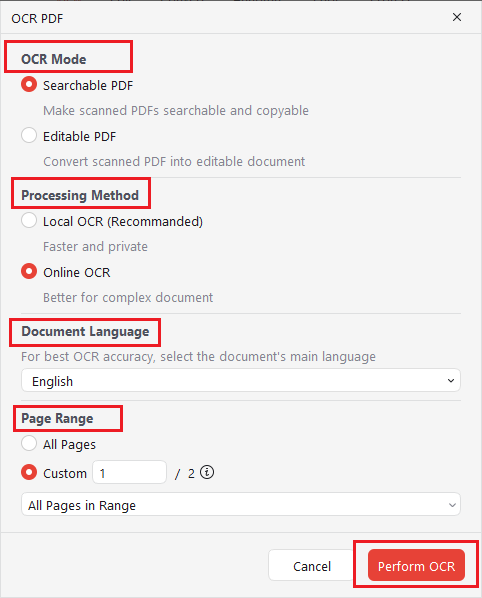
Step 2. Set the OCR mode as Searchable PDF or Editable PDF, and then select the Online OCR processing method for the complex PDF file. For sensitive PDFs, such as invoices and bills of lading, select the Offline OCR processing method. Meanwhile, select the primary language of the PDF and set the page range. Next, click Perform OCR to make the PDF searchable or editable.
Step 3. Then the OCR-enabled PDF will open in a new tab of JOPDF. Go to the Convert tab and select To Excel.

Step 4. Next, select XML as the output format and choose the saving path. At last, click Start.
Advantages and Limitations of JOPDF
Advantages:
- Complete free PDF converter with no ads and registration required
- Supports direct PDF-to-XML conversion.
- Works as desktop software on Windows, Mac, and Linux.
- Offers OCR functionality for scanned documents.
- Does not require uploading documents to an online converter.
Limitations:
- The quality of the output depends on the source PDF and its layout.
Method 2. Convert PDF to XML Online for Free with CoolUtils
If you do not want to install desktop software, CoolUtils offers a web-based PDF to XML converter that lets you convert your PDF file to XML online and for free. You can upload a PDF, choose XML as the output format, and download the converted file after processing. When you only need to convert a PDF occasionally, CoolUtils is a convenient option.
Steps to Convert PDF to XML Online with CoolUtils
Step 1. Open the CoolUtils PDF to XML Converter in your browser.
Step 2. Click the upload area to import the target PDF file. Or directly drag and drop the PDF into the upload area of CoolUtils.
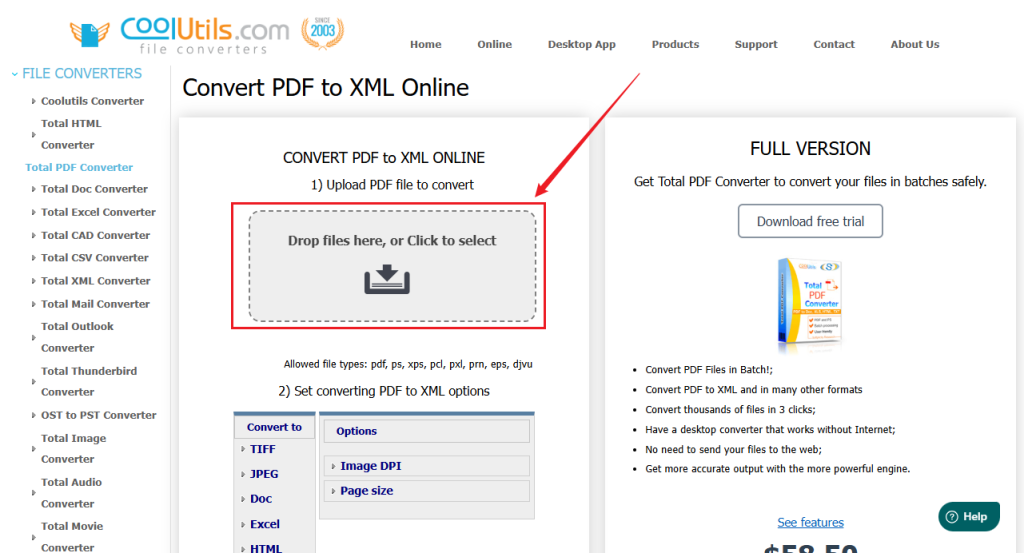
Step 3. Wait for the PDF to upload and select XML as the target output format. Optionally, adjust other settings like image DPI and page size.
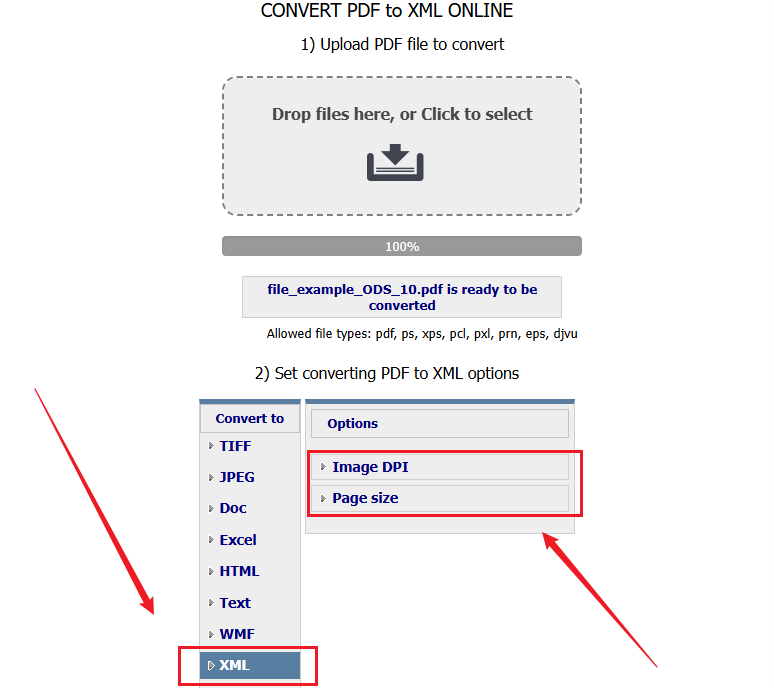
Step 4. Click DOWNLOAD CONVERTED FILE. The conversion will start, and the XML file will be downloaded automatically.
Advantages and Limitations of CoolUtils
Advantages:
- Works in a web browser without requiring desktop software installation.
- Provides a dedicated PDF-to-XML conversion option.
- Suitable for quick, occasional PDF conversions.
Limitations:
- You need an internet connection.
- Uploading a document to an online service may not be appropriate for confidential or sensitive files.
Method 3. How to Convert PDF to XML with Adobe Acrobat
Adobe Acrobat is another option for exporting PDF content to XML. It provides an XML 1.0 export option and settings that let you adjust aspects of the output, such as character encoding, bookmarks, tags, and image export. When you want more control over the XML export process, Adobe Acrobat is useful.
How to Export PDF to XML in Adobe Acrobat
Step 1. Launch Adobe Acrobat Pro and import the PDF file you want to convert.
Step 2. Select Convert from the global toolbar and choose “Other format” in the left panel.
Step 3. Open the format dropdown menu and select XML 1.0.
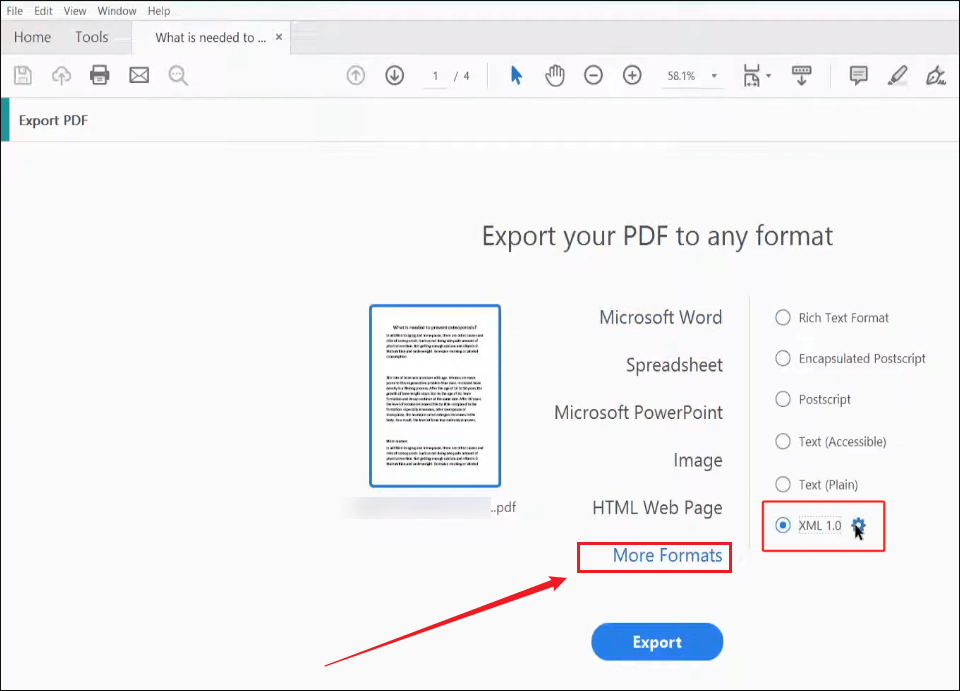
Meanwhile, you can click Settings to configure the conversion options. For instance, you can make the following adjustments:
- Encoding: Select UTF-8 for compatibility with most applications.
- Generate bookmarks: Create XML tags for the document’s bookmarks.
- Generate tags for untagged files: Add basic structural tags to PDFs without existing tags.
- Export all images: Include images from the original PDF in the exported output.
- Use sub-folder: Save exported images in a separate folder.
Then click OK to apply the settings.
Step 4. Click Convert to XML, select a destination folder, enter a filename, and click Save. Adobe Acrobat will generate an XML file based on the PDF content and the selected export settings.
Advantages and Limitations of Adobe Acrobat
Advantages:
- Provides a dedicated XML 1.0 export option.
- Offers settings for encoding, bookmarks, tags, and images.
- Suitable for users who already work with Adobe Acrobat.
Limitations:
- Requires paying for Adobe Acrobat Pro
- XML export does not automatically create a custom business-data schema.
Method 4. How to Convert PDF to XML Using PDFTables
If your PDF contains tables, financial statements, or other tabular information, PDFTables is worth considering. It is an online PDF conversion service that can convert PDF to CSV, XLSX, XML, or HTML.
Unlike a basic text extraction tool, PDFTables analyzes the structure and spacing of PDF content to identify rows and columns. Its XML output organizes extracted information into document, page, table, row, and cell elements. This makes it particularly useful when you want to transfer tabular information from PDFs into another application.
Steps to Convert PDF to XML with PDFTables
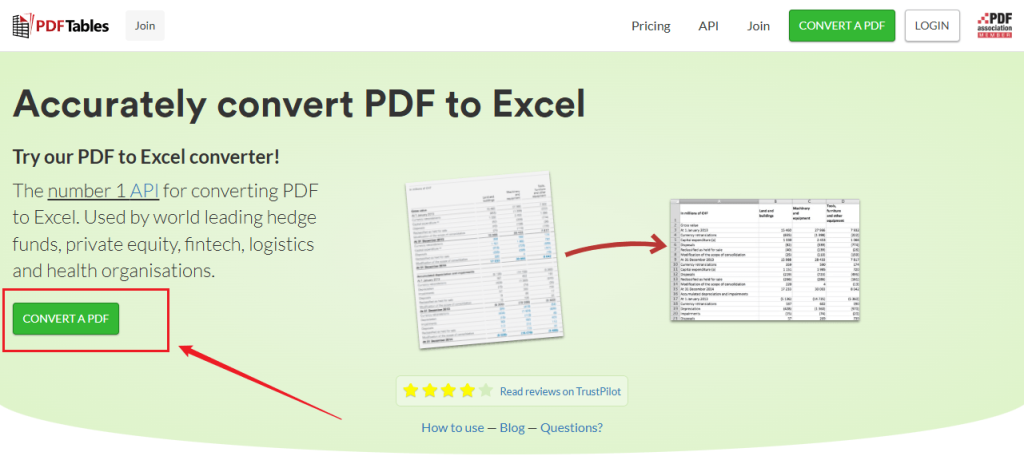
Step 1. Open your browser and visit the PDFTables website. Then click CONVERT A PDF. If you don’t have an account for PDFTables, it will prompt you to create an account. If you have an account, click LOGIN to log in to your account.
Step 2. Then select the PDF file you want to convert from your computer and click Open.
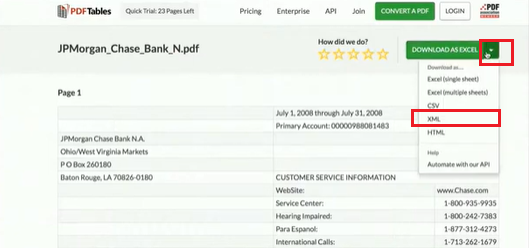
Step 3. Next, wait for PDFTables to upload and process the uploaded PDF file. After the conversion is complete, locate the download options. Click the arrow next to DOWNLOAD AS EXCEL and select XML to save it locally.
Advantages and Limitations of PDFTables
Advantages:
- Supports PDF-to-XML conversion directly through its website.
- Extracts tabular information into rows and cells.
- Also supports Excel, CSV, and HTML output formats.
- Offers an API for automating PDF conversions and processing multiple documents.
Limitations:
- Focuses on extracting tables rather than reproducing every element of a PDF document.
- Its XML output uses an HTML-style table structure, which may not match a custom XML schema.
Final Words
Converting PDF to XML can make document content easier to process, organize, and exchange with other applications. How to convert a PDF file to XML? For a direct desktop conversion, JOPDF is a practical free option. If you prefer an online tool, CoolUtils and PDFTables provide a simple browser-based workflow. In addition, you can use Adobe Acrobat to export a PDF as XLM with configurable XML export settings. Now, it’s your time to select a converter and try it out.
FAQs
Table of Contents
Your Best Free PDF Expert in PDF editing, compressing, converting, annotating, protect, organizing, and more.
Free DownloadWindows · macOS · Linux

Olivia
“Olivia is an editor at JOPDF, where she writes practical guides and insightful articles on managing PDFs—covering topics like editing, annotating, converting, and organizing files efficiently. Passionate about clear communication and digital productivity, Olivia enjoys spending her free time cooking, watching movies, and hiking to unwind and find inspiration for her writing.”