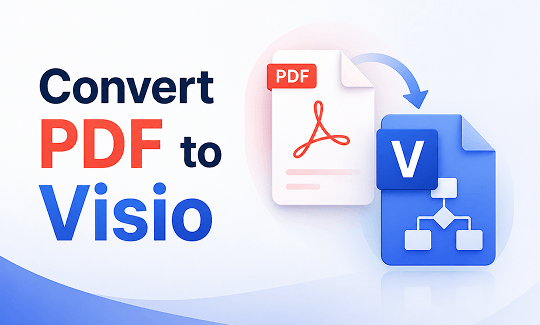
Visio is great for diagrams. PDFs are great for sharing. But they do not work well together. If you have ever tried to open PDF in Visio, the file just will not load. We have put together this guide on JOPDF to help you solve that problem. Here are four reliable ways to convert PDF to Visio and turn that static PDF into something you can actually edit.
Summary :
Can You Convert PDF to Visio Directly?
The short answer is no. Microsoft has confirmed that there is no built-in way to convert PDF to Visio directly within Visio. There is no “Save as Visio” option in PDF readers.
However, there are workarounds. You need to convert the PDF to a Visio-supported format first, then import it. Which method you choose depends on what kind of PDF you have and what you want to do with it.
Two types of PDFs matter here:
- Vector PDFs – created from CAD, design software, or Visio itself. These can be converted to editable vector formats like SVG or EMF.
- Raster PDFs – scanned documents or images. These are just pictures and cannot be turned into editable shapes. You can only use them as background images and trace over them.
Also See: How to Batch Convert Multiple PDFs Without Losing Quality
Method 1: Convert PDF to Visio via Image Formats
The simplest way to convert PDF to Visio is to turn your PDF into an image format that Visio supports. Visio accepts JPG, PNG, BMP, TIFF, and GIF.
Before you start converting your PDF, you might need to clean it up first. Maybe there are extra pages you do not need, or the text needs adjusting. JOPDF is a free desktop PDF editor for Windows, Mac, and Linux that can help you get your PDF ready.

JOPDF – The Best Free PDF Editor
 User Rating: 4.8
JOPDF Is a 100% free POF editor for Windows, macOS, and Linux. Edit text, add images, annotate, sign, and more. No limits, no ads, no subscriptions, Fast, simple, and powerful, take full control of your PDFs in seconds!
With JOPDF, you can:
- Edit text and images in your PDF before conversion
- Convert PDFs to high-quality images (JPG, PNG, BMP) that Visio supports
- Merge or split pages to keep only what you need
- Compress PDF file sizes for easier handling
- Process files locally—your documents never leave your computer, which is important when working with sensitive diagrams
JOPDF is completely free, with no sign-up required and no hidden charges. You can download it and start using it right away.
How to do this with a desktop PDF editor – JOPDF:
Step 1: Open your PDF in JOPDF.
Step 2: Go to the Batch Process and select PDF to Image.
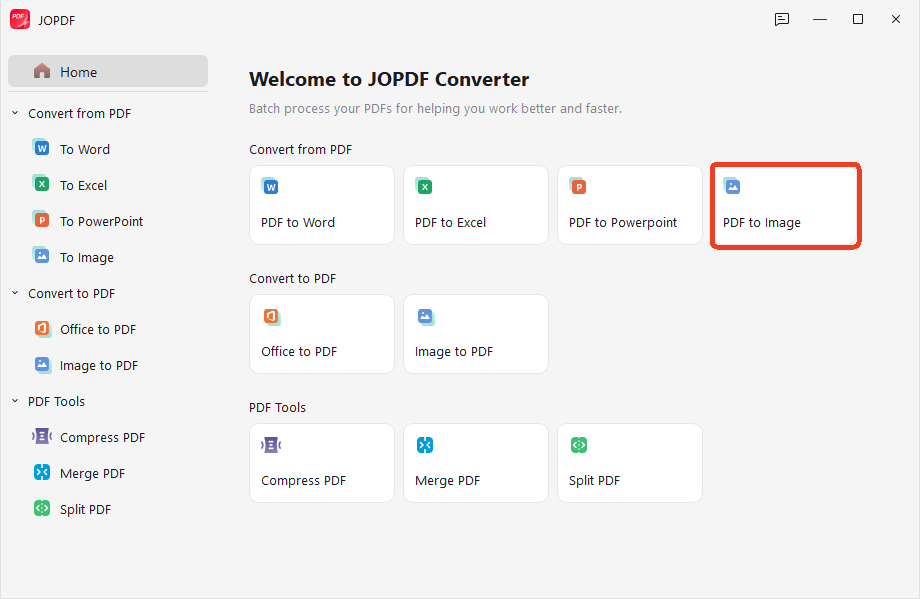
Step 3: Upload your PDF and choose a Visio-supported format – JPG or PNG works well.
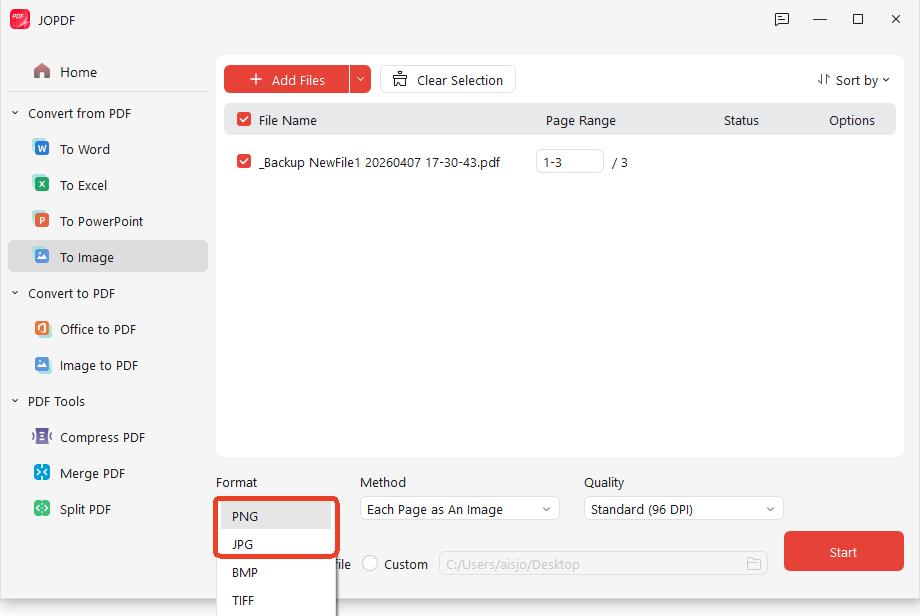
Step 4: Select an output folder and click Start to save the converted image.
Step 5: Open Visio, go to Insert > Pictures.
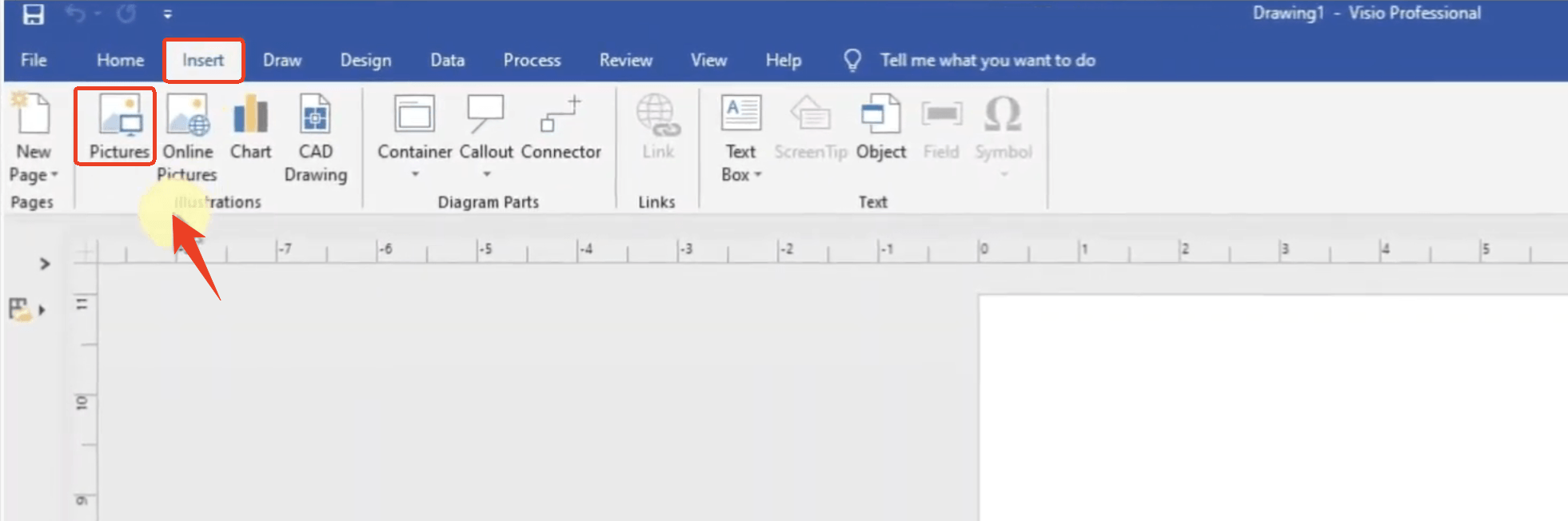
Step 6: Locate your image and click Open.
Then the image will appear in Visio as a static background. You can draw shapes on top of it, but you cannot edit the original elements. This method is useful for viewing diagrams or tracing over them. When you import PDF into Visio this way, it becomes a reference layer.
Method 2: Convert PDF to Visio Online (Free and Fast)
If you do not want to install software, a PDF to Visio converter online can do the job quickly. These tools are convenient for small, non-sensitive files. If you are looking for a PDF to Visio converter online free, SwifDoo PDF online are good starting points.
Steps to use an online PDF to Visio converter:
Step 1: Go to the online SwifDoo PDF-to-JPG converter and upload your PDF file.
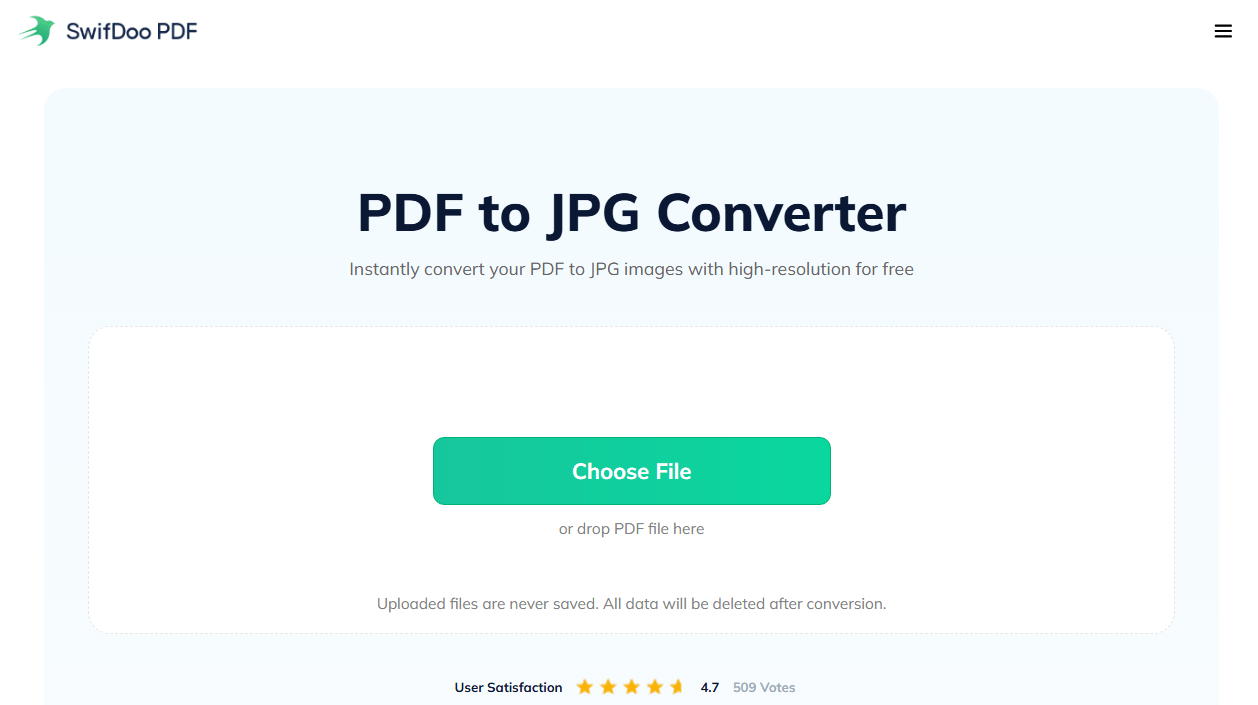
Step 2: The it will automatically convert PDF to JPG and you can download the converted image and insert it into Visio. It can also helps you open PDF in Visio.
Method 3: Convert PDF to Editable Visio via SVG or WMF
If you need to convert PDF to Visio file that is actually editable, you need a vector format like SVG, WMF, or EMF. These formats preserve shapes, text, and layers.
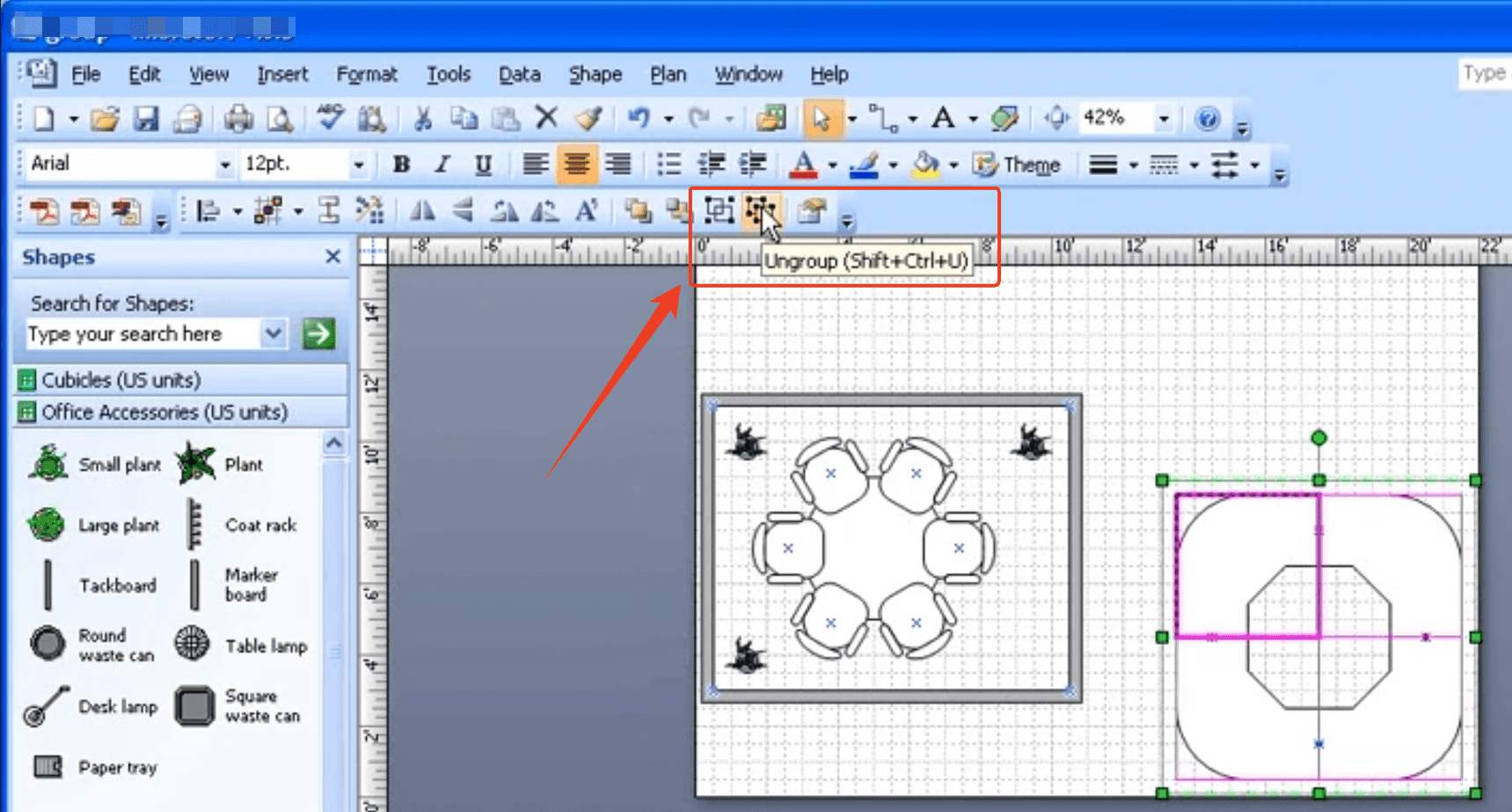
Microsoft experts confirm that converting PDF to SVG, then ungrouping in Visio, can produce an editable drawing. The key step is to ungroup the objects after importing. This method gives you the best chance to import PDF into Visio as editable vector objects.
Step 1: Go to PDF2picture online and upload your PDF file.
Step 2: Select WMF or SVG as the output format and click Convert to start it.
Step 3: Open the converted file in Visio using Insert > Pictures.
Step 4: Right-click the drawing, select Group > Ungroup. Now the drawing becomes editable.
Important notes:
- PDF2picture online only converts the first page for free
- Vector PDFs (from CAD or Visio) convert well. Scanned PDFs do not – they are just images
- Some users have reported older Visio versions crashing when opening EMF files
Method 4: Use Inkscape for Free PDF-to-Visio Conversion
If you are looking for a PDF to Visio converter free and open-source, Inkscape is a solid option. It is free software that can open PDFs and export them as SVG files .
Steps to convert PDF to Visio using Inkscape:
Step 1: Download and install Inkscape (free and open-source).
Step 2: Open the PDF file in Inkscape.
Step 3: Select the content and copy it.
Step 4: Open a new Visio document and paste the copied content.
Step 5: Use Visio’s “Ungroup” feature to make shapes editable.
This workflow has been used successfully by users on Microsoft Q&A to convert PDFs to Visio.
This method works well for vector PDFs. However, you may need to clean up some shapes and text after pasting. It is more manual than using a dedicated converter but costs nothing.
Also See: ACSM to PDF: How to Convert and Open Your eBook Files Easily
Visio-Supported File Formats (Quick Reference)
Visio supports many file formats for import . Here are the most relevant ones:
| Format | Type | Editable in Visio? |
| JPG, PNG, BMP, GIF | Image (raster) | No—static image only |
| SVG, EMF, WMF | Vector | Yes—after ungrouping |
| DWG, DXF | CAD format | Yes—with some limitations |
| VSD, VSDX | Native Visio | Yes |
Tips
When you insert images into Visio, graphic files (like SVG) open as metafiles and can be ungrouped . Bitmap files (like JPG) stay as bitmaps and cannot be edited.
Understanding what file types Visio supports helps you choose the right approach to open PDF in Visio.
Additional PDF to Visio Converter Tools You Can Try
Based on recommendations from industry sources, here are a few more tools worth considering:
PDFFiller can convert PDF to Visio formats directly on desktop. It supports batch conversion and cloud storage integration. The tool is primarily a PDF editor but includes conversion capabilities.
DocHub offers quick PDF-to-Visio conversion in the browser. It integrates with Google Workspace and supports real-time editing.
Conholdate supports conversions up to 20 MB with OCR functions for processing scanned PDFs. It works in major browsers without setup.
Converter365 handles files up to 100 MB and supports over 1,000 formats. It is completely web-based and does not require registration.
These tools are mentioned in recent comparisons of PDF to Visio converters. They each have their strengths and limitations.
Pros and Cons of Each Method
Here is a quick comparison to help you choose the right PDF to Visio converter for your needs:
| Method | Pros | Cons | Best For |
| Image conversion | Easy, fast, works with any PDF | Not editable as shapes | Quick viewing, tracing |
| Online converter | No installation, free | File limits, privacy concerns | Small, non-sensitive files |
| SVG/WMF conversion | Produces editable vector drawings | Requires specific tools | CAD drawings, technical diagrams |
| Inkscape + Visio | Free and open-source | More manual steps | Budget-conscious users |
Final Thoughts
Knowing how to convert PDF to Visio is a valuable skill for anyone working with diagrams. While Visio does not support PDFs directly, there are several effective methods to import PDF into Visio or export PDF to Visio.
- Use image formats (JPG/PNG) for quick viewing
- Use SVG or WMF conversion for editable vector drawings
- Use online converters for simple, non-sensitive files
- Use Inkscape for a free, open-source option
If you need to prepare or clean up your PDF before conversion, JOPDF is a free and reliable tool. It works offline, keeps your files private, and supports editing, conversion, and merging. Download JOPDF and give it a try.
FAQs
No, there is no built-in method to convert PDF to Visio directly . You need to convert to a Visio-supported format first.
Use a vector converter like PDF2picture to convert PDF to SVG or EMF. Then import PDF into Visio and ungroup the objects.
No. Visio does not support PDF imports. You must convert PDF to Visio file formats first.
PDFs are often just images of drawings. To edit, you need to convert to a vector format (SVG/EMF/WMF) and ungroup in Visio.
No. Scanned PDFs are raster images and cannot be converted to editable vector drawings. You can trace over them manually in Visio.
Table of Contents

Your Best Free PDF Expert in PDF editing, compressing, converting, annotating, protect, organizing, and more.
Free DownloadWindows · macOS · Linux

Anna
Editor
“Anna, Editor-in-Chief and PDF expert, delivers deep insights into PDF document technology trends. She is dedicated to helping readers optimize their digital lives. When not writing, Anna loves exploring local cafes and reading, blending her technical expertise with a love for storytelling.”