Introduction:
Want to know how to sign a PDF in Chrome? You are in the right place. You can complete this work directly in your browser using the built-in tool, an extension, or an online tool.
A Quick Tip Before You Begin
While Chrome is very convenient, its built-in signing tools are quite limited.
If you are dealing with important business contracts and want to make your signature look highly professional and secure, you should try a professional desktop program like JOPDF.
It is a completely free PDF editor that offers powerful tools and total privacy.
Way 1. Sign a PDF in Chrome with the Built-in Drawing Tool
If you are in a big hurry and want to know how to sign a PDF in Chrome without downloading any new software, this is the absolute best method. Newer versions of Google Chrome have a handy drawing tool built right into the browser.
Here is how you use it:
- First, locate the PDF file on your computer. Click the file, drag it into an open Google Chrome window, and drop it into a new, blank tab. The document will load on your screen.
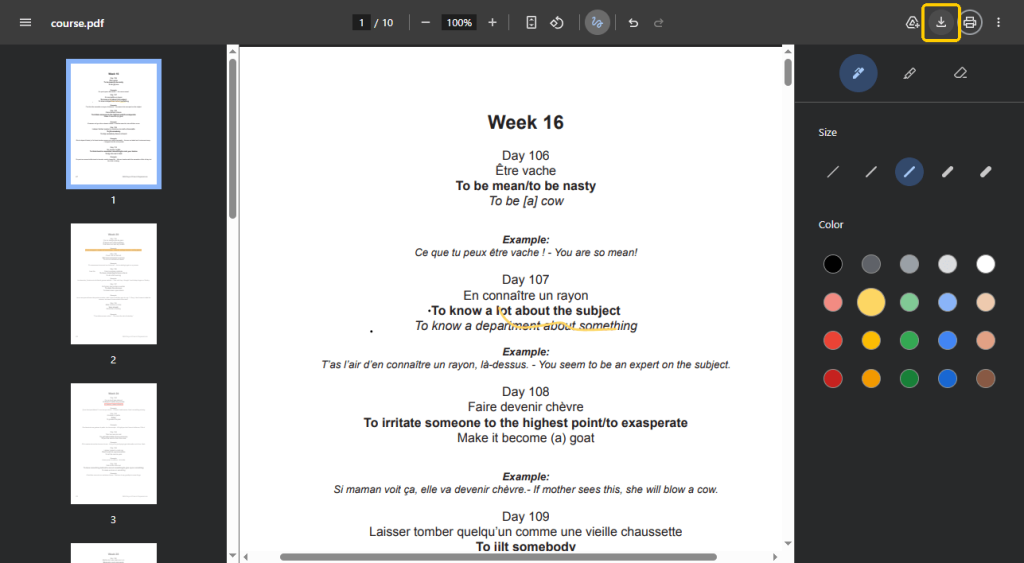
- Look closely at the top r of the screen. Find and click the Draw tool.
- A small menu will appear on your screen. Select the “Pen” tool. You can also click the color circle to choose a professional color, like black or dark blue.
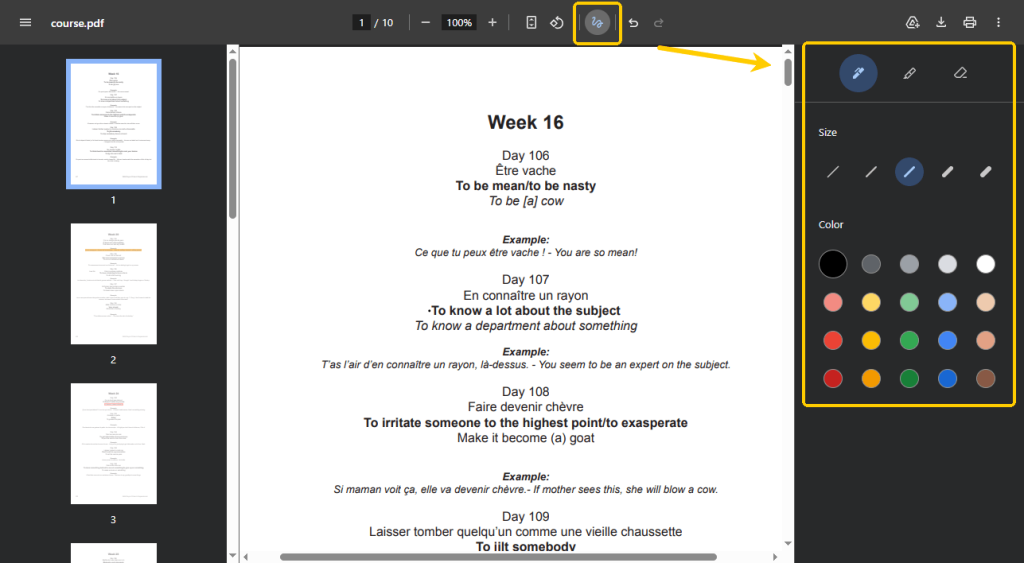
- Hold down the left button on your computer mouse (or press down on your laptop trackpad). Move your mouse to draw your signature directly on the blank line of your document. If you make a mistake, just click the Eraser tool to remove it and try again.
- When you are finished, click the download icon in the top right corner. The browser will ask if you want to save the file “With your changes” or “Without your changes.” Choose to save it with your changes so your signature is locked onto the page.
Way 2. Sign a PDF in Chrome with an Extension
If you sign paperwork often, you might want more professional tools right inside your browser. You can get these tools by using a Chrome extension. An extension is a tiny program that you plug into your web browser to give it extra abilities.
Here is how to use an extension to sign your files:
- Open Chrome and go to the Chrome Web Store.
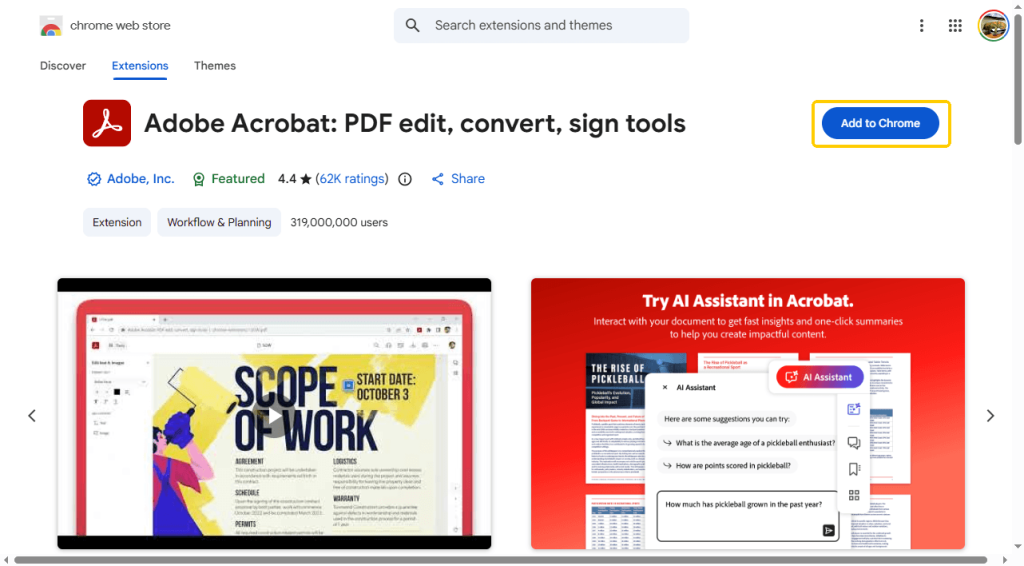
- Type a word like “signature” or “PDF signer” into the search bar. You will find trusted tools like DocuSign or Adobe Acrobat. Click the button that says Add to Chrome to install your favorite one.
- Click the new puzzle piece icon to open your extension and follow the prompt to upload your document.
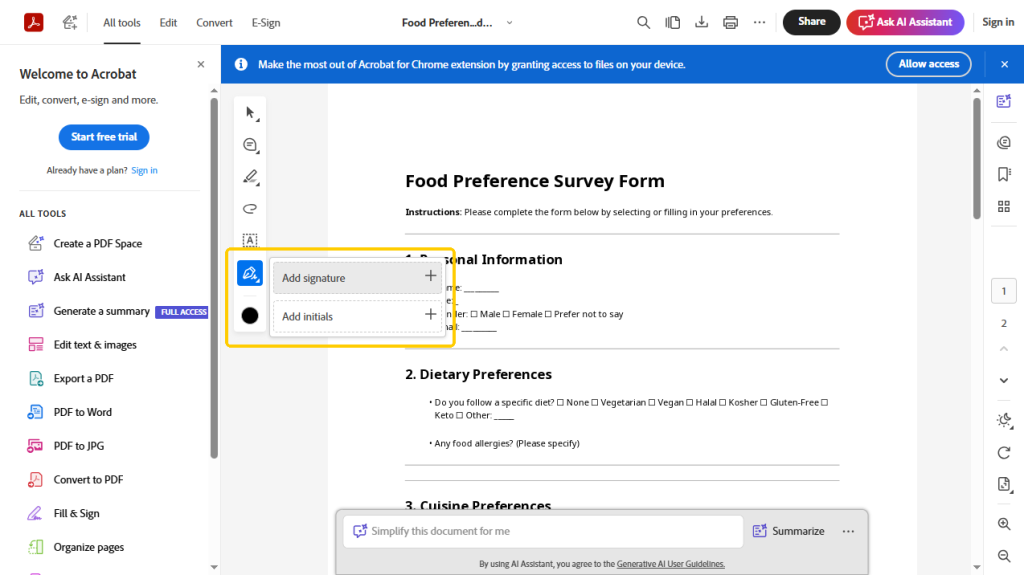
- Find the signing tool and select the Add signature option. Next, you can create your signature and put it in the right place.
- Finally, click the Download button at the top and that’s it.
Way 3. Sign a PDF in Chrome via Online Signer
You can also use an online web tool to get the job done. This means you visit a website that helps you electronically sign a PDF directly inside your Chrome window safely and quickly.
A good option is iLovePDF. Check to learn the details.
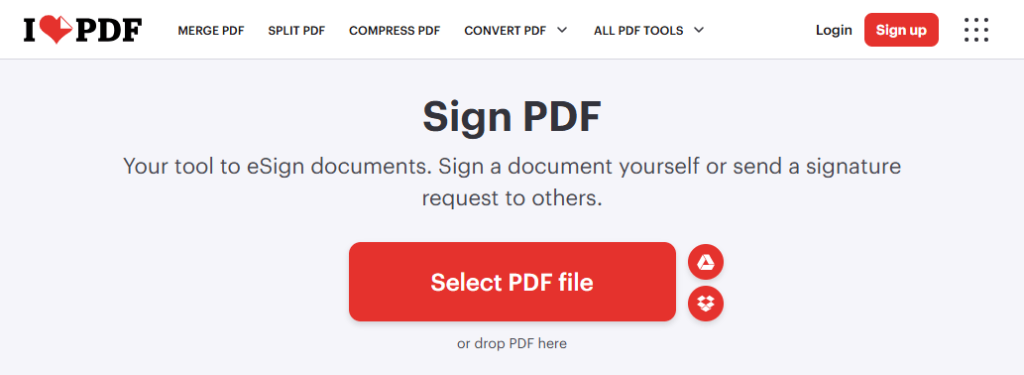
- Open Chrome and visit the iLovePDF website. Look for the specific tool labeled “Sign PDF.”
- Click the button on the screen to upload your document from your computer.
- Next, you can type your name in a beautiful font, draw it with your mouse, or upload an image.
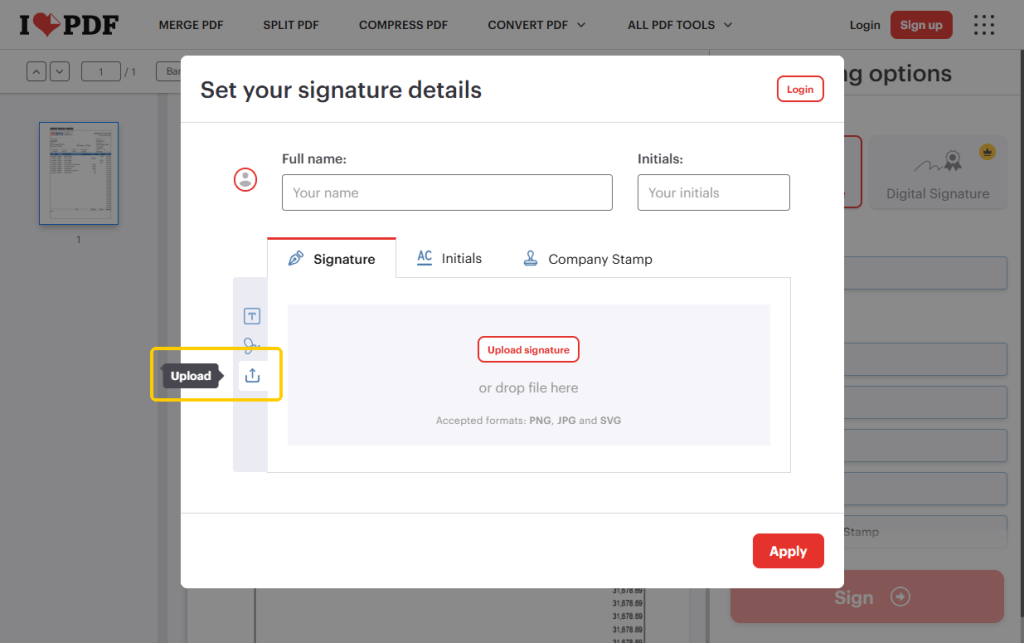
- Once you create it, drag your new signature and drop it right onto the signature line of the document.
- Click the Sign button and wait for a while. Then, you can download your signed-PDF to your computer.
Bonus Tip: How to Safely Sign a PDF Offline
If you receive a highly sensitive document, such as a bank form or a doctor’s bill, it is not a good idea to upload it to the internet. For the best safety and privacy, you should use a desktop PDF editor that works entirely offline.
JOPDF is a good choice. It is a fantastic, easy-to-use desktop program that helps you sign documents safely on your own computer.
JOPDF gives you wonderful choices.
- It lets you draw your signature with your mouse or type it.
- It also allows you to add signature image to PDF. This means if you have a picture of your real handwriting saved on your phone or computer, you can place that picture perfectly onto your document!
Here is how to use JOPDF:
- Download and open the JOPDF program on your computer.
- Open your private document inside the program. Go to Edit > Signature > Create New.
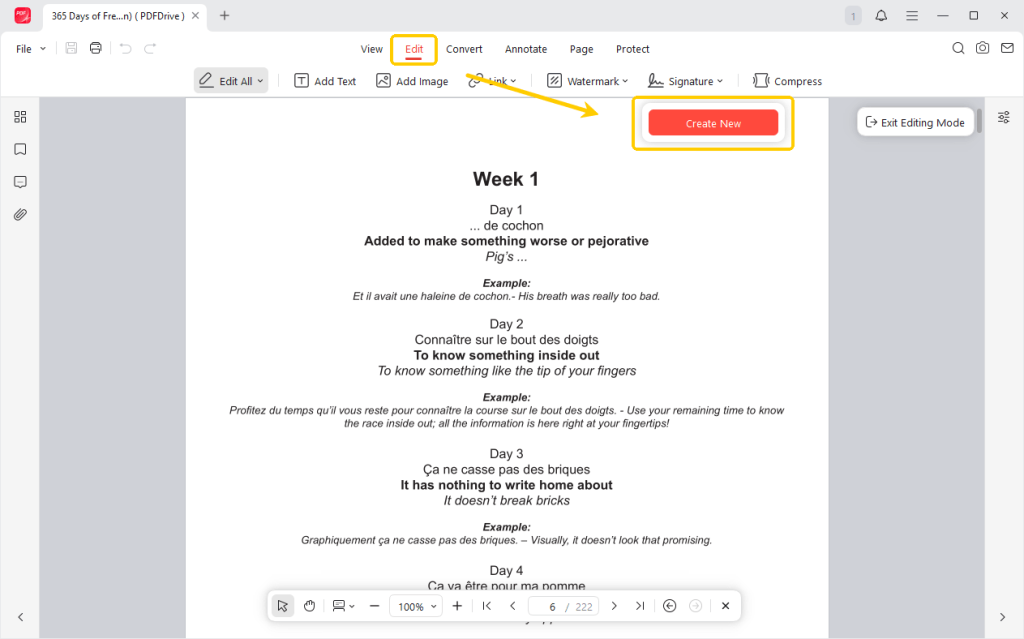
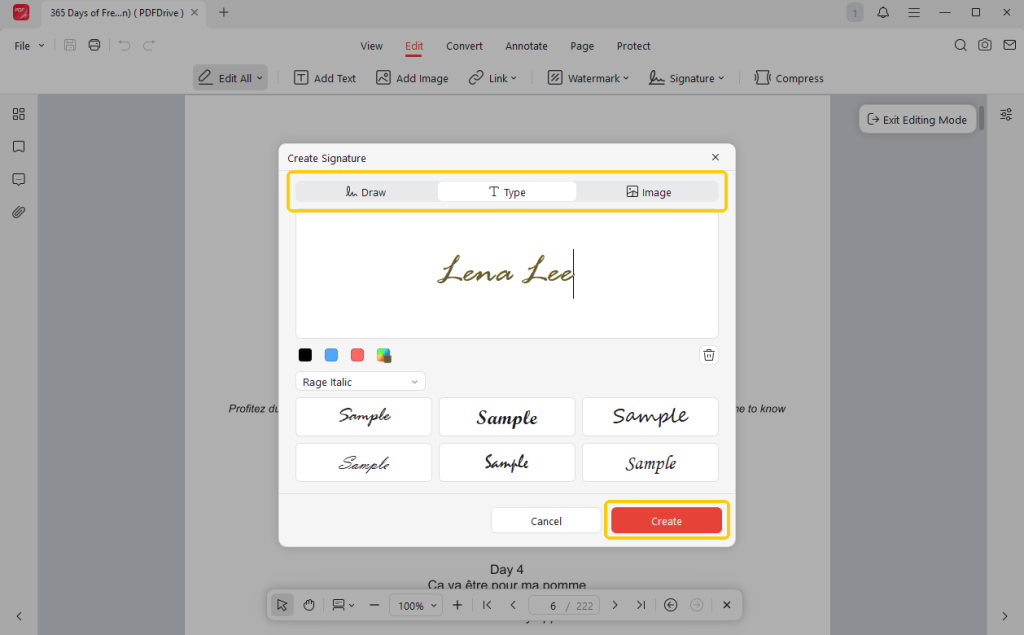
- Create your signature by drawing, typing, or uploading your picture.
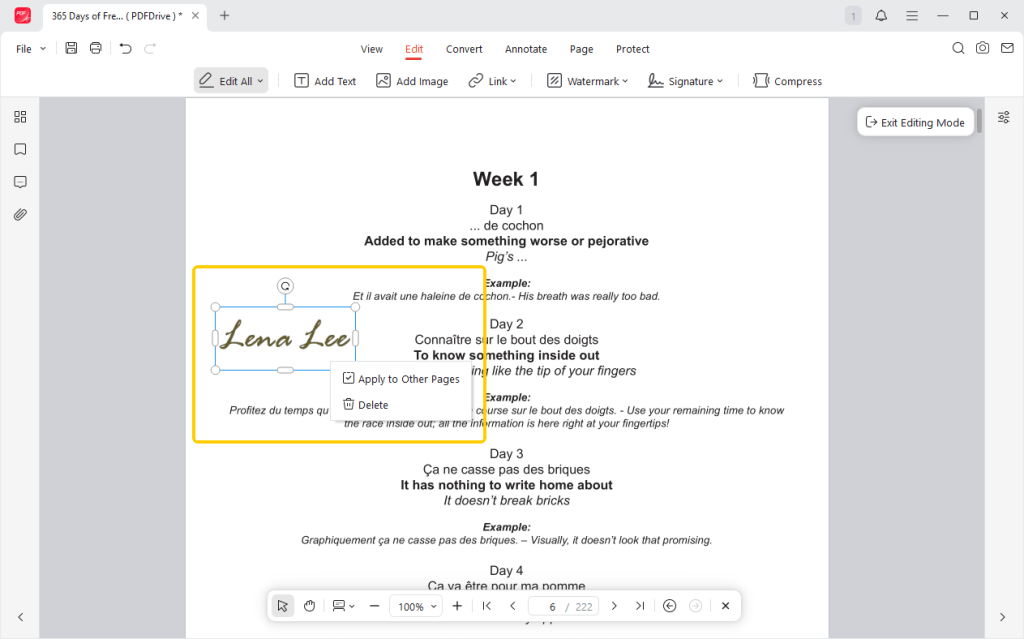
- Place the signature on the correct line on the page.
- Click the Save button to save the changes.
JOPDF does much more than just sign documents. It provides many amazing editing tools. You can edit the text to fix spelling mistakes before you sign.
Most importantly, it allows you to lock a PDF after signing by using a strong password. This keeps hackers away and ensures nobody can change your signature. Just try JOPDF today for the ultimate peace of mind.
Conclusion
That’s all about how to sign a PDF in Chrome. You can quickly use Chrome’s built-in drawing tools, the extension, or an online signer for casual documents.
However, if you care about security, a desktop program like JOPDF is a better choice. It works offline and offers a good signing tool!
FAQs
Table of Contents

Your Best Free PDF Expert in PDF editing, compressing, converting, annotating, protect, organizing, and more.
Free DownloadWindows · macOS · Linux

Queena
Editor
“As a staff editor for JOPDF, Queena excels at guiding users to the optimal tools and solutions. When she's not analyzing the latest PDF solutions, she enjoys spending her free time playing with her four cats.”
![Discover How to Make a Fillable PDF in Word [Detailed Guide]](https://b.jopdf.com/wp-content/uploads/2026/10/how-to-make-a-fillable-pdf-in-word.png)