
Introduction:
In this guide, we will show you exactly how to add signature image to PDF files in just a few fast and easy steps. Whether you are using a Windows or Mac computer, you will find the solution here.
Way 1. Add Signature Image to PDF with JOPDF
If you want the best tool for this job, consider JOPDF. It is a good PDF editor for managing your documents and makes signing them incredibly easy. The best part? It is 100% free to use. You do not have to pay anything to get your work done.
Outstanding features:
✅ When you upload your signature image, JOPDF can automatically remove the background. This makes the background clear and transparent.
✅ It can also turn your signature into pure black and white. This makes your digital signature look exactly like you signed the real paper with a nice ink pen.
Here is how to add a signature image to a PDF using JOPDF:
- First, download and open the JOPDF program on your computer.
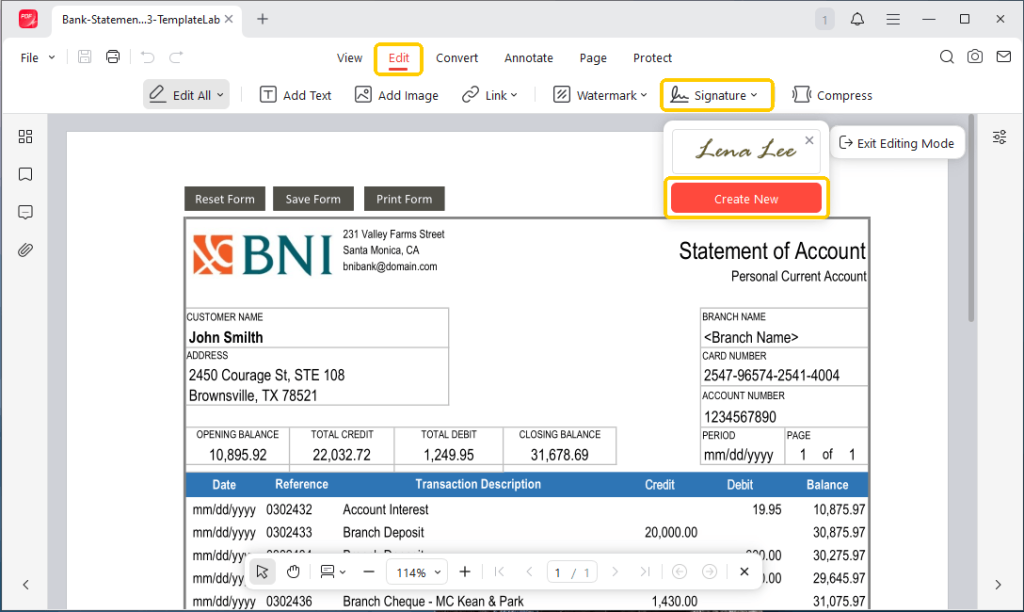
- Click Open PDF and choose the PDF document you need to sign. Then, go to Edit and choose Signature > Create New.
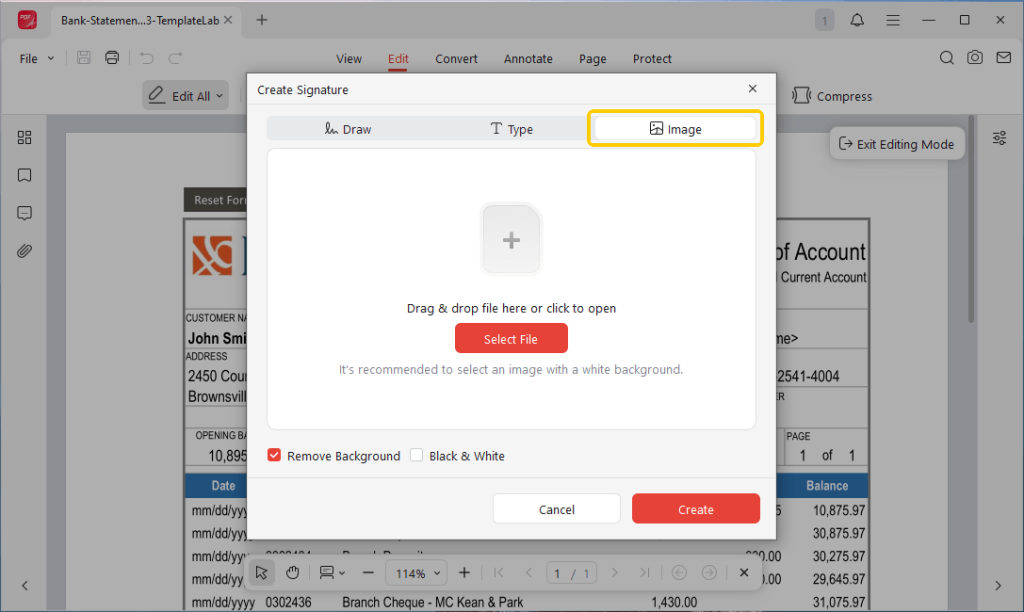
- Click Image to upload your signature. You can click Select File to find the picture of your signature or simply drag and drop the file.
- Use the settings to remove the background or make the image black and white. Click Create to continue.
- Click on your PDF page where the signature needs to go. You can also drag the corners of the picture to make it bigger or smaller.
- Click Save to finish. Your document is now signed and ready to share!
JOPDF is more than just a signing tool. It is a comprehensive PDF editor that can do almost anything you need.
You can use it to fix spelling mistakes, add new pages, delete old ones, or mix two different PDF files together. If your file is private, JOPDF lets you lock a PDF after signing to keep it secure.
In short, JOPDF is a powerful, free, and super-easy PDF editor. Just try JOPDF to save you time and energy!
Way 2. Add Signature Image to PDF in Adobe Acrobat
Many people already have Adobe Acrobat on their work computers. It is a very famous tool, but many of its advanced features cost money. However, the good thing is that you can add a signature in Adobe for free.
If you already have it installed, you can use it to put your picture on the page. Check the steps below.
- Find your PDF file on your computer. Right-click on it and choose to open it with Adobe Acrobat.
- Look at the menu at the top and choose E-Sign. Then, click the Add signature option.
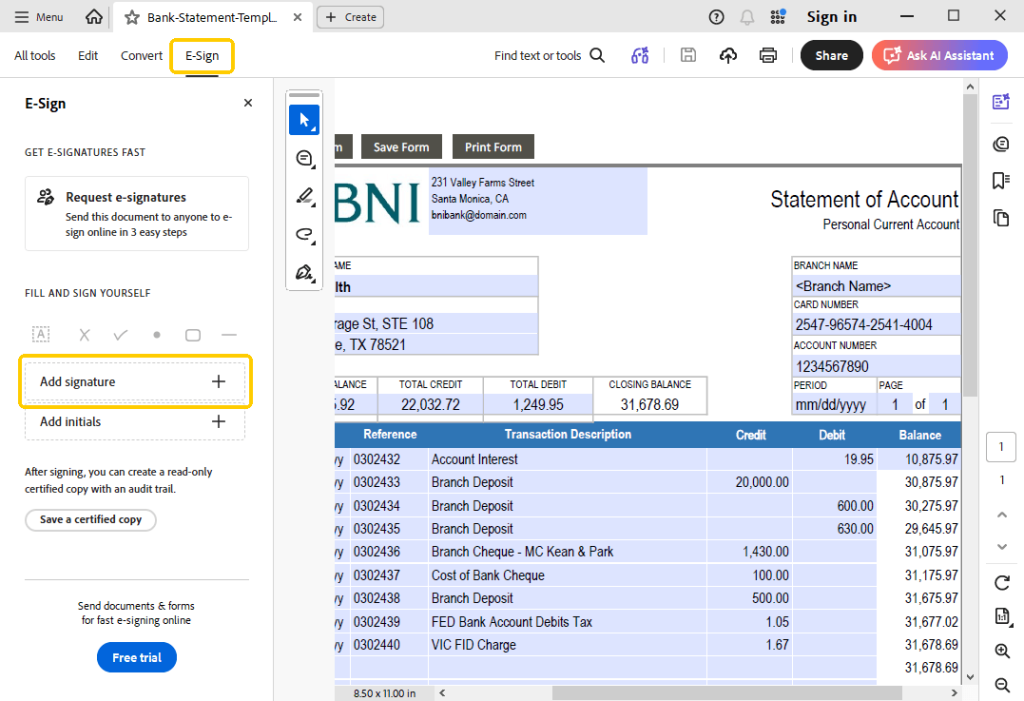
- A small box will pop up. Click on the Image icon. This will let you search your computer for the picture of your signature.
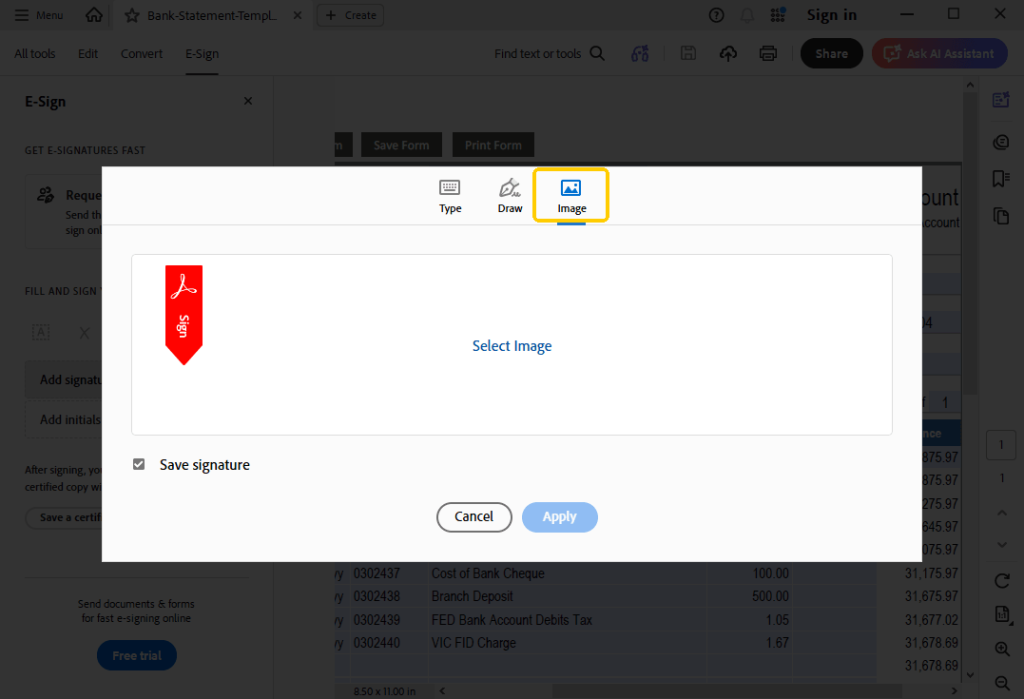
- Once you select your picture, it will attach to your mouse pointer. Move your mouse to the signature line on the document and click to drop it there.
- You can drag the blue dots around the picture to change its size. When it looks good, click the Save button.
Adobe Acrobat is a reliable choice, but if you do not want to buy a paid program for other tasks, a free tool like JOPDF is a better option for everyday use.
Way 3. Add Signature Image to PDF Online Free
Don’t want to download any new software? No worry. You can still electronically sign a PDF using a free website. A very good website for this is called iLovePDF.
iLovePDF works right in your web browser, like Google Chrome or Safari. You do not need to install anything. It is very fast and easy to use for quick edits.
Here are the steps to use this online tool:
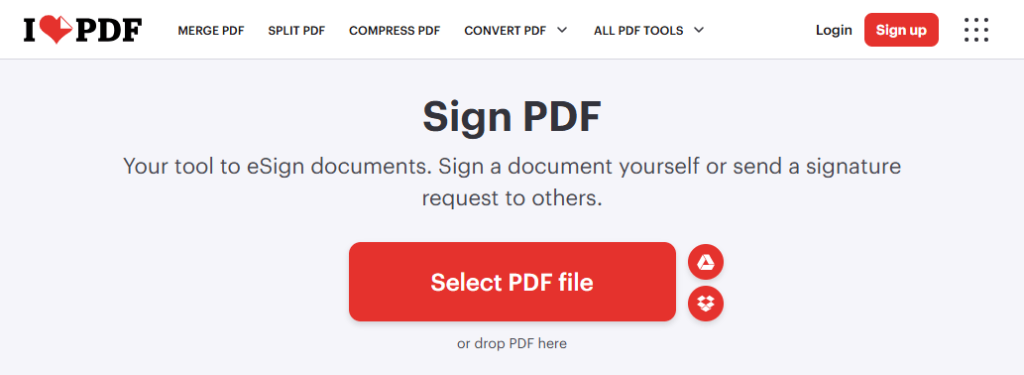
- Open your internet browser and go to the iLovePDF website (https://www.ilovepdf.com/sign-pdf).
- Click the red button to select your PDF file from your computer. You can also bring in files from Google Drive or Dropbox.
- The website will ask who needs to sign. Choose the option that says Only me.
- Look at the menu on the right side. Click on the little picture icon to upload the photo of your signature.
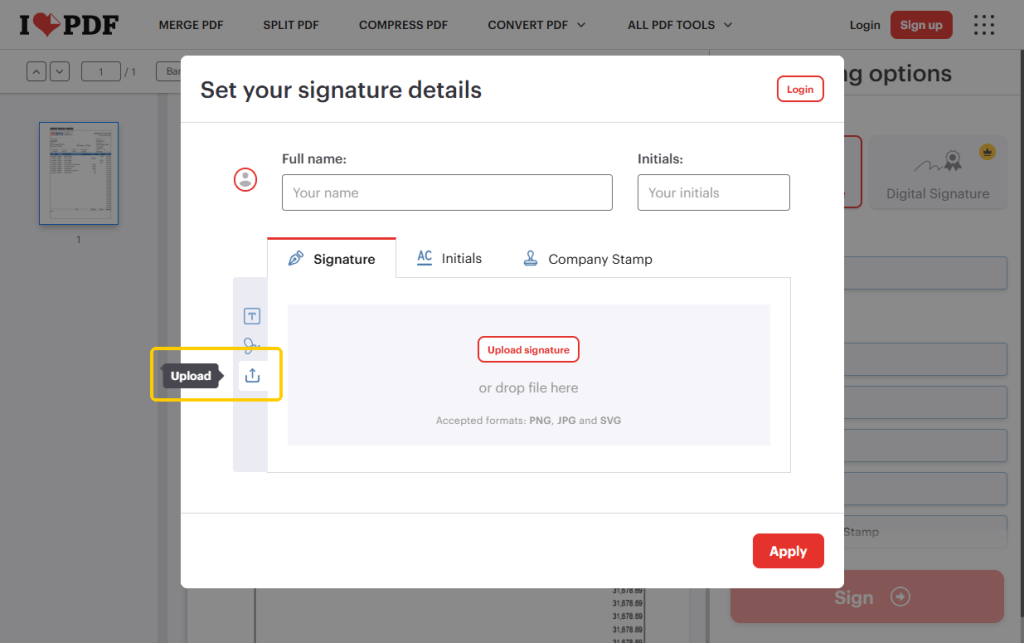
- When your signature appears, drag it to the correct line and adjust its size.
- Click the Sign button to confirm. Wait a few seconds, and then click to download your finished file back to your computer.
While online websites are very handy, you should be careful. When you use a website, you send your data over the internet.
If your document contains very sensitive information, such as bank account numbers or passwords, it is safer to use an offline desktop program like JOPDF.
Way 4. Add Signature Image to PDF via Preview
If you use an Apple Mac computer, you have a special trick you can use. Mac computers come with a free built-in app called Preview. With this app, you can copy and paste the signature image or directly scan your signature and put it into your document.
Here is how to use Preview’s signing tool:
- Double-click your PDF file. It should automatically open in the Preview app on your Mac.
- Look at the top of the window. Click on the button that looks like a little marker pen. This is the Show Markup Toolbar button.
- On the new toolbar, find and click the signature tool.
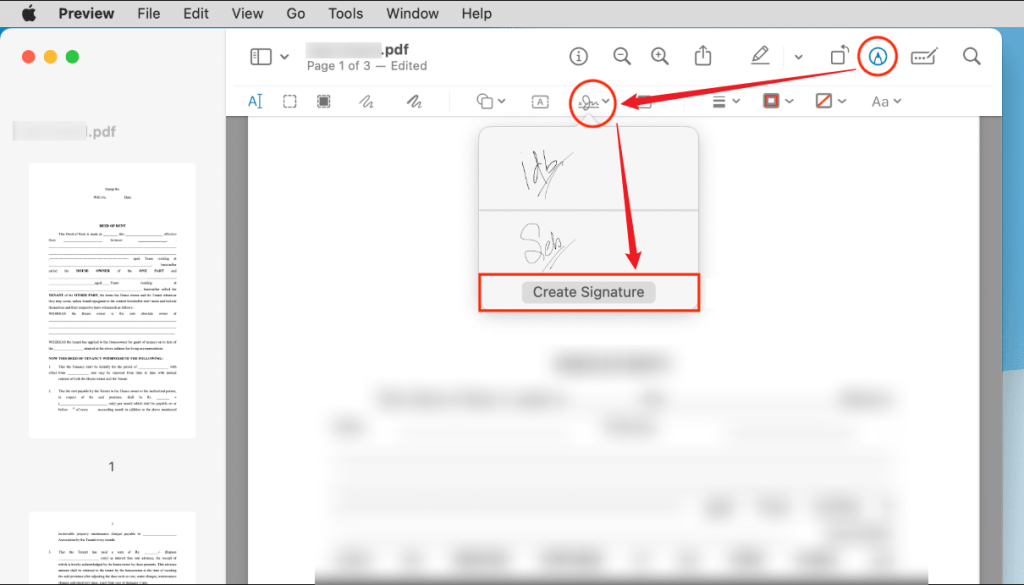
- Go to Camera and hold a piece of paper with your signature up to your computer camera.
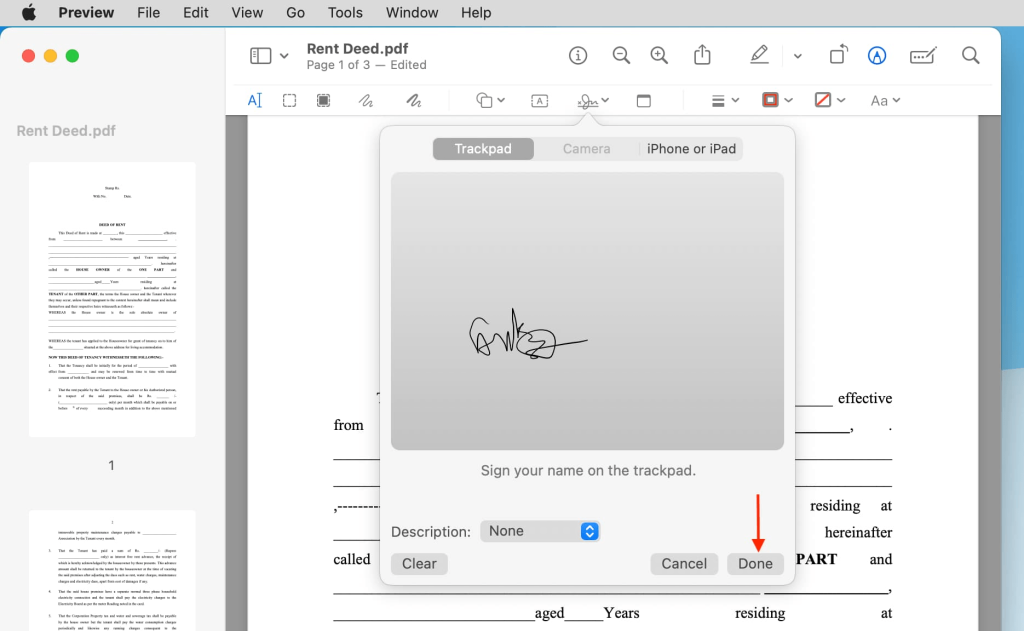
- If you want to use a picture file you already have, simply open that picture, copy it, and then paste it directly onto your PDF page.
- Drag the picture to the right spot and save your file.
It should be noted that Preview is not a full PDF editor; it cannot even help you edit text in a PDF. If you need to edit your document, please try JOPDF.
Conclusion
Now you know how to add signature image to PDF. There are many easy ways to put a picture of your signature onto a digital document. However, for the best result, JOPDF is the winner. It is free, easy to use, and magically makes your signature look professional by removing the background.
Plus, if your form is important, you can even use JOPDF to add a password so no one else can change your document. Try JOPDF today and make handling paperwork a breeze!
FAQs
Table of Contents

Your Best Free PDF Expert in PDF editing, compressing, converting, annotating, protect, organizing, and more.
Free DownloadWindows · macOS · Linux

Queena
Editor
“As a staff editor for JOPDF, Queena excels at guiding users to the optimal tools and solutions. When she's not analyzing the latest PDF solutions, she enjoys spending her free time playing with her four cats.”

![3 Proven Ways to Remove Page Numbers from PDF [Free & Paid]](https://b.jopdf.com/wp-content/uploads/2026/09/remove-page-numbers-from-pdf.png)
