Introduction:
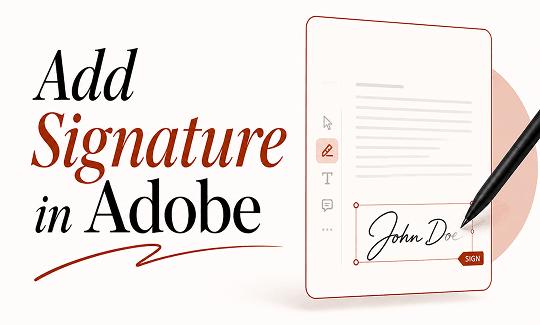
If you are wondering how to add a signature in Adobe, you are definitely in the right place. This guide will walk you through the exact steps. Plus, we will show you an amazing free PDF editor that makes the job even easier.
Can You Add a Signature in Adobe for Free?
The answer is yes! You can absolutely sign a PDF in Adobe Reader without spending a single penny. Adobe offers a free basic tool that lets you quickly add your personal signature to your documents.
However, there is a big catch. While putting a simple signature on a page is free, Adobe heavily restricts its more useful features. If you need to fix a spelling mistake in your text, change an image, combine two files together, or password-protect a PDF, Adobe will stop you. The program will prompt you to upgrade and buy one of their very expensive premium subscriptions.
It can be very frustrating to use software that constantly asks you for money just to do simple tasks. But do not worry! If you want a comprehensive tool without any hidden fees, there is a perfect Adobe Acrobat alternative. Later in this guide, we will introduce you to JOPDF. It is a 100% free PDF editor that gives you full control over your files.
How to Add a Signature in Adobe
Let’s learn how add signature in Adobe Acrobat. There are two main ways to sign your document in Adobe, depending on what kind of security you need.
Method 1. Use the Fill & Sign Tool for an Electronic Signature
This is the most common and easiest way to sign a document. It is used for everyday tasks, like signing a standard business contract, a permission slip, or a simple form.
Step 1: Open your PDF document. Find the file on your computer and double-click it to open it in Adobe Acrobat Reader.
Step 2: Look on the right or left side of the screen and click the Fill & Sign button.
Step 3: Then, click the Add signature option to continue.
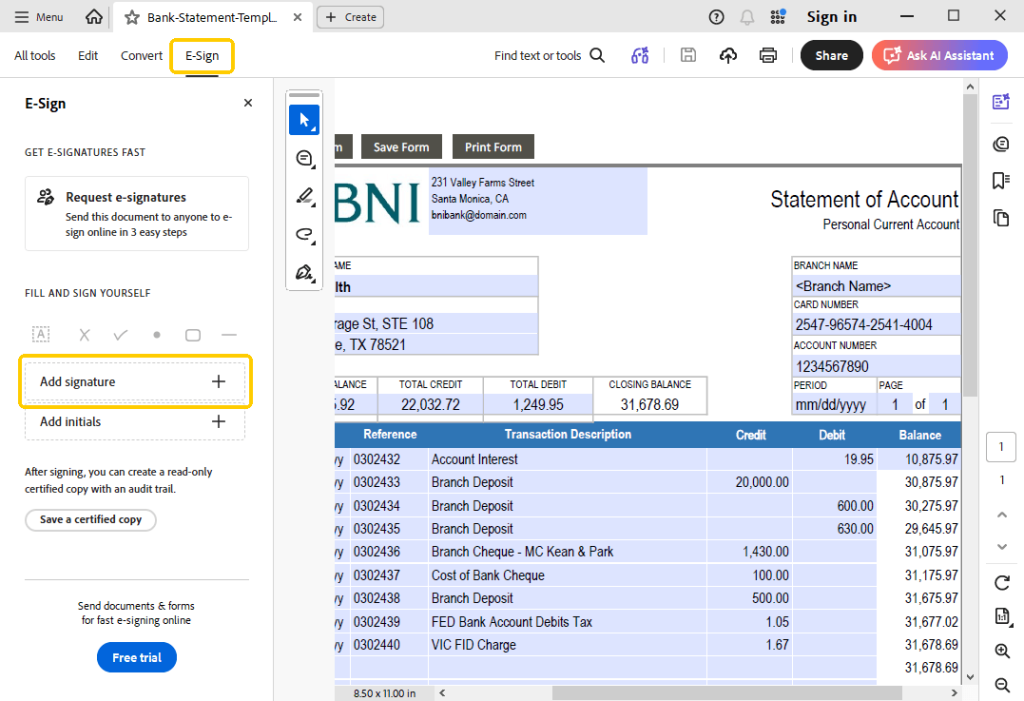
Step 4: A new pop-up box will appear, and you have three easy choices here.
- Type – Just type your name on your keyboard, and the computer will change the font to look like fancy handwriting.
- Draw – You can use your computer mouse, your laptop trackpad, or a digital pen to draw your actual signature.
- Image – If you have a picture of your real signature saved on your computer, you can upload it here.
Step 5: Once you like how your signature looks, click the Apply button. Now, your mouse pointer will carry your signature around the screen. Just click anywhere on the page to drop your signature into place.
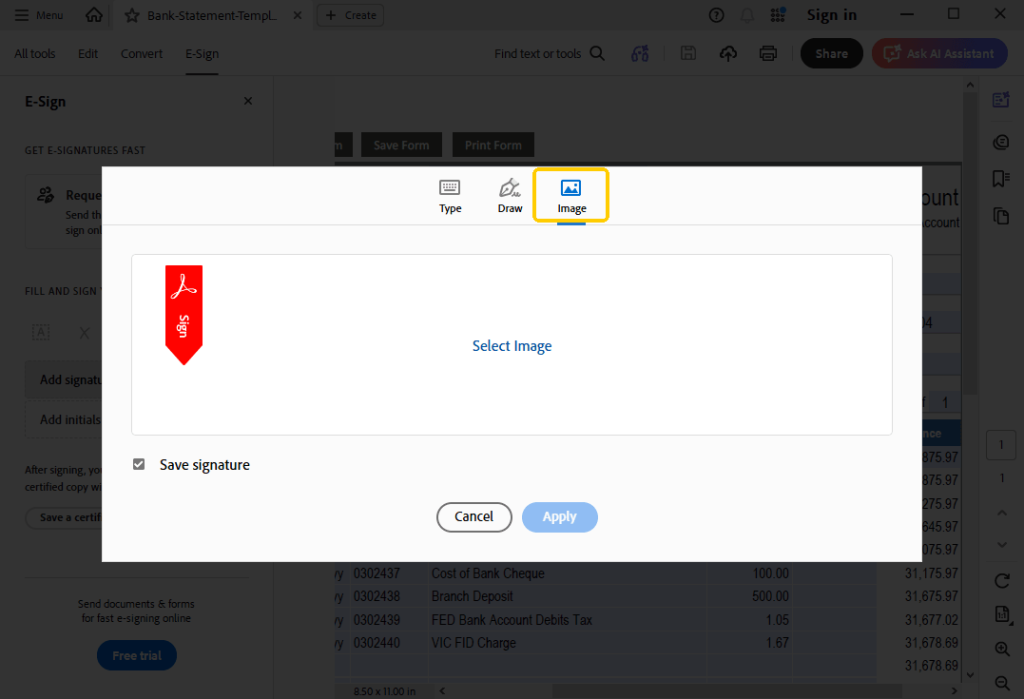
If needed, you can drag the corners to make it bigger or smaller, and then save your file.
Method 2. Use a Certificate for a Digital Signature
How to sign a PDF with Adobe more securely? You can add a digital signature. It will lock the document so that nobody can secretly change the text after you sign it. When you need to sign contracts, bills, and other business-related documents, you can use this method.
Step 1: First, open your PDF file in Adobe.
Step 2: Go to the tools menu and click on the Use a certificate button.
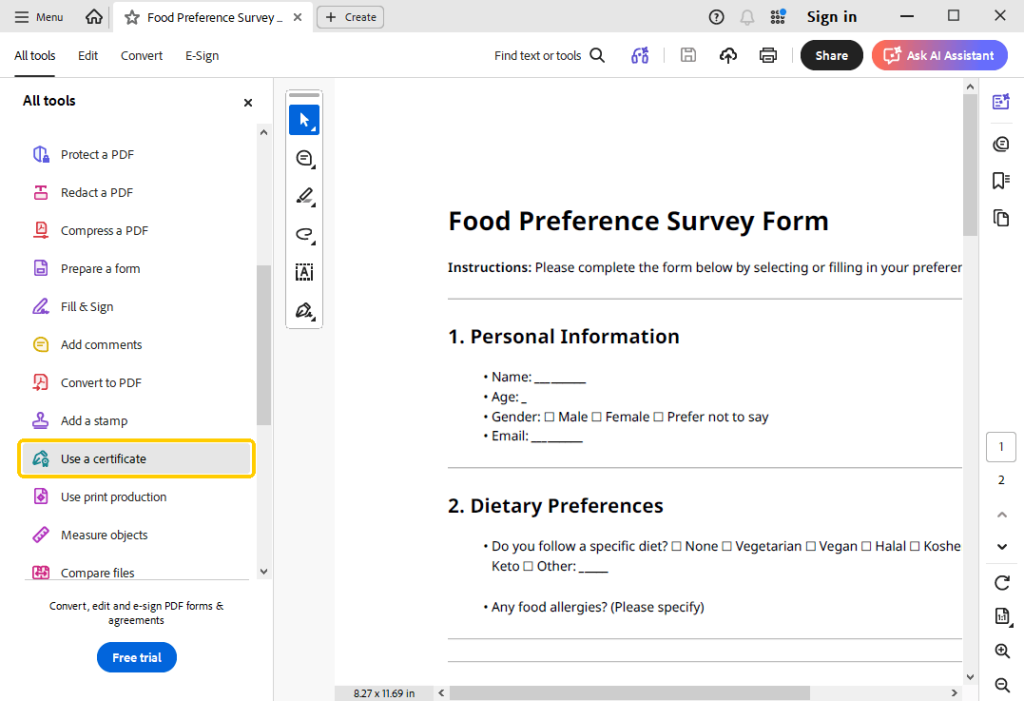
Step 3: Click Digitally Sign, then draw your mouse to draw a box exactly where you want your digital signature to appear.
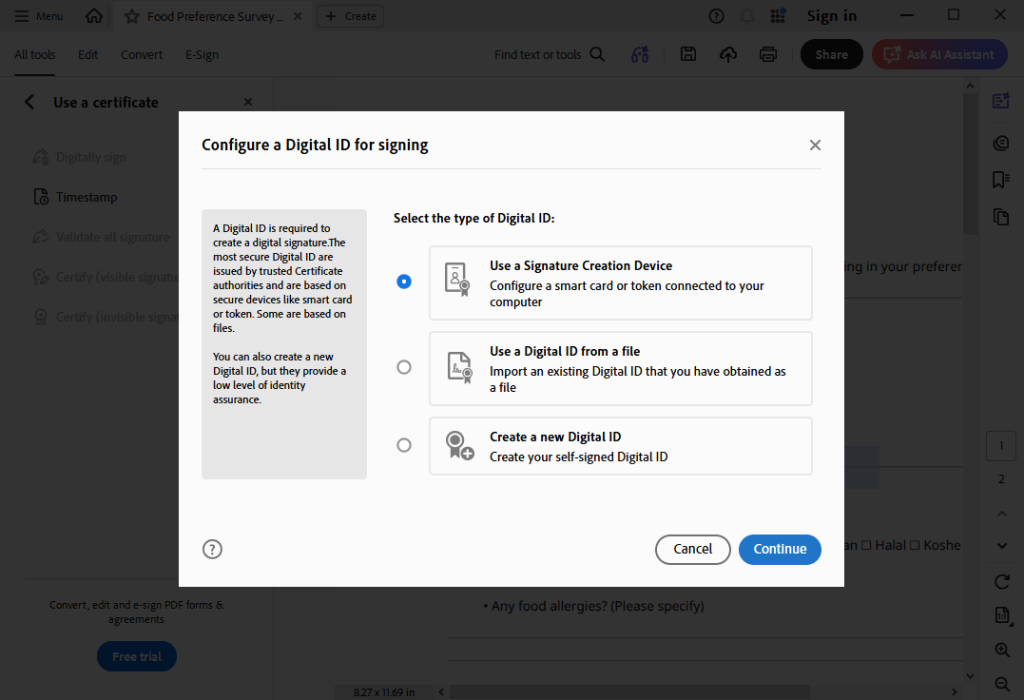
Step 4: A prompt will pop up asking you to configure a Digital ID. You can use an ID you already have, or the program will help you create a new one. Just follow the prompts to type in your name and email address.
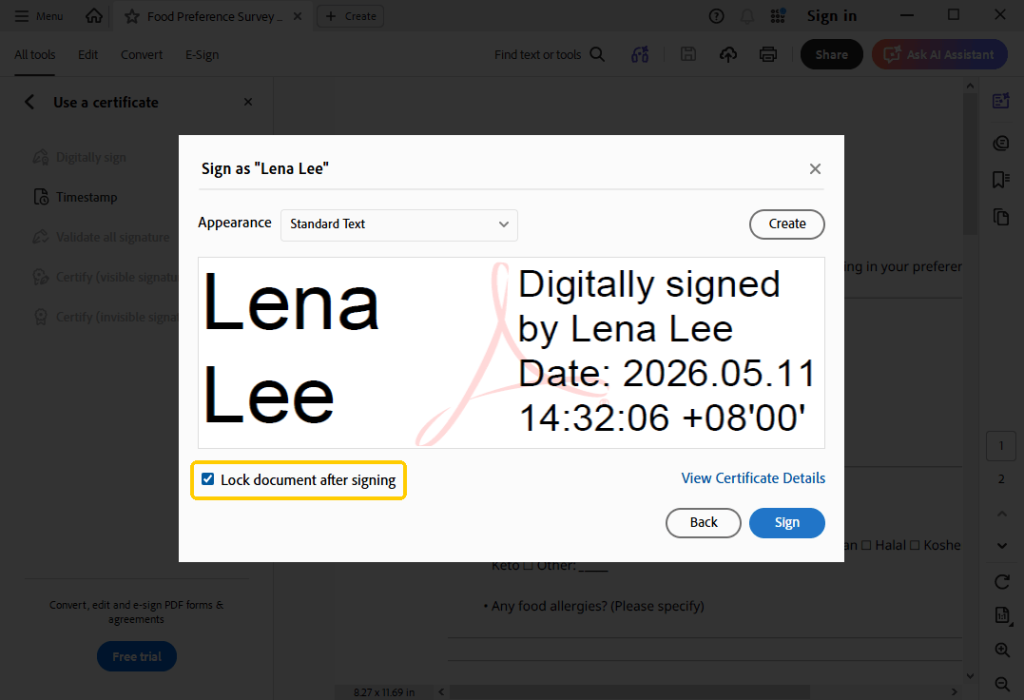
Step 5: Click the Sign button, and select a location to save the document. Don’t forget to check the box if you want to lock a PDF after signing.
Another Free and Easy Way to Sign a PDF
Adobe is a well-known program, but it can feel heavy and confusing. Plus, the constant pop-ups asking you to pay for a premium subscription can be incredibly annoying. If you want to know how to sign a PDF without Adobe Acrobat, there is a much better and easier way. Try JOPDF!
JOPDF is a free, comprehensive PDF editor that offers a variety of features. The best thing about JOPDF is its user-friendliness. Anyone can use it without needing a complicated manual. It is also very lightweight, meaning it will open quickly and will not slow down your computer.
Let’s see how to electronically sign a PDF with JOPDF.
Step 1: Click the download button to get JOPDF.
Step 2: Launch the software and import your document.
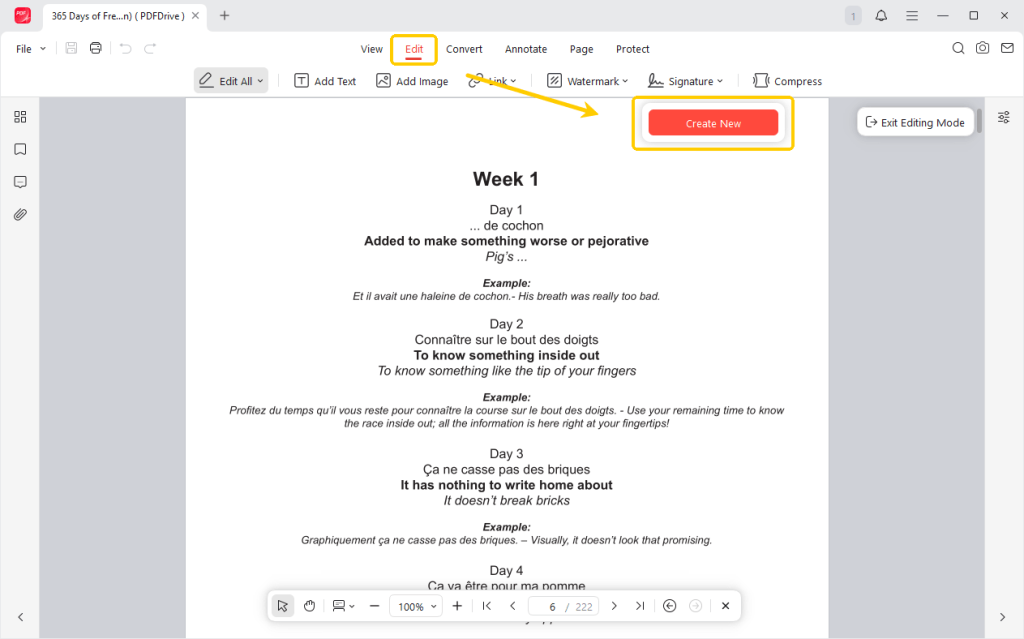
Step 3: Go to Edit > Signature > Create New.
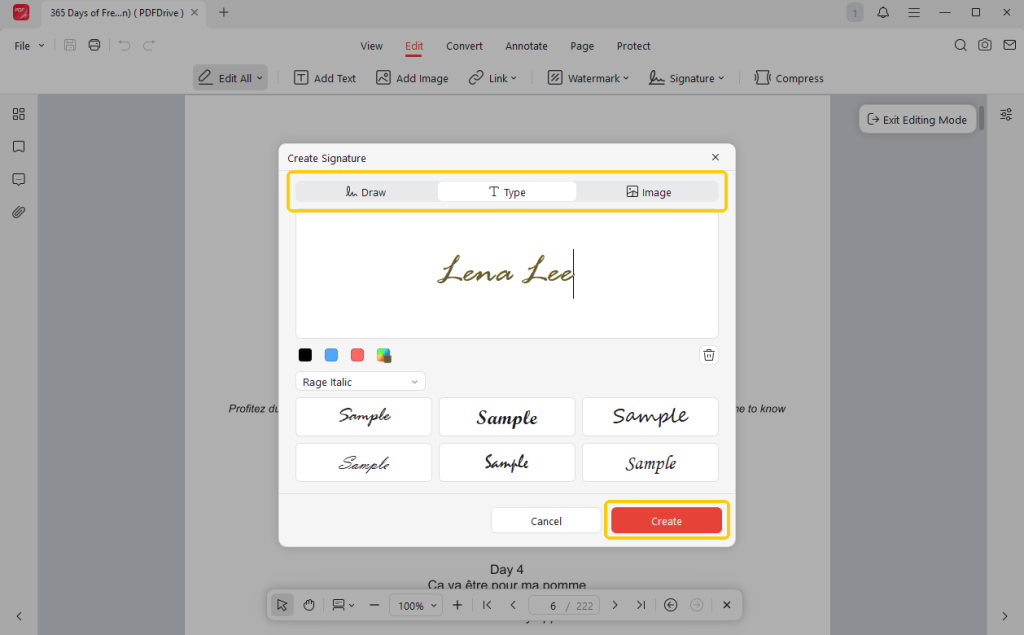
Step 4: Now, you can type your signature, draw it, or upload a picture. Click Create to continue.
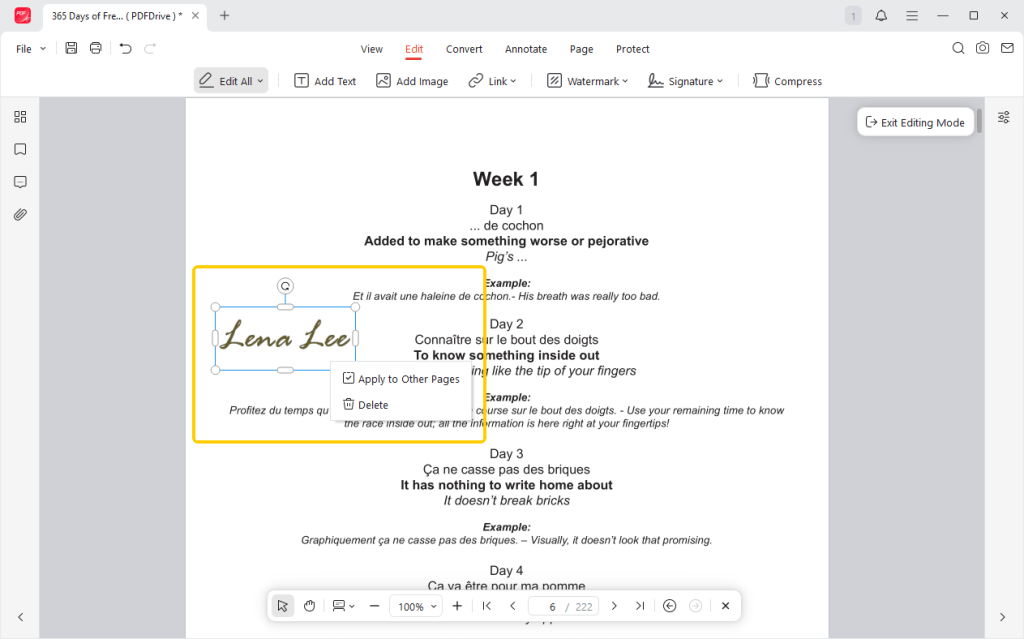
Step 5: Click on your document to place the signature, and hit Save!
What makes JOPDF truly special is that it is a completely free PDF editor. Unlike Adobe, JOPDF does not lock you out of standard tools just to make money off of you.
With JOPDF, you are free to edit/add text, change images, write notes and highlight important words, merge or split PDFs, add password protection, and more.
Stop fighting with expensive, confusing software. Try JOPDF today and experience how simple managing your PDF files can really be!
Conclusion
That’s all about how to add a signature in Adobe. While Adobe’s basic “Fill & Sign” feature gets the job done for simple tasks, the constant upsells and blocked features can be very frustrating.
If you’re looking for a free solution, JOPDF is a better choice. It offers a variety of tools for use to help you handle PDFs in your daily life – and all of this is free.
FAQs
Table of Contents

Your Best Free PDF Expert in PDF editing, compressing, converting, annotating, protect, organizing, and more.
Free DownloadWindows · macOS · Linux

Queena
Editor
“As a staff editor for JOPDF, Queena excels at guiding users to the optimal tools and solutions. When she's not analyzing the latest PDF solutions, she enjoys spending her free time playing with her four cats.”