![3 Proven Ways to Remove Page Numbers from PDF [Free & Paid]](https://b.jopdf.com/wp-content/uploads/2026/09/remove-page-numbers-from-pdf.png)
Introduction :
Though numbering PDF pages is useful for organizing the document, you need to remove them when using a PDF template, creating a new document, or correcting unwanted numbering. How to remove page numbers from a PDF? In this JOPDF guide, I’ll introduce you to effective PDF editors and offer step-by-step instructions.
Can You Remove Page Numbers from a PDF
Of course, you can remove page numbers from a PDF. But the best method depends on how the numbers were added to the document. If the page number is an independent text, you can select and delete it manually. If it was added as part of a header or footer, you should remove the corresponding header or footer. In that case, most PDF editors can complete the task.
However, when the page number is embedded in the original page content or a scanned image, direct deletion may not be possible. To remove page numbers, use tools such as whiteout, redaction, or cropping.
How to delete page numbers from a PDF? Let’s explore the detailed instructions below.
How to Remove Page Numbers from a PDF
There are several ways to remove PDF page numbers. In this section, I will show you how to delete the page numbers using both online and offline tools. For instance, you can use JOPDF, a free offline PDF editor. Now, let’s check them one by one.
Method 1: Remove Page Numbers from PDF for Free with JOPDF
If you are looking for a free way to remove page numbers from a PDF, JOPDF is a practical option. It is a free PDF editor for Windows, Mac, and Linux. Additionally, JOPDF enables you to add page numbers to a PDF as well as update PDF page numbers. What’s more, JOPDF lets you OCR PDFs, making scanned PDFs searchable and editable. Here, let’s learn how to remove page numbers for free with JOPDF.
Step 1. Click the button below to download and install this free PDF page number editor on your computer, and then launch it.
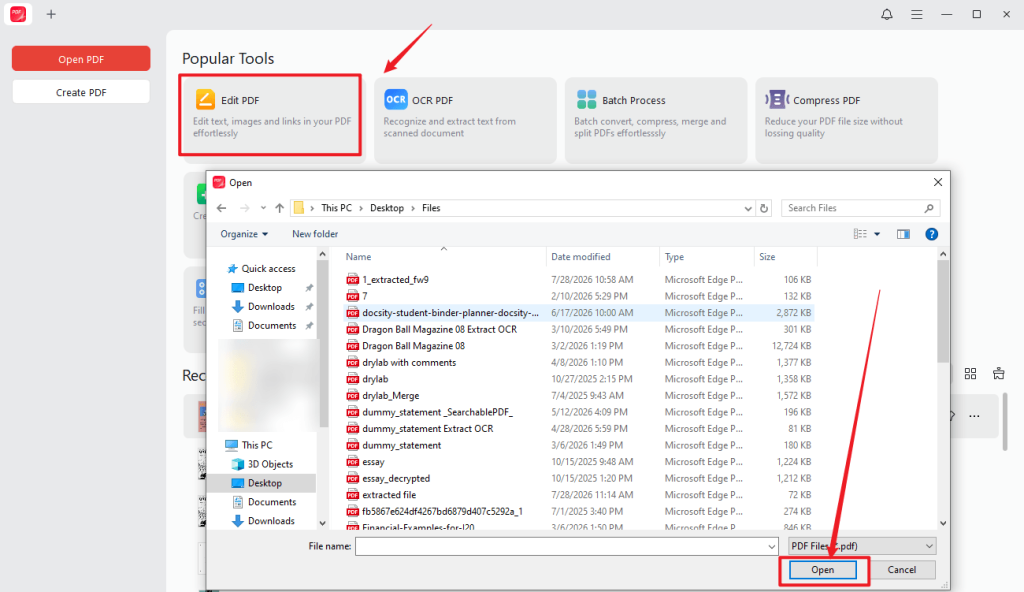
Step 2. After running it, click Edit PDF to locate and select the target PDF and click Open to import it into JOPDF.
Tips
JOPDF also allows you to remove page numbers from specific pages. Once Edit mode is enabled, directly click on the page number and press the Delete key on the keyboard to remove it.
Step 3. Click Page Number and select Delete Page Number.
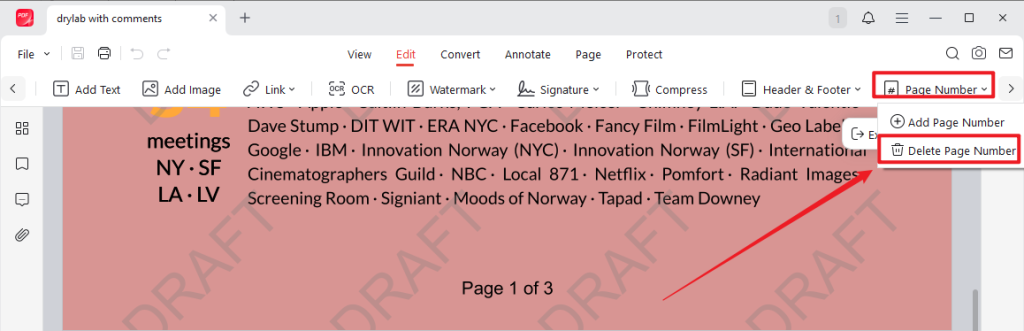
Then, a pop-up will appear. Click the Delete button to confirm the operation.
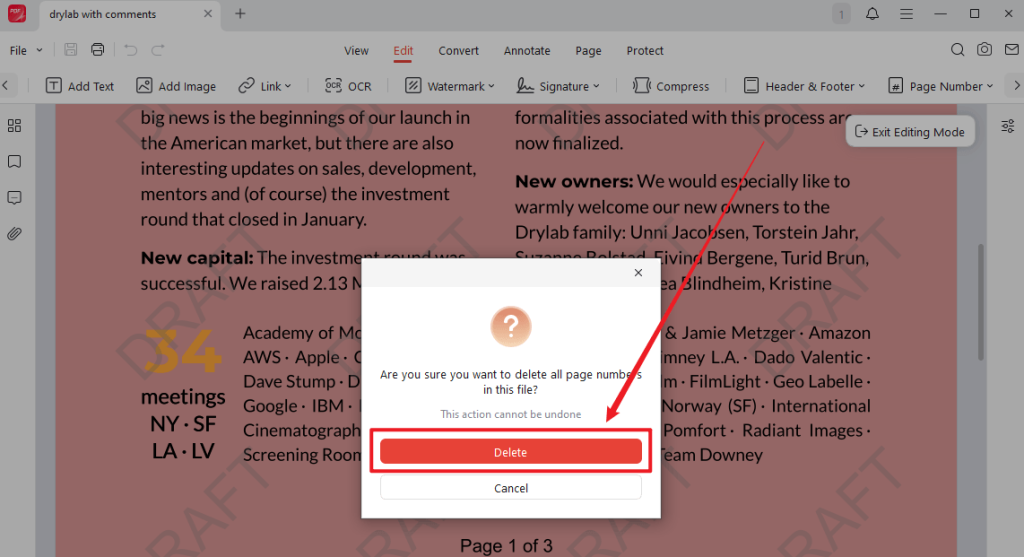
Step 4. Finally, don’t forget to click the Save icon to save the PDF file without page numbers.
Tips
If you add page numbers as a part of a header or footer, click Header & Footer under the Edit tab in JOPDF. Select Update Header & Footer to change page numbers. Or click Delete Header & Footer to remove page numbers.
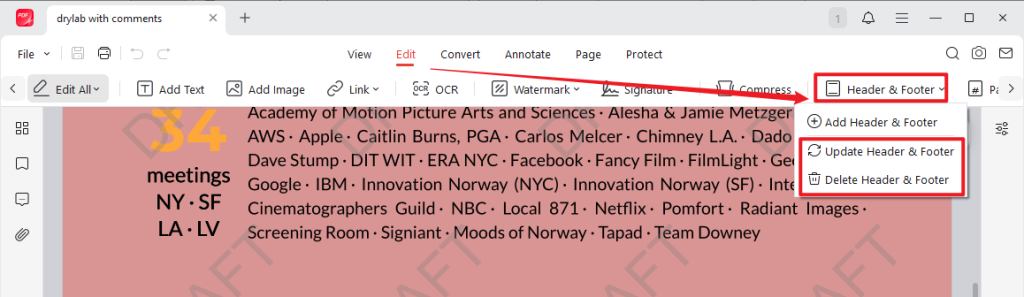
All in all, JOPDF can be particularly useful when you want to remove page numbers from a PDF without Acrobat. Meanwhile, as an offline PDF editor, it can be a better choice for documents containing private or sensitive information.
Method 2: Remove Page Numbers from a PDF Online with pdfFiller
If you don’t want to install additional software, an online PDF editor could be your choice. pdfFiller is a reliable online PDF tool that lets you edit, annotate, and manage PDF documents in a web browser, making it accessible on both mobile and desktop devices. Depending on the PDF’s structure, you can use pdfFiller to delete an editable page number or cover an embedded number with a whiteout element. Below is how to delete PDF page numbers online with pdfFiller.
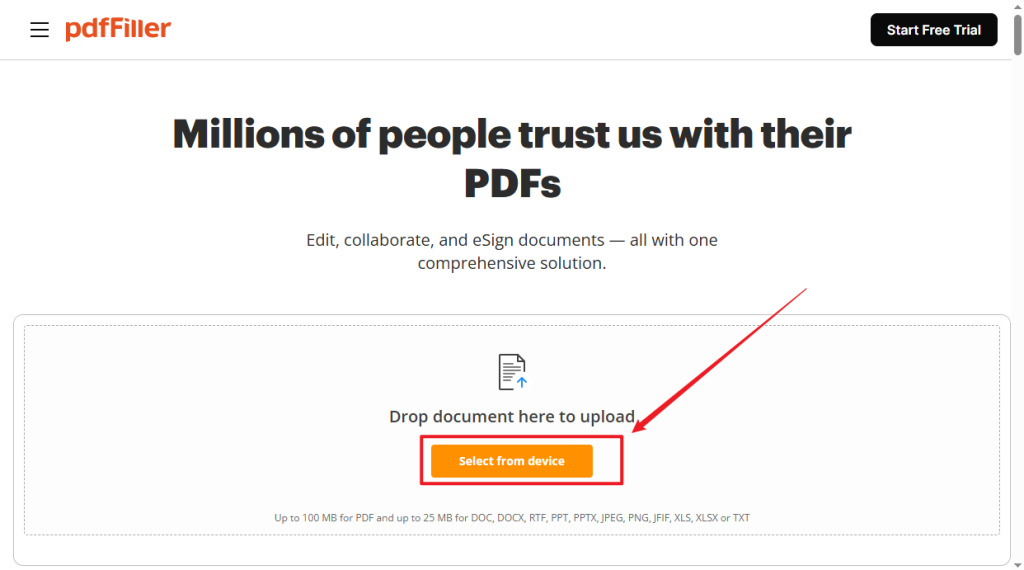
Step 1. Visit pdfFiller in your web browser and click “Select from device” to upload your target PDF file. Then, click “Start editing” to enter the main editing interface of pdfFiller.
Step 2. By default, you’ll be guided under the Edit & fill section, and the Edit mode will be enabled. Then, navigate to the pages containing the page numbers you want to remove, directly click on the page number text, and press Delete to remove it.
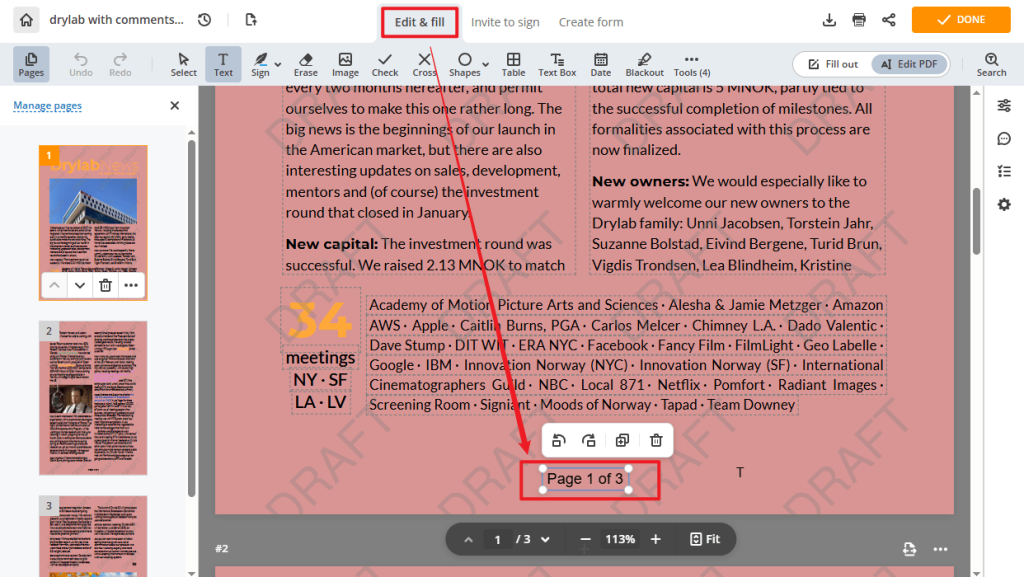
If the page numbers can’t be selected as text, select the Erase tool and click on the page numbers to delete them. Or, use the Blackout tool to cover them.
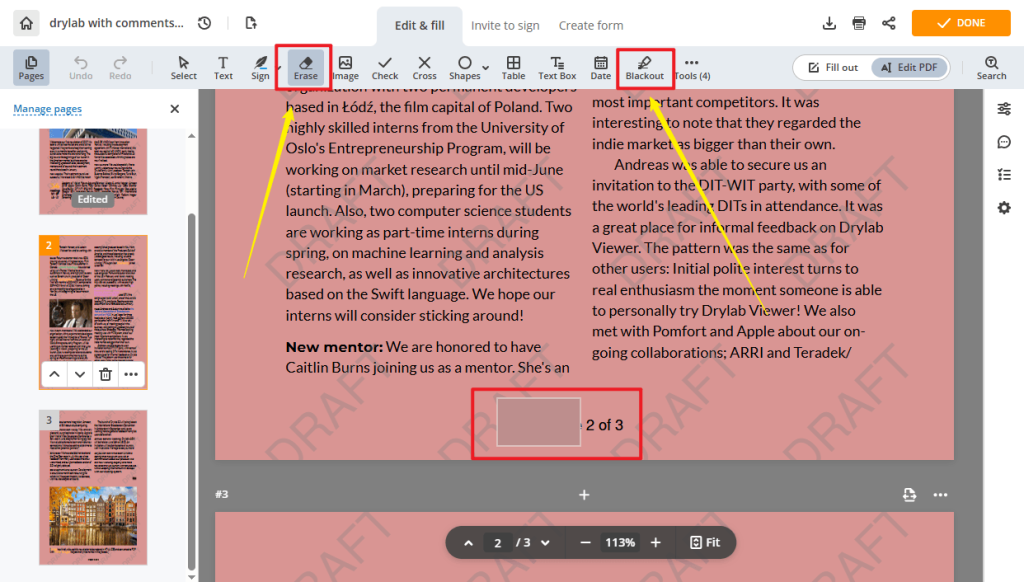
Step 3. Repeat for every page with numbers, and review the document to confirm the page numbers are gone. Finally, click DONE to save your changes and click Download to save the edited PDF file.
In general, pdfFiller can be convenient for removing page numbers from non-sensitive documents and for making edits from different devices. However, because it is an online service, you should consider your document’s privacy before uploading it.
Method 3: Remove Page Numbers from a PDF with Adobe Acrobat
Adobe Acrobat is a professional PDF editor that provides advanced tools for editing, organizing, and securing PDFs. It enables you to edit existing PDF text and images, manage headers and footers, and apply changes across multiple pages. Hence, when the page numbers are part of headers or footers, you can use Adobe Acrobat to manage and remove them. Unlike JOPDF, Adobe Acrobat requires you to pay for its Pro or Standard version to unlock advanced tools.
Here, let’s learn how to delete PDF page numbers with Adobe Acrobat.
Step 1. Launch Adobe Acrobat on your PC and open your PDF file.
Step 2. Click Edit from the top toolbar. In the left pane, click “Header and footer” and select Remove. Then, click Yes to confirm the operation.
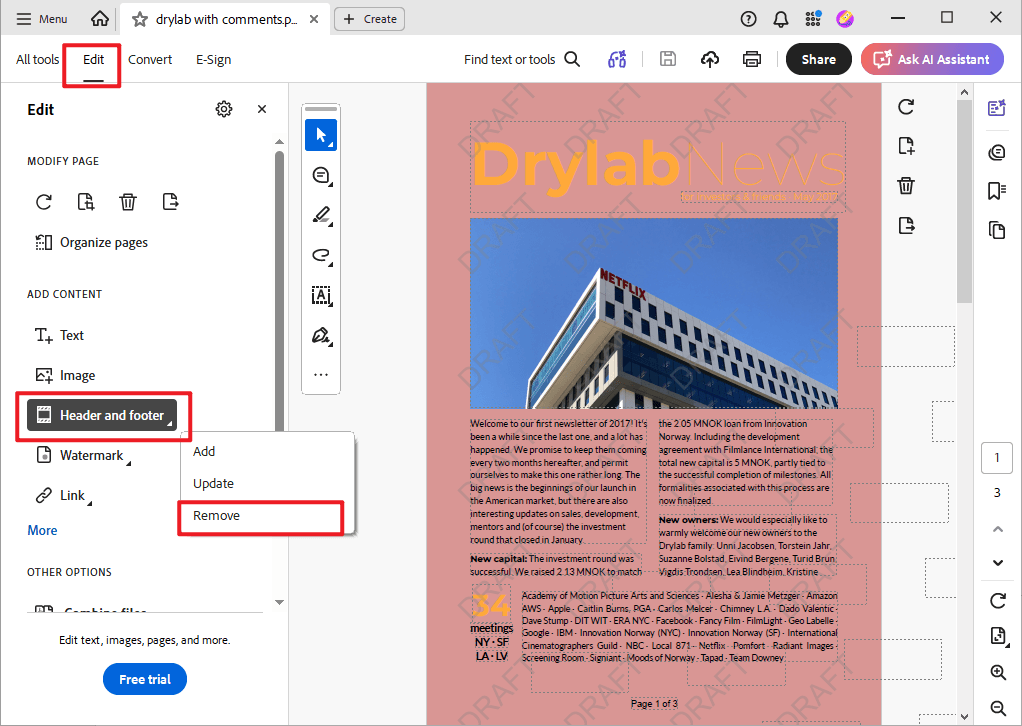
Step 3. Finally, click File > Save or Save As to save the PDF file.
Tips
Adobe Acrobat Pro lets you work with multiple PDFs at once. If you need to remove page numbers from multiple PDFs, go to the Home view, select “See all tools”, and choose “Edit a PDF”. Then, select “Header and footer” and click Remove. Finally, add the files you want to process, confirm, and set output options.
Which Method Should You Use to Remove Page Numbers
Which method is the best one to remove PDF page numbers? For most of us, the best method depends on how the page numbers appear in the PDF. Here, I have listed some common situations.
| Your situation | Recommended method |
| The page number can be selected | Delete it directly |
| You want a free solution | Use JOPDF |
| You don’t have Adobe Acrobat | Use JOPDF or another PDF editor |
| You want to edit a PDF online | Use pdfFiller |
| The number is part of a header/footer | Remove the header/footer |
| The number is embedded in the page | Use an appropriate covering, editing, or redaction method |
| The number is near the page edge | Crop the PDF page |
| The number contains sensitive information | Use proper redaction |
| Only certain pages need changes | Apply the edit to selected pages |
| The PDF is scanned | Use an image/PDF editing approach |
Conclusion
Once you select the right tool, removing PDF page numbers can be an easy task. If you want to remove page numbers from a PDF for free, JOPDF is the best offline option. Adobe Acrobat can also be a good choice if you have a sufficient budget. If you don’t want to install additional software, online PDF editors like pdfFiller can be a good option. With the 3 tools mentioned in this article, you can also remove page numbers from specific pages. At last, I hope this article can be helpful to you.
FAQs
Table of Contents

Your Best Free PDF Expert in PDF editing, compressing, converting, annotating, protect, organizing, and more.
Free DownloadWindows · macOS · Linux

Olivia
“Olivia is an editor at JOPDF, where she writes practical guides and insightful articles on managing PDFs—covering topics like editing, annotating, converting, and organizing files efficiently. Passionate about clear communication and digital productivity, Olivia enjoys spending her free time cooking, watching movies, and hiking to unwind and find inspiration for her writing.”