You open a PDF in Edge, ready to fill out a form, and the “Add Text” button is gone. You’re not alone. Thousands of users have searched “Microsoft Edge add text to PDF disappeared” looking for answers. Here are 5 proven fixes on JOPDF guide to bring it back, plus a reliable alternative that never lets the button vanish.
Summary :
Why Did the Edge Add Text to PDF Feature Suddenly Vanish?
When the Edge add text to PDF missing problem strikes, one of these four culprits is usually behind it:
- Edge update corrupted the UI cache. A major browser update can clash with your old user profile, causing toolbar buttons to fail loading.
- The PDF has editing restrictions. Locked documents cause Edge to hide the Add Text button intentionally, leaving you unable to type.
- Windows reset your default PDF handler. A system update may have silently switched PDF association to a stripped-down preview mode.
- Immersive Reader mode is active. Accessibility features temporarily disable editing tools until fully exited.
Also See:
- How to Print Multiple PDFs at Once on Windows & Mac
- How to Download a PDF From pdfFiller for Free (2026 Guide)
Fix 1: Check if the PDF File Is Read-Only
Before you dig into Edge’s settings menus, confirm that the PDF you’re trying to edit actually allows text additions. This step alone resolves the Microsoft Edge add text to PDF disappeared issue for a surprising number of users who unknowingly downloaded a locked document.
How to Check PDF Permissions in Edge
Open the problematic PDF in Edge. Look at the browser tab where the file name displays. Do you see the word (SECURED) or “Protected” in parentheses next to the title? If yes, the document creator intentionally restricted editing, and Edge is simply obeying that lock.
For a more detailed check, right-click anywhere on the PDF background (not on an image or link) and select “Document properties” from the context menu. In the pop-up window, look for the Security section. If “Editing” or “Changing the Document” is listed as “Not Allowed,” you’ve found your culprit.
What to Do if the PDF Is Locked
If you created the PDF yourself from a Word document or Excel sheet, go back to the original file and re-export it without security restrictions.
In Microsoft Office, when you choose “Save as PDF,” click “Options” and make sure “Encrypt the document with a password” is unchecked and any editing restrictions are removed.
If the PDF came from an external source, you may not have the right to unlock it. In that case, no amount of Edge troubleshooting will make the Add Text button appear. You’ll need to print the form, fill it by hand, scan it back, or use a dedicated PDF editor that can work around certain restrictions.
Skip ahead to the “Best Alternative” section of this article for a solution that handles these cases gracefully.

JOPDF – The Best Free PDF Editor
 User Rating: 4.8
JOPDF Is a 100% free POF editor for Windows, macOS, and Linux. Edit text, add images, annotate, sign, and more. No limits, no ads, no subscriptions, Fast, simple, and powerful, take full control of your PDFs in seconds!
What If Your PDF Is Not Locked
The file properties show full permissions. No “SECURED” badge. But the Add Text button is still gone. That means the problem lives inside Edge or Windows. Move on to Fix 2.
Fix 2: Clear Edge Browser Cache and User Data
A corrupted cache is the number one suspect when Microsoft Edge PDF editor not showing becomes your daily reality. Edge stores temporary data about how the PDF viewer should look and behave. If that cached data gets damaged during an update, the browser loads a broken version of the toolbar.
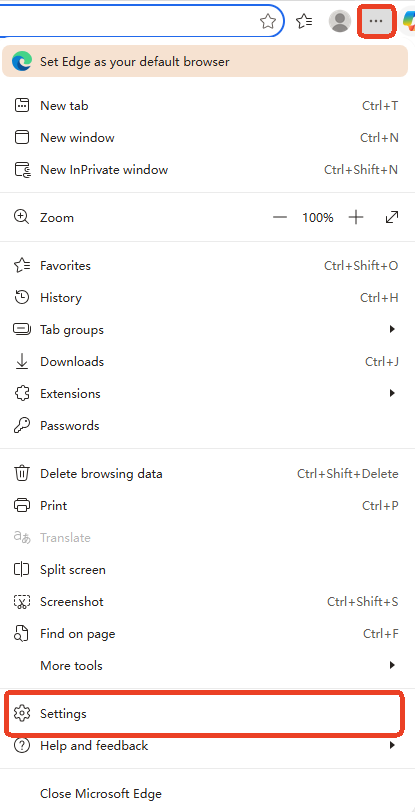
Step 1: Click the three-dot menu (⋯) in the top-right corner of Edge and select Settings from the dropdown.
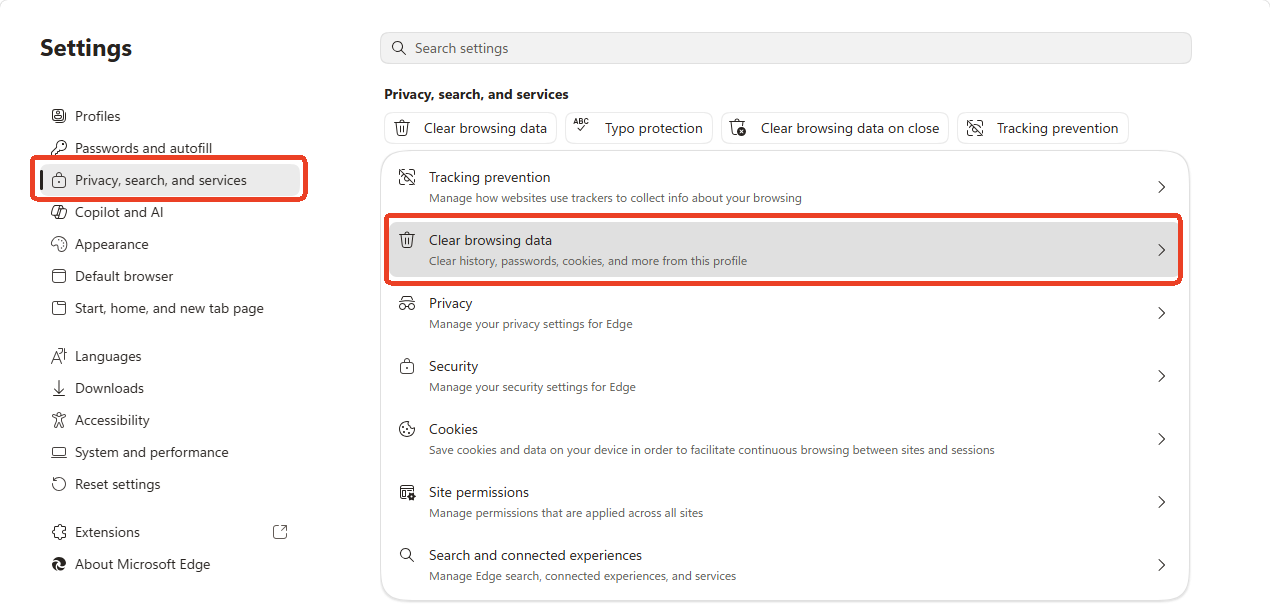
Step 2: In the left sidebar, click Privacy, search, and services and scroll down to the section labeled Clear browsing data.
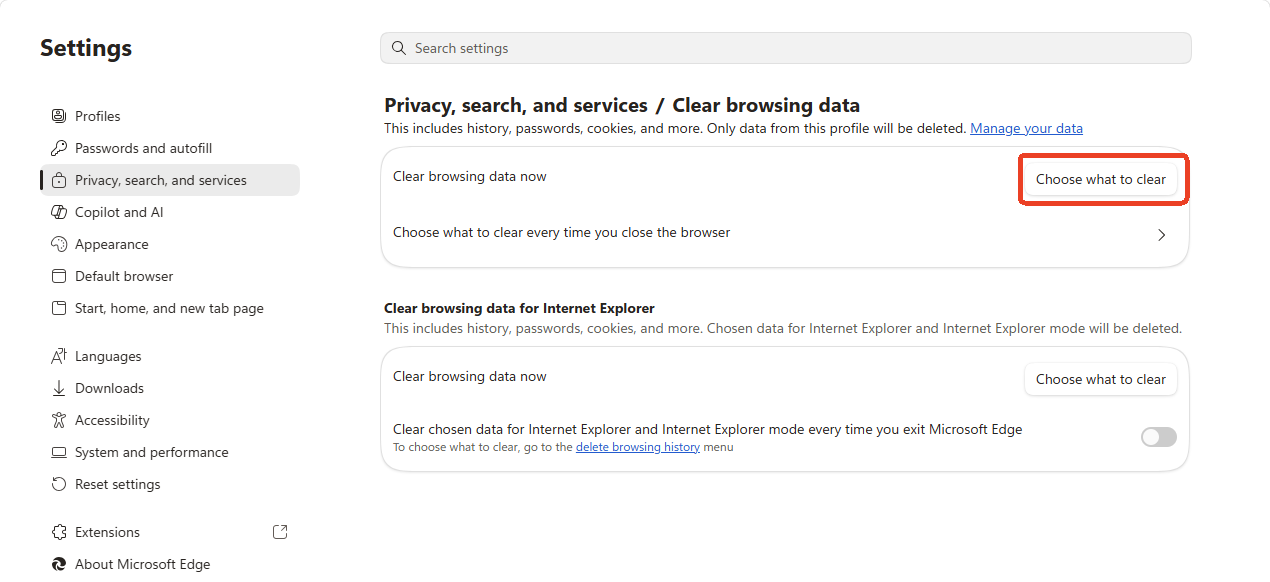
Step 3: Click the Choose what to clear button.
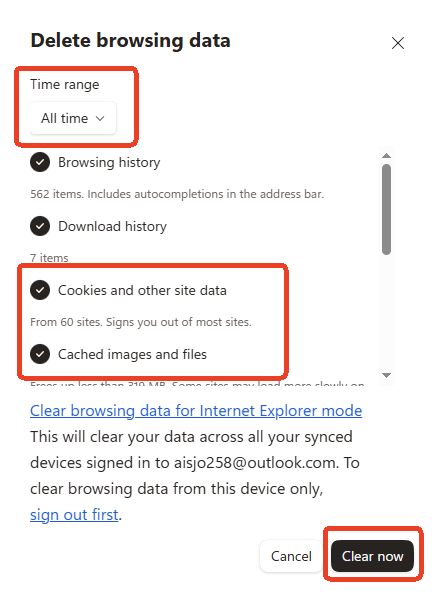
Step 4: In the pop-up window, set the Time range dropdown to All time and check the boxes for:
- Cached images and files
- Cookies and other site data
Then click Clear now.
Once the process completes, close Edge entirely. Don’t just click the X. Right-click the Edge icon in your system tray (the small arrow near the clock) and select Exit or Close window. Wait about 10 seconds, then reopen Edge and load your PDF. In most cases, the Add Text button reappears right where it should be.
Fix 3: Manually Add Text Using the Right-Click Context Menu
Sometimes the toolbar button disappears, but the underlying function is still alive and well. It’s just hiding. The Microsoft Edge add text to PDF disappeared problem can be bypassed entirely if the right-click menu still works.
Step 1: Open your PDF in Edge and move your mouse to the exact spot on the page where you want to type.
Step 2: Right-click directly on that spot and scan the context menu that appears.
Step 3: Look for an option labeled “Add Text” or “Add Text Box.” If you see it, click it. A text cursor should appear right at the location you clicked.
This method works because the right-click menu and the toolbar pull from slightly different code paths. The toolbar might be glitched out of existence while the context menu remains fully functional. Use this as your quick-access workaround whenever the button pulls another disappearing act.
Also See: Full Guide on How to Add Text to a PDF with the Exact Steps
Fix 4: Reset Edge’s PDF Viewer Flags
Edge runs on a set of experimental features called “flags.” These are hidden toggles that control everything from video playback to PDF rendering. When Microsoft Edge PDF editor not showing persists through cache clears, an incorrectly set flag is often to blame. This fix also resolves cases where you can’t type on PDF edge even though the text box appears.
Important Warning Before You Proceed
The flags page contains settings that can break your browser if changed recklessly. Only modify the specific flag described below. Don’t experiment with other toggles unless you know exactly what they do.
Step 1: Open a new tab in Edge and type edge://flags in the address bar and press Enter.

Step 2: In the search bar, type PDF and scroll through the results to look for flags with names like:
- New PDF Viewer
- PDF Viewer Update
- Enable PDF Reader
For any flag that sounds PDF-related, check its current status. It should be set to Default or Enabled.
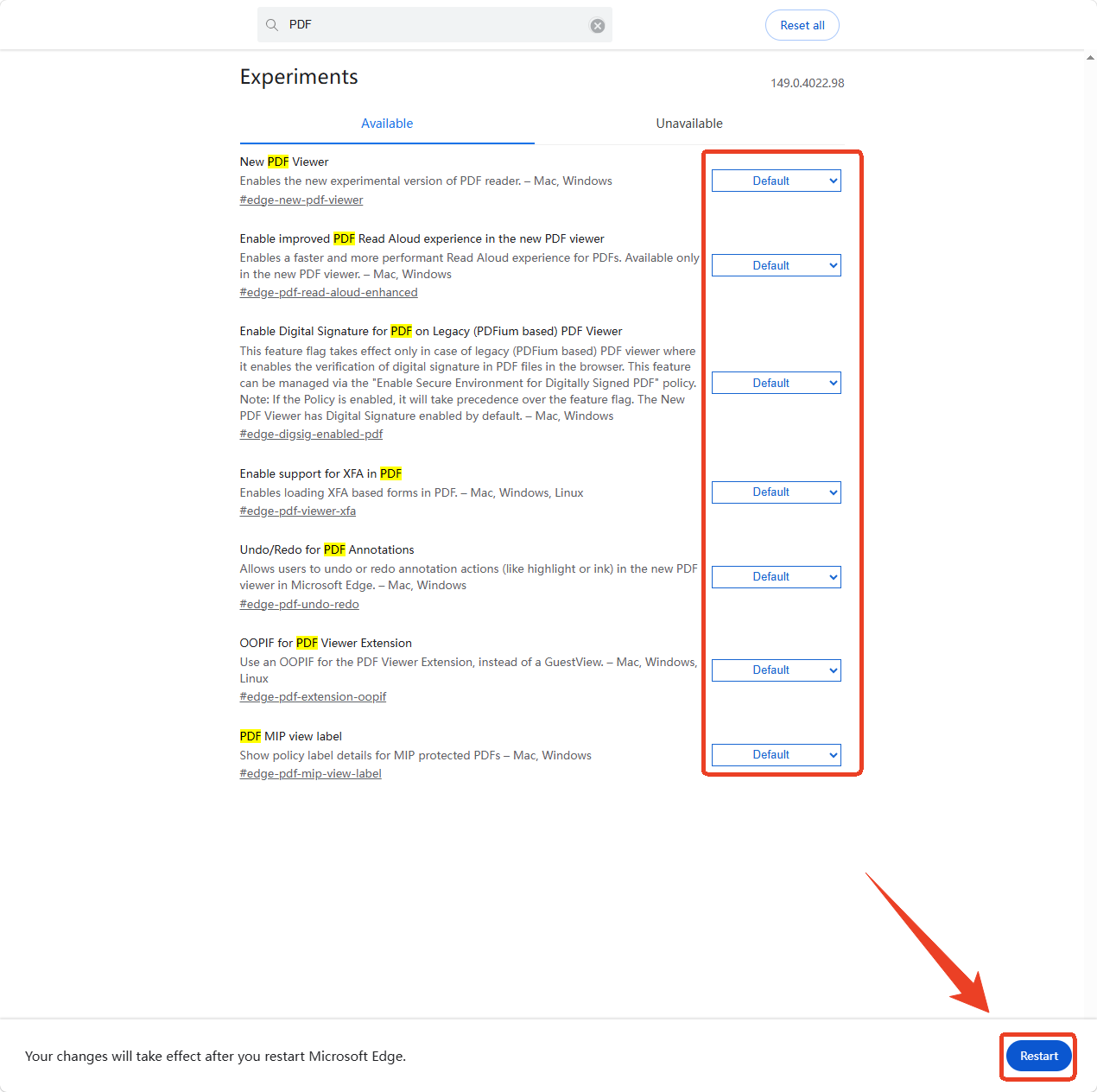
Step 3: After making changes, click the blue Restart button that appears at the bottom-right corner of the screen.
Edge will close and relaunch. Open your PDF again. The Add Text button should now be visible because the underlying engine has been reactivated.
Fix 5: Reset Windows PDF Default App Settings
When the edge PDF text tool gone situation defies all in-browser fixes, the root cause lives one level deeper: in Windows’ file association registry. If this list gets corrupted, Edge might open PDFs in a “preview-only” mode that hides the full editing toolbar.
Step 1: Press the Windows key on your keyboard and type Settings.
Step 2: In the left sidebar, click Apps > Default apps.
Step 3: Scroll down until you see a search box under “Set a default for a file type or link type.” and click inside it.
Step 4: Type .PDF and press Enter. You’ll see the current default app for PDF files displayed next to “.PDF.” It might say “Microsoft Edge” or something else.
Step 5: Click the current default app icon. A pop-up will appear asking you to choose a new default.
Step 6: Temporarily switch to any other app. Choose something like “Photos,” “Windows Media Player,” or literally anything that isn’t Edge. Confirm the switch.
Step 7: Wait five seconds. Then click the app icon again, and this time switch it back to Microsoft Edge.
Step 8: Close the Settings app and restart your computer.
After the restart, open a PDF file. The toolbar should be fully populated. If the Add Text button is still missing after all five fixes, your Edge installation may have a deeper corruption that requires a full browser repair or reinstall. But before you go down that road, consider whether Edge is even the right tool for the job.
Also See: 7 Best PDF Readers for Windows in 2026 [Free]
Why Relying on Edge as Your PDF Editor Is Risky
Edge’s PDF editor is convenient, but it comes with real downsides that explain why so many users eventually search for alternatives:
- Unstable feature set. Monthly updates can move or remove the Add Text button without warning. Today’s fix may not survive the next version.
- Cross-device inconsistency. Text added in Edge often shifts or garbles when opened in Chrome, Firefox, or mobile viewers.
- No auto-save. A browser crash means losing all your unsaved PDF edits instantly.
The Best Alternative When Microsoft Edge Add Text to PDF Disappeared
When Microsoft Edge add text to PDF disappeared becomes a recurring headache, JOPDF offers a permanent solution. It’s a free online PDF editor where the Add Text tool stays exactly where you expect it.
- Always visible, never hidden. JOPDF’s tools are part of its web interface, not a browser sidebar.
- Real text rendering. Unlike Edge, JOPDF embeds text directly into the PDF file. Your edits stay in place across any device or viewer.
- Privacy you can trust. Files are transferred over HTTPS and automatically deleted from JOPDF’s servers after processing.
- Handles restricted PDFs. Many lightly locked documents that stump Edge can be edited through JOPDF without issue.
Step 1: Open JOPDF and select the Edit PDF tool.
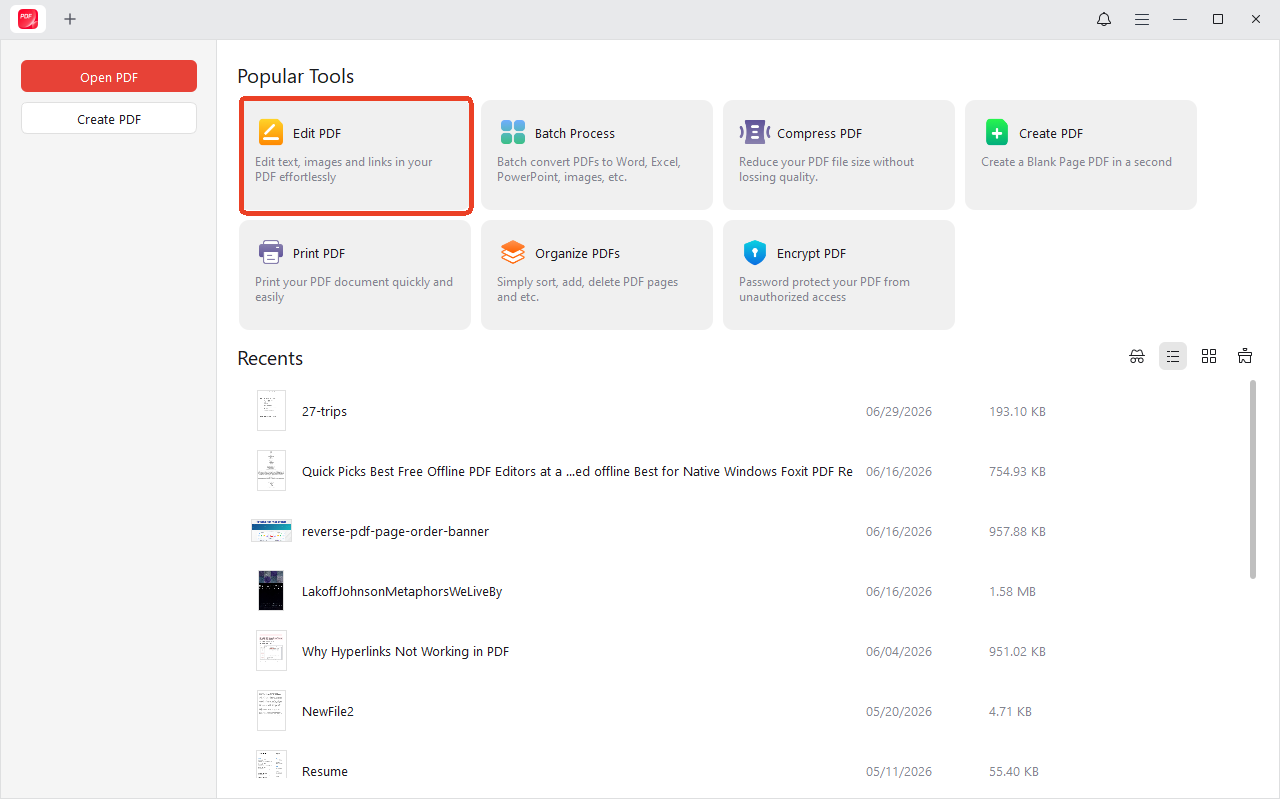
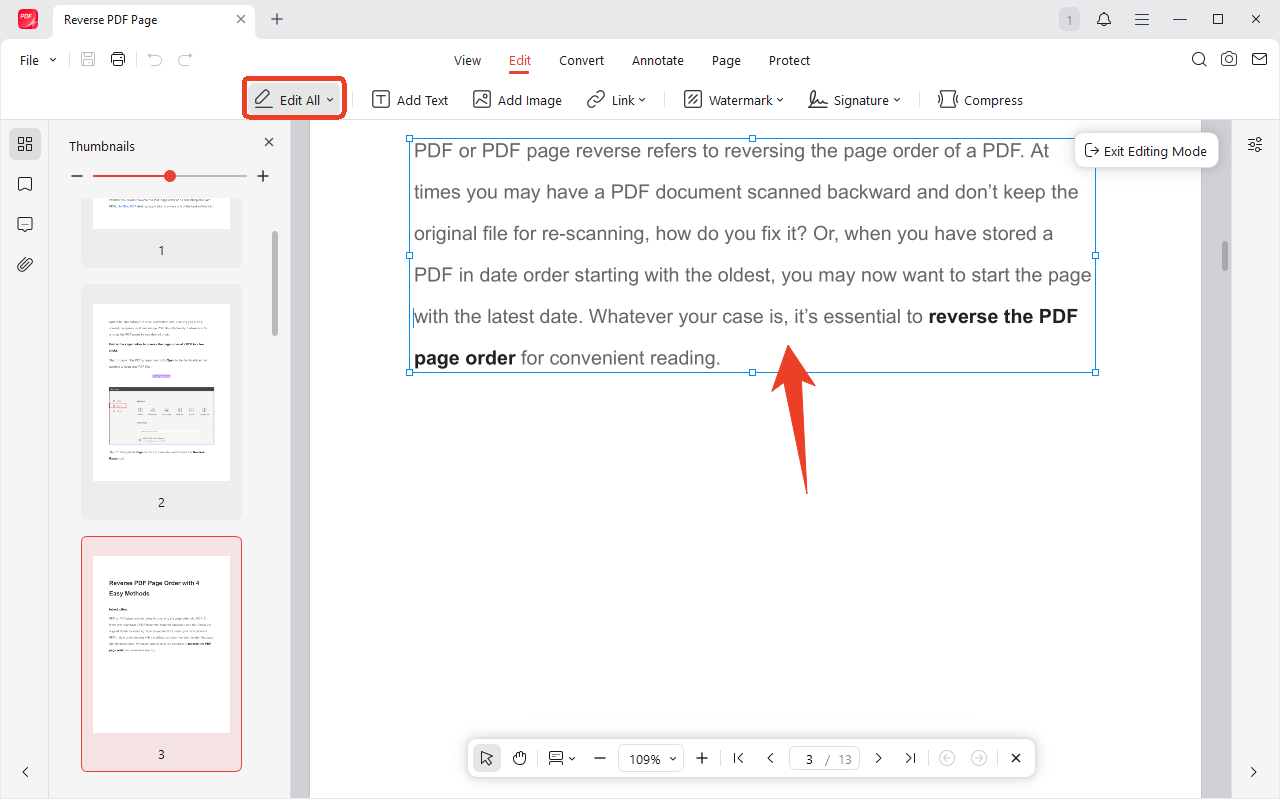
Step 2: Upload your PDF and the PDF opens in an online viewer with a toolbar.
Step 3: Select the “Add Text” tool, then click anywhere on the document. A text cursor appears.
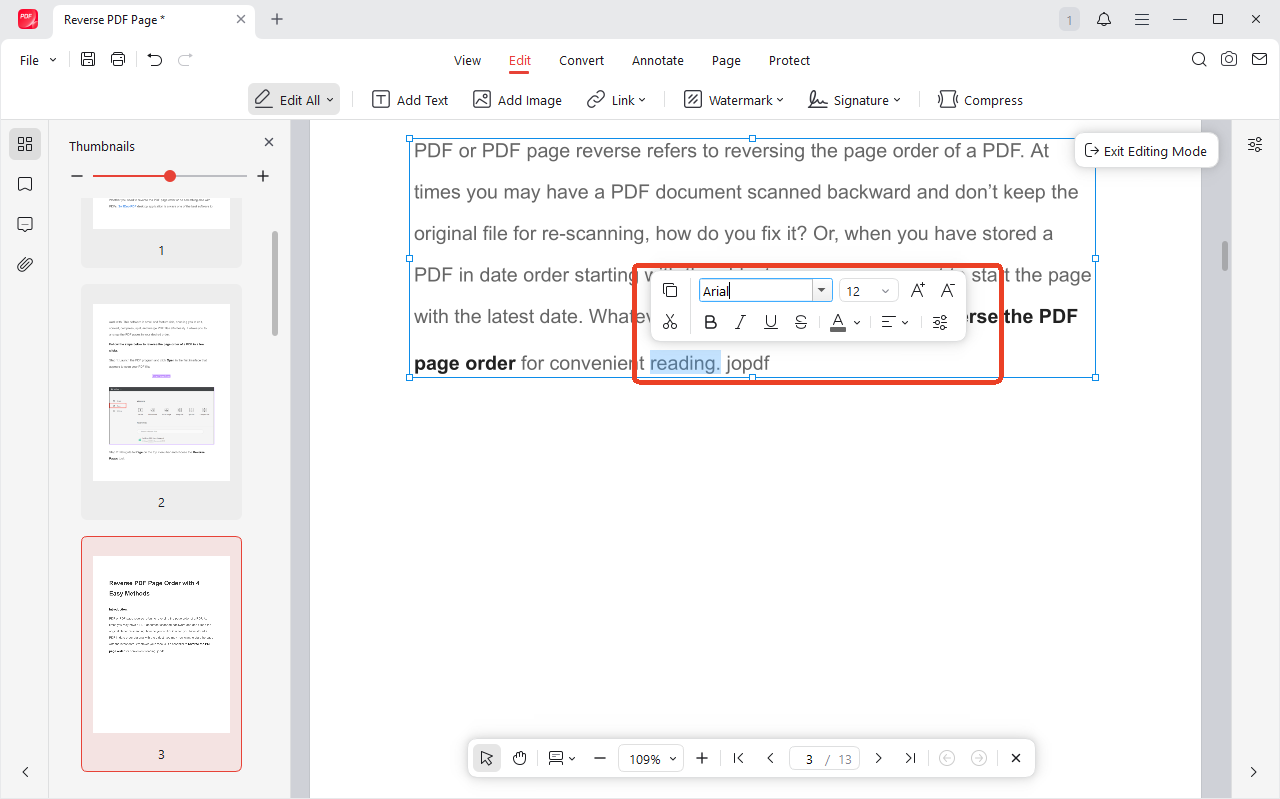
Step 4: Enter your content. Use the formatting options that appear, such as, font family, size, color, bold, italic, to match the document’s existing style.
Still Want to Fix Edge? Here’s a Last-Resort Checklist
If you’re determined to stick with Edge as your PDF editor, here’s a condensed final checklist for when the Add Text button disappears again.
- Update Edge to the latest version. Go to edge://settings/help and let it check for and install any pending updates. Restart the browser afterward.
- Disable all extensions temporarily. Click the puzzle piece icon, go to “Manage extensions,” and toggle everything off. A rogue extension can interfere with the PDF viewer. If the button comes back, re-enable extensions one by one to find the culprit.
- Repair Microsoft Edge through Windows Settings. Go to Settings > Apps > Installed apps, find Microsoft Edge, click the three dots next to it, and select “Modify” then “Repair.” This reinstalls Edge without affecting your data.
- Create a new Edge profile. If your current profile is corrupted, none of the above fixes will stick. Create a fresh profile, test a PDF in it, and if everything works, migrate your bookmarks and passwords to the new profile.
If all of this fails, accept that Edge’s PDF editor is simply not reliable enough for your needs and make the permanent switch to JOPDF.
Final Verdict
Microsoft Edge add text to PDF disappeared. If those words have become a familiar frustration, the five fixes in this guide will usually bring the button back. But Edge’s PDF editor remains fragile, vulnerable to the next update or cache hiccup. When you need a reliable, cross-platform way to add text to PDFs without hunting for hidden buttons, JOPDF is the faster, stress-free alternative.
FAQs
If you can't type on PDF edge, it's usually due to a locked PDF, corrupted browser cache, or Windows resetting your default app. Start with Fix 1 and Fix 2 in this guide.
No. Edge offers basic, lightweight annotation tools. For stable, professional-grade text editing without installing software, a free online PDF editor like JOPDF fills the gap.
Unlikely. Microsoft continues to expand Edge's PDF capabilities, but the button's visibility fluctuates with updates. Keeping a reliable alternative bookmarked ensures you're never stuck.
Table of Contents

Your Best Free PDF Expert in PDF editing, compressing, converting, annotating, protect, organizing, and more.
Free DownloadWindows · macOS · Linux

Anna
Editor
“Anna, Editor-in-Chief and PDF expert, delivers deep insights into PDF document technology trends. She is dedicated to helping readers optimize their digital lives. When not writing, Anna loves exploring local cafes and reading, blending her technical expertise with a love for storytelling.”