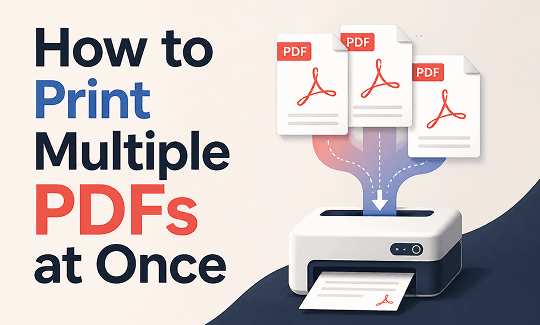
Can you print multiple PDFs at once without clicking open every single file? The answer is yes. Both Windows and Mac have built-in ways to handle batch print PDF files. You do not always need extra software. In this guide on JOPDF, we will show you how to print multiple PDFs at once using different methods on Windows, Mac, and offline desktop setups. Pick the one that fits what you need today.
Summary :
Core Solution Summary
If you need to send multiple documents to your printer without opening each file individually, you can use these main strategies:

JOPDF – The Best Free PDF Editor
 User Rating: 4.8
JOPDF Is a 100% free POF editor for Windows, macOS, and Linux. Edit text, add images, annotate, sign, and more. No limits, no ads, no subscriptions, Fast, simple, and powerful, take full control of your PDFs in seconds!
- The Windows 11 Way: Open your system Settings > Bluetooth & devices > Printers & scanners. Open your printer queue window, select all your files in File Explorer, and drag them directly into the queue box.
- The Mac Way: Open the Finder app, locate your document folder, select your target files, right-click, and select the Print command.
- The Pro Workaround: Sending 50 separate files can easily freeze your printer’s memory buffer. A safer, faster choice is to use JOPDF completely offline to combine all your separate pages into a single document first, allowing you to print your entire list with one click.
Method 1: Print Multiple PDFs at Once on Windows 11/10
How to print multiple PDFs at once Windows 11 or Windows 10? For desktop users running modern PC software, the built-in management window provides a direct way to batch print to PDF – the system queue.
This batch PDF printer method is very convenient for small tasks but may go wrong when you put too many files for batch printing PDF.
Step 1: Open your File Explorer and select all the PDFs you want to print.
Step 2: Right-click on them and choose More Options > Print.
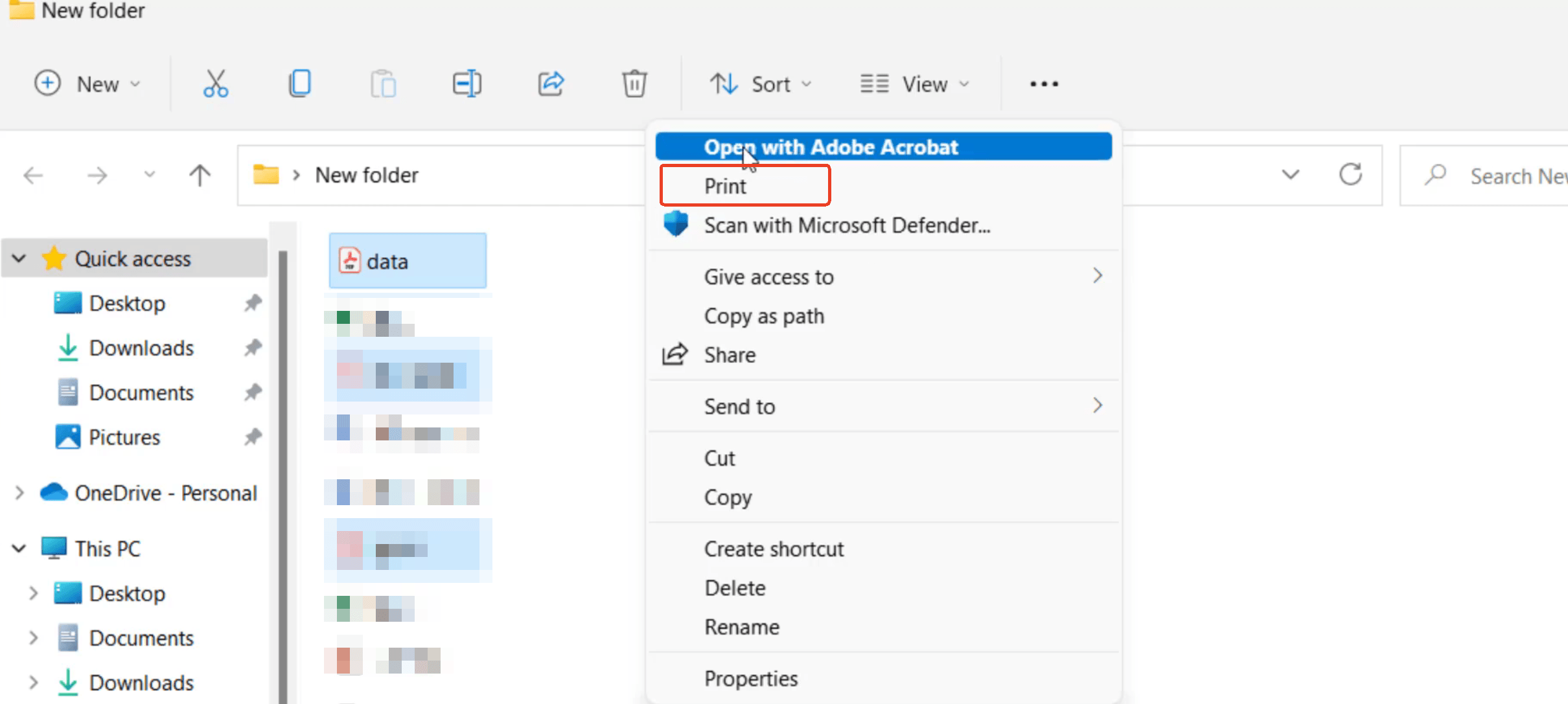
Here is the other method to print multiple PDFs at once via system queue:
Step 1: Go to Start > Settings > Bluetooth & devices > Printers & scanners.
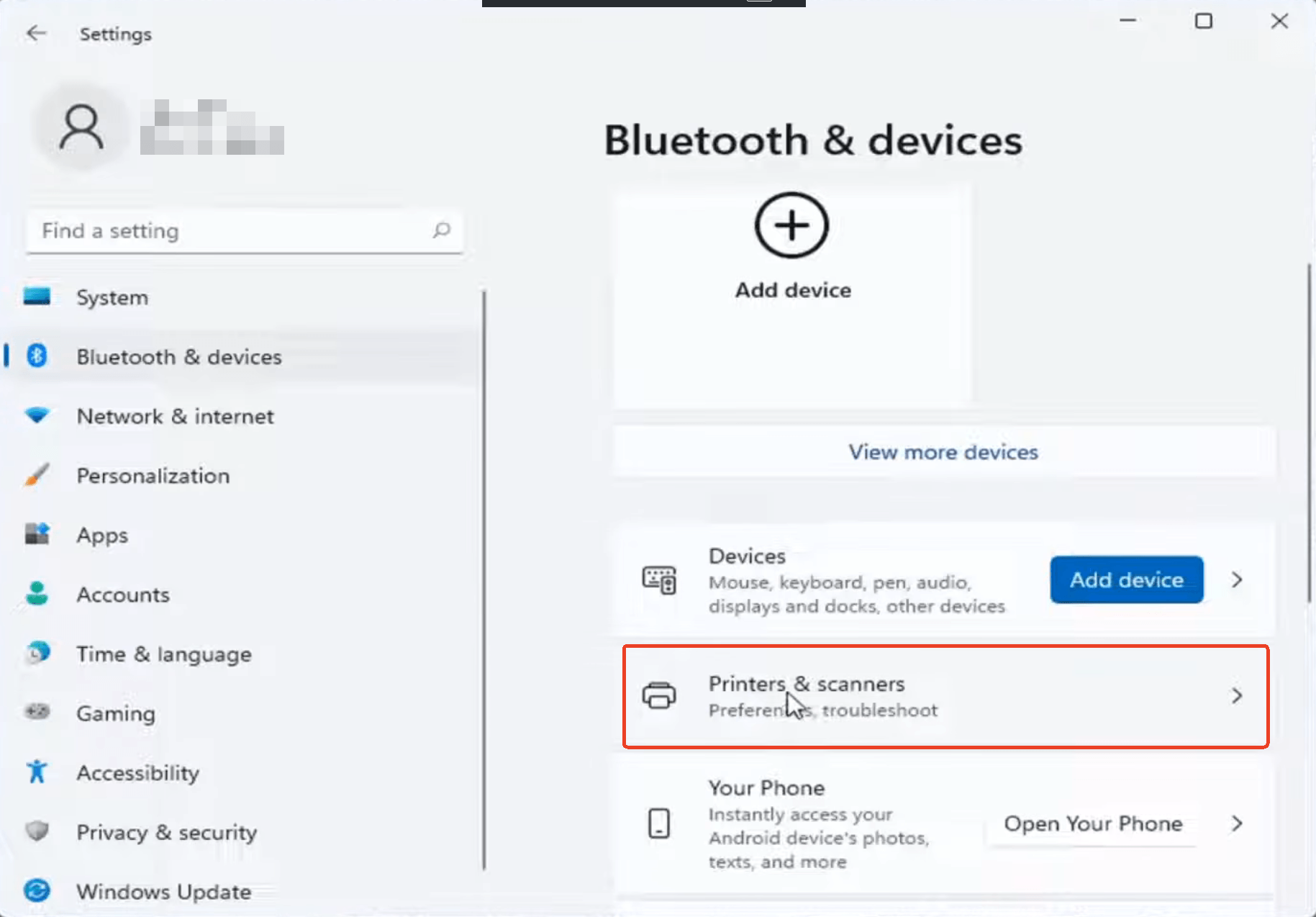
Step 2: Choose your active hardware model from the list and click Open print queue to display the live monitoring screen.
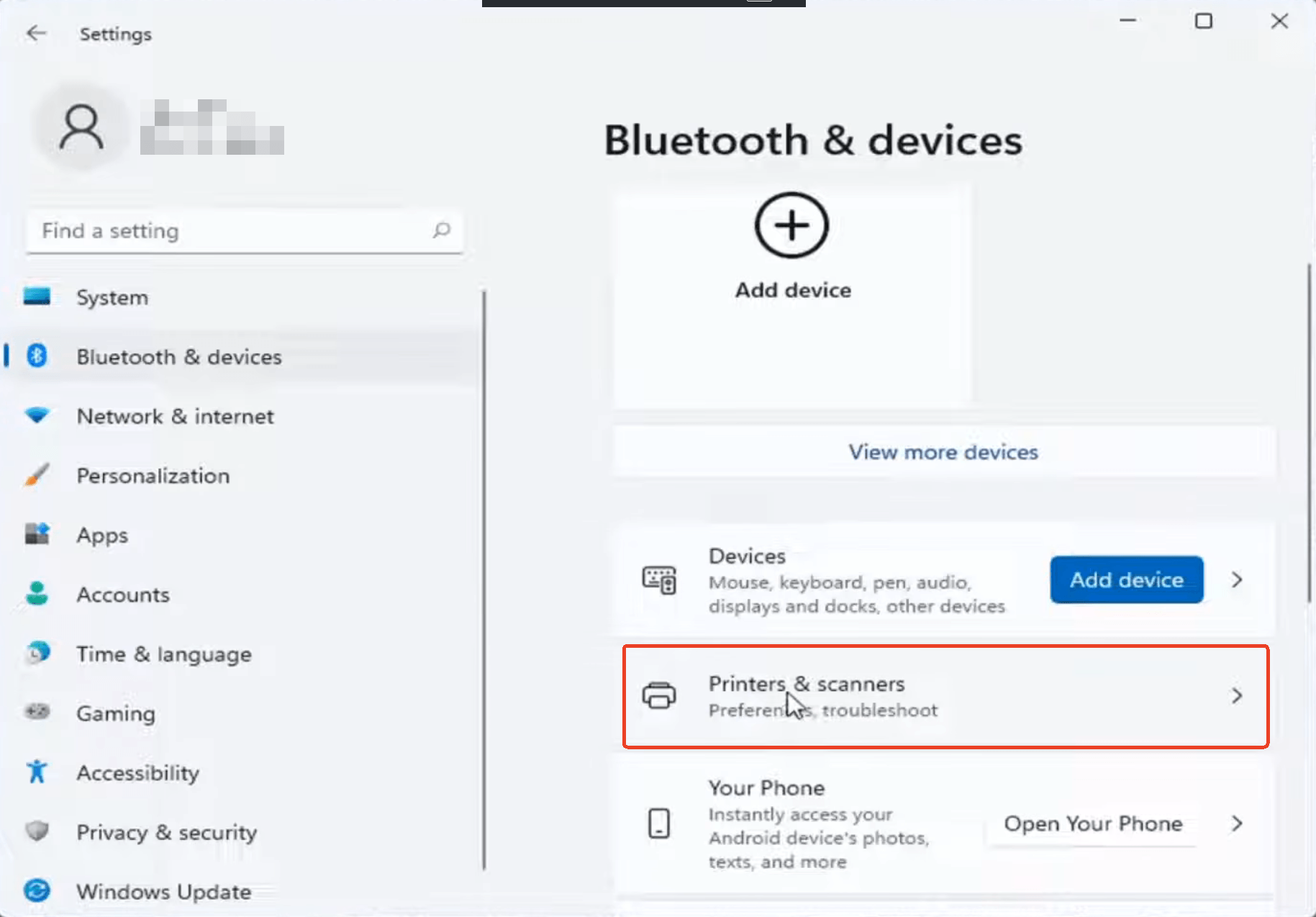
Step 3: Open your File Explorer to select all the document files you want to print and drag those highlighted files directly into the open print queue window. This can help you trigger a quick print multiple PDFs command.
Also See: How to Batch Compress PDF Files: The Ultimate Guide
Method 2: Print Multiple PDFs at Once on Mac
If you prefer working on Apple devices, the macOS interface offers a hidden shortcut inside your file management window. This direct Finder route handles a print multiple PDFs sequence without requiring complicated setup menus. Before you attempt to batch print PDFs on your laptop, ensure your computer connects properly to your office printer hardware network.
Steps to print multiple PDF files at once on a Mac:
Step 1: Launch Finder and go to the folder directory where your files are stored.
Step 2: Hold down the Cmd key on your keyboard and click on each document layer you need to output.
Step 3: Go to the top menu bar, click File, and select the Print option from the dropdown listing.
Step 4: Confirm your hardware properties in the pop-up window to send your batch print PDFs request to your machine.
Also See: 5 Best PDF Editors for Mac in 2025
Method 3: Use a Batch PDF Printer – JOPDF
While native computer options look easy, sending fifty distinct files creates a massive traffic jam inside your device’s spooler system. During a heavy batch printing PDF run, your machine can easily skip pages, switch the document order, or freeze entirely because the printer memory buffer gets overwhelmed.
So, how to print multiple PDFs and prevent printer queue freezes? We recommend using a free batch print to PDF tool like JOPDF. It works on Windows, Mac, and Linux. You can download it once and use it offline forever.
Why JOPDF works well as a batch PDF printer:
- It is completely free. No trial period, no watermark, no asking for your credit card.
- You can print specific page ranges. For example, tell it to print “pages 1-3” from one file and “page 5 only” from another.
- It works offline. Your files never leave your computer. This is good for privacy.
- You can add files from different folders. No need to move everything into one place.
How to batch print PDFs using JOPDF:
Step 1: Download and open JOPDF on your computer.
Step 2: Choose Print PDF and select all the PDFs you want to print. You can pick files from different folders.
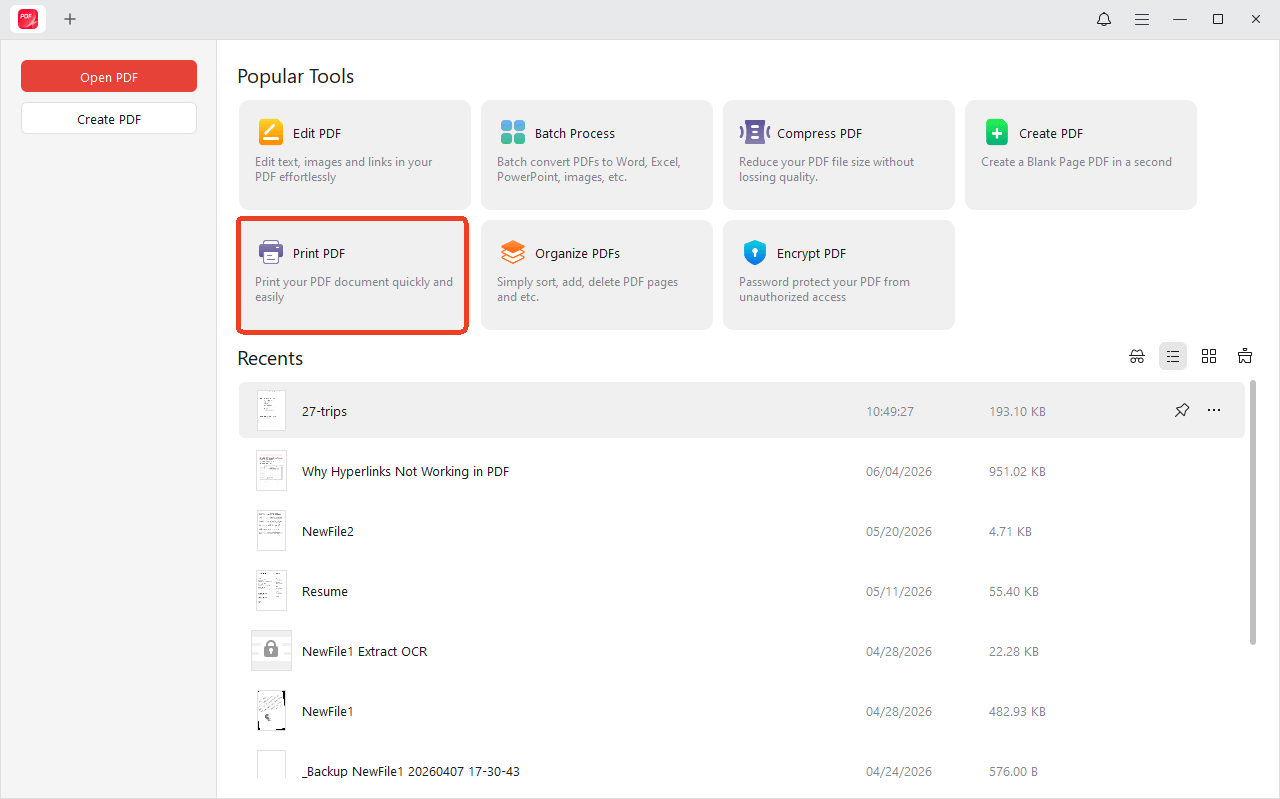
Step 3: Then you could choose your printer and adjust settings like number of copies or double-sided printing.
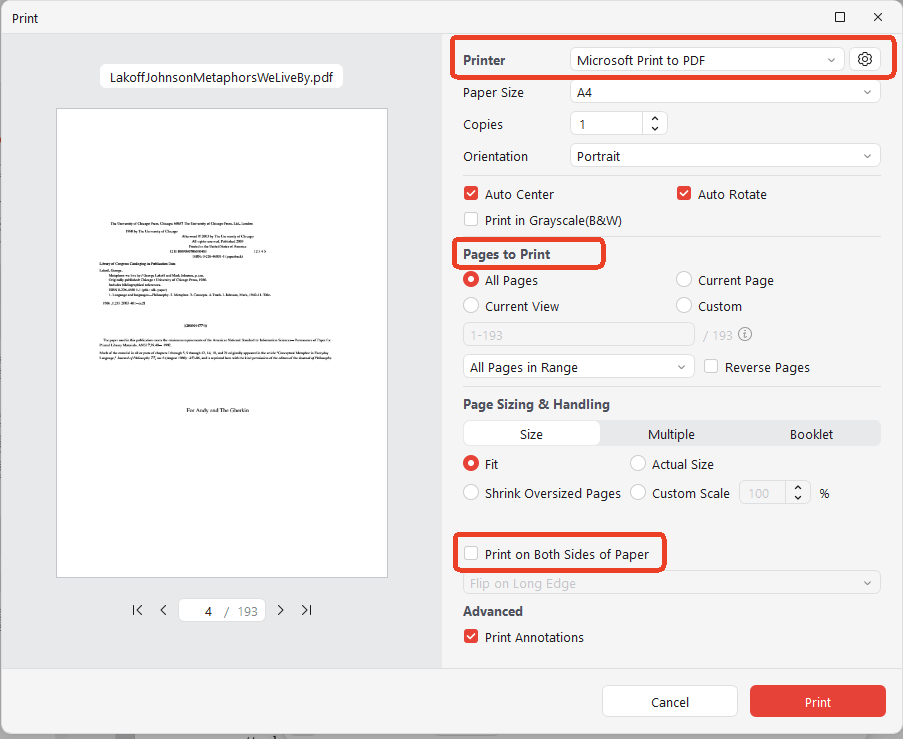
Step 4: Click the Print button. JOPDF will send each file to your printer according to your settings.
If you regularly need to batch print PDF files for work, school, or personal projects, JOPDF saves you a lot of time.
Method 4: Print Multiple PDFs at Once by Merging First
Another approach to print multiple PDFs at once is to combine them into a single PDF file first. This is especially useful when the order of pages matters to you.
For example, if you have chapter one, chapter two, and chapter three as separate files, merging keeps them in the correct sequence. Then you only need to print one file.
Fortunately, JOPDF offers both the merge and print functions. You can use JOPDF, a lightweight and free desktop PDF editor, to merge all your separate text blocks into a single unified document layout before clicking print.
Steps to print multiple PDF files at once after merging:
Step 1: Launch JOPDF and choose Batch Process > Merge PDF.
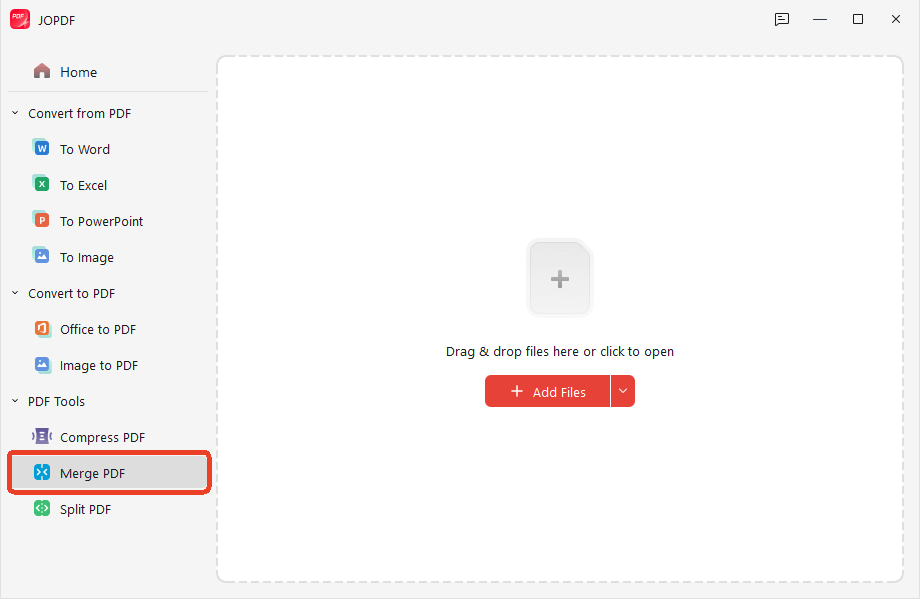
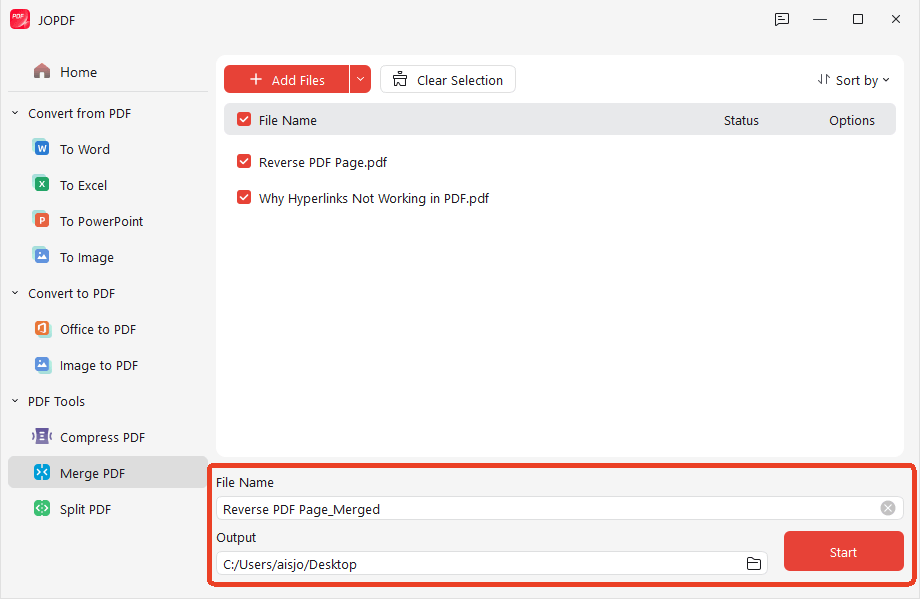
Step 2: Drag your folder of separate documents into the program window and set the file name and output. Click Start.
Tips
If the file size is too large for your printer’s hardware cache, you can compress the large file in JOPDF in easy steps. In the same interface, click Compress PDF and upload your file to start it.
Step 3: Then you can directly use the JOPDF batch PDF printer as the method 3 introduced. Alternatively, you can open any PDF viewer; press Ctrl + P on Windows or Cmd + P on Mac.
Step 4: Adjust your print settings and click Print.
This method guarantees that you can batch print PDF files in the exact order you set. It also creates a single print job, which some people find easier to manage.
A Note About JOPDF for Your PDF Tasks
You might have noticed that we mentioned JOPDF several times in this guide. We want to be clear about why.
JOPDF – The Best Free PDF Editor
User Rating: 4.8
JOPDF Is a 100% free POF editor for Windows, macOS, and Linux. Edit text, add images, annotate, sign, and more. No limits, no ads, no subscriptions, Fast, simple, and powerful, take full control of your PDFs in seconds!
JOPDF is a free desktop PDF tool that we genuinely think is useful. It works on Windows, Mac, and Linux. You can use it to edit, convert, merge, compress, annotate, and print PDFs. And it does not require an internet connection or a subscription.
For the topic of how to print multiple PDFs at once, JOPDF helps in two main ways:
- As a batch PDF printer: You can add many PDFs, set custom page ranges for each one, and print them all with one click.
- To merge before printing: If you want all your PDFs to print as one continuous document, you can merge them in JOPDF first, then print the merged file.
The native Windows and Mac methods work fine for many people. But if you find yourself regularly needing to batch print PDF files with more control, JOPDF is a free option worth trying. You can download it from the JOPDF website and keep it on your computer for whenever you need it.
Conclusion
Learning how to print multiple PDFs at once is a simple skill that can save you time every week. For most people, the built-in Windows or Mac method works well for occasional batches. You just select your files, right-click, and choose Print. But if you regularly handle large batches or need to print specific page ranges from different files, consider using a free batch PDF printer like JOPDF. It gives you more control without asking for money.
FAQs
Yes. When you use a batch PDF printer like JOPDF, you can browse different folders and add files from each one. The native Windows method requires all files to be in the same folder.
Google Drive and other cloud storage services do not directly support batch printing to your local printer. You need to download the files first. Select the PDFs in Google Drive, click "Download" (they will come as a ZIP file). Extract them to a folder on your computer. Then use the Windows native method or JOPDF to print multiple PDFs at once.
Yes. Merge them first using a free tool like JOPDF. Then print that merged file. This is a good way to batch print PDF files when you want continuous page numbers throughout.
The native Windows and Mac methods do not support this. You need a batch PDF printer. JOPDF allows you to set a custom page range for each file in your batch. For example, you can print "page 1" from file A and "pages 3 to 5" from file B.
Table of Contents

Your Best Free PDF Expert in PDF editing, compressing, converting, annotating, protect, organizing, and more.
Free DownloadWindows · macOS · Linux

Anna
Editor
“Anna, Editor-in-Chief and PDF expert, delivers deep insights into PDF document technology trends. She is dedicated to helping readers optimize their digital lives. When not writing, Anna loves exploring local cafes and reading, blending her technical expertise with a love for storytelling.”