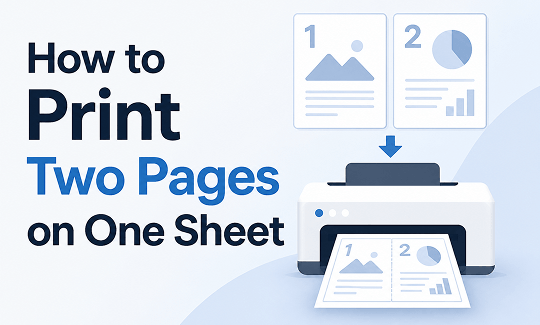
How to print two pages on one sheet? This guide on JOPDF walks you through every method including Windows, Mac, mobile, and PDF tools, with clear steps for each platform. Whether you’re a student printing lecture notes or a professional preparing meeting handouts, this print two pages on one sheet technique works across all your devices. Just keep reading.
Summary :
How to Print Two Pages on One Sheet in Windows
How to print two pages on one sheet? Windows offers several ways to print 2 page in 1 paper. The following three methods cover different file types and use cases, each with complete steps.
Also See: Full Guide on How to Print Multiple Pictures on One Page in 2026
Method 1: Print from Any Application Using System Print Dialog
This is the most universal method to print two pages on one sheet Windows. It works in Word, Excel, Notepad, and most desktop applications. The system print dialog is your central hub for how to print 2 pages on one sheet.
Step 1: Launch the file you want to print. We use Microsoft Word as the example, but the same steps to print two pages on one sheet apply across applications.
Step 2: Press Ctrl + P to open the Windows print dialog. This shortcut works in nearly every Windows program and gives you immediate access to multiple page print settings.
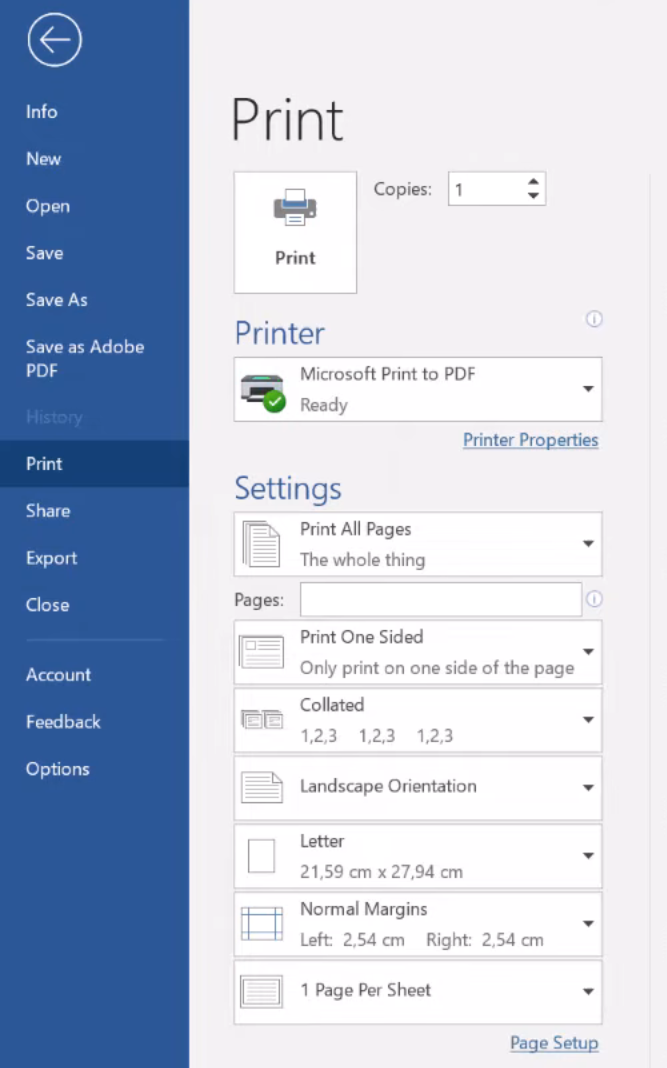
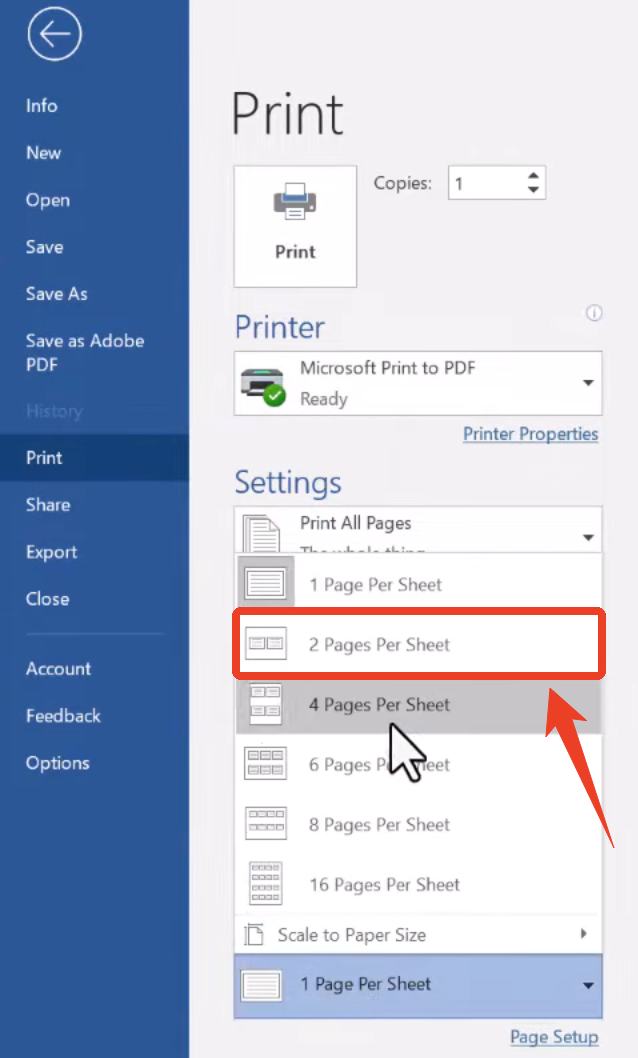
Step 3: Look for Pages per sheet in the print settings area. Depending on your printer driver, this option might appear under Layout, Multiple, or Page Setup. This is where you can print 2 pages per sheet after the configuration.
Step 4: From the dropdown menu, select 2 Pages Per Sheet. Here, you can complete the core setup for two pages per sheet printing.
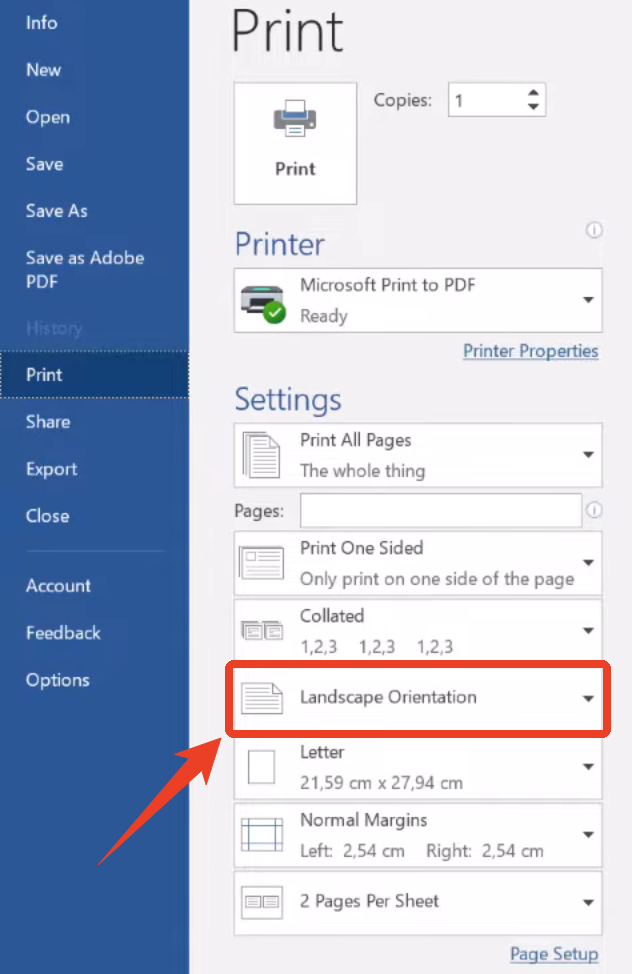
Step 5: Change the orientation to Landscape. This ensures the two pages display side by side clearly, which is essential for readable n-up printing.
Step 6: Check the Page border or Frame box if you want thin lines separating the two pages. This makes your print multiple pages per sheet output easier to read.
Step 7: Review the print preview carefully. Confirm both pages fit completely without cropping. Click Print to finish.
Also See: How to Print Multiple PDFs at Once on Windows & Mac
Method 2: Print from Browser (Chrome, Edge, Firefox)
Here is another method to print two pages on one sheet from browser, such as Chrome, Edge, Firefox. Browsers include built-in support to print two pages on one sheet PDF, so you don’t need to save the page as a PDF first.
Step 1: Navigate to the page you want to print in Chrome, Edge, or Firefox, and press Ctrl + P to open the browser’s print interface.
Step 2: In the Print page, set the Pages per sheet option as 2. This enables print multiple pages per sheet directly from your browser.
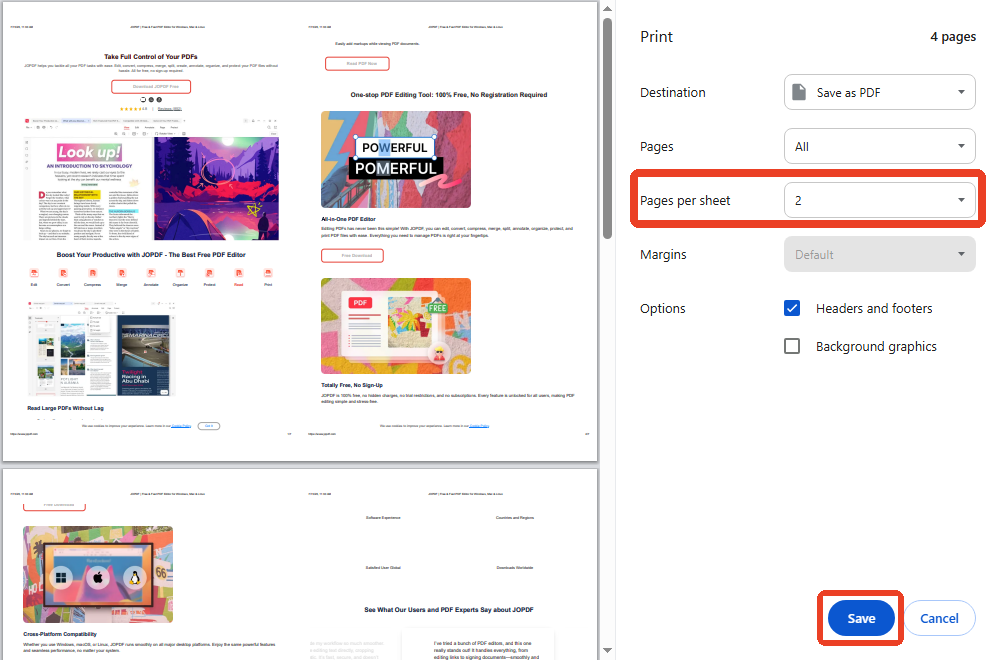
Step 3: Choose your printer and select Save to store the two pages per sheet layout for later use.
Also See: Ultimate Guide on How to Print Poster Size in PDF – 4 Ways
Method 3: Print After Editing in a Desktop PDF Editor
Sometimes your PDF needs cleanup before printing. Extra blank pages, inconsistent orientations, and large file sizes all hurt your results when you print two pages per sheet as a PDF. JOPDF, a Windows desktop PDF editor, handles this preprocessing efficiently.

JOPDF – The Best Free PDF Editor
 User Rating: 4.8
JOPDF Is a 100% free POF editor for Windows, macOS, and Linux. Edit text, add images, annotate, sign, and more. No limits, no ads, no subscriptions, Fast, simple, and powerful, take full control of your PDFs in seconds!
JOPDF is a full-featured PDF editing application that runs natively on your Windows PC. Unlike online tools that require you to upload files to a remote server, JOPDF processes everything locally. This means faster performance on large files and complete privacy for sensitive documents.
How to print 2 page in 1 paper? Follow these steps:
Step 1: Launch JOPDF and choose Print PDF to select your file to print.
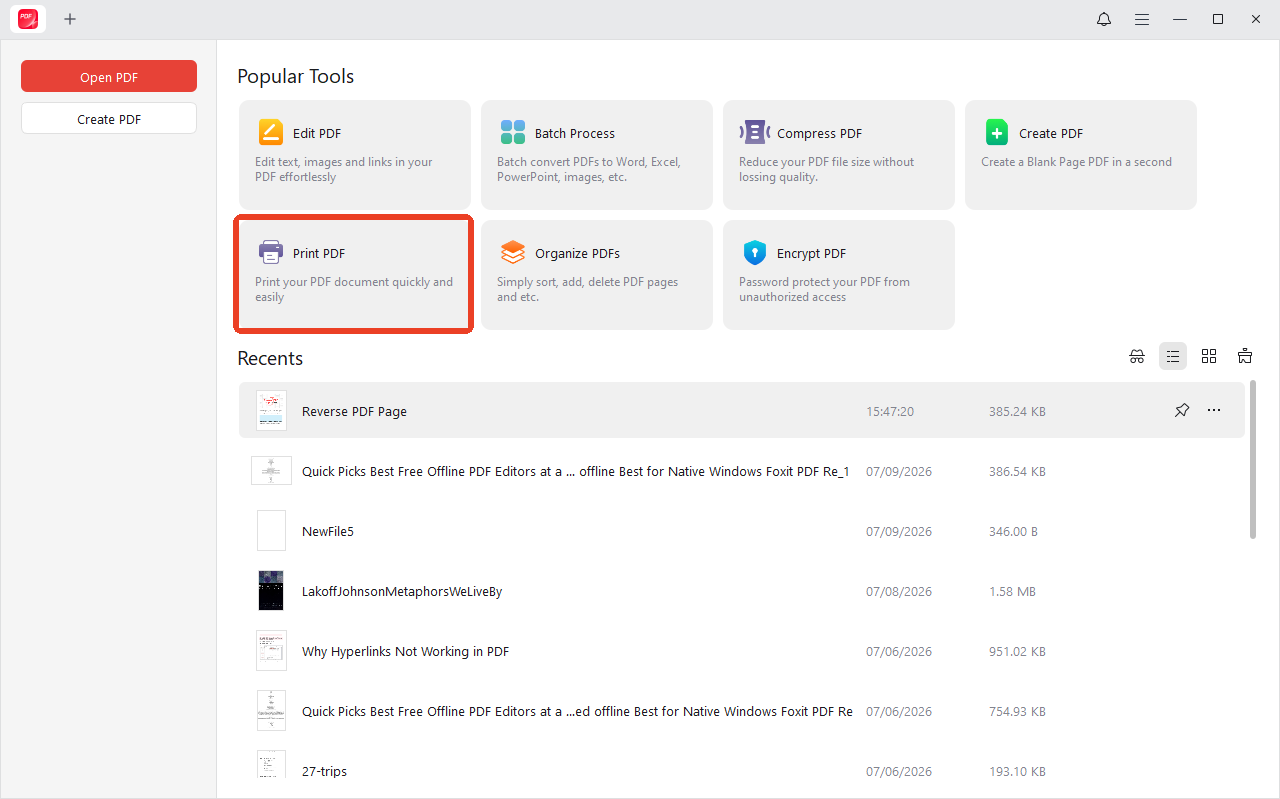
Step 2: In the new window, click Multiple under the Page Sizing & Handling section and choose the 2 option next to Pages Per Sheet.
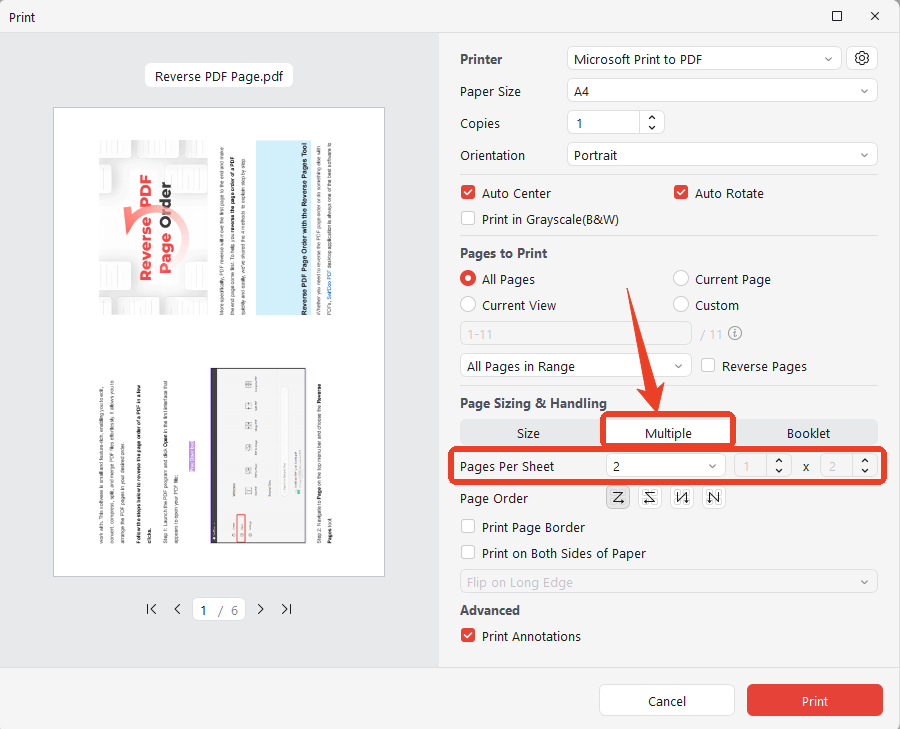
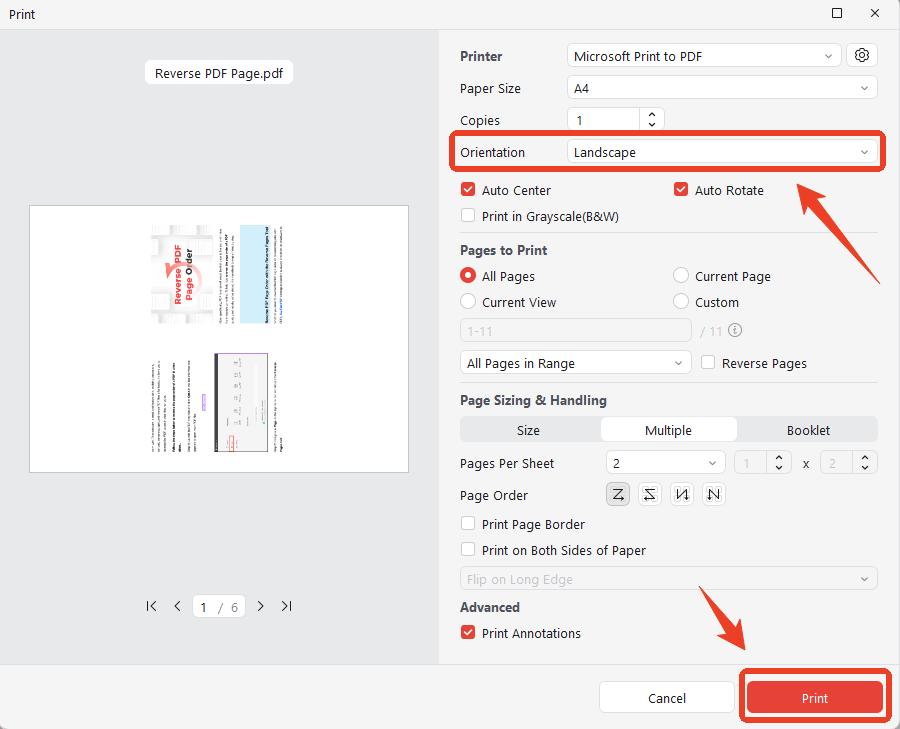
Step 3: Configure other settings and select the Orientation option as Landscape. Click Print to print 2 pages on one page.
For workflows that involve printing two pages on one sheet, JOPDF’s most useful capabilities include page deletion, rotation, merging, splitting, and compression. It also converts Word and Excel files into PDFs, so you can prepare content from almost any source to print 2 pages on one sheet.
Here’s how to prepare your PDF for perfect two pages per sheet printing.
Step 1: Launch JOPDF and load your PDF file.
Step 2: In the Page tab, select and delete blank pages, ads, or any content you don’t need printed.
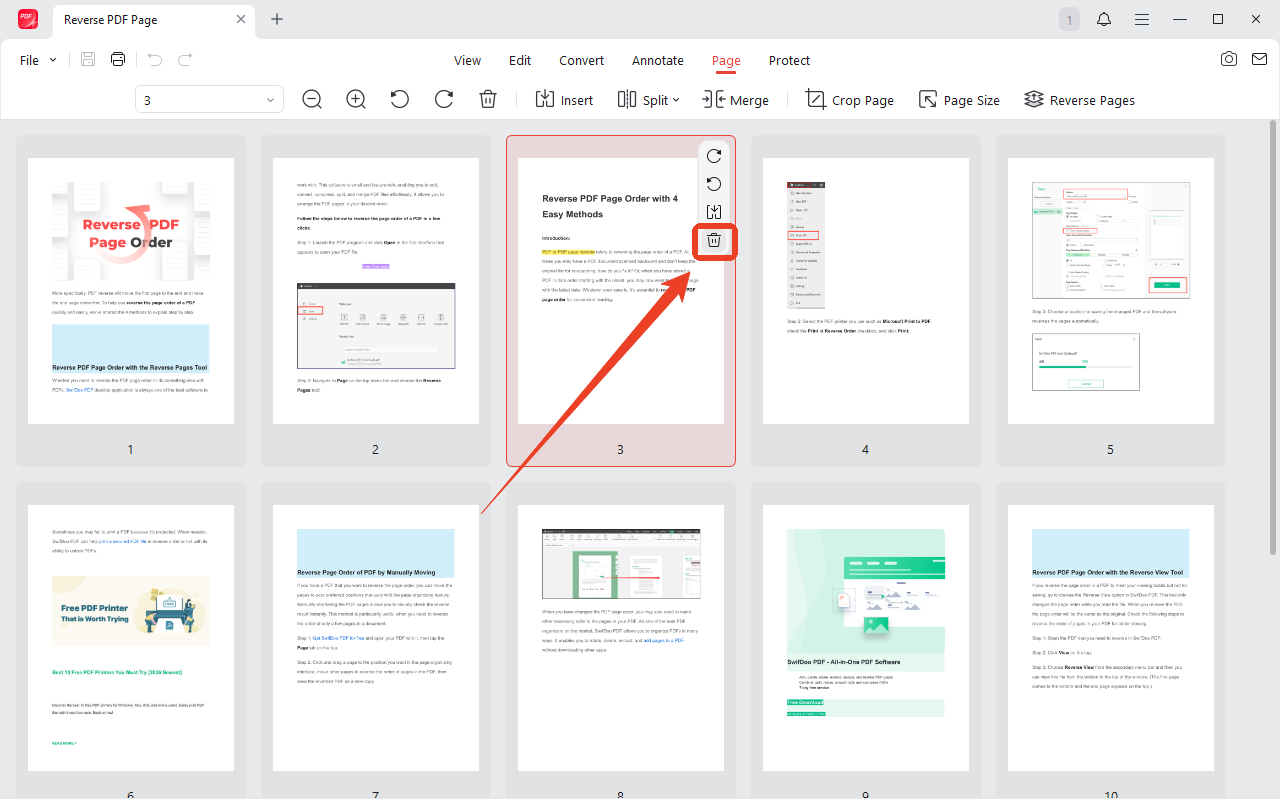
If some pages are portrait and others landscape, rotate them so all pages share the same orientation. This ensures consistent output when you print multiple pages per sheet.
How to Print Two Pages on One Sheet on Mac
Mac users have streamlined options for how to print two pages on one sheet. The Mac print dialog provides a unified “Layout” setting for configuring print two pages on one Sheet on a Mac. It works in Preview, Pages, Keynote, and Safari. The following steps can help you print 2 pages per sheet on macOS. Besides, JOPDF also offers PDF printer for Mac.
Step 1: Open your PDF in Preview and press Cmd + P to open the print dialog.
Step 2: In the print dialog, find the dropdown menu that shows the current application name (like Preview). Click it and select Layout.
Step 3: Find Pages per Sheet and choose 2. Then, click the orientation icon and select Landscape.
Step 4: Check the Border option to add thin separator lines between pages. This improves readability for two pages per sheet printing.
Step 5: Choose Save as PDF to keep a PDF two pages per sheet copy.
How to Print Two Pages on One Sheet on Mobile (Android & iPhone)
Mobile printing for how to print two pages on one sheet is possible but depends on the app and printer support. Here are the methods for each platform.
Method 1: Print Directly from Android
Most Android devices include print services that support a 2 pages in 1 sheet print layout.
Step 1: Open the File or Image
Open your document in Files, Google Drive, or your preferred app.
Step 2: Tap the Menu and Select Print
Tap the three-dot menu or share icon, then choose “Print.”
Step 3: Locate Pages Per Sheet Option
Expand “More settings” or “Advanced.” Look for “Pages per sheet,” “Layout,” or a similar label.
Step 4: Set to 2 Pages Per Sheet
Select “2.” The preview updates to show your layout with two pages on one sheet.
Step 5: Select Printer and Print
Confirm your printer is connected and tap the print button.
If your current app lacks the “Pages per sheet” option, export the file as a PDF first, then open it in Google Drive or Adobe Acrobat Reader. These apps typically support to print 2 pages on one sheet on Android.
Method 2: Print from iPhone or iPad
iOS uses AirPrint for printing two pages on one sheet wirelessly.
Step 1: Open the File
Open your PDF or document in Apple Books, Files, or Adobe Acrobat.
Step 2: Tap Share and Select Print
Tap the share icon, then choose “Print” from the action menu.
Step 3: Check Layout Options
In the print preview, look for “Layout” or “Pages per Sheet.” The availability of this setting varies by app.
Step 4: Set to 2 Pages Per Sheet
Choose “2” to enable the option to print multiple pages per sheet on your iPhone or iPad.
Step 5: Print via AirPrint
Select your AirPrint-compatible printer and tap “Print.”
If an app doesn’t show the option to print two pages on one sheet, open the file in Apple’s Files app and use its native print function. The system-level print interface usually includes settings for how to print multiple pages on one sheet.
Final Thoughts
Mastering how to print two pages on one sheet is a small skill with big returns. Windows users have three solid methods — system dialog, browser printing, and JOPDF pre-processing. Mac users get the job done through the unified Layout settings. Mobile users can print on the go with Android and iOS built-in tools. Each platform delivers reliable results when you need to print two pages on one sheet once you know where to find the settings.
FAQs
JOPDF is an excellent choice for Windows users. It lets you edit, clean up, and optimize PDFs before applying settings to print multiple pages per sheet.
Print two pages on one sheet setting combined with duplex printing. This puts four pages on one sheet of paper. Also, preview before printing and delete unnecessary pages with a tool like JOPDF.
Table of Contents

Your Best Free PDF Expert in PDF editing, compressing, converting, annotating, protect, organizing, and more.
Free DownloadWindows · macOS · Linux

Anna
Editor
“Anna, Editor-in-Chief and PDF expert, delivers deep insights into PDF document technology trends. She is dedicated to helping readers optimize their digital lives. When not writing, Anna loves exploring local cafes and reading, blending her technical expertise with a love for storytelling.”