Introduction :
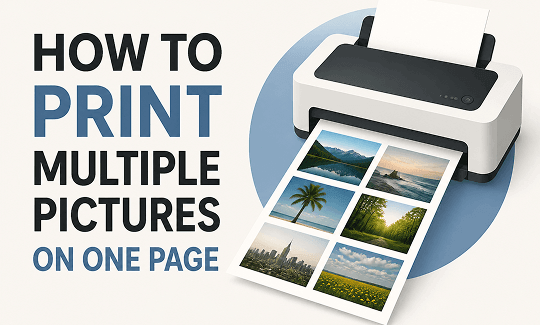
Printing multiple pictures on one page is a great way to save paper, reduce printing costs, and create photo collages or scrapbook layouts. Whether you’re using Windows or Mac, most devices offer built-in tools that let you arrange several photos on a single sheet before printing. In this article from JOPDF, let’s learn how to print multiple pictures on one page.
Why Print Multiple Photos on One Page?
There are several reasons for choosing to print multiple photos on a single sheet. Let’s have a look. If you only need the exact instructions, just skip this section.
- Save paper and ink.
- Create photo collages.
- Organize school or work projects.
- Print contact sheets.
- Prepare scrapbook pages.
How to Print Multiple Pictures on One Page in Windows 11/10
Windows provides one of the easiest ways to print multiple photos on a single page. It includes built-in photo-printing tools that make it easy to arrange multiple photos on a single sheet. In addition, it offers multiple layouts, and you can choose one based on how many photos you want to print. Here, let’s learn how to print multiple photos on one page on Windows.
Step 1. Open File Explorer, locate the pictures you want to print, and hold Ctrl to select the target pictures.
Step 2. Right-click on one of the selected pictures and select the Print option.
Step 3. Then the Print Pictures window will appear. In the right panel, you can find the layout options, including:
- Full page photo
- 4 × 6 in. (4)
- 5 × 7 in. (4)
- Wallet (12)
- Contact sheet (60)
Select a layout as needed.
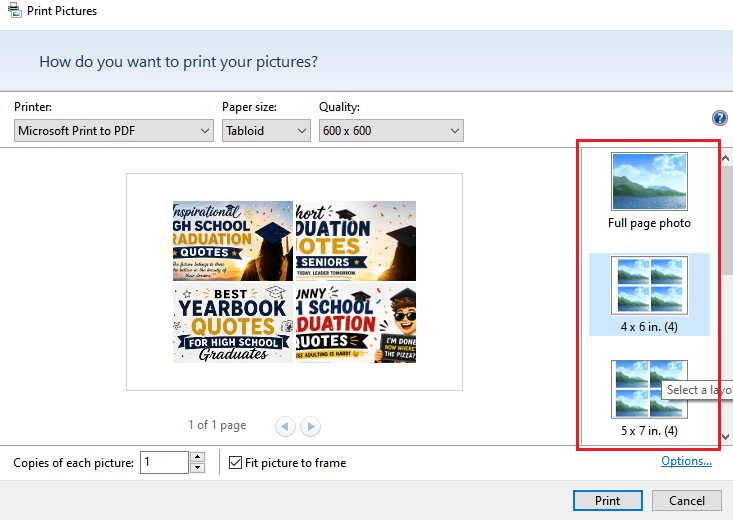
Step 4. Then you can configure other settings, such as the printer, paper size, and print quality. Once everything is OK, click the Print button to begin printing.
Use JOPDF for More Flexible Multi-Photo Printing
If the standard print layouts don’t provide enough flexibility, you may want a tool that allows greater control over photo placement and page design. JOPDF can help you create customized printable layouts before sending them to your printer.
With JOPDF, you can:
- Create a PDF and insert images into a PDF
- Merge multiple images into a single PDF document
- Arrange photos in custom layouts
- Create contact sheets and photo collections
- Adjust page size, orientation, and margins
- Save your layout for future printing
This is especially useful when you want to print different-sized photos on one page or create a professional-looking photo sheet that standard print dialogs cannot easily produce. How to make flexible multi-photo printing using JOPDF? Here’s a simple workflow for your reference:
Step 1. After installing JOPDF on your Windows or Mac PC, launch it to access its main interface.
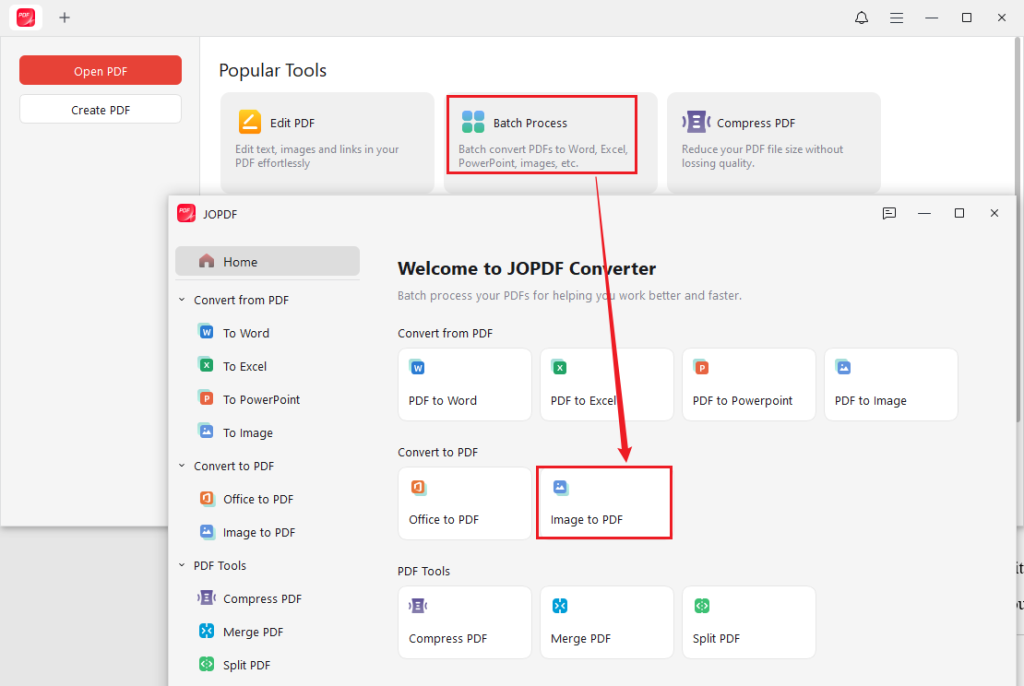
Step 2. Go to Batch Process > Image to PDF, then click Add Files to upload your images to JOPDF.
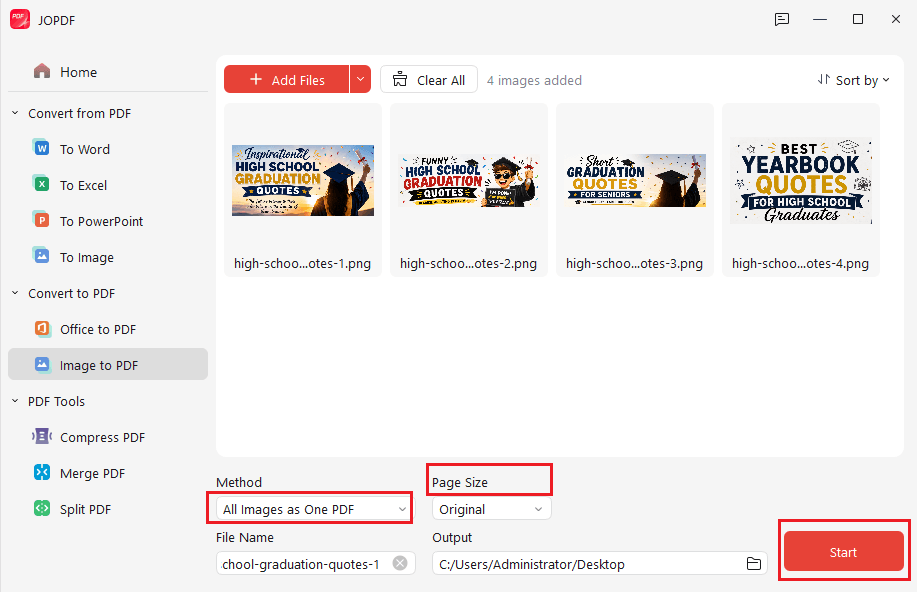
Step 3. Set “All Images as One PDF” as Method and customize the paper size as needed. Then click Start to enable the conversion. Once the process is over, the new PDF will open in JOPDF.
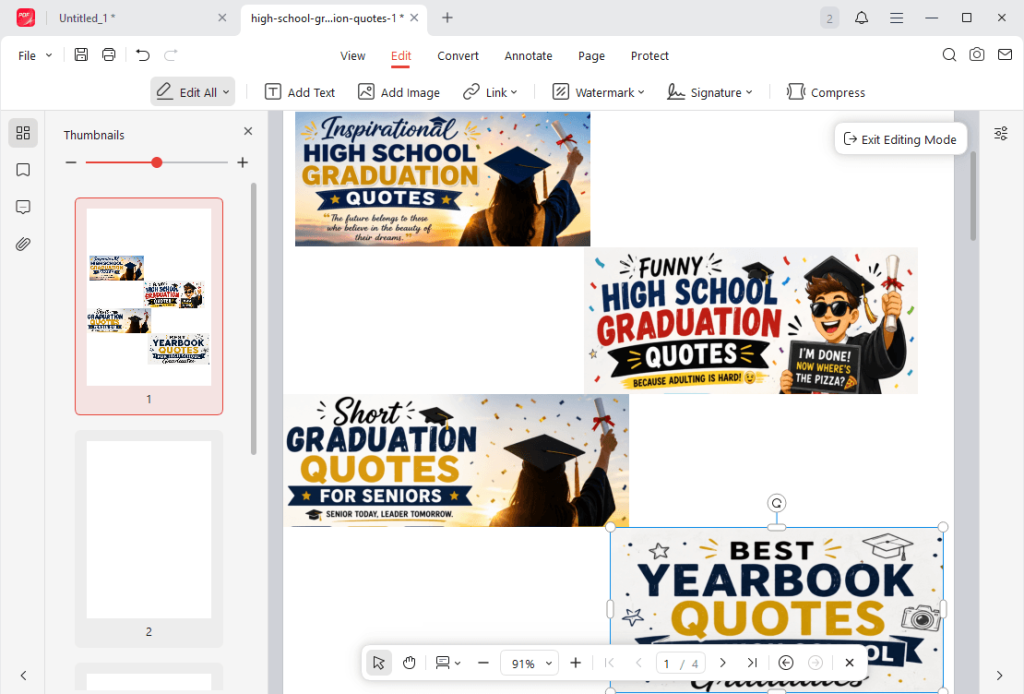
Step 4. Now, you can arrange the photos as needed. For instance, you can drag the edge handle to adjust the image size or drag the target image to adjust its position. Meanwhile, JOPDF lets you edit images in a PDF.
Step 5. Next, press Ctrl/Cmd + P to enable the print dialog. Here, you can use your preferred printer settings.
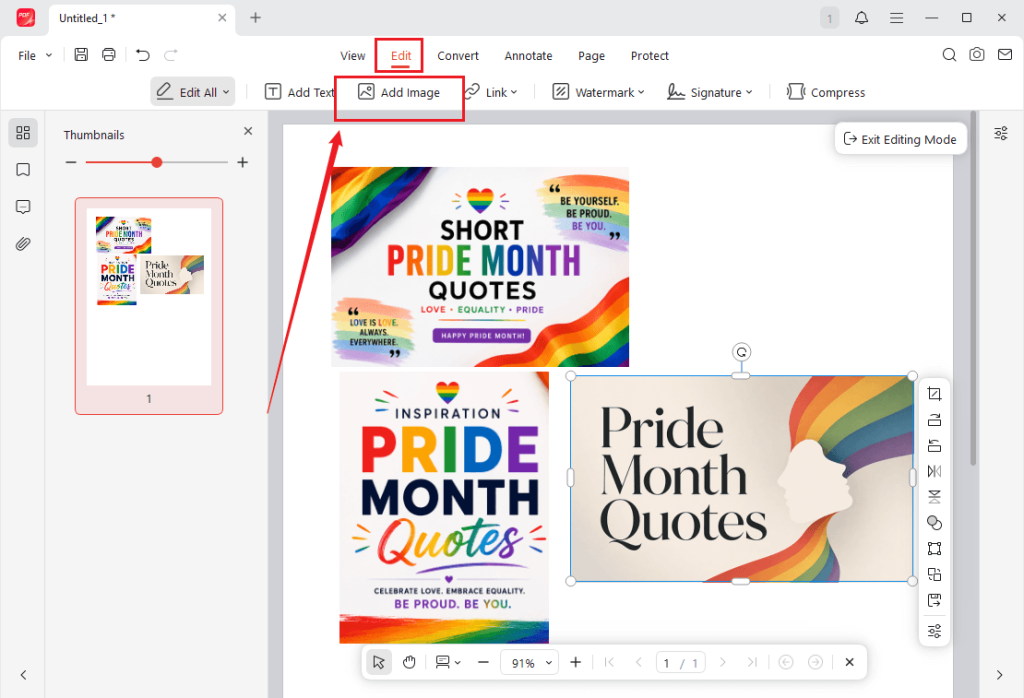
Alternatively, you can create a new PDF and insert all desired photos into it. After launching JOPDF, click Create PDF, switch to the Edit tab, and click Add Image to import the target image. Then, you can adjust the image size and location. Next, repeat the operation to upload other photos. Once OK, click the Print icon to print the PDF with multiple images.
How to Print Multiple Pictures on One Page on a Mac
Mac users can also print several photos on a single sheet without installing additional software. Preview includes layout settings that allow you to control how many images appear on each page. With Preview, you can print multiple photos on one sheet. Below is how to print multiple pictures on one page using Preview.
Step 1. Select the desired images in Finder, right-click, and choose Open With > Preview.
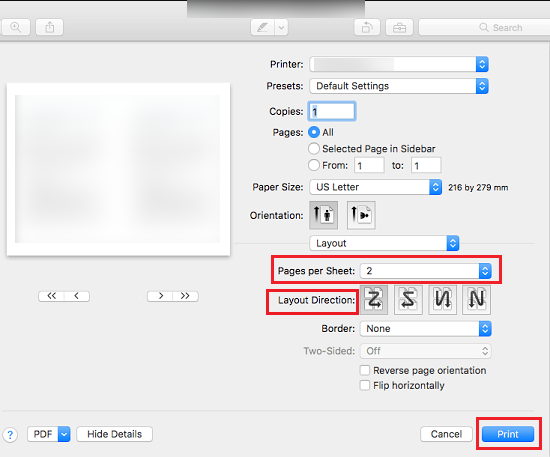
Step 2. Click File and select Print to open the Print dialog. Then choose Layout from the dropdown menu.
Step 3. Next to Pages per Sheet, select how many images you want on one page. Meanwhile, select a Layout Direction and customize other print settings. Once satisfied, click Print.
In addition to printing images, Preview also allows you to print a PDF on Mac effectively.
How to Print Multiple Pictures on One Page as a Contact Sheet
If you are a photographer, designer, or anyone who needs to review large image collections, printing multiple images on one page as a contact sheet is especially useful. A contact sheet is one of the most efficient ways to display many photos at once. How to create a contact sheet on Windows? Here’s a guide for you:
Step 1. Select multiple images.
Step 2. Right-click and choose Print.
Step 3. Scroll down to select the “Contact sheet (60)” option from the layout options.
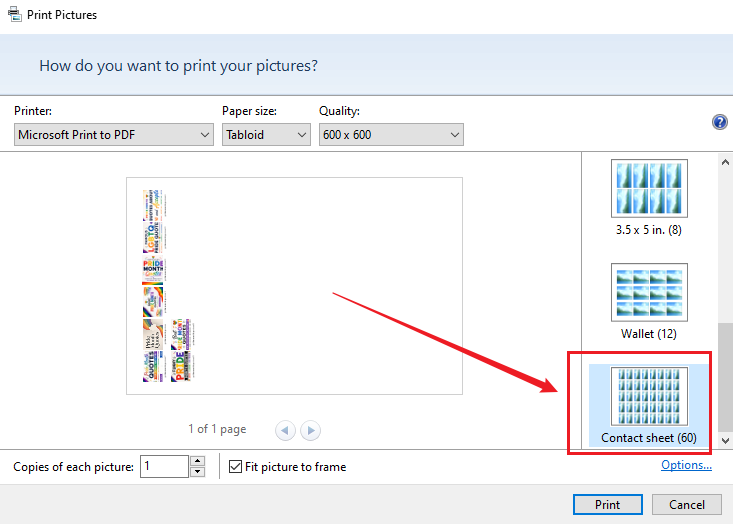
Step 4. Adjust other settings as needed. Finally, click Print. Then, Windows automatically generates a page containing thumbnails of all selected photos.
Best Settings for High-Quality Photo Printing
Choosing the right print settings can dramatically improve the appearance of your photos. Before printing, it’s worth reviewing a few key settings to ensure the best possible results.
- Choose the right paper: glossy paper is better for printing pictures. Because glossy paper often provides sharper detail, better contrast, and more vibrant colors.
- Use high-resolution images: to get high-quality photo printing, you’d better use images with at least 300 DPI.
- Select high print quality: in the printer settings, choose high quality or best mode for photo printing.
- Check scaling options: avoid excessive enlargement.
Conclusion
Printing multiple pictures on one page is a practical way to save paper, organize photos, and create custom layouts for personal or professional use. With the right tools and settings, the process is straightforward on virtually any device. How to print multiple pictures on one page? Windows provides built-in photo printing layouts, and Mac offers Preview to print multiple photos on one page. If you want more customization, consider JOPDF, which offers an easy way to combine images into a PDF, create custom layouts, and ensure consistent printing results across devices. Now, it’s your time to have a try!
FAQs
Table of Contents

Your Best Free PDF Expert in PDF editing, compressing, converting, annotating, protect, organizing, and more.
Free DownloadWindows · macOS · Linux

Olivia
“Olivia is an editor at JOPDF, where she writes practical guides and insightful articles on managing PDFs—covering topics like editing, annotating, converting, and organizing files efficiently. Passionate about clear communication and digital productivity, Olivia enjoys spending her free time cooking, watching movies, and hiking to unwind and find inspiration for her writing.”