Introduction :
Adding page numbers to a PDF can make long documents easier to navigate. Adobe Acrobat is a professional PDF editor that lets you add page numbers using the Header and Footer feature. Additionally, both its desktop and online versions allow you to number PDF pages. How to add page numbers in Adobe Acrobat? In this tutorial from JOPDF, I’ll show you the step-by-step guidance and recommend a free way to insert page numbers into a PDF.
How to Add Page Numbers in Adobe Acrobat
As one of the best PDF editors for Windows and Mac, Adobe Acrobat offers a full set of editing features to edit, annotate, and organize PDFs. You can use its Header and Footer feature to add page numbers to an existing PDF effectively. Additionally, it allows you to insert page numbers and customize their position, formatting, and appearance. Here, let’s learn how to number PDF pages in Adobe Acrobat.
Tips
If you need a free way to number PDF pages, Adobe Acrobat can’t be your choice. JOPDF, a free Adobe Acrobat alternative, can help you insert page numbers into a PDF with ease.
Step 1. Open Your PDF in Adobe Acrobat
Launch Adobe Acrobat Pro on your PC and go to File > Open to import the document you want to add page numbers to.
Step 2. Open the Header and Footer Tool
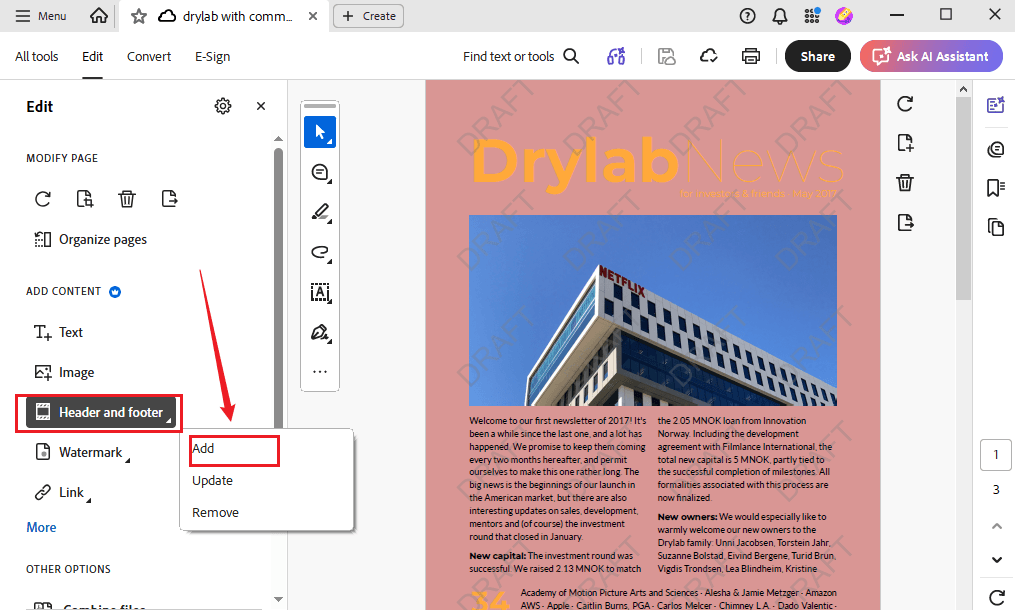
After opening the target PDF file, click Edit from the top menu, select “Header and footer”, and click Add. Then, Adobe Acrobat will open the Header and Footer settings panel.
Step 3. Choose Where to Add the Page Number
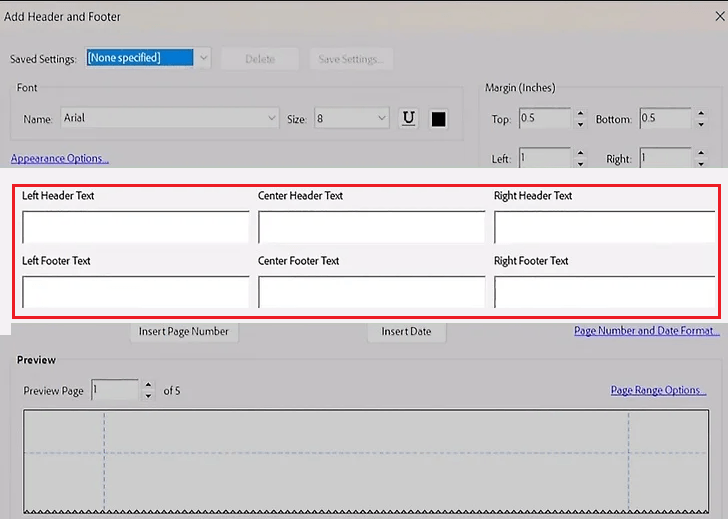
In the Header and Footer settings panel, select where you want to add the page number. For example, you can select from positions such as top left, top center, bottom right, and others. For most documents, the bottom center or bottom right is a convenient choice.
Step 4. Insert and Format the Page Number
After choosing the desired location for page numbers, select the Insert Page Number option. Then Adobe Acrobat will insert a page-number placeholder into the selected header or footer field. Next, you can customize the appearance of the page number. For instance, you can customize the font, font size, alignment, text style, and page-number format.
Step 5. Choose the Pages to Number
Sometimes, you need to add page numbers to specific pages in Adobe Acrobat instead of numbering the entire page. In that case, click the Page Range Options link, select “Page from”, and enter the start and end page numbers. Then, click OK to close the Page Range Options.
Step 6. Set the Starting Page Number
If you don’t want the first numbered page to display 1, enter the desired starting number in the Start Page Number field.
Step 7. Preview and Apply the Page Numbers
Finally, check the preview and click OK to apply the page numbers. If you need to remove numbers from certain pages, go to Header and footer > Remove or click Update to edit the page numbers.
How to Add Page Numbers to a PDF Online with Adobe Acrobat
If you don’t have Adobe Acrobat installed, you can use Adobe Acrobat Online to add page numbers through your web browser. It offers a dedicated Number pages feature to number PDF pages. Below are the exact steps for your reference.
Step 1. Open your browser, visit Adobe Acrobat Online, and sign in with your Adobe account.
Step 2. Go to All tools, select the Number pages tool, and upload your PDF file by dragging and dropping.
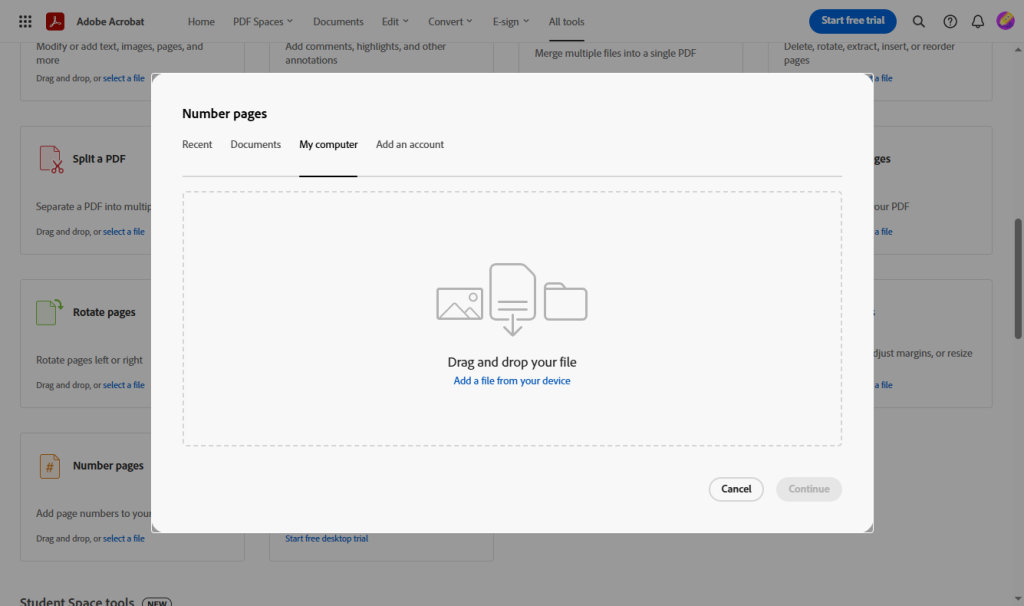
Step 3. Once the PDF file is uploaded, the Number pages panel will appear on the left side. Now, you can click to select the position of the page numbers, set the page range and desired starting number, and customize the appearance of page numbers. Then, click the Save button.
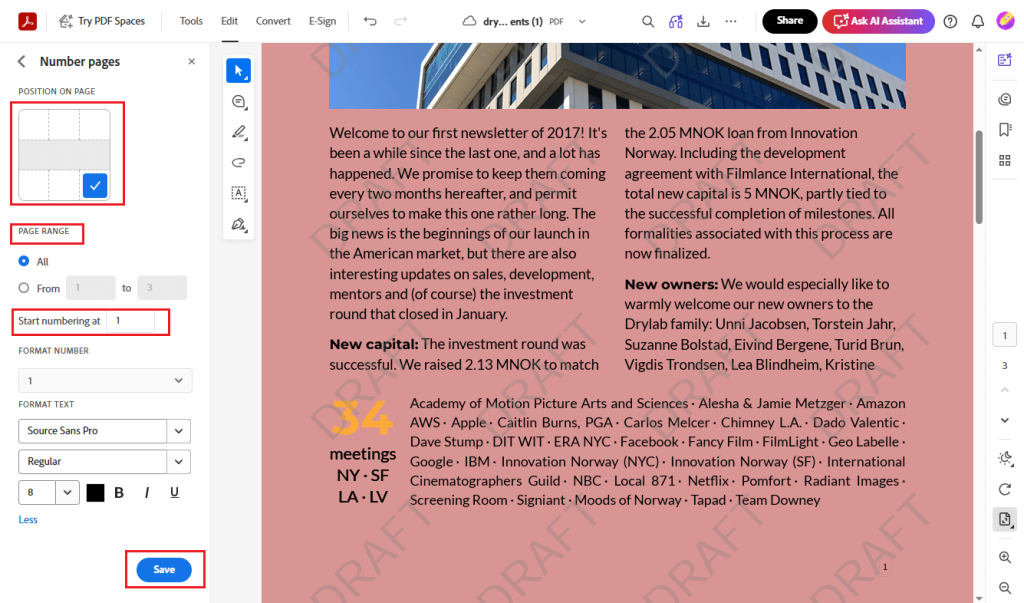
Step 4. Finally, click the Download icon to save the PDF file with page numbers.
Can You Add Page Numbers in Adobe Acrobat Reader
Adobe Acrobat Reader is the free version of Adobe. Can you add page numbers in Adobe Acrobat Reader? No, it doesn’t offer the feature for numbering PDF pages. It is primarily designed for viewing, printing, commenting on, filling out PDF forms, and signing PDFs.
Free Way to Add Page Numbers to a PDF Without Adobe Acrobat
To add page numbers to a PDF, you need to subscribe to Adobe Acrobat Pro. If you don’t have Adobe Acrobat or need a free way to number PDF pages, you can consider Adobe Acrobat alternatives. JOPDF is a free alternative worth trying. It enables you to add page numbers to a PDF for free and offers customization options for page numbers. Additionally, it is beginner-friendly. Below are instructions for numbering PDF pages for free with JOPDF.
Step 1. Click the button below to download and install the best free PDF editor on your PC, then launch it to open its main interface.
Step 2. Select Edit PDF from Popular Tools, locate the target PDF file, and click Open to import it.
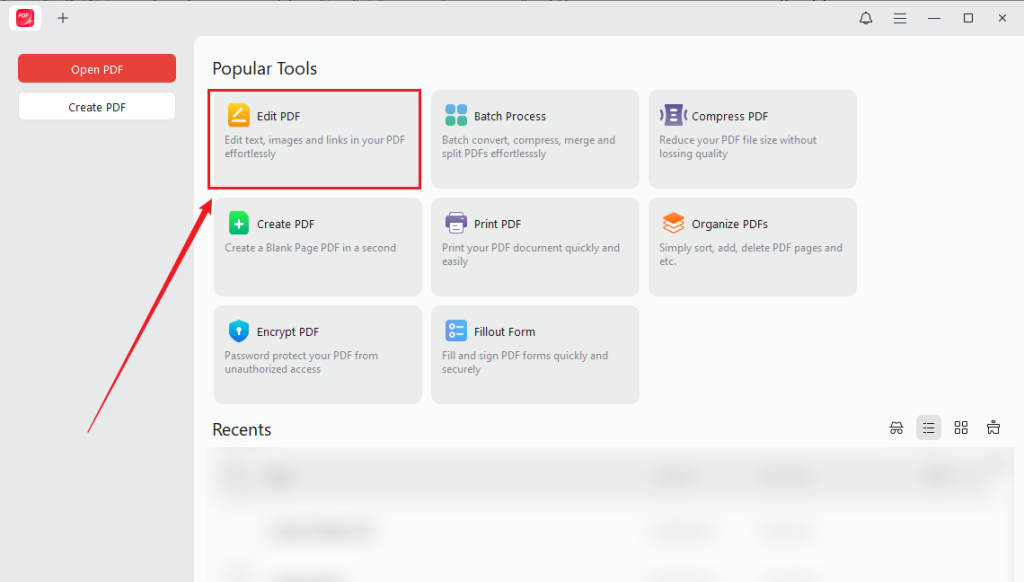
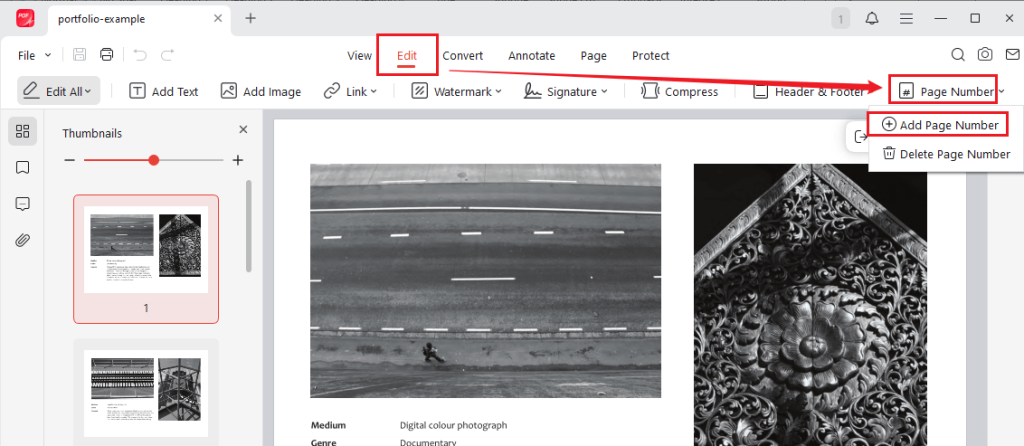
Step 3. Under the Edit tab, click Page Number and select Add Page Number.
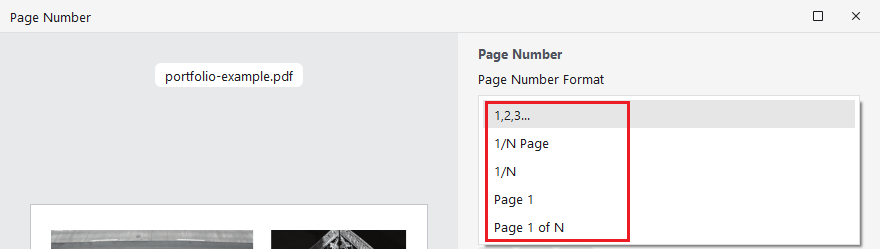
In the Page Number window, open the Page Number Format and select the preferred one.
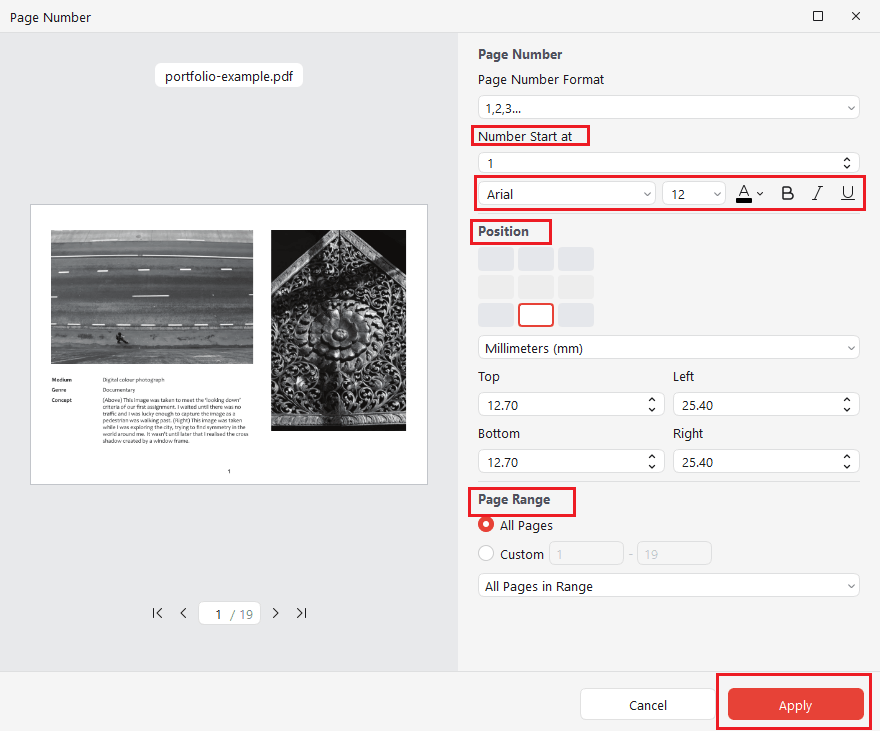
Then, set the page number to start at 1 or other values. Here, you can change the font, font size, and other page-number appearance settings. Under Position, click to select the desired position to place page numbers. Additionally, you can customize the margins and page range. Next, click the Apply button to save the changes.
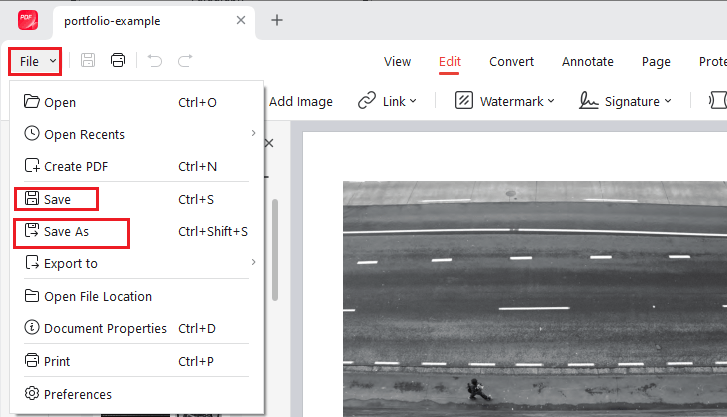
Step 4. Lastly, go to File to select Save or Save As to save the PDF file with page numbers.
In addition to adding page numbers to PDFs, JOPDF offers a wide range of features. Below are some highlighted features of this free PDF editor:
- It can rearrange PDF pages and insert or remove pages from a PDF.
- It can edit text and images in PDFs.
- It allows you to create and add watermarks to PDFs.
- It supports filling out and signing PDF files.
- It offers the feature for extracting PDF pages.
- It supports converting PDFs to and from DOCX, XLSX, and other formats.
- It enables you to split and merge PDFs.
- …
Conclusion
How to add page numbers in Adobe Acrobat? Both the desktop and online versions offer the feature for numbering PDF pages. In this article, I provide step-by-step instructions. You can follow the guidance to insert page numbers into PDFs effectively. If you want to number PDF pages for free, JOPDF is the best choice! Now, it’s your time to have a try!
FAQs
Table of Contents

Your Best Free PDF Expert in PDF editing, compressing, converting, annotating, protect, organizing, and more.
Free DownloadWindows · macOS · Linux

Olivia
“Olivia is an editor at JOPDF, where she writes practical guides and insightful articles on managing PDFs—covering topics like editing, annotating, converting, and organizing files efficiently. Passionate about clear communication and digital productivity, Olivia enjoys spending her free time cooking, watching movies, and hiking to unwind and find inspiration for her writing.”