Introduction:
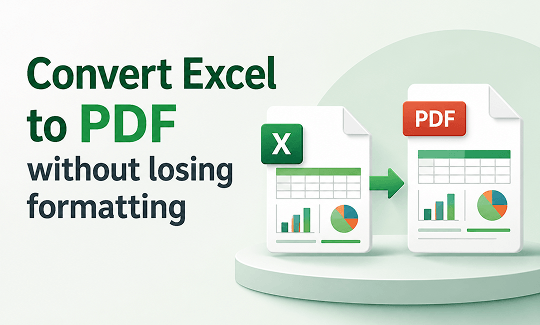
Have you ever tried to save a spreadsheet, only to find it looks terrible? If you want to know how to convert Excel to PDF without losing formatting, you have found the right guide. We will show you four simple methods to fix this problem.
Way 1. The Best Free Way to Convert Excel to PDF Without Losing Formatting
Let us start with the easiest method. Sometimes, the built-in computer tools are confusing to use. If your goal is to convert Excel to PDF without losing formatting for free, we highly recommend using JOPDF.
JOPDF is a smart desktop PDF program that supports PDF conversion. It is safe, fast, and easy to use. You can get the job done in just a few clicks.
Here is how to use JOPDF:
Step 1. Download the free software and install it on your computer.
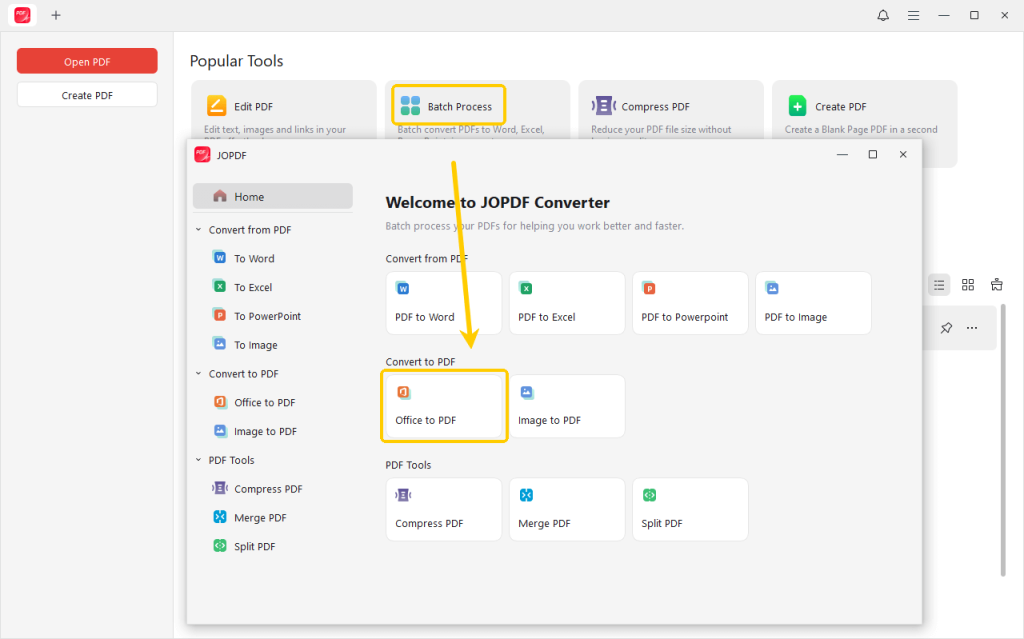
Step 2. Open the program. On the main screen, click Batch Process and choose Office to PDF.
Step 3. Then, add the document you want to convert. JOPDF allows you to batch convert Excel to PDF. So, you can drag and drop ten or twenty files into the program.
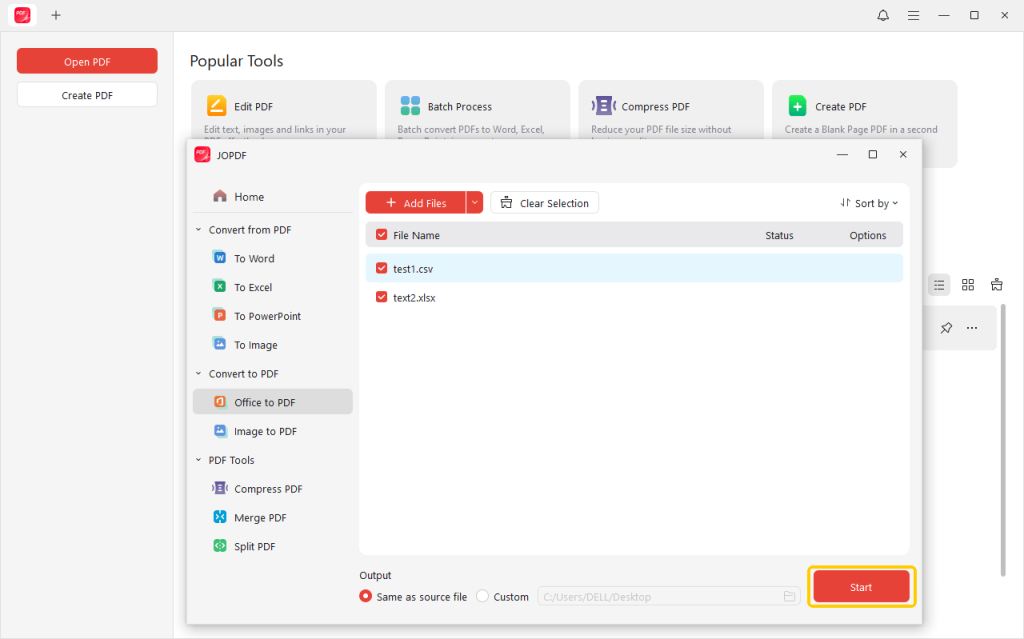
Step 4. Confirm the output path and click the Start button. The software will process your file and save the new document to your computer. Your table will look exactly how you want it to look.
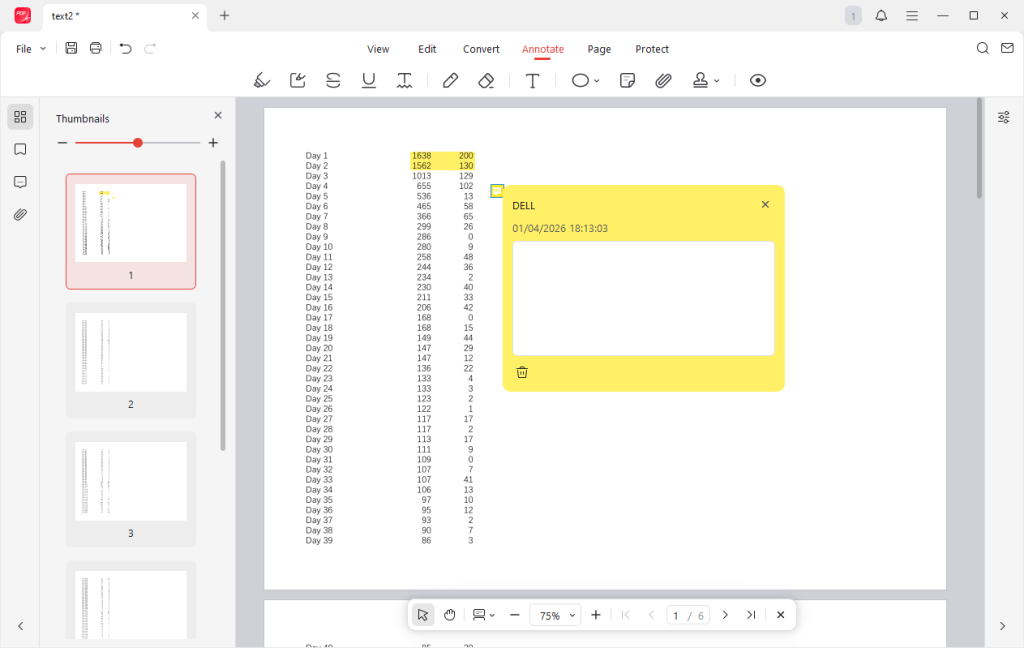
In fact, JOPDF is not just a one-time converter. It is a complete and free PDF editor. This means you have total control over your file, even after it has been changed.
- What if you notice a spelling mistake in your new document? You do not have to start all over. You can use JOPDF to fix the text directly.
- If you have too much empty white space around your table, you can easily crop a PDF to make the page look neat and professional.
- You can also add highlights, type new notes, or even sign your name with a digital pen.
JOPDF offers various tools that make handling documents in daily life very easy. Just download JOPDF and have a try!
Way 2. Use Microsoft Excel’s Export Feature
What if you want to stay inside your spreadsheet program to do the work? You can easily do that. Microsoft Excel has a special “Export” button just for this job.
However, there is a secret to using this button correctly. You must tell the program how to fit your giant table onto a small page before you click export. If you take five minutes to adjust some basic options first, you can convert Excel to PDF without changing formatting at all.
Follow these simple steps:
Step 1. Look at the Page Layout
Open your spreadsheet. At the very top of your screen, click the Page Layout button. This view shows you a preview of how your data will look on real paper. You will easily see if a column is falling off the edge.
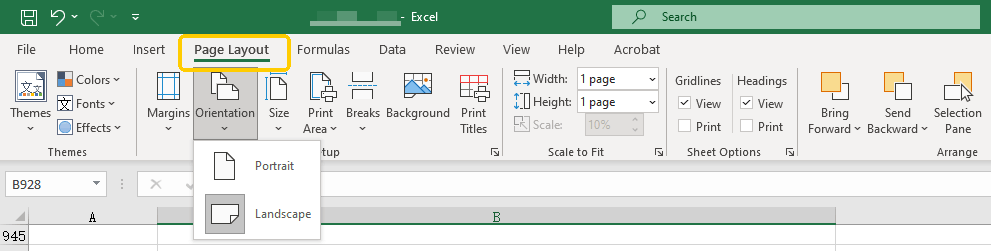
If you want to convert Excel to PDF in landscape, please select the Landscape option.
Step 2. Tell Excel What to Save
You probably do not want to save the entire endless spreadsheet. Please highlight the exact cells and boxes you want to keep.
Then, go to the Page Layout tab at the top. Click on Print Area, and then select Set Print Area. Now, the computer knows exactly what parts to focus on.
Step 3. Shrink to Fit
This is the most important step. Stay on the Page Layout tab. Look for a section called Scale to Fit. You will see an option for “Width“. Click the little arrow next to it and change it from “Automatic” to “1 page“.
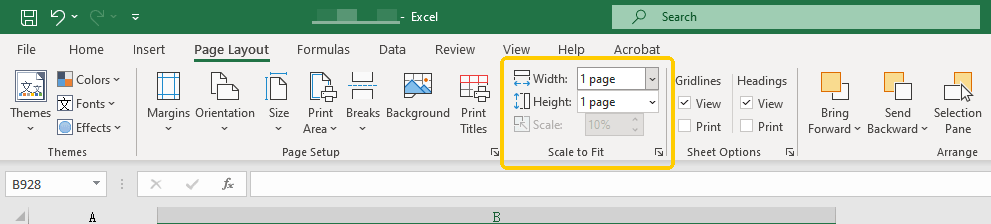
This forces the program to squeeze all your wide columns onto one single page. Your columns will never be cut off again!
Step 4. Export the File
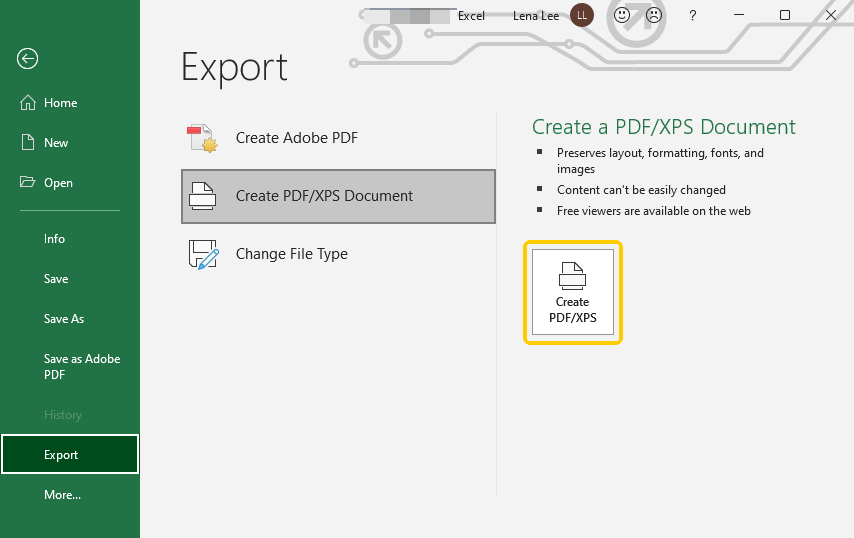
Now your table is ready. Click on File in the top left corner. Go to Export > Create PDF/XPS Document and choose where you want to save the file on your computer, and hit Publish.
Way 3. Use Microsoft Excel’s Print Feature
There is another trick hidden inside Microsoft Excel. You can use the “Print” menu to save your file.
Your computer has a fake, digital printer inside it. Instead of shooting out a piece of paper with ink, this digital printer shoots out a new file onto your screen. It is a very clever way to lock your table into place.
Here is how to use the Print tool:
Step 1. Open the Print Menu
Click on File in the top left corner of your screen. Then, click on Print.
Step 2. Choose the Fake Printer.
Under Printer, please choose Microsoft Print to PDF. If you use a Mac computer, you can select Save as PDF.
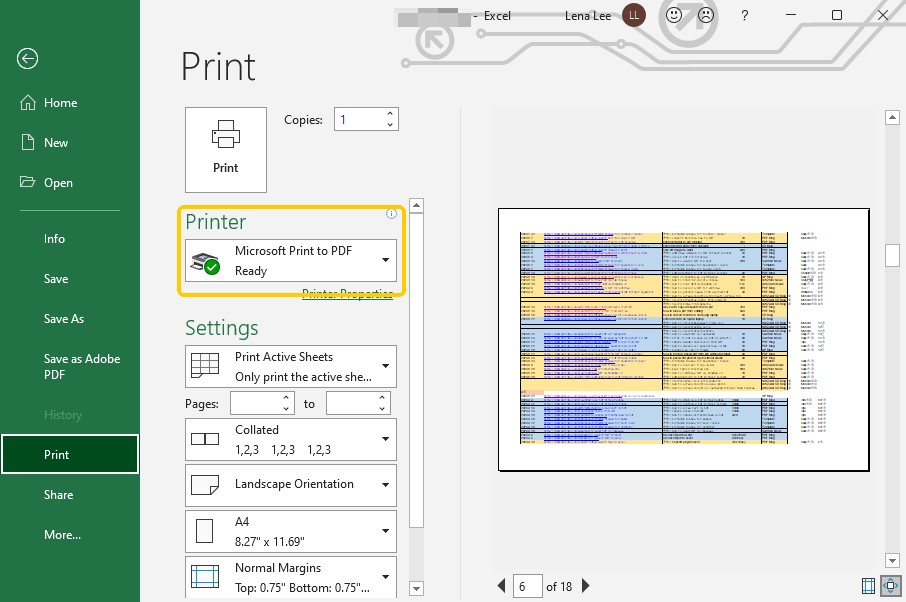
Step 3. Change the Settings.
Look at the settings on the print page. If your table is very wide, change the paper direction from “Portrait” (tall) to “Landscape” (wide).
Step 4. Squeeze the Columns
Look at the very bottom of the settings list. Click the final drop-down menu and choose Fit All Columns on One Page. This does the exact same magic as Method 2. It shrinks your data so nothing spills over the edge.
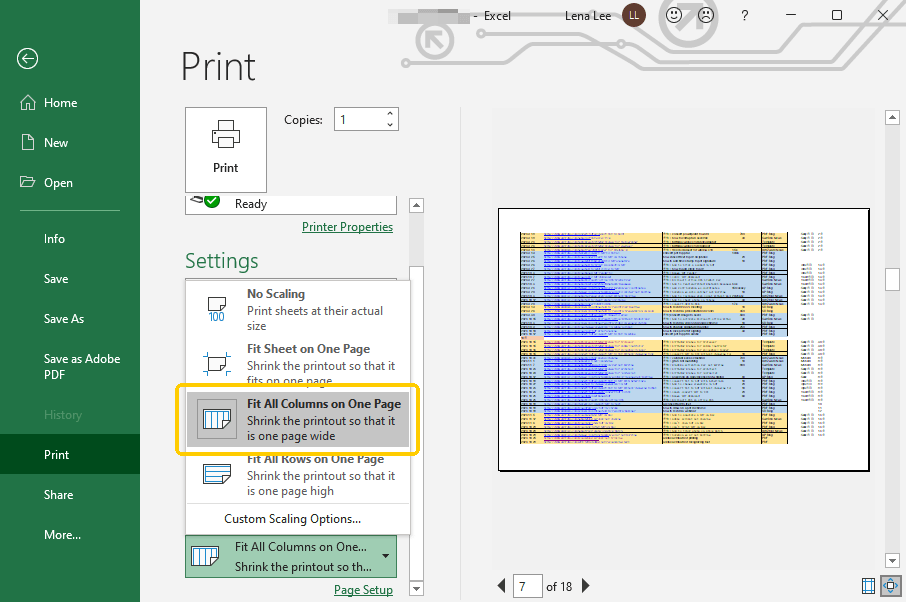
Step 5. Print and Save
Click the Print button. Pick a folder to save the PDF, give it a name, and you are done.
Way 4. Use an Online Converter
Don’t want or can’t download the software? Don’t worry! You can convert Excel to PDF without losing formatting online. There are many free websites built just for this task.
Here is how online tools work:
Step 1. Open a browser and search for a trusted online Excel to PDF converter. Here we choose SwifDoo PDF.
Step 2. Drag the file with your mouse and drop it onto the webpage.
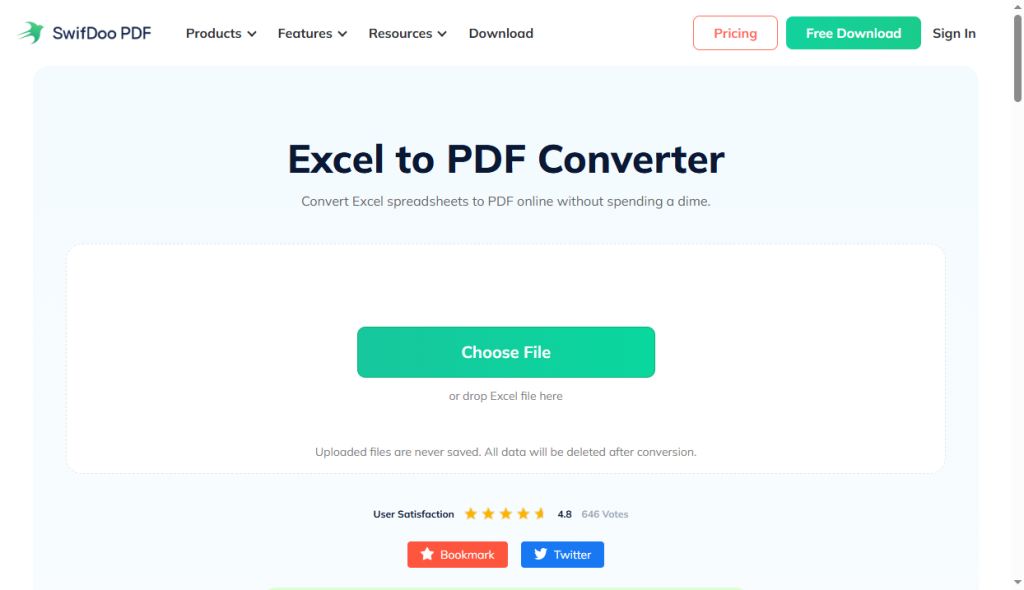
Step 3. Wait a few seconds. When it is finished, a download button will appear. Click it to save your new file.
A Quick Warning:
Online converters are very fast and easy to use. However, they are not always perfect. The website has to guess how you want your table to look.
If your table is very large or very messy, the website might still cut off some columns. For the best results, we always recommend making your table look neat in Excel first, or using a smart desktop program like JOPDF to handle the job perfectly.
Conclusion
That’s all about how to convert Excel to PDF without losing formatting. If you don’t mind the extra effort, you can adjust the settings before exporting or printing it. However, if you want a direct and reliable method, JOPDF is the smartest choice.
JOPDF can help you complete the conversion in one click. Plus, it gives you powerful tools to edit your documents. Try one of these methods today, and you will never have to worry about broken formatting again!
FAQs
Table of Contents

Your Best Free PDF Expert in PDF editing, compressing, converting, annotating, protect, organizing, and more.
Free DownloadWindows · macOS · Linux

Queena
Editor
“As a staff editor for JOPDF, Queena excels at guiding users to the optimal tools and solutions. When she's not analyzing the latest PDF solutions, she enjoys spending her free time playing with her four cats.”
![4 Free and Proven Methods to Convert PDF to ODS [Detailed]](https://b.jopdf.com/wp-content/uploads/2026/10/convert-pdf-to-ods.png)