Introduction :
Converting Excel to PDF ensures universal access, preserved formatting, better security, a professional look, smaller file sizes, and long-term use. This guide explains how to convert Excel to PDF in landscape orientation using four simple, proven methods for clean results.
Way 1. The Best Way to Convert Excel to PDF in Landscape
JOPDF is an efficient desktop program that creates neatly formatted landscape PDFs from Excel files. It processes files quickly and keeps wide content well-organized and easy to read.
Users can adjust layout settings, compress files, and achieve high-quality results with ease. It improves document workflows with batch convert Excel to PDF for easy bulk conversions.
Here are the steps to convert an Excel file to a PDF in Landscape using JOPDF.
Step 1. Download JOPDF and set it up on your Windows or Mac device. Once done, launch the software.
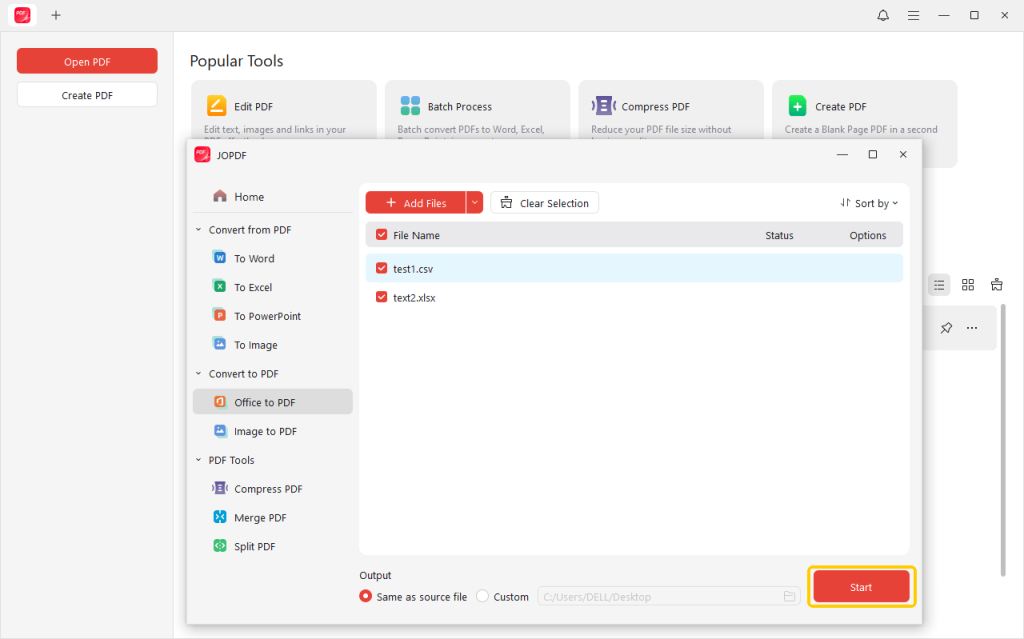
Step 2. On the homepage, select Batch Process. And select Office to PDF.
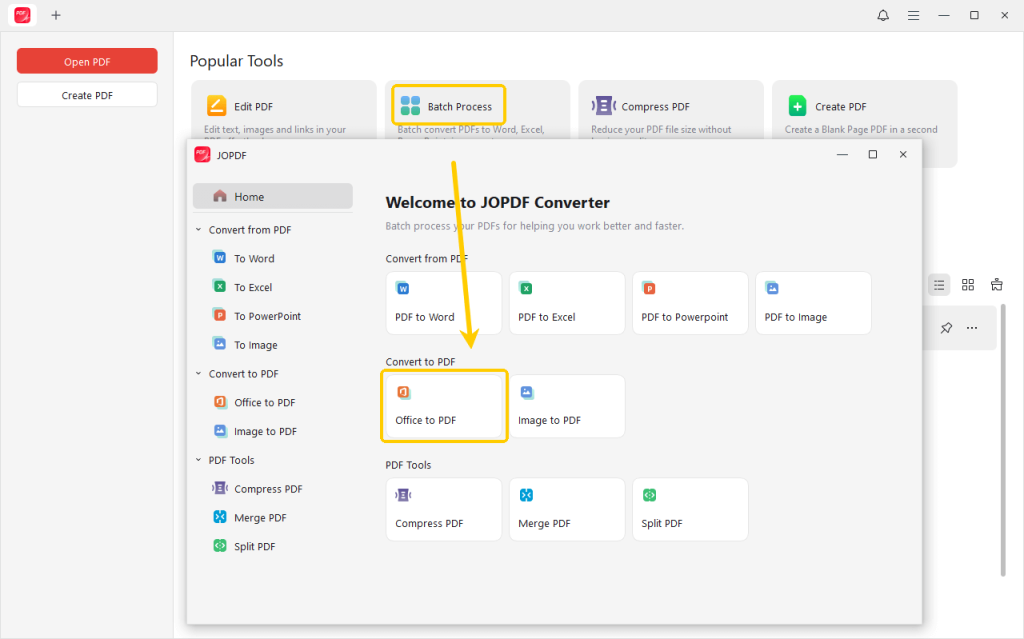
Then, select the Excel file you wish to convert to PDF. JOPDF enables bulk conversion, allowing you to process many documents in one go.
Step 3. Choose the output location and hit Start.
The software quickly converts your spreadsheet into a high-quality PDF.
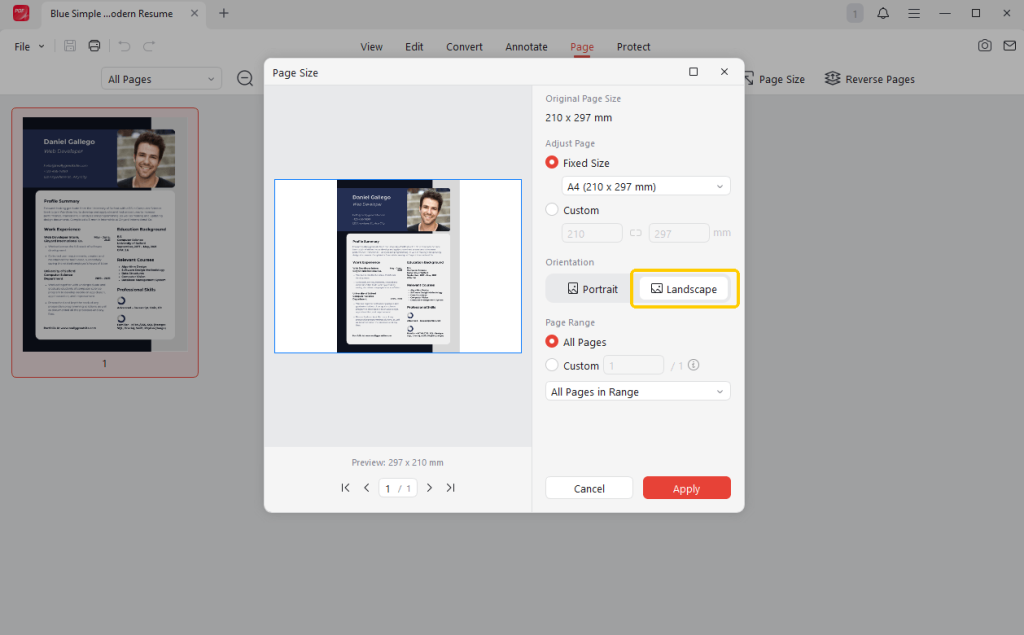
Step 4. Go to Page → Page Size, then select Landscape for the orientation.
Beyond conversion, JOPDF offers a full range of tools to edit and manage PDFs effortlessly.
Manage pages with ease—rotate, reorder, delete, insert, split, resize, or reverse as needed. Try this best free PDF editor today to simplify your workflow.
Way 2. How to Print Excel to PDF in Landscape
JOPDF is also a top choice for printing Excel files and converting them to PDFs with flexible orientation settings. It lets users set landscape mode, customize margins, and scale content so that wide spreadsheets fit perfectly.
Let us see how to print Excel to PDF in landscape using the print function in JOPDF.
Step 1. Download and launch JOPDF on your Windows or Mac computer.
Import your Excel file you wish to convert to PDF.
Step 2. Use Ctrl + P on Windows or Cmd + P on Mac to launch the Print options.
Step 3. Choose Microsoft Print to PDF as the printer to save your Excel file as a PDF.
Next, navigate to the Orientation section and select Landscape.
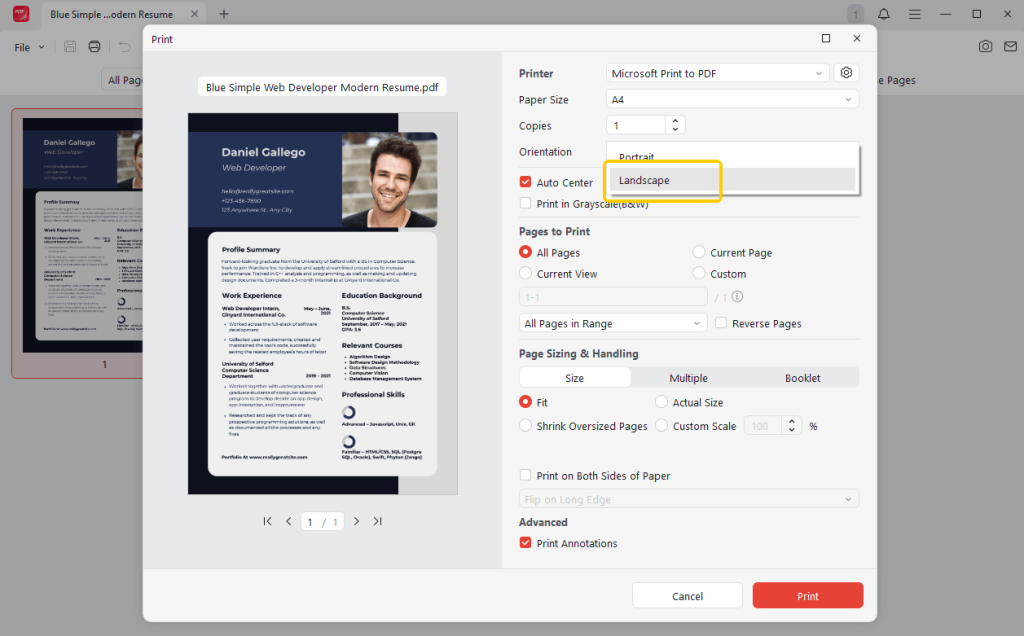
Step 4. Modify other print options if necessary, and when ready, press Print.
Way 3. Export Excel to PDF in Landscape with the Layout Settings
Microsoft Excel is a widely used spreadsheet program with built-in features to export Excel files as PDFs in landscape orientation. It lets users change page orientation, adjust margins, and scale content so that wide data fits neatly on each page.
The export feature maintains a clear, well-structured layout, making it suitable for reports and presentations. Excel’s easy print-and-save features let you generate professional landscape PDFs instantly.
This is how you can export an Excel sheet as a landscape PDF by adjusting its layout.
Method 1: Export as PDF via Print
Step 1. Open your Excel file in Microsoft Excel. And click the File menu to access options.
Step 2. Open the print preview by selecting Print, then choose Microsoft Print to PDF under Printer.
Step 3. To accommodate wider content, set the page layout to Landscape in the settings.
Next, set scaling to Fit Sheet on One Page so all columns display correctly.
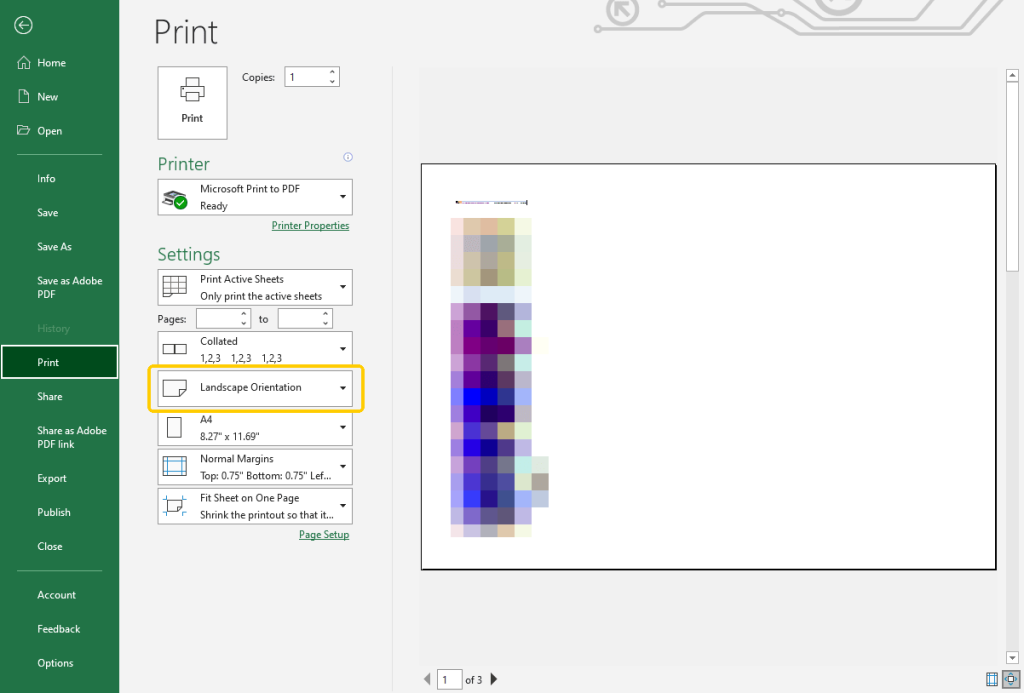
Step 4. After reviewing the preview, hit Print and choose a location for your PDF file.
Method 2: Page Layout Settings
Step 1. In your Excel file, go to the Page Layout tab to access layout options.
Step 2. Click Orientation and select Landscape to switch the page view.
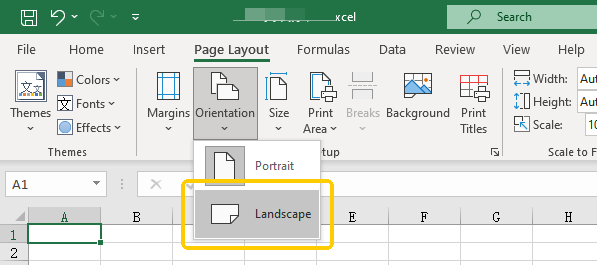
Step 3. Then go to File > Export > Create PDF/XPS Document to begin conversion.
Step 4. Select Publish, choose where to save, and the landscape PDF will be generated.
Way 4. Convert Excel to PDF in Landscape Using an Online Converter
Conversion Tools is a convenient online PDF converter that quickly converts Excel files to PDF in landscape without installation. With simple uploads, structured layouts, and adjustable options, wide spreadsheets appear correctly.
You can set orientation, optimize file size, and ensure clear output. Its fast, browser-based processing makes it perfect for quick, professional PDF creation and effortless sharing.
Quickly convert Excel spreadsheets to landscape PDFs by following these Conversion Tools steps.
Step 1. Open Conversion Tools in your web browser. Then locate and open the Excel to PDF tool.
Drop your Excel file in the upload section, or select it via Browse.
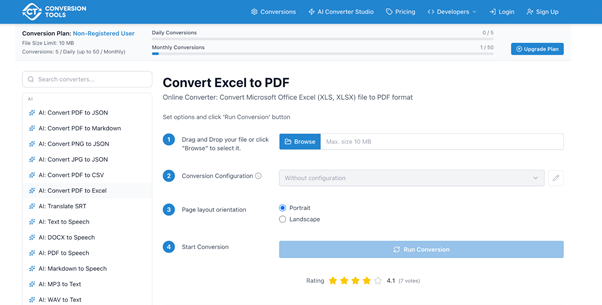
Step 2. After upload, either stick with the default settings or customize options in the Conversion Configuration section before conversion.
Step 3. In Page Layout → Orientation, choose Landscape to properly display wide spreadsheets in the PDF.
Step 4. Press the Run Conversion button to begin. Once the conversion is complete, click Download File to download your converted PDF file.
Conclusion
Converting spreadsheets the right way guarantees clear, polished documents. Using these four reliable techniques, you can convert Excel to PDF in landscape mode, keeping all formatting intact and wide content properly displayed.
Choose the method that best suits your needs and start creating clean, well-structured PDFs today for better sharing, presentations, and long-term use.
FAQs
Table of Contents

Your Best Free PDF Expert in PDF editing, compressing, converting, annotating, protect, organizing, and more.
Free DownloadWindows · macOS · Linux

Queena
Editor
“As a staff editor for JOPDF, Queena excels at guiding users to the optimal tools and solutions. When she's not analyzing the latest PDF solutions, she enjoys spending her free time playing with her four cats.”