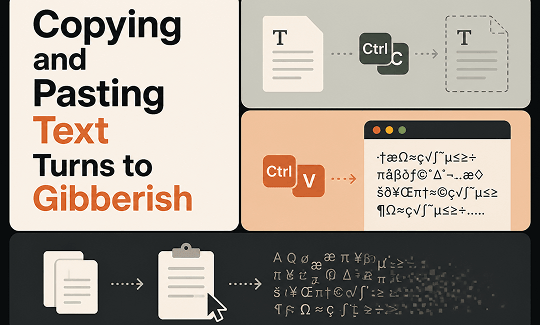
You copy text from a PDF, paste it into Word or Notepad, and instead of readable words, you get random symbols and gibberish. Don’t worry. It is usually fixable. In this guide on JOPDF, we will explain why copying and pasting text turns to gibberish and show you 6 practical solutions to fix it.
Summary :
Why Does Copying Text from PDF Turn to Gibberish?
When copying text from PDF turns to gibberish, there is usually a clear reason. Here are the most common causes:
- Non-standard fonts: The PDF uses a rare or custom font that your system does not recognize. Without the correct font mapping, characters display as random symbols.
- Encoding mismatch: The text encoding in the PDF does not match your system’s encoding. This is common with non-English languages like Hindi or Malayalam.
- Scanned image PDF: The PDF is not text-based; it is a scanned image. Without OCR, the text is not machine-readable.
- Missing character mapping: Embedded fonts lack a complete character-to-glyph mapping table.
- File restrictions: Some PDFs are intentionally obfuscated to prevent copying and extracting content.
Understanding the root cause is the first step to fixing PDF garbled characters on your system.
Quick Fixes to Garbled Characters When Copying From PDF
Before diving into the methods below, try these quick checks to rule out simple issues:
- Try a different PDF reader. Open the PDF in a different app. Sometimes the reader is the problem.
- Print to a new PDF. Use “Print” and select “Save as PDF” to create a fresh copy.
- Check file size and source. Very small files or files from unknown sources may be corrupted.
If none of these work, move on to the methods below. We have tested each one to help you fix garbled characters when copying from PDF.
Also See: Microsoft Print to PDF Not Working? Find the Causes and Fixes!
Method 1: Use “Paste Special” Instead of Regular Paste
The fastest solution when copy-paste gibberish appears is to strip all formatting and encoding information during the paste operation. Regular paste carries over fonts, styles, and encoding metadata from the source.
When any of that data is corrupted or incompatible, the text breaks. Plain text paste discards everything except the raw characters, which often solves the problem instantly.
Step 1: Copy the text from your source document as you normally would (Ctrl+C).
Step 2: In your destination application, instead of Ctrl+V, press Ctrl+Shift+V. This triggers “Paste as plain text” in most modern applications including Word, Google Docs, and Gmail.
Step 3: If the shortcut doesn’t work, right-click where you want to paste and look for “Paste Special” or “Keep Text Only” in the paste options menu.
Check if the text now displays correctly. If copying and pasting text turns to gibberish is resolved, the issue was formatting or encoding metadata carried over during regular paste.
Also see: How to Edit a PDF in Adobe Acrobat Reader/Pro: Easy Guide
Method 2: Update or Switch Your PDF Reader
When text turns to gibberish when copying and pasting happens consistently with one PDF reader but not others, the reader software is the bottleneck. Older versions have incomplete Unicode support, and different readers handle text extraction differently.
Step 1: Check your current PDF reader’s version. To update Adobe Acrobat, go to Help > Check for Updates.
For browser-based readers, ensure Chrome, Edge, or Firefox is updated to the latest version.
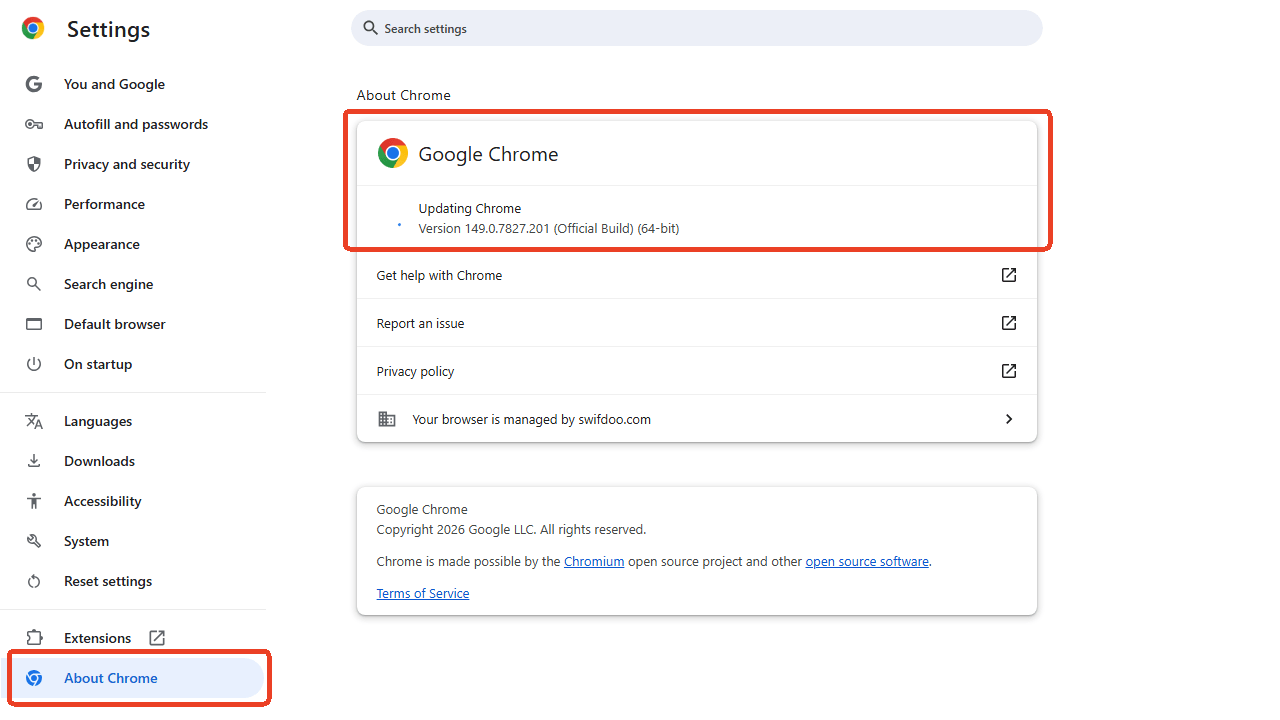
Step 2: Install any available updates and restart the application. Software updates frequently include fixes for text extraction and Unicode handling.
Step 3: Test copying text from the same PDF after updating. If copy paste gibberish persists, open the PDF in a different reader entirely.
Step 4: Try your browser’s built-in PDF viewer by right-clicking the file and selecting Open with > Chrome or Edge.
If text copies cleanly from the alternative reader, the original reader is the source of the problem.
For a reader-independent solution, using JOPDF as an PDF reader is a better choice to fix the text copied from PDF is gibberish issues.
JOPDF is a browser-based PDF platform designed for users who need fast, reliable document processing without installing software. It supports a full range of PDF tasks – convert PDF to Word, Excel, or PowerPoint; merge and split documents; compress large files; and edit PDF content directly in your browser.

JOPDF – The Best Free PDF Editor
 User Rating: 4.8
JOPDF Is a 100% free POF editor for Windows, macOS, and Linux. Edit text, add images, annotate, sign, and more. No limits, no ads, no subscriptions, Fast, simple, and powerful, take full control of your PDFs in seconds!
What makes JOPDF especially useful when copying and pasting text turns to gibberish is its approach to text handling. Unlike desktop PDF readers that depend on your local font library and system encoding settings, JOPDF processes documents on secure servers with complete font coverage and standardized Unicode output.
Method 3: Change the Destination Font
If pasted text appears as symbols or blank squares, the source document may be using a font that isn’t installed on your system. Your computer tries to substitute the missing font, but the substitution maps characters incorrectly. Switching to a standard system font often restores readability instantly.
Step 1: Select all the garbled text in your destination document by pressing Ctrl+A or dragging your cursor across the affected text.
Step 2: Open the font dropdown menu in your application’s toolbar.
Step 3: Choose a standard system font such as Arial, Times New Roman, Calibri, or Segoe UI. These fonts contain complete Unicode character sets and cover most commonly used scripts.
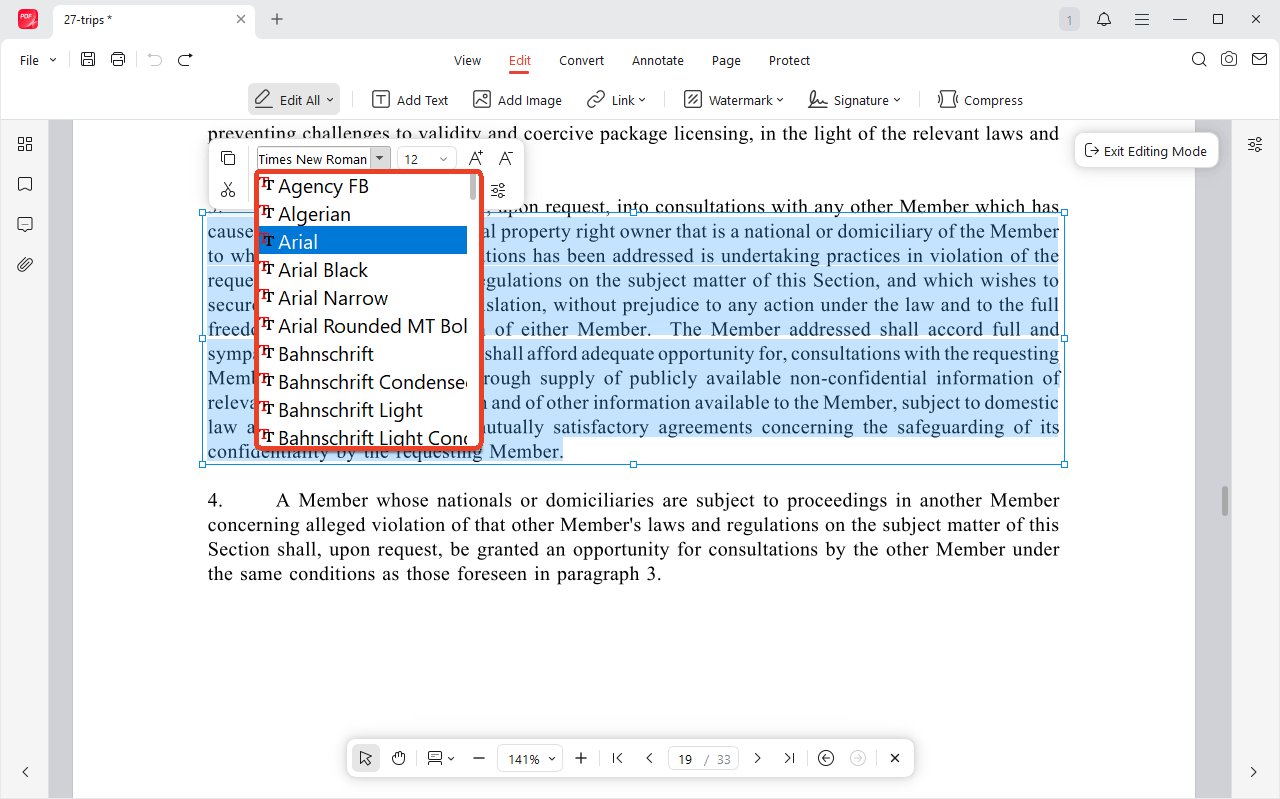
If the text becomes readable, the original font was the problem. When text turns to gibberish when copying and pasting due to missing fonts, this simple switch permanently fixes the display issue.
Method 4: Convert the PDF to Word Before Copying
For copy text from PDF gibberish situations, the most effective approach is to stop copying from the PDF entirely. PDF readers rely on a translation layer between internal character codes and displayable text. When that layer is broken, copying fails. Converting the PDF to Word rebuilds the text encoding from scratch, producing a clean document where all text is freely copyable.
Tips
JOPDF is a free PDF converter that runs in your browser. Upload a PDF, convert it to Word, and the output text uses standard Unicode encoding, which means no more gibberish when you copy and paste.
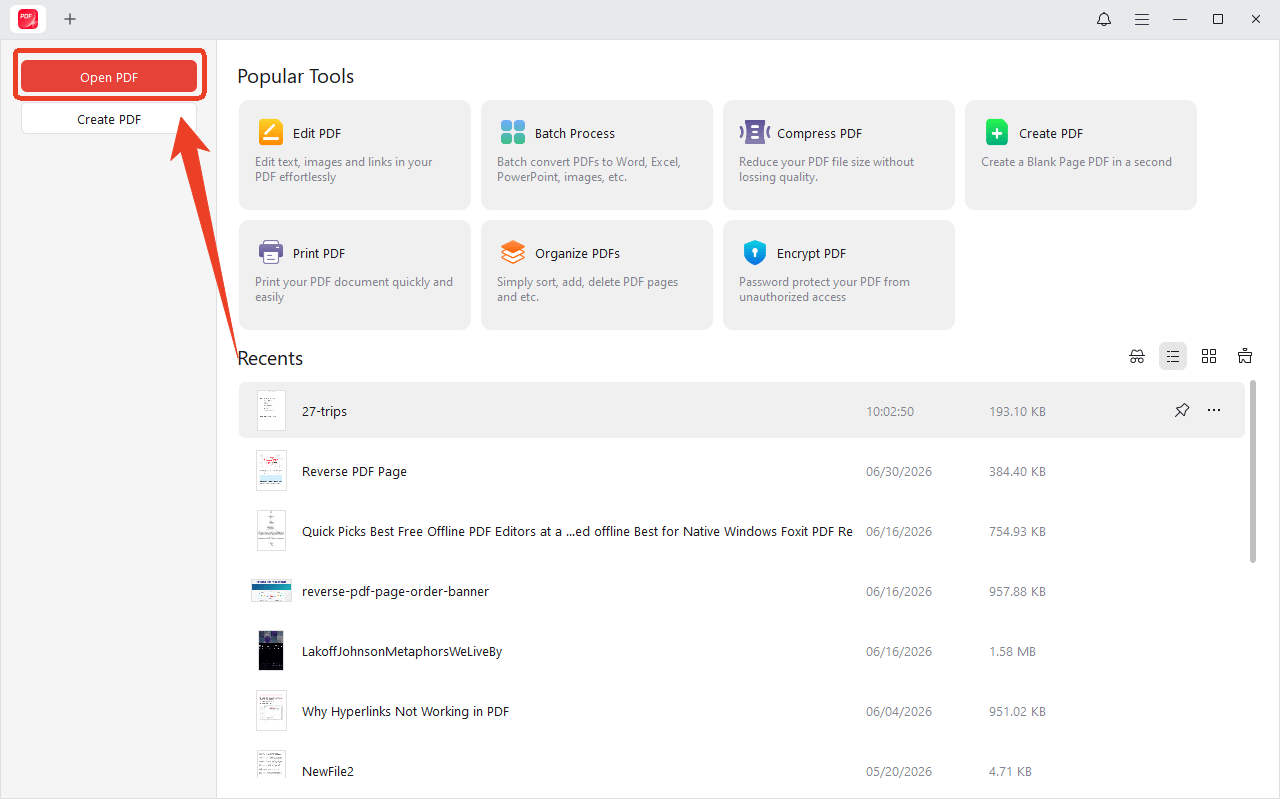
Step 1: Open JOPDF and click Open PDF to upload your PDF.
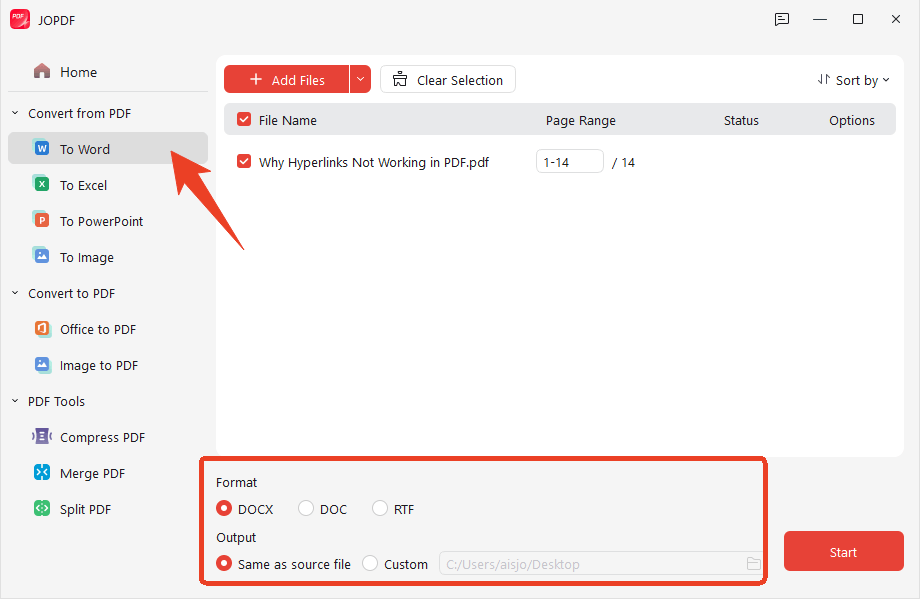
Step 2: In the Convert tab, choose To Word and configure the format and output.
Step 3: Click Start and wait a few seconds for the process to complete, then download the converted .docx file.
Open the Word document. The text is now fully editable and copyable. When text copied from PDF is gibberish on your desktop reader, this conversion method produces clean, properly encoded text that pastes correctly into any application.
Method 5: Clear Corrupted Font Cache on Windows
When copying and pasting text turns to gibberish affects multiple applications, not just one PDF or word processor, the problem may be system-wide. Windows maintains a font cache to speed up text rendering. When this cache gets corrupted, font encoding issues cascade across every app that displays text.
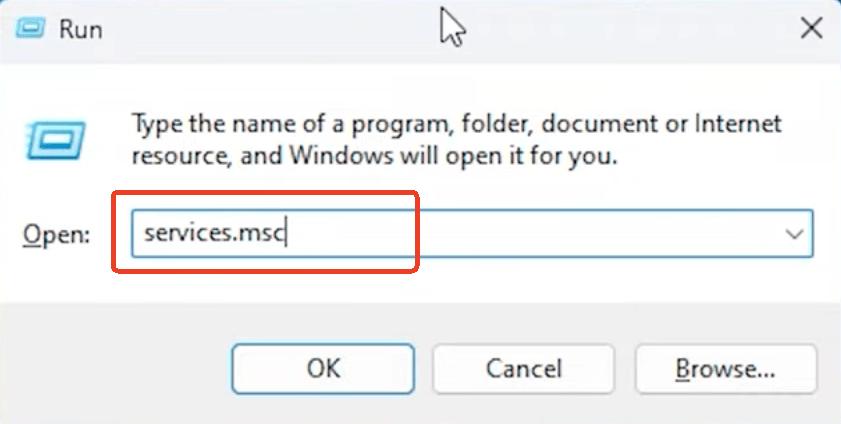
Step 1: Press Win+R, type services.msc, and press Enter to open the Windows Services manager.
Step 2: Scroll down to find “Windows Font Cache Service” in the list. Right-click it and select “Stop” to halt the service.
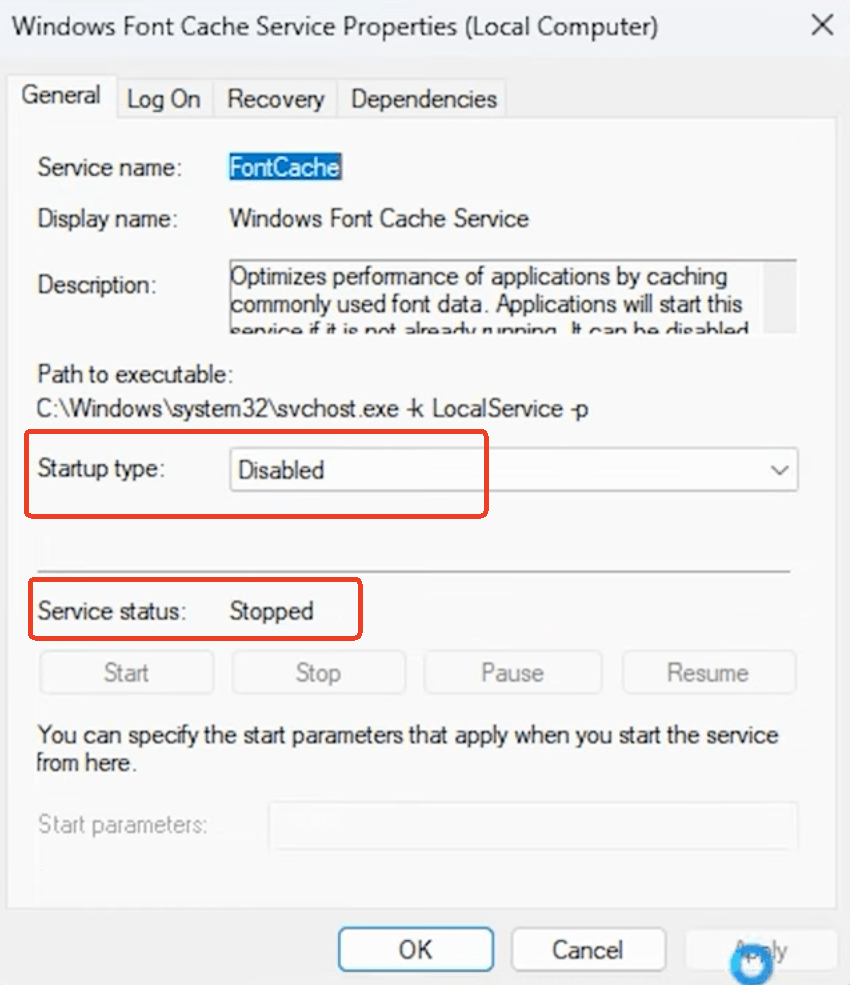
Step 3: Open File Explorer and navigate to C:\Windows\ServiceProfiles\LocalService\AppData\Local.
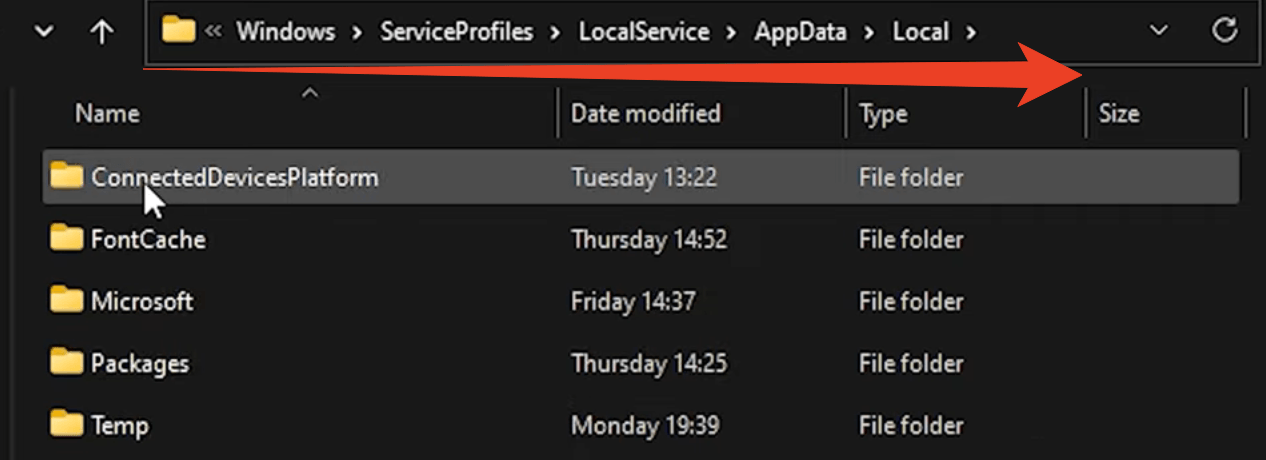
Step 4: Locate files starting with “FontCache” in this folder. Delete them. You may need to confirm administrator permissions.
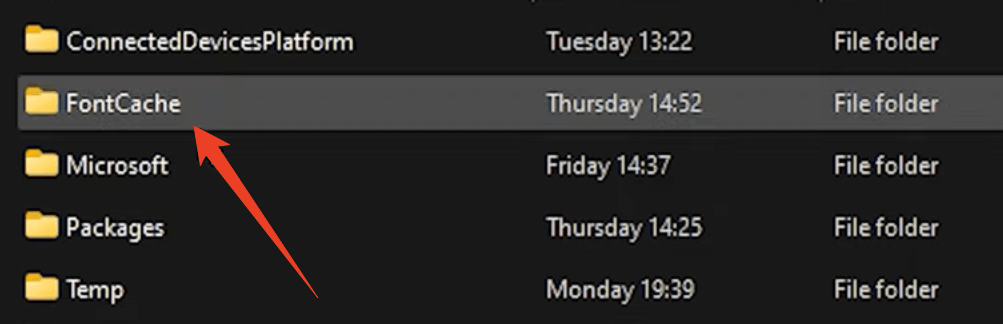
Step 5: Return to the Services window, right-click “Windows Font Cache Service” again, and select “Start” to restart it.
Step 6: Restart your computer. Windows rebuilds the font cache from scratch during startup.
Try copying and pasting text again. If corrupted font mappings caused the copy paste gibberish, the fresh cache should resolve it across all applications.
Method 6: Fix Windows Language & Region Settings
When copy text from PDF shows random symbols, particularly with non-English characters, the system locale may not support the PDF’s encoding.
Step 1: Go to Control Panel > Clock and Region > Region.
Step 2: Click the “Administrative” tab.
Step 3: Under “Language for non-Unicode programs,” click “Change system locale“
Step 4: Select the language that matches the PDF’s original encoding
Step 5: Restart your computer
This is a known why does copy text from PDF show garbled characters solution for multilingual documents, especially for Hindi, Malayalam, and other non-Latin scripts.
Final Verdict
When copying and pasting text turns to gibberish, the problem is almost always encoding—a mismatch between how the source stores characters and how your destination reads them.
The seven fixes in this guide cover every level, from a quick Ctrl+Shift+V to manual encoding repair. But if you work with PDFs regularly, the real solution is simpler: stop copying directly from PDFs. Convert them to Word first using JOPDF, and you’ll never see paste turns to gibberish again. Bookmark it, build the habit, and spend your time on the content that matters.
FAQs
Try Ctrl+Shift+V to paste as plain text. If that doesn't work, switch the destination font to Arial or Times New Roman. These two steps resolve most copy and paste text becomes garbled cases in under a minute.
Convert the PDF to Word first, then copy from the Word document. JOPDF's free PDF to Word converter rebuilds the text with clean Unicode encoding, so how to copy text from PDF without gibberish becomes as simple as upload, convert, and copy.
Yes. Missing fonts are one of the most common causes of font encoding issues. When your system substitutes a missing font, characters can map to wrong symbols. Converting the PDF with JOPDF avoids this because server-side processing handles all font rendering.
Yes. JOPDF's PDF to Word conversion processes documents with complete font coverage and standard Unicode output. The converted file contains clean text ready to copy anywhere. An effective way to fix garbled text without troubleshooting local font or encoding settings.
Table of Contents

Your Best Free PDF Expert in PDF editing, compressing, converting, annotating, protect, organizing, and more.
Free DownloadWindows · macOS · Linux

Anna
Editor
“Anna, Editor-in-Chief and PDF expert, delivers deep insights into PDF document technology trends. She is dedicated to helping readers optimize their digital lives. When not writing, Anna loves exploring local cafes and reading, blending her technical expertise with a love for storytelling.”

![8 Best Manga Reading Sites to Read Manga Online [Full Review]](https://b.jopdf.com/wp-content/uploads/2026/09/best-manga-reading-sites.png)