
Introduction:
If you are wondering how to sign a PDF contract, you are in the right place. In this guide, we will show you 4 free ways to get the job done. By the end of this article, you will know exactly how to sign your documents for free in just a few clicks.
1. The Best Free Way to Sign a PDF Contract: JOPDF
If you want the easiest method, we highly recommend using JOPDF. It is built for everyone: the menu is clear and easy to understand. You do not need to read a long manual to figure out how it works.
With JOPDF, you can electronically sign a PDF in just a few clicks. One of the best things about JOPDF is that it cares about your privacy. It lets you lock a PDF after signing it. By adding a password, you can ensure that only the right people can open and read your contract.
Here is how to use JOPDF to sign your contract:
Step 1. Download and install JOPDF on your computer. Launch the software, click on the Open PDF button, and select the contract you need to sign.
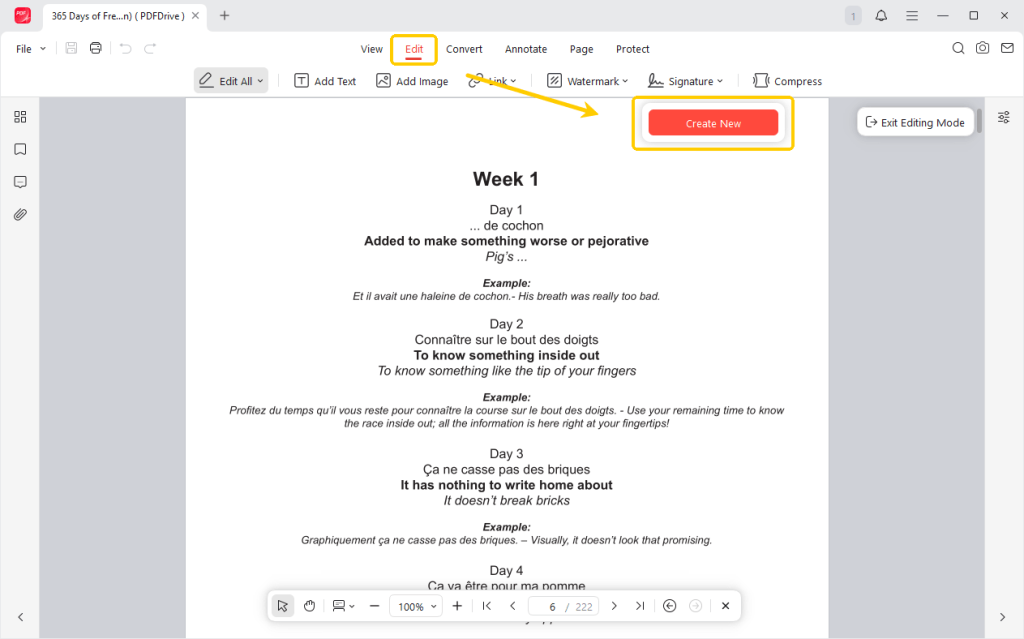
Step 2. Look at the menu at the top of the screen. Click the Edit button, go to Signature, and select Create New.
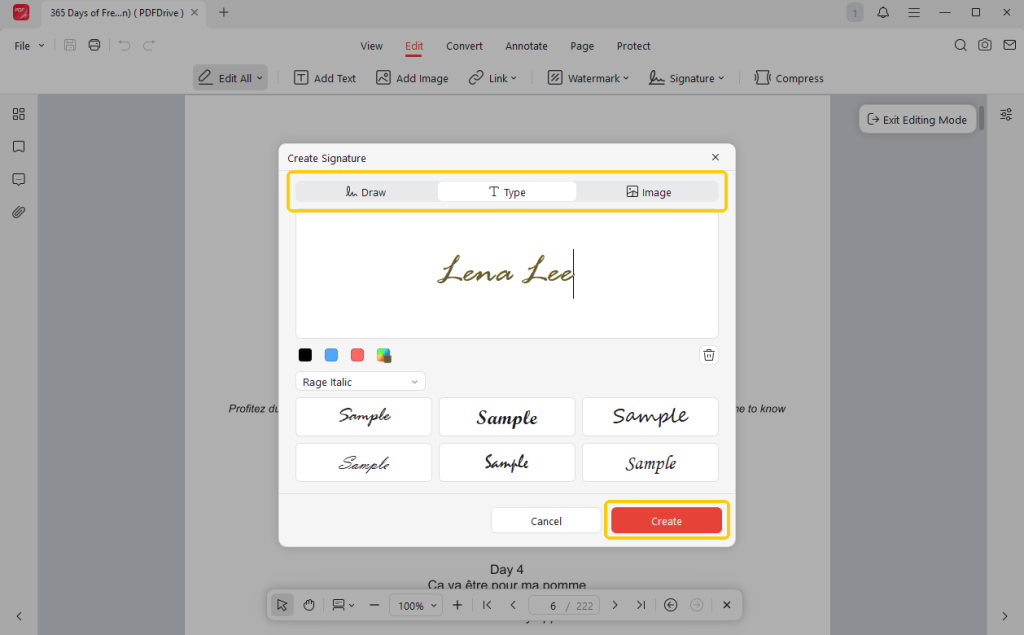
Step 3. Now, you can create your signature. JOPDF gives you 3 choices. You can type your name, draw your signature, or upload a signature image. Click Apply to continue.
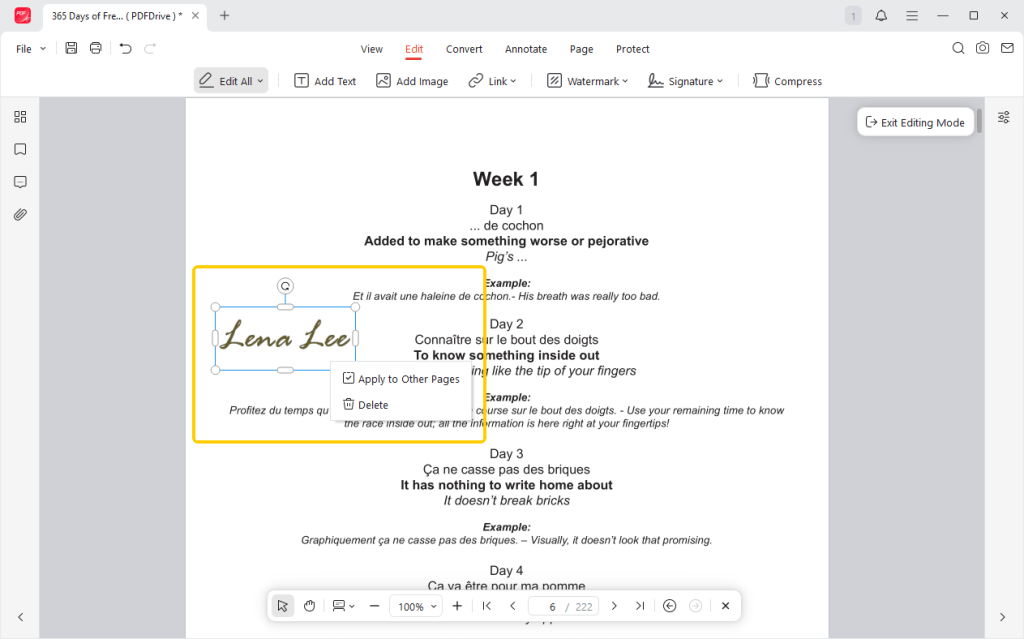
Step 4. Move your mouse to the blank line on the contract where you need to sign. Click the mouse once, and your signature will drop right onto the page. You can easily drag the corners to make the signature bigger or smaller to fit perfectly on the line.
Step 5. This step is optional. Go to Protect > Encrypt to add a password to your contact. In this way, nobody can change your signature or read the file without knowing that password.
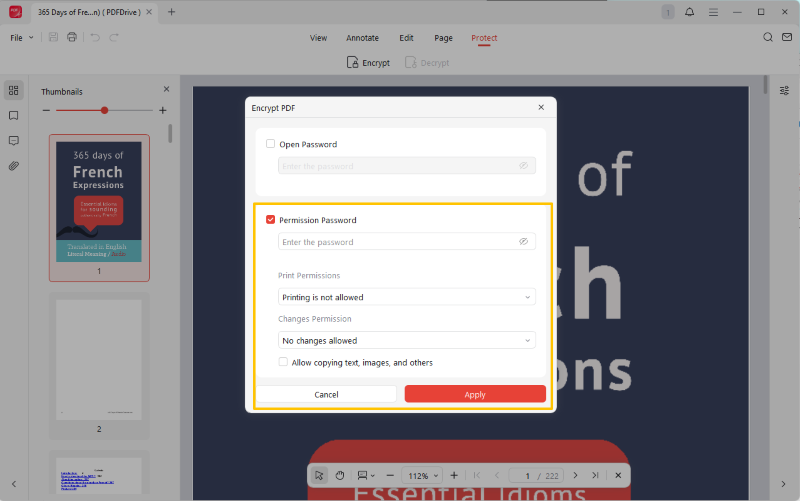
Step 6. Finally, click the Save button. You can also go to File > Save as to save it as a new document.
As you can see, JOPDF is incredibly easy to use. Beyond signing, it offers many other helpful features.
You can use it to combine pages, change text, or convert files. If you often work with PDFs, JOPDF will be a helpful tool. Give it a try!
2. Sign a PDF Contract with Adobe Acrobat
Adobe Acrobat is another very famous program for viewing PDFs. Many computers already have Adobe Acrobat Reader installed. It is a reliable tool that can help you sign a PDF contract electronically and digitally. Check the details below.
How to sign a PDF contract electronically:
Step 1. Open the Adobe Acrobat Reader and import your contract.
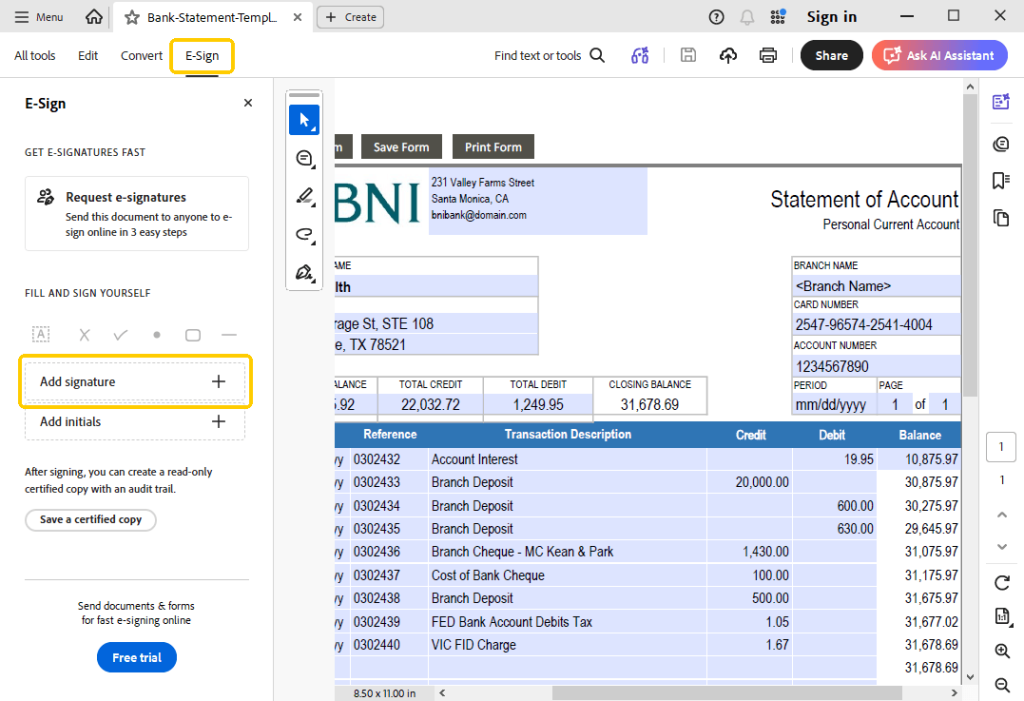
Step 2. Click the E-Sign button and choose the Add Signature button.
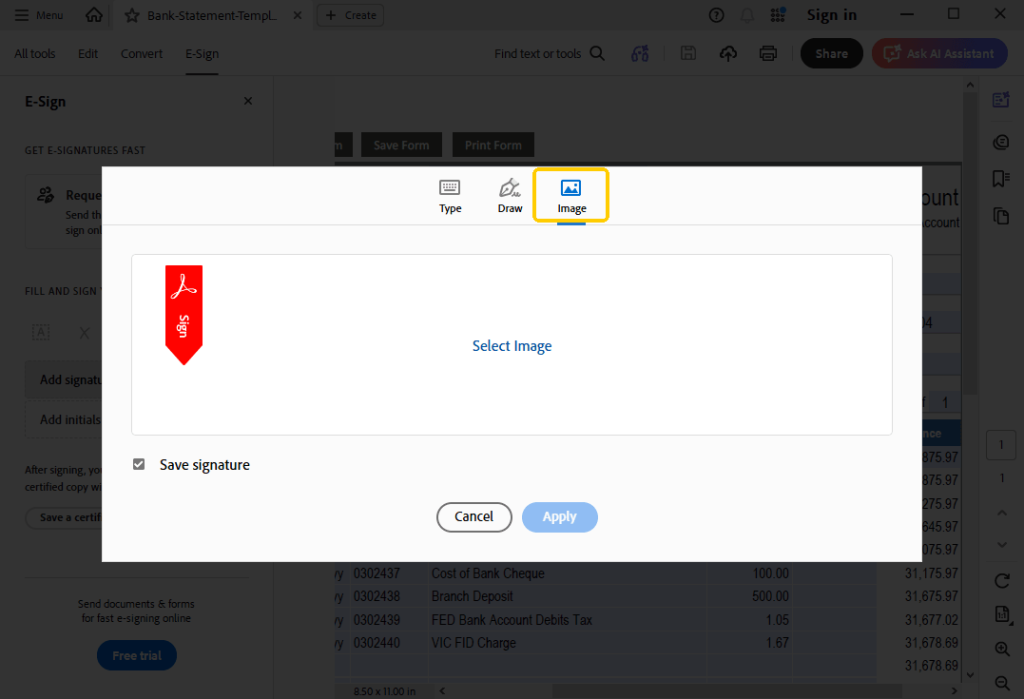
Step 3. A box will pop up from where you can create the signature. You can type your name, draw it with your mouse, or even upload a picture of your signature. Once you are happy with how it looks, click the Apply button.
Step 4. Move your mouse to the signature line on the contract, then click to drop the signature there.
Step 5. Edit the signature as needed and click the Save button.
How to sign a PDF contract digitally:
Step 1. Open your contract in Adobe Acrobat.
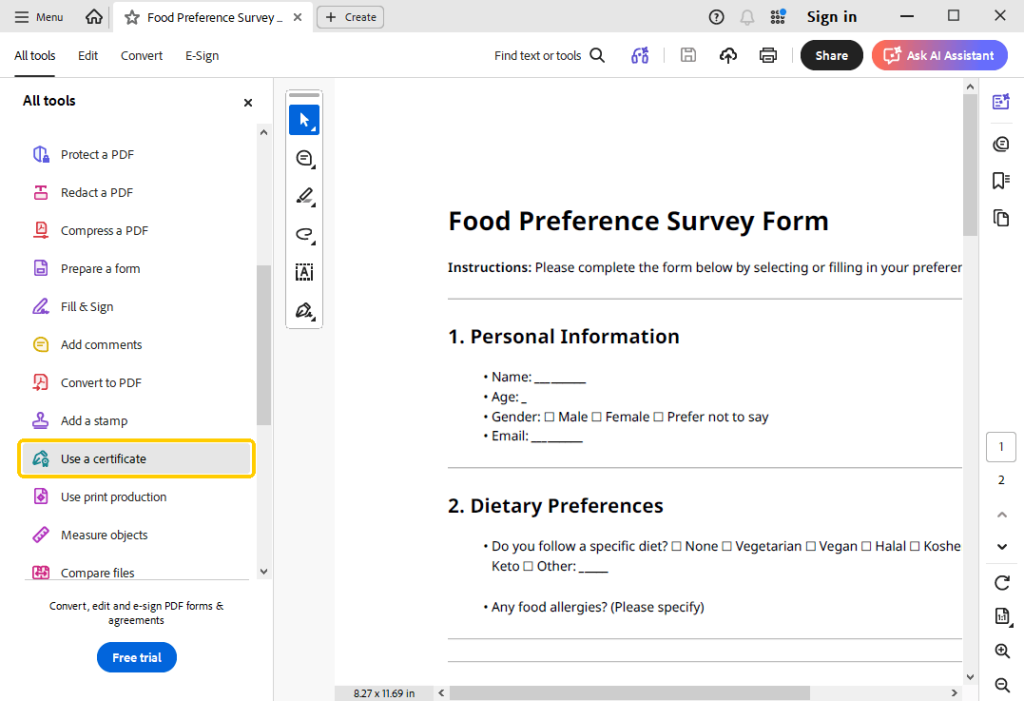
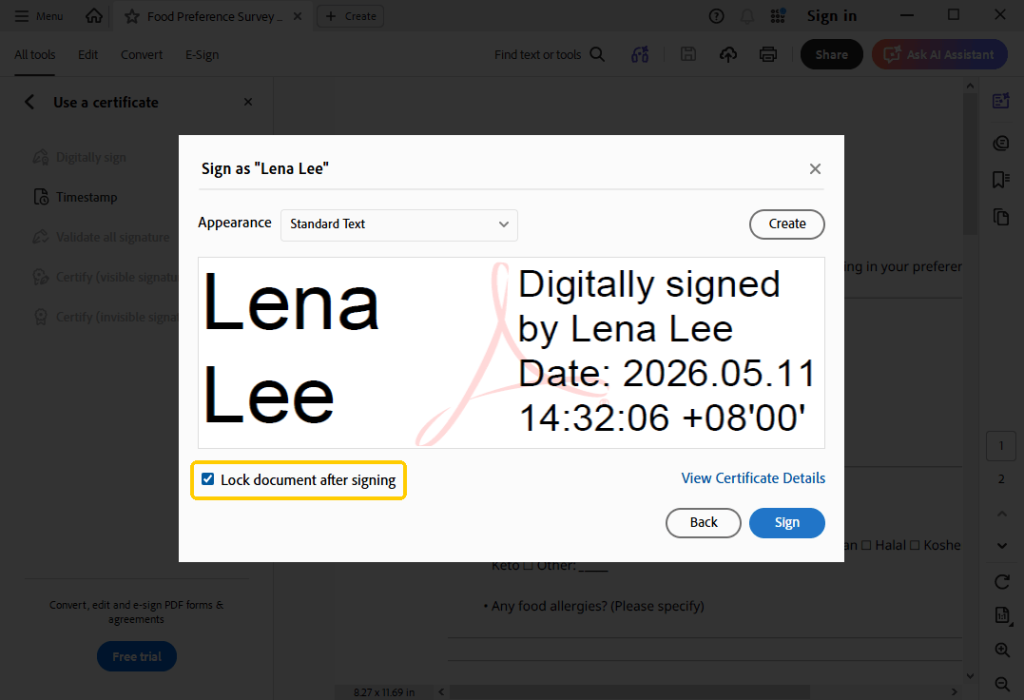
Step 2. Go to the tools list. Select the Use a certificate option and select Digitally sign. Then, select the area where you want to place your signature.
Step 3. Follow the prompts to create or import your digital ID.
Step 4. When OK, click the Sign button to confirm.
A Quick Note About Adobe:
While the signature tool in Adobe Acrobat Reader is totally free, there is a catch. Many of Adobe’s other helpful features are not free. If you want to change the text in a document, delete a page, or merge two files, Adobe will ask you to pay for a monthly subscription.
If you need to make other changes to the file, you can use a free PDF editor like JOPDF, which lets you handle those extra tasks without costing a penny.
3. Sign a PDF Contract in Preview on Mac
If you use an Apple Mac computer, you are in luck. You do not even need to download a new program to sign your contract. Mac computers come with a built-in program called Preview. This program opens photos and PDFs automatically.
Many people do not know that you can actually edit a PDF in Preview. It has a special hidden menu just for making changes and adding signatures.
Here is how to do it on a Mac:
Step 1. Double-click the file. Unless you have changed your computer settings, it will automatically open in the Preview program.
Step 2. Look at the top right of the Preview window. Find a small icon that looks like the tip of a marker or a pen inside a circle. Click this Show Markup Toolbar to show more tools.
Step 3. Next, look for the Signature tool and click Create Signature.
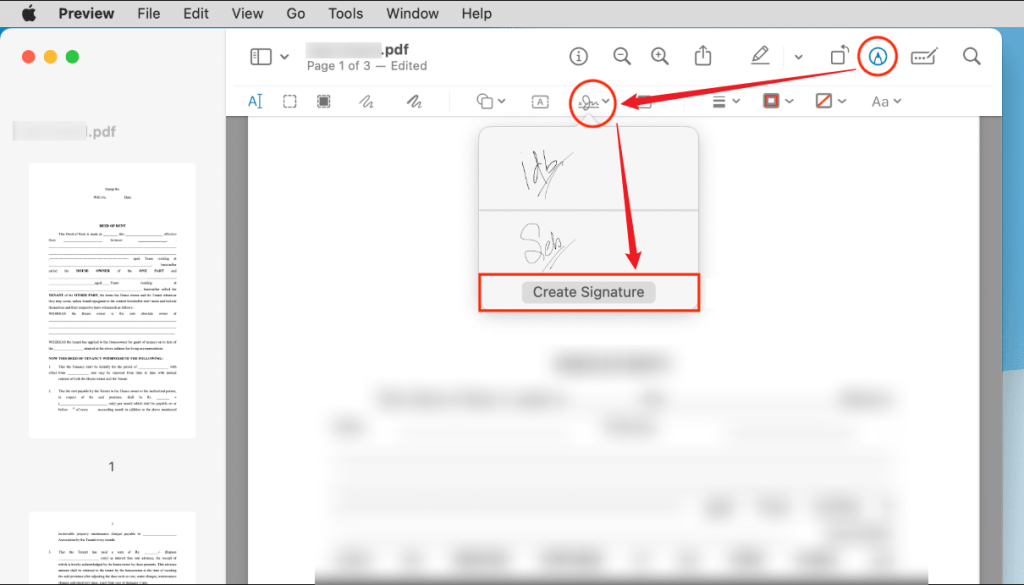
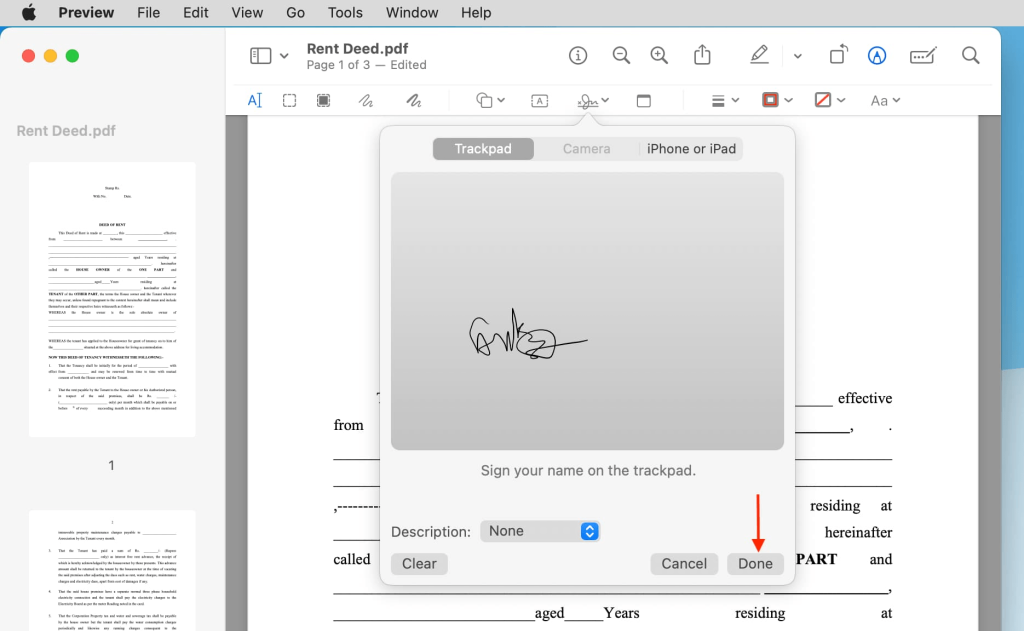
Step 4. You can select Trackpad and use your finger to write your name. Or, you can use the Camera option. Align a piece of paper with your signature towards the computer camera. The computer will scan it and convert it into a signature.
Step 5. Click Done when you are finished creating the signature. Then select the signature and place it in the correct position.
Step 6. Go to File at the top of the screen and click Save. Your signed contract is now ready to go.
4. How to Sign a PDF Contract Online
Maybe you are using a library computer or a friend’s laptop and do not want to download any new software. In this case, using an online tool is the perfect solution. iLovePDF is a great website that lets you sign documents right inside your web browser.
Here is the simple process:
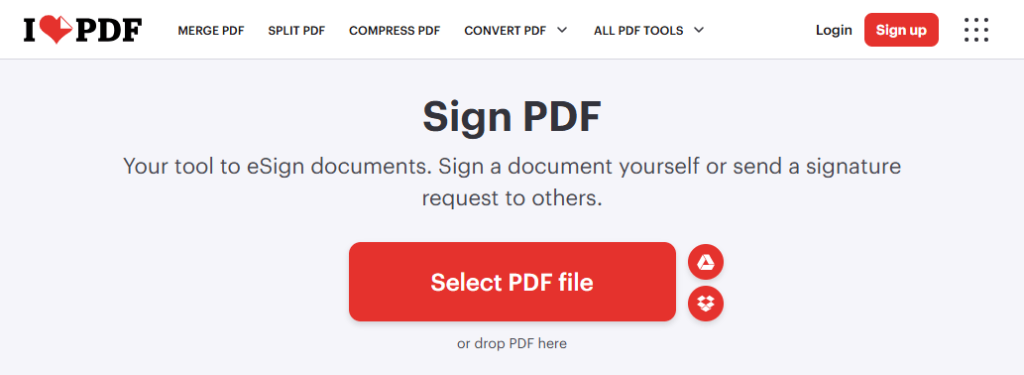
Step 1. Open your web browser and go to the iLovePDF signing tool: https://www.ilovepdf.com/sign-pdf.
Step 2. Click the red Select PDF file button to upload your contract.
Step 3. The website will ask the signer. If you need to sign the document yourself, please choose Only me.
Step 4. Next, you can type, draw, or upload your name as the signature.
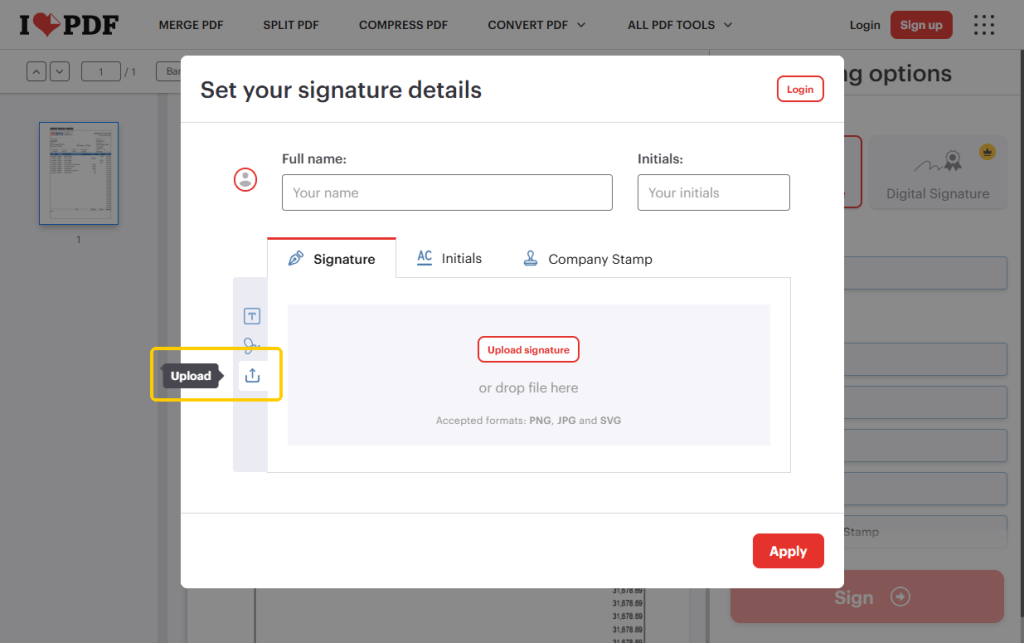
Step 5. Select the signature from the right side and place it in the correct position.
Step 6. Now, click the Sign PDF button. Wait a few seconds, click the download button to save the document.
Conclusion
Now you know how to sign a PDF contract. You can choose a powerful desktop tool like JOPDF, a classic program like Adobe Acrobat, the built-in Mac Preview app, or a quick online tool. However, if you want a tool that does everything for free and keeps your data safe, remember to try JOPDF!
FAQs
Table of Contents

Your Best Free PDF Expert in PDF editing, compressing, converting, annotating, protect, organizing, and more.
Free DownloadWindows · macOS · Linux

Queena
Editor
“As a staff editor for JOPDF, Queena excels at guiding users to the optimal tools and solutions. When she's not analyzing the latest PDF solutions, she enjoys spending her free time playing with her four cats.”

![5 Proven Methods to Recognize Text in PDF [Step-by-Step Guide]](https://b.jopdf.com/wp-content/uploads/2026/09/recognize-text-in-pdf.png)
