Introduction :
Numbering PDF pages can make reports, ebooks, and other documents easier to navigate and reference. But you don’t need Adobe Acrobat to do it. There are several Adobe Acrobat alternatives that let you insert and customize page numbers. In this comprehensive guide, you’ll learn how to add page numbers to a PDF without Acrobat using JOPDF, Adobe Acrobat online tools, and PDFgear.
Can You Add Page Numbers to a PDF Without Acrobat?
Though you don’t have Adobe Acrobat installed, you can also add page numbers to a PDF using a free PDF editor or an online PDF numbering tool. Depending on the software you choose, you may be able to customize the page-number position, alignment, format, starting number, and appearance.
For instance, you can use a free offline PDF editor such as JOPDF when you want to work with a PDF on your computer. Also, you can use Adobe’s free online Add Page Numbers to PDF tool to number PDF pages online. In the following content, let’s explore the step-by-step guidance.
How to Add Page Numbers to a PDF Without Acrobat
There are several ways to number PDF pages without Acrobat, including both offline and online tools. Let’s check them one by one.
Method 1: Add Page Numbers to PDF for Free with JOPDF
JOPDF is a 100% FREE PDF editor that can be used as an alternative to Adobe Acrobat for common PDF tasks. It enables you to add page numbers to a PDF on Windows, Mac, and Linux. There are several page number styles, such as Page 1 of N, 1/N Page, 123…, etc. Meanwhile, JOPDF enables you to customize page numbers, including their position, font, starting number, and more. If you need, you can also use it to remove page numbers from a PDF.
Here, let’s learn how to insert page numbers into a PDF without Acrobat using JOPDF.
Step 1. Click the button below to download and install this free PDF page number editor on your PC, and then launch it to get to its main interface.
Step 2. Click Edit PDF to locate, select, and import the target PDF file. Or, click Open PDF to import the target PDF and switch from the View tab to the Edit tab.
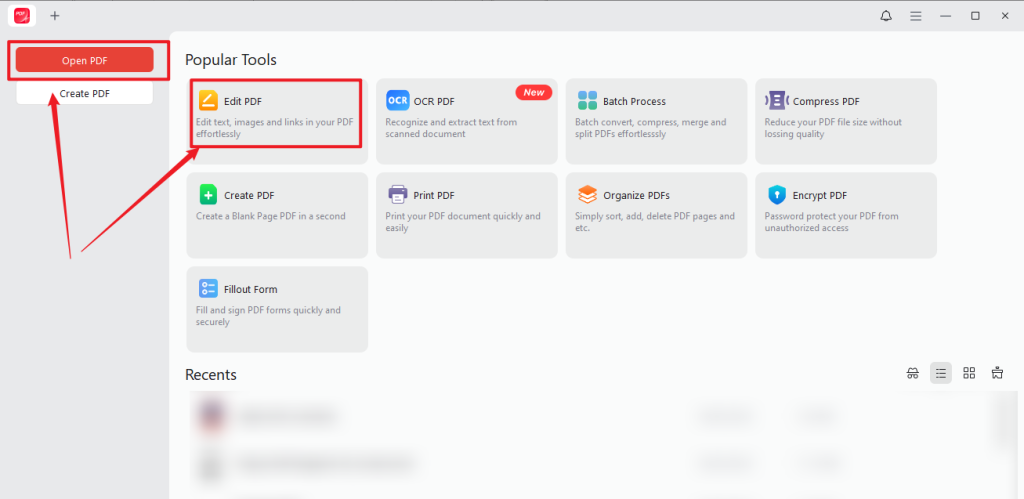
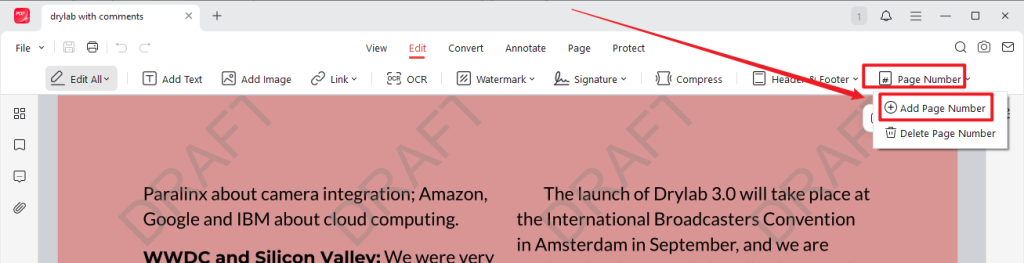
Step 3. Then, click Page Number and click Add Page Number.
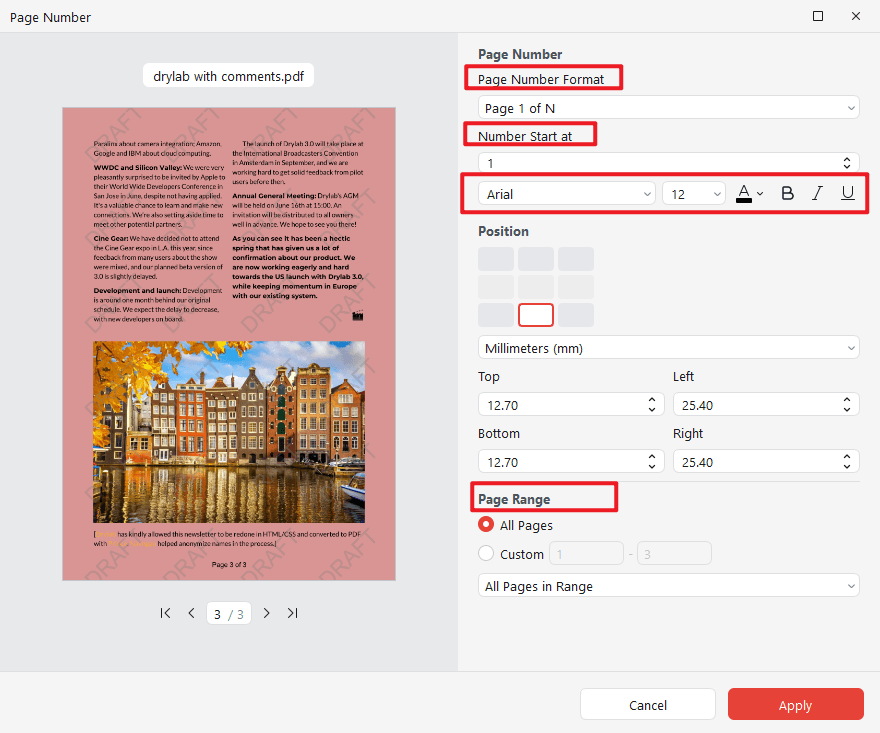
In the pop-up window, customize the page numbers. Here, you can choose the page number style, set the starting number, and adjust the appearance and position as needed. On the left Preview window, review the document. Once satisfied, click Apply to number PDF pages.
Step 4. Finally, click the Save icon to save the completed PDF file.
In addition to numbering PDF pages, JOPDF offers a wide range of features for handling PDFs. Here, I only list some key features of JOPDF for your reference. For more wonderful features, download it and explore them.
- Offline PDF editing: handle PDF files locally without uploading them to an online service.
- PDF organizing: add, remove, duplicate, and rearrange PDF pages as well as resize PDF pages to A4 and other sizes.
- Document privacy: password-protect PDF files and keep sensitive files on your computer.
- PDF conversion: convert PDF files to and from DOCX, XLSX, PPT, and other formats.
- OCR PDFs: make scanned PDFs searchable and editable.
- …
Method 2: Add Page Numbers to a PDF Online with Adobe Acrobat Online
If you are afraid of the expensive subscription fee or the large resource consumption of Adobe Acrobat, you can try Adobe Acrobat Online. Adobe’s online Add Page Numbers to PDF tool lets you add page numbers from a web browser without installing the desktop version of Acrobat. Below is how to number PDF pages online with Adobe Acrobat Online.
Step 1. Open your browser and visit Adobe’s online page-numbering tool.
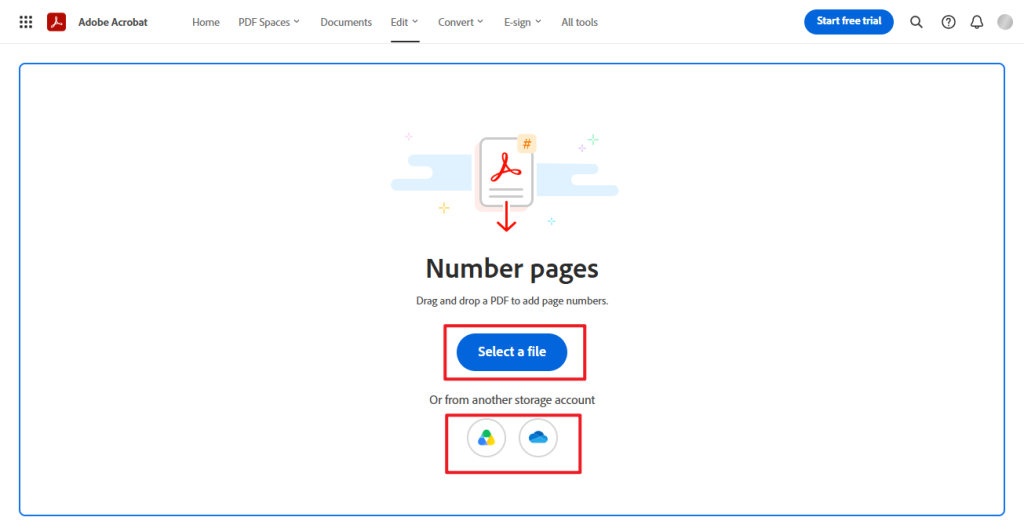
Step 2. Click the Select a file button to import the PDF file you want to add page numbers to. Alternatively, you can upload the target file from Google Drive or OneDrive.
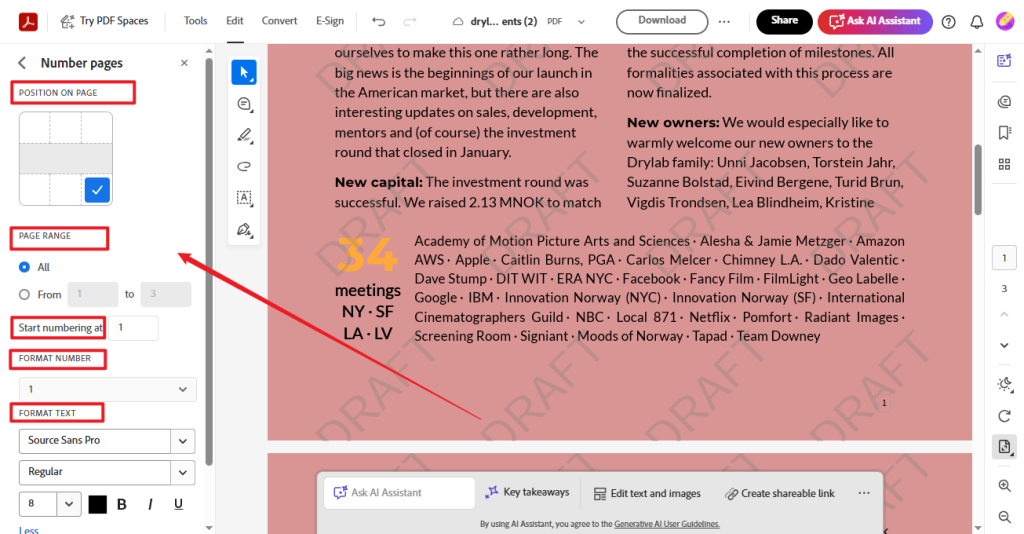
Step 3. Once the PDF file is uploaded, you can set and customize the page numbers on the left panel. Select the desired position, set the starting page number, choose the preferred page format style, and customize the page number format.
Step 4. Then, click the Save button to apply page numbers. Finally, click the Download button to save the PDF file with page numbers.
Method 3: Insert Page Numbers into a PDF with PDFgear
PDFgear is a dedicated PDF editor with a page-numbering feature that provides more detailed controls than a basic online numbering tool. Additionally, you can use it to annotate, convert, organize, sign, and protect PDF files. How to number PDF pages without Adobe Acrobat using PDFgear? Below are the exact steps for your reference.
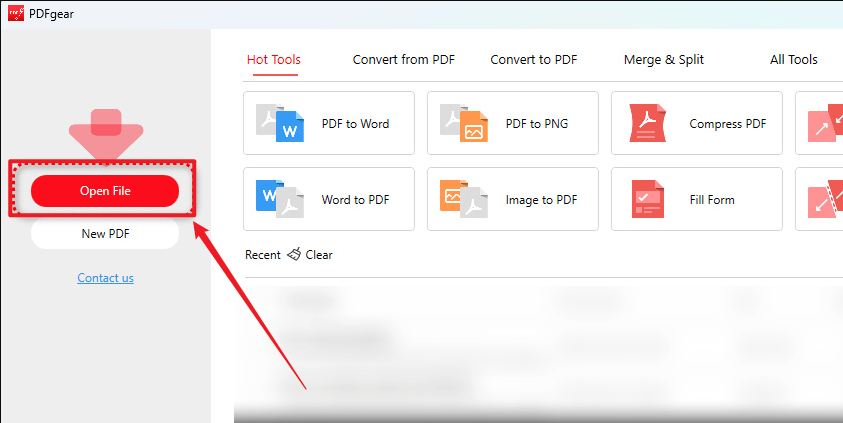
Step 1. Launch PDFgear and click Open File to select and open the PDF you want to add page numbers to.
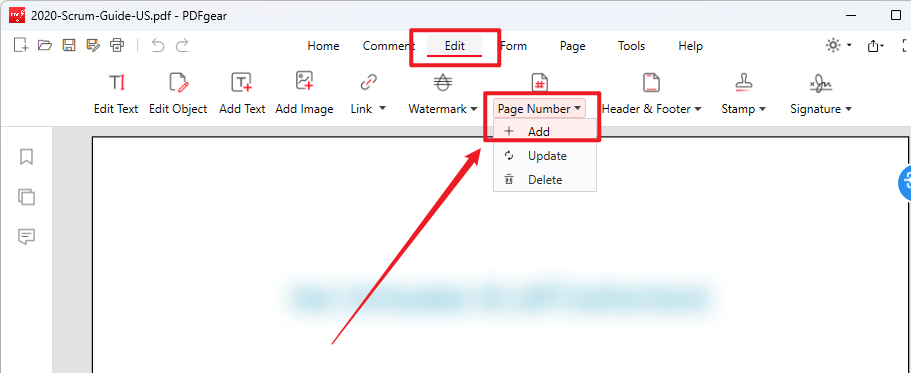
Step 2. Click the Edit tab in the top bar, expand the Page Number dropdown, and click Add.
Step 3. In the pop-up window, customize the page numbers. For example, choose the page number format, set the starting number, adjust the font style, and customize other page number settings. Then, preview the PDF file and click OK to apply the changes.
Step 4. Finally, click File > Save As to save the PDF with the new page numbers.
Which Method Should You Use to Add Page Numbers Without Acrobat
In the content above, I offer 3 methods for numbering PDF pages without Acrobat. Which one is the best method? The best method should depend on what you need from the PDF numbering process. Here, I prepare a comparison table for your reference.
| Method | Best For | Main Advantages | Work Offline | Starting number |
| JOPDF | Private documents and regular desktop editing for free | Completely free and keeps files on your computer | Yes | Yes |
| Adobe Acrobat Online | Quick, occasional numbering tasks | Simple browser-based workflow | No | Limited compared with dedicated editors |
| PDFgear | Detailed PDF editing tasks | Provides more page-numbering controls | Yes, with the desktop app | Yes |
All in all, choose JOPDF if you prioritize privacy and offline processing. Also, JOPDF is a 100% FREE PDF editor available on Windows, Mac, and Linux. If you need a quick and simple web-based solution, consider Adobe Acrobat Online. If you need detailed control over page ranges and starting numbers, PDFgear is also a good choice like JOPDF.
Conclusion
Can you insert page numbers into a PDF without Adobe Acrobat? Of course, you don’t need Adobe Acrobat to add page numbers to a PDF. In the content above, I introduce you to 3 methods to add page numbers to PDF without Acrobat. JOPDF can handle the task offline, Adobe’s online Add Page Numbers to PDF tool provides a quick browser-based workflow, and PDFgear offers more detailed controls. Among them, I prefer JOPDF the most owing to its free nature and various features.
FAQs
Table of Contents

Your Best Free PDF Expert in PDF editing, compressing, converting, annotating, protect, organizing, and more.
Free DownloadWindows · macOS · Linux

Olivia
“Olivia is an editor at JOPDF, where she writes practical guides and insightful articles on managing PDFs—covering topics like editing, annotating, converting, and organizing files efficiently. Passionate about clear communication and digital productivity, Olivia enjoys spending her free time cooking, watching movies, and hiking to unwind and find inspiration for her writing.”