
Introduction:
Do you need to sign forms for yourself and also for your boss? If so, you might wonder how to add multiple signatures to PDF files. Do not worry, because it is actually very easy. In this guide, we will show you three simple ways to do this quickly.
Way 1. Add Multiple Signatures to PDF with JOPDF
If you want the easiest way to finish the work, JOPDF is a good choice. It is a very popular and free PDF editor. The software has a simple workflow, so anyone can use it without needing computer skills.
The best thing about JOPDF is how it handles signatures. Most programs can only save one signature at a time, but with JOPDF, you can create and save any number of electronic signatures.
Plus, JOPDF will keep all the signatures for future use. When opening a PDF, just pick the right name from your saved list. You never have to delete an old signature to make room for a new one. This saves you a lot of time and frustration.
Here are the simple steps to use JOPDF for this task:
- First, click the button below to download JOPDF for free. Then, open the program.
- Click the button that says Open PDF. Find the PDF document you need to sign and open it.
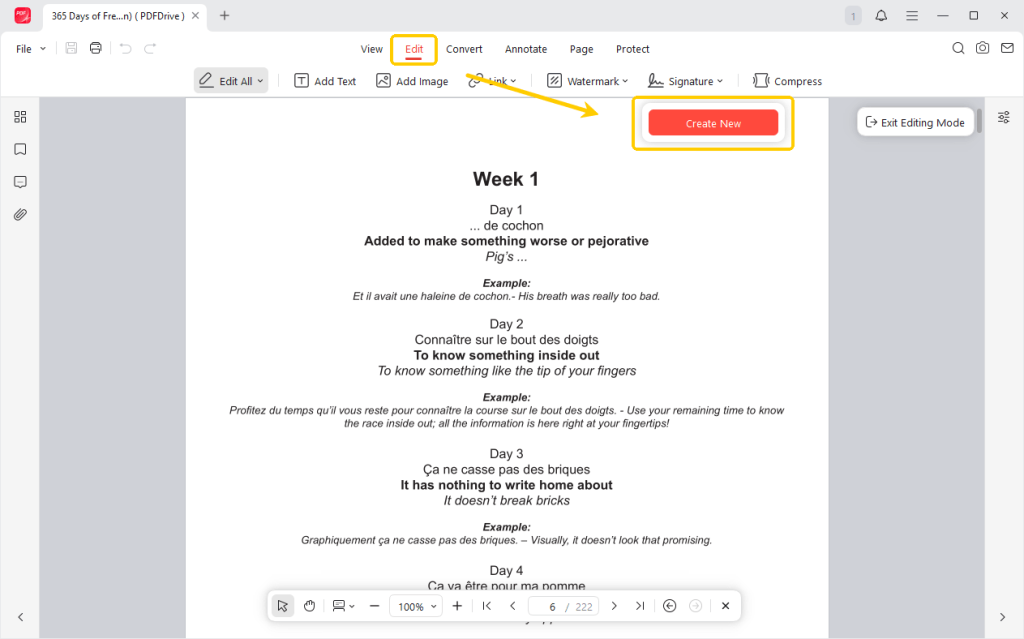
- Look at the top menu bar. Click the Edit button and go to Signature > Create New.
- Now, you can type your name on the keyboard, draw it with your computer mouse, or upload a picture of your signature from a piece of paper.
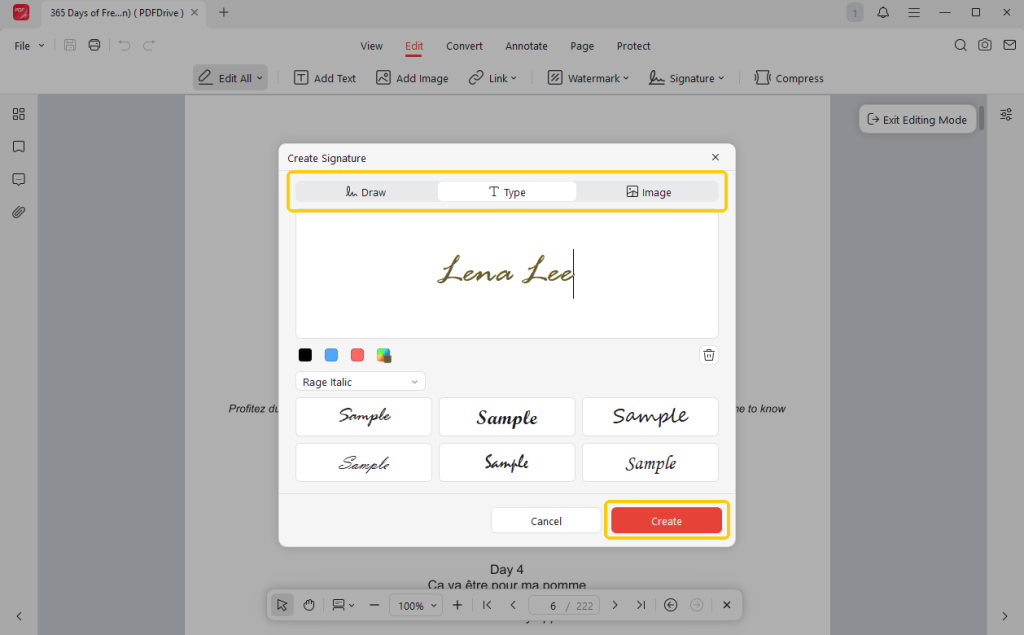
- Click Create to confirm. Now your first signature is ready, and just put it in the right place.
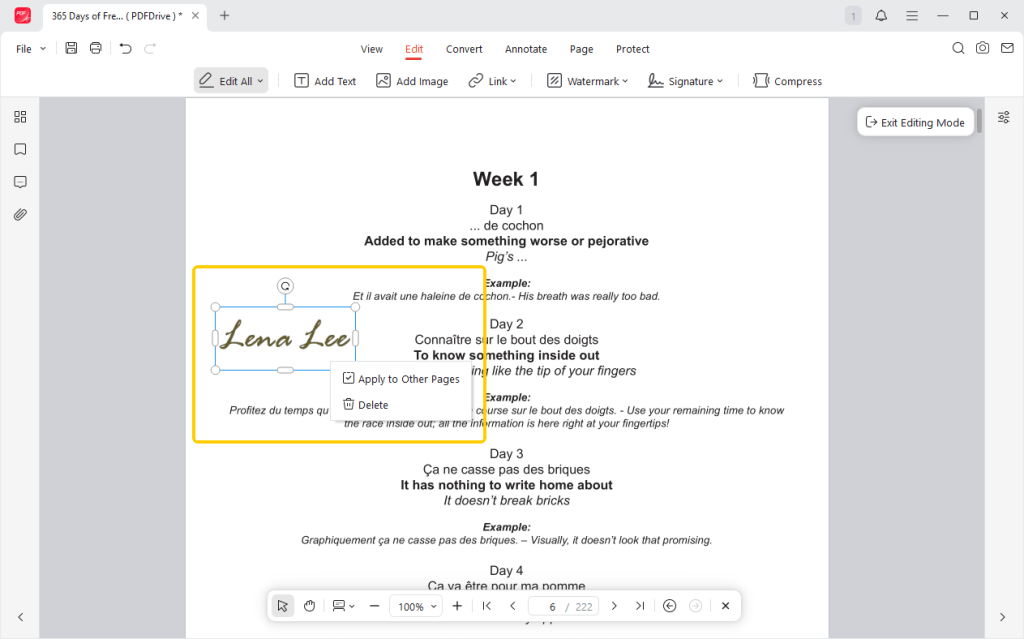
- Go to Create New again to create a second signature for the other person. Save this one, too. Repeat the steps to create and apply all the signatures.
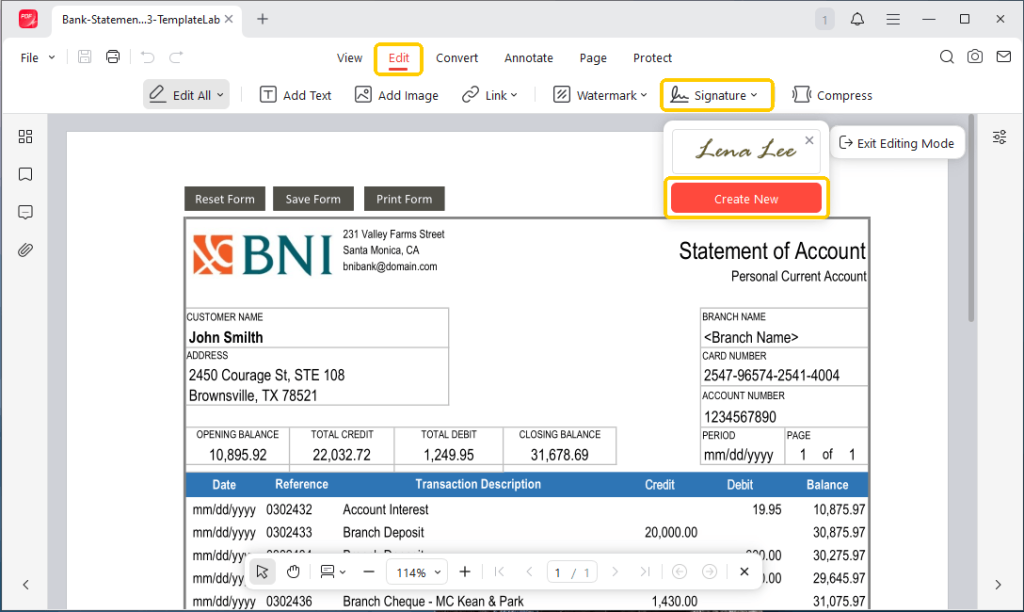
- When OK, click Save to finish your work.
In addition to PDF signing, JOPDF can do many other things. You can use it to fix spelling mistakes, add highlights, or sticky notes to help you study. If your document contains highly sensitive information, JOPDF can even help you lock a PDF after signing.
Just get JOPDF to make your daily PDF work much easier!
Way 2. Add Multiple Signatures to PDF in Adobe Acrobat
It is very easy to add a signature in Adobe. However, there is one big problem if you need to sign for different people. The free version of Adobe Acrobat only lets you save one signature at a time. It will remember your name for the next time, but it will not let you add a second person to your saved list.
This means that if you want to sign your name and then your wife’s on the same document, you have to do extra work. You must place your signature, delete it from the program’s memory, and then create a brand new signature for your wife.
If you do this every day, it gets very annoying. Because of this rule, if you want to keep multiple signatures on file for quick access, JOPDF is a much better choice.
If you still want to use Adobe, here are the steps:
- Right-click the PDF and choose to open it with Adobe Acrobat.
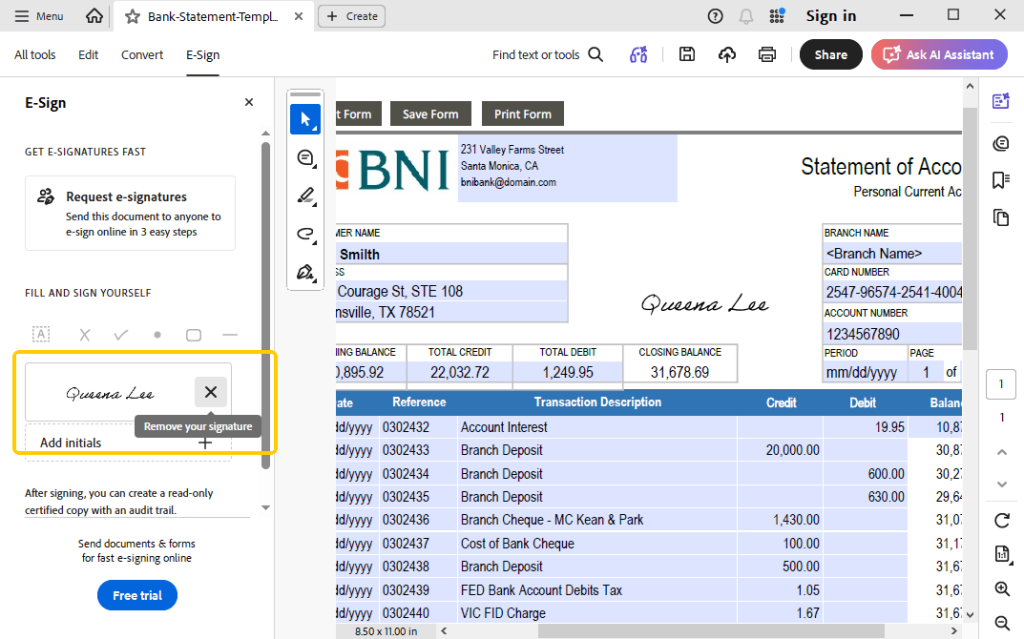
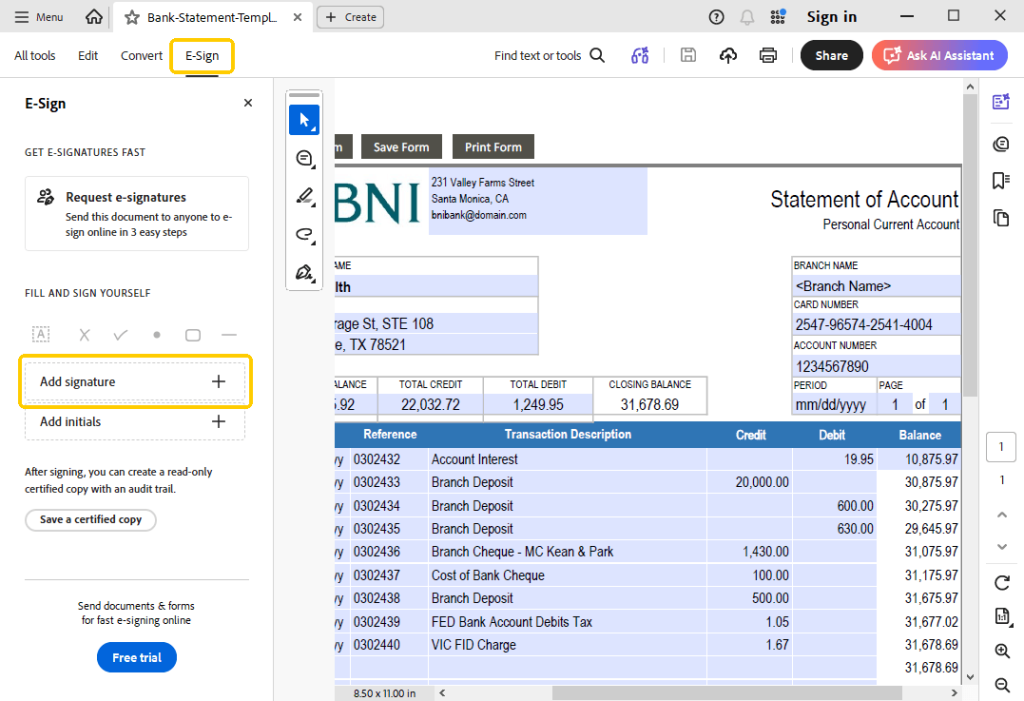
- Look at the top of your screen and click the E-Sign icon.
- If you already have a signature saved, you will see it here. Click the X icon next to it to delete it.
- Click Add Signature to type or draw the new name.
- Click Apply. Your mouse will now hold the signature. Click on the document line to drop it there.
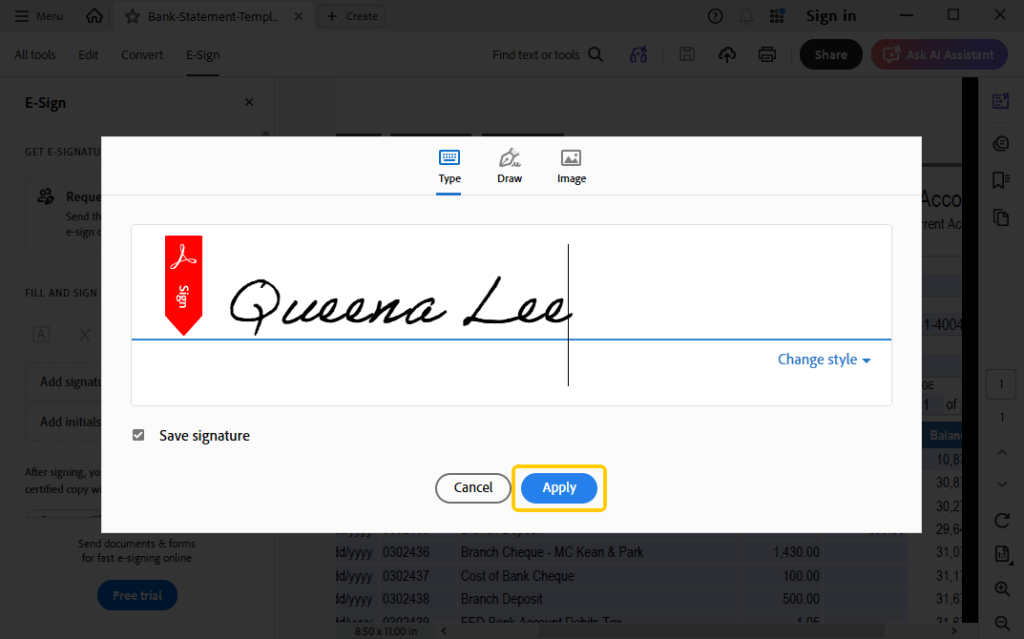
Note: If you don’t want to keep the signature, please uncheck the box next to Save signature.
- To add another person’s signature, go back to the signing tool, delete the one you just made, and type the next name.
- Click the Save button when you are done.
Way 3. Add Multiple Signatures to PDF Online
You probably do not want to spend time downloading and installing new software. If you just need a quick fix, you can use an online tool to electronically sign a PDF. You do this right inside your web browser, like Google Chrome.
A very good website for this is called Sejda. It lets you create multiple signatures and stamp them on your page without having to delete them right away.
Check to learn how you can use Sejda:
- Open your browser and go to the Sejda “Sign PDF” tool: https://www.sejda.com/sign-pdf.
- You will see a big button to upload your file. Click it, and pick the PDF document from your computer.
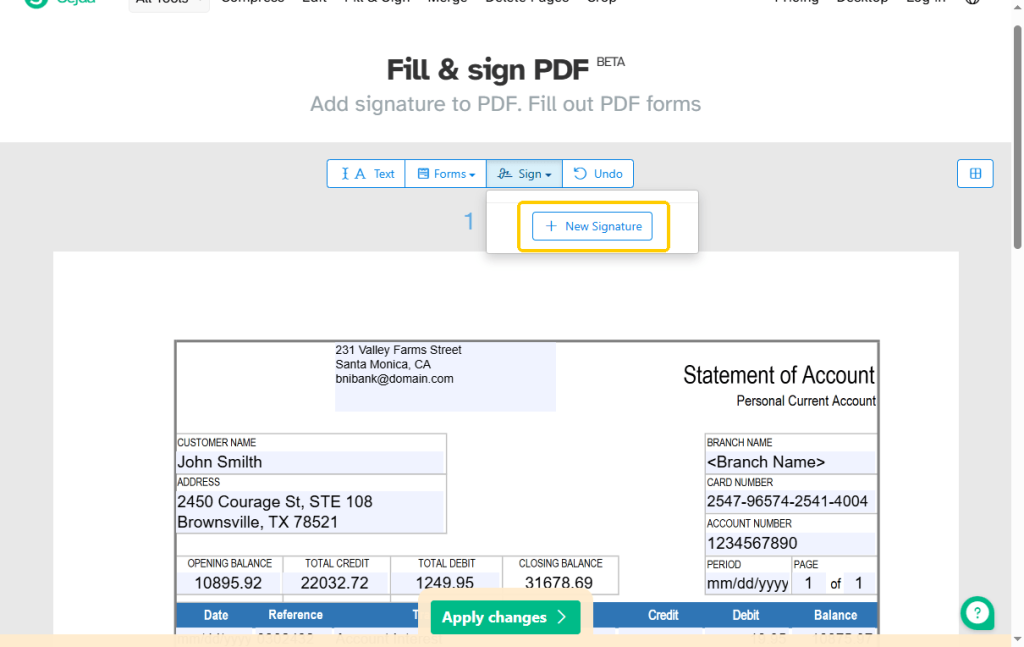
- Click the Sign button at the top of the page. Then click New Signature.
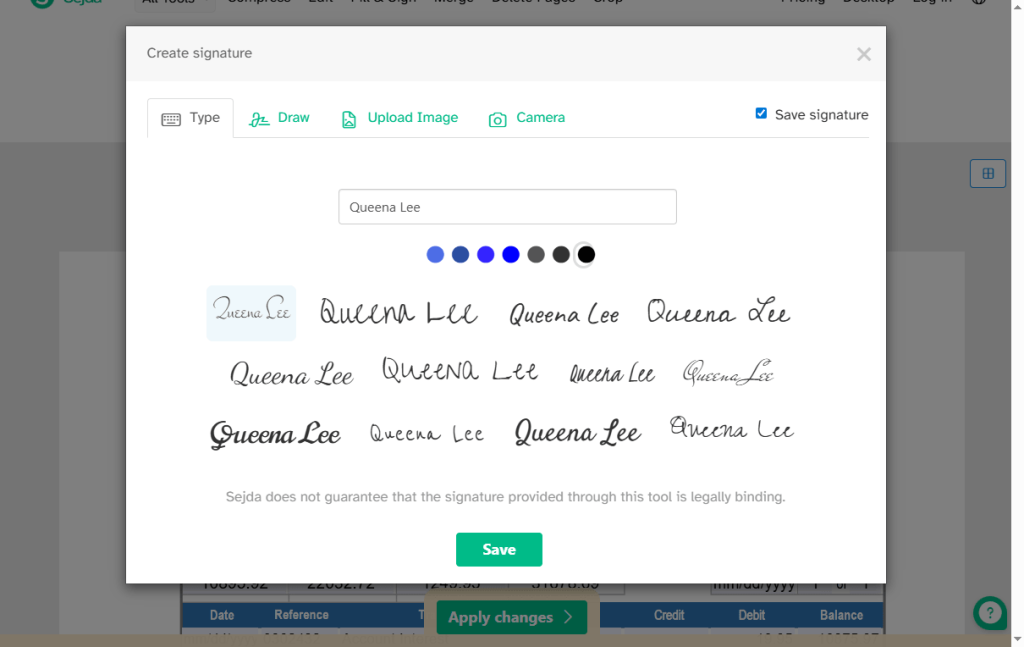
- You can type your name or draw it. When it looks good, save the signature and move it to the right place on your document.
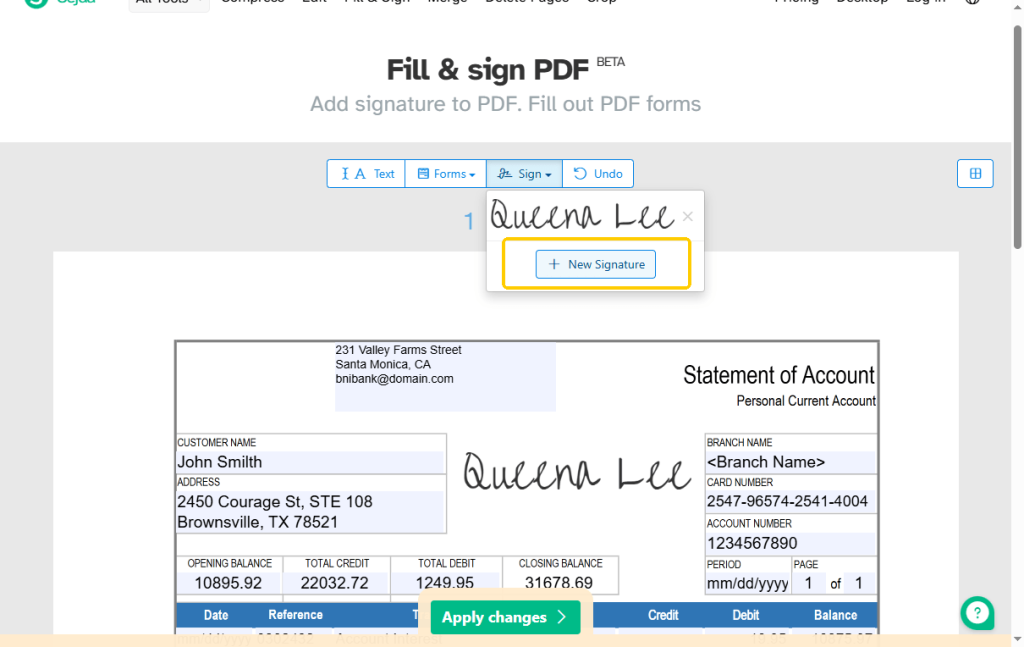
- Go back up to the New Signature again. Create and put all the signatures.
- When OK, click Apply changes. Wait a few seconds for the website to process your file and download it to your computer.
Remember, you have to upload your document to the internet. If your document contains your Social Security number or bank details, it is much safer to use a secure computer program like JOPDF instead.
Conclusion
That’s all about how to add multiple signatures to PDF. As you can see, signing a document for more than one person is not hard. If you only need to do it once, you can use a free website like Sejda. If you already have Adobe Acrobat, you can use it, but remember, you will have to keep deleting and recreating your signatures.
To finish the work quickly, we highly recommend JOPDF. It is a completely free program that lets you save as many signatures as you need. It remembers them forever, so you never have to waste time typing them again. Download JOPDF today and see how easy it is to manage your documents!
FAQs
Table of Contents

Your Best Free PDF Expert in PDF editing, compressing, converting, annotating, protect, organizing, and more.
Free DownloadWindows · macOS · Linux

Queena
Editor
“As a staff editor for JOPDF, Queena excels at guiding users to the optimal tools and solutions. When she's not analyzing the latest PDF solutions, she enjoys spending her free time playing with her four cats.”

![3 Proven Ways to Remove Page Numbers from PDF [Free & Paid]](https://b.jopdf.com/wp-content/uploads/2026/09/remove-page-numbers-from-pdf.png)
