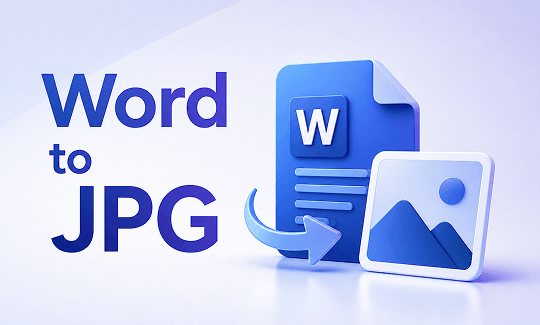
Word documents are great for editing. JPG images are great for sharing. When you need to convert Word to JPG, you’re bridging the gap between a working file and a universally viewable format. Whatever the reason, there are several free ways to handle a Word to JPG conversion. This guide on JOPDF covers five methods — from built-in system tools to online converters to desktop software — so you can choose the one that fits your workflow.
Summary :
Why do you convert Word document to JPG? Word files are editable and dynamic. JPG files are static and universal. Each format serves a different purpose. Most people convert Word to JPG because they want to share content on social media or messaging platforms where .docx files aren’t natively supported.
When you convert Word document to JPG, the result is a flat image. Text can’t be copied, edited, or accidentally modified. This makes JPG ideal for sending finalized contracts, invoices, and official notices where the exact Wording must remain intact.
Here is a quick comparison about JPG vs. Word.
| Feature | JPG | Word |
| Primary purpose | Image display | Document creation & editing |
| Editability | Limited (photo editing software) | Full text/formatting control |
| Best for | Photos, web graphics, sharing | Reports, contracts, letters |
| File size | Small (compressed) | Varies (may be larger with images) |
| Transparency support | No | N/A |
How to convert Word to JPG? There are five methods to convert from Word to JPG.
Method 1: Convert Word to JPG Using JOPDF Desktop Software
JOPDF is a Windows desktop PDF editor that offers the most complete convert Word to JPG for free experience available. Unlike online tools, everything processes locally on your computer. Unlike basic built-in methods, JOPDF handles batch conversion and gives you detailed control over resolution, quality, and page selection. For anyone who regularly needs a reliable Word to JPG converter, this is the method that scales with your workload.
Step 1: Get JOPDF from the official website and install it on your Windows PC. The software is free to use and processes all files locally. No internet connection is required once installed.
Tips
Unlike other methods, JOPDF lets you modify the document before you convert Word doc to JPG. Delete pages you don’t need. Rotate misaligned pages. Add annotations or watermarks. Merge multiple Word files into one document. This pre-conversion editing eliminates the need to go back to Word, make changes, and restart the conversion process.
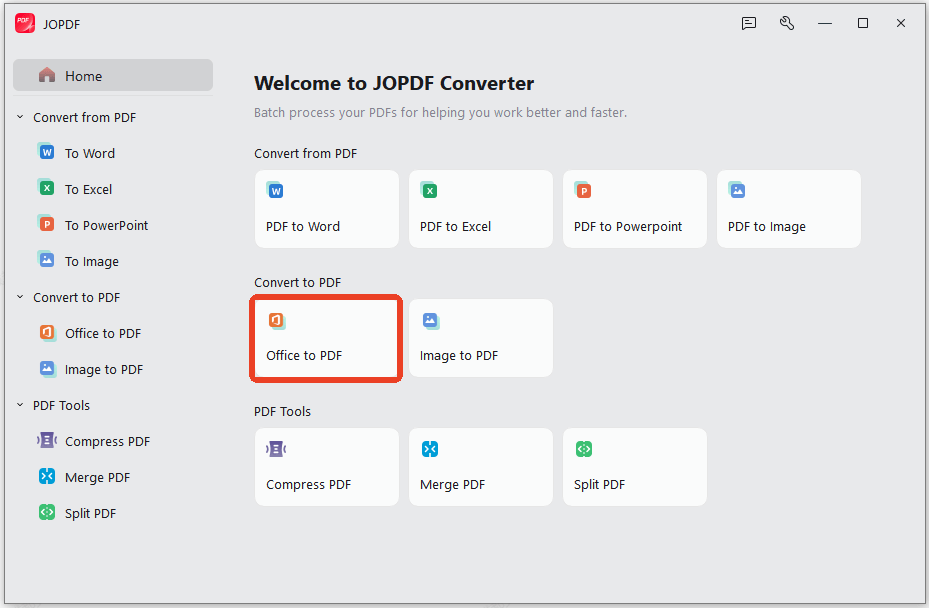
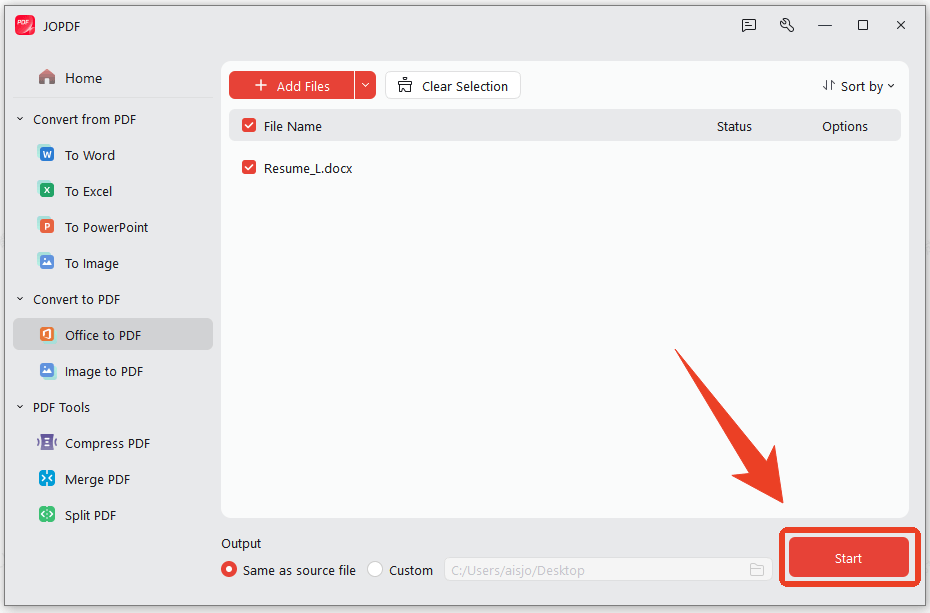
Step 2: Launch JOPDF and click Batch Process > Office to PDF.
Step 3: Drag and drop your files to the window and click Start to prepare for the conversion from Word to JPG.
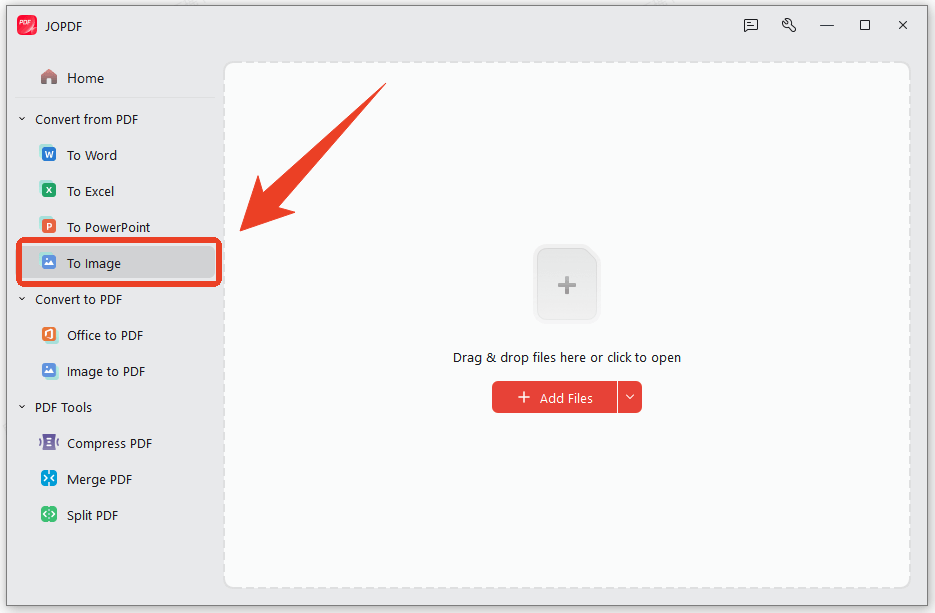
Step 4: Download the converted file and choose To Image from the left list in the JOPDF converter window.
Step 5: Upload the PDF file you downloaded before and select the Format option to JPG. Furthermore, you can choose the PDF to Image conversion method and output quality.
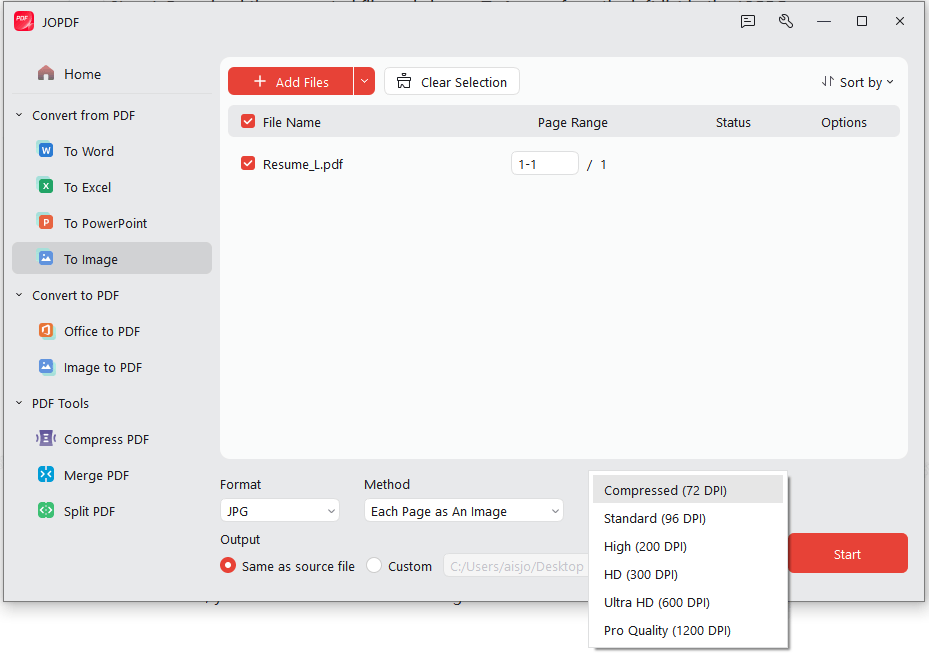
Step 6: Click Start to finish the final step for Word doc to JPG conversion.
Tips
JOPDF’s batch processing sets it apart from every other free method. You can load multiple Word documents simultaneously and convert Word to JPG free across all of them in one operation. Each file generates its own set of JPG images. This saves substantial time for users who regularly need to convert Word file to JPG for multiple documents.
Also See: Combine JPGs into One PDF for Free Using 4 Methods
Method 2: Save Word as JPG Using Microsoft Word Built-In
If you already have Microsoft Word installed, you don’t need any other software to convert Word to JPG. This method uses Word’s built-in paste and save features to turn document content into image files. It’s the most straightforward Word to JPG free approach for Windows users who work with Word daily.
Step 1: Launch Word and open the document you want to convert.
Tips
Review the content and make any final adjustments. Remember to check margins, font sizes, and image placement.
Step 2: Select the entire page or the specific content you want to convert and press Ctrl + C to copy it to your clipboard.
Step 3: Open a new blank Word document and right-click on the empty page to select the Picture option under Paste Options.
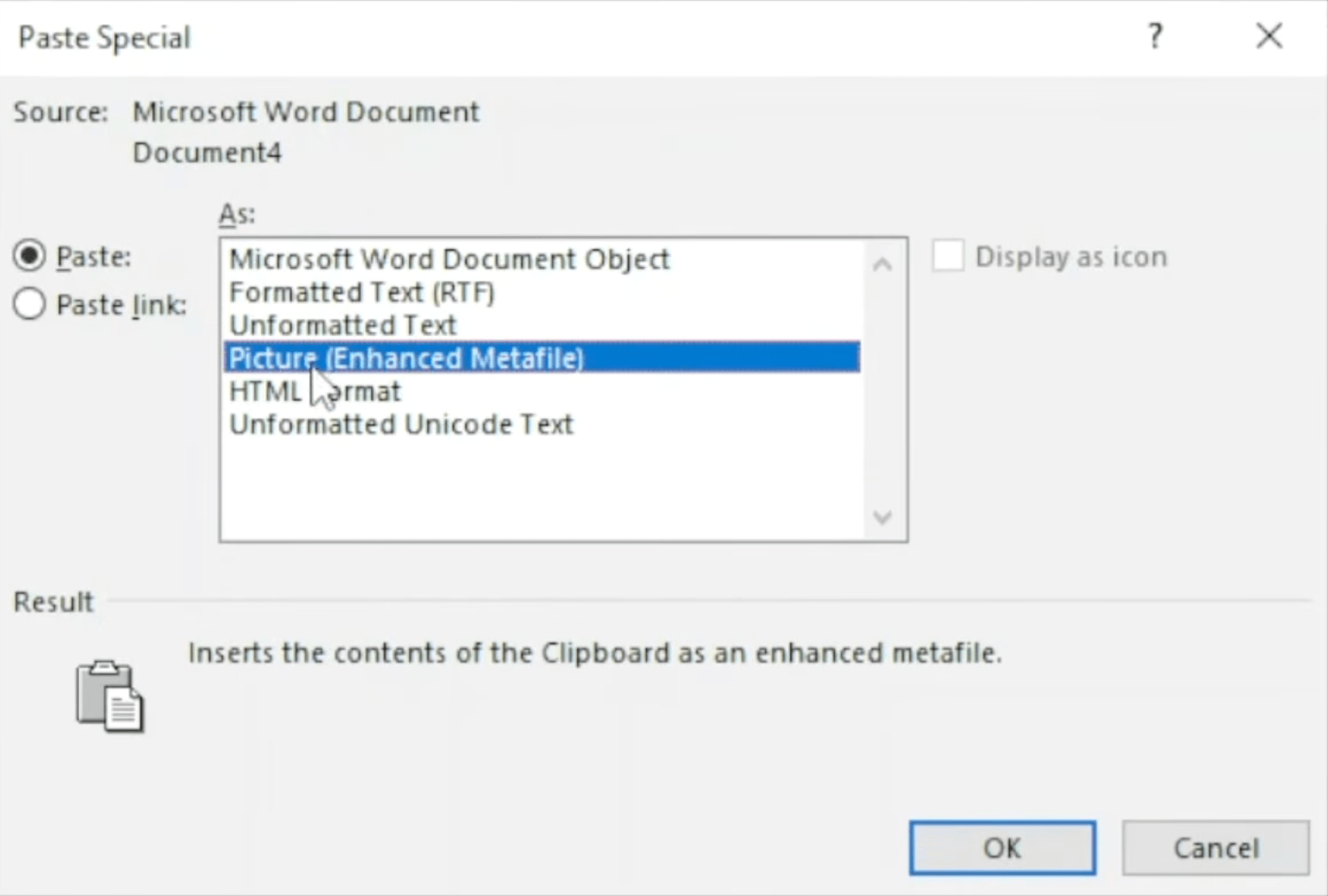
Step 4: Right-click on the pasted image and select Save as Picture.
Step 5: In the file dialog that appears, choose JPEG File Interchange Format from the file type dropdown.
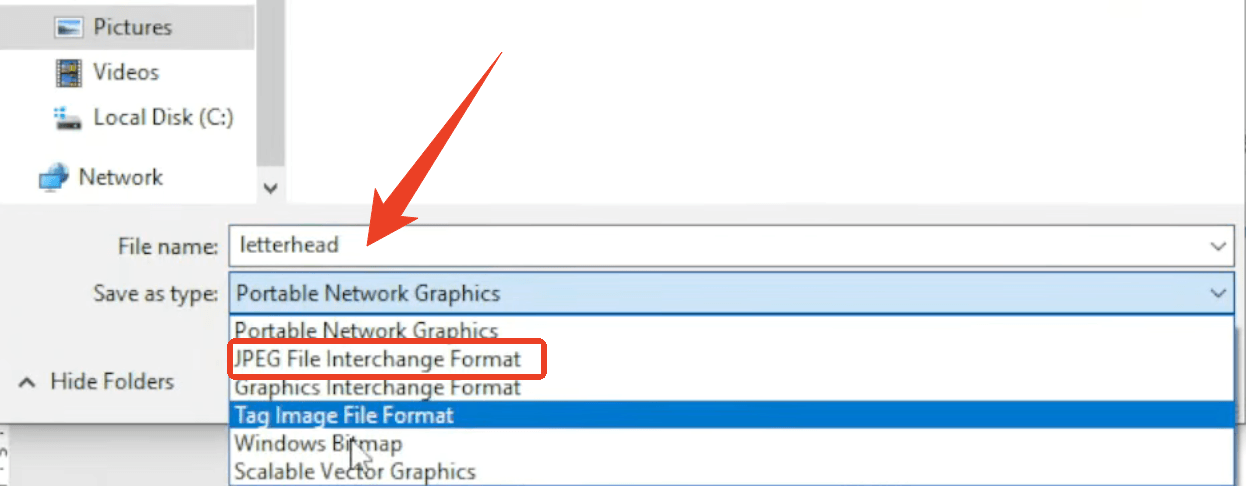
Step 6: Name your file and click Save. You have now completed a Word to JPG free conversion entirely within Microsoft Word.
Tips
Before saving, click the Tools dropdown in the save dialog and select Compress Pictures. Choose High Fidelity for print-quality output or Web for smaller file sizes suitable for online use. This setting affects the resolution of your final JPG.
Method 3: Convert Word to JPG Using Windows Snipping Tool
The Windows Snipping Tool can help quickly convert Word to JPG free without opening any additional programs beyond what ships with Windows. It’s ideal when you need to convert from Word to JPG for a specific section or a single page rather than an entire document. Every Windows PC already has this tool ready to use.
Step 1: Open the document and set the zoom level so the content fills your screen clearly.
Step 2: Press Win + Shift + S to open the Snipping Tool toolbar. Your screen dims, and a small toolbar appears at the top. Select Rectangle Snip for the most control over what you capture.
Step 3: Click and drag to draw a rectangle around the document content you want to convert Word to JPG. Then, a notification appears confirming the snip was taken.
Step 4: Click the notification to open the Snipping Tool editor and click File > Save As.
Step 5: In the Save as type dropdown, select JPEG file and name your file to click Save. Now, you can free convert Word to JPG.
Method 4: Convert Word to JPG on Mac Using Preview
Mac users can convert Word file to JPG using two applications that come pre-installed on every Mac: Pages and Preview. This local method keeps your documents off the web and gives you full control over output quality. It’s the most reliable workflow to convert Word to JPG free for macOS users who want a private, built-in solution.
Step 1: Right-click your .docx file and select Open With > Pages.
Step 2: Click File in the menu bar and select Export To > PDF.
Step 3: Choose your image quality settings and click Next to save the PDF to your desktop.
Step 4: Double-click the PDF file you just created and it opens in Preview – the default PDF viewer on macOS.
Step 5: Click File > Export and select JPEG in the format dropdown at the bottom of the dialog.
Step 6: Use the Quality slider to adjust compression and click Save to complete the Word file to JPG conversion on Mac.
Tips
For users who need to convert Word doc to JPG free across multiple files, macOS Automator can create a workflow that automates the Word to JPG pipeline. Set it up once and run it as needed.
Also Read: Best Free Offline PDF Editor 2026: 5 Tools That Work Without the Internet
Method 5: Convert Word to JPG Using Free Online Converters
Online converters are the fastest way to convert Word to JPG online without downloading or installing anything. A good Word to JPG converter online free tool works across all devices — Windows, Mac, Chromebook, and mobile. This method is perfect for occasional conversions when convenience matters more than anything else.
Several reputable platforms offer Word to JPG converter online free tools. Zamzar has operated since 2006 and supports batch conversion. Online2PDF handles multi-page documents and allows quality customization. Smallpdf offers a polished interface. ILovePDF provides a free tier with reasonable limits. Choose any of these — they all follow the same basic workflow.
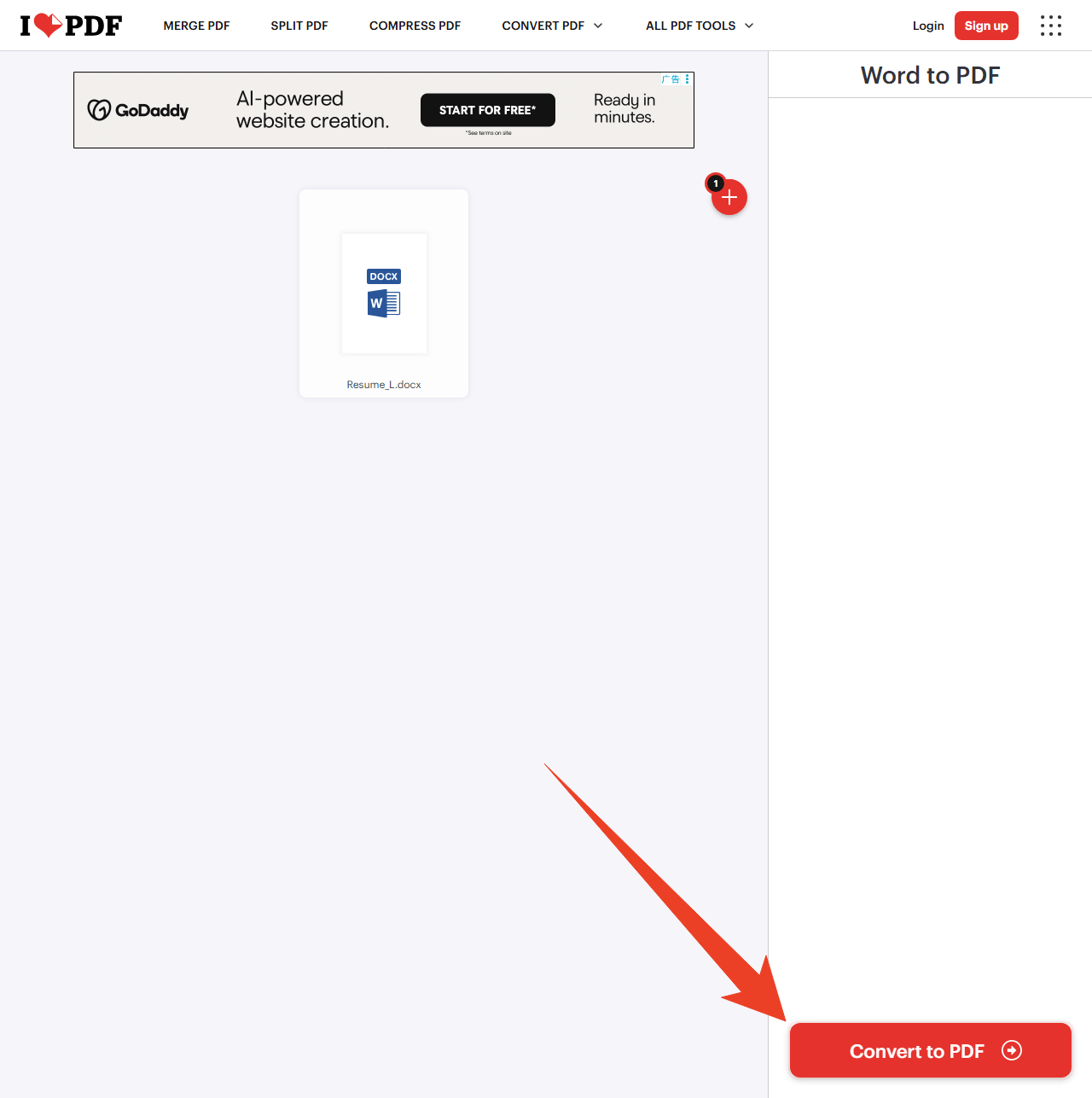
Step 1: Go to the ilovepdf Word to PDF converter online and select your Word files to upload. Most online Word to JPG converter tools accept .doc and .docx formats. File size limits vary — Zamzar allows up to 50MB on the free tier, while others cap at 25MB.
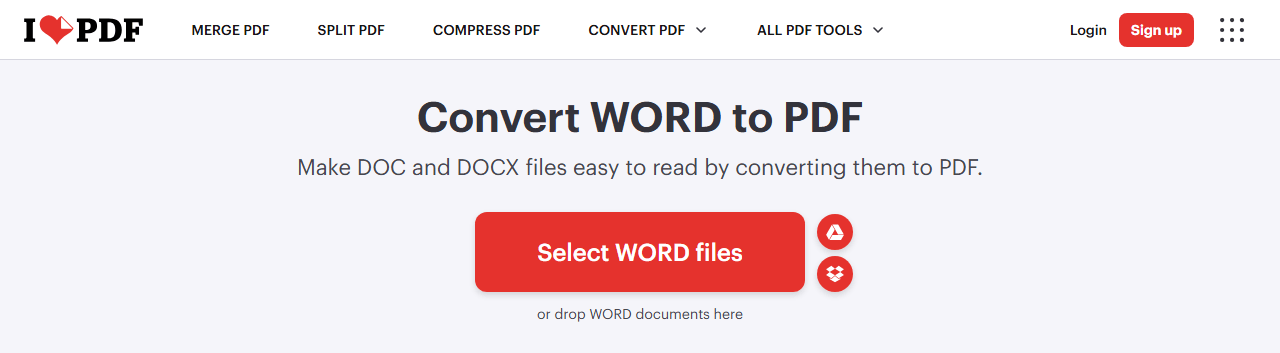
Step 2: If the free Word to JPG converter offers multiple output options, select JPG or JPEG. Some tools let you choose image quality (Low, Medium, High) and resolution at this stage. Set these before you convert Word to JPG free online.
Step 3: Click the Convert or Start button. Processing time depends on file size and server load — most conversions complete within 30 seconds. Once finished, download the JPG file.
Tips
Reputable online JPG to Word converter for free automatically delete uploaded files after a set period, usually within a few hours. For sensitive documents, check the platform’s privacy policy before uploading. If the document contains personal, financial, or confidential information, use JOPDF PDF converter.
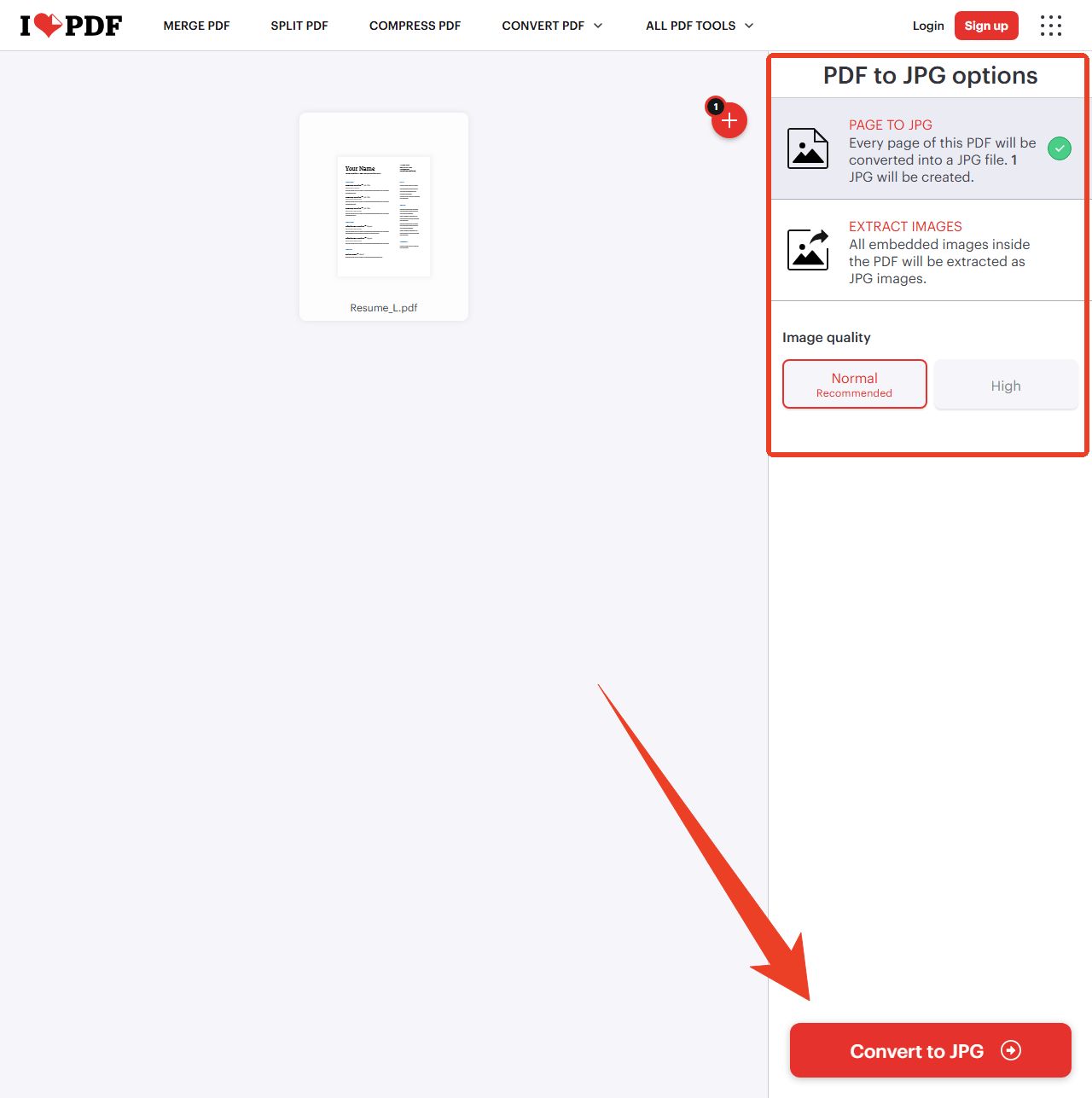
Step 4: After you download the PDF file, go to the online PDF to JPG converter and select the PDF file to upload.
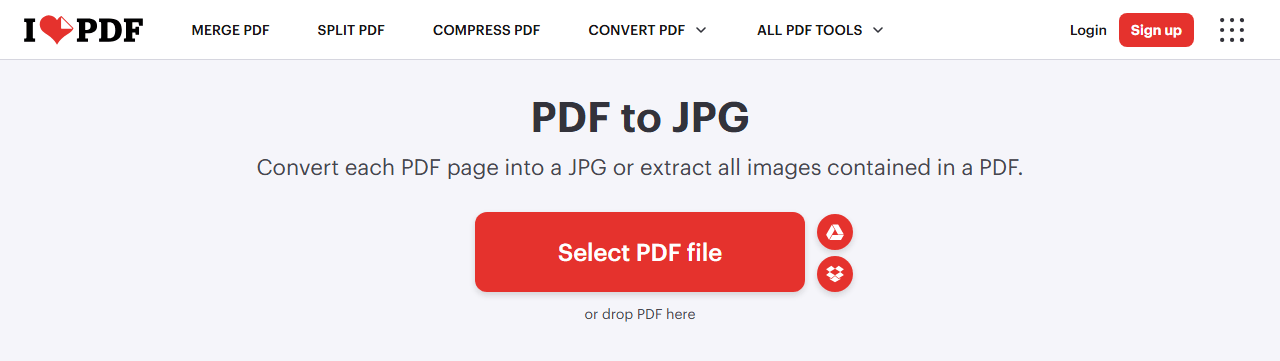
Step 5: You are allowed to choose the PDF to JPG options, including PAGE to JPG and EXTRACT IMAGES. Besides, select the image quality for sure.
Step 6: Click Convert to convert Word doc to JPG and then download the Word to JPG file.
Tips for High-Quality Word to JPG Conversion
Getting professional results from any Word to JPG converter free method requires attention to a few details. These tips apply regardless of which conversion method you choose.
#1. Set the Right Resolution
Resolution determines how sharp your JPG looks. 72 DPI works for social media and web pages. 150 DPI is sufficient for PowerPoint presentations and email attachments. 300 DPI is the standard for printed documents. JOPDF and most online Word to JPG converter online free tools let you select resolution before conversion.
#2. Check Your Fonts
JPG captures fonts as pixels. This is actually an advantage for Word document to JPG conversion — the recipient sees your exact typography regardless of what fonts they have installed.
#3. Mind Your Margins
Narrow margins that look fine in a Word document can feel cramped in a standalone JPG image. Add a bit of extra whitespace around the edges before you convert from Word to JPG.
#4. Use High Contrast
Light gray text on a white background may be readable in Word but can become nearly invisible in a compressed JPG. Ensure strong contrast between text and background colors. Black text on white is the safest combination for convert Word doc to JPG free results that remain legible across all devices.
#5. Compress After Conversion
High-resolution JPG files from a free convert Word to JPG process can be large — 5MB or more per page. If you need smaller files for email or web use, run them through JOPDF’s compression tool after conversion. Compression reduces file size with minimal visible quality loss. This is more effective than lowering resolution during conversion because compression algorithms are smarter about what data to discard.
Final Thoughts
How to convert Word to JPG? For a single page or quick capture, the built-in Word method and Snipping Tool get the job done without any extra software. Mac users have a clean, local path through Pages and Preview. Online converters offer unmatched convenience when you need to convert Word to JPG online without installing anything.
FAQs
Table of Contents

Your Best Free PDF Expert in PDF editing, compressing, converting, annotating, protect, organizing, and more.
Free DownloadWindows · macOS · Linux

Anna
Editor
“Anna, Editor-in-Chief and PDF expert, delivers deep insights into PDF document technology trends. She is dedicated to helping readers optimize their digital lives. When not writing, Anna loves exploring local cafes and reading, blending her technical expertise with a love for storytelling.”
![4 Free and Proven Methods to Convert PDF to ODS [Detailed]](https://b.jopdf.com/wp-content/uploads/2026/10/convert-pdf-to-ods.png)