Introduction :
It is helpful to take screenshots when saving receipts, conversations, documents, presentations, or online information. However, images are not always the best format for sharing, archiving, or printing. In that case, converting a screenshot into a PDF makes the file easier to organize, upload, and distribute. How to turn a screenshot into a PDF on Windows, Mac, iPhone, and Android? This JOPDF article will walk you through the best tools to convert screenshots to PDF.
Quick Ways to Convert Screenshot to PDF
Whether you use Windows, Mac, iPhone, or Android, there are several quick ways to convert screenshots into PDFs. Here’s a table of the quick ways to turn a screenshot into a PDF. You can have a look. For a more detailed introduction and guidance, jump to the following sections.
| Device | Fastest Methods |
| Windows | Microsoft Print to PDF; JOPDF; SwifDoo PDF |
| Mac | Preview; JOPDF |
| iPhone | Print > Save as PDF |
| Android | Share > Print > Save PDF |
| Windows/Mac/Linux | JOPDF |
How to Turn a Screenshot into a PDF on Windows
For Windows users, there are several ways for you to convert screenshots to PDF with ease. You can use its built-in PDF printer to make a screenshot conversion, or use a dedicated PDF converter to convert images to PDFs efficiently. Here, let’s check them one by one.
- Method 1: Convert screenshots to PDF with JOPDF
- Method 2: Use Microsoft Print to PDF
- Method 3: Use an online screenshot-to-PDF converter
Method 1: Convert Screenshots to PDF with JOPDF
If you frequently work with screenshots or images and want better PDF quality and organization, JOPDF is the best free choice.
JOPDF is a free PDF tool available for Windows, Mac, and Linux. It can work as a PDF editor and a PDF converter. Serve as an excellent PDF converter, JOPDF allows you to convert images, Word, Excel, and PPT to PDF, and vice versa. In a word, you can use JOPDF to convert screenshots to PDF for free. In addition, it enables you to combine multiple screenshots into a single PDF.
Here, let’s learn how to convert screenshots to PDF on Windows using JOPDF.
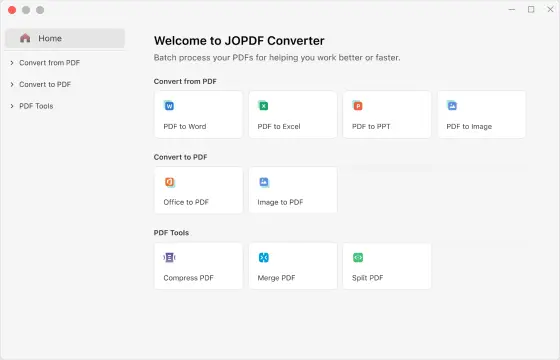
Step 1. Click the button below to download JOPDF on your Windows PC, and follow the on-screen instructions to install it.
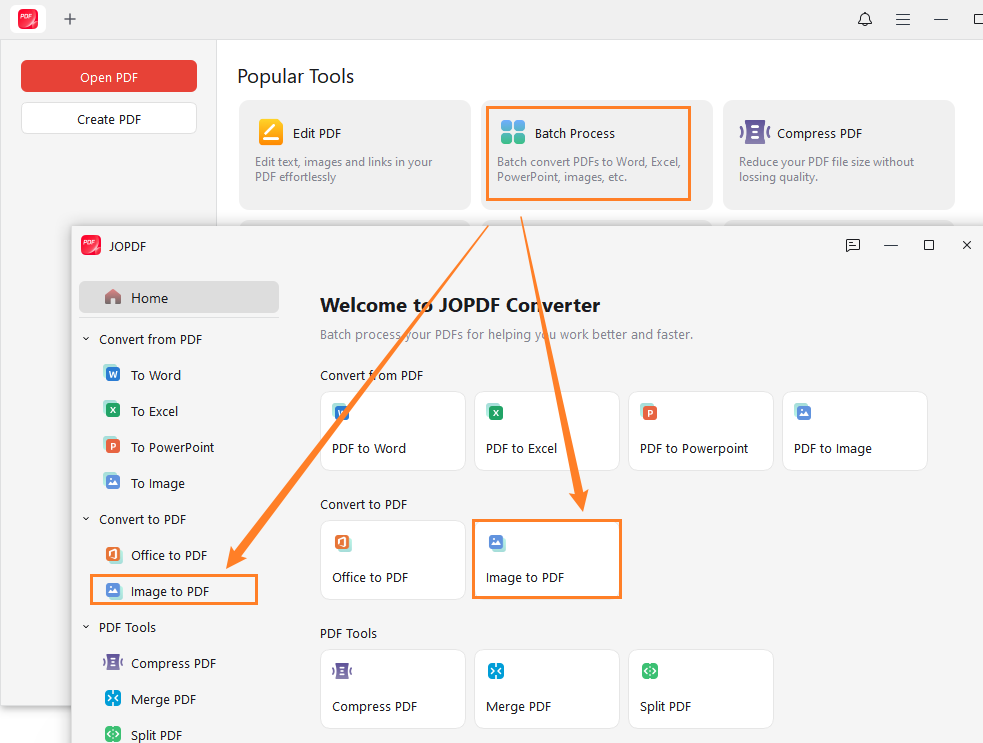
Step 2. Launch JOPDF converter, click Batch Process, and select Image to PDF.
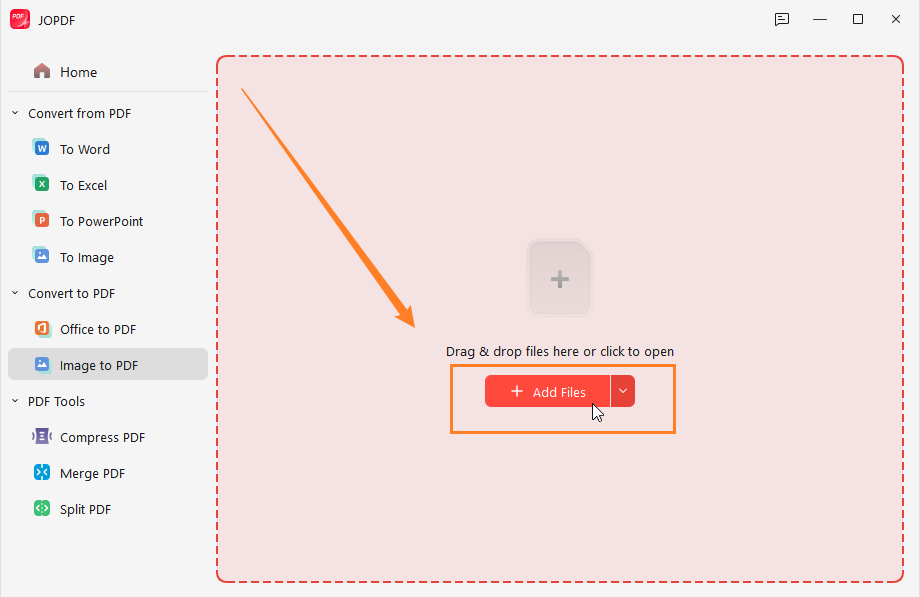
Step 3. Import your screenshots by dragging them into JOPDF. Alternatively, click Add Files.
Step 4. Here, you can specify the conversion settings. Open the Method list and make a choice between “Each Image as A PDF” and “All Images as One PDF”. Meanwhile, you can keep the original image size. Or, you can resize the PDF to A4. Next, select the saving path. Finally, click the Start button.
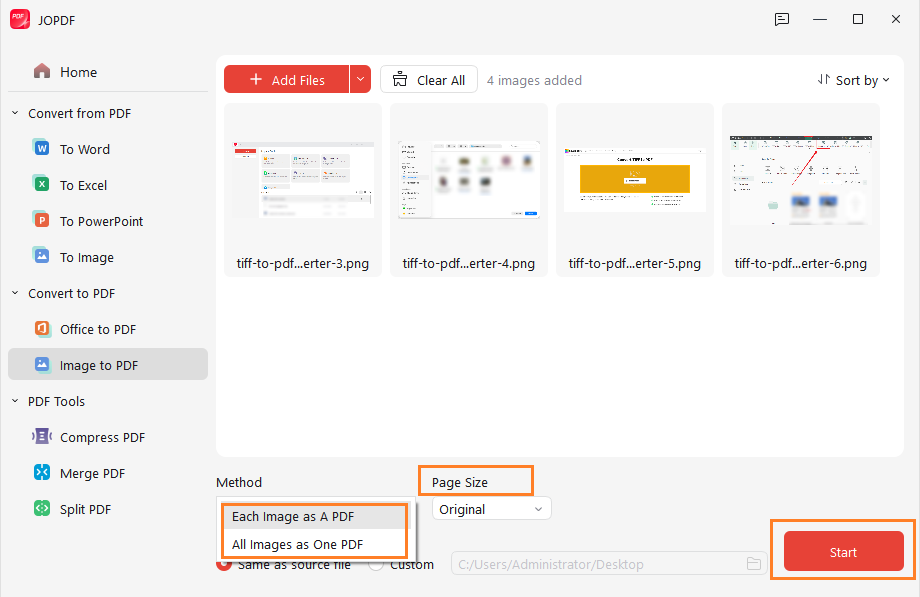
Then, you can open the converted PDF file in JOPDF. Beyond being a PDF converter, JOPDF is an excellent PDF editor with a range of editing features. For instance, you can use it to:
- Edit and resize images in the PDF.
- Add text boxes to a PDF.
- Typewrite or draw on a PDF.
- Split or merge PDFs.
- Compress PDFs to reduce file size.
- Add attachments, sticky notes, links, and shapes to a PDF.
- Watermark a PDF or remove watermarks.
- Password-protect a PDF.
- …
Method 2: Use Microsoft Print to PDF
Microsoft Print to PDF, a built-in feature for Windows 10/11, enables you to convert documents or images into PDF files. Instead of printing to a physical device, Microsoft Print to PDF lets you save the image or documents as a PDF on your Windows PC. In this way, you can turn a screenshot into a PDF without additional software. However, it has limited editing features. Whatever, Microsoft Print to PDF is worth a try. Below is how to turn a screenshot into a PDF using Microsoft Print to PDF.
Step 1. Locate your screenshot, right-click it, hover over Open with, and click Photos.
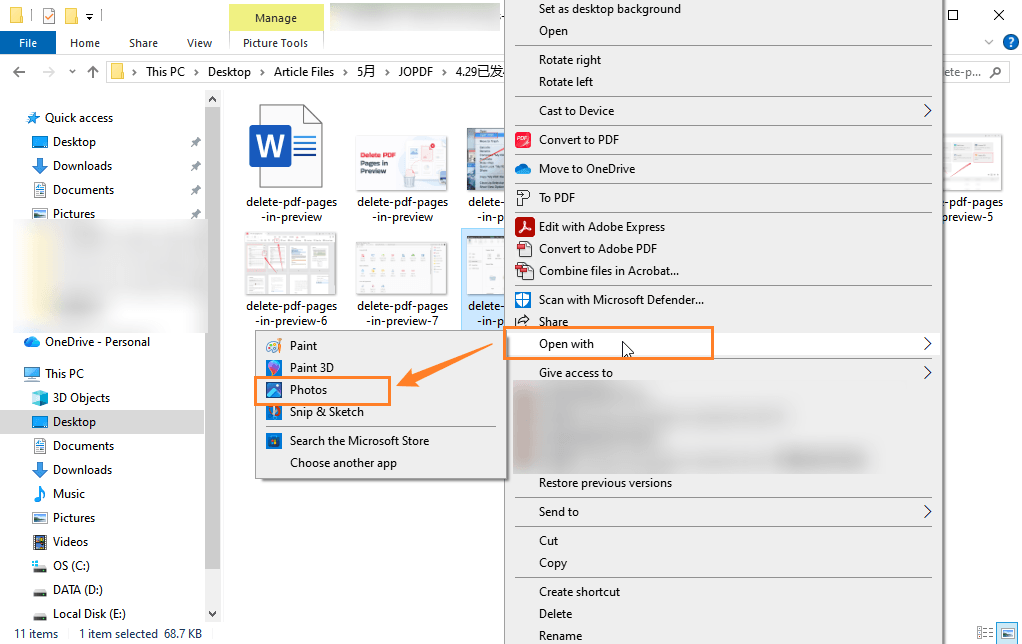
Step 2. Press Ctrl + P to open the print window.
Step 3. Open the Printer list and select Microsoft Print to PDF. Meanwhile, customize other settings like paper size and layout.
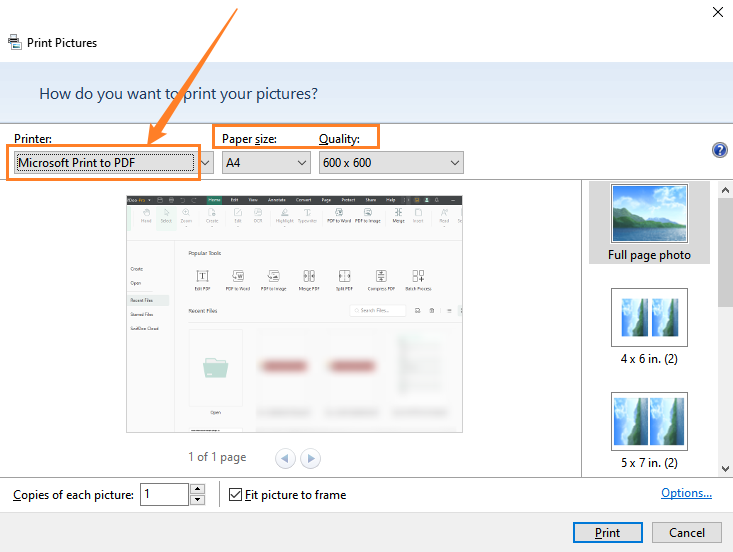
Step 4. Then, click Print. Finally, name it, specify its saving folder, and click Save.
Method 3: Use an Online Screenshot-to-PDF Converter
Additionally, you can use online tools to convert screenshots into PDFs. Most online PDF converters allow you to convert screenshots or images in PNG or JPG to PDF. You can use these online tools without downloading and installing any software. Moreover, most of them offer a free version. You can use them to convert a screenshot to a PDF for free. Here are several reliable online converters for you to choose from.
- iLovePDF
- FreeConvert
- PDF Candy
- Smallpdf
- SwifDoo PDF Online Converter
- Canva
- CloudConvert
Most online converters offer a user-friendly interface, making it easy for beginners to master how to use them. Meanwhile, the operation procedures of all of them are quite similar. You can refer to the following typical steps.
Step 1. Visit the official website of the online screenshot-to-PDF converter.
Step 2. Upload the screenshots and specify the conversion settings as needed.
Step 3. Click Convert. Once the conversion is over, download the PDF file.
How to Convert a Screenshot to PDF on Mac
Like Windows users, Mac users also have both built-in and third-party tools to convert screenshots to PDF. Meanwhile, they can help you combine multiple screenshots into one PDF on Mac.
- Method 1: Use Preview
- Method 2: Use JOPDF on Mac
Method 1: Use Preview
As an image and PDF viewer, Preview offers a good reading experience on Mac. Surprisingly, Preview also has the feature to convert images to PDFs. You can use it to convert JPG to PDF on Mac. Additionally, it enables you to convert other image formats like PNG and TIFF. With Preview, you can convert a single screenshot to a PDF or combine multiple screenshots into one PDF. Here, let’s look at the exact steps below.
Step 1. Locate the screenshot, right-click it, and go to Open With > Preview.
Step 2. Click File and select the Export as PDF option. Finally, choose a save location and click Save.
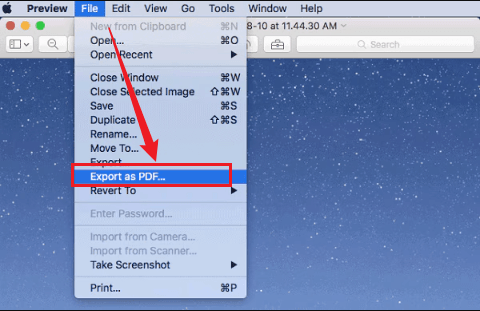
To combine multiple screenshots into a PDF, follow the instructions below:
- Open all screenshots in Preview, then click the Thumbnails option in the View list to enable the thumbnails pane.
- Press Command + A to select all screenshots.
- Click File and select Print.
- Then, expand the PDF list and select the Save as PDF option.
Now, you can get a PDF file containing multiple screenshots.
Method 2: Use JOPDF on Mac
If you need additional features such as batch processing, compression, or page customization, JOPDF provides a faster workflow than Preview alone. Its drag-and-drop interface makes it easy to convert multiple screenshots into professional-looking PDFs. Hence, you can also try JOPDF for Mac. To use JOPDF to convert screenshots, you can refer to the guidance above for JOPDF on Windows.
How to Turn a Screenshot into a PDF on iPhone
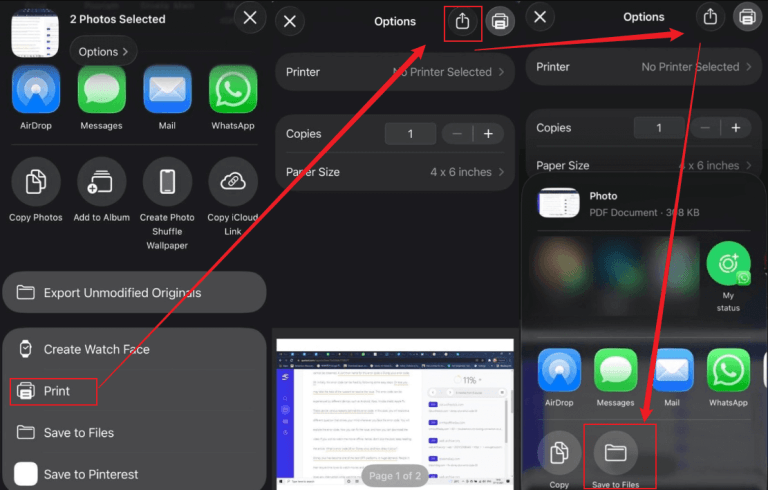
Do you need to download a dedicated PDF converter to convert a screenshot to PDF on iPhone? No, you don’t need. iPhones include a hidden PDF-saving feature that most of you overlook. Follow me to learn how to turn a screenshot into a PDF on iPhone.
Step 1. Locate and open the target screenshot in the Photos app.
Step 2. Tap the Share icon and hit Print.
Step 3. Pinch outward on the preview image and tap the Share icon again.
Step 4. Finally, tap the Save to Files option. The screenshot is now saved as a PDF on your iPhone.
How to Save Screenshots as PDF on Android
Android devices also include a built-in PDF-saving feature. You don’t need to download and install additional PDF converters. How to save screenshots as PDF on Android? Follow the tutorial below.
Step 1. Open your screenshot in Gallery or Google Photos.
Step 2. Tap Share, select Print, and choose Save as PDF from the printer list.
Step 3. Tap the PDF button and save the file.
How to Combine Multiple Screenshots into One PDF
Some of you may need to merge several screenshots into one file for assignments, receipts, or tutorials. Which tool is best for combining images into a single PDF file? From the content above, we can know that JOPDF, Preview, and other built-in methods allow you to do that. Compared to built-in methods, a dedicated PDF converter is usually faster for handling multiple screenshots. JOPDF is the best choice, available on Windows, Mac, and Linux.
How to merge multiple screenshots into a single PDF for free? Consider JOPDF and follow the steps below:
Step 1. Launch JOPDF converter and go to Batch Process > Image to PDF.
Step 2. Click Add Files to upload screenshots.
Step 3. Set Method as All Images as One PDF. Adjust other settings if necessary.
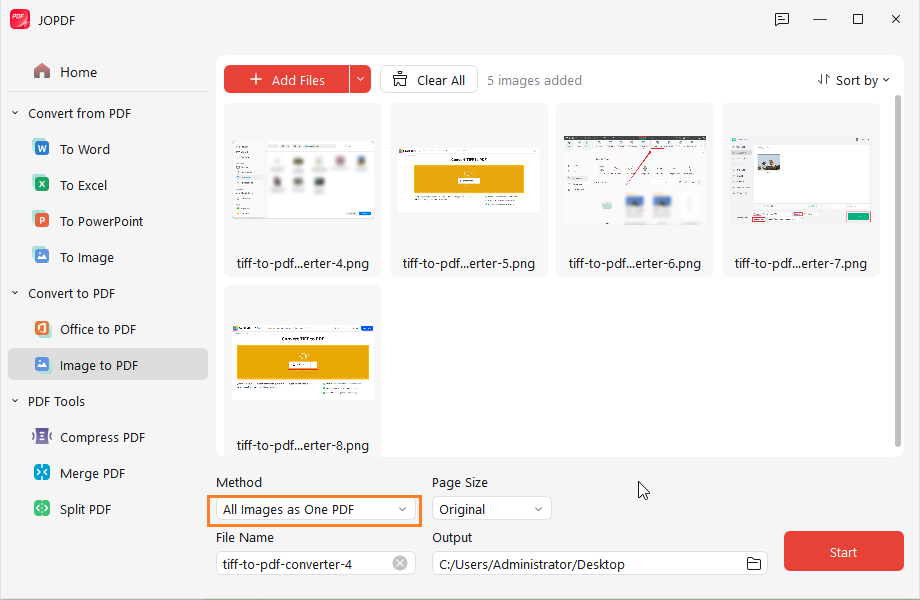
Step 4. Finally, click Start to export screenshots as a single PDF.
Best Tools to Convert Screenshots to PDF
| Tool | Best For | Offline | Batch Conversion |
| JOPDF | Professional screenshot-to-PDF conversion | Yes | Yes |
| Preview | Mac users | Yes | Limited |
| Microsoft Print to PDF | Windows users | Yes | No |
| Google Photos | Android users | Yes | Limited |
| Online Converters | Quick one-time tasks | No | Varies |
Bottom Line
How to turn a screenshot into a PDF? This task can be simple if you select the right tool. Windows and Mac provide built-in tools for quick conversions, while iPhone and Android allow users to save screenshots as PDFs directly from the share menu. If you frequently need to convert screenshots, merge multiple images, or want better quality control, dedicated software like JOPDF offers a faster, more flexible workflow.
FAQs
Table of Contents

Your Best Free PDF Expert in PDF editing, compressing, converting, annotating, protect, organizing, and more.
Free DownloadWindows · macOS · Linux

Olivia
“Olivia is an editor at JOPDF, where she writes practical guides and insightful articles on managing PDFs—covering topics like editing, annotating, converting, and organizing files efficiently. Passionate about clear communication and digital productivity, Olivia enjoys spending her free time cooking, watching movies, and hiking to unwind and find inspiration for her writing.”