Introduction:
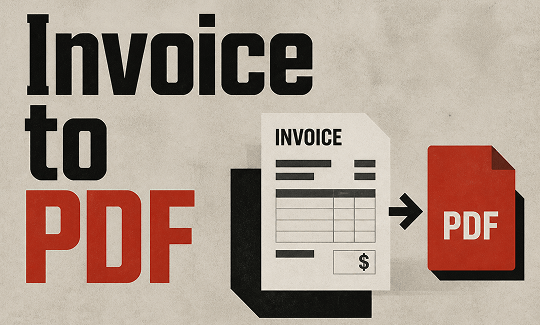
Sending your bill in the right format is very important. If you want to change your invoice to PDF, you are in the right place. A PDF locks your document so no one can change the total amount. Here are three simple ways to do it.
Way 1. Convert Word/Excel Invoice to PDF with High-quality: JOPDF
If you want the safest and best-looking results, you need a professional desktop program. We highly recommend using JOPDF. It is a fantastic invoice to PDF converter.
JOPDF is easy to use, even if you are not good with computers. Best of all, it is completely free.
When you use JOPDF, your document will be converted with very high quality. Your tables, numbers, and business logos will look exactly the way you designed them. The layout will never get messed up.
Here are the simple steps to use JOPDF:
- First, download the free program to your computer. Install it and open it up.
- Look at the main menu at the top of the screen. Click on the tab that says Batch Process. Then, choose the Office to PDF option.
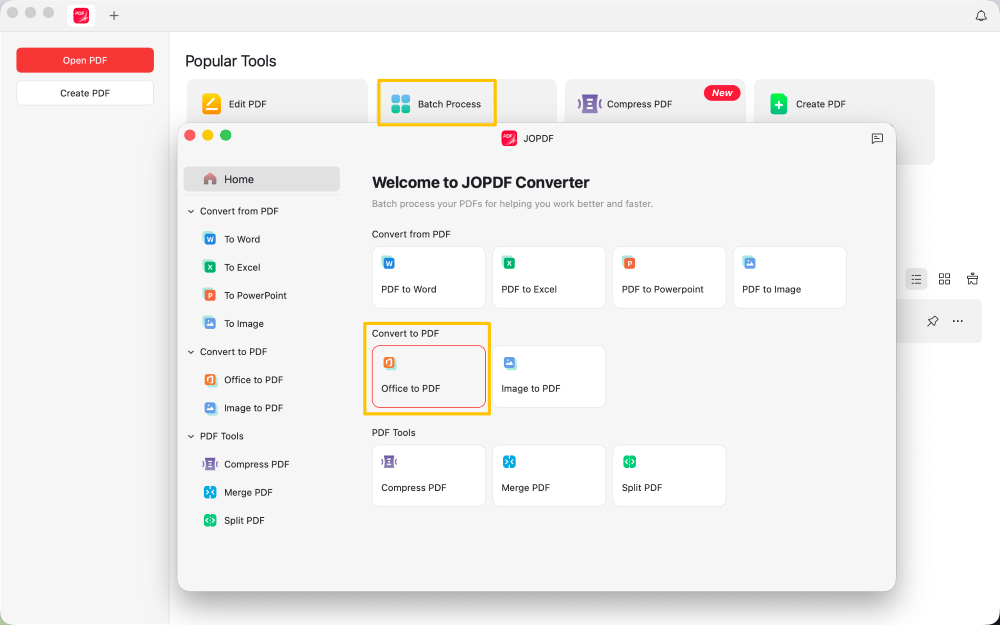
- A window will pop up. Find your original invoice file on your computer and select it. You can simply drag your files into the window.
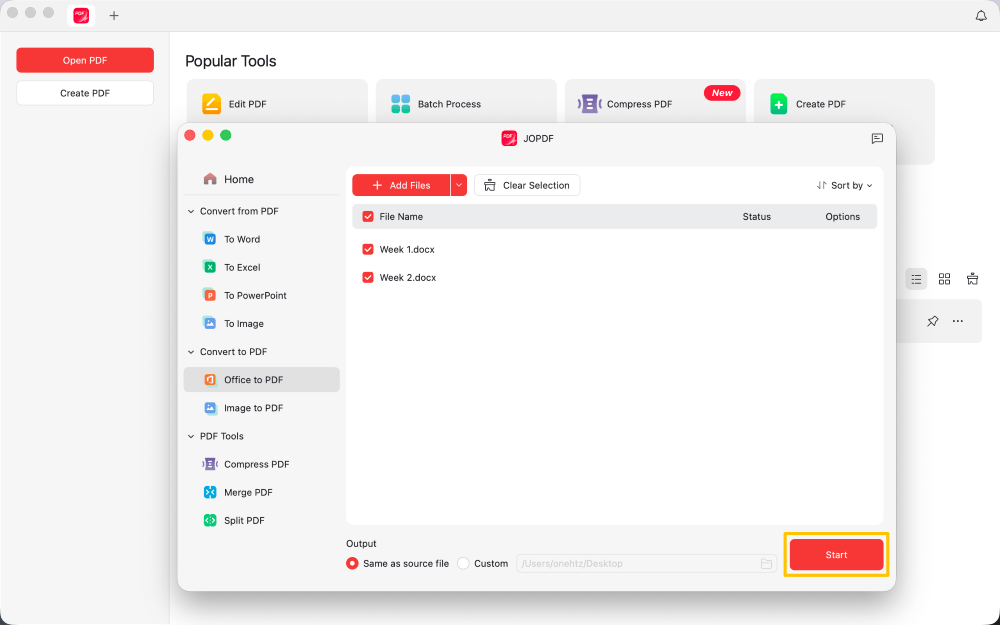
- Confirm the output and click the Start button. In just a few seconds, JOPDF will create a perfect, high-quality PDF version of your bill.
The best part about JOPDF is that the work does not have to stop after the conversion. JOPDF provides many amazing editing tools.
For example, if you notice a spelling mistake after you convert the file, you do not have to start over. JOPDF allows you to edit text in PDF directly.
You can fix typos, add a signature to the bottom of the page, or even stamp the word “PAID” across the document in bright red letters.
Want your business to look highly professional? Try JOPDF today. It handles everything you need in one safe place!
See Also:
Batch Convert Word to PDF on Windows/Mac
Batch Convert Excel to PDF on Windows and Mac
Way 2. Convert Invoice to PDF in Microsoft Word/Excel
What if you just finished typing your bill in Microsoft Office and you want to create a PDF right now? You can actually use a quick trick built right into Microsoft Word and Microsoft Excel. You do not need to download anything extra for this method.
When you use the “Save As” trick, your computer simply saves a locked copy of your current document. Here is exactly how to do it:
- Open your finished invoice in Microsoft Word or Microsoft Excel. Make sure all your math and spelling are correct.
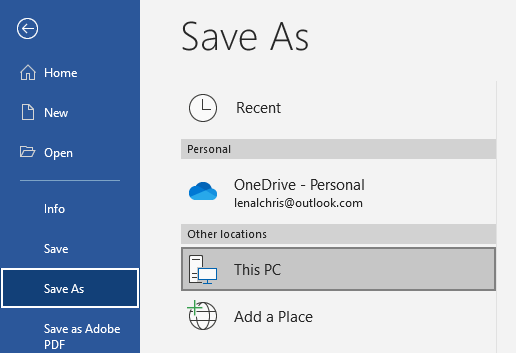
- Look at the top left corner of your screen. Click on the word File.
- A new menu will appear on the left side of your screen. Click on the option that says Save As (or “Save a Copy” in some newer versions).
- You will see a box that asks where you want to save the file. Below the file name, there is a dropdown box that says “File Format” or “Save as type”. Click this box. A long list will drop down.
- Scroll through the list and click on the word “PDF“.
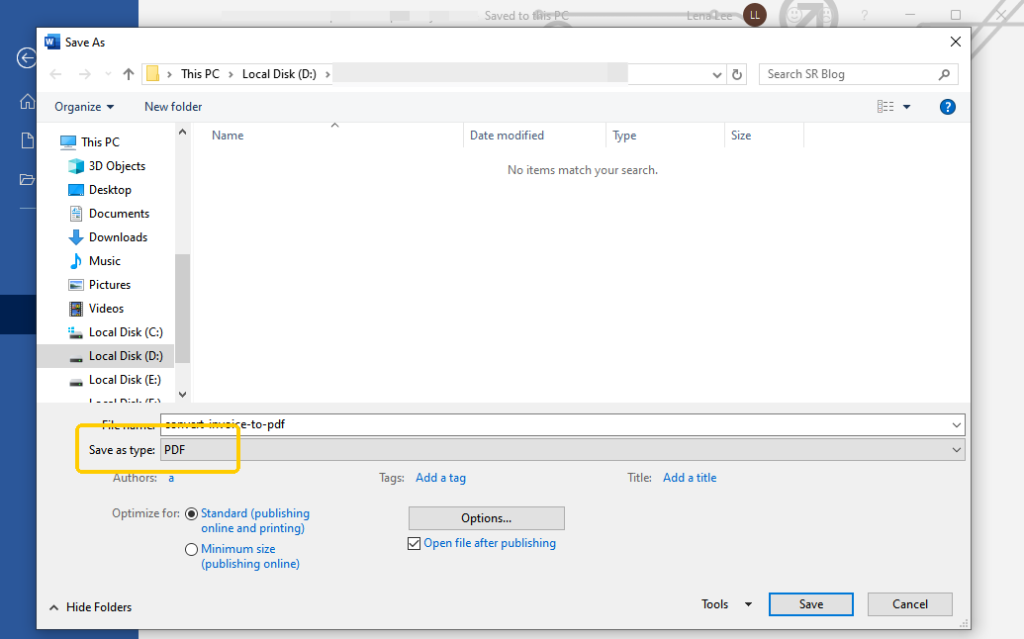
- Finally, click the Save button. Your computer will export a safe, locked copy of your bill to your computer folder. You can now attach this new file to an email and send it to your customer.
Way 3. Convert Invoice to PDF Online (Smallpdf)
You might be using a public library computer or a friend’s laptop. If you cannot download new software, you can use an online converter in your web browser.
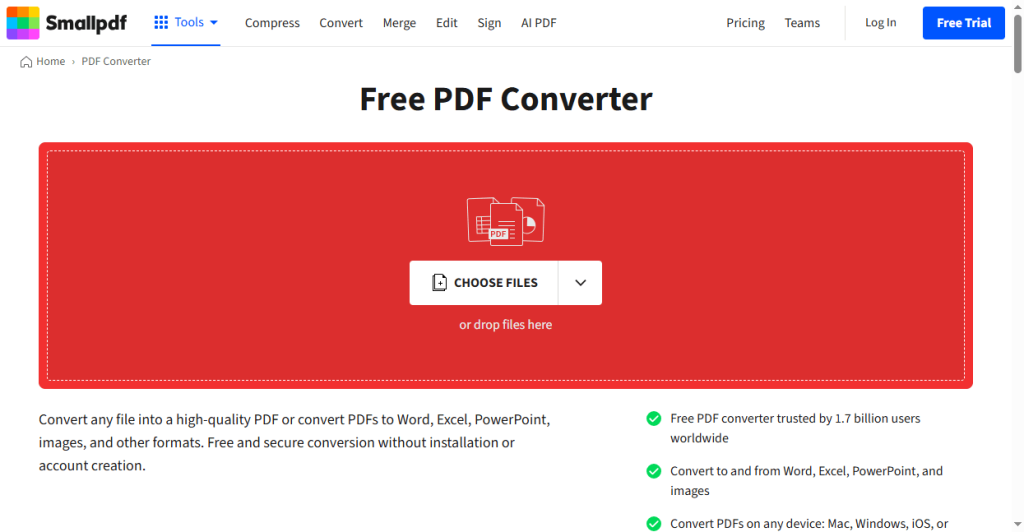
There are websites that let you upload a Word or Excel file and convert it to a PDF for you online. One very popular, easy-to-use website is Smallpdf (https://smallpdf.com/pdf-converter).
Here is how you use an online converter to get the job done quickly:
- Open your web browser, like Google Chrome or Safari. Type in the Smallpdf converter website address and press enter.
- You will see a giant box on the screen that says “Choose Files“. Click this button to find the invoice on your computer. You can also just click on your file, drag it over to the website, and drop it into the box.
- The website will upload your file to its cloud servers. Wait a few seconds while the website processes the file and turns it into a PDF.
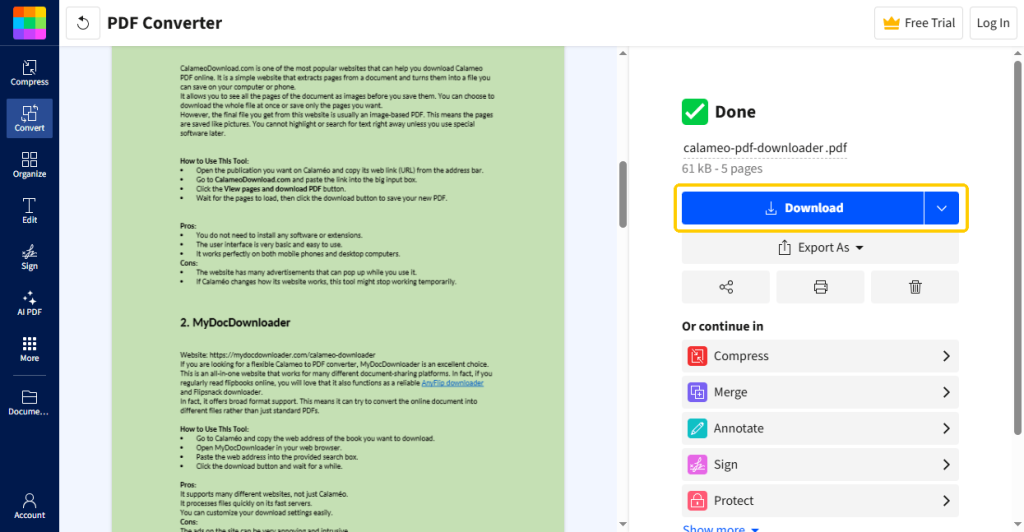
- When the process is fully complete, the website will show you a Download button. Click it to save your brand-new file directly to your hard drive. It is now ready to send!
Conclusion
That’s all about how to convert invoice to PDF. Making sure your business bills look professional is very important. By converting your file to a locked PDF, you keep your payment details perfectly safe and secure.
Whether you choose a quick built-in Microsoft trick or an online website, the process only takes a few minutes. However, for the absolute best high-quality results, privacy, and extra editing tools, a free desktop program like JOPDF is the smartest choice for any business owner.
Try one of these simple methods today and get your invoices sent out fast!
FAQs
Table of Contents

Your Best Free PDF Expert in PDF editing, compressing, converting, annotating, protect, organizing, and more.
Free DownloadWindows · macOS · Linux

Queena
Editor
“As a staff editor for JOPDF, Queena excels at guiding users to the optimal tools and solutions. When she's not analyzing the latest PDF solutions, she enjoys spending her free time playing with her four cats.”