Introduction :
Whether you need to extract PDF pages as images for presentation or social media, converting PDFs to high-quality JPGs is a good way. How to convert PDF to JPG? Adobe Acrobat is a professional and reliable conversion tool that offers control over quality and resolution. In this comprehensive JOPDF guide, I will walk you through the exact steps to convert Adobe PDF to JPG and recommend a free PDF converter.
PDFs are widely used in learning materials, business content, and other formal materials owing to their nature of preserving layout and formatting. However, if you need visual use, JPG images are more suitable than PDFs since JPGs are easier to share, embed, and upload across platforms. In the following content, let’s learn the exact steps to convert PDF to JPG using Adobe Acrobat Pro and Adobe Acrobat online converter.
Can Adobe Acrobat Convert PDF to JPG
Adobe Acrobat is a professional PDF converter and editor for both Windows and Mac. You can use it to convert PDF files into JPG images with its built-in export tools. However, the functionality depends on the version.
👉Adobe Acrobat Pro: Provides all basic and advanced editing and conversion features, allowing conversion to image formats such as JPG.
👉Adobe Acrobat Reader: Only offers viewing and basic PDF annotating features. It doesn’t support exporting PDFs as images.
Additionally, Adobe Acrobat Online includes an online PDF converter to convert PDFs to images and perform other conversions.
How to Convert PDF to JPG in Adobe Acrobat Pro
The most reliable way to convert a PDF to a JPG is with Adobe Acrobat, which offers precise control over image resolution, color settings, and compression. If you need a free, reliable PDF converter, consider JOPDF.
Here, let’s learn the step-by-step instructions to convert PDF to JPG using Adobe Acrobat Pro.
Step 1. After installing and subscribing to Adobe Acrobat Pro, launch it and open your target PDF file.
Step 2. Click File from the top bar, move to Export To, select Image, and click the JPEG option. Next, select the output location for your JPEG images.
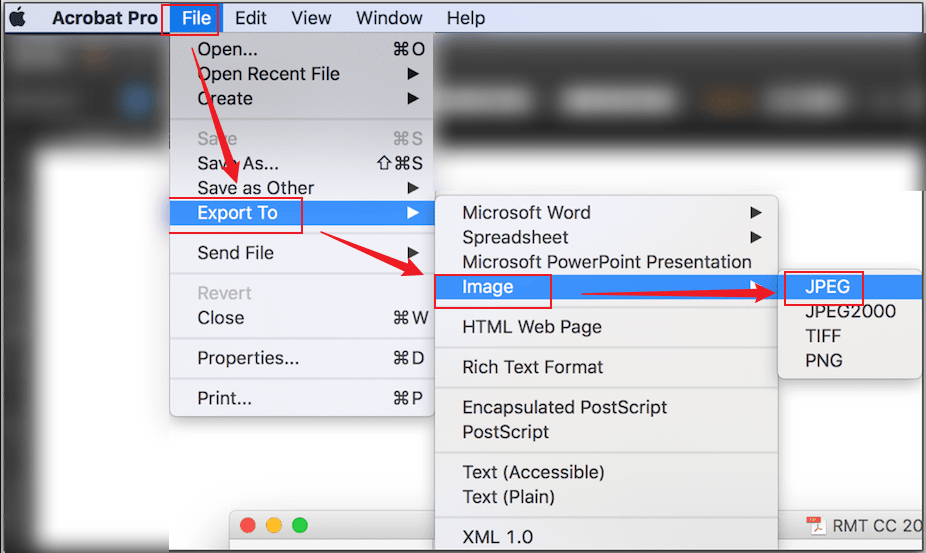
Step 3. If you want to adjust the quality, click Settings. Here, you can adjust image settings like resolution, color mode, and quality level. If you want to convert specific PDF pages to JPGs, locate the Pages or Range option in the export panel and enter the page range you want to convert.
Step 4. Finally, click Export. Then you can automatically have each PDF page converted to a separate JPG file.
Convert PDF to JPG with Adobe Acrobat Online Converter
In addition to desktop tools, Adobe also provides a browser-based conversion tool via Adobe Acrobat Online. If you don’t want to install software, this is a good choice. Below are the exact steps to convert a PDF to JPG with Adobe Acrobat Online.
Step 1. Go to Adobe Acrobat Online PDF to JPG Converter and sign in with a free Adobe account.
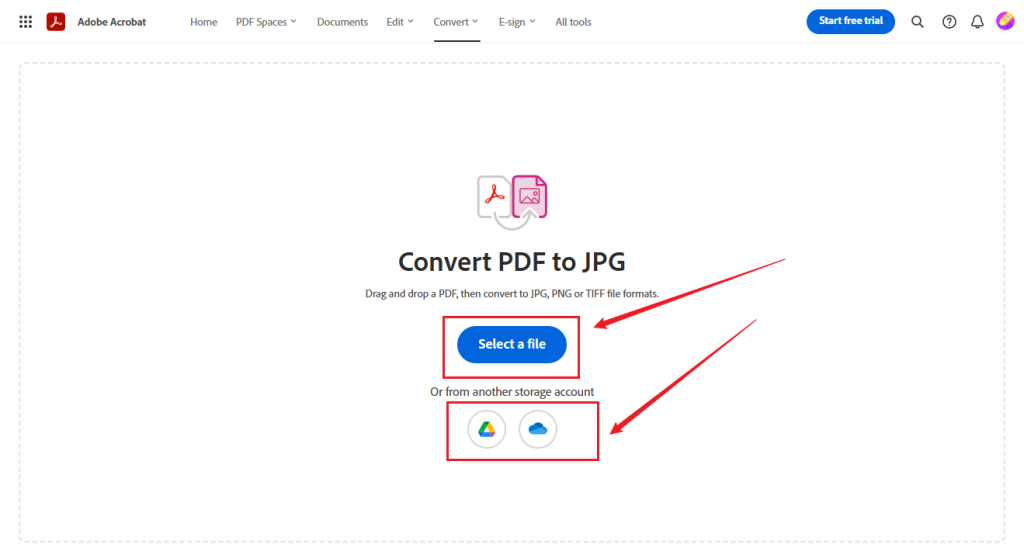
Step 2. Click “Select a file” to upload the target PDF from your PC. Alternatively, you can click the Google Drive or OneDrive icon to upload a PDF from either cloud service.
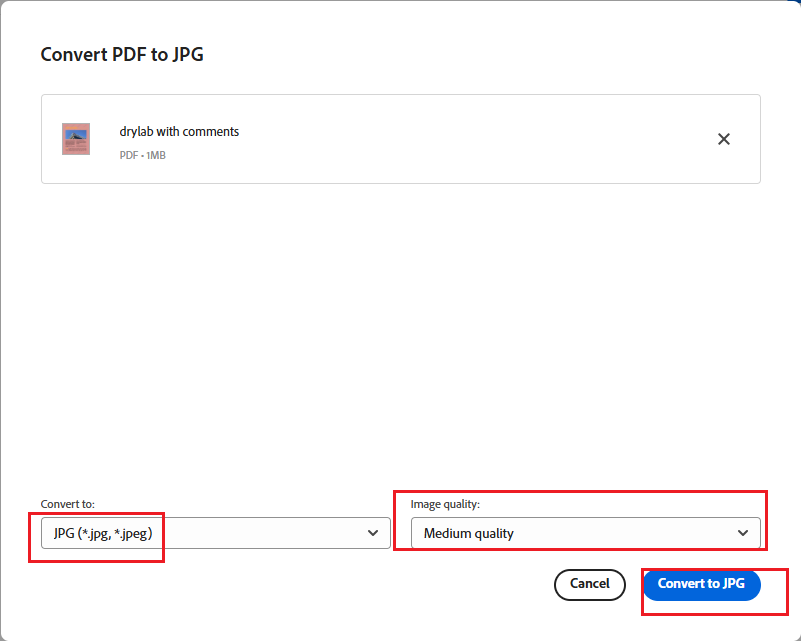
Step 3. Keep the default JPG option. If you need, open the “Image quality” list to select the target image quality option. Then, click Convert to JPG.
Step 4. When the conversion is complete, click Download to download the ZIP file containing your JPG images.
Batch Convert PDF to JPG in Adobe Acrobat Pro
How to convert multiple PDFs to JPGs efficiently? Does Adobe Acrobat support batch conversion? Yes, Adobe Acrobat Pro includes an Action Wizard feature that allows automated batch processing. Below is how to batch convert PDFs to JPGs in Adobe Acrobat Pro using Action Wizard. Let’s have a look:
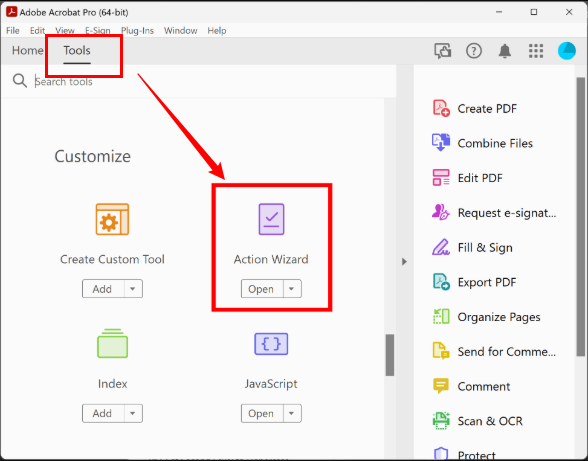
Step 1. Launch Adobe Acrobat Pro, click Tools, and hit the Action Wizard tool.
Step 2. Click the Create New Action button to create a new action. In the left pane, expand “Save & Export”, click Save, and select the plus button to include it in your action.
Step 3. Click the Settings icon next to the Save step, then select JPEG as the output format. Next, adjust quality and resolution if needed. Then, select an output folder and set naming preferences. Now, click the Save button and give the action a name, such as “Batch Convert PDF to JPG”.
Step 4. Here, select the newly created action from the list, click Add Files or Add Folder to select the PDFs you want to convert. Finally, click Start to enable the batch conversion in Adobe.
Free Alternative Way to Convert PDF to JPG
In this section, I’d like to recommend a free alternative to Adobe Acrobat for converting PDFs to images. JOPDF is one of the best free PDF converters for Windows, Mac, and Linux. It supports converting PDFs to PNG, JPG, BMP, and TIFF. Also, it is a batch converter that supports converting multiple PDFs at once. If you need, JOPDF can help you convert images to PDFs as well. Meanwhile, it can combine multiple images into a single PDF.
Like Adobe Acrobat, JOPDF also offers features to edit PDF files. You can use it to edit PDF text, protect a PDF with passwords or by adding watermarks, annotate PDFs, and make other edits.
If you want to use JOPDF for converting PDFs to JPGs, here’s a guide for you:
Step 1. Download and install JOPDF on your Windows or Mac PC.
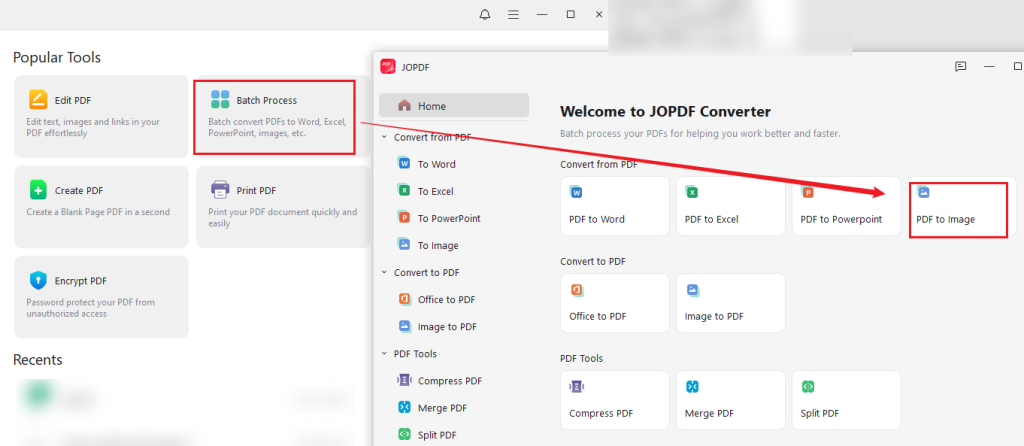
Step 2. Run this free PDF converter, click Batch Process, and select PDF to Image.
Step 3. Click Add Files to select and import the PDF files you want to convert. Then, open the Format list and select JPG. For the method, you can select “Each Page as An Image” or “All Pages as One Image”. Meanwhile, set the image quality from the Quality list.
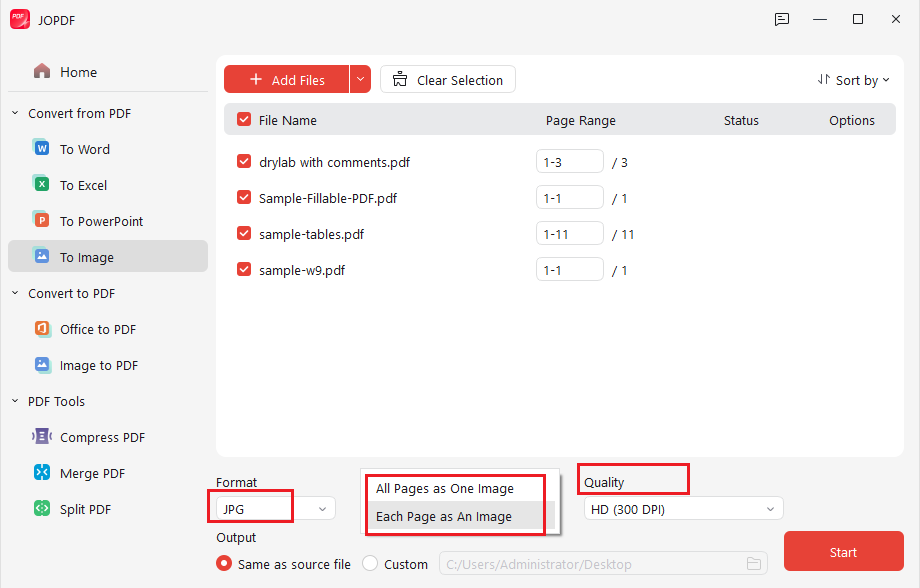
Step 4. Finally, specify the saving path and click the Start button.
Best Export Settings for High-Quality JPG Output
To ensure professional-grade image output, you need to configure your export settings carefully in Adobe Acrobat. Here, you can refer to the following recommended settings to get high-quality JPGs from PDFs.
🎈Resolution (DPI):
- Web use – 150 DPI
- Print quality – 300 DPI
- High-detail archival images – 600 DPI
🎈Color mode:
- RGB: for digital use, websites, and presentations
- CMYK: for professional printing workflows
🎈Compression quality:
Use “High” or “Maximum” for sharp results
These settings significantly impact clarity, especially when converting scanned PDFs or graphics-heavy documents.
To Wrap Things Up
Using the right PDF converter can help you convert Adobe PDF to JPG effectively. You can use Adobe Acrobat Pro to convert PDF to JPG offline or convert multiple PDFs to JPGs in bulk. If you don’t want to install any software, try Adobe Acrobat Online. In addition, you can try a free Adobe Acrobat alternative, such as JOPDF. Whether you choose which method, I hope this article can be helpful to you.
FAQs
Table of Contents

Your Best Free PDF Expert in PDF editing, compressing, converting, annotating, protect, organizing, and more.
Free DownloadWindows · macOS · Linux

Olivia
“Olivia is an editor at JOPDF, where she writes practical guides and insightful articles on managing PDFs—covering topics like editing, annotating, converting, and organizing files efficiently. Passionate about clear communication and digital productivity, Olivia enjoys spending her free time cooking, watching movies, and hiking to unwind and find inspiration for her writing.”