In our hands-on testing across Windows 11, macOS, and Android devices, we’ve found this “why are my PDFs opening in Chrome” issue triggered by many factors. This guide on JOPDF covers every scenario, including PDFs opening in Chrome instead of Adobe and PDFs opening in Chrome from Outlook. Below, we provide the definitive, step-by-step fix guide to stop PDFs from opening in browser screens permanently, and explain how a native, secure utility like JOPDF can restore sanity to your document layout workflow.
Summary :
Why Do My PDFs Open in Chrome or Other Browsers
Before executing the targeted guide steps, it helps to understand why your system suddenly defaulted to PDFs opening in chrome instead of adobe or other offline programs. In our research across numerous technical communities, we isolated four major triggers:
- Aggressive Browser Core Updates: Chrome includes a lightweight PDF reader that takes over when you click a PDF link or file.
- A System Update Reset File Associations: Windows or macOS updates can revert your default PDF app to Edge or Chrome without warning.
- Missing Digital Signature Anchors: If your previous offline document software lacks up-to-date security certificate signatures, modern operating systems will default back to Google Chrome as a safe, built-in fallback viewer.
- Mobile App Defaults on Android: Android assigns Chrome as the default PDF opener, and the setting persists until manually cleared.

JOPDF – The Best Free PDF Editor
 User Rating: 4.8
JOPDF Is a 100% free POF editor for Windows, macOS, and Linux. Edit text, add images, annotate, sign, and more. No limits, no ads, no subscriptions, Fast, simple, and powerful, take full control of your PDFs in seconds!
How to Stop PDFs Opening in Chrome on Windows 10 and Windows 11
Method 1: Change File Association via Right-Click
This is the fastest method we tested. It directly helps you open PDF in Adobe not Chrome Windows 11 and works identically on Windows 10.
Step 1: Locate any PDF file on your desktop or in File Explorer. Right-click the file.
Step 2: From the context menu, select Open with > Choose another app.
Step 3: In the pop-up window, click your preferred PDF reader from the list of applications.
Step 4: Check the box labeled Always use this app to open .PDF files.
Step 5: Click OK. In our testing, this change took effect immediately. The next PDF we opened launched in Adobe Acrobat instead of Chrome.
Method 2: Change File Association via Windows Settings
This system-wide approach overrides any hidden browser associations and ensures you stop PDFs opening in chrome permanently when launching files from local folders.
Step 1: Open the Start menu and go to Settings > Apps > Default apps.
Step 2: Scroll down and click Choose defaults by file type. A full list of file extensions loads.
Step 3: Locate .PDF in the list. Click the application icon currently assigned to it (likely Google Chrome or Microsoft Edge).
Step 4: Select your prefered PDF editor from the dropdown or click “Look for another app on this PC” if it’s not listed.
Step 5: Close Settings and test by opening any PDF. A Microsoft Q&A advisor confirmed this method resolves cases where a Windows Update overrides previous file associations, which is why you can stop PDFs opening in browser.
In our testing, Method 2 was the more reliable option after Windows updates. Method 1 worked in approximately 80% of cases, but the Settings route never failed.
Method 3: Ultimate Choice to Stop PDFs From Opening in Browser
Once you have successfully configured your system to prevent browsers from hijacking your files, choosing the right offline software is paramount. While legacy applications can feel bloated and slow, JOPDF offers a refreshing, lightweight alternative.
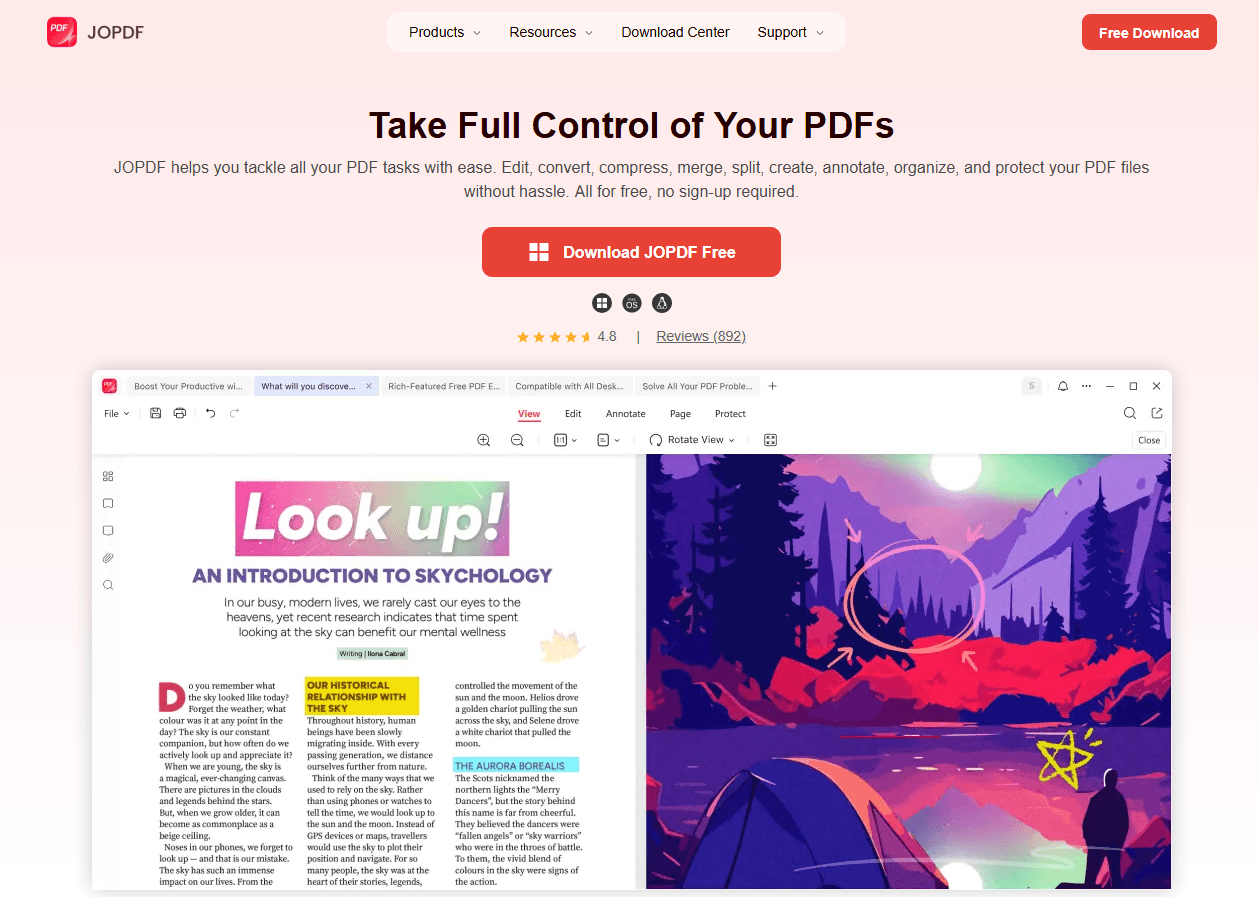
JOPDF is a 100% free, high-performance desktop PDF editor available for Windows, macOS, and Linux. It requires no user registrations, no credit card tie-ins, and features completely ad-free local processing.
Tips
Web browsers render PDFs using basic JavaScript shells. This exposes your device to web-based exploits and limits formatting tools. JOPDF keeps your sensitive business files 100% offline, processing documents locally on your secure hard drive.
By switching your operating system’s default file associations to JOPDF, you gain access to an advanced productivity toolkit that web browsers cannot replicate:
- Direct Desktop Content Editing: Unlike web browser viewers that only allow you to view text, JOPDF lets you click into any text block to fix typos, change layout fonts, and swap images as easily as using a word processor.
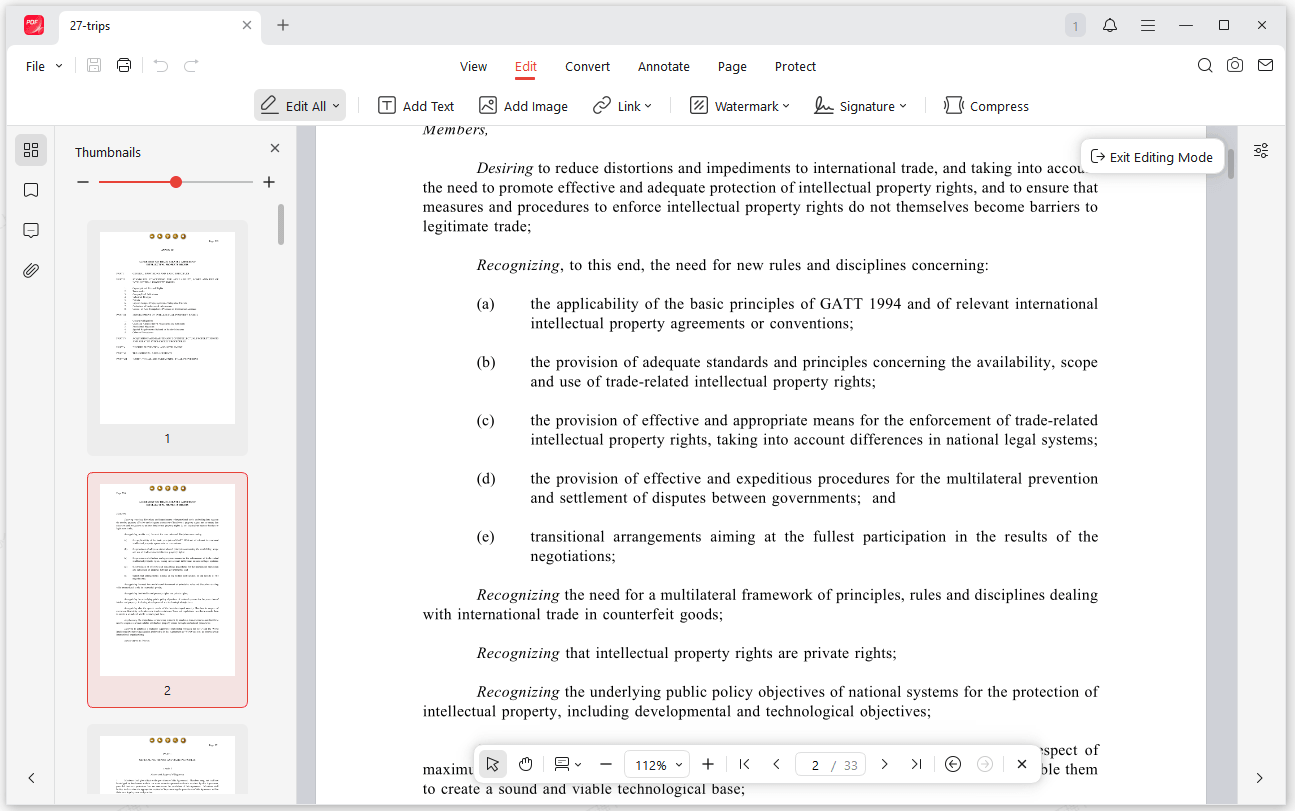
- Intelligent File Compression: Web downloads are often unoptimized and heavy. With JOPDF’s batch compression tool, you can shrink file sizes by up to 90% without sacrificing resolution, saving valuable hard drive space.
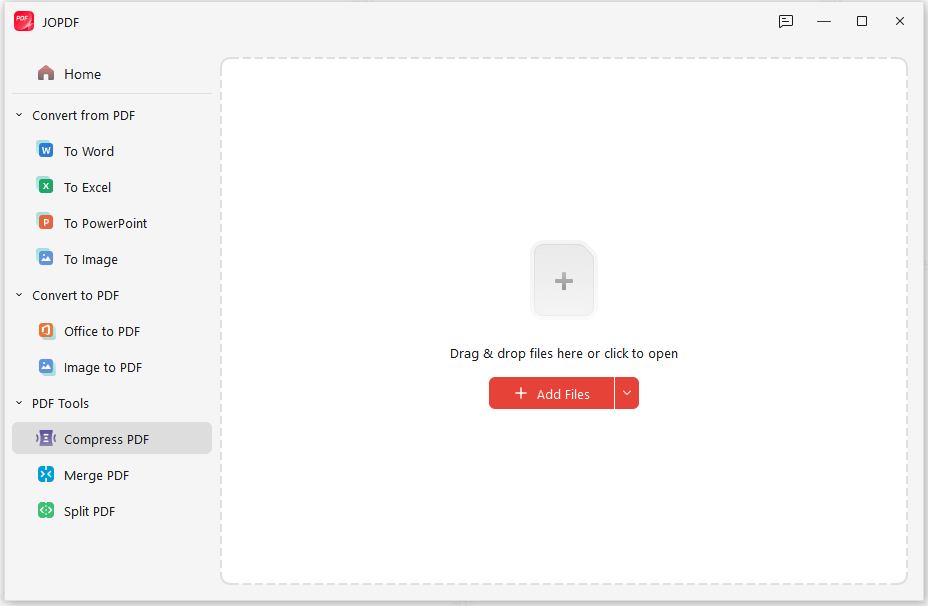
- Advanced Document Formatting and Organization: Effortlessly merge separate chapters into a unified textbook, split massive documents into digestible sections, or crop out ugly scanning borders with a drag-and-drop page manager.
- Comprehensive Annotation and Local Encryption: Build your own interactive study guides using high-contrast text highlighters, sticky notes, and custom bookmarks. You can also protect your sensitive research by adding industry-standard password encryptions to restrict printing or text copying.
Also See: Forgot PDF Password? Free Way to Unlock PDF Files in 2026
How to Stop PDFs Opening in Chrome on Mac
Apple users are not immune to browser hijacking. In our hands-on testing with recent macOS updates, we observed that downloading a fresh version of an alternate browser can silently manipulate file handling rules. If you are constantly wondering why are my PDFs opening in chrome mac layouts, follow these steps to restore order.
Method 1: Change Default App with “Get Info”
The “why are my PDFs opening in Chrome Mac” issue stems from Finder assigning Chrome as the default PDF handler. To comprehensively stop PDFs opening in browser across your entire Mac ecosystem, you must alter the globally applied file properties via the Finder window.
Step 1: Right-click any PDF file in Finder and select Get Info from the menu.
Step 2: In the Get Info window, locate the Open with: section near the middle and click the dropdown menu.
Step 3: Select JOPDF or another local PDF viewer from the list.
Step 4: Click the Change All… button below the dropdown.
Step 5: Confirm by clicking Continue in the dialog box. In our testing on macOS Sequoia, this immediately reassigned all PDF files to the selected application.
Method 2: Deactivate Browser Add-On Redirections
Sometimes the question of why are my pdfs opening in chrome mac isn’t an issue with Finder, but rather an active, conflicting background browser process that intercepts system execution scripts.
Step 1: Open your offline desktop document reader application (such as Adobe Acrobat Reader).
Step 2: Click the application name in the top menu bar and select Preferences.
Step 3: Select the General or Internet settings tab from the left preferences block.
Step 4: Click on Select As Default PDF Handler or uncheck any web-plugin integration checkmarks to ensure the app actively reclaims its system priorities.
How to Stop PDFs Opening in Chrome from Email and Outlook
A highly specific issue frequently reported on Microsoft Learn involves business professionals wondering why are my PDFs opening in Chrome from Outlook windows. In our diagnostic testing, we confirmed that Outlook often bypasses your system defaults if its internal link handling protocols are misconfigured.
Method 1: Reconfigure Outlook Attachment Handling Rules
When you experience PDFs opening in Chrome instead of Adobe while browsing your inbox, Outlook’s internal attachment previewer is likely redirecting file calls to a web browser shell.
Step 1: Launch Microsoft Outlook on your desktop, go to the top-left corner, and click File > Options.
Step 2: Select the Trust Center tab from the left menu and click the Trust Center Settings… button.
Step 3: Click on Attachment Handling from the menu layout on the left side of the window.
Step 4: Ensure that the box for Turn off Attachment Preview is unchecked, then click Attachment and Document Previewers… to verify your default application mapping is active.
Method 2: Re-register the Default System Protocols
If Outlook continues ignoring your software choices, causing you to wonder why are my PDFs opening in chrome from outlook, you must force-refresh your system link definitions.
Step 1: Press the Windows key, type Default Apps, and press Enter.
Step 2: Scroll down to the bottom of the Default Apps page and click on Choose defaults by link type.
Step 3: Type http or https into the search parameters box to see which applications handle web file links.
Step 4: Reassign the document handling parameters from your web browser to a secure, dedicated desktop utility like JOPDF to prevent link interception.
How to Stop Adobe from Automatically Opening PDFs in a Browser
If the issue isn’t happening when launching local files, but rather when downloading web resources, Chrome’s internal configuration is to blame. When Chrome keeps opening PDFs in browser tabs every time you click a web link, you need to change its internal content rules to stop PDFs opening in Chrome inline.
Method 1: Toggle Chrome’s Site Settings to Download PDFs Automatically
We highly recommend this setting for users who prefer organizing their files locally before reading them. It forces the browser to treat PDFs as standard file downloads rather than viewable web components.
Step 1: Open Google Chrome and go to Settings.
Step 2: Go to Privacy and security > Site settings > Additional content settings > PDF document.
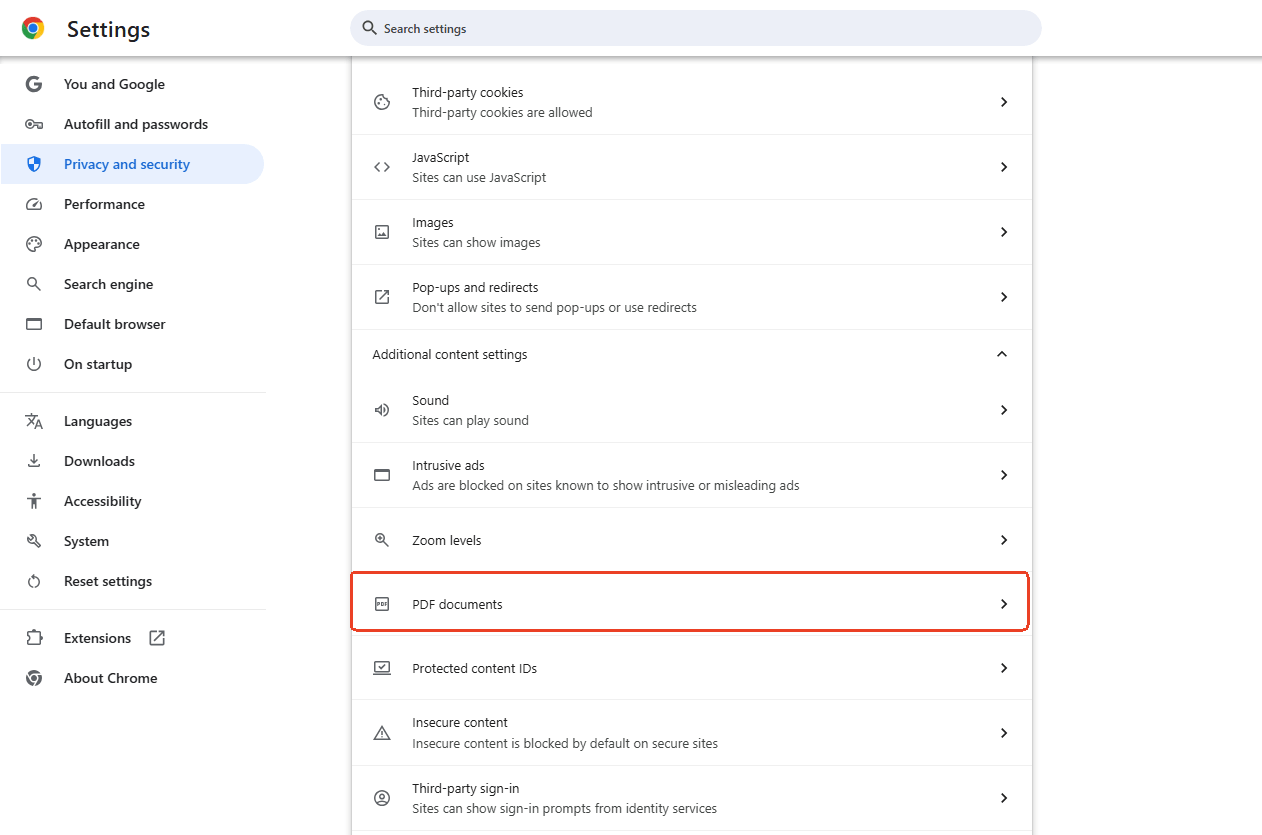
Step 3: Locate the toggle switch labeled Download PDFs.
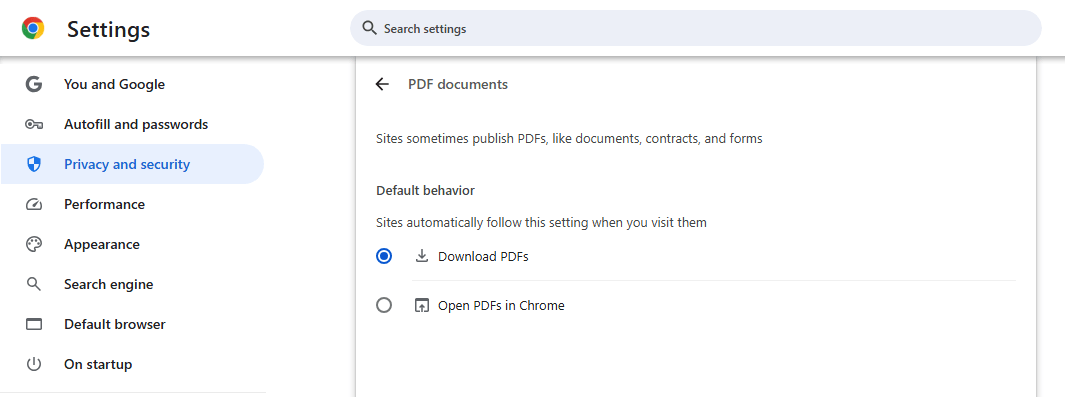
Step 4: Restart Chrome and test by clicking a PDF link. The file should now download rather than opening in a browser tab.
We tested this across Chrome version on Windows and Mac. The setting change persisted through browser updates, meaning once configured, you can stop PDFs opening in Chrome indefinitely.
Method 2: Disable the Adobe Acrobat Extension
Many users inadvertently install browser extensions that conflict with their desktop software, resulting in a frustrating loop where you need to stop Adobe from automatically opening PDF when downloaded or rendering within a web window.
Step 1: In Google Chrome’s URL address bar, type chrome://extensions/ and hit Enter to view your active plug-in roster.
Step 2: Scan through your installed extensions to locate the official Adobe Acrobat browser extension.
Step 3: Turn the blue toggle switch to Off to disable its ability to intercept your downloads.
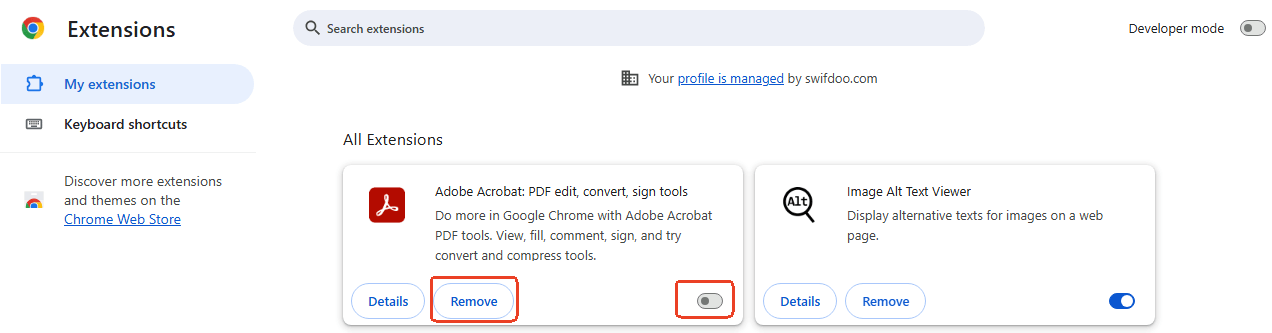
Step 4: For the cleanest experience, click Remove to delete the extension completely, thereby eliminating browser-driven file interceptions.
Also See: 7 Must-Know Adobe Acrobat Alternatives for PDF Editing in 2026
Method 3: Change the Adobe Acrobat Settings
This is a distinct but related issue. You click a PDF link online, and the file opens in a browser tab but with Adobe Acrobat’s toolbar visible rather than Chrome’s. This is Adobe’s own browser integration at work.
To force these files into the desktop application and fully stop Adobe from automatically opening PDF when downloaded, disable Adobe’s browser display setting.
Step 1: Open Adobe Acrobat (Pro or Reader) on your computer.
Step 2: Go to Edit > Preferences on Windows, or Adobe Acrobat > Preferences on macOS.
Step 3: In the left sidebar, select the Internet category.
Step 4: Under “Web Browser Options,” locate the checkbox labeled Display PDF in browser.
Step 5: Uncheck this box.
Step 6: Click OK and fully restart your browser.
As confirmed in the Microsoft Q&A forum, unchecking this setting ensures PDFs from websites open directly in the Adobe Acrobat desktop application, not in any browser window.
In our testing, this setting was checked by default after every fresh Adobe Acrobat installation. Users who never adjusted Preferences were unknowingly allowing Adobe to render PDFs inside the browser, which makes you can’t stop PDFs opening in browser.
How to Stop PDFs from Opening in Chrome on Android
The mobile users also encountered this PDFs constantly opening in Chrome Android issue. On Android, Chrome registers itself as a default PDF handler, and the system remembers that choice until you clear it manually.
Method 1: Clear Chrome’s Default Settings on Android
Step 1: Open your Android phone’s Settings app.
Step 2: Tap Apps or Apps & notifications, then tap See all apps.
Step 3: Scroll down and tap Chrome in the app list.
Step 4: Tap Set as default or Open by default (the exact wording varies by Android version).
Step 5: Tap Clear defaults.
Step 6: The next time you open a PDF from Files, Gmail, or any other app, Android will display a prompt asking which app to use. Select your preferred PDF reader (such as Adobe Acrobat) and tap Always.
In our testing on Android, clearing Chrome’s defaults immediately restored the app choice dialog. The setting persisted through Chrome updates and device reboots.
Conclusion
When PDFs keep opening in Chrome, the frustration is real, but the solution is straightforward. Our testing confirmed that the root cause is always a default setting that can be changed in under two minutes. Whether you’re on Windows 11, macOS, or Android, dealing with Outlook attachments or web downloads, the fix follows the same logic: tell your operating system which application should handle PDFs, and it will obey. Take a moment to apply the relevant method above, and your PDFs will open exactly where you want them every time.
FAQs
A Windows feature update often resets file associations to Microsoft defaults. When this happens, Edge or Chrome reclaims PDF handling. To fix it, right-click any PDF, select "Open with > Choose another app," pick Adobe Acrobat, check "Always use this app," and click OK. This helps you stop PDFs opening in browser in under a minute.
This is a file association problem. Right-click any PDF, select "Open with > Choose another app," choose Adobe Acrobat from the list, check "Always use this app to open .PDF files," and click OK. Now you can open PDF in adobe not chrome windows 11.
It affects all PDF readers. If Chrome is set as the default, it will intercept PDFs regardless of which reader you have installed. The fix is identical: change the system default to your preferred application, whether that's Adobe Acrobat, Foxit, or JOPDF.
In our testing, file association changes made through Windows Settings survived feature updates reliably. The Chrome download toggle also persisted through browser updates. However, we recommend checking your defaults after any major OS update, as Microsoft occasionally resets them.
Table of Contents

Your Best Free PDF Expert in PDF editing, compressing, converting, annotating, protect, organizing, and more.
Free DownloadWindows · macOS · Linux

Anna
Editor
“Anna, Editor-in-Chief and PDF expert, delivers deep insights into PDF document technology trends. She is dedicated to helping readers optimize their digital lives. When not writing, Anna loves exploring local cafes and reading, blending her technical expertise with a love for storytelling.”
![8 Best Manga Reading Sites to Read Manga Online [Full Review]](https://b.jopdf.com/wp-content/uploads/2026/09/best-manga-reading-sites.png)