
This guide about PDF search not working compiles solutions from Adobe’s official community forum, documented user experiences, and our own direct testing. Whether you’re dealing with a PDF search not finding words in a 500-page manual or encountering the search function in PDF not working for specific words right in front of you, there’s a fix on JOPDF.
Summary :
Why Is My Search Function in PDF Not Working for Specific Words?
In our hands-on testing across multiple PDF readers, operating systems, and file types, we’ve found that this issue rarely means the file is corrupted. Usually, it’s one of a few predictable causes: a scanned image masquerading as text, a corrupted search cache, or a file that was created without embedded text data.
Top Causes for PDF Search Not Working
Cause 1: The PDF is a Scanned Image
Cause 2: Cached Search Data is Corrupted
Cause 3: The PDF Was Created Incorrectly
Cause 4: Software or Browser Limitations
Cause 5: Large and Complex Files
The primary reason for PDF search not finding text in scanned PDF is that the physical document is a scanned image. During testing, we reproduced this by scanning a printed contract with default scanner settings. The resulting PDF looked perfect but was completely unsearchable until we ran OCR.

JOPDF – The Best Free PDF Editor
 User Rating: 4.8
JOPDF Is a 100% free POF editor for Windows, macOS, and Linux. Edit text, add images, annotate, sign, and more. No limits, no ads, no subscriptions, Fast, simple, and powerful, take full control of your PDFs in seconds!
PDF Search Not Working? Try These First
Fix 1: Purge the Adobe Search Index Cache
A massive spike in complaints on the Adobe Community forums highlights a recurrent PDF search not working in Adobe Acrobat right after automated patch rollouts. If you find your Adobe Acrobat search not working as expected, the issue is usually tied to a bloated, corrupted local search index cache.
Wiping out the temporary cache files forces the system to completely rebuild its character maps from scratch, clearing out stuck search pathways.
Step 1: Launch Adobe Acrobat and open the document.
Step 2: Go to Edit > Preferences on Windows, or Adobe Acrobat > Preferences on macOS.
Step 3: Select the Search category from the list on the left side of the Preferences window.
Step 4: Under the Fast Find section, click the button labeled Purge Cache Contents.
Step 5: Ensure the checkbox for Enable Fast Find is checked, click OK, and restart Adobe Acrobat.
A user on Adobe’s community forum reported that after purging the cache, a catalog document that previously returned no results became fully searchable. We confirmed this behavior with Adobe Acrobat.
Also See: 7 Must-Know Adobe Acrobat Alternatives for PDF Editing in 2026
Fix 2: Run Adobe Repair Installation
An outdated installation or a corrupt update file can cause Adobe Acrobat PDF search not working after an update problems. We recommend checking for updates first, then repairing if the update doesn’t help.
Step 1: Go to Control Panel > Programs > Programs and Features.
Step 2: Right-click on the Adobe icon and choose Change.
Step 3: Select Repair from the menu.
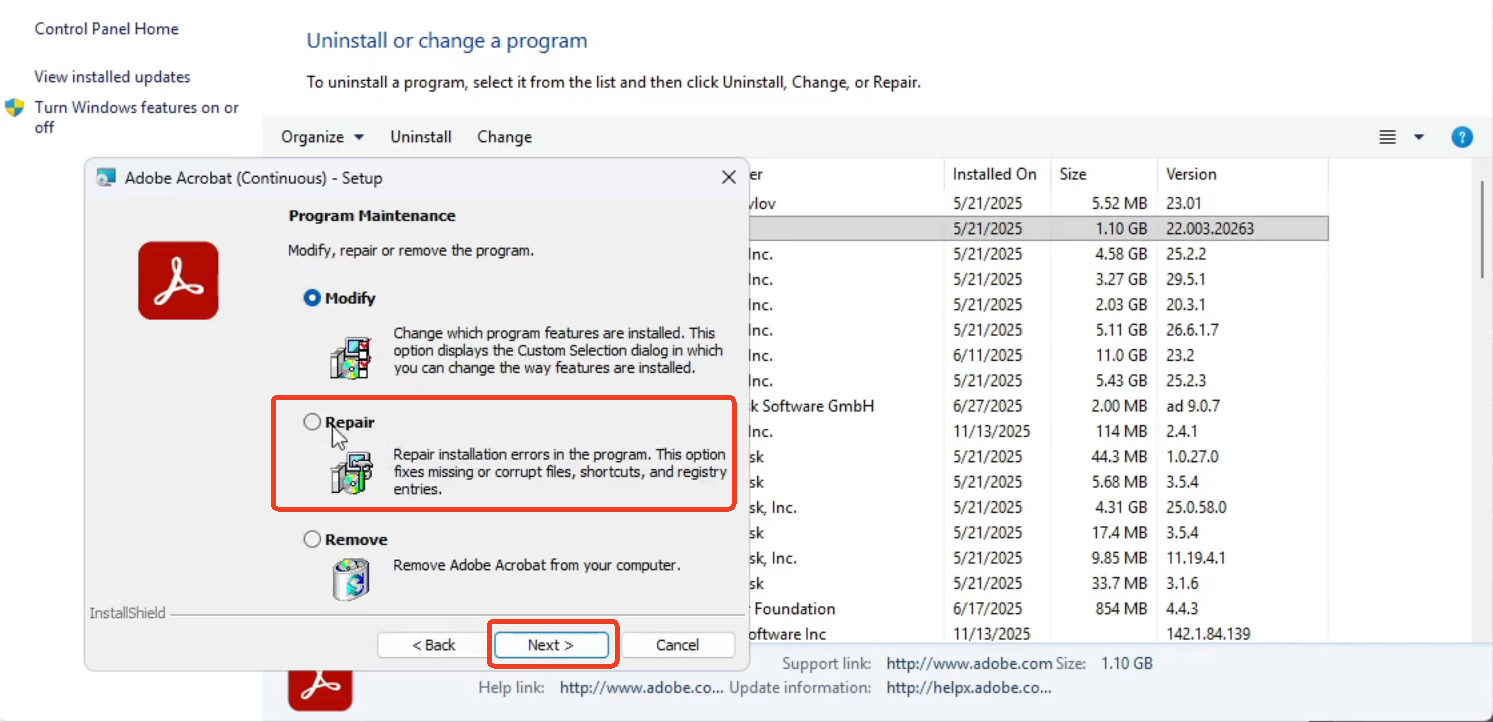
Step 4: Click Yes when prompted to allow the application to run self-diagnostics and repair broken internal files.
Step 5: Once the repair is finished, restart your computer and test your search query again.
Fix 3: Disable Hardware Acceleration in Browser Settings
According to user reports on Microsoft Learn, thousands of professionals have noticed a sudden PDF search not working in Edge/Chrome PDF viewer after recent web browser core updates.
JOPDF – The Best Free PDF Editor
User Rating: 4.8
JOPDF Is a 100% free POF editor for Windows, macOS, and Linux. Edit text, add images, annotate, sign, and more. No limits, no ads, no subscriptions, Fast, simple, and powerful, take full control of your PDFs in seconds!
When a PDF search not working in Edge/Chrome PDF viewer error strikes after a background browser update, the culprit is often the browser’s hardware graphics rendering engine. You can follow the next steps to fix the PDF text not searchable.
Step 1: Open Google Chrome or Microsoft Edge and click the three-dot menu icon in the top-right corner to open Settings.
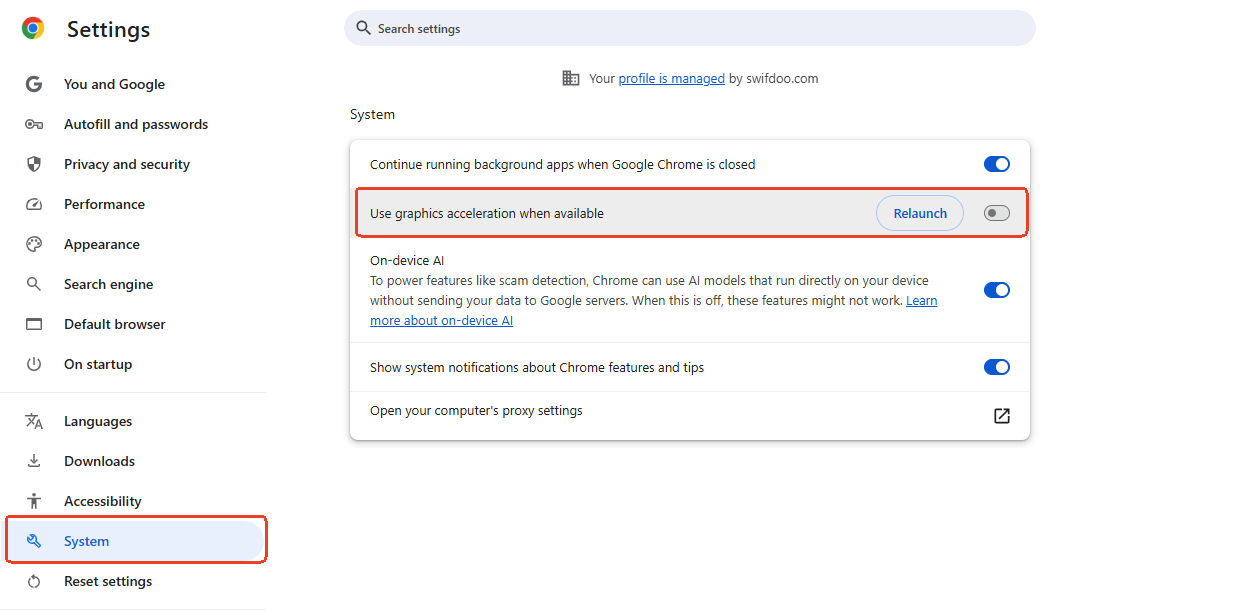
Step 2: Navigate to the System and Performance (or System) tab in the left sidebar.
Step 3: Locate the toggle labeled Use graphics acceleration when available (or Use hardware acceleration).
Step 4: Toggle the switch to Off and click the Relaunch button to restart your web browser.
Fix 4: Switch to JOPDF Desktop Reader
If web rendering scripts keep causing a persistent PDF search not working on Windows / Mac web browser windows, the most permanent solution is migrating away from browsers entirely.
Step 1: Download and install the 100% free JOPDF desktop application on your device.
Step 2: Right-click the problem file that is experiencing the PDF search not finding words error in your local file explorer.
Step 3: Hover over Open With and select JOPDF from the application list.
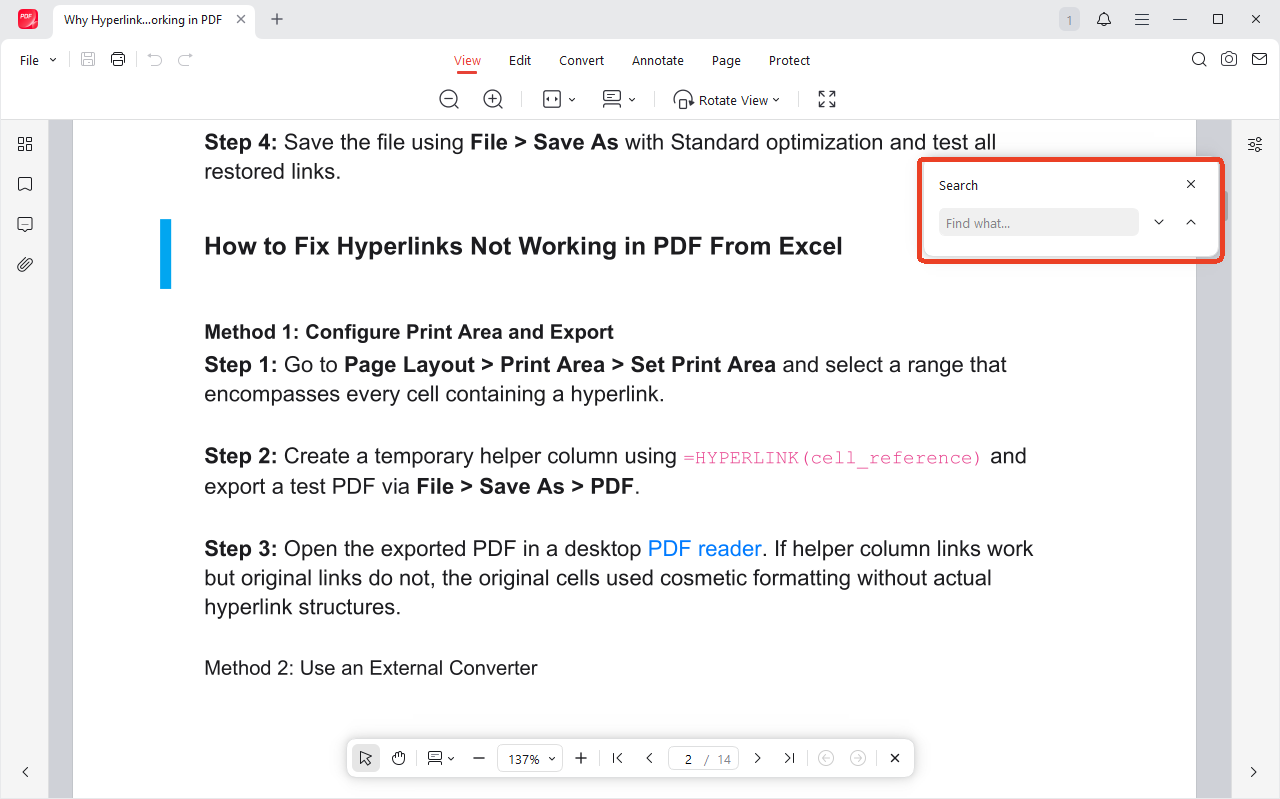
Step 4: Press Ctrl + F (Windows) or Cmd + F (Mac) inside JOPDF to immediately execute a stable, browser-independent document search.
Fix 5: Use the Browser’s Print-to-Save Workaround
If the PDF won’t download for some reason, you can use the browser’s print dialog to save a local copy that may have better search indexing. While we don’t recommend creating new PDFs this way, it can salvage an existing file’s searchability.
Step 1: In your browser, press Ctrl+P (Windows) or Command+P (macOS).
Step 2: In the print dialog’s destination dropdown, select Save as PDF.
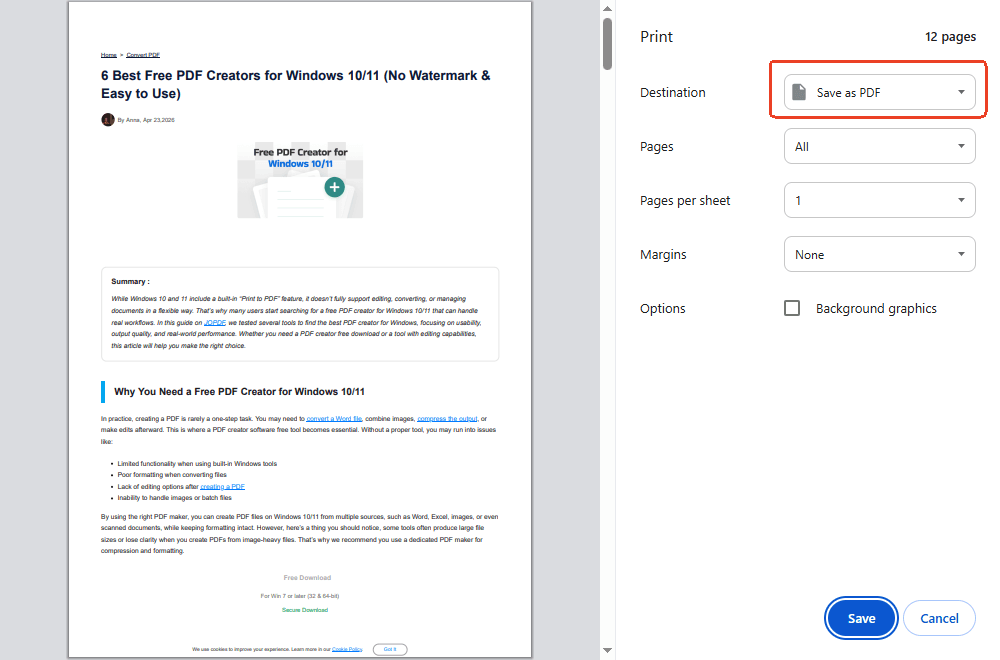
Step 3: Save the file and open it in a desktop reader.
Step 4: Test search. This method forces the browser to embed text data rather than rasterizing the page.
Fix 6: Apply High-Accuracy Local OCR Layering
When PDF content not searchable after OCR remains a problem, the cause is almost always incorrect language selection, low resolution input, or improper output settings.
In our testing with multilingual documents, such as English mixed with French, Spanish, or technical symbols, the OCR engine often failed silently when the wrong language was configured.
To fix PDF search not finding text in scanned PDF, you can follow the next steps.
Step 1: In Adobe Acrobat, go to All Tools > Scan & OCR > Recognize Text > In This File.
Step 2: In the Recognize Text dialog, click Settings. Under “Primary OCR Language,” select the document’s actual language. For mixed-language documents, select the dominant language and try again.
Step 3: For “Output,” select Searchable Image or Editable Text & Images. Searchable Image places an invisible text layer over the original scan, preserving visual fidelity.
Step 4: Run OCR and test search. If PDF search not finding words persists, try a different output style.
Tips
If Adobe’s OCR repeatedly fails, we recommend using SwifDoo PDF’s OCR engine, which we found more tolerant of low-resolution scans and mixed fonts. In our side-by-side tests, SwifDoo PDF correctly OCR’d a 150-page scanned manual. SwifDoo PDF’s text layer was clean and fully searchable.
Fix 7: Fix Character Mapping via Print-to-PDF
If your PDF content is not searchable after OCR due to broken internal font maps or a deep PDF full-text search problem, re-baking the document’s backend code is necessary.
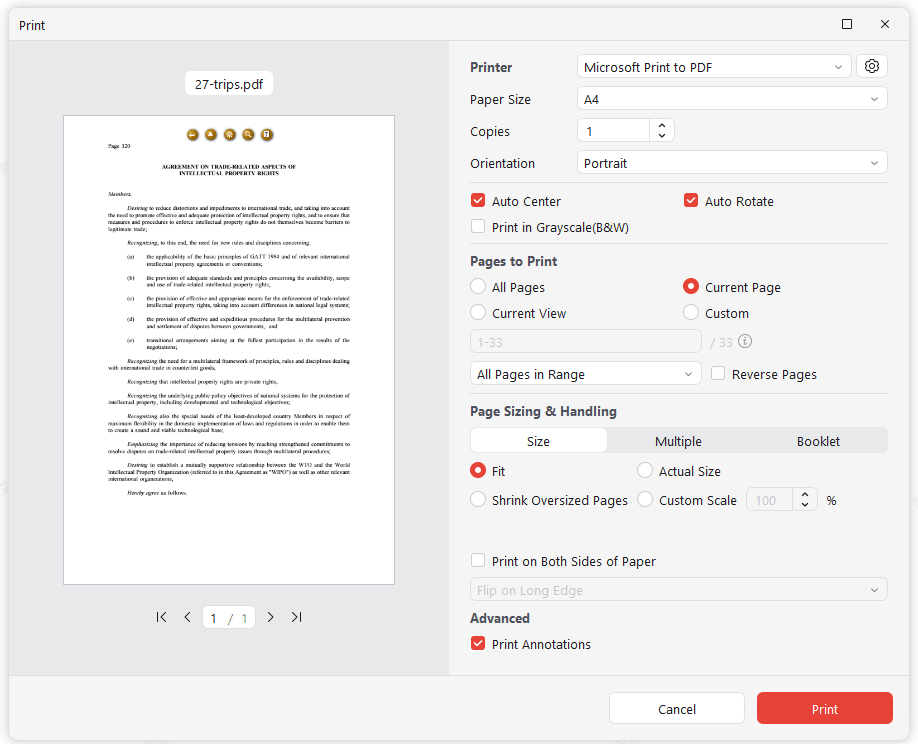
The virtual “Print to PDF” method flattens corrupted font tables and forces the generator to write standard character maps.
Step 1: Open the corrupted file inside JOPDF.
Step 2: Press Ctrl + P (or Cmd + P) to launch the native document printing properties window.
Step 3: In the printer selection dropdown box, choose Microsoft Print to PDF.
Step 4: Click Print, specify a new filename, and save the document. This clean rewrite eliminates underlying character errors and instantly restores complete searchability.
Also See: Microsoft Print to PDF Not Working? Find the Causes and Fixes!
Comparison of PDF Search Fix Methods
| Troubleshooting Method | Fixes Scanned Images? | Resolves Large File Lag? | Safety & Privacy Level | Best Suited For |
| Purging Adobe Cache | No | Partially | Safe (Official Setting) | Fixing temporary Adobe index glitches |
| Disabling Browser Acceleration | No | No | Safe (Browser Setting) | Quick browser patch updates |
| Online Third-Party OCR Sites | Yes | No (Timeout limits) | Low Safety (Data uploads/Ads) | Non-sensitive, short documents |
| JOPDF Native Desktop Software | Yes (High Accuracy) | Yes (RAM Optimized) | Max Safety (100% Offline) | Comprehensive document repair |
Conclusion
By understanding whether your lookup failure is caused by an image-only scan, a corrupted browser update patch, or an Adobe cache overload, you can target the issue with the exact fix needed. Download JOPDF for free today and restore flawless, lightning-fast search functionality to your entire digital library!
FAQs
The text you see is likely part of a scanned image rather than encoded as machine-readable characters. Try selecting the word with your mouse. If you can't highlight individual words, the document needs OCR.
This is a known Edge/Chrome PDF viewer limitation. Browser viewers lack full indexing capabilities. Always download the file and open it in a desktop reader like Adobe Reader or JOPDF for reliable search.
Table of Contents

Your Best Free PDF Expert in PDF editing, compressing, converting, annotating, protect, organizing, and more.
Free DownloadWindows · macOS · Linux

Anna
Editor
“Anna, Editor-in-Chief and PDF expert, delivers deep insights into PDF document technology trends. She is dedicated to helping readers optimize their digital lives. When not writing, Anna loves exploring local cafes and reading, blending her technical expertise with a love for storytelling.”



