Introduction:
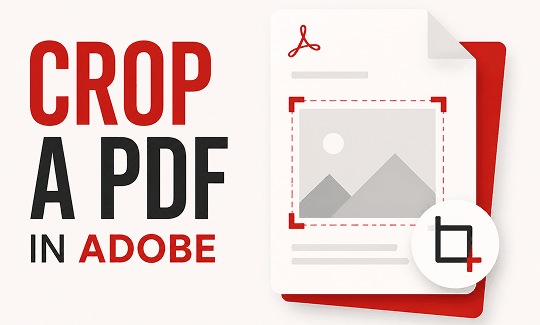
Do you have a PDF with excessive white space along the edges? Maybe you want to focus on a specific picture or a single paragraph of text on the page. In these cases, you need to know how to crop a PDF in Adobe. This guide will show you the steps.
Can You Crop a PDF in Adobe for Free?
Many people use Adobe because it is a very famous brand. However, is it free? Well, the short answer is no. You cannot do it for free.
Adobe Acrobat Reader is completely free to download and use. You can use it to open your files, read them, and even print your documents. However, that is mostly all you can do with the free version.
If you want to actually change the document, you have to pay. Adobe calls this a premium feature. To use the crop tool, you must subscribe to their paid programs. These programs are called Adobe Acrobat Pro or Adobe Acrobat Standard. These programs cost money every single month.
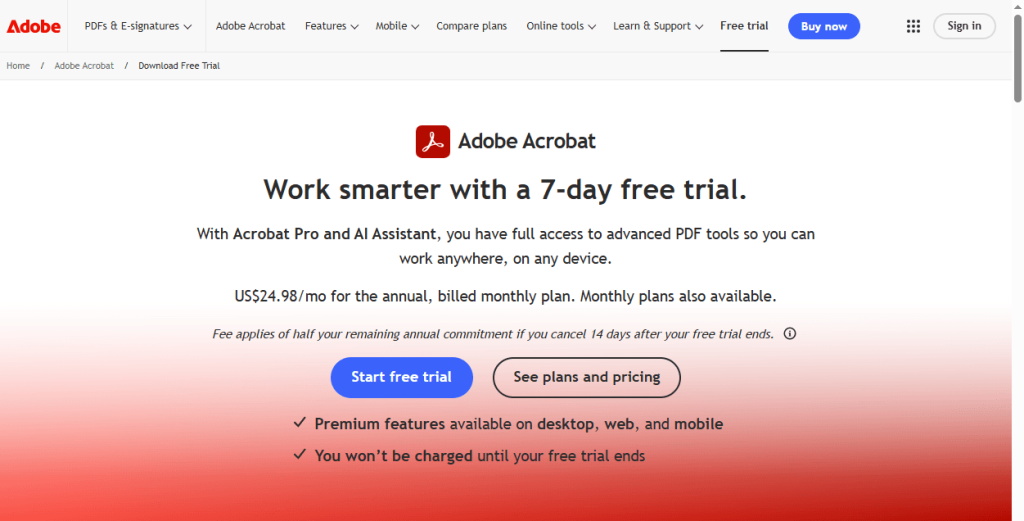
In fact, Adobe does offer a 7-day free trial for its paid tools. But there is a catch. To start the free trial, you need to provide your credit card information to Adobe. If you forget to cancel before the 7-day period ends, they will charge your credit card. For many people, this is too much trouble and worry just to fix a single page.
So, what happens if you just need to make a quick change? What if you want to resize a PDF for printing and do not want to hand over your credit card details? The good news is that you do not have to pay. Later in this article, we will show you how to use a totally free tool called JOPDF instead.
How to Crop a PDF in Adobe
If you already pay for the premium software, you can start editing right now. Here is a simple guide on how to crop a PDF in Adobe Acrobat.
Remember, these steps will not work in the free Reader program.
Step 1: Open Your Document
First, open your Adobe software. Click on the File button in the top left corner of the screen. Then, click Open and choose the PDF file you want to change from your computer.
Step 2: Find the Edit Tools
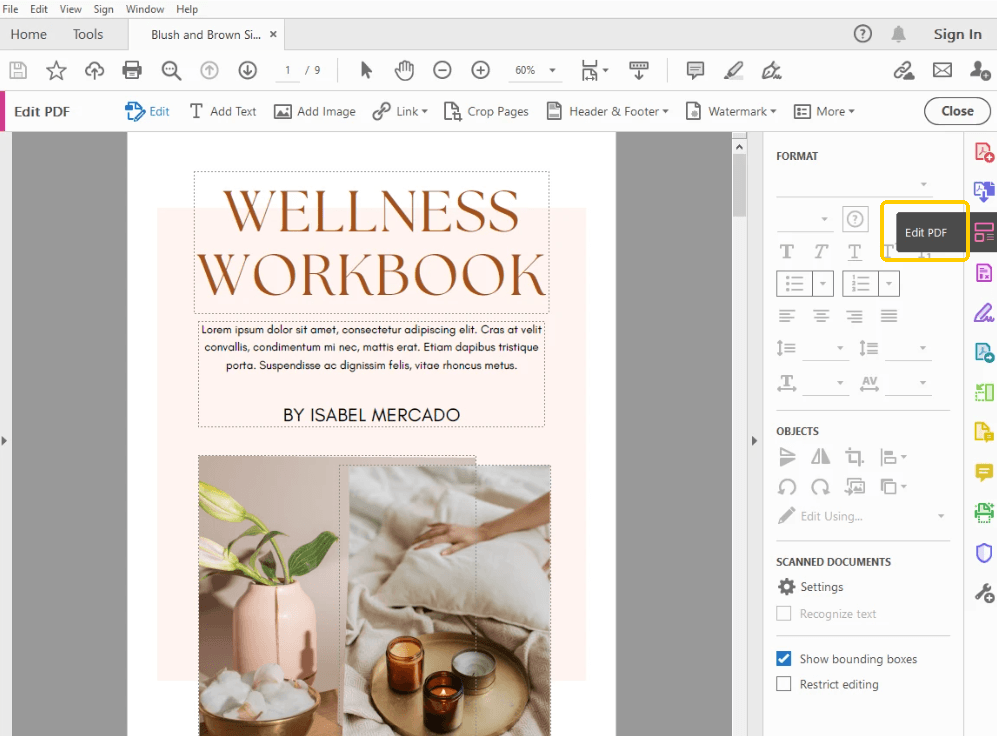
Look at the top of your screen. You will see a Tools tab. Click on this tab. A new menu will open with many different icons. Please select Edit PDF.
Step 3: Choose the Crop Tool
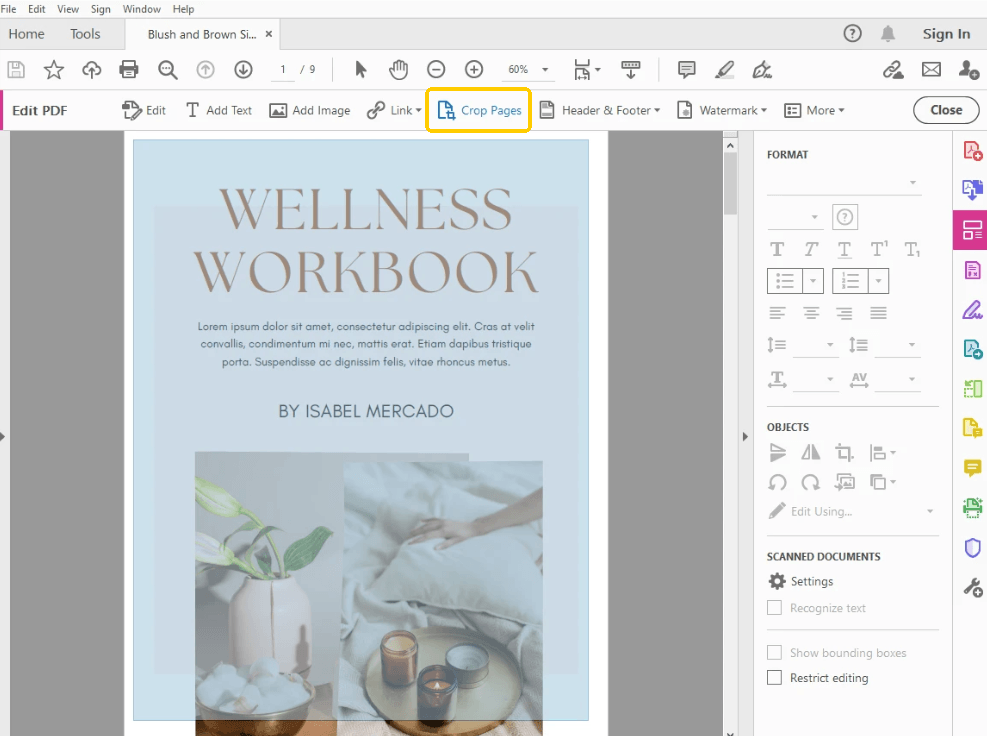
A new bar will appear at the very top of your page. This is the main editing menu. Click Crop Pages to continue.
Step 4: Draw a Box on Your Page
Drag your mouse to draw a box around the exact part of the page you want to keep. When you release the mouse button, the box will stay there. Do not worry if the box is not perfect right away. You can fix it in the next step.
Step 5: Open the Settings Window
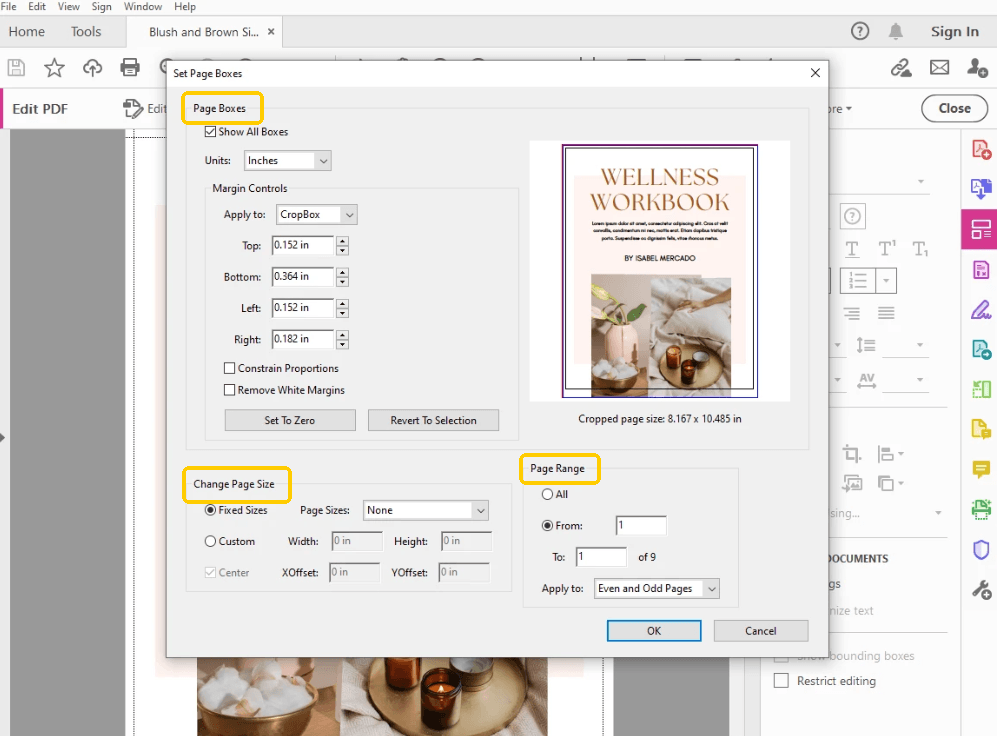
Move your mouse inside the box you just drew. Double-click your mouse button quickly. A new, large window will pop up on your screen. This window is called Set Page Boxes.
Step 6: Adjust Your Edges
In this new window, you will see controls for your margins. The margins are the top, bottom, left, and right edges of your page. You can type numbers into these boxes to make the edges perfectly straight.
Step 7: Choose Your Pages
Look at the bottom right corner of this window. You will see a section called Page Range. You can choose to crop just one page. Or, you can choose to crop every single page in the whole document. Make your choice here.
Step 8: Save Your Work
When you are happy with the settings, click the OK button at the bottom of the window. Your page is now cropped! Do not forget to save your work. Click File and then Save so you do not lose your changes.
Another Free and Easy Way to Crop a PDF
Maybe you do not have the paid Adobe software. Maybe you think those steps are too confusing and have too many menus. That is completely okay! You can easily crop a PDF without Adobe.
If you want a simple, free option, you should try JOPDF. JOPDF is a fantastic alternative to Adobe Acrobat. It is built for people who want easy tools without paying high prices.
Compared to Adobe, JOPDF is not only free but also much easier to use. You do not need to read a thick manual to understand it. You also do not need to enter any credit card information or sign up for tricky free trials.
Here are some of the best cropping features you will find in JOPDF:
✅ Drag the Line to Crop. You can simply grab the lines on the screen with your mouse. Drag the line to exactly where you want it. It is very visual and simple for anyone to understand.
✅ Set the Crop Margin. If you do want to use exact numbers, you can still do so. JOPDF lets you enter exact margin sizes to ensure your pages look professional.
✅ Set the Page Range. You are in total control. You can choose to crop just page one, a few select pages, or the entire file, at the exact same time.
Let’s see how to use JOPDF. Just follow these easy steps:
- Download, install, and launch JOPDF.
- Import your file by dragging it onto the screen.
- Click the Page button and select the Crop Page tool.
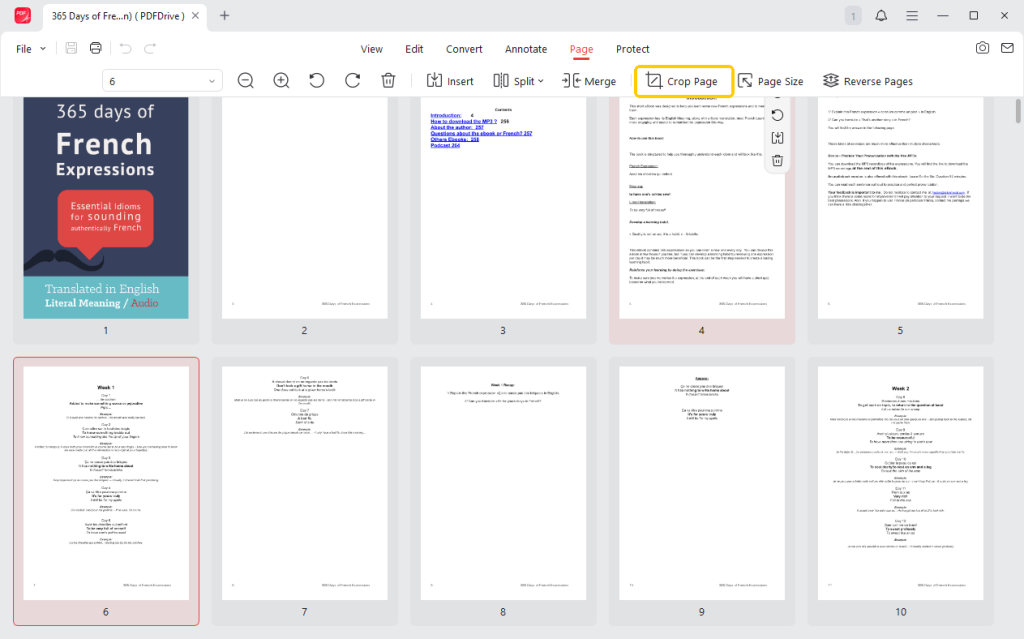
- Drag the lines with your mouse to frame the part of the page you want to keep. Or, you can adjust the value.
- Then select the pages you want to apply to.
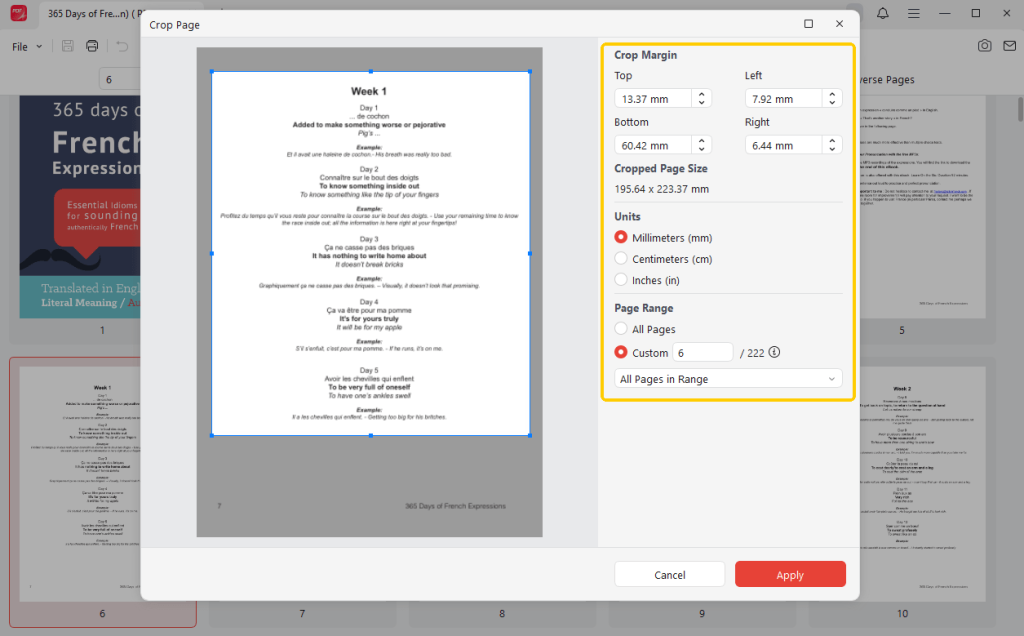
- Finally, click the Apply button to save the changes.
JOPDF is a comprehensive PDF editor. In addition to cropping, it offers many useful tools. For example, if your file is too big to send in an email, you can use JOPDF to split a PDF into two smaller files. You can also convert PDF to/from Office.
More importantly, all the functions are free! There is no reason not to give it a try.
Conclusion
Now you know how to crop a PDF in Adobe. If you’ve already paid for it, follow our easy steps to crop your pages and remove white space.
However, if you need a fast, free, and simple tool. If you are one of those people, JOPDF is the perfect choice. It lets you change your documents in seconds, with no stress. You get professional results for zero cost. Try it out on your next project and see how easy editing can be!
FAQs
Table of Contents

Your Best Free PDF Expert in PDF editing, compressing, converting, annotating, protect, organizing, and more.
Free DownloadWindows · macOS · Linux

Queena
Editor
“As a staff editor for JOPDF, Queena excels at guiding users to the optimal tools and solutions. When she's not analyzing the latest PDF solutions, she enjoys spending her free time playing with her four cats.”