
Introduction:
It can be very annoying to open a document and see huge, empty white borders around your words. Don’t want to pay for an expensive Adobe Acrobat subscription? Let’s learn how to crop a PDF without Adobe! This guide will show you the best free desktop programs, built-in computer tricks, and online tools to get the job done.
Way 1. The Best Free Way to Crop a PDF Without Adobe: JOPDF
If you want to know how to crop a PDF without Adobe for free, your absolute best choice is a program called JOPDF. It is widely known as one of the best alternatives to Adobe Acrobat.
The crop feature in JOPDF is incredibly easy to use. You have two simple ways to fix your pages.
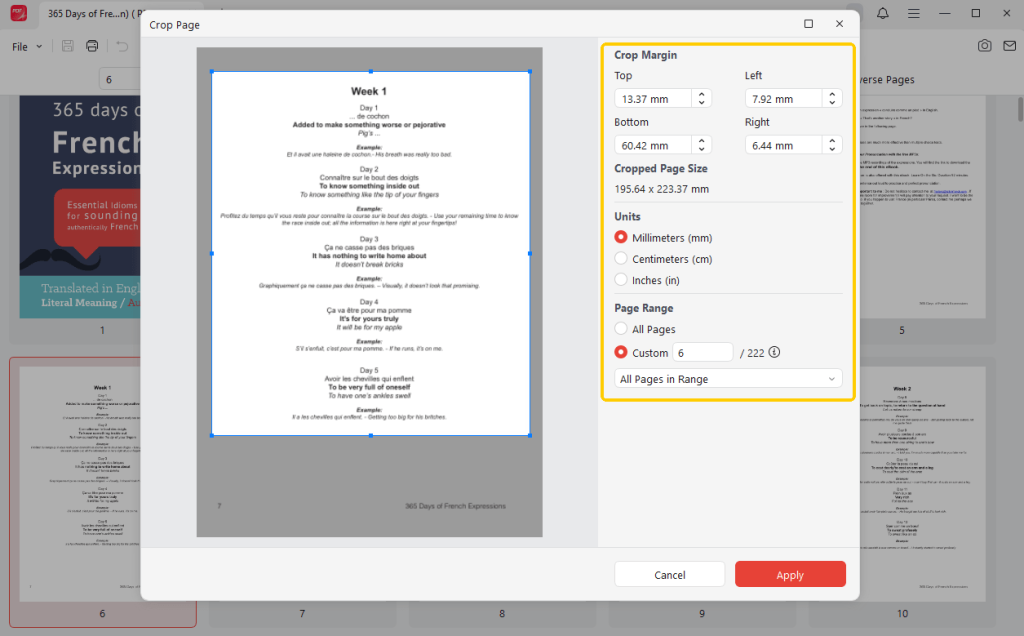
- First, you can simply drag the line of the crop box over the page with your mouse to frame your text.
- Second, if you want to be very exact, it allows users to set the crop margin by typing in the specific numbers for the top, bottom, left, and right sides.
JOPDF also allows you to set the page range. This means you can choose to crop just one single page, or apply the exact same crop to all 50 pages of your book at the same time.
Here is how to use JOPDF to crop pages:
- Download the JOPDF and install it on your computer.
- Next, launch the software and add the PDF document.
- Look at the top menu, click the Page tab, and select the Crop Page tool.
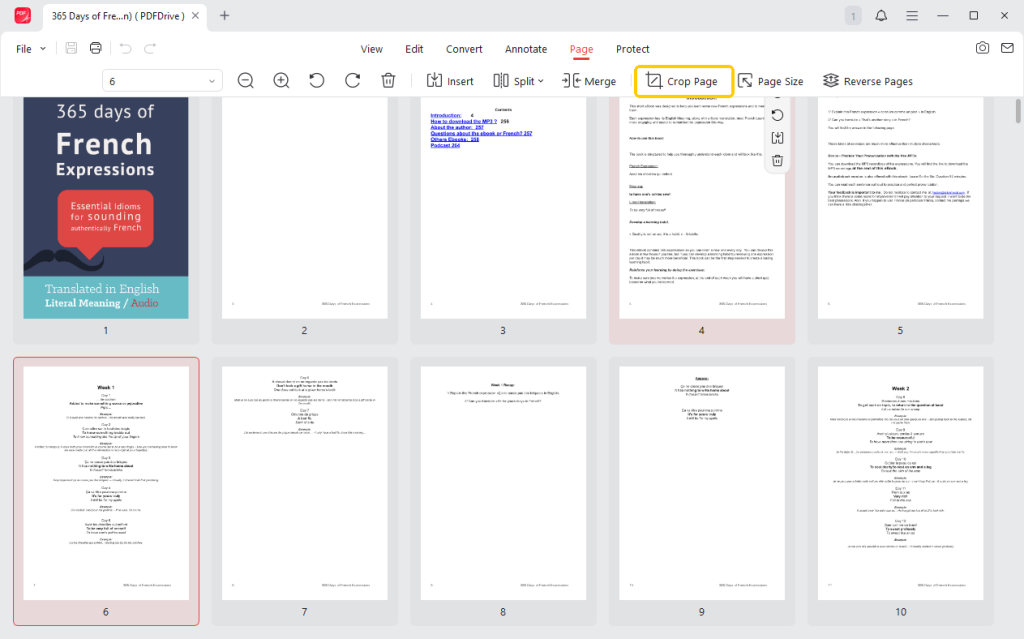
- Drag the lines to frame the part of the page you want to keep, or type the margin numbers on the side panel.
- Choose your page range (for example, Page 1 to Page 5).
- Click the Apply button and save your new file.
JOPDF can help you easily resize a PDF for printing. However, it is not just a cropping tool. It is a complete PDF helper. You can use it to merge multiple files, convert PDFs to/from Office, and compress large files so they are easy to send via email.
Download JOPDF and explore more on your own!
👍 Best For: Professionals and everyday users who need precise, secure, and permanent offline editing without paying for Adobe.
Way 2. Crop a PDF by Screenshot
If you only need to save a tiny piece of a page, like a single shopping receipt, a special paragraph, or one photograph, taking a quick screenshot is a fantastic trick.
You can take a picture of your computer screen and save it as a new document.
Check to learn how to crop a PDF without Acrobat but via screenshot.
Steps for Windows computers:
- Open your PDF in a browser or a PDF reader so you can see the part you want to copy.
- Press the Windows Key, Shift, and S keys at the exact same time to open the Snipping Tool.
- Use your mouse to drag a box over the exact part you want to keep.
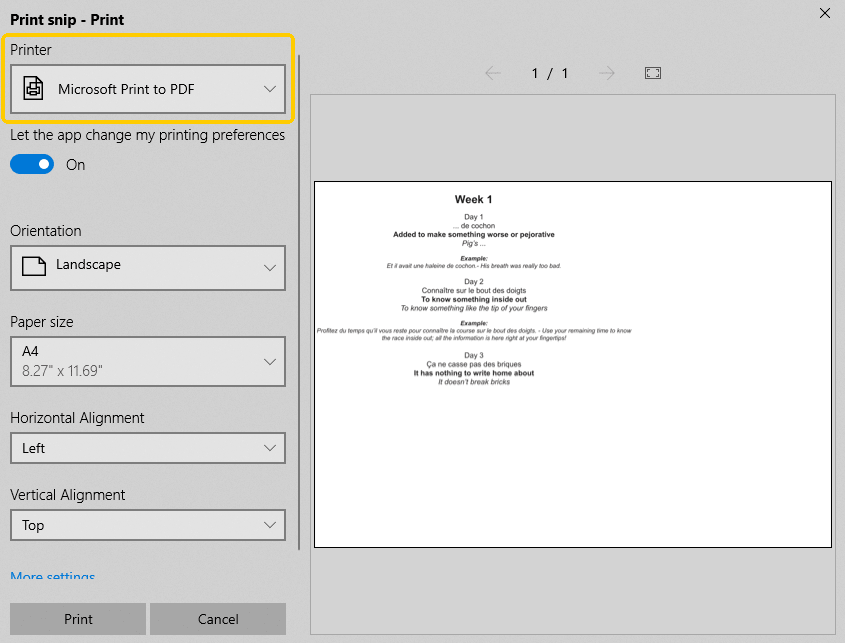
- In Snipping tool, click the three-dots icon and choose Print.
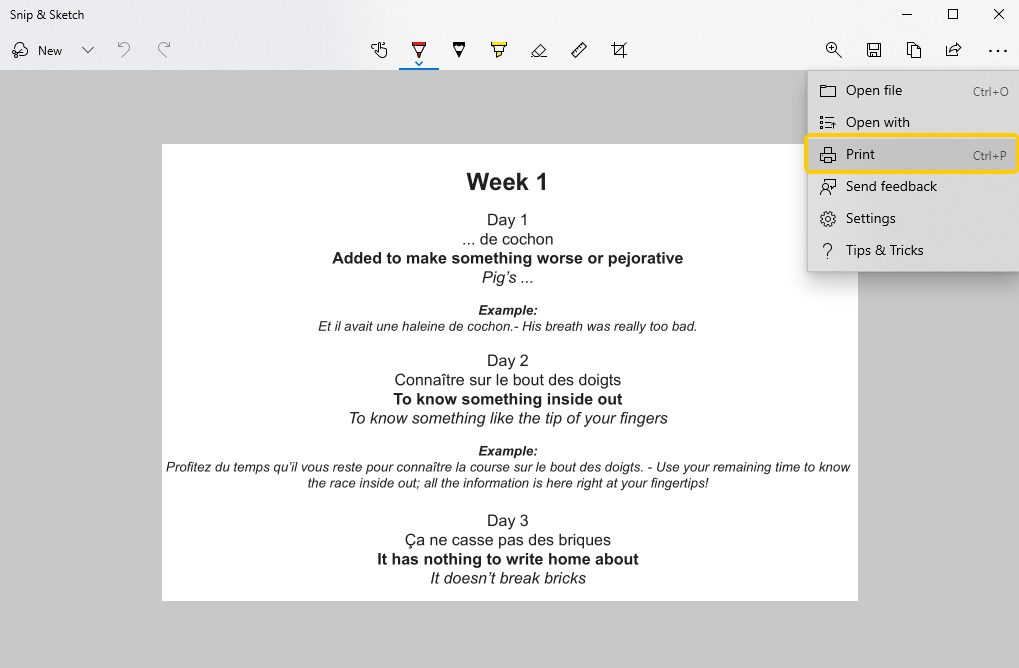
- Then, choose Microsoft Print to PDF and click the Print button.
You can also use JOPDF to convert the screenshot to PDF and edit it easily. Learn more from this guide: How to convert image to PDF.
Steps for Mac computers:
- Open your document on your screen.
- Press the Cmd, Shift, and 4 keys at the same time. A small crosshair will appear. Use your mouse to drag a box over your target area.
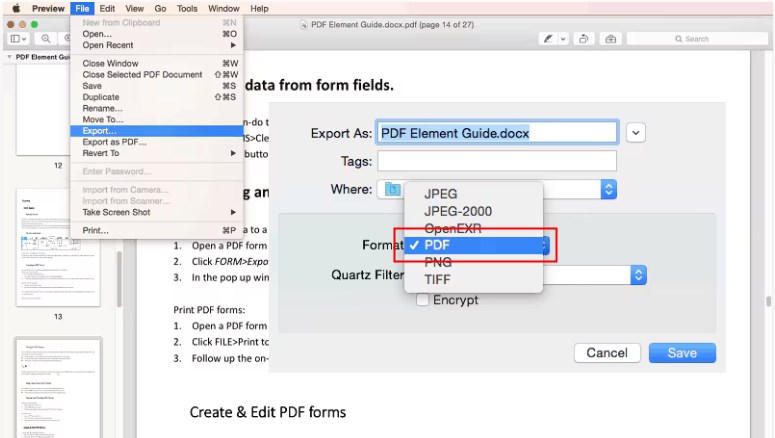
- Double-click to open the screenshot, go to the top File menu, and select Export as PDF.
👍 Best For: People who are in a big rush and only need to grab a small, single section of a page instead of formatting a whole professional document.
Way 3. Crop a PDF on Mac in Preview
If you use an Apple Mac computer, you have a huge advantage. Apple includes a built-in app called Preview on every single computer. This app offers a fast, native way to crop a PDF without Adobe.
Steps to use the Preview crop a PDF page:
Double-click your file so it opens normally in the Preview app.
- Look at the top of the window and click the Show Markup Toolbar button (it looks like a small pencil tip).
- Click the Rectangular Selection tool (it looks like a dotted square).
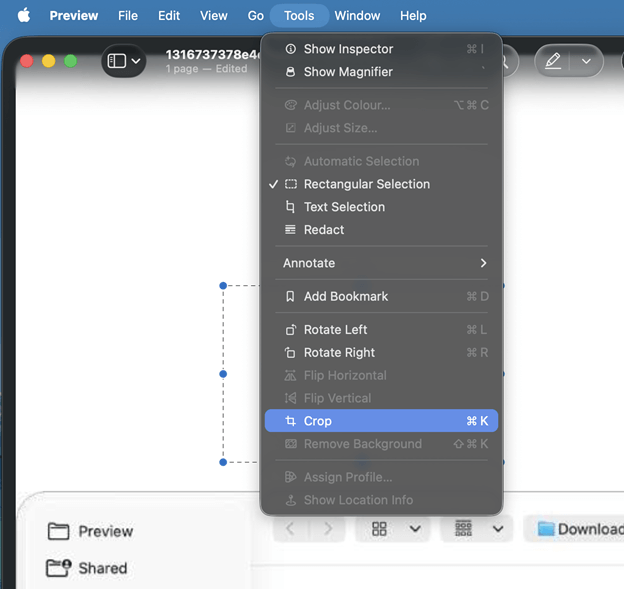
- Click and drag a box around the words or pictures you want to keep on the page.
- Click the Tools menu at the very top of your screen and select Crop (or just press Cmd and K on your keyboard).
While Preview is great for a quick visual crop, it has limits. The Preview feature lacks professional editing tools. For example, you cannot edit the text inside the PDF. If you make a spelling mistake, Preview cannot fix your words.
If you want a comprehensive and powerful PDF editor for Mac that lets you easily crop and edit text, you should definitely try JOPDF instead.
👍 Best For: Mac users who need a very fast, built-in fix without downloading any new software to their computer.
Way 4. Use an Online Tool (iLovePDF)
What if you are using a public library computer or a work laptop that does not let you install new software?
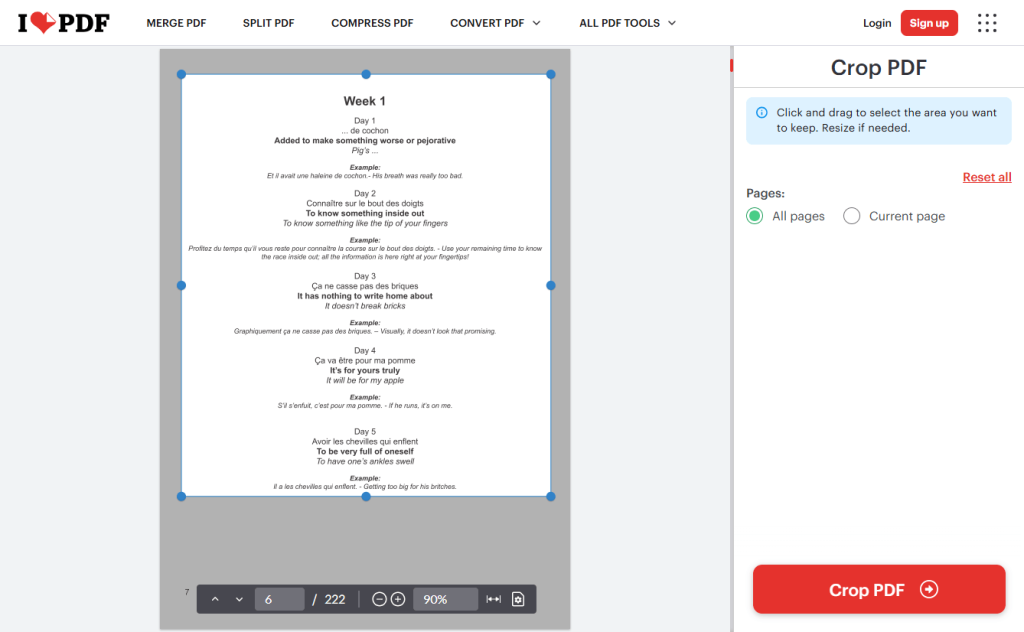
In these specific cases, using a free online web tool is very convenient. You can use websites like iLovePDF to fix your pages right inside your internet browser.
Follow the steps below:
- Open your web browser and go to the iLovePDF Crop PDF tool (https://www.ilovepdf.com/crop-pdf).
- Upload your file from your computer.
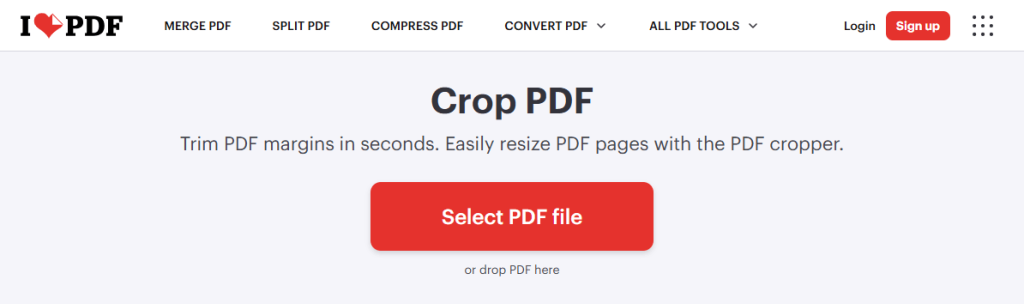
- Drag the crop box on your screen to remove the ugly white margins.
- Click the Crop PDF button at the bottom of the screen. Wait a few seconds, and download the finished file back to your computer.
👍 Best For: Mobile phone users or people on borrowed computers who need a fast cloud solution and are not working with highly secret or private business documents.
Conclusion
That’s all about how to crop a PDF without Adobe Acrobat. You absolutely do not need to buy expensive monthly subscriptions to make your digital paperwork look professional and clean.
For fast, simple cropping, you can use the screenshot trick, the Mac Preview app, or online tools. However. If you want to do it professionally. JOPDF is the best choice. It offers detailed settings as Adobe does, but it is completely free.
FAQs
Table of Contents

Your Best Free PDF Expert in PDF editing, compressing, converting, annotating, protect, organizing, and more.
Free DownloadWindows · macOS · Linux

Queena
Editor
“As a staff editor for JOPDF, Queena excels at guiding users to the optimal tools and solutions. When she's not analyzing the latest PDF solutions, she enjoys spending her free time playing with her four cats.”



