
Introduction:
If you are trying to figure out how to split a PDF into two, you are in the right place. This guide will show you 5 simple methods, from the best free desktop software to easy browser tricks.
Way 1. The Best Free Way to Split a PDF into Two: JOPDF
If you want to know how to split a PDF into two for free, safely on your own computer, your best choice is JOPDF, an easy-to-use PDF editor. It works offline on your computer; your private files never go online.
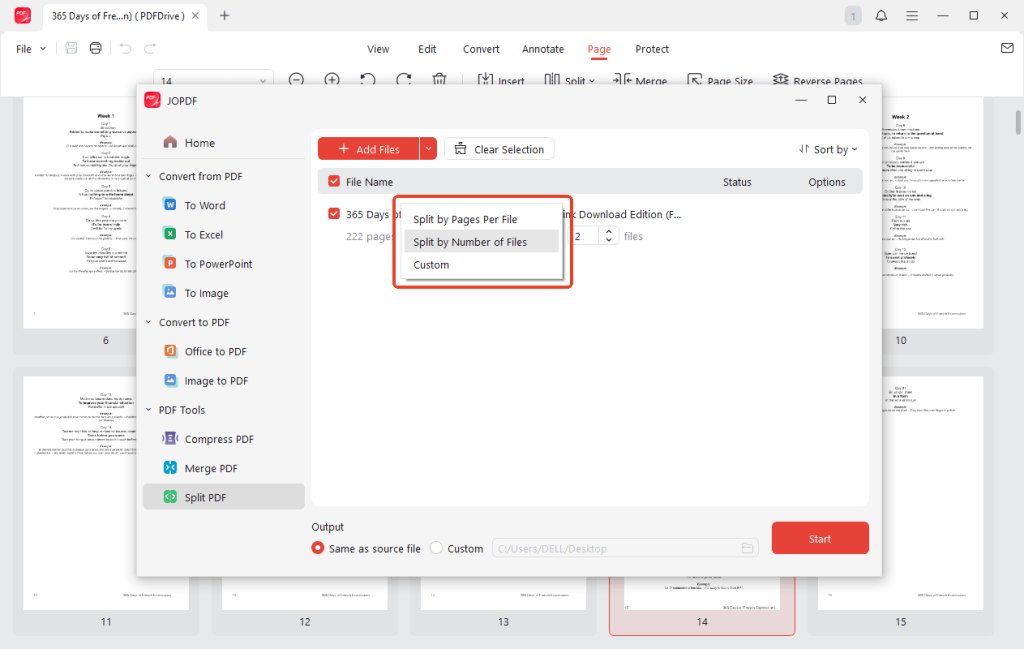
JOPDF is widely considered a top-tier free PDF editor because it gives you three very precise ways to divide your document:
✅ Split by pages per file: This is great if you have a 100-page book and want to split it into 10-page files.
✅ Split by numbers of files: This is perfect when you need to divide a document into exactly 2, 3, or 4 equal pieces.
✅ Split by custom page range: This allows you to pick exactly which pages you want. You can easily pull out pages 1 to 15 to make one file, and pages 16 to 30 to make a second file.
Check to learn how to use JOPDF to split the PDF:
1. Download the software to your computer. Open your PDF.
2. Look at the top menu bar. Click on the Page tab, and then go to Split > Split PDF.
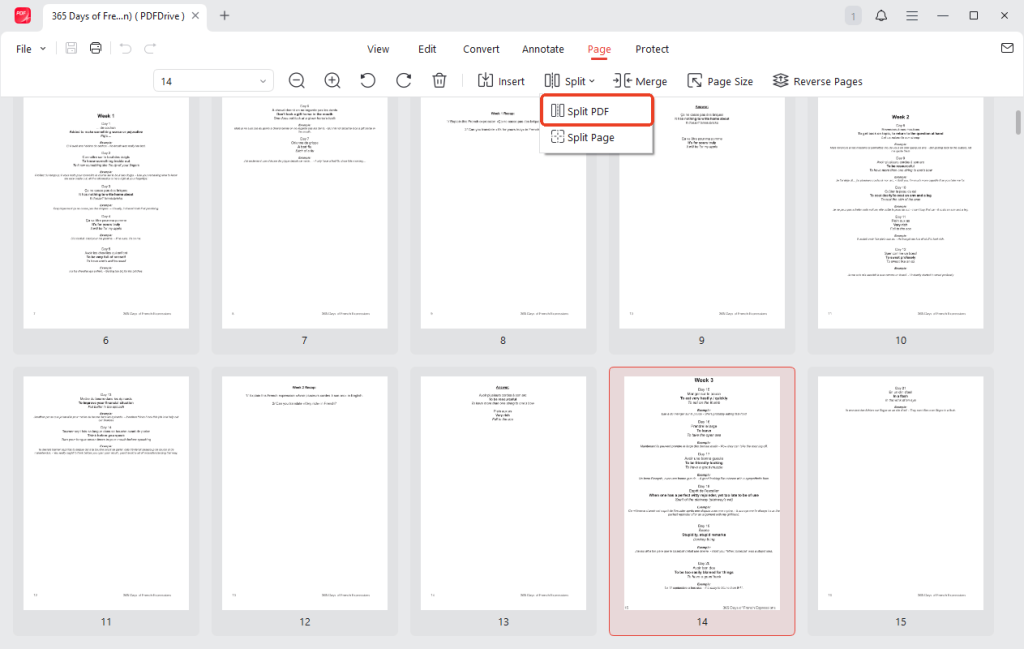
If you want to split a PDF page in half, please select Split Page.
3. Select the method that works best for you. If you want to cut the file in half, using the “custom page range” is usually the easiest way.
4. Choose the folder on your computer where you want to keep the new files, and click Start.
JOPDF is an amazing all-in-one tool. You can use it to merge files, fix typos directly on the page, lock your documents with a secret password, and compress large files so they are easy to email.
Download JOPDF today and try it for the absolute best PDF experience!
Way 2. Split a PDF into Two with Adobe
Adobe Acrobat Pro is a well-known and powerful program for professionals. It is very easy to split a PDF in Adobe, but there is a catch you must know.
This method requires a very expensive, paid monthly subscription. The free “Adobe Reader” version you usually download from the internet cannot do this.
If you have the paid Pro version, here is how to do it:
1. Open your document in Adobe Acrobat Pro.
2. In the menu panel, click Organize Pages.
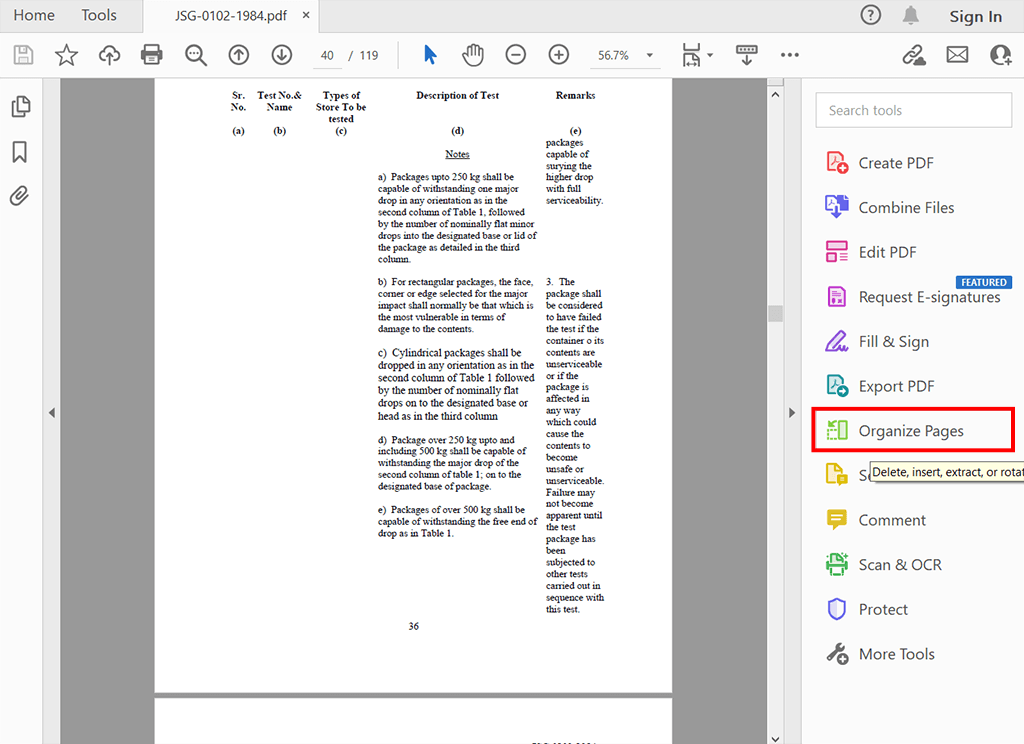
3. Click the Split icon located on the top toolbar.
4. A new menu will appear. Choose how you want to divide the document.
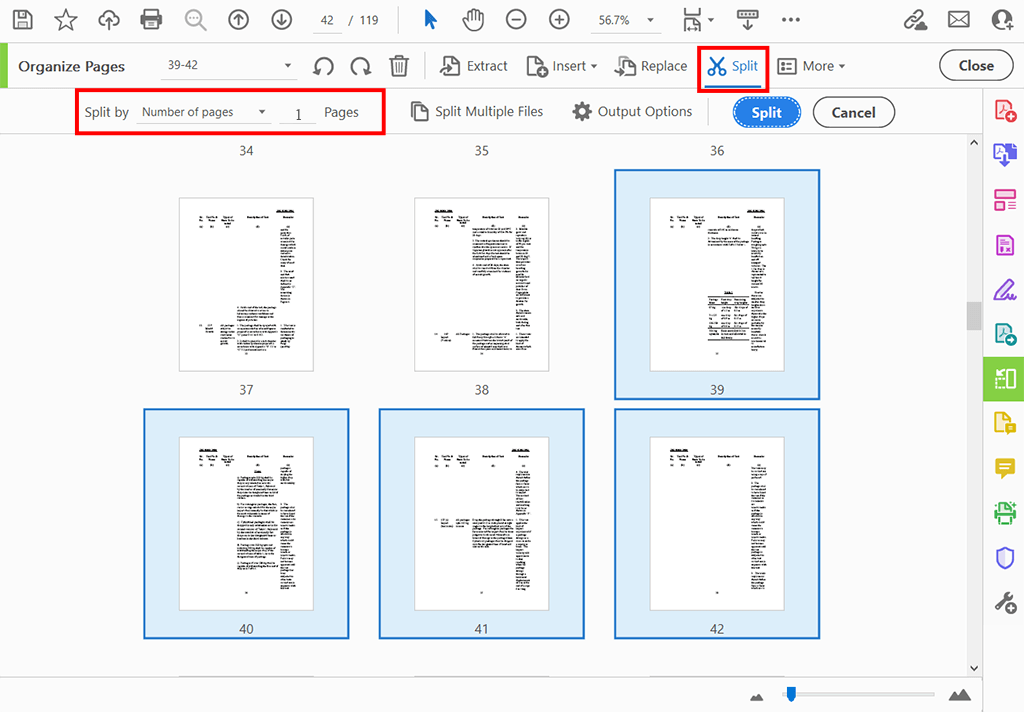
5. Click the Output Options button to specify where the computer should save your new files. Finally, click the Split button.
Way 3. Use Preview to Split a PDF into Two on Mac
If you use an Apple Mac computer, you do not need to buy expensive software. Apple provides a wonderful built-in app called Preview. This is a very fast way to fix your documents without installing anything new.
Here is how to do this in Preview:
1. Open your document in Preview.
2. Click the View menu at the top and select Thumbnails. A sidebar will appear showing tiny pictures of all your pages.
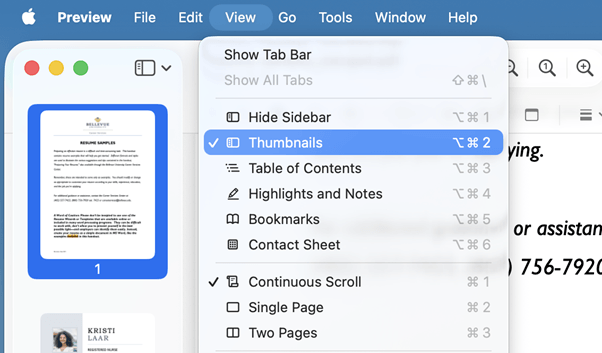
3. Click the pages you want to separate, then drag them out of the app and drop them right onto your Mac desktop. This instantly creates a brand new file!
Although Preview can handle some basic tasks, it lacks advanced features and cannot edit text within PDF files. If you need a comprehensive Mac PDF editor, JOPDF is a better choice.
Way 4. Split a PDF into Two in a Browser
What if you cannot install any software? Don’t worry. You can actually use your web browser to cut your document! This clever trick uses the browser’s printing feature. Check to learn the details.
Click and drag the file with your mouse to open the PDF in Chrome or Microsoft Edge.
1. Once you see the document in your web browser, click the small Print icon in the top right corner of the screen.
2. A print menu will pop up. Change the destination printer setting to Save as PDF.
3. Look for the Pages section. Change it to Custom and type the numbers for the first half of your document (for example, pages 1-10).
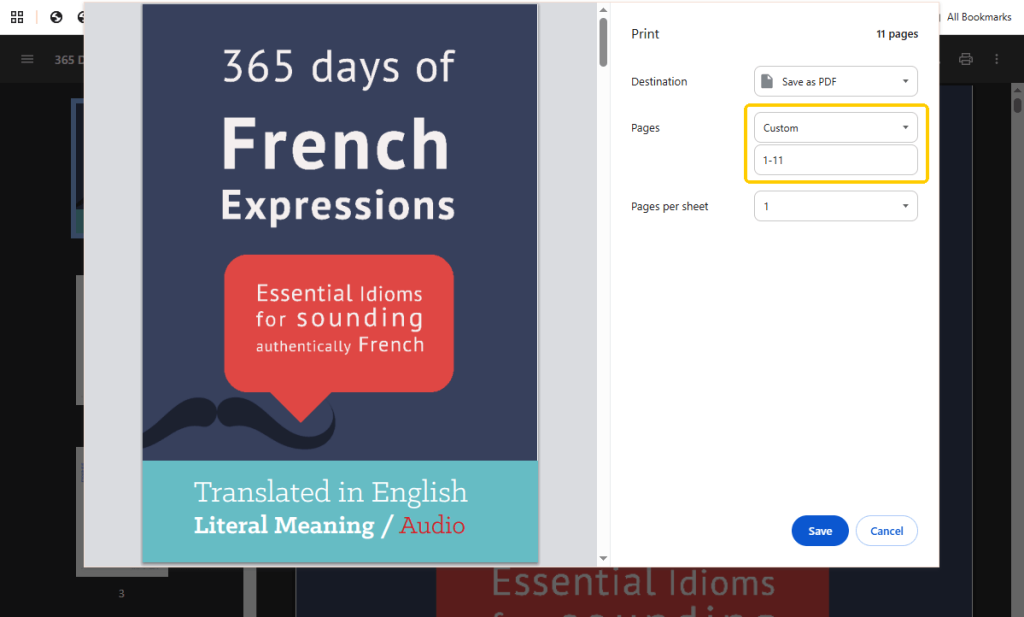
4. Click the Save button to create your first new file.
5. Then, repeat steps 2 through 5, but type the numbers for the second half (for example, pages 11-20).
Way 5. Use Online Tools to Split a PDF for Free
If you are using a mobile phone, a tablet, or a public library computer, an online web tool is a fantastic choice. Websites like iLovePDF or Smallpdf offer a fast cloud-based solution without any downloads. Below is an example to use iLovePDF.
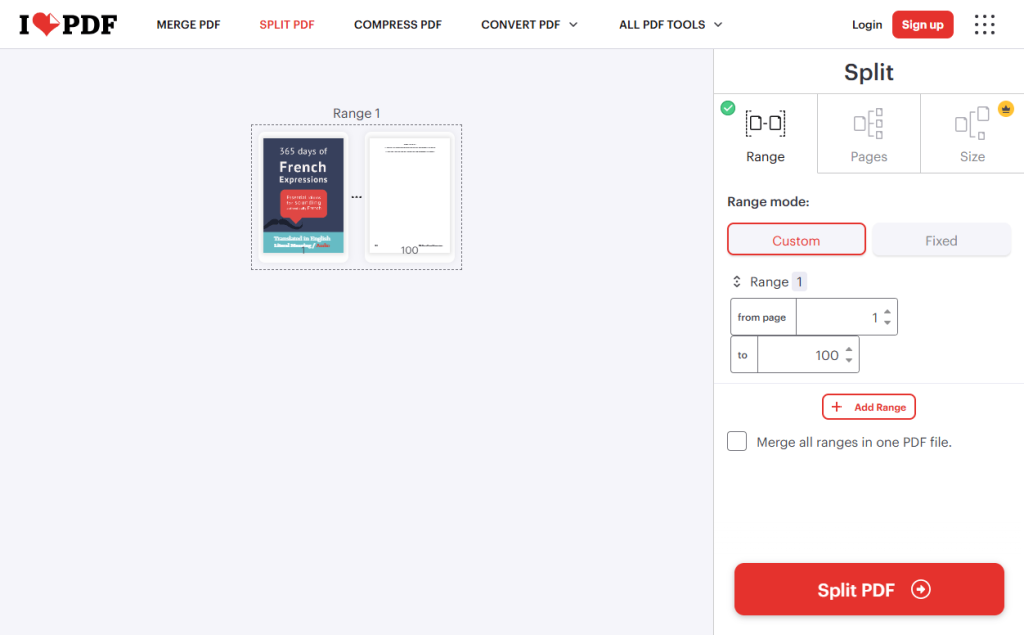
1. Open your internet browser and visit the split tool (https://www.ilovepdf.com/split_pdf).
2. Upload your document.
3. Click exactly where you want the split to happen.
4. Click the Split PDF button. Wait a few seconds, then download the two brand-new files back to your computer.
️❗ Privacy Warning:
Online tools are very fast, but they have a privacy risk. If your file contains secret business numbers, medical records, or a personal ID, you should be careful. For highly private files, it is much safer to use offline computer software like JOPDF.
Conclusion
That’s all about how to split a PDF into two. As you can see, you have many great options.
The Mac Preview app and web browsers are excellent for a quick fix when you are in a rush.
However, for everyday use, JOPDF remains the absolute best choice. It gives you precise page control, completely free tools, and total offline privacy for all your important paperwork.
FAQs
Table of Contents

Your Best Free PDF Expert in PDF editing, compressing, converting, annotating, protect, organizing, and more.
Free DownloadWindows · macOS · Linux

Queena
Editor
“As a staff editor for JOPDF, Queena excels at guiding users to the optimal tools and solutions. When she's not analyzing the latest PDF solutions, she enjoys spending her free time playing with her four cats.”



