Introduction:
Signing a 50-page contract page by page is very boring. If you want to finish your work much faster, you need to learn how to sign multiple pages in PDF at once. This guide will show you three fast ways to do this.
Way 1. Sign Multiple PDF Pages at Once with JOPDF (Recommended)
If you want the best and easiest computer program for this job, you should use JOPDF. It is a powerful desktop PDF editor designed for everyone, especially non-technical users.
JOPDF allows you to electronically sign a PDF in a few clicks. Then, the program can help you apply that exact same signature to every other page in your document.
Moreover, you have total control over where your name goes. You can choose to apply the signature to all pages or to a specific page range (such as pages 5 through 10).
Let’s see how to sign multiple pages in PDF at once:
- Click the button below to download JOPDF and open the program on your computer.
- Open your document in JOPDF. Look at the top menu, click the Edit tab, and choose Signature. Then, click Create Signature.
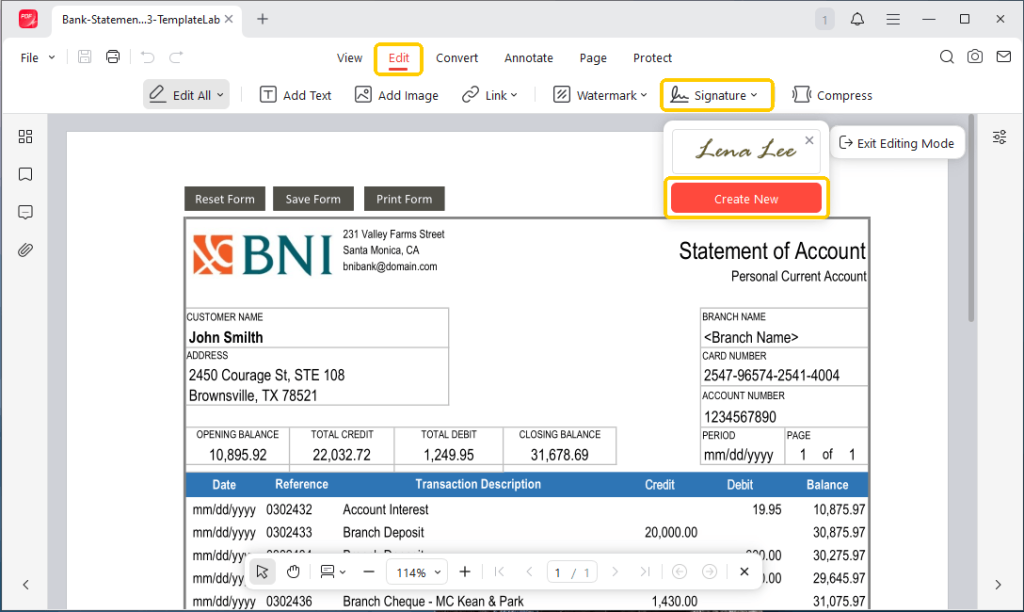
- Select an option to create your signature and place it in the right place.
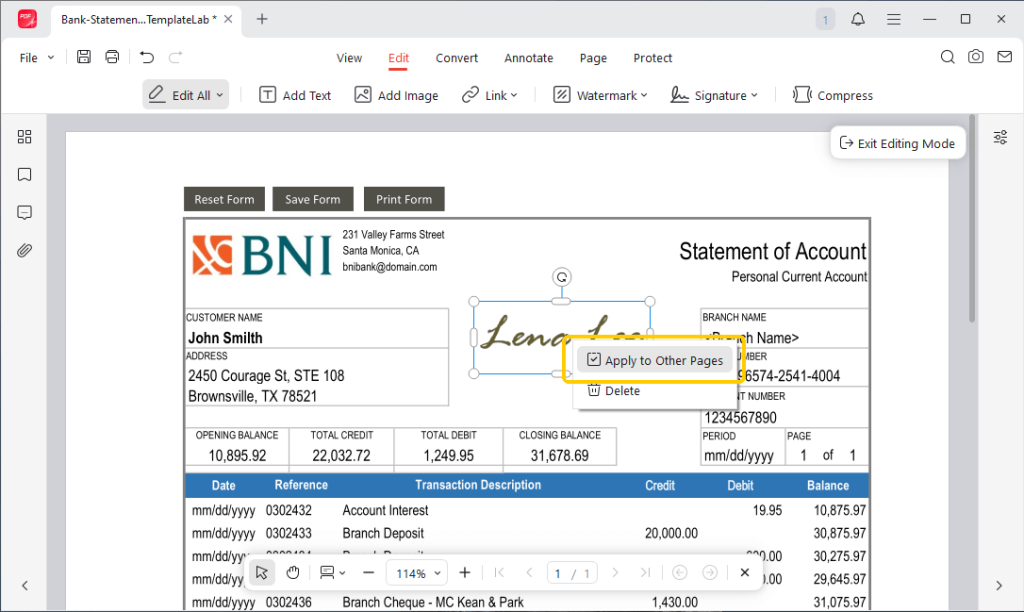
- Next, right-click on your new signature and choose Apply to Other Pages.
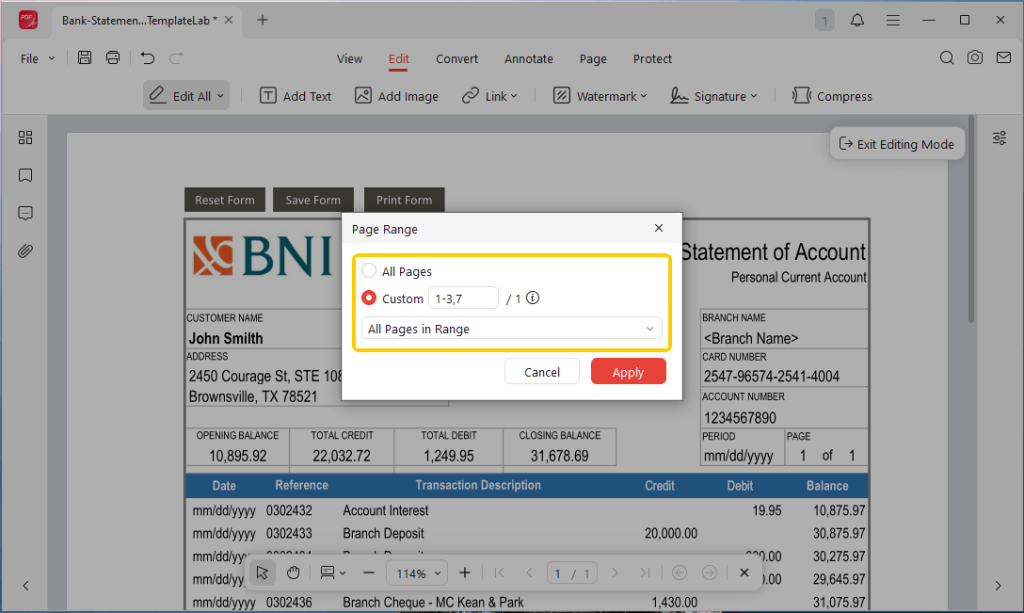
- A small box will pop up. Choose All Pages or type in your specific page numbers.
- Click the Apply button. JOPDF will instantly add your signature to every page!
- Finally, click the Save button to save your file.
JOPDF is much more than just a signing tool. It is an amazing free PDF editor. It offers many other useful tools to help you with office work.
For example, you can use it to edit words, merge different files together, or password-protect a PDF to keep strangers from opening your private paperwork. Download JOPDF and try it today!
Way 2. Sign Multiple PDF Pages at Once with Adobe Acrobat
Adobe Acrobat is a very famous office program. Many people have it on their work computers. However, it actually has a major problem: Adobe does not have a direct button to automatically apply a single signature to every page.
Do not worry. You can still use a clever trick called the “Stamp” tool to speed up your work. Please follow the steps below:
- Open your PDF file in the Adobe Acrobat program.
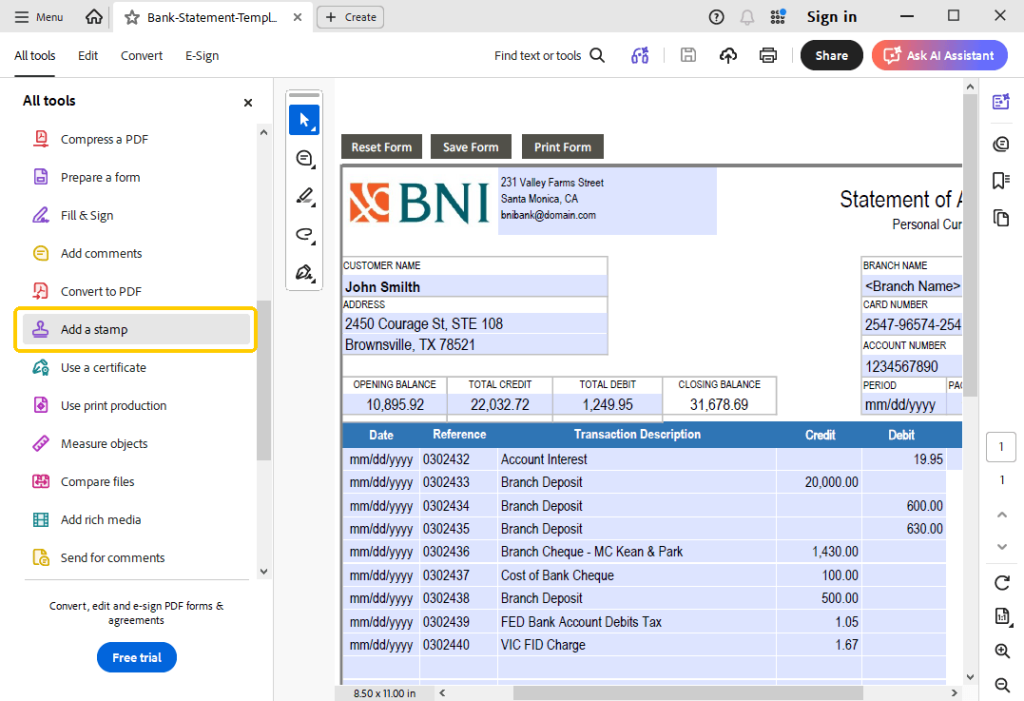
- Go to the Tools menu at the top of the screen and click on Add a stamp.
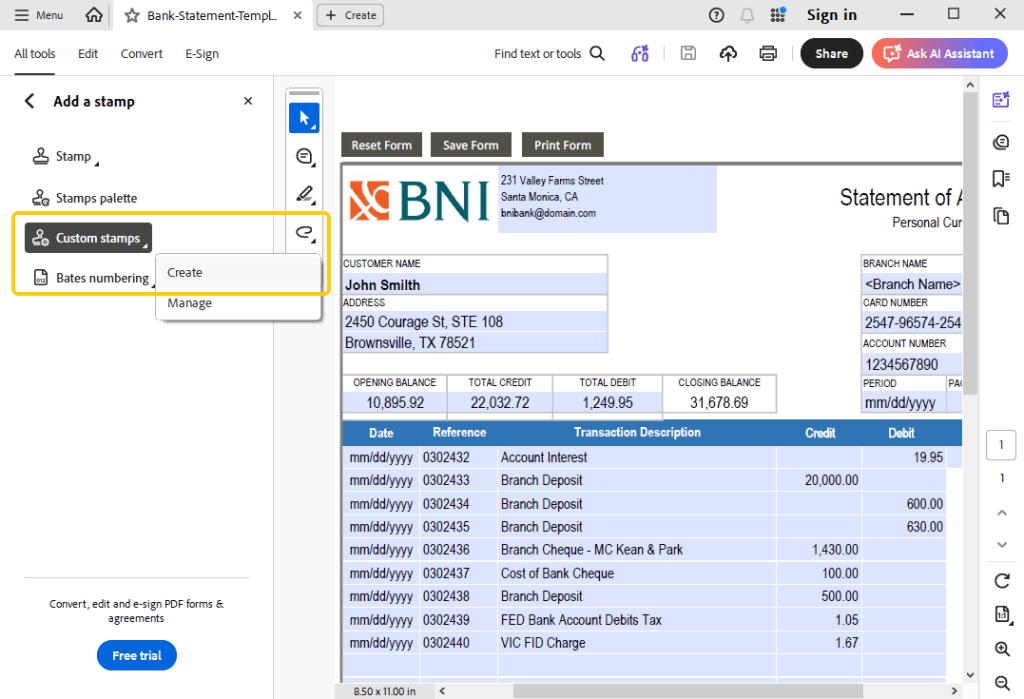
- Click on Custom Stamps and then click Create. You will need to upload a picture file of your signature to make a new stamp.
- Once your custom stamp is saved, click the stamp tool again to select your signature.
- Now, you can quickly scroll down and click on each page to drop your signature stamp.
- You still have to click your mouse on every page, but it is much faster than drawing your signature every single time.
Please remember that most of the good editing features in Adobe Acrobat require a very expensive monthly subscription.
If you want to edit your files quickly and for free, skip Adobe completely. You can try JOPDF instead, which is the best free alternative to Adobe Acrobat.
Way 3. Sign Multiple PDF Pages at Once Online
For one-off tasks, downloading the software seems a bit troublesome. Fortunately, there are many online PDF signature tools available. A great choice is Sejda. It can help you apply your signature to all pages.
A Quick Safety Tip
Uploading secret business contracts or private tax forms to the internet always carries a small privacy risk. For your most important files, using an offline computer tool, such as JOPDF, is always safer.
- Open your internet browser and go to the Sejda website (https://www.sejda.com/sign-pdf).
- Click the big green button to upload your PDF file.
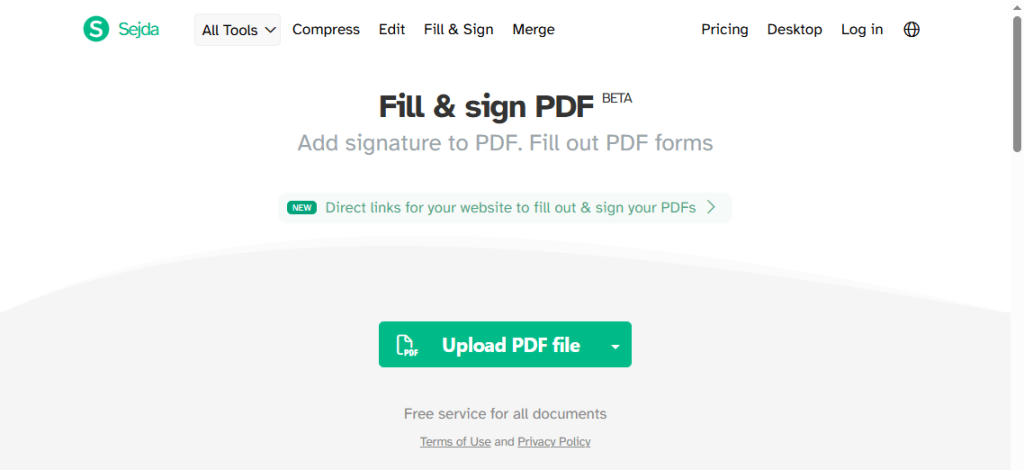
- Click the Sign button to create your signature. Place your new signature on the screen.
- Place the cursor on the signature, then select the Repeat on all pages option.
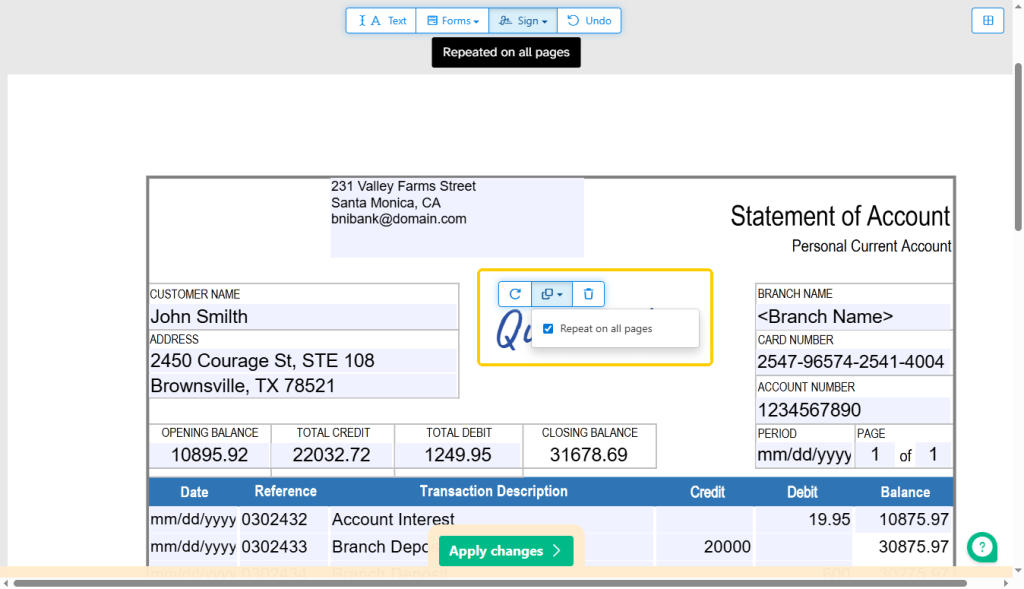
- When you are done, click Apply change. And download the file back to your device.
Conclusion
That’s all about how to sign multiple PDFs in PDF at once. Comparing these three methods, perhaps you have noticed that if you want to safely and professionally place all the signatures, JOPDF is the best choice.
You can easily create a signature and apply it to the selected pages without any hassle! Anyhow, you can download and try it yourself.
FAQs
Table of Contents

Your Best Free PDF Expert in PDF editing, compressing, converting, annotating, protect, organizing, and more.
Free DownloadWindows · macOS · Linux

Queena
Editor
“As a staff editor for JOPDF, Queena excels at guiding users to the optimal tools and solutions. When she's not analyzing the latest PDF solutions, she enjoys spending her free time playing with her four cats.”