![4 Proven Ways to Remove Hyperlink from PDF [Exact Steps]](https://b.jopdf.com/wp-content/uploads/2025/11/remove-hyperlink-from-pdf.png)
Introduction :
When you get a PDF file that contains false or unwanted hyperlinks, you may need to remove them. Or, sometimes, you might accidentally add the wrong hyperlink, and the PDF editor won’t let you delete it. In those cases, how can you remove hyperlinks from a PDF? Using a reliable hyperlink remover for PDF is essential. In this tutorial post, I will show you how to remove hyperlink from PDF using 4 link removers, including JOPDF, SwifDoo PDF, Adobe Acrobat, and AvePDF.
Remove Hyperlink from PDF with JOPDF
Supported OS: Windows and Mac
Price: FREE
With its easy-to-use and free nature, JOPDF is a great choice for adding, editing, or removing hyperlinks in PDFs. You are allowed to remove specific or all links from PDFs using JOPDF. Even though this is my first time using JOPDF, I can quickly get the hang of how to use it. Hence, even if you’re a beginner like me, you’ll be able to get started in no time. Now, follow me and learn how to remove links in PDF for free using JOPDF.
Step 1. Hit the tab below to download JOPDF and install it on your PC.
Step 2. Run this link remover for PDFs without the need to log in. Click the Open PDF tab to import the PDF document with false hyperlinks.
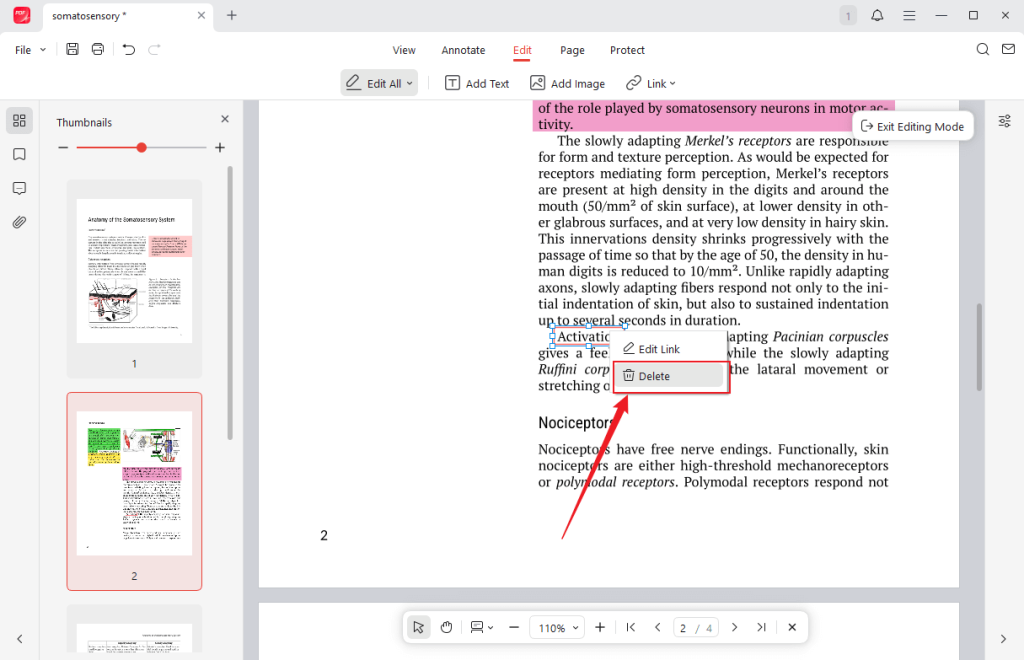
Step 3. Locate the text with the wrong hyperlink, right-click it, and click the Delete option.
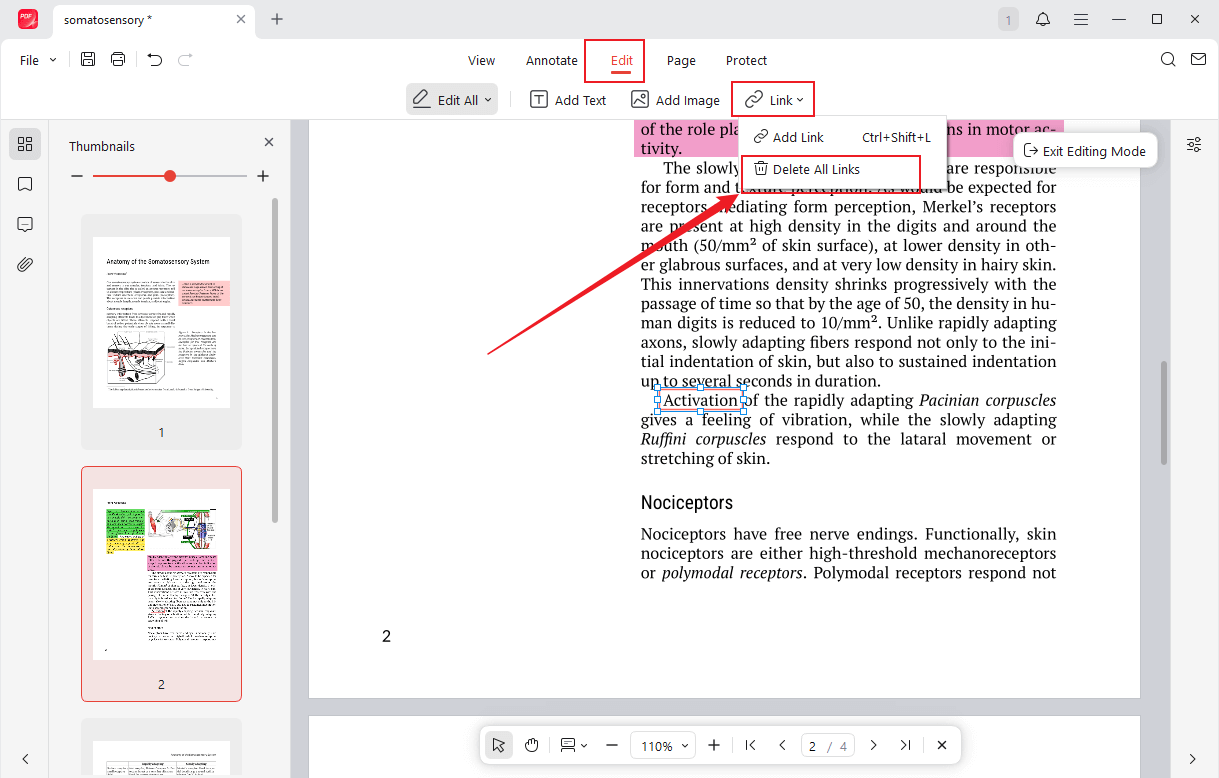
How to remove all hyperlinks from PDF in JOPDF? Switch from the View tab to the Edit tab, click the Link option, and select the Delete All Links option from the list.
Tips
If you want to replace an incorrect link with the correct one, right-click the link and select the Edit Link option.
Step 4. Finally, click the File option. Choose the Save option to save the changes to the original PDF file or select the Save As option to save the changes to a new PDF file.
Other Key Features of JOPDF:
- Add hyperlinks to PDFs
- Add text to PDFs
- Create and edit PDFs
- Send PDFs to Email
- Add annotations to PDFs
- Rearrange PDF pages
- …
Remove Links from PDF via SwifDoo PDF
Supported OS: Windows, Mac, Android, iOS
Price: 7-day free trial. For the single-platform plan on Windows, the quarterly plan costs $16/month, the 2-year plan costs $2.88/month, and the perpetual plan costs $96.75. For detailed pricing plans for different OS, you can go to the pricing website of SwifDoo PDF.
SwifDoo PDF is a robust and function-rich PDF editor. In addition to adding links to PDFs, it also enables you to edit and remove links in PDFs. With its wide range of PDF features, you can handle various PDF problems and perform many PDF tasks, ranging from password-protecting PDFs and OCR PDFs to converting PDFs. Follow the steps below to remove links in a PDF with SwifDoo PDF.
Step 1. After you download and install SwifDoo PDF on your PC, launch this program.
Step 2. Locate the target PDF document in File Explorer, right-click it, move to “Open with”, and choose SwifDoo PDF. Then the PDF document will open in SwifDoo PDF.
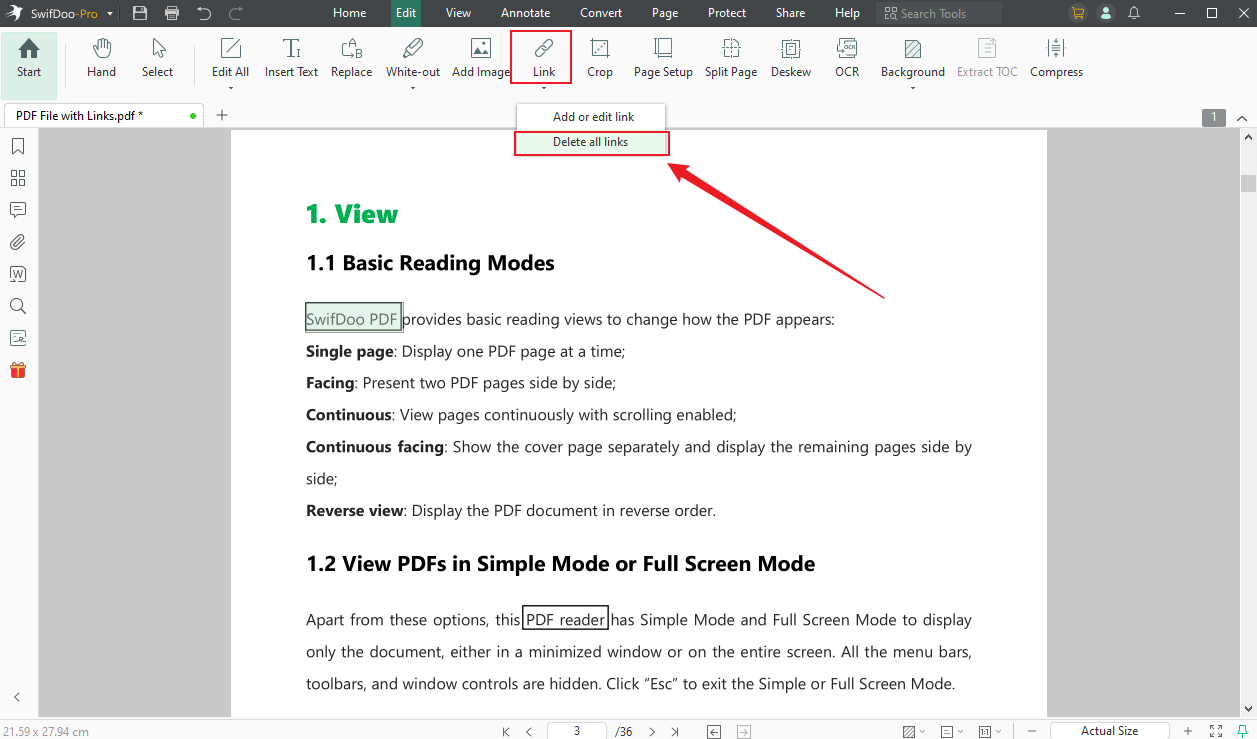
Step 3. Navigate to the Edit tab and remember to exit the editing mode. Then, expand the Link list and click the Delete all links option.
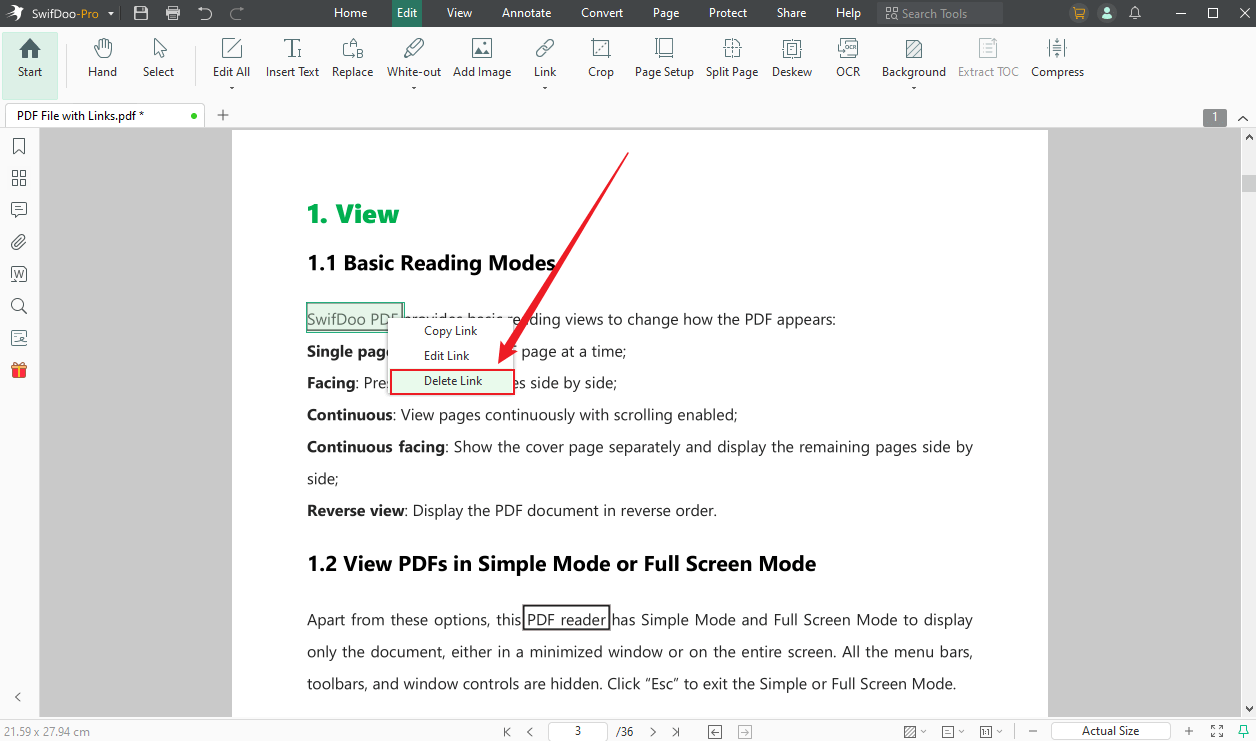
If you only need to remove a single hyperlink, right-click the target hyperlink and select the Delete Link option.
Step 4. Finally, press Ctrl + S to save the PDF file.
Other Functions of SwifDoo PDF:
- Compress a PDF file to reduce its file size
- Create PDFs from blank, images, files, or scanners
- Add digital signatures to PDFs
- Add watermarks to PDFs
- Provide AI-powered features to translate, summarize, rewrite, or proofread PDFs
- …
Remove Hyperlink in PDF with Adobe Acrobat
Supported OS: Windows, Mac, Android, iOS
Price: Individual pricing plans are $12.99/month for Acrobat Standard, $19.99/month for Acrobat Pro, and $24.99/month for Acrobat Studio. For other pricing plans for Business and Students & Teachers, check the pricing website of Adobe Acrobat.
Adobe Acrobat can be regarded as the best PDF editor, which definitely has the feature to remove links in PDFs. Additionally, it comes with features to resize PDFs, draw on PDFs, add shapes to PDFs, and make more edits. Before learning the exact steps, you need to know that the free version of Adobe Acrobat doesn’t have the feature for removing links. You need to pay for the Standard or Pro version.
How can you remove links from a PDF file with Adobe Acrobat? Check out the steps below.
Step 1. Download and install Adobe Acrobat on your device. Then, launch this program and log in with your Standard or Pro account.
Step 2. Open the PDF document in Adobe Acrobat, click Tools, and choose the Edit PDF option.
Step 3. To remove all links at once, click More, open the Link list, and click the Remove Web Links option. Next, click the All option and click OK to remove all links in the PDF file. To remove a specific link, select the Add or Edit option from the Link list. Then, all the text with links will appear as blue rectangles. Click on the target one and press the Delete key on the keyboard.
Step 4. At last, click File and Save to save the edited PDF file.
Other Highlights of Adobe Acrobat:
- Fill and sign PDFs
- Combine several PDFs into one
- Add comments to PDFs
- Create and add stamps to PDFs
- …
Remove Hyperlink from PDF Online with AvePDF
Supported OS: Windows, Mac, Android, iOS
Price: A free version; Pay $55/year for AvePDF Premium
AvePDF is an online PDF tool that can be accessed through most web browsers on different operating systems. Unlike the above three tools, this one doesn’t require downloading or installation, which can save storage space on your device. AvePDF has many features to edit, organize, protect, optimize, and convert PDFs. Follow the guide below to learn how to delete hyperlinks from a PDF using AvePDF.
Step 1. Open any browser on your device, go to the official website of AvePDF, and click the Remove PDF Interactive Content option under the Optimize tab.
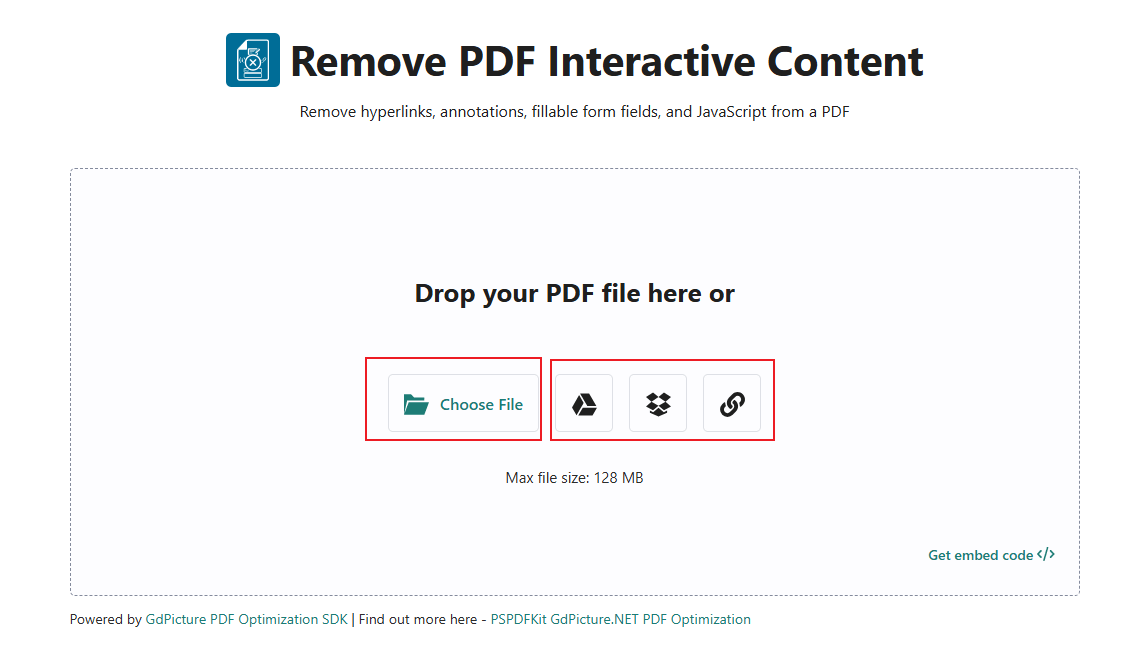
Step 2. Click Choose File to upload the PDF from your local storage space. Or click the Google Drive or Dropbox icon to upload the PDF from either of these two cloud services. Furthermore, you can choose to upload a PDF by pasting a URL.
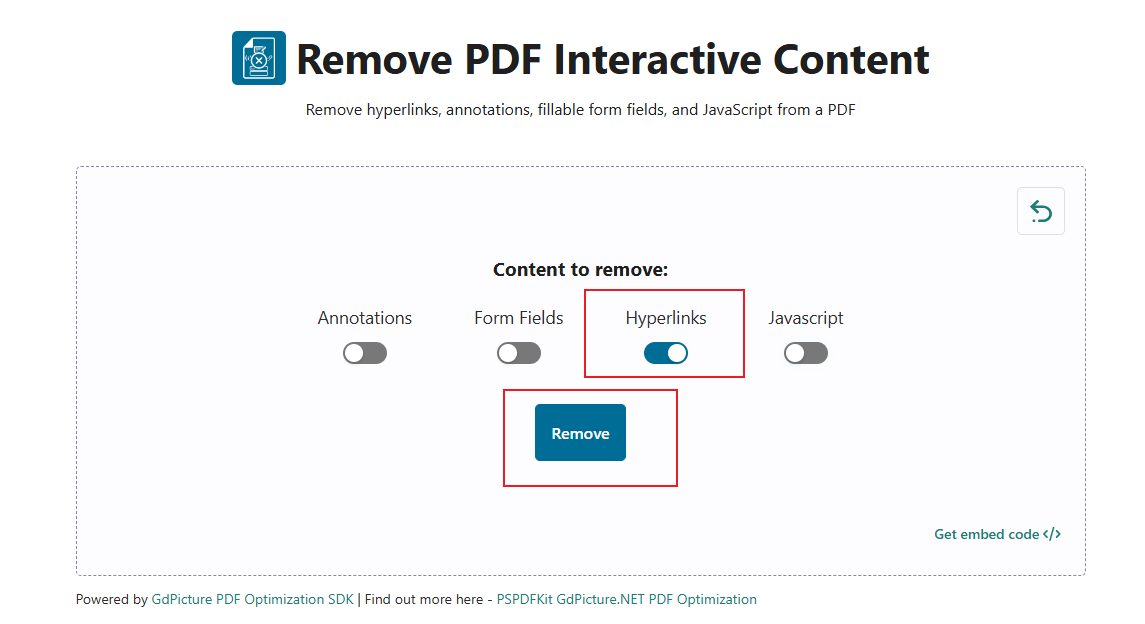
Step 3. By default, all four options (including Annotations, Form Fields, Hyperlinks, and JavaScript) are enabled. If you only need to remove hyperlinks, disable the other three options. Next, click the Remove button.
Step 4. The removal process will take a few seconds to complete. Once the process is over, click the Download button. Alternatively, you can save the PDF file to Google Drive or Dropbox.
Other Main Features of AvePDF:
- Extract PDF pages
- Edit PDF metadata
- Add password protection to PDFs
- Convert PDF to Word, Excel, TIFF, and other formats
- …
Final Words
Whether you want to delete hyperlinks in PDFs on Windows, Mac, Android, or iOS, the hyperlink remover mentioned in this post can give you a hand. To remove hyperlink from PDF completely free, JOPDF is your best choice! You can pay for the Standard or Pro version of Adobe Acrobat to enjoy professional features for PDFs. Besides, you can also try SwifDoo PDF, a cost-effective alternative to Adobe Acrobat. Furthermore, you can try AvePDF to remove links in PDF online.
FAQs
Table of Contents

Your Best Free PDF Expert in PDF editing, compressing, converting, annotating, protect, organizing, and more.
Free DownloadWindows · macOS · Linux

Olivia
“Olivia is an editor at JOPDF, where she writes practical guides and insightful articles on managing PDFs—covering topics like editing, annotating, converting, and organizing files efficiently. Passionate about clear communication and digital productivity, Olivia enjoys spending her free time cooking, watching movies, and hiking to unwind and find inspiration for her writing.”
![Find Ways to Download Manga as PDF for Free [5 Proven Ways]](https://b.jopdf.com/wp-content/uploads/2026/04/download-manga-pdf.png)

![5 Best Free PDF Compressors in 2026 [Desktop and Online]](https://b.jopdf.com/wp-content/uploads/2026/04/best-free-pdf-compressor.png)
