Introduction :
Nowadays, PDF is widely adopted in our work and study owing to its secure sharing, accessibility, and other advantages. Sometimes, you need to share your PDF file with others for viewing, signing, confirmation, collaboration, or other purposes. How can you send a PDF via email effectively? Congratulations! You’re in the right place. In this JOPDF post, I’ll walk you through the detailed guide on how to send PDF to email.
Are you ready to explore this comprehensive post about sending PDF files to email? In the following content, I’ll introduce you to four useful ways. You can learn the step-by-step guide on how to send PDF to email via mail services or directly from JOPDF and Adobe Acrobat Reader using a webmail account. Let’s explore this useful guide post!
How to Send PDF to Email via Gmail
Gmail is the world’s largest email service, available on both desktops and mobile phones. You can use it to send a PDF file as an attachment. How to send a PDF file in Gmail? Here are comprehensive steps for your reference.
Step 1. Visit the Gmail website and sign in with your account. If you are using Gmail on your iPhone or Android, you need to download and install the Gmail app first.
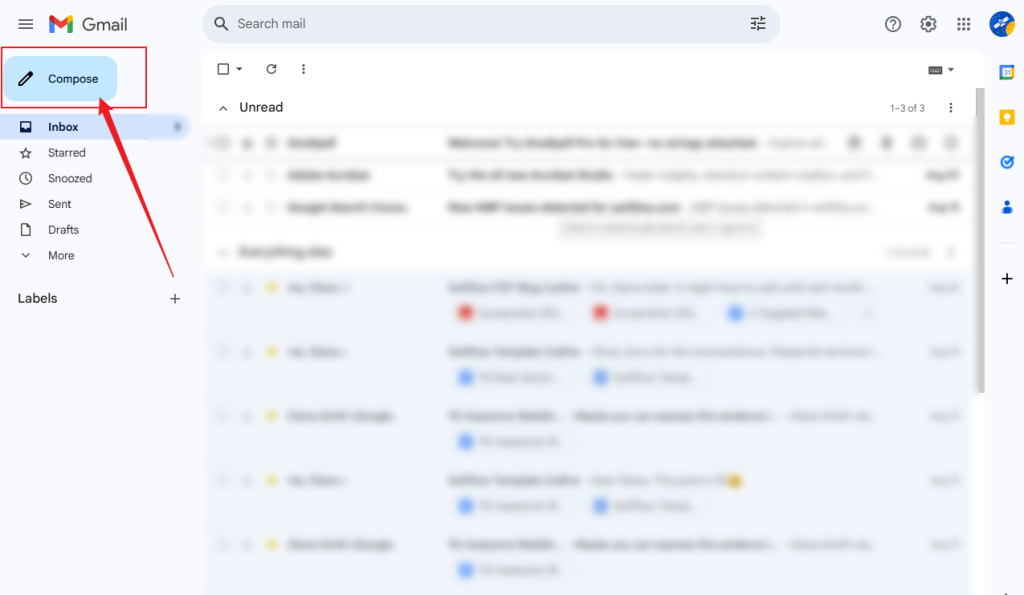
Step 2. Hit the Compose button to start a new email.
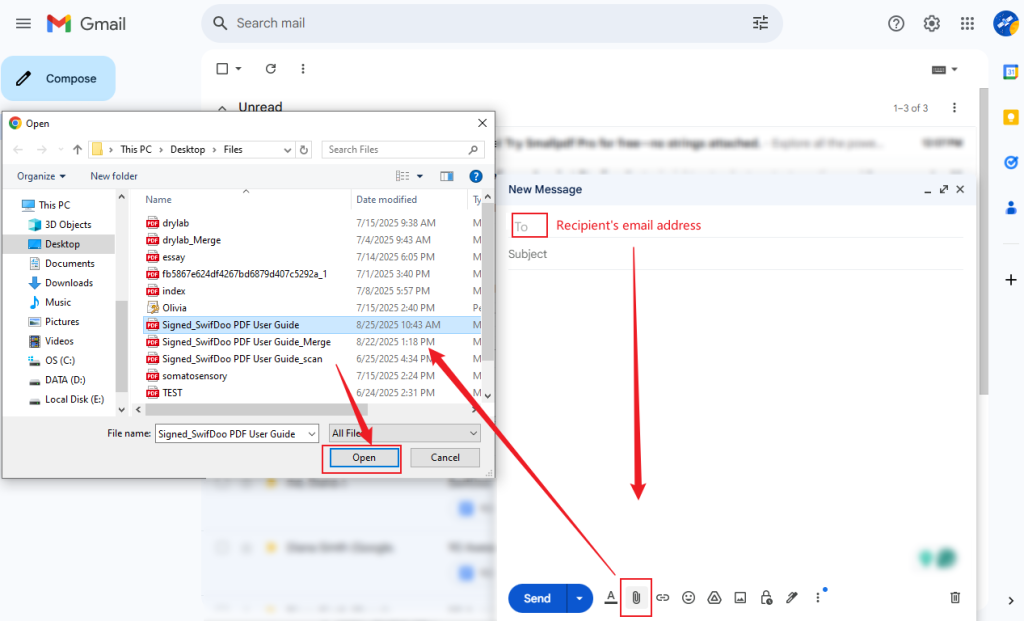
Step 3. In the To section, type in the recipient’s email address. Then, complete the subject and body content based on your needs. Next, click the Attach file option (a paperclip icon), select your target PDF file, click Open, and this PDF file will be added to the email.
Step 4. Finally, you can click the Send button. Or, you can click the inverted arrow next to Sent to select the Schedule send option to send the PDF later.
Notes
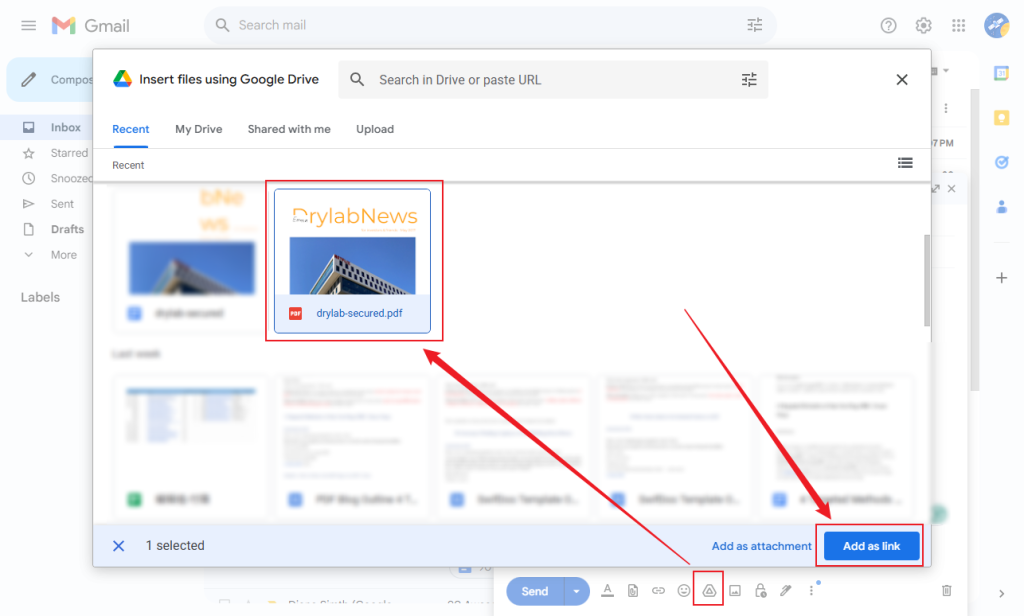
Gmail only allows sending PDF files and other types of attachments up to 25 MB in total per email. What can you do if the PDF file exceeds 25 MB in size? In other words, how to send large PDF files in Gmail? In addition to using PDF compressors to shrink file size, you can utilize Google Drive. Access Google Drive, click + New, and select File upload to import the PDF you want to send. Next, click the Google Drive icon in the compose window, choose the uploaded PDF file, and click the Add as link button.
How to Send PDF to Email Through Outlook
Outlook is also a professional email service that can send, receive, and organize emails. In addition to supporting accounts in Outlook.com, it also allows you to add Gmail, Yahoo, and other accounts. The process of sending a PDF to email via Outlook on desktop app, web, or mobile is similar. Hence, here, I only show you how to send a PDF file to email through the Outlook app on the PC.
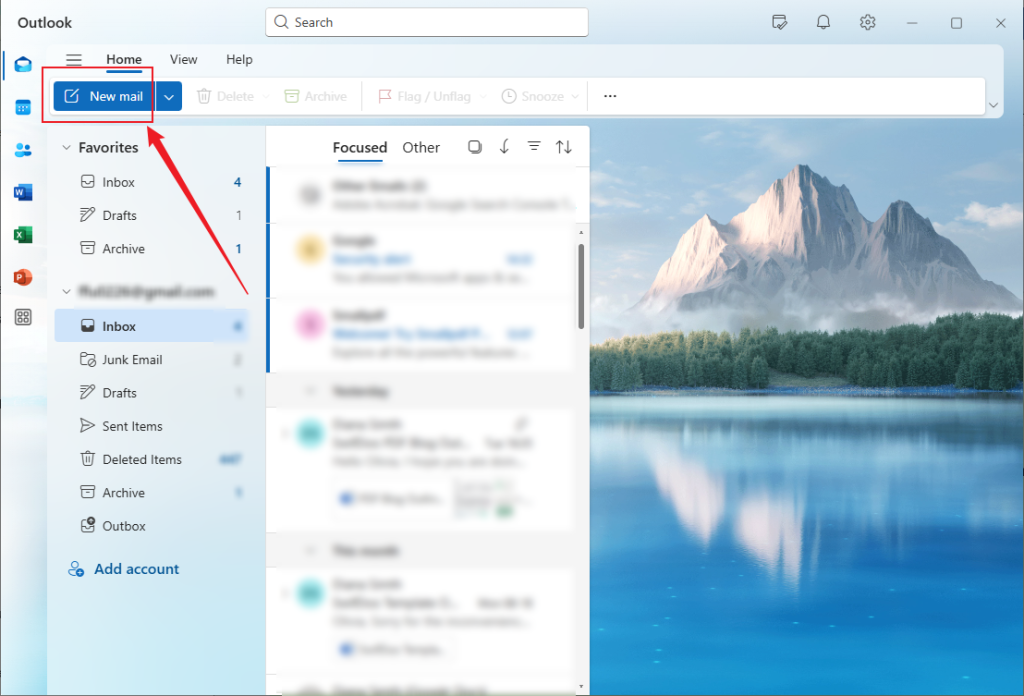
Step 1. Run Outlook on your PC and add your frequently used email account. Next, click the New mail button.
Step 2. Complete the recipient’s email address, email subject, and content.
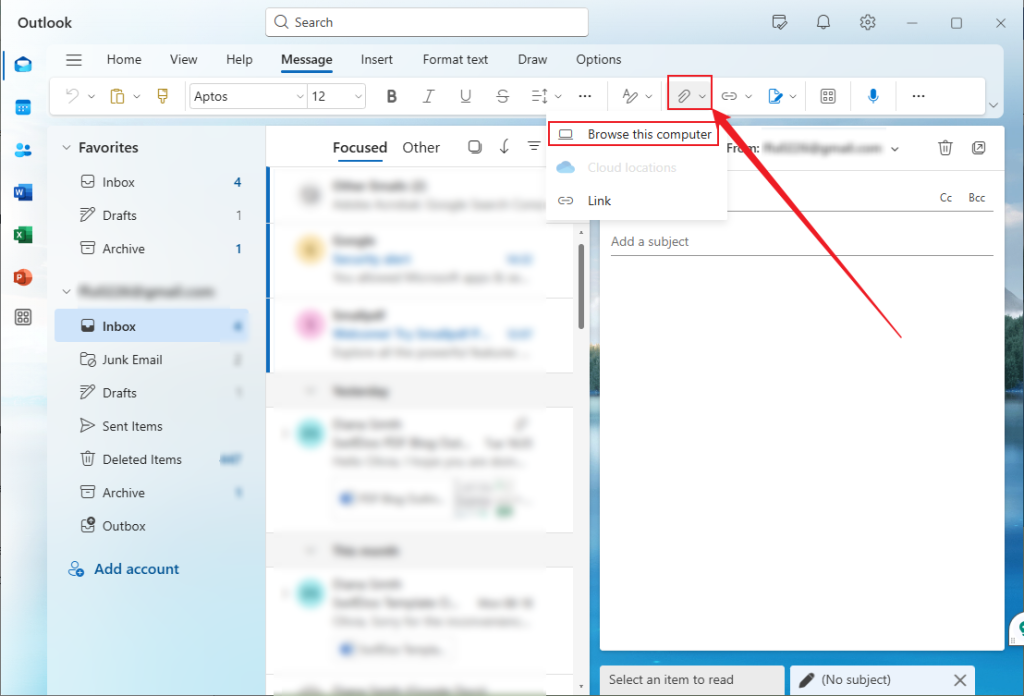
Step 3. Next, in the above toolbar, click the paperclip icon, select the Browse this computer option, and select the target PDF file. At last, click the Send button.
Gmail and Outlook enable you to send a PDF as an attachment effectively. Are there other direct ways to send a PDF file to email after creating or editing it? Of course! There are. JOPDF and Adobe Acrobat Reader are worth trying. Please read on.
How to Send PDF to Email from JOPDF
JOPDF is a free and useful PDF editor for both Windows and Mac. It enables you to create PDF files and edit or annotate PDFs with its useful features. After that, you can directly send the newly created or edited PDF file to email, without needing to enable the email service. What’s more, JOPDF enables you to password-protect PDF files. Follow the steps below to send a PDF file directly to email from JOPDF.
Step 1. Hit the instant download button below to get JOPDF and install it on your PC.
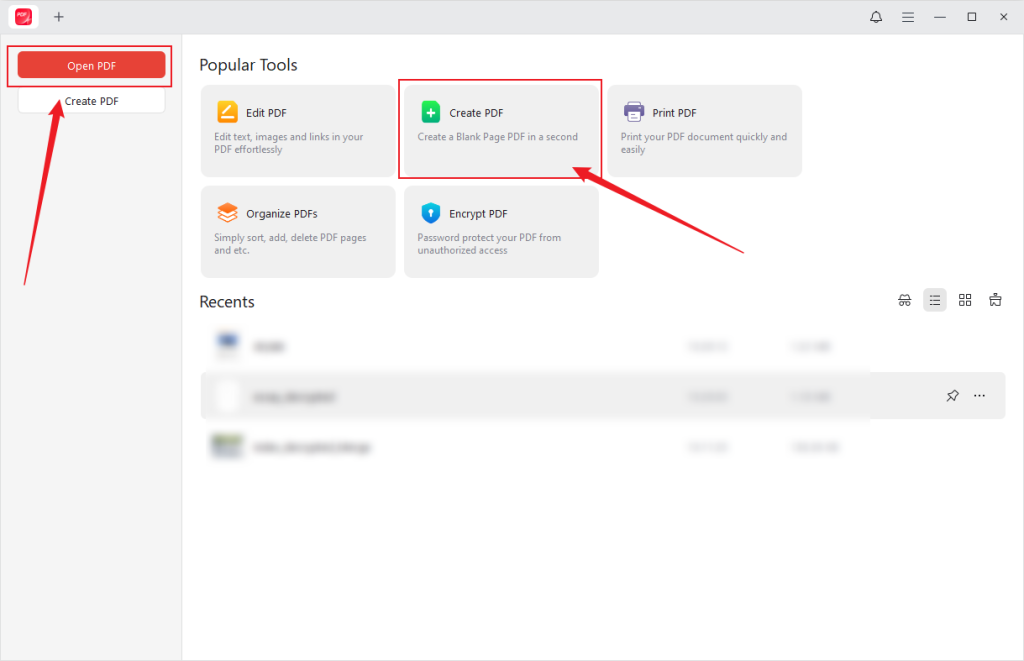
Step 2. Click the Open PDF button to import an existing PDF file or click the Create PDF button to start a new PDF file. Then, you can edit the PDF file as you like.
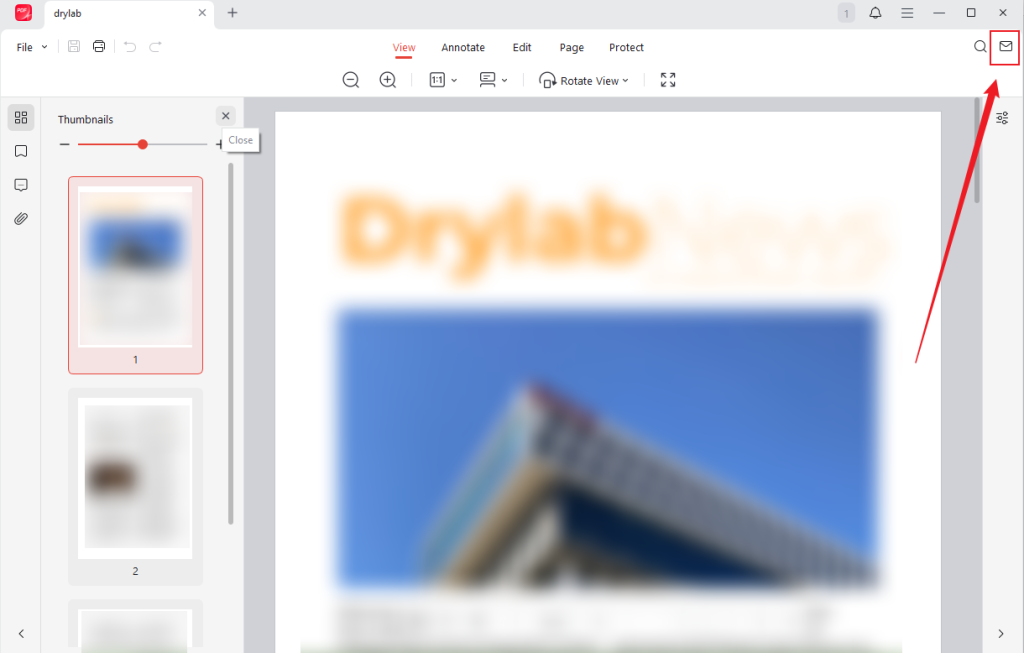
Step 3. Click the Mail icon in the upper right. Then, the email app on your PC will open automatically. Meanwhile, the file name of the PDF file is used as the email subject. The rest you need to do is add the recipient’s email address and click the paperclip icon to add the PDF file. At last, click Send.
How to Send a Large PDF file to Email via Adobe Acrobat Reader
Adobe Acrobat Reader is the free version of Adobe Acrobat. It enables you to open, view, print PDFs, and enjoy other limited features for PDFs. Fortunately, it provides you with the feature to share PDFs. With this feature, you can directly share a PDF file via email, WhatsApp, or Microsoft Teams. It enables you to send a PDF to email via Gmail or Outlook. Now, let’s explore how to do that.
Step 1. Download, install, and run Adobe Acrobat Reader on your computer.
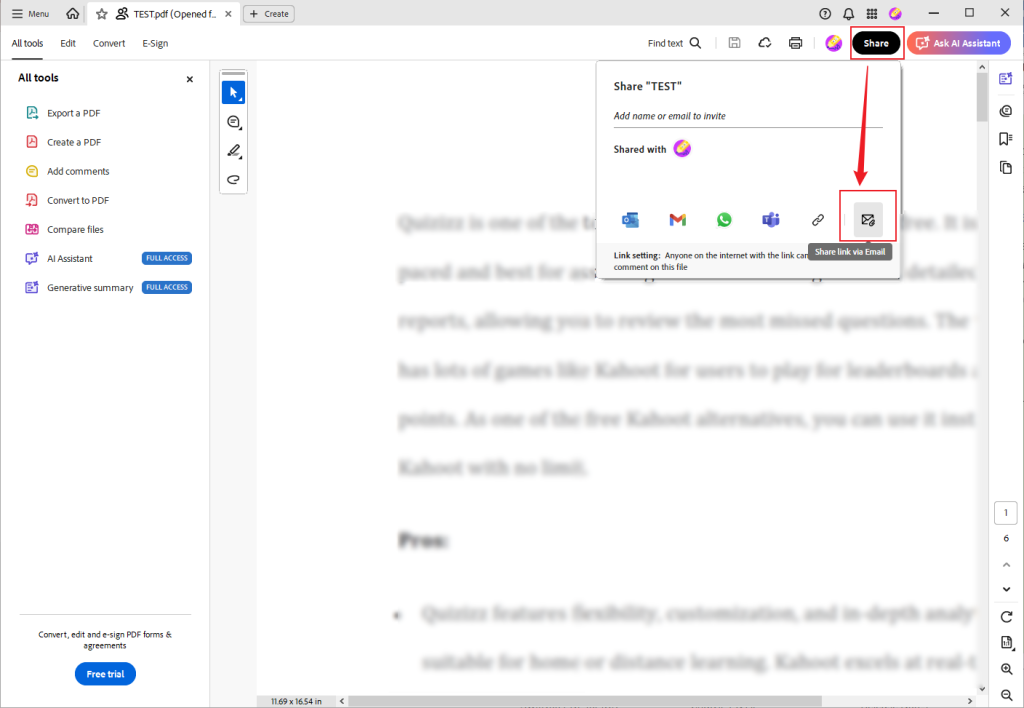
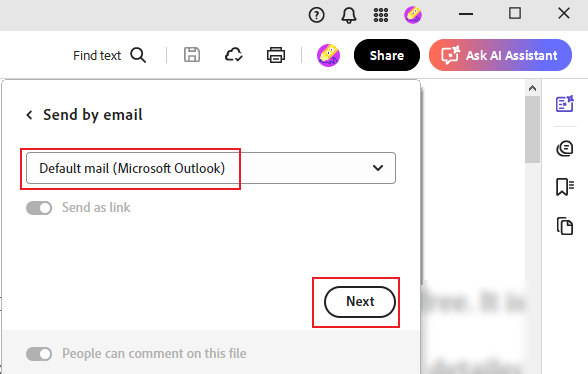
Step 2. Then, import your PDF file into Adobe Acrobat Reader. Click the Share button and select the “Share link via Email” option.
Step 3. You can keep the default option to send the email via your default email application. Then, click Next. The default email application will open the email draft. You need to finish the recipient’s email address and then send this email with the PDF file.
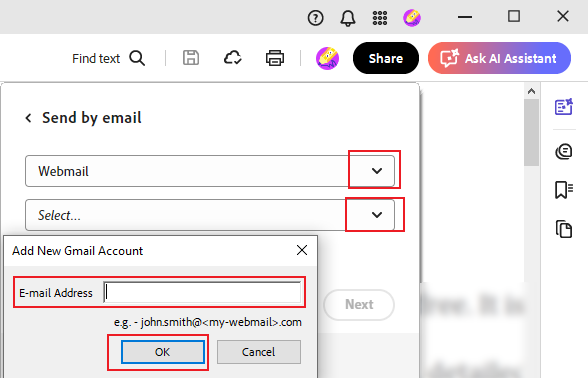
Alternatively, you can choose the Webmail option and click the Add Gmail option. Next, enter your Gmail address, click OK, and click Next. Then, follow the on-screen instructions to go back to Acrobat Reader. Then, Gmail will show you an email draft, you need to finish the other necessary information and click Send.
Conclusion
How to send PDF to email? You can use Gmail or Outlook to send a PDF file as an attachment in an email. It is quite effective. In addition, you can try JOPDF and Adobe Acrobat Reader to edit a PDF and then directly send the PDF to an email. Compared with using Gmail and Outlook, this way is more convenient. Hopefully, this article is helpful to you.
FAQs
Table of Contents

Your Best Free PDF Expert in PDF editing, compressing, converting, annotating, protect, organizing, and more.
Free DownloadWindows · macOS · Linux

Olivia
“Olivia is an editor at JOPDF, where she writes practical guides and insightful articles on managing PDFs—covering topics like editing, annotating, converting, and organizing files efficiently. Passionate about clear communication and digital productivity, Olivia enjoys spending her free time cooking, watching movies, and hiking to unwind and find inspiration for her writing.”