Introduction :
Canva is a popular online graphic design tool. It also allows you to add page numbers to a multi-page Canva design for easier navigation. How to add page numbers in Canva? In this JOPDF article, I will provide step-by-step instructions. Meanwhile, you’ll learn how to start page numbers on the second page, how to customize page numbers, as well as how to add page numbers to a PDF in Canva.
Whether you need to add page numbers to an ebook, report, presentation, brochure, or a PDF, Canva provides a built-in page-numbering feature that can automatically add numbers to your pages. How to number pages in Canva? Let’s explore the detailed guidance below.
How to Add Page Numbers in Canva Automatically
Canva’s automatic page-numbering feature is the easiest way to number a multi-page design. Instead of typing each number manually, you can insert dynamic page numbers and apply the formatting to multiple pages. How to automatically add page numbers in Canva? Below are the exact steps for your reference.
Note
The Page numbers feature is not available in Whiteboards, Sheets, Docs, or Websites.
Step 1. First, visit the Canva website and sign in to your account. Then, open the multi-page design to which you want to add page numbers. Here, you can upload the following types of designs:
- Presentation
- Reports
- Workbooks
- Brochures
- Magazines
- Handouts
- Multi-page PDFs
Step 2. In the Canva editor, click Text from the left sidebar, locate Dynamic text, and click Page numbers. Then, Canva will insert a page-number element into your design. Next, you can click and drag the page number to the position where you want it to appear.
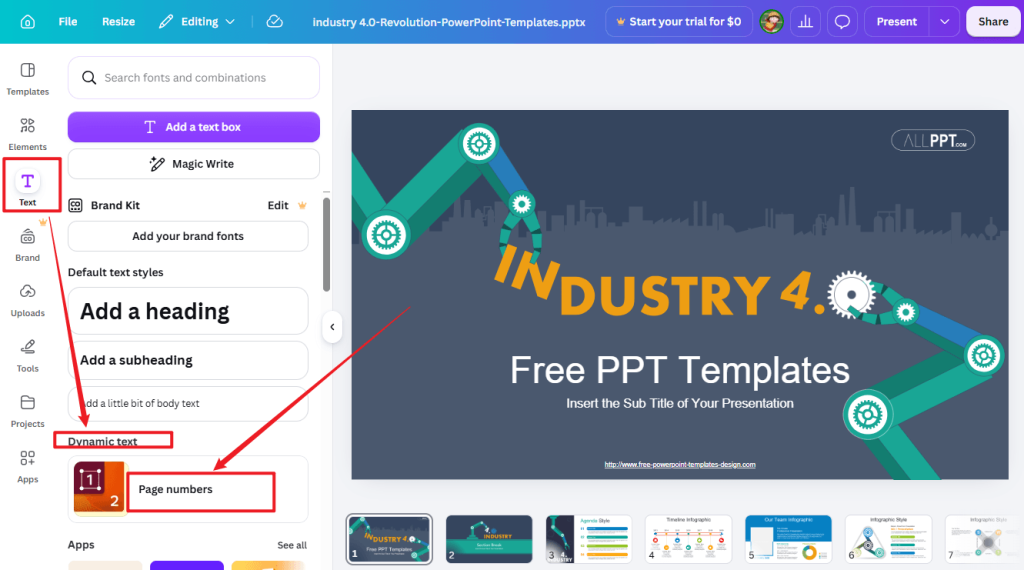
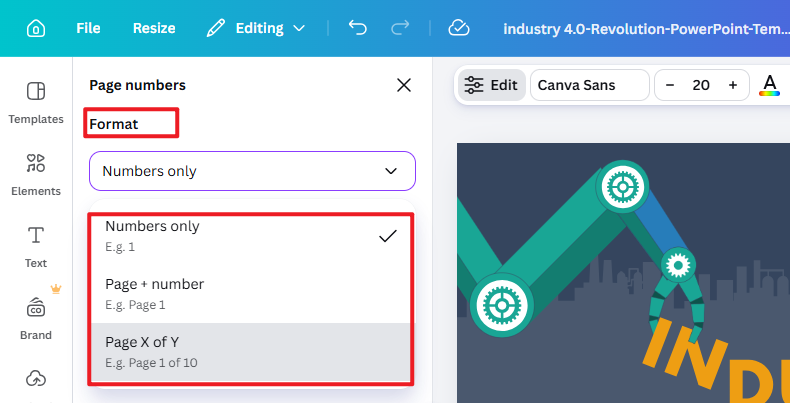
Step 3. Meanwhile, the Page numbers settings panel will appear. Under Format, use the dropdown to select the desired page number format, such as Numbers only, Page + number, or Page X of Y. For instance, if you select Page X of Y, you can get Page 1 of 10.
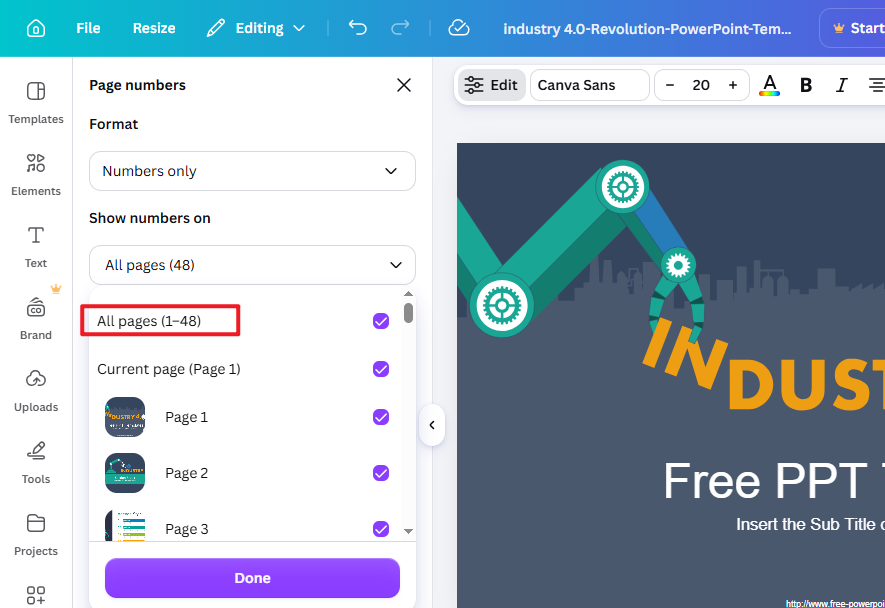
Under Show numbers on, use the dropdown to choose which pages get numbered. Here, you can set all pages to get numbered or only selected pages to get numbered. This is quite useful for skipping a cover page.
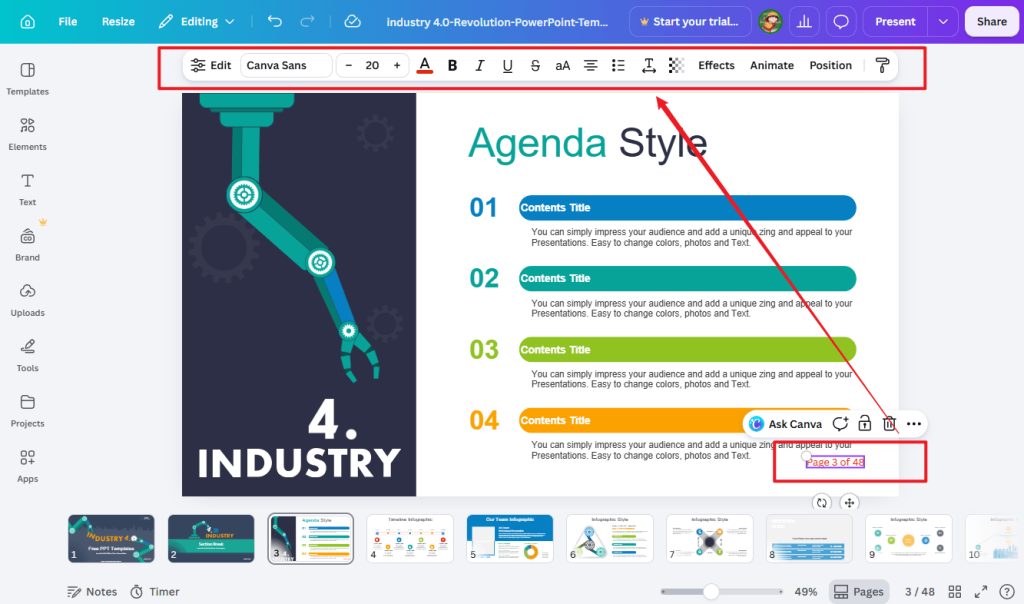
Step 4. Next, click the “Apply properties to all pages” button. To customize page numbers in Canva, click the page number and use the tool panel at the top to change the font, font size, and others.
Finally, click Share and select the Download option to save the Canva design with page numbers to your computer.
Tips
If you need to remove page numbers, go to Text → Dynamic text → Page numbers → Remove all page numbers.
How to Add Page Numbers to a PDF in Canva
In addition to numbering pages of presentations and brochures, Canva allows you to add page numbers to a PDF. You can also edit PDFs in Canva. How to number PDF pages in Canva? Below are the exact steps for your reference:
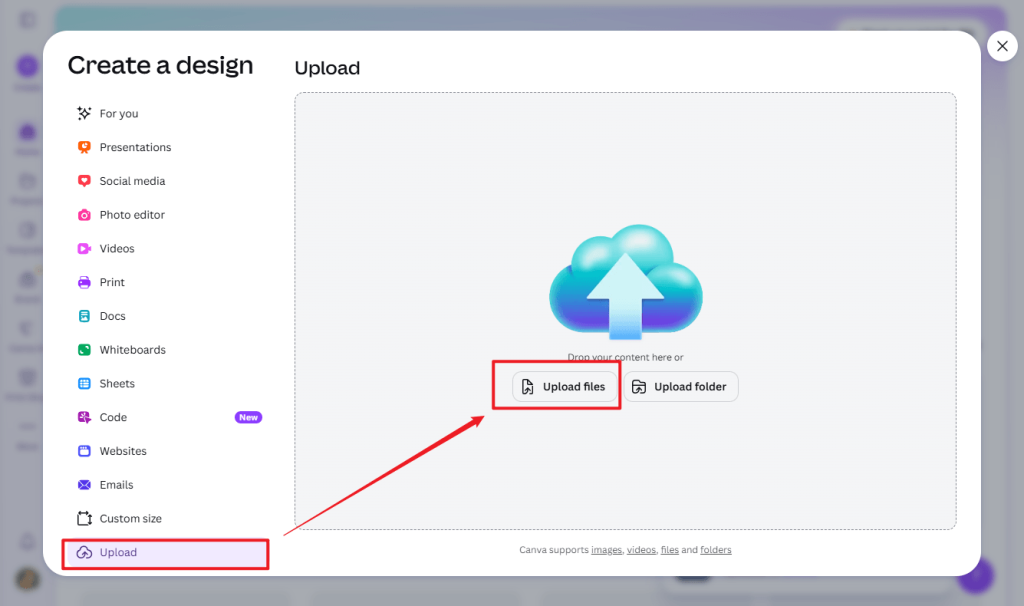
Step 1. Log in to Canva and open your PDF design. For an existing PDF, click Upload, then select Upload files to import your multi-page PDF.
Step 2. In the left editor side panel, click Text. Under Dynamic text, select Page numbers. Then, the page numbers will be added automatically.
Step 3. Then, customize the settings that appear:
- Format: Select one needed option, including Numbers only, Page + number, or Page X of Y.
- Show numbers on: Select which pages display numbers.
Next, click Apply properties to all pages.
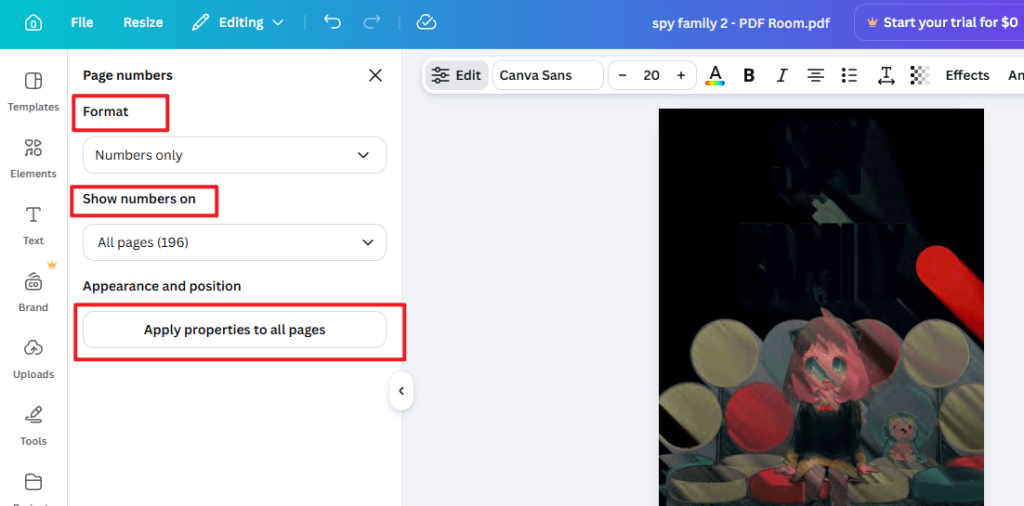
Step 4. Optionally, customize and position the page numbers as needed. You can click any page number and use the top toolbar to change font, font size, color, or alignment. Then go to Text > Dynamic text > Page numbers, and click Apply properties to all pages to ensure the style matches everywhere.
Step 5. Finally, go to Share > Download to save the PDF file from Canva.
Free Way to Number PDF Pages Offline in JOPDF
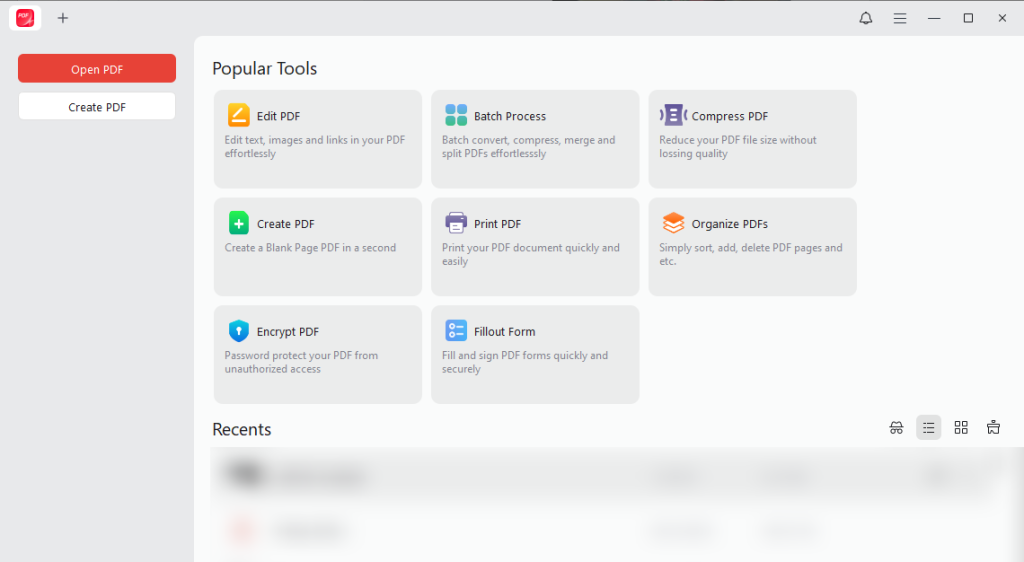
Sometimes, you need an offline way to handle PDFs with sensitive information. In that case, it is better to use an offline PDF editor. JOPDF is one of the best free PDF editors available on Windows, Mac, and Linux. It enables you to edit PDFs for free as well as add page numbers, headers, and footers. What’s more, it offers customizable options to set page numbers.
Beyond numbering PDF pages, JOPDF offers additional features for editing, annotating, organizing, converting, compressing, and protecting PDFs. Below are some key features:
- Annotate PDFs by adding sticky notes, attachments, stamps, or highlighting important information
- Edit images in a PDF as well as edit existing PDF text
- Add watermarks to a PDF for protection
- Fill out and sign a PDF without printing
- Reduce PDF file size without losing quality
- Extract pages from a PDF and delete unwanted PDF pages
- Resize PDF pages without cropping them
- Password-protect PDFs from editing or printing
- Merge multiple PDFs into a single PDF
- Convert PDF to editable Word, Excel, or PowerPoint format
- …
Here, you can learn how to add page numbers to a PDF for free using JOPDF:
Step 1. Click the button below to download and install JOPDF on your PC, then launch this free PDF editor.
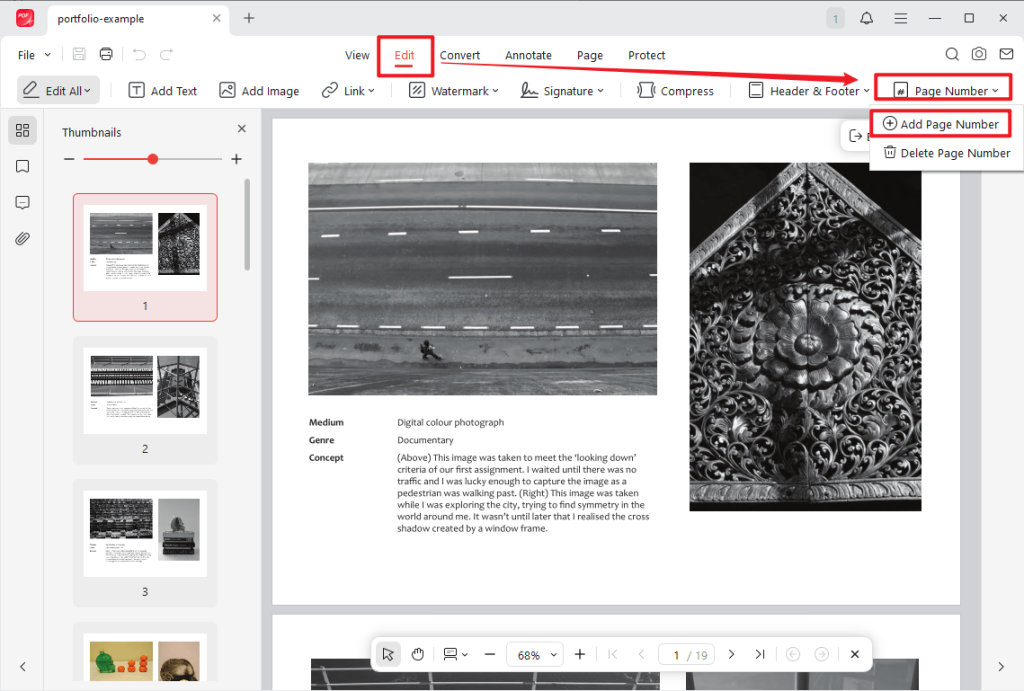
Step 2. Here, click Open PDF or Edit PDF to locate and import the target multi-page PDF file. Under the Edit tab, click Page Number and select Add Page Number.
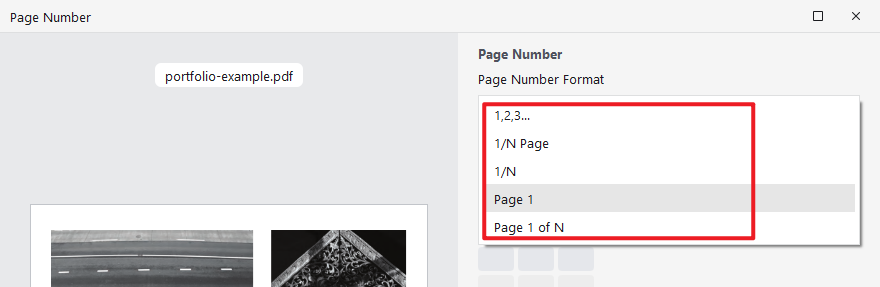
Step 3. On the Page Number window, specify the number format you like. For instance, you can select Page 1 of N or another one.
Then, set the page number to start at 1 or another desired number. Customize the page number appearance, select its location, and set the page range. You can preview the page number in the left Preview window. Once you are satisfied, click Apply.
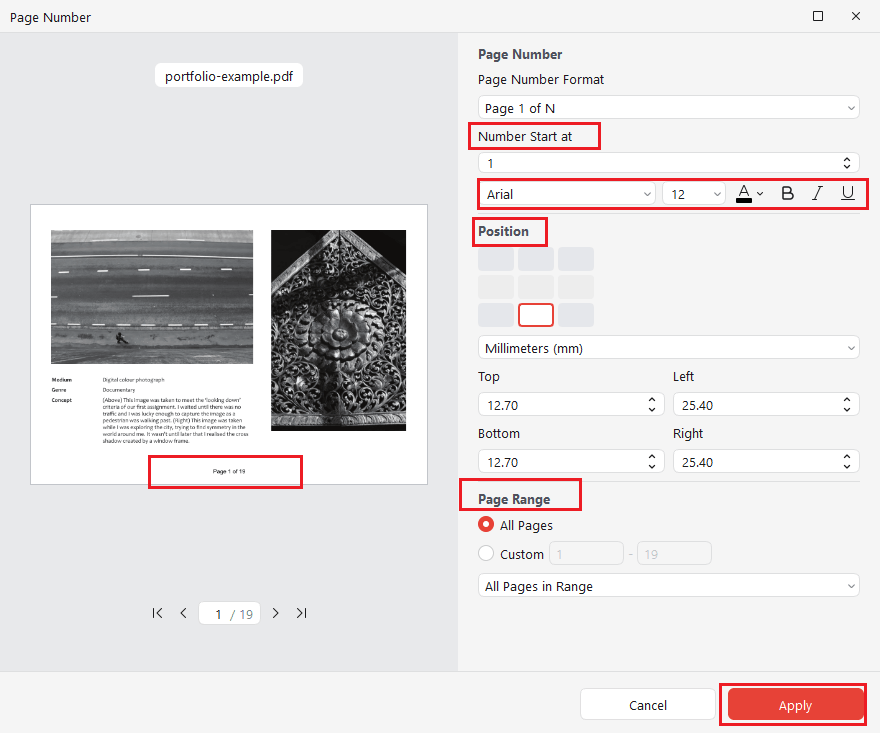
Step 4. Finally, click the Save icon to save the numbered PDF file.
Tips
JOPDF also allows you to remove page numbers from a PDF. Go to Edit > Page Number > Delete Page Number.
Wrapping Up
In addition to working as a graphic design tool, Canva can function as an online PDF editor. How to add page numbers in Canva? It is quite easy once you have read this article. With Canva’s built-in Dynamic text feature, it is straightforward to number pages. In addition to adding page numbers to presentations, brochures, and other Canva designs, it also allows you to add page numbers to multi-page PDF files. To number PDF pages for free, JOPDF is the best offline option.
FAQs
Table of Contents

Your Best Free PDF Expert in PDF editing, compressing, converting, annotating, protect, organizing, and more.
Free DownloadWindows · macOS · Linux

Olivia
“Olivia is an editor at JOPDF, where she writes practical guides and insightful articles on managing PDFs—covering topics like editing, annotating, converting, and organizing files efficiently. Passionate about clear communication and digital productivity, Olivia enjoys spending her free time cooking, watching movies, and hiking to unwind and find inspiration for her writing.”