![Step-by-Step Guide to Edit a PDF in Microsoft Edge [Newest]](https://b.jopdf.com/wp-content/uploads/2026/08/edit-pdf-in-edge.png)
Introduction :
Microsoft Edge is one of the most popular web browsers. More surprisingly, it offers a built-in PDF reader that lets you open, read, annotate, print, and perform several basic PDF tasks without additional software. Can you edit existing PDF text in Edge? How to edit a PDF in Edge? In this JOPDF article, I will walk you through the step-by-step guidance. Now, let’s get started!
Key Takeaways
- Microsoft Edge can handle basic PDF editing and annotation, including highlighting, drawing, adding text, and comments.
- Edge cannot fully edit existing PDF content, such as replacing existing text or editing embedded images.
- For advanced PDF editing, consider a dedicated PDF editor such as JOPDF.
- If you only need to make quick notes or mark up a PDF, Edge’s built-in PDF reader may be all you need.
Can You Edit a PDF in Microsoft Edge?
Yes, you can. But the answer also depends on what you mean by “edit”. The built-in PDF reader of Microsoft Edge supports several annotation and markup features. You can use them to highlight PDF text, draw on the PDF, and add text notes or comments. In addition, Edge also supports basic PDF form filling.
However, Microsoft Edge is not a full-featured PDF editor. For instance, it doesn’t support changing existing PDF content, replacing an image, or editing the layout of a PDF page. If you need to rewrite the existing content of a PDF, you can consider JOPDF, a free, full-featured PDF editor for Windows, Mac, and Linux.
Below is a table to show the PDF features that Edge supports:
| PDF task | Microsoft Edge |
| Open/view PDF | ✅ |
| Print PDF | ✅ |
| Highlight text | ✅ |
| Add text notes/comments | ✅ |
| Draw/ink on PDF | ✅ |
| Fill some PDF forms | ✅ |
| Add annotations | ✅ |
| Edit existing PDF text | ❌ / Limited |
| Edit existing images | ❌ |
| Rearrange PDF pages | ❌ / Limited |
| Advanced PDF editing | ❌ |
How to Edit a PDF in Edge
If you only need to add information, highlight important sections, make handwritten marks, or leave comments, Microsoft Edge can be a good choice. Here, let’s learn how to edit a PDF in Microsoft Edge.
Step 1. Open the PDF in Microsoft Edge
First, open your PDF files in Microsoft Edge. You can locate the PDF, right-click it, select Open with, and choose Microsoft Edge. Alternatively, if you click a PDF link while browsing the web, Edge can generally open the PDF directly in the browser as well.
Step 2. Add Text to a PDF in Edge
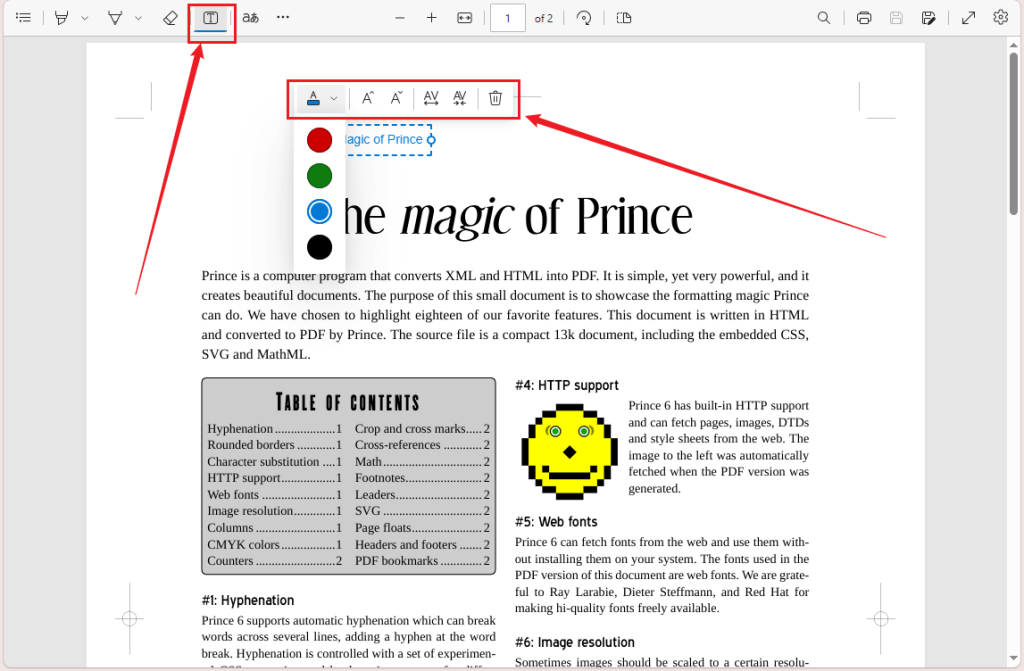
If you need to add additional information to the PDF, click the “Add text” icon in the top toolbar. Then, click on the location where you want to insert text and type your content. Meanwhile, you can change the text color and adjust the text size and text spacing as needed.
Note
Keep in mind that adding text doesn’t mean that Edge is editing the original text layer of the PDF. In other words, Edge doesn’t support editing or replacing the existing text in a PDF. If you need to change the existing PDF text, use JOPDF.
Step 3. Highlight Text in a PDF
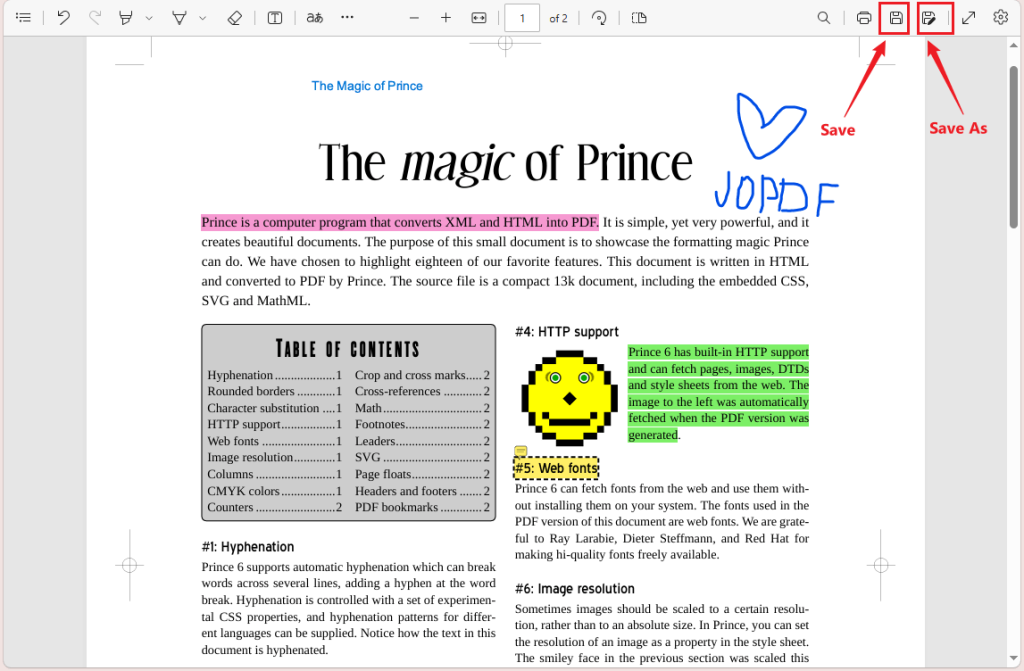
Sometimes, you need to mark important information in PDFs. Microsoft Edge includes a PDF highlighting feature to do that. To highlight text in Edge, click the Highlight tool in the top toolbar, select the preferred color, and select the text you want to highlight.
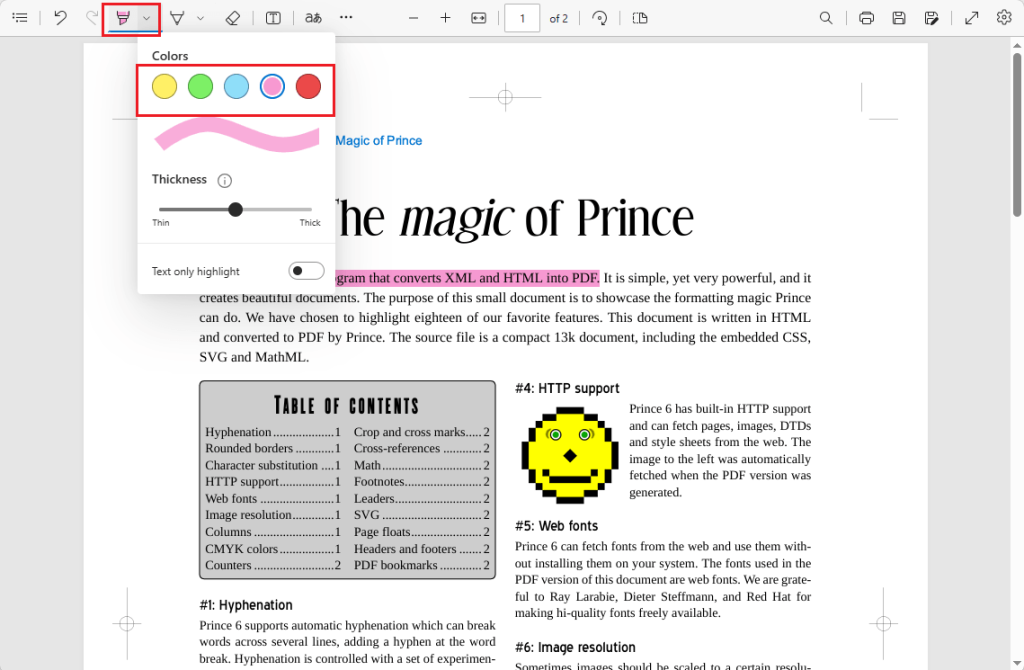
Alternatively, select the text you want to highlight first, then right-click the selected text, move to Highlight, and select the desired color.
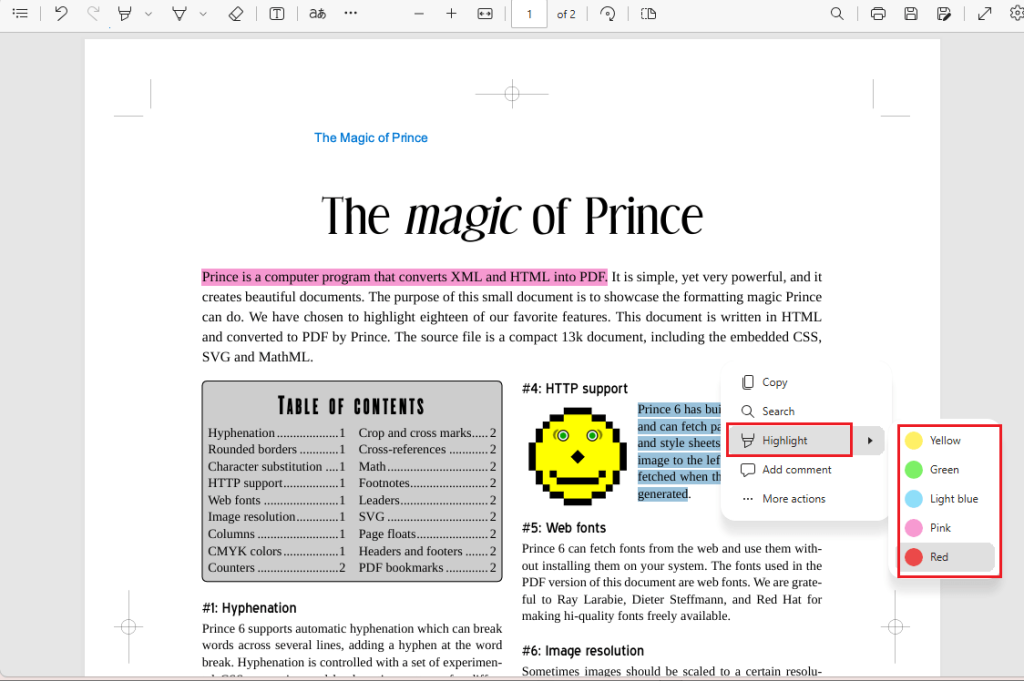
Step 4. Draw or Write on a PDF in Edge
Additionally, Edge also supports inking, allowing you to draw or write directly on a PDF. To draw on a PDF, select the Draw tool in the toolbar, select the desired ink color, customize the thickness, and use the mouse to write on the PDF page.
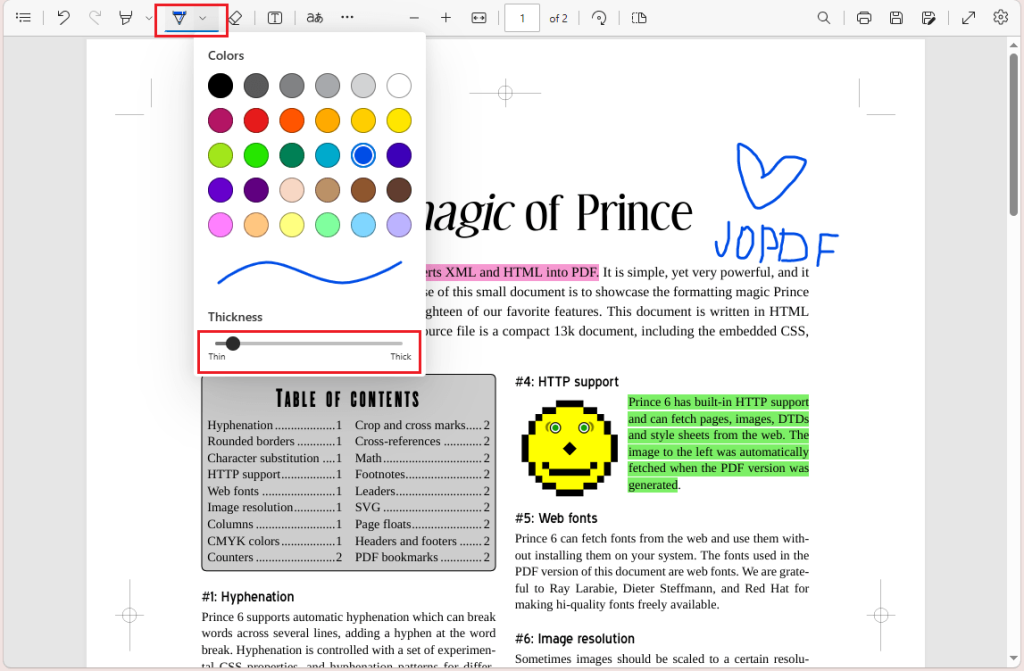
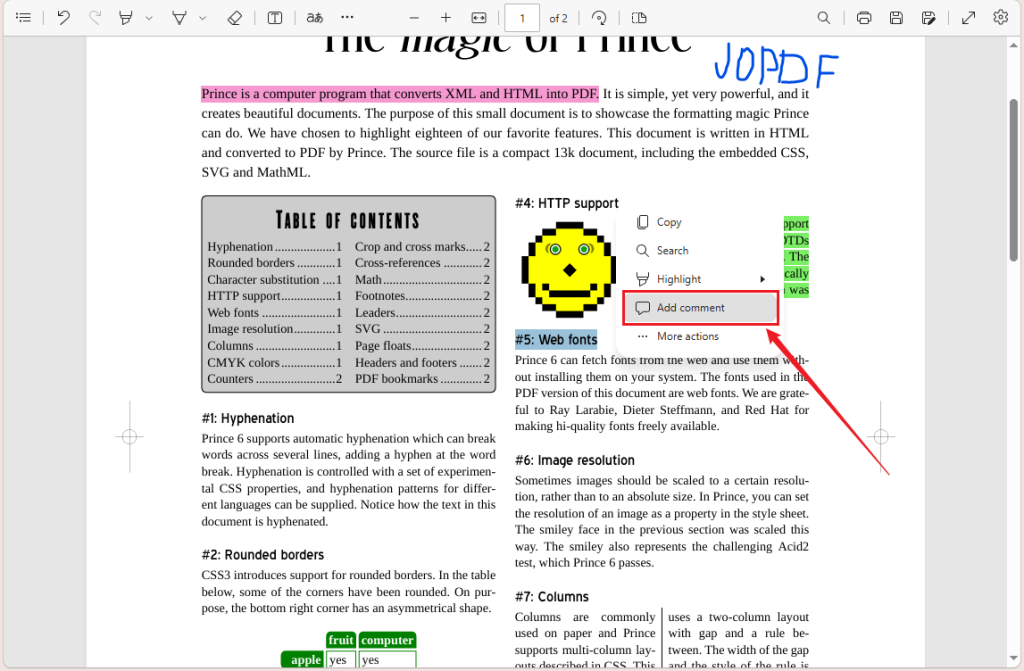
Step 5. Add Notes or Comments to a PDF
Moreover, Microsoft’s PDF reader supports adding a comment to selected text. Select the text you want to comment on, right-click the selection, and select Add comment.
Then, enter your note and click the check mark once done.
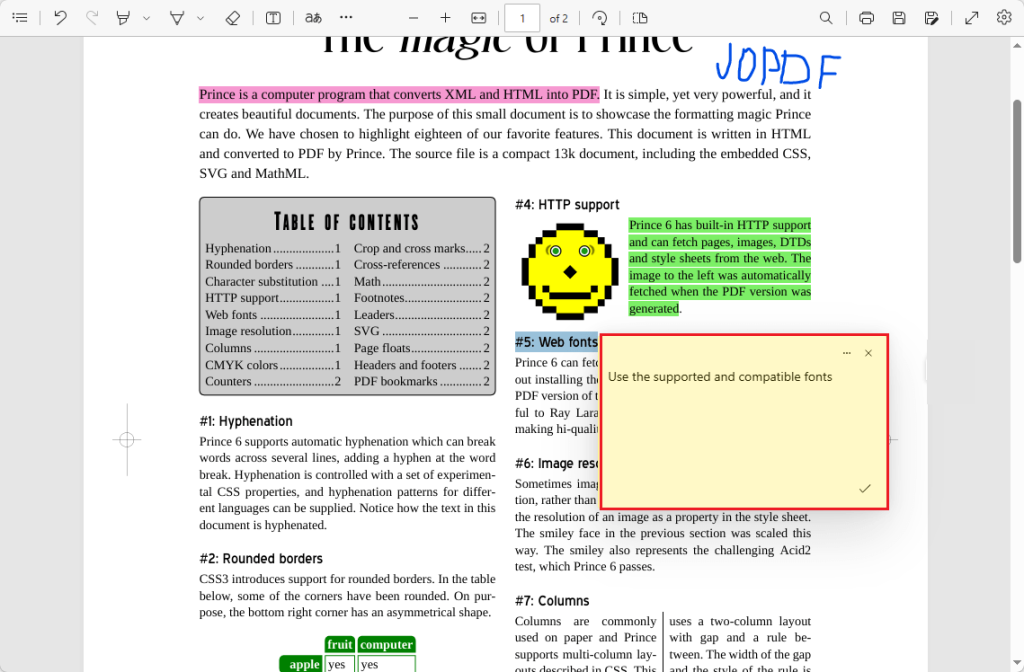
Step 6. Fill Out a PDF Form in Edge
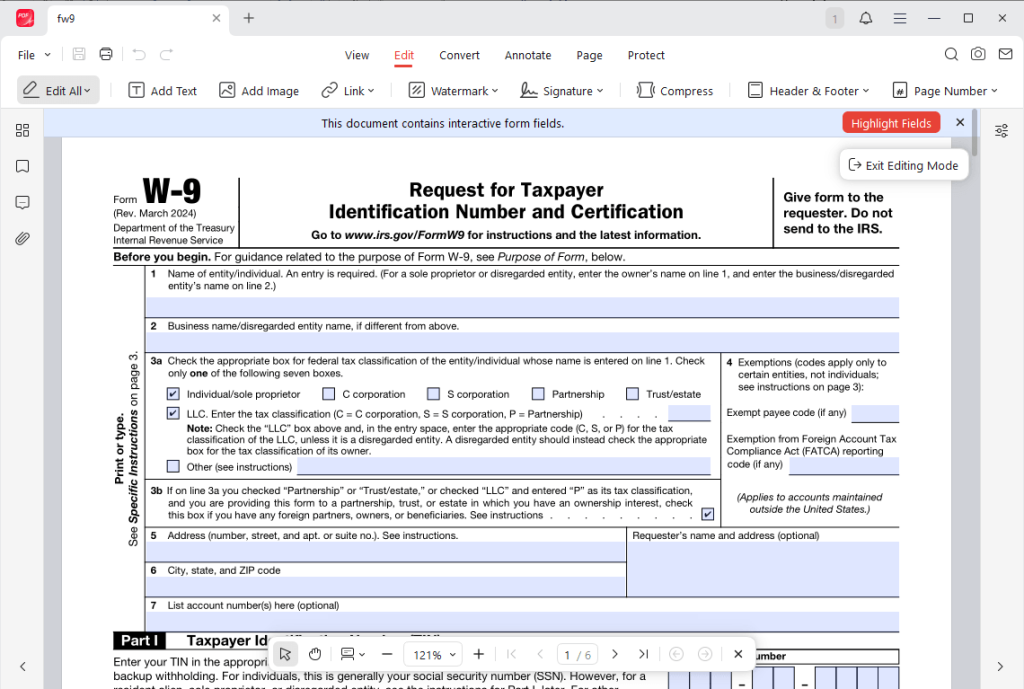
Surprisingly, Edge also supports basic PDF form filling. If the PDF contains interactive form fields, click an available form field and type the requested information. Or, click the box to tick or untick it.
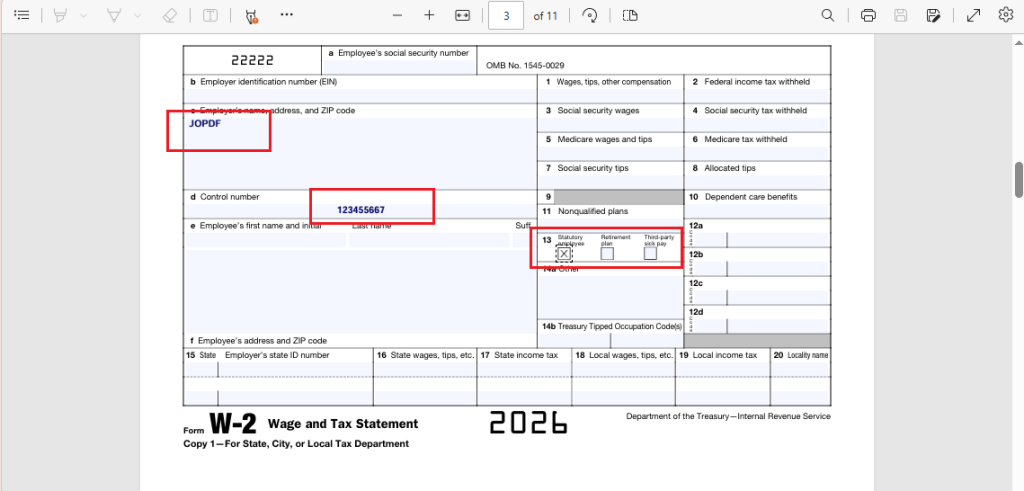
If a form doesn’t work correctly in Edge, use JOPDF to fill out the PDF form.
Step 7. Save the Edited PDF in Microsoft Edge
How to save an edited PDF in Microsoft Edge? Click the Save icon to save the edited PDF. Or, click Save As to save the PDF without changing the original PDF file.
How to Edit Existing PDF Text in Edge
The purpose for most of you searching for “edit PDF in Edge” is to modify text that already exists in the document. However, Microsoft Edge’s built-in PDF reader is not designed to directly replace the existing text. If you need to make substantial changes to the document’s existing content, consider the following 2 methods.
Method 1: Use a Dedicated PDF Editor
To preserve the PDF’s original layout, the most effective way to edit existing PDF text is to use a dedicated PDF editor. A full PDF editor may allow you to:
- Edit existing PDF text
- Change fonts and text formatting
- Replace images
- Add images
- Move objects
- Add or delete pages
- Merge PDF files
- Split PDFs
- Add annotations
- Fill forms
- Sign documents
- Protect PDFs
- Convert PDF files
JOPDF is one of the best free PDF editors, offering more comprehensive PDF editing capabilities than Edge’s built-in PDF reader. Additionally, JOPDF has an intuitive interface, making it easy to use. More importantly, it is an offline PDF editor that enables you to work with PDFs locally, even without internet access.
Method 2: Convert the PDF to Word
Alternatively, you can use Microsoft Word to convert a PDF into an editable Word document. Then, you can directly edit the PDF in Word. Below are the exact steps for your reference:
- Launch Microsoft Word, go to File > Open to select your PDF file.
- Then, Word will display a message explaining that it will convert the PDF into an editable format. Click OK to confirm.
- Now, edit the converted document as needed.
- Finally, save it as a Word document or export it back to PDF.
Meanwhile, you should know that this method works best for PDFs that are primarily text-based. If you need to handle complex PDFs with images or tables, JOPDF would be the better choice.
Best Alternative Way to Edit PDFs for Free in JOPDF
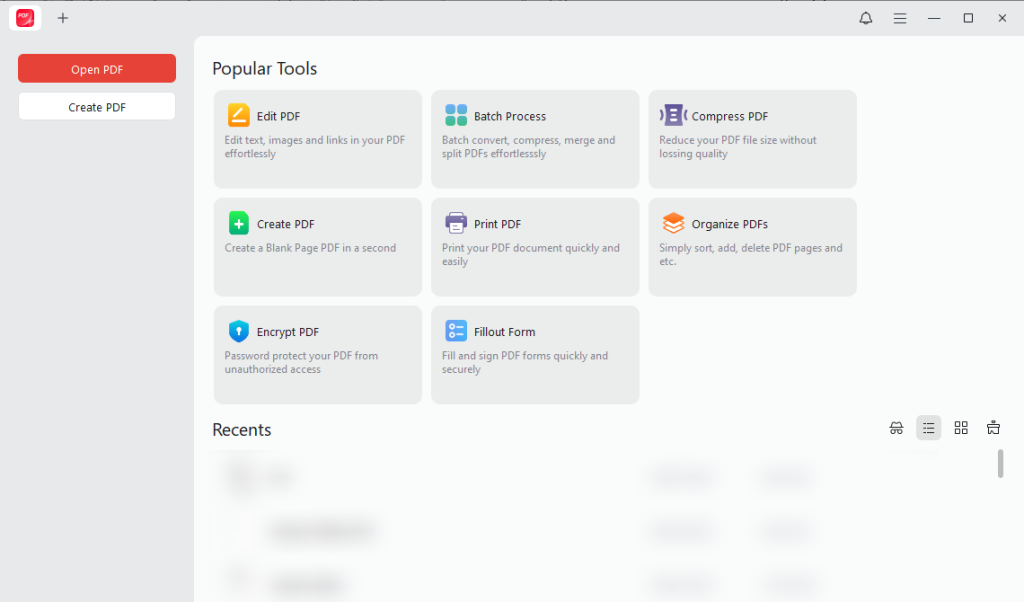
When Edge doesn’t provide the editing features you need, consider an alternative way to handle more advanced PDF workflows. JOPDF is a dedicated offline PDF editor available for Windows, Mac, and Linux. Unlike Microsoft Edge’s built-in PDF reader, JOPDF is built to handle deeper PDF editing tasks.
In addition to basic highlight and comment tools, JOPDF also offers other annotation features, such as adding shapes, sticky notes, attachments, or stamps. Beyond a PDF annotator, JOPDF offers other capabilities to work with PDF files. Here, I’d like to list some key capabilities of JOPDF:
- Full PDF text editing: Modify existing text directly inside the PDF without converting it to another format.
- Image editing and replacement: Insert, replace, or adjust images within a PDF document.
- Page management tools: Reorder, delete, rotate, or extract PDF pages as needed.
- Annotation features: Highlight, underline, add notes, and mark up documents for review.
- PDF protection options: Add passwords or restrict editing and copying when sharing sensitive files.
- Offline workflow: Work entirely on your device without uploading files to a browser or cloud service.
- PDF conversion and compression: Convert PDFs to and from multiple formats and reduce PDF file size without losing quality.
Moreover, you can use JOPDF to fill out and sign PDFs effectively.
Wrapping Up
Microsoft Edge offers a built-in PDF reader for basic PDF editing and annotation. In the content above, I show you how to edit a PDF in Edge. However, Edge doesn’t support editing existing PDF text or offer other advanced editing features. If you need to replace existing text, edit images, or rearrange PDF pages, you’ll need a dedicated PDF editor, such as JOPDF. Hopefully, this article is helpful to you.
FAQs
Table of Contents

Your Best Free PDF Expert in PDF editing, compressing, converting, annotating, protect, organizing, and more.
Free DownloadWindows · macOS · Linux

Olivia
“Olivia is an editor at JOPDF, where she writes practical guides and insightful articles on managing PDFs—covering topics like editing, annotating, converting, and organizing files efficiently. Passionate about clear communication and digital productivity, Olivia enjoys spending her free time cooking, watching movies, and hiking to unwind and find inspiration for her writing.”