Introduction:
Finding a broken web address in your finished document can be very frustrating. In this guide, we will show you how to edit a link in a PDF easily using three simple tools.
1. The Best Free Way to Edit a Link in a PDF: JOPDF
When you need to edit a link in a PDF file, you want a tool that is fast, easy, and free. This is where JOPDF comes in. It is a powerful free PDF editor made for everyday use.
JOPDF gives you full control over your links:
✅ First, you can easily change the URL. If an old link is broken, you can type in a new one in just seconds.
✅ Second, JOPDF lets you adjust how the link looks on the page. You can change the border around the link. You can pick a new color so it stands out. You can also change the line style and thickness.
✅ Third, if you ever need to remove hyperlink from PDF completely, JOPDF makes that easy, too. You just delete the web address from the box, and the link is gone. The text will stay, but it will no longer be clickable.
Here are the simple steps to use JOPDF:
- Download the software and install it on your computer.
- Open the JOPDF program and import the PDF document you want to fix.
- Find the link on your page. Right-click on it and select Edit Link.
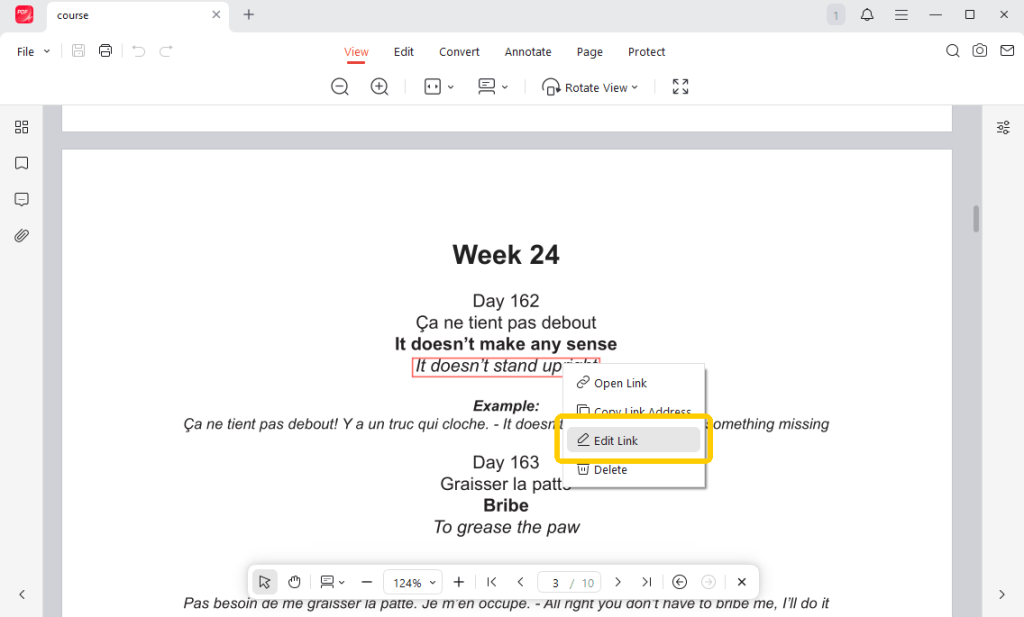
- Now, you can enter the new URL, change the border color, choose a solid or dashed line style, and make the line thicker or thinner.
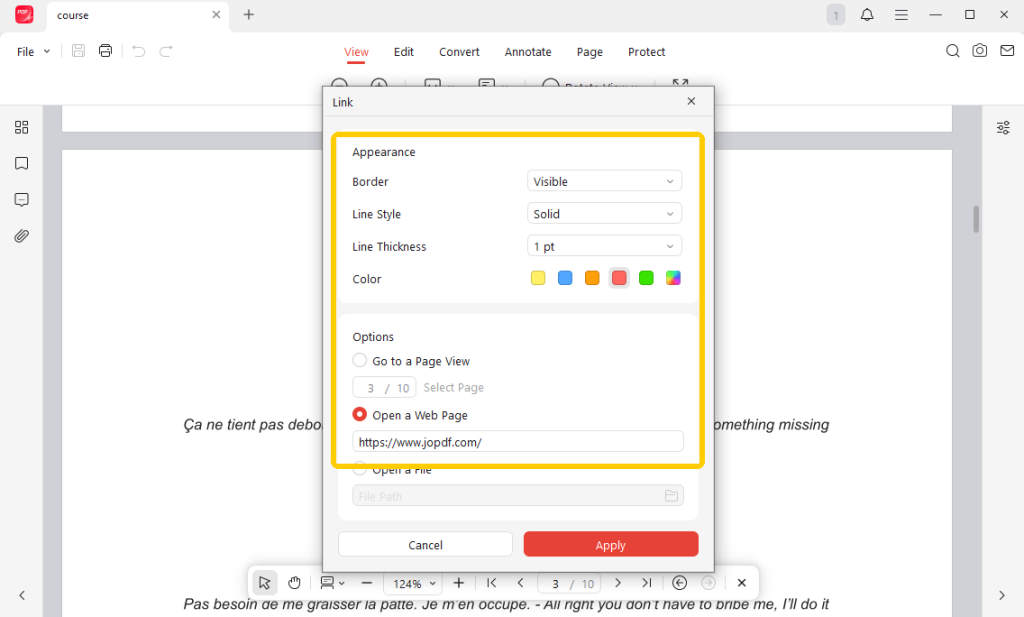
- Click Apply and save the changes.
Because it offers so many great features at no cost, JOPDF is a fantastic alternative to Adobe Acrobat.
You can use it to add new text, merge two documents together, or split one large document into smaller pieces. If you want an easy way to manage your files, you should try JOPDF today!
2. Edit a Link in a PDF with Adobe Acrobat
Many people ask how to change a link in a PDF using Adobe Acrobat. It works very well, but there is a catch. It is not free. You have to pay a monthly fee to use it.
If you already have a paid subscription to Adobe Acrobat, changing a web address is very easy. The steps are simple to follow.
Here is how you do it:
- Open your PDF document inside the Adobe Acrobat program.
- Look on the right side of the screen. Click on the button that says Edit PDF.
- Look at the top menu bar. Click on the word Link. A drop-down menu will appear. Choose the option that says Add/Edit Web or Document Link.
- Find the hyperlink on your page. Double-click it. A box called Link Properties will open. Click on the “Actions” tab. Select the old web address and click Edit. Type your new URL and click OK.
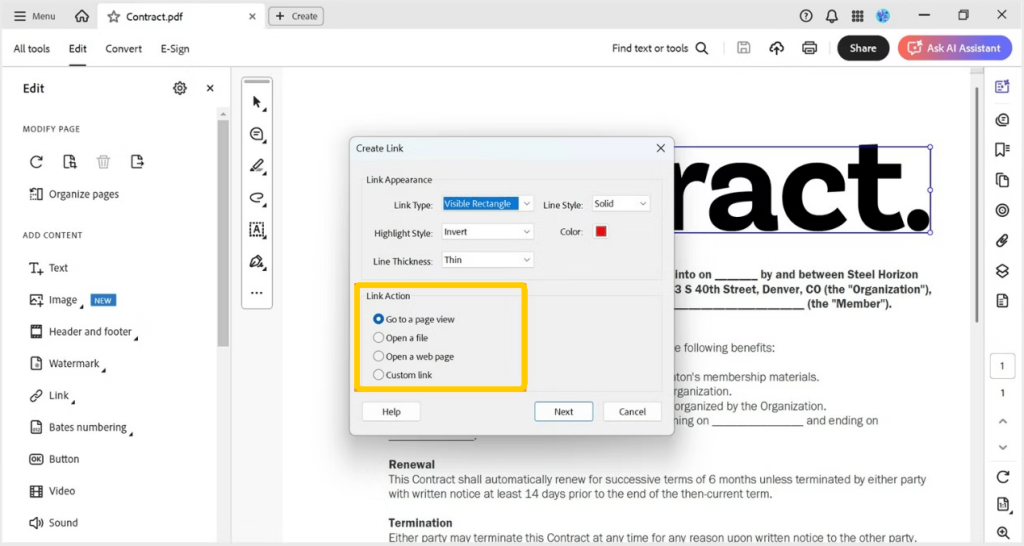
- Go to the top left corner. Click File and then choose Save. Your new link is now ready to use.
3. Edit a Link in a PDF Online with Sejda
Sometimes, you might be using a friend’s computer. Or, maybe you just do not want to download any new software. In that case, you can edit a link in a PDF online for free.
One of the best websites for this is called Sejda. Sejda works directly inside your web browser. You do not have to install anything. It works on both Mac and Windows computers. It is very fast and very simple.
Here are the steps to use Sejda online:
- Open your web browser and go to the Sejda PDF Editor website.
- Click the big button that says Upload PDF file. Choose the document from your computer. The file will load right on your screen.
- Click on the old hyperlink in your document. A small box will appear. Delete the old web address. Type your new URL into the box.
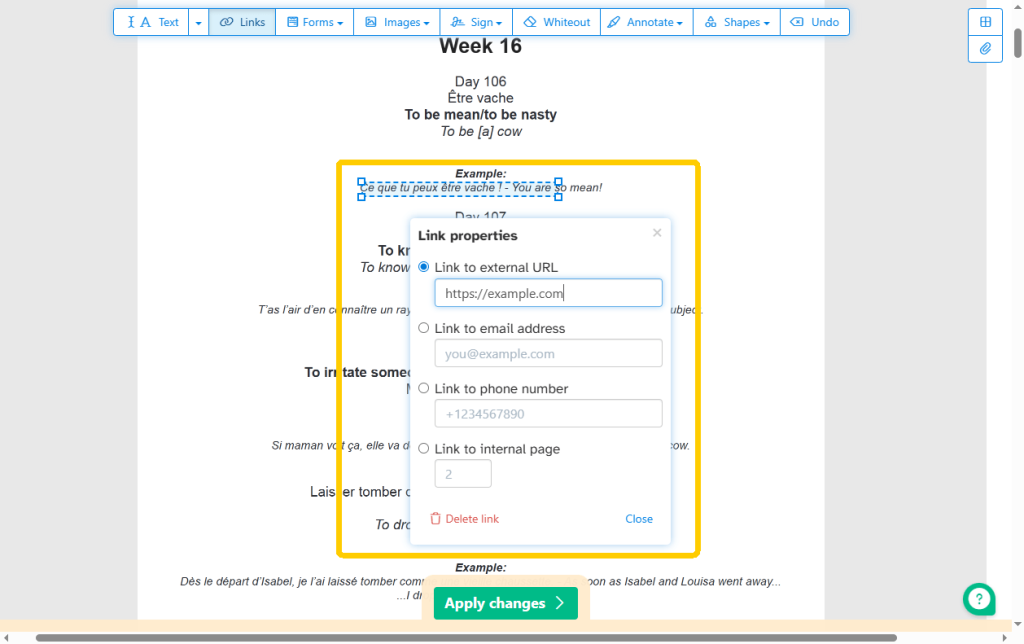
- Look at the bottom of the screen. Click the green button that says Apply Changes. The website will process your file.
- Finally, click Download to save the fixed document back to your computer.
While online tools are very handy, they do have some limits. For example, free online editors often have file size limits. If your document has too many pages or is too large, the website might ask you to pay. They might also limit how many files you can edit in one hour.
Conclusion
That’s all about how to edit a link in a PDF; it’s very simple once you have the right tools.
- If you want the most powerful and free desktop software, JOPDF is the best choice. It lets you change URLs and easily adjust how the borders and lines look.
- Adobe Acrobat is great if you already pay for a professional subscription.
- Finally, if you want a quick fix without downloading anything, Sejda is a wonderful online option.
Choose the tool that best fits your needs!
FAQs
Table of Contents

Your Best Free PDF Expert in PDF editing, compressing, converting, annotating, protect, organizing, and more.
Free DownloadWindows · macOS · Linux

Queena
Editor
“As a staff editor for JOPDF, Queena excels at guiding users to the optimal tools and solutions. When she's not analyzing the latest PDF solutions, she enjoys spending her free time playing with her four cats.”