Introduction:
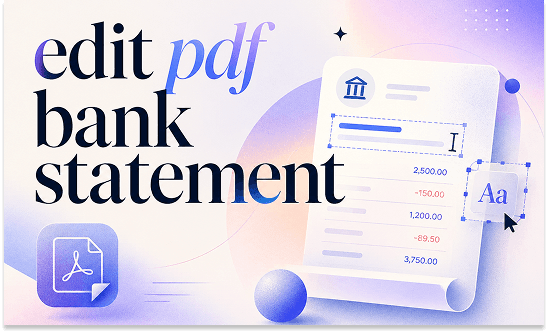
Whether you are doing your taxes or organizing a monthly budget, you might need to safely edit a bank statement PDF file. This guide will show you the best ways to do this. We will look at computer programs you can download and websites you can use in your browser.
Edit Bank Statement PDF File Offline
When editing a PDF bank statement, safety is the top priority. Your bank files contain very private information. Using a program that stays on your computer is often the safest choice.
This way, your bank details never travel over the internet to a random website. Let’s see two recommended offline bank statement PDF editors.
Tool 1. JOPDF
JOPDF is a very powerful program that is widely considered the best free PDF editor for people who want professional tools without paying a high price.
Key Features:
✅ JOPDF is completely free. It has many functions that usually cost a lot of money.
✅ You can edit text in the PDF just like you are using a normal word program.
✅ You can also erase numbers you don’t want people to see.
✅ It even lets you merge many months of statements into one single file.
⭐ Best For: Everyday users and freelancers who want to keep their data private and need a powerful tool for $0.
How to Edit Bank Statement PDF File for Free with JOPDF:
- Download JOPDF and install it.
- Open your bank statement with JOPDF.
- Click the Edit tab at the top of the screen.
- Select Edit Text to fix numbers or words.
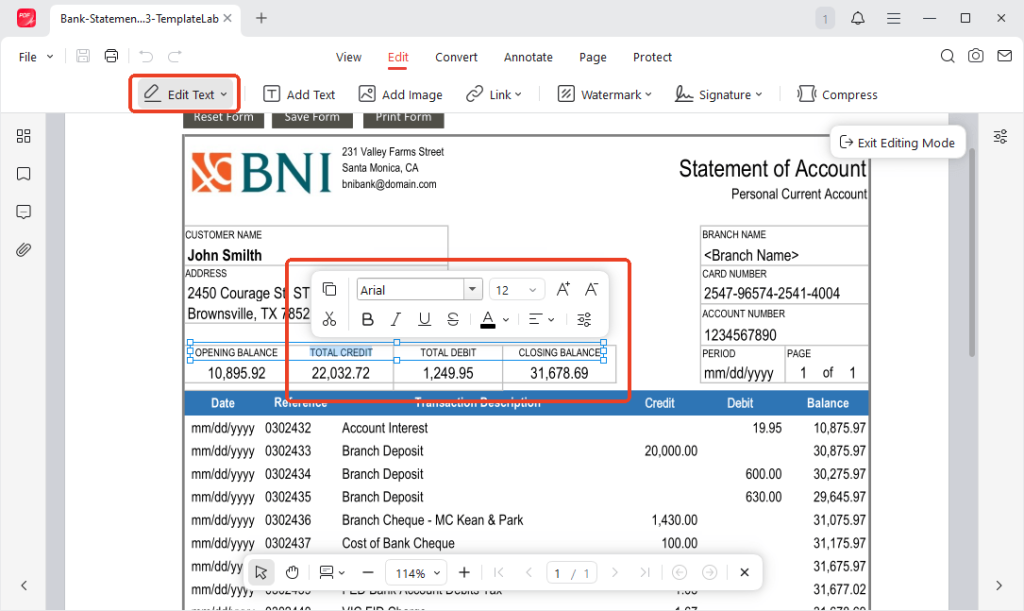
- If needed, you can add new text, highlight content, or draw anything.
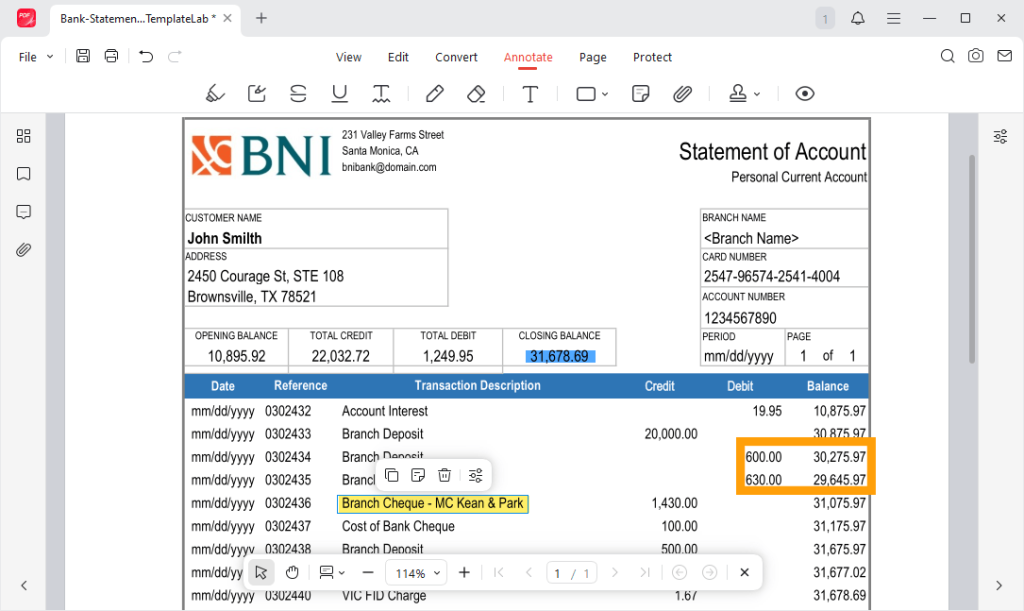
- Finally, save the new file to your computer.
As you can see, JOPDF is easy to use and is completely free. Give it a try to make things easy!
Tool 2. Adobe Acrobat Pro
Adobe Acrobat is the most famous PDF program in the world. Most big offices use it. It is very strong, but it is not free. You have to pay a monthly fee to use it. If you want a free bank statement PDF editor, please try JOPDF.
Key Features:
✅ It allows you to make perfect changes to text and images.
✅ It also has very strong security tools. If you have a statement that you scanned from a piece of paper, Adobe can turn that picture back into real words you can type on.
⭐ Best For:
People who work in big offices or accounting firms where the company pays for the software.
How to Use Adobe Acrobat Pro:
- Open your statement in Adobe.
- Click Edit a PDF on the right side of the screen.
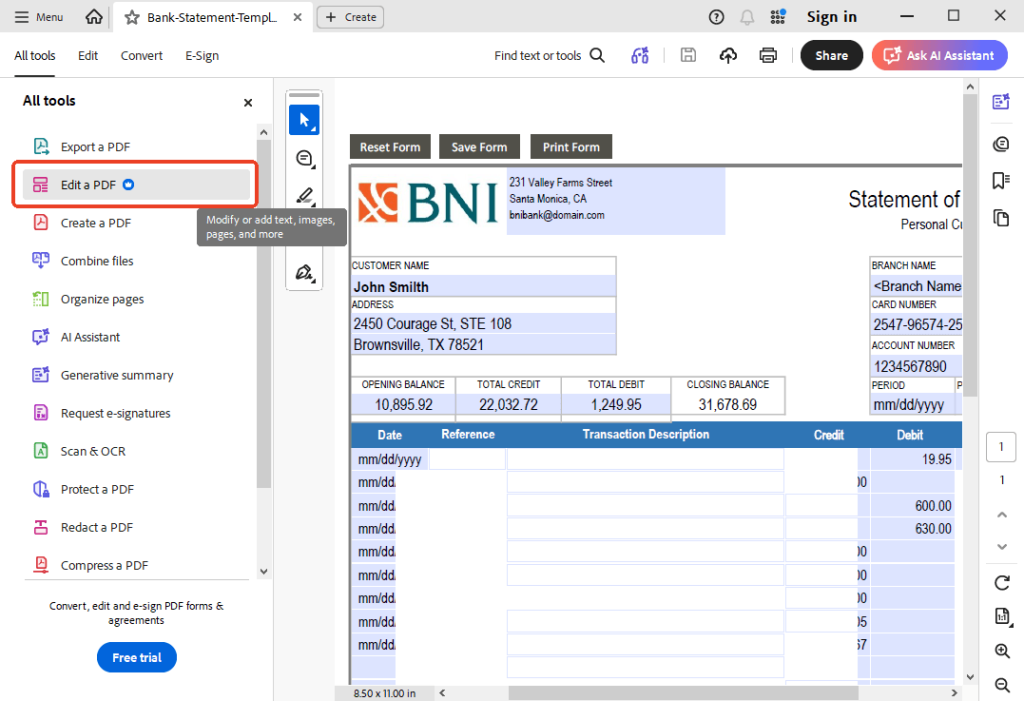
- Click on the text you want to change and start typing.
- You can also leave a comment or add anything else.
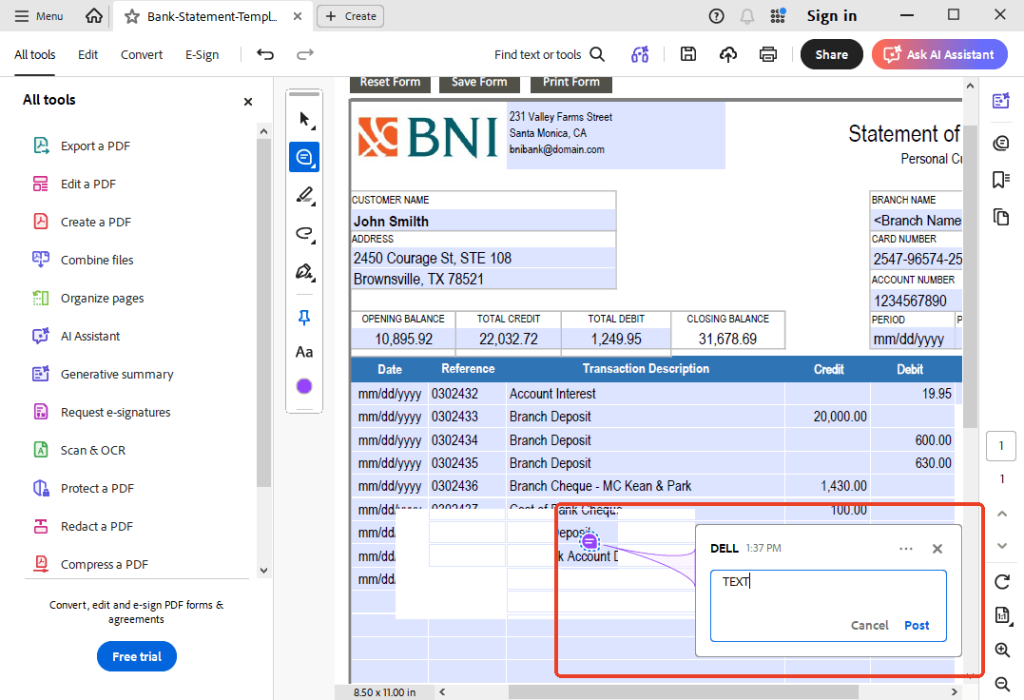
- Save your work when you are finished.
Edit Bank Statement PDF File Online
If you are in a rush and don’t want to install new software, you can use a website. This allows you to edit a bank statement PDF file online for free. Just remember that you are uploading your file to the internet, so make sure you use a trusted site.
Tool 1. pdfFiller
This is a very helpful website for managing documents in your web browser. It is built to help people fill out forms and sign papers.
Key Features:
✅ It is very easy to add new text boxes or your own signature.
✅ It also has a built-in PDF highlighter so you can mark important transactions.
✅ One of the best parts is that it lets you electronically sign a PDF in just a few seconds.
⭐ Best For: Users who need to fill out a financial form or sign a document to send back to their bank or accountant.
How to Use pdfFiller:
- Go to the pdfFiller website (https://edit-pdf.pdffiller.com/).
- Upload your statement from your computer and click Start editing.
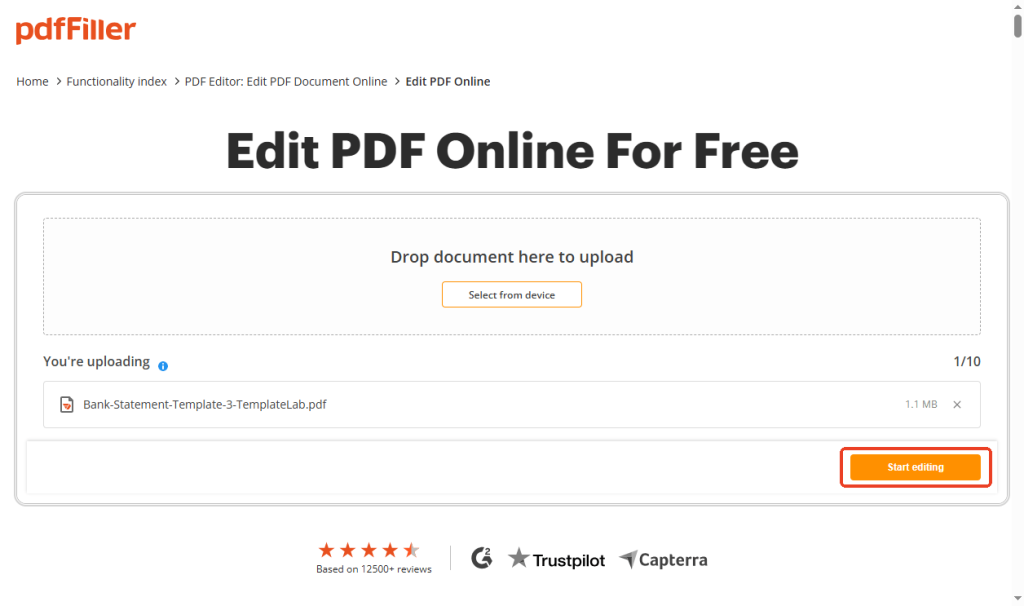
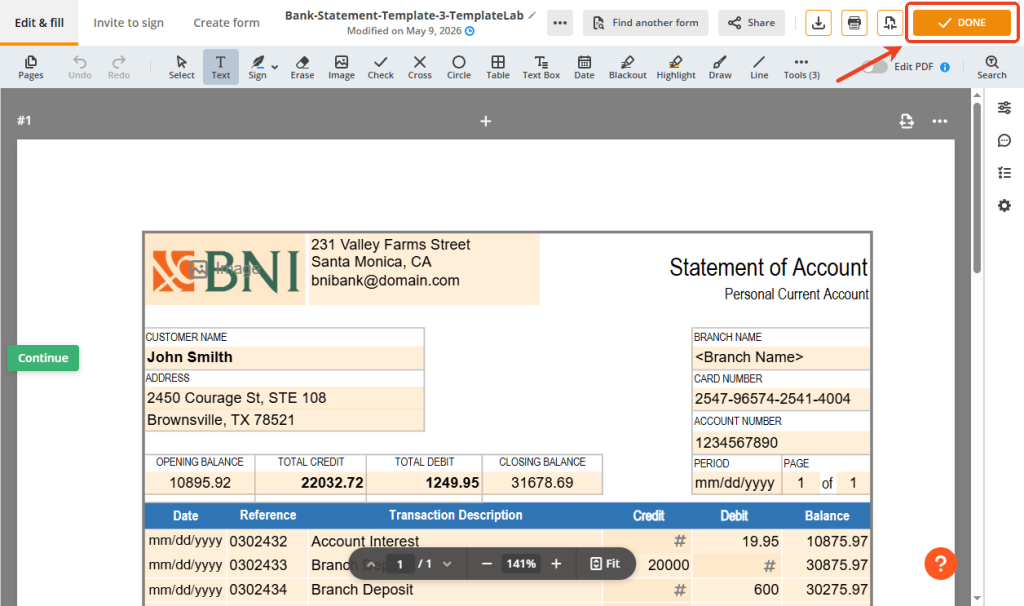
- Use the tools at the top to add text or highlights.
- Click DONE and download your edited file.
Tool 2. Smallpdf
Smallpdf is a very popular and simple website. It is very “lightweight,” which means it runs quickly even on older computers or mobile phones.
Key Features:
✅ It has a very clean look.
✅ It is very basic but works very well for quick changes.
✅ You can add text, draw shapes, or highlight important rows of numbers.
⭐ Best For: People using a phone or a borrowed computer who just need to highlight a few things quickly.
How to Use Smallpdf:
- Go to the Smallpdf “Edit PDF” page: https://smallpdf.com/edit-pdf.
- Drag your bank statement into the big blue box on the screen.
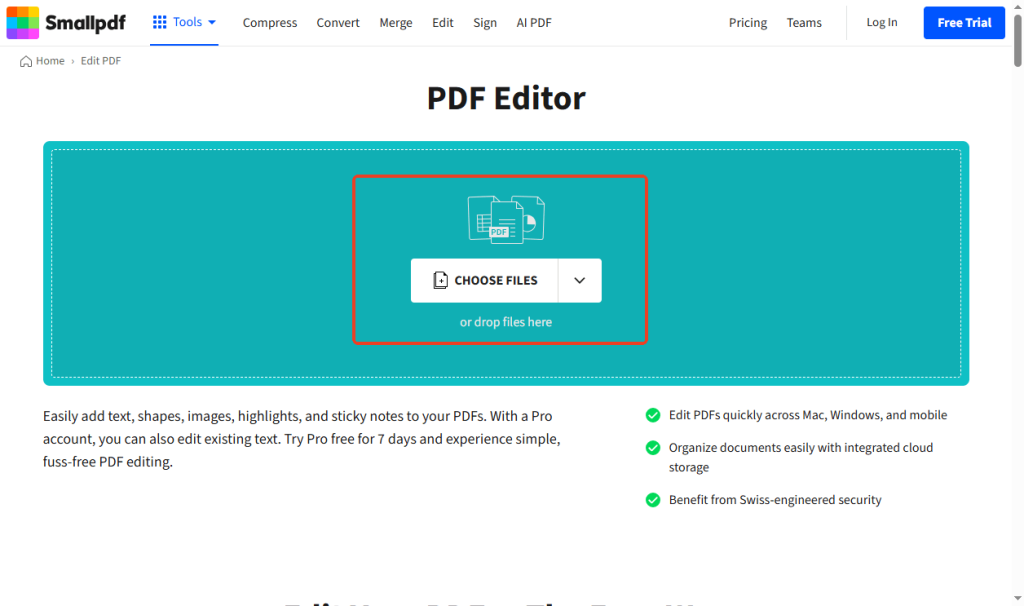
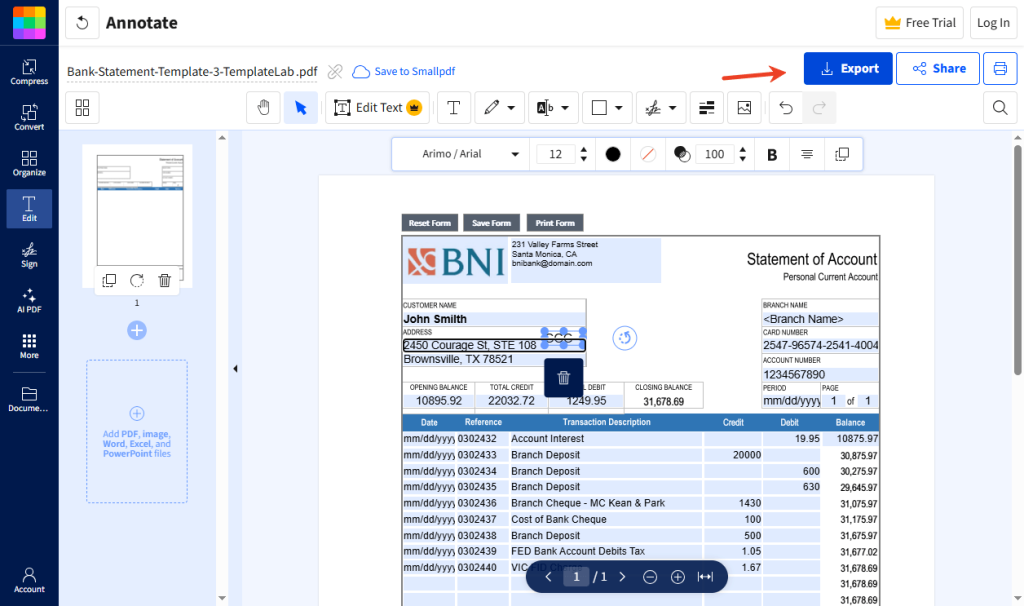
- Use the “Text” tool to add new words or the “Highlighter” to mark your spending.
- Click Export button to save the file back to your device.
Troubleshooting: Why Can’t I Edit My Bank Statement PDF File?
Sometimes you open a file and realize you can’t click on anything. What’s going on? Check to learn the details. Here is even when things go wrong.
Problem 1: The File has a Password
Banks almost always lock their files. They use passwords like your birth date or part of your Social Security number. If a file is locked, the “Edit” buttons will not work.
The Solution: You must unlock it first. Open the file in a tool like JOPDF and type the bank’s password. Then, go to the “Decrypt” tab to remove the permission. Save it as a new file. Now you can edit it.

Problem 2: It is a Scanned Picture
If you took a picture of a paper statement with your phone, the computer thinks the PDF is just a photograph. You cannot type on a photograph.
The Solution: You need a tool with “OCR.” OCR stands for “Optical Character Recognition.” It is a technology that “reads” the picture and turns it back into real letters. Adobe has this feature. You can also use an online OCR tool.
Problem 3: Read-Only Rules
This file might be set to “read-only” mode. This setting is intended to prevent people from making mistakes or altering the data.
Solution: Usually, you can solve this problem by using the Print as PDF method. Open the file in your web browser, click Print, and then select Save as PDF as the printer option. This will generate a new copy that you can usually edit.
Conclusion
That’s all about how to edit a bank statement PDF file. Editing your financial files does not have to be a headache. You can choose the right tool according to your needs.
If you want to make quick notes on your phone, online tools are great. However, if you want to keep your financial details private and secure, using an offline program like JOPDF is much better. It is the best way to get all the professional tools you need for free while keeping your bank information right on your own computer.
FAQs
Table of Contents

Your Best Free PDF Expert in PDF editing, compressing, converting, annotating, protect, organizing, and more.
Free DownloadWindows · macOS · Linux

Queena
Editor
“As a staff editor for JOPDF, Queena excels at guiding users to the optimal tools and solutions. When she's not analyzing the latest PDF solutions, she enjoys spending her free time playing with her four cats.”