Introduction :
Though PDF files are excellent for preserving formatting, sometimes, you need image files for presentations, social media, or document sharing instead. How to convert PDF to JPG on Mac? You’re in the right place! In the JOPDF tutorial, you’ll learn effective methods to convert PDF to JPG with macOS’s built-in and third-party tools.
Why Convert PDF to JPG on Mac
Before jumping into the specific methods, it helps to understand why you need to convert PDFs to JPG images on a Mac. Here, I have rounded up several benefits.
- JPG has better compatibility for web use, allowing images to be uploaded to websites or social media.
- Share individual PDF pages quickly without requiring PDF viewers.
- Insert document pages into presentations or design projects.
- Extract high-resolution visuals from multi-page files.
All in all, JPG is one of the most widely supported image formats, making it ideal for everyday use. Now, let’s check out the 4 methods below to convert PDF to JPG on Mac effortlessly.
Method 1. Convert PDF to JPG Using Preview on Mac
Fortunately, Mac users benefit from the native tool, Preview, for basic conversion. This program is preinstalled on every Mac and can handle basic PDF-to-JPG conversions without extra software. How to convert PDF to JPG in Preview on Mac? Just refer to the guidance below:
Step 1. Locate your target PDF file and open it with Preview on your Mac.
Step 2. If this PDF file has multiple pages, navigate to the page you want to convert to JPG and click the Export option from the File list.
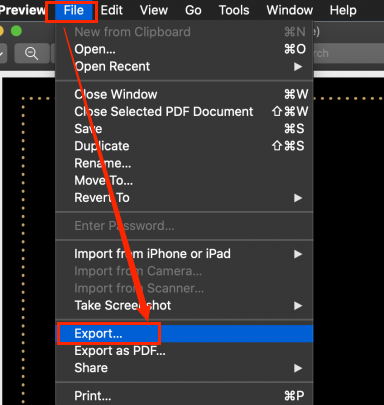
Step 3. Then, open the Format dropdown and choose JPEG. Meanwhile, adjust the image quality and resolution as needed.
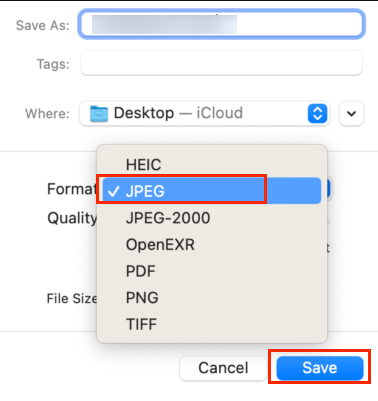
Step 4. Finally, name the JPG image, choose a save location, and click Save.
Pros of Preview:
- Pre-installed on Mac and is completely free
- Easy to use for beginners
- Without installation required
- Handle single-page fast
Cons of Preview:
- Convert one page at a time
- Limited batch conversion options
- Not ideal for handling complex PDF files
Method 2. Use a Dedicated PDF Converter for Better Quality
If you frequently work with PDFs or need batch conversion, a dedicated PDF tool can save significant time. Here are many reliable PDF-to-JPG converters, both free and paid, for you to choose from. Below are some good choices.
- JOPDF
- SwifDoo PDF
- Adobe Acrobat Pro
- Wondershare PDFelement
- Foxit PDF Editor
- Nitro PDF
- PDF24 Creator
Instead of choosing a paid converter, the free one can be your first choice. JOPDF is one of the best free PDF converters for Mac, supporting the conversion of PDF pages to JPG images while maintaining image clarity and formatting.
In addition, JOPDF supports batch processing to handle multiple PDFs at once. Furthermore, it enables you to handle multi-page documents and large PDF files. If you need, it can help you convert JPG to PDF on Mac. You can use JOPDF to convert PDFs to JPGs without Adobe Acrobat.
How to Convert PDF to JPG on Mac for Free
How to convert PDF to JPG on Mac for free? Consider JOPDF. Below are the detailed instructions for your reference.
Step 1. Click the button below to download and install this PDF to JPG converter for Mac. Then, launch it.
Step 2. Open your PDF in JOPDF and go to Convert to select “To Image”.
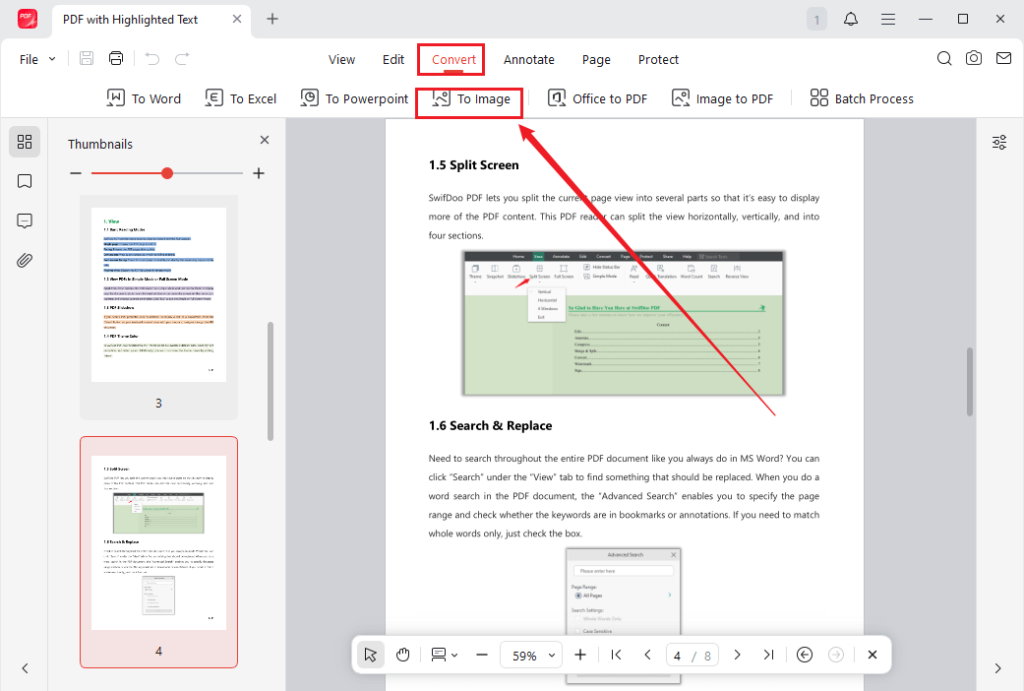
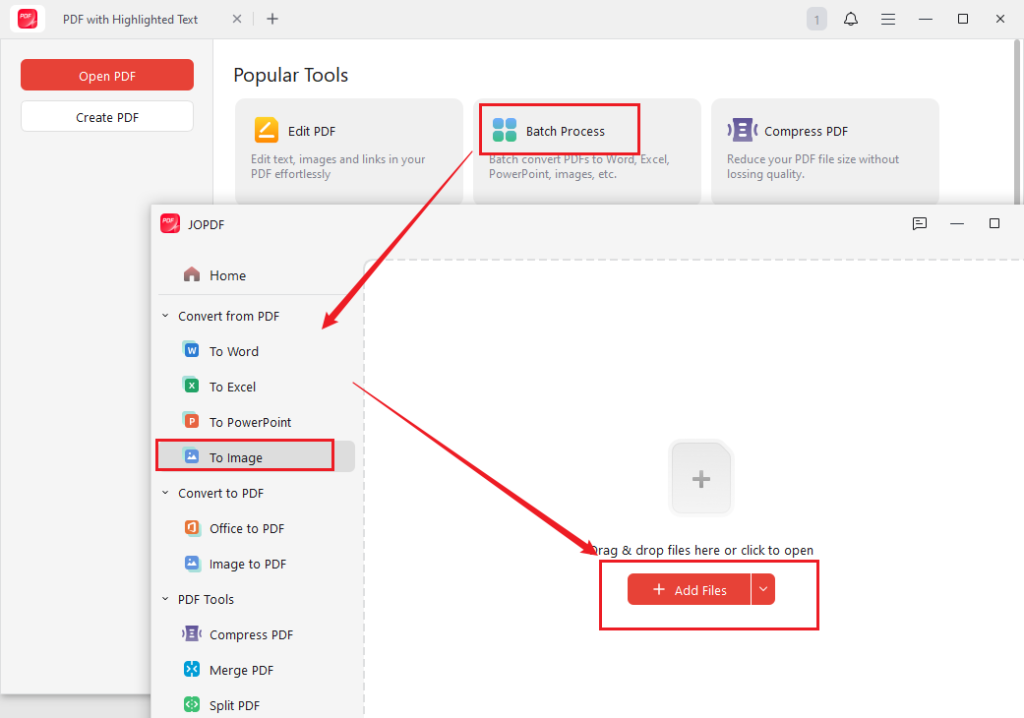
Alternatively, if you want to convert multiple PDFs at once, click Batch Process and select PDF to Image after launching JOPDF. Then, click Add Files to upload the PDFs you want to convert.
Step 3. Open the Format list and select JPG. Meanwhile, you can open the Quality list and set the image quality as needed. Then, select the “Each Page as An Image” option from the Method list. If you need, you can customize the Page Range.
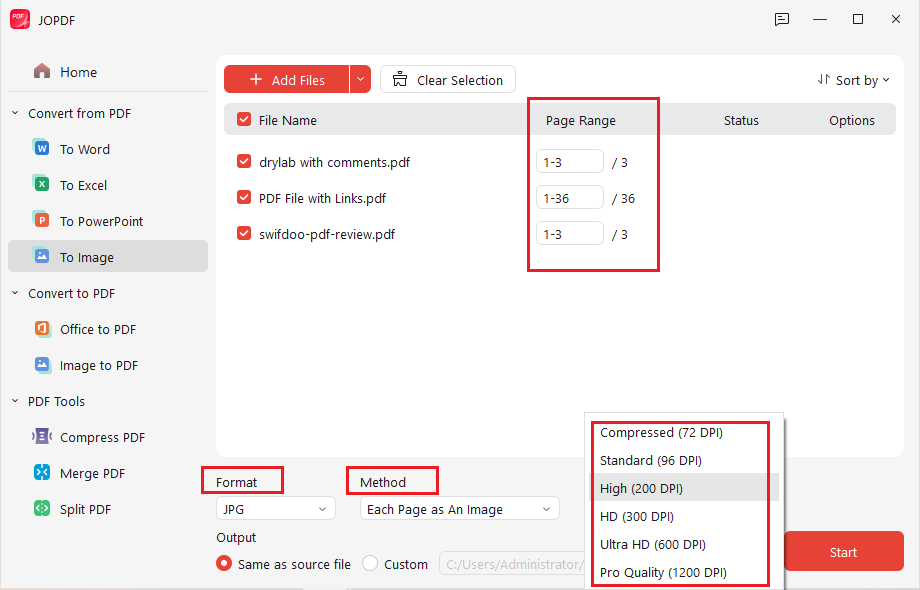
Step 4. Select the saving path and click Start.
Why Choose Dedicated PDF Software?
Compared with Preview, dedicated PDF converters usually offer more benefits:
- Batch PDF-to-JPG conversion
- Higher-resolution exports
- Faster processing
- Better image optimization
- More output format choices
- OCR and editing features in some PDF tools
Beyond working as a PDF converter, JOPDF is a free PDF editor. Before converting PDFs to JPGs, you can modify and improve the PDF files. What PDF editing features can you enjoy? Just as follows:
- Edit PDF text and add text boxes to a PDF
- Type or draw on a PDF
- Highlight important information or add underlines
- Add electronic signatures to a PDF
- Resize and edit images in a PDF
- Merge PDF files
Method 3. Convert PDF to JPG on Mac with Online Tools
If you don’t want to install software, online converters are another choice, except for Preview. Which online PDF converter should you choose? Below are some reliable, safe choices:
- Adobe Acrobat Online PDF Converter
- SwifDoo PDF Online Converter
- Smallpdf
- iLovePDF
- FreeConvert
- CloudConvert
- PDF Candy
Smallpdf is an all-in-one online PDF platform that includes editing, converting, organizing, and protecting PDFs. In addition to supporting converting PDF to JPG, it allows conversions for PDF to PPT, PDF to Excel, JPG to PDF, HTML to PDF, and more. How to convert PDF to JPG online for free? Try Smallpdf. Here’s a guide for you.
Step 1. Open your browser and visit Smallpdf’s PDF to JPG website.
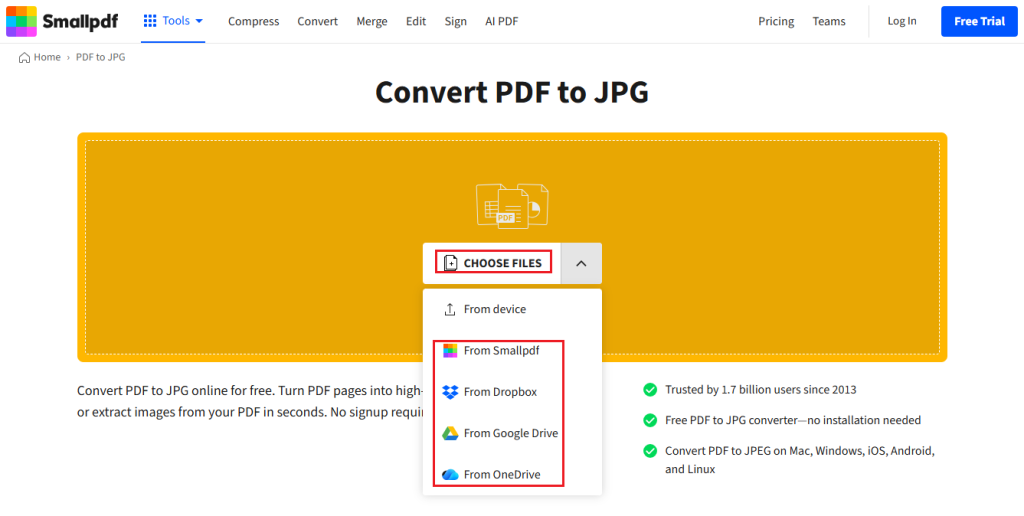
Step 2. Hit CHOOSE FILES to upload your PDF from your device. Or you can upload files from OneDrive, Google Drive, or Dropbox.
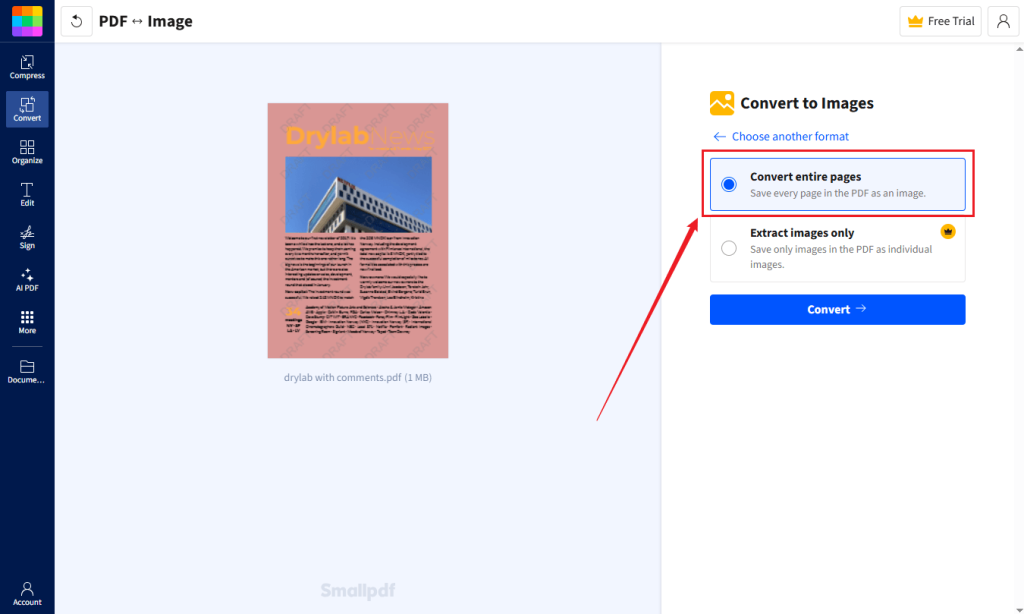
Step 3. Select the “Convert entire pages” option and click Convert. When the process is over, you can click the download icon next to each page. Or, click the Download button to save all JPG images.
Pros of Online Converters:
- No installation required
- Work on almost any device
- Simple and user-friendly interface
Cons of Online Converters:
- Require a stable Internet connection
- Upload speed may vary
- Some online tools limit free conversions
Method 4. Use Automator for Batch PDF to JPG Conversion on Mac
In addition to Preview, macOS includes a built-in tool, Automator, for converting PDFs. Better than Preview, Automator lets you create custom workflows to convert multiple PDFs to JPGs. How to do that? Follow the tutorial below:
Step 1. Open Automator from Spotlight and create a new workflow or Quick Action.
Step 2. Then, add the “Render PDF Pages as Images” or “Change Type of Images” option.
Step 3. Next, set the output format to JPEG and adjust the quality.
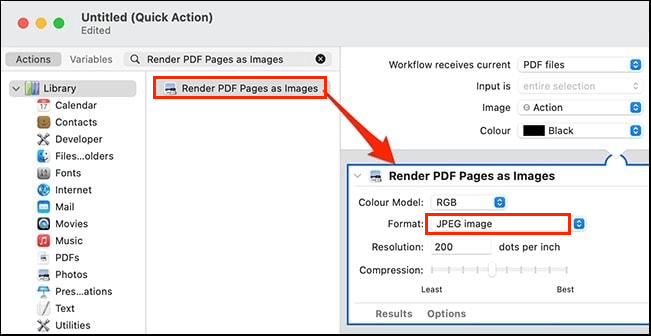
Step 4. Finally, save the workflow and run it via the Finder right-click menu.
Pros:
- Great for repetitive tasks
- No third-party installation
- Built into macOS
Cons:
- Less intuitive for beginners
- Has a slight learning curve
PDF to JPG on Mac: Which Method Is Best
Which PDF converter is the best for Mac users to convert PDF to JPG? Here’s a quick comparison of the available options mentioned above.
| Method | Best For | Ease of Use | Batch Conversion | Quality |
| Preview | Quick single-page exports | Very Easy | No | Good |
| JOPDF | Frequent conversions | Easy | Yes | Excellent |
| Online Tools | Occasional use | Very Easy | Limited | Good |
| Automator | Automation workflows | Intermediate | Yes | Good |
Final Thoughts
Learning how to convert PDF to JPG on Mac is useful for students, professionals, designers, and everyday users alike. Whether you prefer built-in macOS tools like Preview or more advanced PDF software like JOPDF, there is a solution for every workflow. For batch processing and high-quality export options, try JOPDF. I hope this article is helpful to you. By choosing the right tool, you can quickly turn PDF pages into shareable JPG images effortlessly.
FAQs
Table of Contents

Your Best Free PDF Expert in PDF editing, compressing, converting, annotating, protect, organizing, and more.
Free DownloadWindows · macOS · Linux

Olivia
“Olivia is an editor at JOPDF, where she writes practical guides and insightful articles on managing PDFs—covering topics like editing, annotating, converting, and organizing files efficiently. Passionate about clear communication and digital productivity, Olivia enjoys spending her free time cooking, watching movies, and hiking to unwind and find inspiration for her writing.”