Introduction :
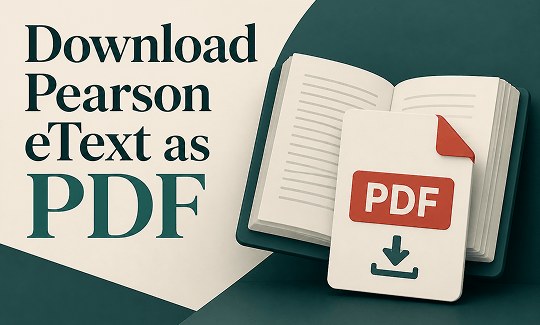
Are you searching for ways to download Pearson eText as PDF when you need offline access, easier annotation, or a portable version of the textbook? If so, you are in the right place. In this JOPDF article, we’ll discuss “Can you save Pearson eText as a PDF?” and introduce official offline access and alternative ways to save Pearson eText as a PDF.
What Is Pearson eText
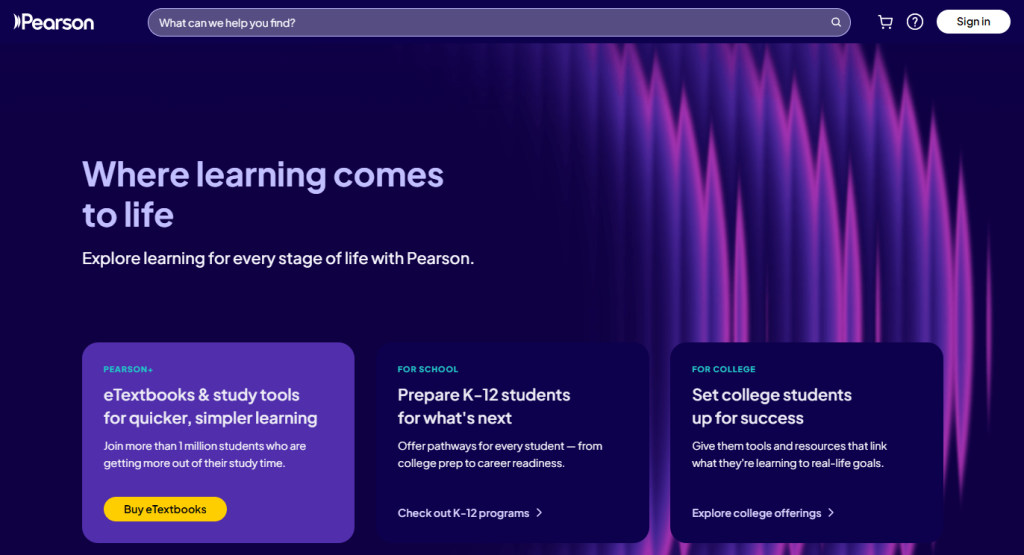
Pearson eText is Pearson Education’s digital textbook platform used widely in schools, colleges, and online learning programs. Unlike PDFs, Pearson eText books are not static files, which are delivered through a cloud-based reading system. All in all, Pearson eText is not a file, but a content delivery system. Hence, they can only be loaded from Pearson servers if you need to access them.
Key characteristics of Pearson eText:
- Cloud-based textbook access through a licensed account
- Interactive reading tools like highlighting, notes, and bookmarks
- Embedded multimedia (in selected textbooks)
- Chapter-based navigation and search
- Progress tracking for learners
- DRM-protected content delivery
Can You Download Pearson eText as a PDF
The short and definitive answer is: No, Pearson doesn’t officially support downloading textbooks as PDF files. Pearson eText is designed as a licensed reading experience rather than as a downloadable document.
Quick Answer Table
| Question | Answer |
| Can you download Pearson eText as PDF? | ❌ No |
| Can you read offline? | ✅ Yes (via app downloads) |
| Can you export the full textbook? | ❌ No |
| Can you print pages? | ⚠️ Sometimes (depends on the license) |
| Is Pearson eText DRM-protected? | ✅ Yes |
Why PDF Downloads Are Not Available
There are several reasons Pearson restricts PDF export:
- Licensing model: Pearson eText is not sold as a file. It is licensed access to content for a limited duration.
- DRM protection: Prevents unauthorized copying and distribution.
- Interactive design: Some textbooks include interactive elements that cannot be preserved in static PDF format.
- Publisher agreements: Pearson must comply with textbook publishers’ restrictions, which often prohibit file exports.
Official Way to Download Pearson eText for Offline Reading
Although PDF export is not available, Pearson does offer an official offline reading mode through its apps. This is the only legitimate way to access Pearson eText content without internet access. Let’s see how to do it.
Using the Pearson eText App
The Pearson eText app is the primary solution for offline study. You can refer to the steps below to download Pearson eText for offline reading.
- Install the Pearson eText app on your device and then sign in with your Pearson account credentials.
- Open your assigned or purchased textbook.
- If available, select the download or offline access option. Then, you can read the textbook without an internet connection.
Here, you also need to know that the downloaded content is still stored inside the Pearson eText app. It’s not exported as a PDF. Meanwhile, you cannot access or move the raw textbook data outside the app.
Browser-Based Access and Limitation
You can also access Pearson via your browser. When using Pearson eText in a browser:
- Content is streamed live from Pearson servers
- An internet connection is required for most features
- Offline reading is usually not supported
- Printing or exporting depends on permissions set by instructors or publishers
In most cases, the browser version is strictly online-only, which makes the app the only practical offline option.
Alternative Ways to Save Pearson eText as PDF
Since official PDF downloads are not available, you may need to explore alternative methods to download Pearson eText as PDF. These methods depend on system permissions and should always remain within legal and licensing boundaries.
Please ensure you only download or convert content that you have legally purchased or rented. Bypassing DRM or using third-party downloaders can violate Pearson’s terms of service and copyright laws.
Method 1. Print to PDF
Some Pearson textbooks allow limited printing functionality. When enabled, this is the closest method to generating a PDF.
Step 1. Open the chapter or section in Pearson and click the Print option.
Step 2. Select Microsoft Print to PDF (Windows) or Save as PDF ( Mac).
Step 3. Customize other printing settings as needed and save the output file at last.
Method 2. Screenshot Pearson eText and Convert to PDF
To save Pearson eText as a PDF, you can screenshot the content and compile the images into a PDF file. This method is quite workable when printing is restricted or when you save only selected content. To assemble screenshots into a PDF, JOPDF is a reliable tool.
JOPDF is one of the best free PDF converters, enabling you to convert PDFs to and from images, Word, Excel, and PPT. You can use it to turn a screenshot into a PDF efficiently. Additionally, JOPDF is a full-featured PDF editor that lets you customize Pearson content as needed. How to do that? Follow the instructions below:
Step 1. Open the Pearson eText you want to save as a PDF, use the built-in screen capture tool to screenshot multiple pages, and save them on your computer.
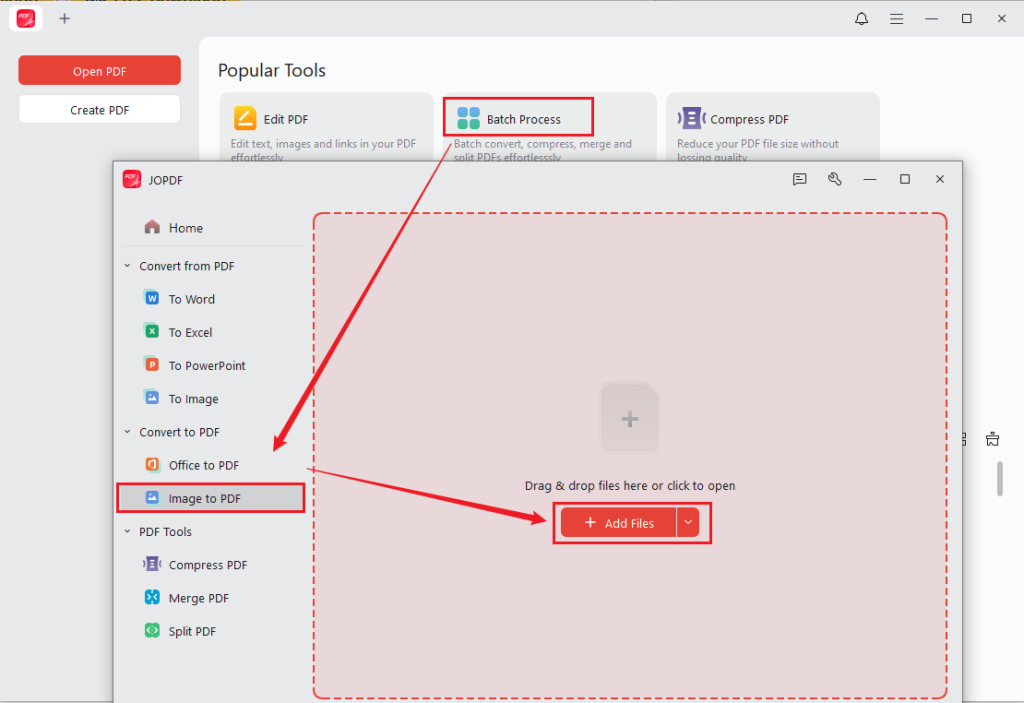
Step 2. Run JOPDF, click Batch Process, and select Image to PDF. Then, click Add Files to import the Pearson screenshots.
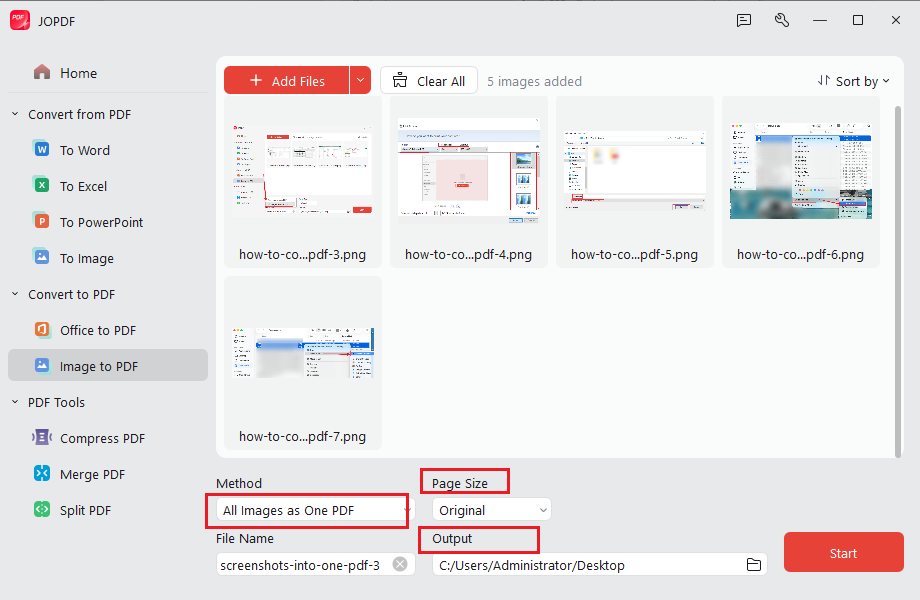
Step 3. Open Method and select All Images as One PDF. Meanwhile, set the Page Size and select the desired saving folder. Finally, click Start. Once the conversion is complete, you can also edit the PDF for free in JOPDF.
Final Words
Pearson is designed around licensed digital access rather than file-based distribution, which means downloading Pearson eText as a PDF is not officially supported. Fortunately, Pearson offers offline reading in its app ecosystem, allowing you to study without an internet connection. What’s more, if printing is enabled, you can create a PDF from the Pearson eText. Additionally, you can screenshot Pearson content and use JOPDF to combine them as a PDF for viewing and editing.
FAQs
Table of Contents

Your Best Free PDF Expert in PDF editing, compressing, converting, annotating, protect, organizing, and more.
Free DownloadWindows · macOS · Linux

Olivia
“Olivia is an editor at JOPDF, where she writes practical guides and insightful articles on managing PDFs—covering topics like editing, annotating, converting, and organizing files efficiently. Passionate about clear communication and digital productivity, Olivia enjoys spending her free time cooking, watching movies, and hiking to unwind and find inspiration for her writing.”